The official RemotePC download installs IDrive’s remote desktop app on Windows 11, Windows 10 and Mac, and a 7-day free trial starts without a credit card. Windows gets a Full-Suite, Host or Viewer build from remotepc.com, and Macs get a 102.2 MB DMG for macOS 10.13 or later.
RemotePC also runs on Linux, Raspberry Pi, iPhone, iPad and Android, so any of those devices can reach your computer.
This guide covers which build to take, installing and setting up Always-ON Remote Access, the Microsoft Store and MSI options, Mac permissions, plans and pricing, fixes for common errors, and a clean uninstall.
Which RemotePC download do you need?
Match your device and your role to a row. The computer you want to control needs the Host or Full-Suite; the device you control it from needs the Viewer or Full-Suite.
| Your device and goal | Take this | Size |
|---|---|---|
| Windows PC you control and control others from | RemotePC Full-Suite for Windows | Shown on remotepc.com |
| Windows PC you only want to reach remotely | RemotePC Host in the Microsoft Store | Microsoft Store |
| Windows PC you only connect from | RemotePC Viewer in the Microsoft Store | Microsoft Store |
| Many Windows PCs managed by IT | RemotePCViewer.msi | 1.3 MB |
| Mac on macOS 10.13 or later | RemotePCSuite.dmg | 102.2 MB |
| Linux or Raspberry Pi | Linux tab on the RemotePC download page | .deb or .rpm package |
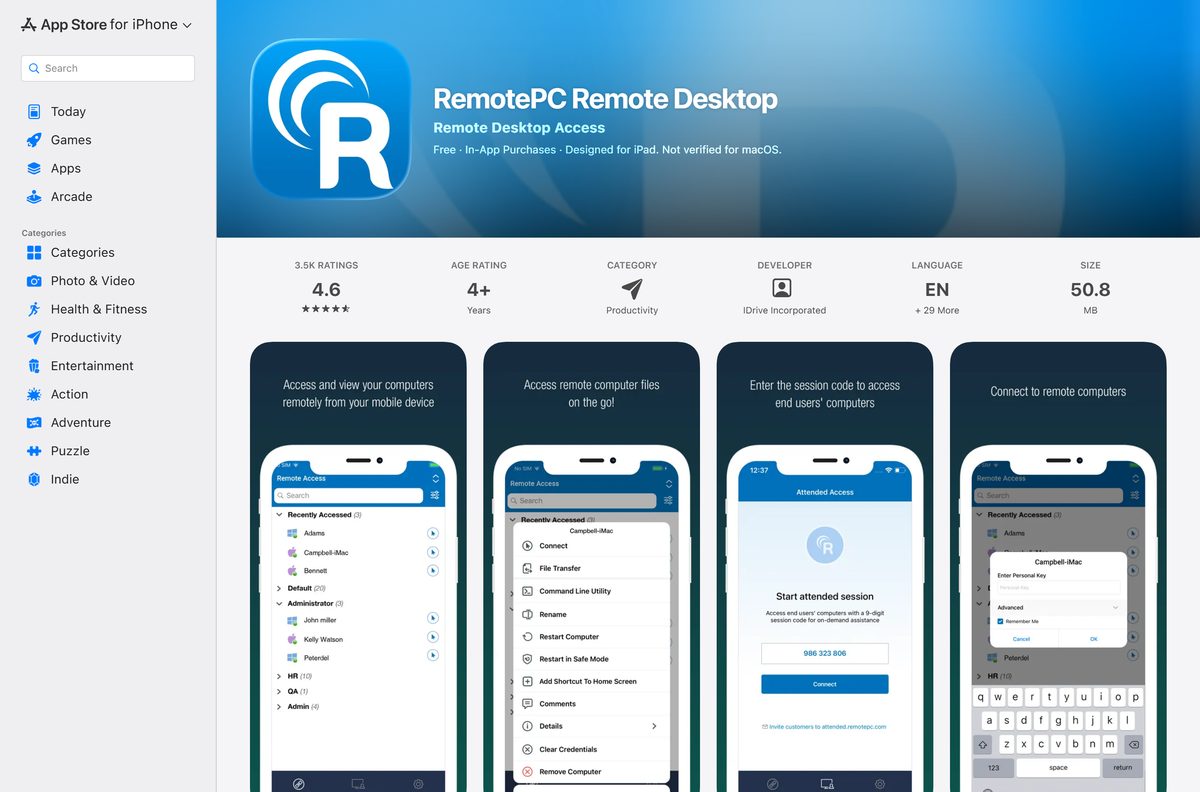
| iPhone or iPad on iOS 13.0 or later | RemotePC Remote Desktop on the App Store | 50.8 MB |
| Android 7.0 or later | RemotePC Viewer on Google Play | Listed in Google Play |
Pick the Full-Suite when unsure. It includes the Performance Viewer and both roles in one install.
Download RemotePC from the official links
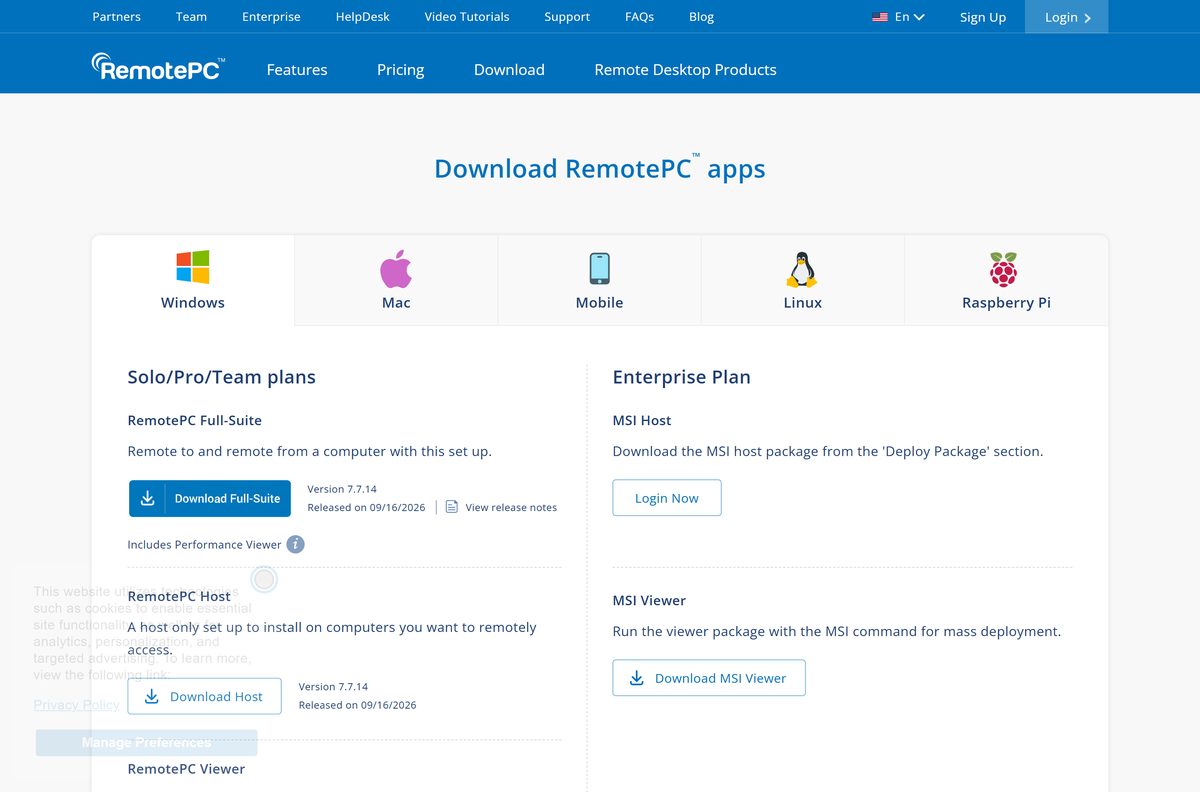
IDrive hosts every desktop build on remotepc.com. The Windows tab carries the Full-Suite, Host and Viewer buttons side by side.
- RemotePC for Windows (Full-Suite, Host or Viewer) — Windows 11, 10, 8.1 and 8
- RemotePC Full-Suite for Mac (DMG) — 102.2 MB · macOS 10.13 or later
- RemotePC Viewer MSI for Windows — 1.3 MB · mass deployment
- RemotePC Host for Android and Chromebook — Google Play
- RemotePC release notes — version history for Windows, Mac and Linux
How to install RemotePC on Windows 11 and 10
Setup installs the app, then sends you to the login screen. Configuring the PC makes it reachable from your other devices.
- Open the RemotePC download page and select Download windows application on the Windows tab.
- Open the file from your browser’s Downloads menu.
- Select Yes if User Account Control asks to allow changes, then finish setup.
- Log in with your RemotePC account, or sign in with Google, Microsoft or Apple to start a free trial.
- On the RemotePC home screen, select Configure Now!.
- Enter a Computer Name and, if you want one, a Personal Key.
- Select Enable Now!.
- Check that the PC now appears under Always-ON Remote Access.
The Personal Key is optional on Windows 7.6.95 and later. Set it anyway: it acts as a second password for each remote session.
Install RemotePC Host or Viewer from the Microsoft Store
IDrive lists the Host and the Viewer as two separate Microsoft Store apps. Use them when your PC only allows Store installs.
- Open the RemotePC Host or RemotePC Viewer Store link above.
- Select Get or Install.
- Select Open when the install finishes.
- Log in with your RemotePC account.
- On a Host install, select Configure Now!, name the computer and select Enable Now!.
Install RemotePC on many PCs with the MSI packages
The MSI packages are part of the Enterprise plan. The Viewer MSI downloads straight from remotepc.com; the Host MSI comes from your account.
| Package | Size | Where to get it | Starting command |
|---|---|---|---|
| RemotePCViewer.msi | 1.3 MB | RemotePC download page | msiexec /i RemotePCViewer.msi /qn |
| MSI Host | Shown in your account | Deploy Package section after you log in to an Enterprise account | Use the command shown in Deploy Package |
Test the silent install on one machine before you push it to the whole fleet.
Install RemotePC on a Mac and grant its permissions
The Mac DMG is a Full-Suite build for Intel and Apple silicon Macs up to the M4 series. macOS blocks remote control until you approve two permissions.
| Your Mac | Take this | Then allow |
|---|---|---|
| macOS 13 Ventura, 14 Sonoma or 15 Sequoia | RemotePCSuite.dmg (102.2 MB) | Privacy & Security > Accessibility and Screen & System Audio Recording: turn on RemotePCDesktop and RemotePCView |
| macOS 10.14 Mojave to 12 Monterey | RemotePCSuite.dmg (102.2 MB) | Security & Privacy > Privacy > Accessibility and Screen Recording: tick the RemotePC apps |
| Only need to control other computers from an iPad | RemotePC on the App Store | No Mac permissions needed |
The permission prompt appears the first time RemotePC runs. Approving both before you leave the Mac saves a trip back to it.
Is RemotePC free? Plans, prices and the free trial
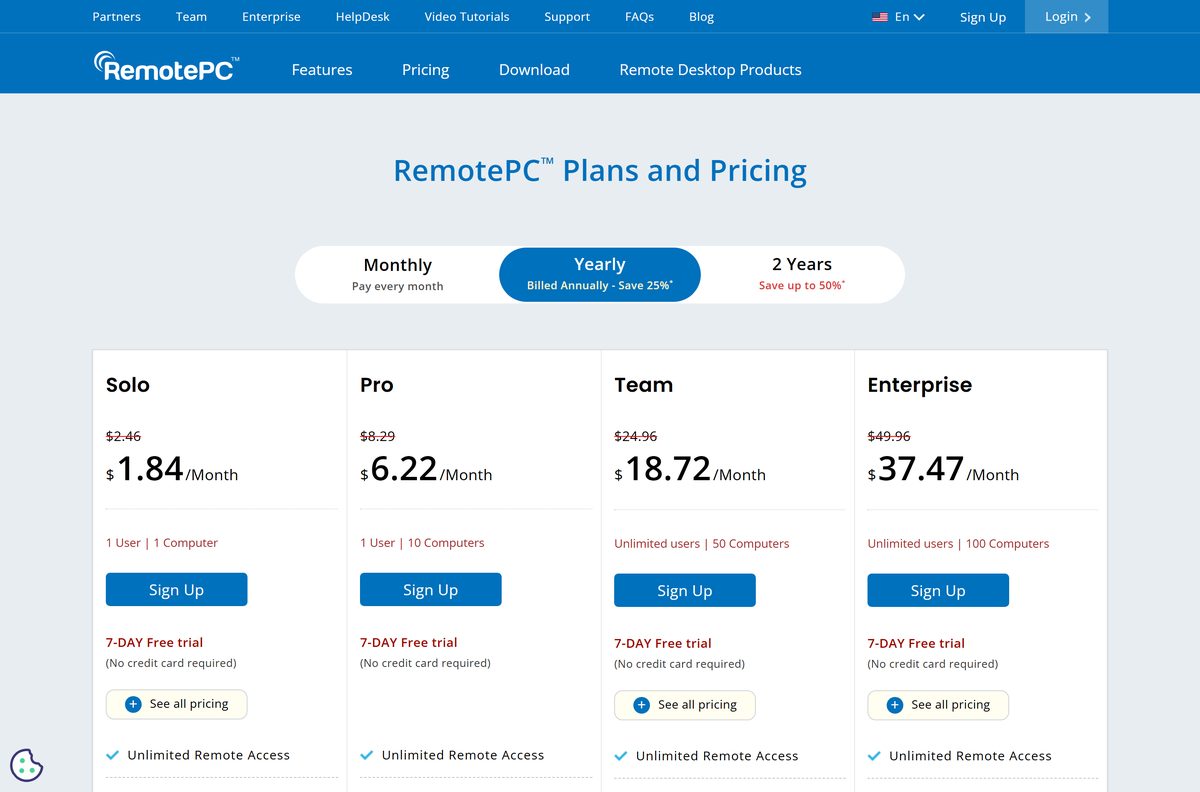
No. RemotePC is a paid subscription, but every plan starts with a 7-day free trial and needs no credit card. Signing in with a Google, Microsoft or Apple account for the first time creates the trial automatically.
Solo covers 1 user and 1 computer. Pro covers 1 user and 10 computers. Team gives unlimited users and 50 computers, and Enterprise gives unlimited users and 100 computers with SSO, grouping and deployment.
Yearly and 2-year billing carry a discount for the first year only; normal charges apply after that. Each extra computer above your plan costs $20 per year, and the RDP Connector add-on is $20 per computer per year.
Start the 7-day trial on the plan that matches your computer count, and pick Solo if you only need to reach one home or office PC. Every plan includes unlimited remote access, file transfer and remote printing; the tiers differ mainly in how many computers and users they cover.
Choose between RemotePC Full-Suite, Host and Viewer
All three Windows builds share the same version number. They differ only in which direction the connection runs.
Install the Full-Suite on your own computers, the Host on unattended PCs you only reach remotely, and the Viewer on shared or locked-down machines you connect from. The Host cannot open sessions to other computers and the Viewer cannot be reached remotely, so each is a smaller, single-purpose install.
How to check your RemotePC version and update it
IDrive ships Windows builds often, sometimes several in one month. Compare your copy with the release notes page.
- On a Mac, select the RemotePC icon in the menu bar.
- Select Check for updates and follow the prompt.
- On Windows, open the RemotePC release notes page and note the newest version for your platform.
- If your copy is older, download the current build from the RemotePC download page.
- Run it on each computer, since file transfer needs the latest app on both ends.
Check the RemotePC system requirements
RemotePC supports older systems than most remote desktop tools. Compare your devices with the table before you download.
| Specification | Detail |
|---|---|
| Software | RemotePC |
| Developer | IDrive Inc. |
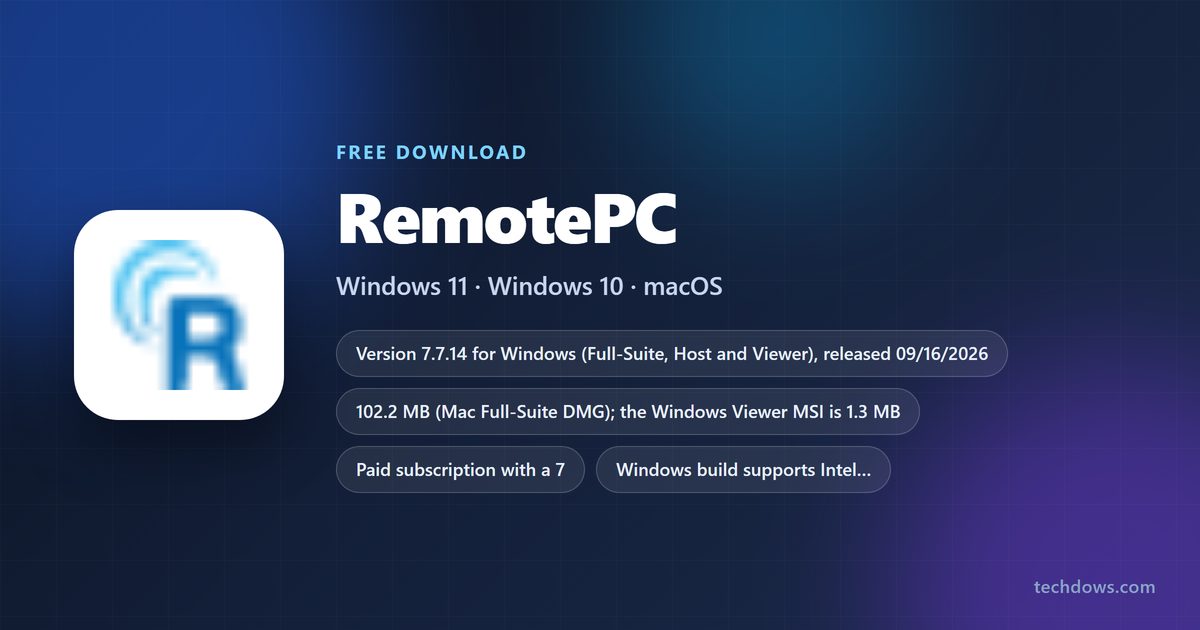
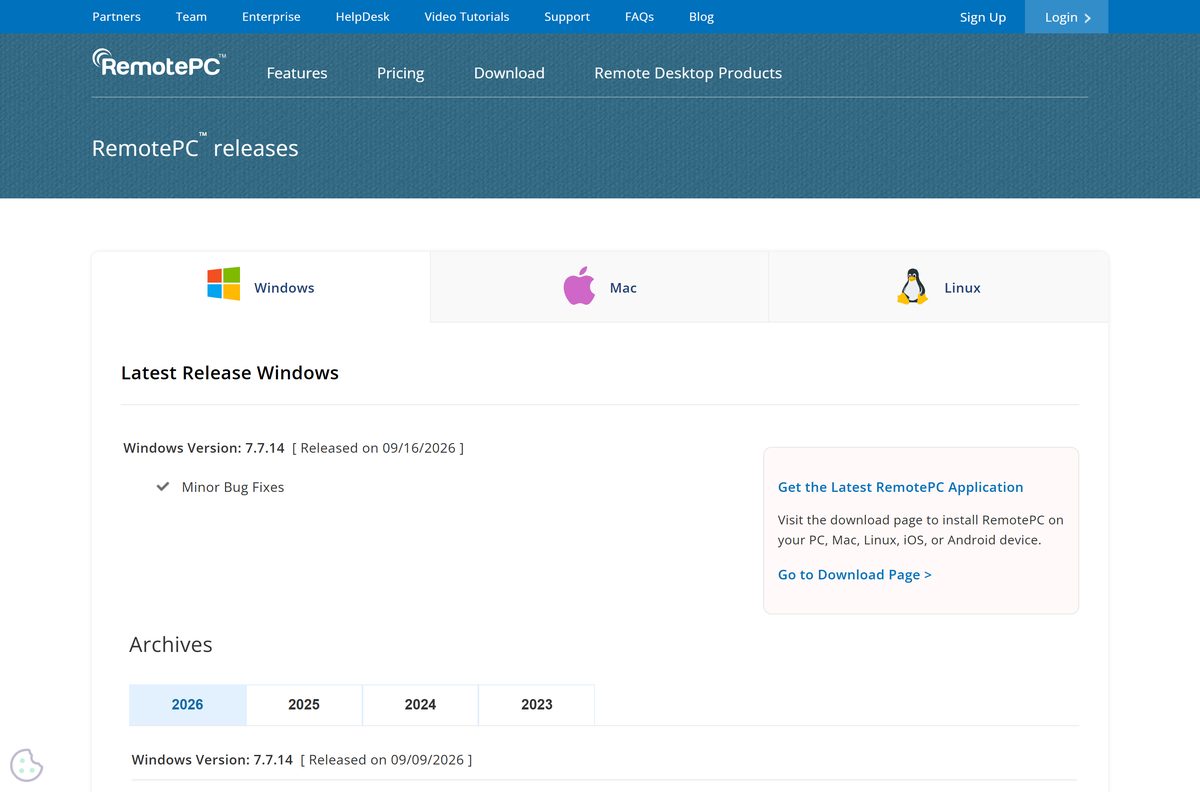
| Latest version | 7.7.14 for Windows (Full-Suite, Host and Viewer), released 09/16/2026 |
| License / price | Paid subscription; 7-day free trial, no credit card required |
| Windows | Windows 11, 10, 8.1 and 8; Windows Server 2008 R2, 2012 and 2016 |
| Architecture | Windows: Intel, AMD and ARM processors; Mac: Intel and Apple silicon up to M4 |
| macOS | macOS 10.13 High Sierra or later |
| Linux | 64-bit Debian, Ubuntu, RHEL, CentOS, Fedora and openSUSE Leap |
| Raspberry Pi | Raspberry Pi 3 and 4 on Raspbian Debian 10 Buster |
| Mobile | iOS 13.0 or later; Android 7.0 or later |
| Mac download size | 102.2 MB DMG |
| Encryption | TLS v1.2 / AES-256 |
| Official download source | remotepc.com/download |
| Last verified | 2026-09-25 |
Fix RemotePC not installing or not connecting
Most failures come from a Windows install policy, missing Mac permissions or an unsupported Windows edition. Match the symptom below.
Windows says “The app you’re trying to install isn’t a Microsoft-verified app”
Windows is set to allow apps from the Microsoft Store only.
- Open Settings and select Apps.
- Under Choose where to get apps, select Anywhere.
- Run the installer again, and select Install anyway if the warning returns.
You cannot see or control a remote Mac
macOS has not granted Screen Recording or Accessibility access.
- On the Mac, open System Settings > Privacy & Security.
- Select Accessibility and turn on RemotePCDesktop and RemotePCView.
- Select Screen & System Audio Recording and turn on RemotePCDesktop.
- Reconnect from your other device.
The RDP Connector will not connect to a Windows PC
The Remote Desktop client does not connect to Home editions of Windows.
- Check the edition under Settings > System > About.
- On Windows 11 Home or Windows 10 Home, install the RemotePC Host app instead of using the RDP Connector.
- Connect through Always-ON Remote Access in the Viewer.
You forgot the Personal Key for a computer
The key cannot be shown again, only reset.
- In Always-ON Remote Access, right-click the computer and select Disable Now.
- Select Yes to confirm.
- Select Configure Now!, enter a new Personal Key and select Enable Now!.
How to uninstall RemotePC
Removing the app also removes that computer from remote access. Your RemotePC account and subscription stay active.
- On Windows, open the Start menu and find the RemotePC folder.
- Right-click RemotePC and select Uninstall to open Control Panel.
- Right-click RemotePC in the list and select Uninstall.
- On a Mac, open RemotePC, select its menu bar icon and choose Preferences.
- Open the Advanced tab and tick Also delete configuration files.
- Select Uninstall, then Yes to confirm.
- On Linux, remove the package from your software center, or with your package manager.
Should you use the RemotePC mobile app instead of the desktop viewer?
The iPhone, iPad and Android apps sign in to the same account and reach the same computers. They are viewers, so they cannot be controlled remotely themselves, except through the separate Android Host app.
Use the mobile app for quick checks and file transfers on the go, and the desktop Viewer or Full-Suite for full work sessions. The desktop Full-Suite includes the Performance Viewer and gives you a full keyboard and screen, which a phone cannot match.
Other system utilities and drivers for Windows include Microsoft Mouse and Keyboard Center and Microsoft PC Manager.
Frequently asked questions
Is RemotePC free?
No. RemotePC is a paid subscription, but every plan comes with a 7-day free trial that needs no credit card. The Solo plan covers one computer, and Pro, Team and Enterprise cover 10, 50 and 100 computers.
What is the official RemotePC download page?
The official page is remotepc.com/download, run by IDrive Inc. It has Windows, Mac, Linux, Raspberry Pi and mobile tabs, plus links to the Microsoft Store Host and Viewer apps and the MSI Viewer.
Does RemotePC work on Windows 11?
Yes. RemotePC supports Windows 11 and Windows 10, as well as Windows 8.1, 8 and several Windows Server versions. The Windows build runs on Intel, AMD and ARM processors.
How big is the RemotePC download?
The Mac Full-Suite DMG is 102.2 MB and the Windows Viewer MSI is 1.3 MB. The iPhone and iPad app is listed at 50.8 MB in the App Store.
Is there a RemotePC offline installer?
The Mac DMG is a full 102.2 MB installer you can copy to another Mac. For Windows fleets, the Enterprise plan provides MSI packages for the Viewer and the Host.
Is RemotePC available for Mac?
Yes. RemotePC for Mac is a DMG from remotepc.com that needs macOS 10.13 High Sierra or later. After install, allow Accessibility and Screen Recording in Privacy & Security settings.
Does RemotePC support 64-bit and ARM64?
Yes. IDrive lists Intel, AMD and ARM processor support for Windows, and Intel and Apple silicon support up to the M4 series for Mac. The Linux packages are 64-bit.
Is RemotePC safe to download?
Yes, when you download it from remotepc.com or the official app stores. IDrive encrypts connections with TLS v1.2 and AES-256. Avoid download portals and any site offering cracked or free lifetime keys.
What is the latest version of RemotePC?
RemotePC 7.7.14 is the current Windows release for the Full-Suite, Host and Viewer, released on 09/16/2026. The release notes page on remotepc.com lists every Windows, Mac and Linux build.
Why won’t RemotePC install on Windows?
Windows is usually set to allow Microsoft Store apps only. Open Settings > Apps, set Choose where to get apps to Anywhere, then run the installer again. Or install RemotePC Host from the Microsoft Store.
Can I access a Mac from a Windows PC with RemotePC?
Yes. RemotePC connects Windows, Mac and Linux computers in any direction. You can also reach any configured computer from an iPhone, iPad or Android device.
Is there a RemotePC app for iPhone and Android?
Yes. RemotePC Remote Desktop is in the App Store for iOS 13.0 or later, and RemotePC Viewer is on Google Play for Android 7.0 or later. A separate RemotePC Host app lets computers reach Android devices and Chromebooks.