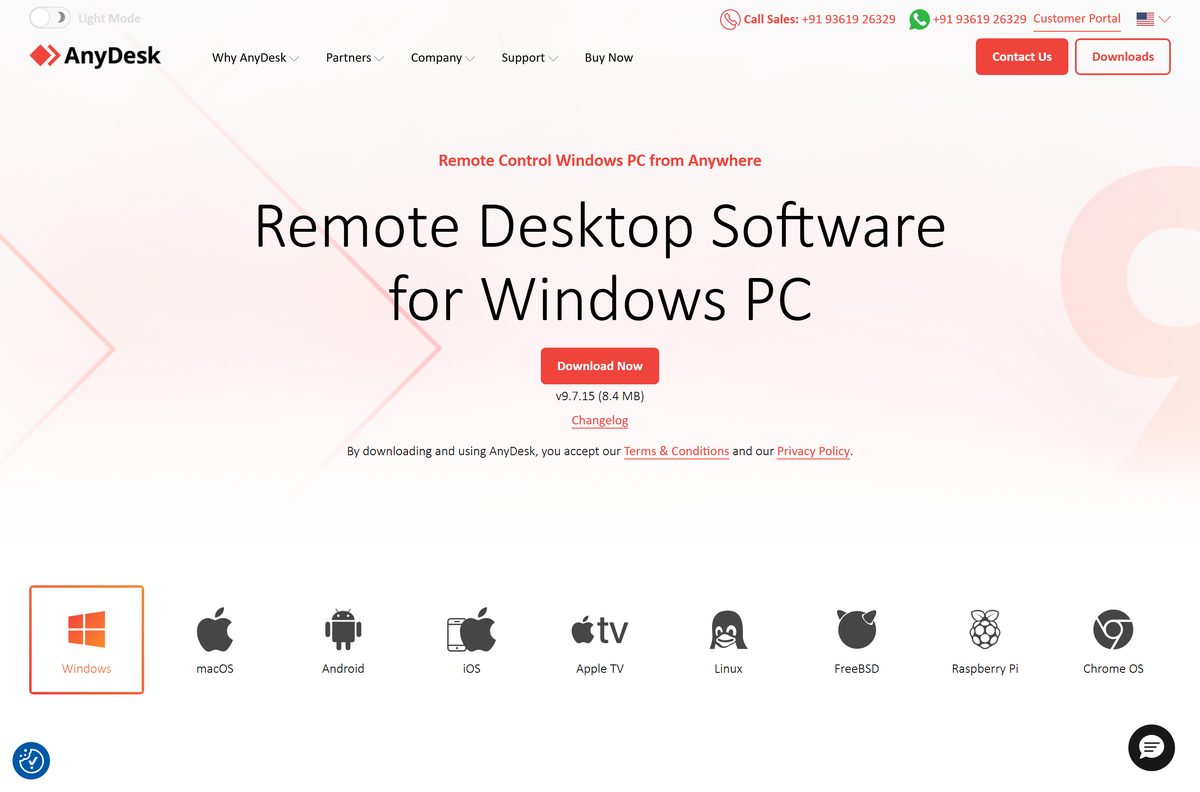
The AnyDesk download for Windows is one 8.4 MB file called AnyDesk.exe, published by AnyDesk Software GmbH at anydesk.com. Double-click it and the client opens, installed or not.
There is no second file to choose between. AnyDesk ships a single Windows executable, and it is a 32-bit program that runs on 64-bit Windows 11 and Windows 10. Macs get one universal disk image that runs natively on Apple silicon and Intel.
This guide covers the official files and their sizes, installing on Windows and macOS, winget, portable use, what the free licence allows, and fixes for AnyDesk not installing.
Which AnyDesk download do you need?
Match your machine to the file. AnyDesk publishes one download per platform, so this is a short decision.
| Your machine | File to download | Size |
|---|---|---|
| Windows 11 or Windows 10, 64-bit or 32-bit | AnyDesk.exe | 8.4 MB |
| Windows 8.1, Windows 7, or XP SP2 and later | AnyDesk.exe | 8.4 MB |
| Windows Server 2003 SP2 and later | AnyDesk.exe | 8.4 MB |
| Mac on Apple silicon or Intel, macOS 11 and later | anydesk.dmg | 25.9 MB |
| A PC where you cannot install software | AnyDesk.exe, run in portable mode | 8.4 MB |
| Linux, Raspberry Pi, Android, iOS or ChromeOS | AnyDesk downloads page | Varies |
The Windows file is identical in every row above. AnyDesk does not branch it by edition, architecture or Windows version.
Check the AnyDesk system requirements and specifications
AnyDesk asks little of the hardware. The graphics card matters more than the processor, because the client leans on hardware acceleration.
| Field | Value |
|---|---|
| Developer | AnyDesk Software GmbH |
| Latest version | 9.7.15 for Windows, 9.7.3 for macOS |
| Released | 17 August 2026 for Windows, 22 July 2026 for macOS |
| Licence | Free for private use, paid plans for commercial use |
| Supported Windows | Windows XP SP2 and later, including 7, 8.1, 10 and 11, plus Windows Server 2003 SP2 and later |
| Supported macOS | macOS 11 Big Sur and later |
| Architecture | One 32-bit Windows executable; universal arm64 and x86_64 build on macOS |
| Download size | 8.4 MB on Windows, 25.9 MB on macOS |
| Offline installer | Yes, the executable is the whole client |
| Portable mode | Yes on Windows, macOS and Linux |
| Graphics | Hardware-accelerated graphics card recommended |
| Default install path | C:\Program Files (x86)\AnyDesk |
| winget package | AnyDesk.AnyDesk |
| Last verified | 2026-09-11 |
On low-powered devices AnyDesk drops to 16-bit colour by itself. Set Display Quality to Balance in the session settings if a connection stutters.
Download AnyDesk from the official source
AnyDesk distributes from two hosts: pages on anydesk.com, files on download.anydesk.com. Anything from a third domain is somebody else’s copy.
- AnyDesk for Windows, official download page — version 9.7.15, 8.4 MB
- AnyDesk.exe, the file itself — 8,375,224 bytes
- AnyDesk for macOS, official download page — version 9.7.3, 25.9 MB
- anydesk.dmg, the file itself — 25,919,082 bytes
- Every platform on one page — Linux, Raspberry Pi, FreeBSD, Android, iOS, ChromeOS, Apple TV
- AnyDesk changelog — one dated text file covering every platform
Read the changelog before updating if a specific fix is what you are after.
How to install AnyDesk on Windows 11 and 10
Installing registers a service, so the PC answers connections after a restart and while nobody is signed in. Skip it and AnyDesk works only while its window is open.
- Download AnyDesk.exe from the official Windows download page.
- Double-click AnyDesk.exe. The client opens and shows your nine-digit AnyDesk ID.
- Click Install AnyDesk in the client window.
- Check the folder under Installation path:. The default is C:\Program Files (x86)\AnyDesk .
- Tick Start AnyDesk with Windows so the PC stays reachable after a restart.
- Tick Create desktop icon. and Create start menu shortcuts if you want them.
- Click Accept & Install, then select Yes at the User Account Control prompt.
- Open Settings > Access, turn on Enable unattended access and set a password, if you will connect while nobody is at the remote PC.
The nine-digit ID is how other people reach this PC. Treat it like a door key, and never give it out on an unsolicited call.
Install AnyDesk with winget or from the command line
AnyDesk is not in the Microsoft Store. Windows Package Manager carries it instead, which is the cleaner route on a scripted build.
- Open Terminal or Command Prompt from the Start menu.
- Run winget install AnyDesk.AnyDesk and accept the source agreement if prompted.
- Check the publisher line reads AnyDesk Software GmbH before the download starts.
- Run winget upgrade AnyDesk.AnyDesk to update it later.
- To install silently from your own copy instead, run AnyDesk.exe –install “C:\Program Files (x86)\AnyDesk” –start-with-win –create-desktop-icon –silent .
- Add –remove-first to that command when you are replacing an older installation.
AnyDesk documents the rest of the deployment switches, including –update-disabled , in its command-line reference.
Run AnyDesk without installing it
AnyDesk.exe needs no installation. The same 8.4 MB file runs from a folder or a USB stick, which is the answer on a locked-down PC.
- Download AnyDesk.exe and save it to a folder or a USB stick.
- Double-click the file. AnyDesk opens and shows a nine-digit ID immediately.
- Give that ID to the person connecting, or type theirs into the Remote Desk box.
- Accept the session in the Accept window when it appears.
- Right-click the file and choose Run as administrator first if the helper must answer User Account Control prompts.
- Close the AnyDesk window when you are done. That ends every active session.
Portable mode gives up four things: it does not start with Windows, cannot set an alias, will not survive a remote restart, and offers unattended access only while somebody has launched it. AnyDesk sets out the difference in its portable versus installed documentation.
How to verify the AnyDesk installer is genuine
AnyDesk signs its Windows build. Two checks take about twenty seconds and tell you whether the file came from AnyDesk Software GmbH.
- Right-click the downloaded AnyDesk.exe and select Properties.
- Open the Digital Signatures tab, select the signature and click Details.
- Confirm the signer reads AnyDesk Software GmbH and the issuer is a DigiCert code signing authority.
- Open Terminal in the download folder and run Get-FileHash .\AnyDesk.exe -Algorithm SHA256 .
- Compare the result against the build you downloaded. AnyDesk 9.7.15 is 89E0A41A37D360D81BB0BFD89537DBBB3BDF45917ADFE88AE3CB19D4F6B3C81E , the same hash Microsoft’s package index publishes.
- Delete the file if there is no Digital Signatures tab, or if the signer is another company.
The bigger risk is the phone call that asks you to install it, not the file. AnyDesk’s abuse guidance is blunt: legitimate companies do not cold-call for remote access, and you should never read your ID to a stranger.
Which AnyDesk download do you need for your Mac?
One file covers every supported Mac. The disk image carries an Apple silicon build and an Intel build, so there is nothing to pick between.
| Your Mac | Download | Notes |
|---|---|---|
| Apple M1, M2, M3 or M4 | anydesk.dmg | Runs natively, no Rosetta needed |
| Intel Mac on macOS 11 or later | anydesk.dmg | The same 25.9 MB file |
| macOS 10.15 Catalina or older | Older builds on the macOS page | Current versions need macOS 11 |
| You want audio from the remote Mac | anydesk.dmg | Needs macOS 13 Ventura or later |
Open the DMG, double-click the AnyDesk app and click Install Now, then accept the terms. Dragging it into Applications instead gives the portable client without the background service.
macOS blocks incoming sessions until you grant Screen Recording, Accessibility and Full Disk Access.
Is AnyDesk free?
Yes for private use, no for work. AnyDesk Software GmbH gives the client away for personal, non-commercial use, and that free client is the full download rather than a trial build. Sessions time out on the free licence, though you can reconnect as often as you like. Commercial use needs one of four subscriptions: Solo, Standard, Advanced or Ultimate. Only the outgoing client that starts a connection has to be licensed, so a customer you support never buys anything.
Should you download the 64-bit AnyDesk?
There is no 64-bit AnyDesk to download. AnyDesk publishes exactly one Windows file, and it is a 32-bit executable. Windows runs it on 64-bit editions through the built-in compatibility layer, which is why the default folder is Program Files (x86). Searches for a 64-bit build, an ARM64 build or a separate 64-bit installer are chasing files AnyDesk does not publish. macOS is the exception: that disk image really is universal.
How to check your AnyDesk version and update it
AnyDesk keeps your ID and settings across an update, so replacing an old copy costs you nothing.
- Open AnyDesk, select the main menu, then About AnyDesk to read the version.
- From a command line instead, run “C:\Program Files (x86)\AnyDesk\AnyDesk.exe” –version .
- Open Settings > Access and find the Automatic Updates section.
- Select Enabled – Main Channel to take the current stable release automatically.
- To update by hand, download the file again and run it. AnyDesk detects the older copy and offers to update.
- On a Mac, open the new DMG, double-click the app, click Install Now and confirm the reinstall.
In AnyDesk 7 and earlier the update setting lives under Settings > Security > Updates instead.
Fix AnyDesk not installing or not connecting
AnyDesk will not install
The installer writes to Program Files and registers a service, so it needs administrator rights and no copy already running.
- Right-click the AnyDesk tray icon and select Exit AnyDesk.
- Right-click AnyDesk.exe and select Run as administrator.
- Select Yes at the User Account Control prompt.
- Click Install AnyDesk, then Accept & Install.
- Run AnyDesk.exe –install “C:\Program Files (x86)\AnyDesk” –remove-first to replace an older installation.
Windows warns about the file before it runs
SmartScreen flags files it has not seen often. Check the signature rather than switching the protection off.
- Right-click the file, select Properties, then the Digital Signatures tab.
- Confirm the signer is AnyDesk Software GmbH.
- Delete the file and download it again from anydesk.com if that tab is missing.
- Never disable SmartScreen or your antivirus to install anything.
Cannot connect to the AnyDesk network
The client cannot reach AnyDesk’s servers, usually because a firewall or proxy is in the way.
- Check the device has working internet in a browser.
- Allow AnyDesk.exe through Windows Defender Firewall on private and public networks.
- Ask your network administrator to permit AnyDesk on a company network.
- Restart the AnyDesk service from the tray icon, or restart the PC.
- Look up any win32_10060 , win32_11001 or win32_10054 code in AnyDesk’s error reference.
The remote screen is black or stuck on Waiting for image
The display driver on the remote device is off, or the machine has no monitor attached.
- Ask the person at the remote device to move the mouse and wake the screen.
- Install the AnyDesk mirror driver on Windows XP or Windows 7 machines.
- Switch a remote Linux device from Wayland to Xorg, which incoming sessions require.
A Mac will not accept incoming connections
macOS withholds screen and input access until you grant it explicitly.
- Open AnyDesk and select the status icon beside your AnyDesk ID.
- Select Open Screen Recording preferences and enable AnyDesk.
- Select Request Accessibility and enable AnyDesk.
- Select Open Full Disk Access preferences and enable AnyDesk for file transfer.
- Quit and reopen AnyDesk, because those permissions apply only after an app restart.
How to uninstall AnyDesk completely
Removing the app leaves a settings folder behind. Delete that too if you want the AnyDesk ID gone for good.
- Right-click the AnyDesk tray icon and select Exit AnyDesk.
- Open Settings from the Start menu, then Apps > Installed apps.
- Find AnyDesk, select Uninstall, and confirm with Uninstall again.
- Tick Remove settings when the uninstaller offers it, then select Uninstall.
- Delete the folder you saved it in instead, if the copy was portable.
- Press Windows + R, type %APPDATA% , press Enter and delete the AnyDesk folder.
- From a script, run AnyDesk.exe –remove for a silent uninstall or –uninstall for the prompted one.
On a Mac, open About AnyDesk, hold Option, click Uninstall at the top right, then delete ~/.anydesk/ and /etc/anydesk/ . That destroys the AnyDesk ID and alias, and AnyDesk cannot restore them.
What you can use instead of AnyDesk
Check what you already own first. Two of the options below ship with the operating system.
| Tool | Who publishes it | Best for |
|---|---|---|
| Quick Assist | Microsoft, built into Windows 11 | A one-off helping hand, free for any use |
| Windows App | Microsoft | Reaching a Windows PC or Azure desktop you own |
| Screen Sharing | Apple, built into macOS | Mac to Mac on the same network |
| Chrome Remote Desktop | Cross-platform access from a browser, free | |
| RustDesk | RustDesk | Open source, self-hosted relay |
| TeamViewer | TeamViewer | The closest commercial equivalent |
Quick Assist is the honest answer for most one-time requests on Windows 11: already installed, free commercially, and gone when the session ends.
Frequently asked questions
Is AnyDesk free?
Yes, for private use. The free client is the full product, not a trial. Sessions time out on the free licence, but you can reconnect as often as you like.
Is AnyDesk free for commercial use?
No. Commercial use needs a paid plan: Solo, Standard, Advanced or Ultimate. Only the outgoing client that starts a connection must be licensed, so a customer receiving support buys nothing.
What is the official AnyDesk download page?
The Windows page is anydesk.com/en/downloads/windows and the Mac page is anydesk.com/en/downloads/mac-os. Both serve files from download.anydesk.com, the only hosts AnyDesk Software GmbH publishes from.
How big is the AnyDesk download?
AnyDesk.exe for Windows is 8,375,224 bytes, which the download page rounds to 8.4 MB. The macOS disk image anydesk.dmg is 25,919,082 bytes, or 25.9 MB.
Is there an AnyDesk offline installer?
Yes. AnyDesk.exe is the complete client, not a stub that fetches the real program later. Installing needs nothing further from the internet, though connecting to a remote device does.
Is there an AnyDesk for Mac?
Yes. AnyDesk 9.7.3 for macOS ships as anydesk.dmg at 25.9 MB and needs macOS 11 Big Sur or later. It is universal, so it runs on Apple silicon and Intel.
Is there a 64-bit AnyDesk download?
No separate one exists. AnyDesk publishes a single Windows executable and it is 32-bit, which 64-bit Windows runs through its compatibility layer. That is why it installs to Program Files (x86).
Does AnyDesk work on Windows 11?
Yes. AnyDesk supports Windows XP SP2 and later, which covers 7, 8.1, 10 and 11, plus Windows Server 2003 SP2 and later. The same file works on all of them.
Which AnyDesk version is current?
Version 9.7.15 for Windows, released 17 August 2026, and 9.7.3 for macOS, released 22 July 2026. AnyDesk dates every release in its changelog.
Is AnyDesk safe to download?
The file from download.anydesk.com is signed by AnyDesk Software GmbH with a DigiCert certificate, checkable under Properties. The real danger is a cold caller who asks you to install AnyDesk and read out your ID.
Why is AnyDesk not installing?
Permissions, usually. The installer registers a service, so approve the User Account Control prompt or use Run as administrator. If a copy is already running, exit it from the system tray first.
Can I download an older version of AnyDesk?
The macOS download page lists earlier disk images with their dates, and the changelog records every version. Older builds miss later security fixes, so install the current release.

Download RealVNC Connect for PC, Windows 11/10 & Mac (Free) - Techdows
[…] AnyDesk download guide […]