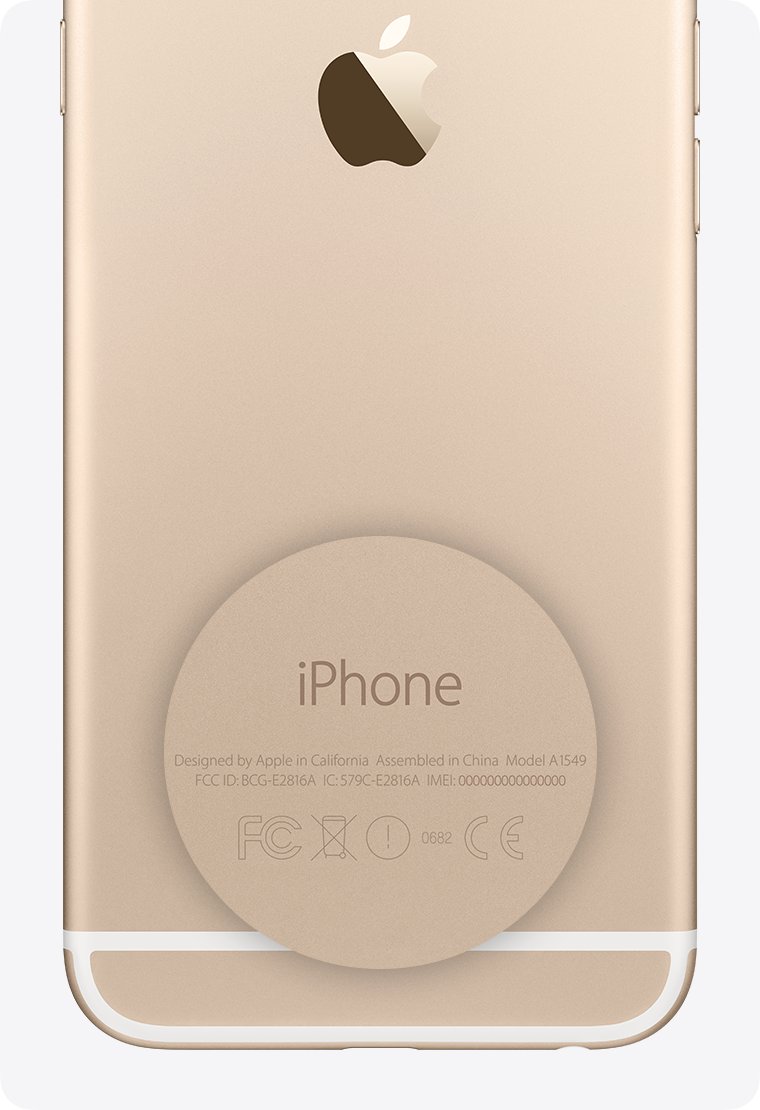
You can find a lost iPhone's IMEI without the phone by signing in at account.apple.com, opening Devices and selecting the missing iPhone, because the IMEI sits in your Apple Account device list rather than inside the iCloud backup.
This guide covers the web route, the same list on another iPhone, iPad or Mac, the box label, what to do with the number once you have it, and what to try when the lost iPhone is missing from the list.
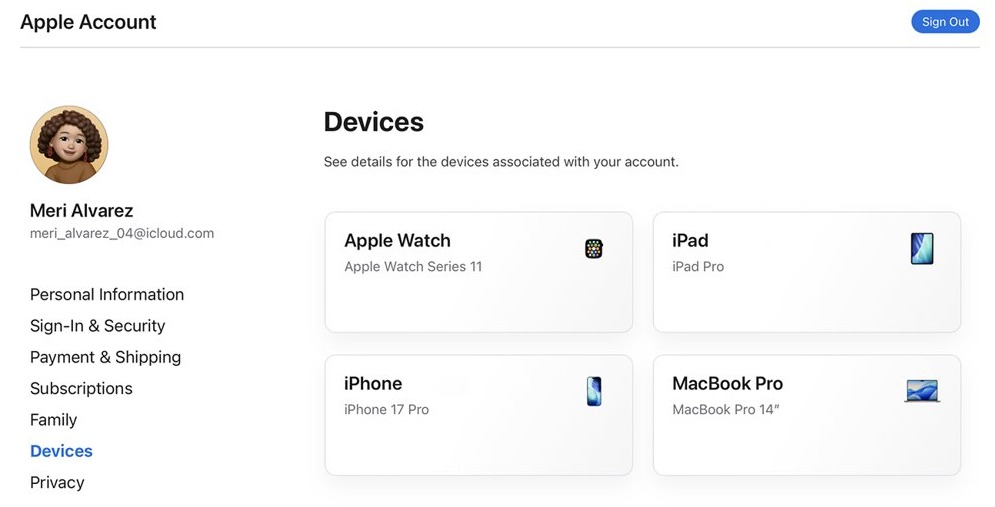
How to find IMEI number of lost iPhone on account.apple.com
This works from any web browser, including a Windows PC, an Android phone or a borrowed computer. Use the same Apple Account that was signed in on the lost iPhone.
- Open a web browser and go to account.apple.com.
- Sign in with the Apple Account you used on the lost iPhone.
- Select Devices.
- Click View Details if the devices do not appear right away, and complete the sign-in check it asks for.
- Click the name of the lost iPhone.
- Read the IMEI/MEID shown with the serial number and EID, and write it down or copy it.
Do not click Remove from Account on this screen. A removed device loses access to Find My, and Apple warns that removing a lost iPhone from Find My also removes Activation Lock, which makes it easier to resell.
Does an iCloud backup show the IMEI number?
Apple does not list the iCloud backup screen among the places that show an iPhone's IMEI. The backup list under Settings > [your name] > iCloud > Manage Account Storage > Backups is for choosing which apps back up and for deleting old backups.
The account behind that backup is what helps. The same Apple Account keeps a device list, and that list holds the identifiers.
| Place | Shows the IMEI? | Works if the iPhone is lost? |
|---|---|---|
| account.apple.com > Devices | Yes, with serial number and EID | Yes |
| Settings > [your name] on another iPhone or iPad | Yes, after you tap the device name | Yes, on iOS 10.3 or later signed in to the same account |
| Barcode label on the original box | Yes, with serial number and EID | Yes, if you kept the box |
| iCloud backup list in iCloud storage settings | Not one of Apple's listed places | Shows the backup, not the identifiers |
| Settings > General > About on the iPhone | Yes | No, needs the phone |
| SIM tray or back of the iPhone | Yes, on many models before iPhone 14 | No, needs the phone |
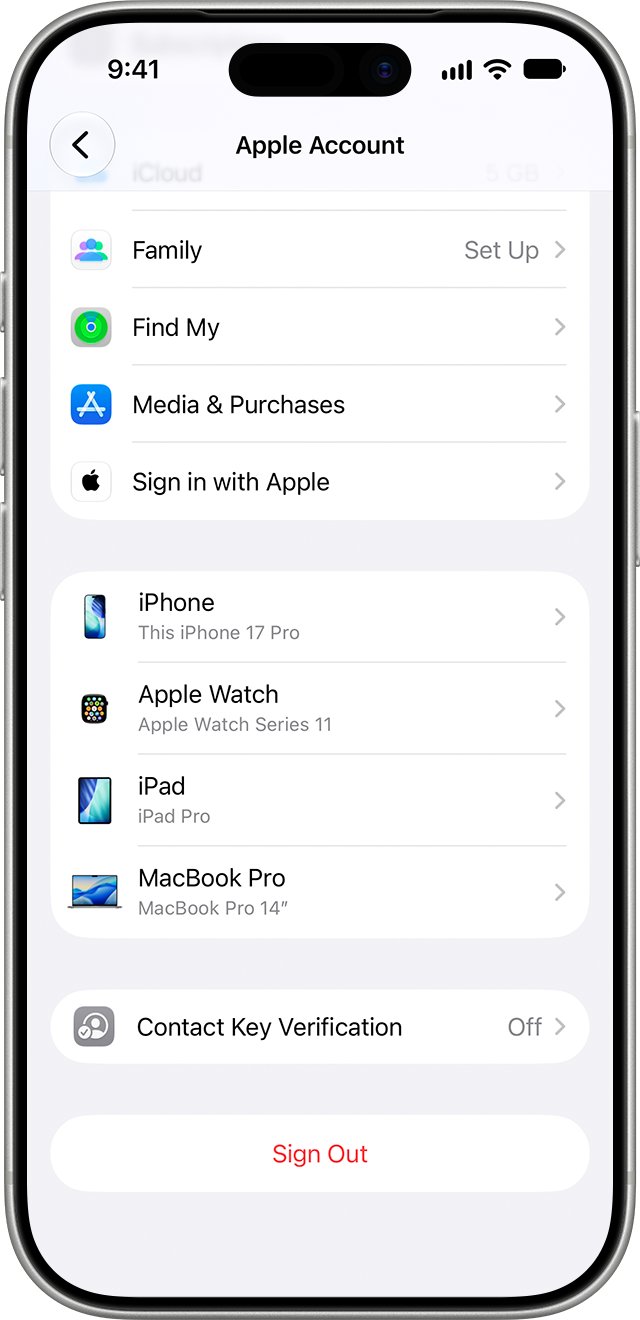
| Finder, Apple Devices app or iTunes | Yes, after you click Phone Number | No, the iPhone must be connected |
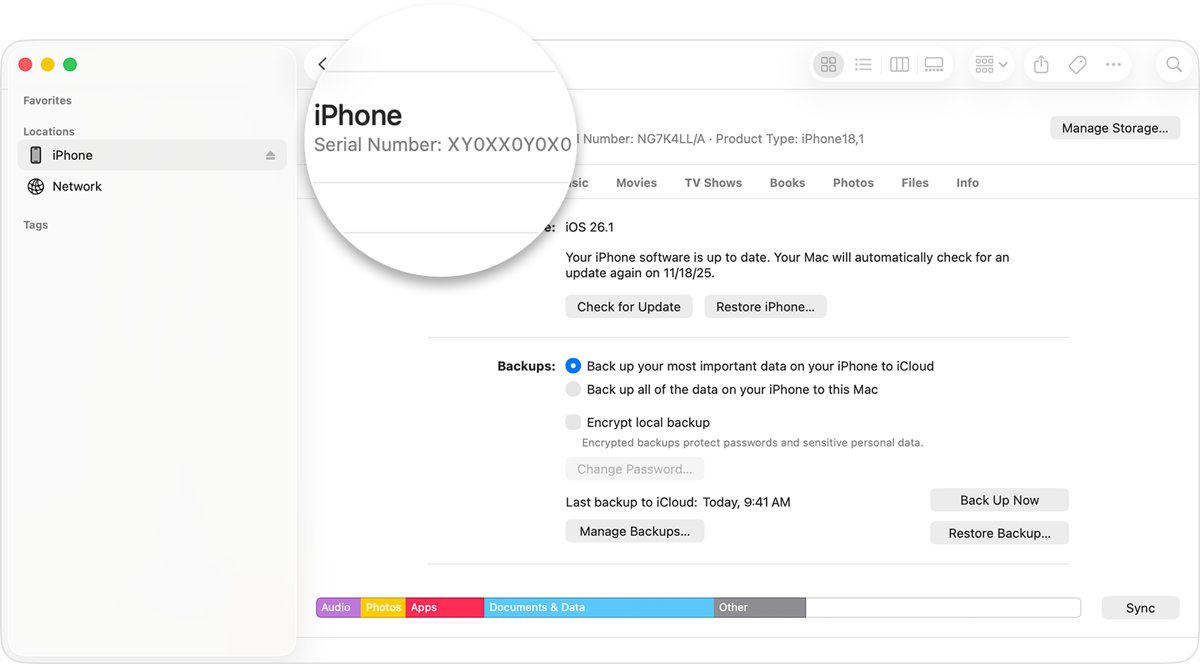
How to find IMEI number of lost iPhone on another iPhone or iPad
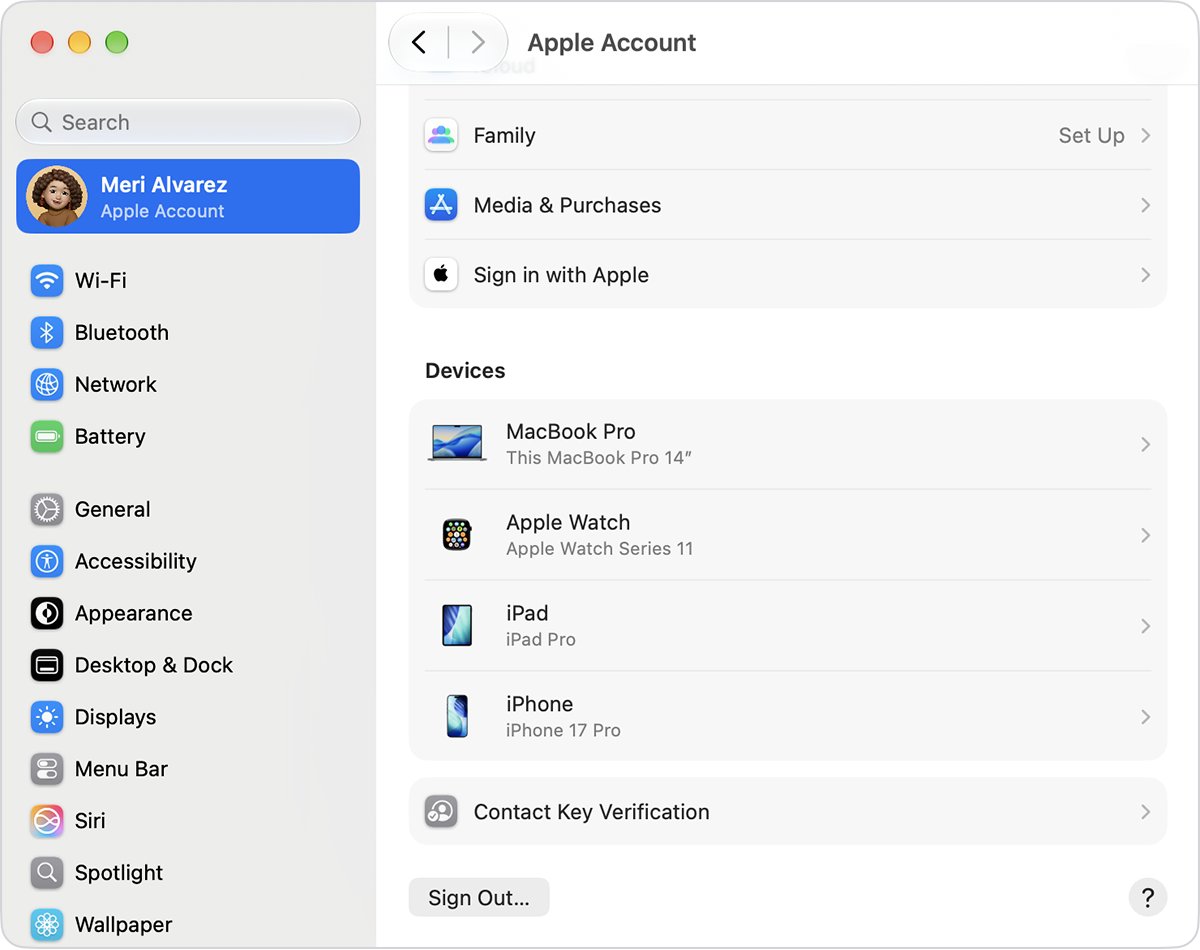
Any iPhone or iPad with iOS 10.3 or later that is signed in to your Apple Account shows the full device list, including the lost phone.
- Open Settings on the other iPhone or iPad.
- Tap [your name] at the top of the screen.
- Scroll down to the list of devices signed in to your Apple Account.
- Tap the name of the lost iPhone.
- Touch and hold the IMEI to copy it, or write it down.
On a Mac, choose the Apple menu > System Settings, click [your name], scroll to the device list and click the lost iPhone to view its information.
How to find IMEI number on iPhone box
The original packaging carries a barcode label with the serial number, EID and IMEI/MEID. This is the only route that needs no account sign-in.
- Find the box the lost iPhone came in.
- Look for the barcode label that lists the device identifiers.
- Read the number marked IMEI or IMEI/MEID.
- Compare the serial number on the label with the one in your Apple Account device list to make sure the box belongs to the lost phone.
How to report a lost iPhone with its IMEI number
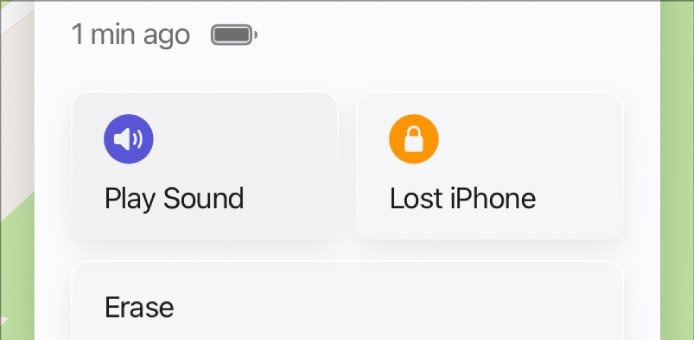
Mark the phone as lost before you report it, so it locks with your passcode and Apple Pay cards are suspended. Your carrier and the police then get the identifiers they ask for.
- Go to icloud.com/find and sign in. If a verification code is requested, select Find Devices instead.
- Select the lost iPhone under All Devices and mark it as lost.
- Contact your wireless carrier, report the missing iPhone, give them the IMEI and ask them to disable your account.
- Report the loss to local law enforcement. They may ask for the serial number, which sits next to the IMEI in your device list.
- If the iPhone has AppleCare+ with Theft and Loss, file a claim for a replacement.
- Keep the iPhone in Find My and in your Apple Account until any claim is fully approved, even if you erase it remotely.
Lost Mode only takes effect once the iPhone is switched on and connected to Wi-Fi or cellular. To keep searching while you wait, work through the other ways to find a lost phone.
How to tell if an IMEI belongs to your lost iPhone
A device list can hold several iPhones with similar names. Match more than one identifier before you hand a number to your carrier.
- Open the device in your Apple Account and note its model name, serial number and IMEI.
- Check that the model matches the iPhone you lost, for example iPhone 15 rather than an older phone you traded in.
- Compare the serial number with your box label or purchase paperwork, if you have either.
- If a carrier asks for an MEID, give the first 14 digits of the IMEI.
- Give your carrier the IMEI together with the model name so they can match it to your line.
Lost iPhone not showing in Apple Account devices
Find the symptom that matches what you see.
The Devices section is empty on account.apple.com
The site hides device details until you confirm it is you.
- Click View Details under Devices.
- Complete the authentication it asks for.
- Click the lost iPhone's name once the list loads.
The lost iPhone is not in the device list at all
The phone was removed from the account or signed out, and a removed device does not reappear unless someone signs in on it again.
- Sign in at account.apple.com with every Apple Account you have used, in case the phone was on a different one.
- Look for the barcode label on the original box.
- If Find My is also empty, work through iCloud showing no devices in Find My.
No other Apple device to check
The Settings route needs a second iPhone or iPad signed in to the same account.
- Use account.apple.com from any browser, including Windows or Android.
- Sign in to icloud.com/find to mark the phone as lost. It does not need a verification code.
Why can't I find the IMEI number on my iPad?
Only cellular iPad models have an IMEI, so a Wi-Fi iPad shows a serial number only.
- Open Settings > General > About on the iPad.
- Scroll down. A Wi-Fi + Cellular model lists IMEI below the serial number.
- On a Wi-Fi + Cellular iPad, also look on the back of the device, where Apple prints the IMEI.
Lost iPhone IMEI number FAQ
Can I find the IMEI number without the phone?
Yes. Sign in at account.apple.com, select Devices and click the iPhone, or open Settings > [your name] on another iPhone or iPad and tap the device. The barcode label on the original box also lists the IMEI.
How do I find the IMEI number on my iPhone?
Open Settings, tap General, then tap About and scroll down to IMEI. Touch and hold the number to copy it. If the iPhone is not set up yet, tap the Info button in the bottom-right corner of the Hello screen.
How do I find the IMEI number on my iPad?
Go to Settings > General > About and scroll down to IMEI. Only Wi-Fi + Cellular iPads have one, and those models also show the IMEI on the back of the device.
Where is the IMEI printed on an iPhone?
It depends on the model. iPhone 6s through iPhone 13 show the IMEI on the SIM tray, while iPhone 5 through iPhone 6 Plus and the first iPhone SE show it on the back. iPhone 14 models and later have no IMEI engraving.
Is the MEID the same as the IMEI?
Almost. Apple lists them together as IMEI/MEID, and the MEID is the first 14 digits of the IMEI. Give the full IMEI unless a carrier asks for the MEID specifically.
Can I track a lost iPhone with its IMEI number?
Not yourself. Find My locates the phone through your Apple Account, while the IMEI identifies the phone to your carrier and the police. The limits of tracking an iPhone by IMEI mean Find My and Lost Mode stay your main tools.
Is the iCloud backup of a lost iPhone deleted?
Not straight away. Apple keeps iCloud backups for 180 days after a device stops backing up, so you can restore the lost phone's iCloud backup to a replacement. Do not delete that backup from iCloud storage settings while you still need it.
Should I remove a lost iPhone from my Apple Account?
No. Removing it from Find My removes Activation Lock, which makes the phone easier to unlock and resell, so it is one of the key lost iPhone don'ts. Keep it listed, mark it as lost, and leave it in place until any AppleCare+ claim is approved.