To save Remote Desktop Connection settings to an RDP file in Windows 11, open Remote Desktop Connection, select Show Options, set up the connection, then select Save As on the General tab and pick a file name.
This guide covers saving and opening the file, putting it on the desktop, editing it in Notepad, the RDP file settings that matter, saved credentials, and fixes for missing sound or settings that do not stick.
Save (and open) Remote Desktop Connection settings to RDP file
An .rdp file stores the computer name, user name, display size, redirected devices and other options from the Remote Desktop Connection window. Double-click the file later and the same session starts without setting anything again.
- Type Remote Desktop Connection in the taskbar search box and open it. You can also press Windows + R, type
mstscand press Enter. - Select Show Options to expand the window.
- On the General tab, type the remote PC name in the Computer field and your account in User name.
- Set the options you want to keep on the Display, Local Resources, Experience and Advanced tabs.
- Return to the General tab and select Save As.
- Pick a folder, type a file name such as
Office PC, and select Save. Windows adds the.rdpextension. - To open it later, double-click the file in File Explorer, or select Open on the General tab and browse to it.
Windows saves new .rdp files to your Documents folder unless you pick another location. The remote PC itself needs Remote Desktop turned on; if it is off, enable Remote Desktop on Windows 11 on that machine first.
How to save RDP connection to desktop
A file on the desktop works as a one-click shortcut to the remote PC. Save it there directly instead of creating a separate shortcut.
- Open Remote Desktop Connection and select Show Options.
- Fill in the Computer and User name fields and adjust any tabs you need.
- Select Save As on the General tab.
- Select Desktop in the left pane of the save dialog.
- Name the file after the remote PC so it is easy to spot, then select Save.
- Double-click the new icon on the desktop to connect.
Keep one file per remote computer, especially if you connect to several PCs remotely. A file named after each PC, such as Home server.rdp and Work laptop.rdp, saves you from retyping names and changing display settings every time.
Open saved RDP file via Remote Desktop Connection client
Loading a file into the client first lets you check or change its settings before you connect.
- Open Remote Desktop Connection.
- Select Show Options.
- On the General tab, select Open.
- Browse to the .rdp file and select Open. The tabs fill with the saved settings.
- Change anything you need, then select Save to write the changes back to the same file.
- Select Connect.
Open saved RDP file via File Explorer
Double-clicking an .rdp file starts Remote Desktop Connection with every setting in that file.
- Press Windows + E to open File Explorer.
- Go to the folder that holds the file, usually Documents or Desktop.
- Double-click the .rdp file.
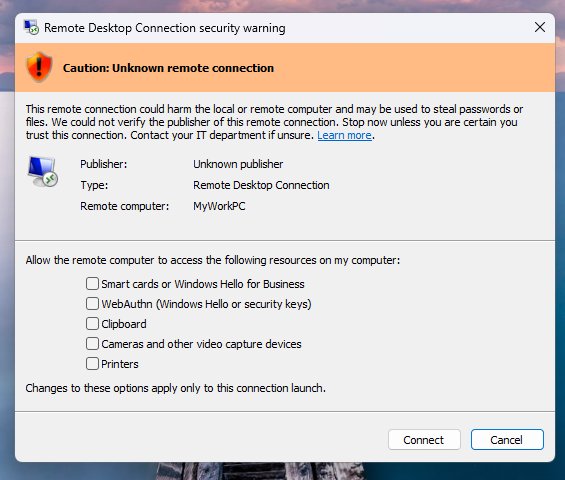
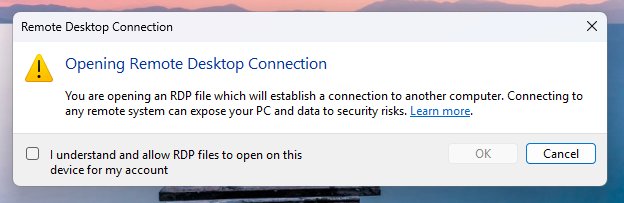
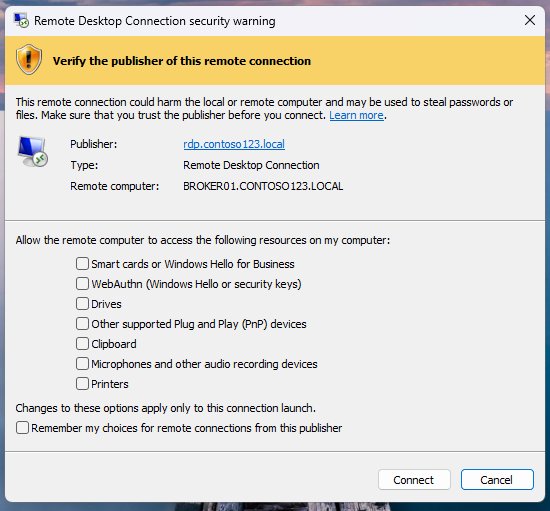
- Read the security prompt. Since the April 14, 2026 update, Windows lists every connection setting the file requests, such as drive or clipboard redirection, with each one turned off.
- Turn on only the settings you expect from your own file, then continue to connect.
- Sign in to the remote PC when prompted.
A one-time security warning also appears the first time you open any .rdp file on a device. Never open an .rdp file that arrived in an email or download you did not expect, because attackers use these files to redirect your drives to their own machines.
Open an RDP file with mstsc from Command Prompt
The mstsc command accepts an .rdp file as its first argument. Put the path in quotes when it contains spaces.
mstsc "%USERPROFILE%\Desktop\Office PC.rdp"Starts Remote Desktop Connection with the settings saved in Office PC.rdp on your desktop. Replace the path with the location of your own file. Add /f to force full screen, or run mstsc /edit "path\file.rdp" to open the file for editing instead of connecting.
You should see: The connection starts to the computer named in the file, using its saved display and device settings.
Run mstsc /l to list your monitors and their IDs. Those IDs go into the selectedmonitors line when you want a saved session to use specific screens.
Where is RDP configuration file?
Remote Desktop Connection keeps two kinds of .rdp files. The hidden one holds whatever you last set in the window; the others are the files you saved yourself.
| File | Location | What it holds |
|---|---|---|
Default.rdp |
Your Documents folder, hidden | The last settings used in the Remote Desktop Connection window, including the display size |
| Files you save with Save As | Documents unless you choose another folder | One saved connection per file |
| Files saved to the desktop | %USERPROFILE%\Desktop |
Connections you want one double-click away |
| Files from an employer or host | Wherever you downloaded or copied them | Settings chosen by the administrator, sometimes signed with a certificate |
To see Default.rdp, show hidden items in File Explorer under View > Show > Hidden items. Each Windows user account has its own copy.
How do I edit an RDP file?
Edit a saved file either in the Remote Desktop Connection window or as plain text in Notepad. The window is safer; Notepad reaches settings the window does not show.
- Press Windows + R, type
mstsc /edit "%USERPROFILE%\Documents\Office PC.rdp"with your own file path, and press Enter. - Change the settings on any tab, then select Save on the General tab.
- To edit as text instead, open Notepad and select File > Open.
- Set the file type list to All Files, browse to the .rdp file and select Open.
- Change one line at a time, keeping the
name:type:valueformat, for examplesmart sizing:i:1. - Select File > Save, then double-click the file to test the change.
Keep a copy of the original file before editing in Notepad. A mistyped line is ignored or breaks the connection, and the copy gets you back in seconds.
RDP file settings you can change in Notepad
Each line in an .rdp file is one property. These are the ones most worth changing for a saved connection to your own PC.
| Line in the file | Values | What it changes |
|---|---|---|
username:s: |
Any valid user name | Account filled in when you connect |
screen mode id:i: |
1 = window, 2 = full screen | Whether the session opens full screen |
desktopwidth:i: |
200 to 8192 pixels | Session width when not matching the local screen |
use multimon:i: |
0 = one display, 1 = all displays | Single or multiple monitors |
smart sizing:i: |
0 = off, 1 = on | Scales the session to fit a resized window |
audiomode:i: |
0 = this PC, 1 = remote PC, 2 = no sound | Where sound from the session plays |
audiocapturemode:i: |
0 = off, 1 = on | Sends your microphone to the remote PC |
redirectclipboard:i: |
0 = off, 1 = on | Copy and paste between the two PCs |
drivestoredirect:s: |
Empty, *, or drive letters such as C:\;E:\; |
Local drives you can open in the session |
autoreconnection enabled:i: |
0 = off, 1 = on | Reconnects after a network drop |
Administrators can sign a finished file with rdpsign so users see a verified publisher. Signing overwrites the original file, so keep an unsigned copy if you plan to edit it again.
How to save file from remote desktop to local PC
Save drive redirection in the .rdp file and your local drives show up inside every session. Files you save there land on your own PC.
- Open Remote Desktop Connection, select Show Options and load your saved file with Open.
- Select the Local Resources tab.
- Select More under local devices and resources.
- Check Drives, or expand it and check only the drives you need, then select OK.
- Check Clipboard on the same tab if you also want copy and paste between the two PCs.
- Return to the General tab, select Save, then Connect.
- In the session, open This PC and use the drive listed under Redirected drives and folders as the save location.
Redirect only the drives you need. Every redirected drive can be read and written from the remote PC for as long as the session lasts.
Remote Desktop Connection save credentials and how to remove them
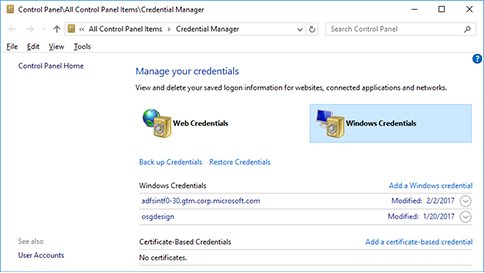
An .rdp file stores your user name in the username line, not your password. When you let Remote Desktop Connection remember your sign-in, Windows keeps the password in Credential Manager instead of the file.
- Type Credential Manager in the taskbar search box and select Credential Manager Control panel.
- Select Windows Credentials.
- Find the entry that names your remote PC and expand it.
- Select Remove and confirm.
- Open the .rdp file again. Remote Desktop Connection now asks for the password.
From a Command Prompt window, cmdkey /list shows every stored credential and cmdkey /delete:<targetname> removes one. To always be asked for a password without deleting anything, start the connection with mstsc /prompt "path\file.rdp", or use /public on a shared PC so passwords and bitmaps are not cached.
Remote Desktop sound not working in Windows 11
Sound in a saved session depends on the audiomode line in the .rdp file and on a policy on the remote PC. The most restrictive of the two wins.
No sound from the remote PC on your speakers
The file is set to play sound on the remote computer or not at all.
- Open the .rdp file in Notepad.
- Find the
audiomode:i:line and set it toaudiomode:i:0, which plays sound on this computer. - Save the file and reconnect.
Sound still silent after fixing the file
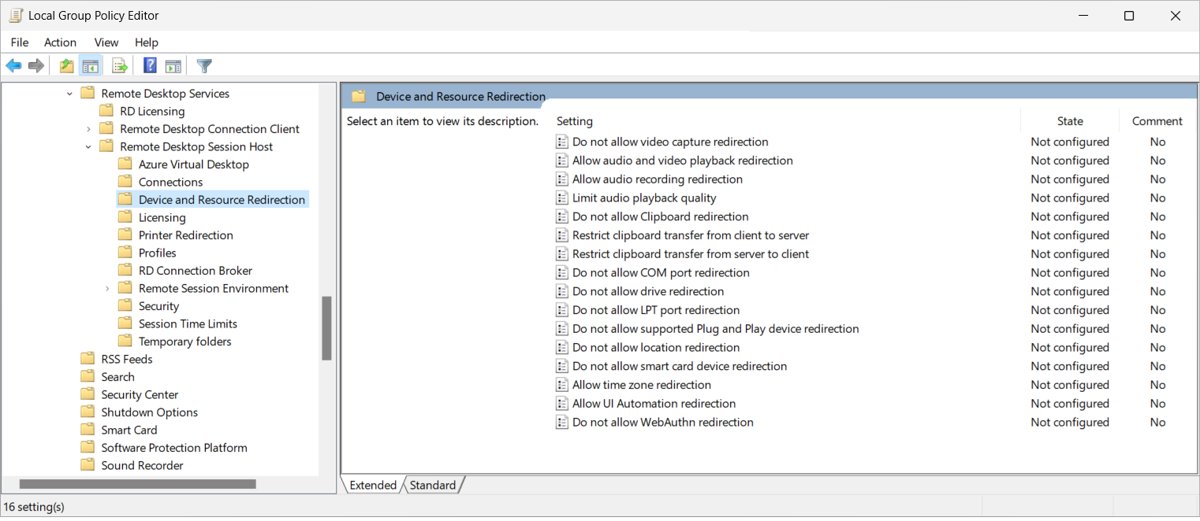
Audio playback redirection is blocked on the remote PC by policy.
- On the remote PC, press Windows + R, type
gpedit.mscand press Enter. - Go to Computer Configuration > Administrative Templates > Windows Components > Remote Desktop Services > Remote Desktop Session Host > Device and Resource Redirection.
- Open Allow audio and video playback redirection, set it to Not Configured or Enabled, and select OK.
- Restart the remote PC and connect again.
Microphone not working in the remote session
Audio capture is off by default in an .rdp file.
- Open the .rdp file in Notepad.
- Add or change the line to
audiocapturemode:i:1. - Check that Allow audio recording redirection is not disabled in the same policy folder on the remote PC.
- Save the file and reconnect.
Teams calls and some web video use their own audio path in a remote session, so test with a simple sound file first.
Cannot save Remote Desktop connection settings
Most "my settings did not save" reports come from opening the wrong file or from the newer security prompt.
Saved RDP file opens with drives, clipboard or printers turned off
Since the April 14, 2026 update, Windows turns off every redirection the file requests until you approve it.
- Double-click the file and read the list of requested settings.
- Turn on the redirections you saved, such as drives or clipboard.
- Continue to connect.
mstsc /v ignores the display size you set
A connection started with /v uses the display settings stored in the hidden Default.rdp file.
- Open Remote Desktop Connection and select Show Options.
- On the Display tab, move the Display configuration slider to the size you want, such as Large (Full Screen).
- Connect once so the setting is written to Default.rdp, or save a named file with Save As and open that file instead.
Changes are lost the next time you open the file
Save As created a new file, or the changes went into Default.rdp instead of your named file.
- Load the file with Open on the General tab.
- Make the change, then select Save, not Save As.
- Close the window and double-click the file to confirm the setting is there.
If the connection itself fails rather than the settings, work through these Remote Desktop connection fixes.
Remote Desktop Connection RDP file FAQ
How do I save a Remote Desktop connection?
Open Remote Desktop Connection, select Show Options, enter the computer and user name, and set the tabs you need. Then select Save As on the General tab, choose a folder and a file name, and select Save. Windows stores it as an .rdp file.
How do I save an RDP connection to the desktop?
Select Save As on the General tab of Remote Desktop Connection and choose Desktop as the folder. The saved .rdp file appears as an icon on the desktop, and double-clicking it connects with every saved setting.
Can I save the password in an RDP file?
No. The .rdp file holds the user name, not the password. If you let Remote Desktop Connection remember your sign-in, Windows stores the password in Credential Manager under Windows Credentials, where you can also remove it.
How do I save a file from Remote Desktop to my local PC?
Turn on drive redirection: on the Local Resources tab select More, check Drives and select OK. In the session, your local drives appear in This PC under Redirected drives and folders, so save the file to one of them.
How do I use Remote Desktop Connection?
Turn on Remote Desktop on the remote PC in Settings > System > Remote Desktop and note its PC name. On the other PC, search for Remote Desktop Connection, type that name, select Connect and sign in. The remote PC needs a Pro edition of Windows.
How do I access Remote Desktop Connection in Windows 11?
Type Remote Desktop Connection in the taskbar search box and open it, or press Windows + R, type mstsc and press Enter. It is built into every edition of Windows 11, including Home, as the connecting device.
How do I protect a Remote Desktop connection?
Open only .rdp files you created or received from a trusted administrator, and approve only the redirections you need when Windows lists them. Use mstsc /remoteGuard or /restrictedAdmin to keep your credentials off a remote PC you do not fully trust.
Where is the Default.rdp file?
Default.rdp is a hidden file in your Documents folder. It holds the last settings you used in the Remote Desktop Connection window, and connections started with mstsc /v use its display settings.
How do I open an RDP file for editing?
Run mstsc /edit followed by the file path in quotes. Remote Desktop Connection opens with the file loaded but does not connect, so you can change the tabs and select Save. Notepad also opens .rdp files as plain text.