The Chrome Remote Desktop download for Windows is a 22.1 MB installer from Google, and it takes about two minutes to set up. Install it on the computer you want to reach, then connect from Chrome on any other computer, or from the Android and iPhone apps.
Google publishes one host file per system: an MSI for Windows 11 and 10, a disk image for Mac, and a Debian package for Linux. The device you connect from needs nothing beyond the Chrome browser.
This guide covers the official files and sizes, setup on Windows and Mac, winget and silent deployment, what is free, and fixes for Chrome Remote Desktop not installing or not connecting.
Which Chrome Remote Desktop download do you need?
Only the computer you want to reach needs an install. Match that machine to the file below.
| Your situation | What to get | Size |
|---|---|---|
| Windows 11 or Windows 10 PC you want to reach | chromeremotedesktophost.msi | 22.1 MB |
| Mac you want to reach | chromeremotedesktop.dmg | 40.8 MB |
| Linux computer you want to reach (Debian, Ubuntu) | chrome-remote-desktop_current_amd64.deb | 25.6 MB |
| Computer or Chromebook you connect from | Chrome browser at remotedesktop.google.com | No install |
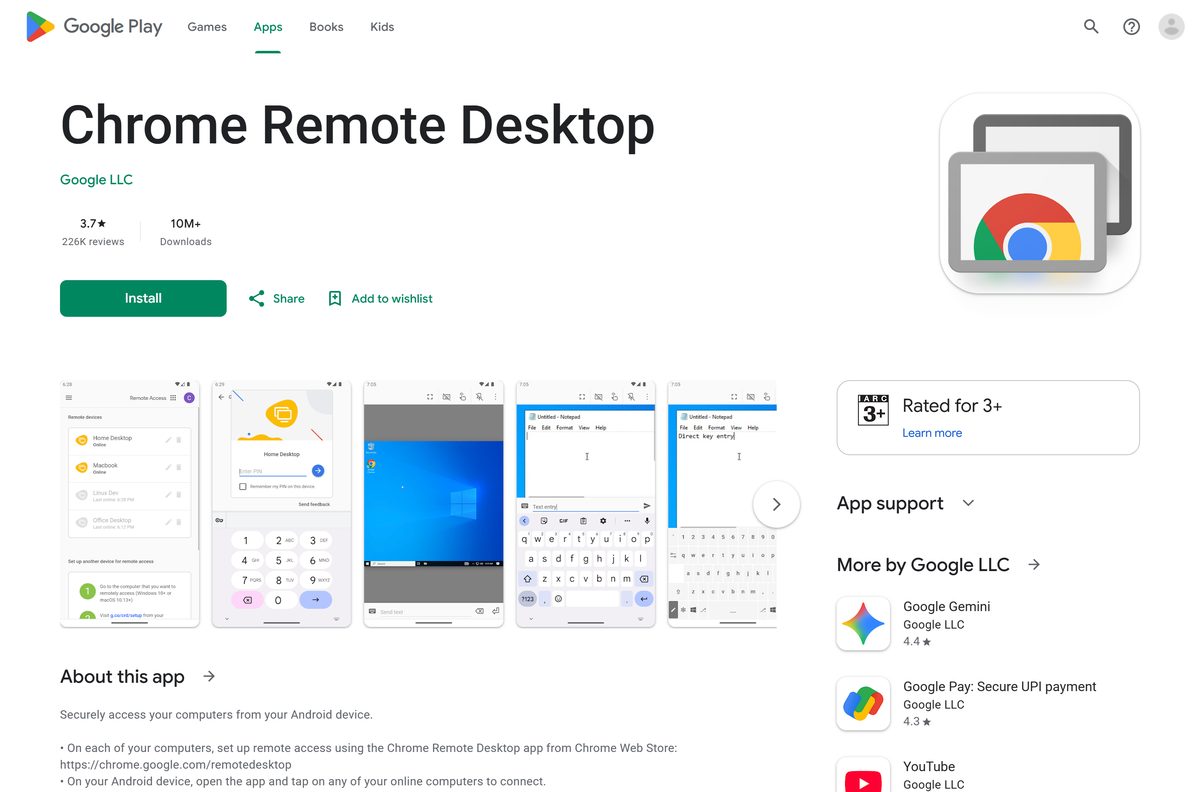
| Android phone or tablet you connect from | Chrome Remote Desktop on Google Play | Play Store app |
The web setup flow downloads the same files for you. Use the direct links for several machines or a PC without Chrome signed in.
Check the Chrome Remote Desktop requirements and specifications
The host is light. The network matters more than the hardware, because every session runs through Google’s relay and STUN servers.
| Field | Value |
|---|---|
| Software | Chrome Remote Desktop |
| Developer | Google LLC |
| Latest version | Rolling release that follows Chrome’s numbering; winget lists host 152.0.7977.9 |
| Licence | Free (freeware) |
| Host systems | Windows, macOS and Linux |
| Client devices | Chrome on any computer or Chromebook, Android and iOS apps |
| Windows file | chromeremotedesktophost.msi, 22.1 MB, 32-bit (x86) |
| Mac file | chromeremotedesktop.dmg, 40.8 MB |
| Linux file | 64-bit Debian package, 25.6 MB |
| Offline installer | Yes, the MSI is a complete package |
| Network | Outbound UDP, TCP 443, TCP and UDP 3478 |
| winget package | Google.ChromeRemoteDesktopHost |
| Official source | remotedesktop.google.com |
| Last verified | 2026-09-19 |
Both computers need an internet connection. Chrome Remote Desktop has no LAN-only mode for home users.
Download Chrome Remote Desktop from the official source
Google serves every Chrome Remote Desktop file from dl.google.com. The setup pages live on remotedesktop.google.com, and a copy from any other domain is not Google’s.
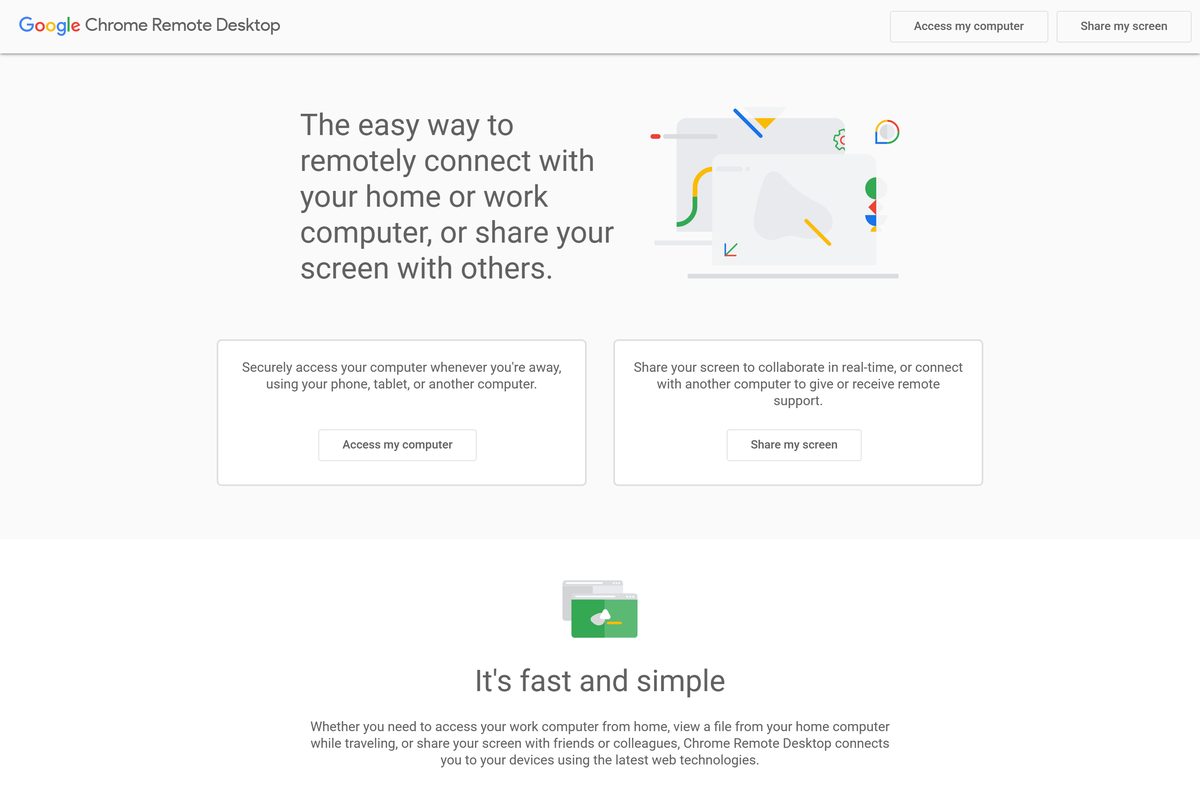
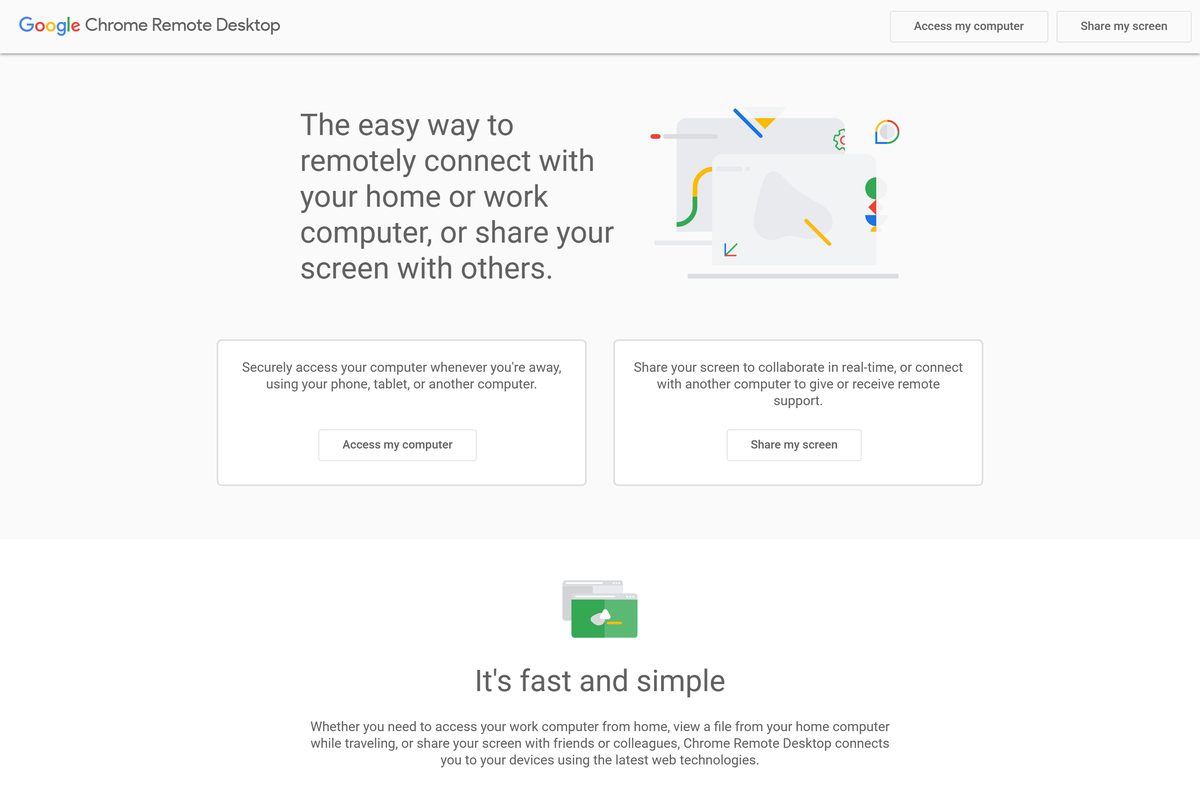
- Chrome Remote Desktop, official site — sign in, then choose Access my computer or Share my screen
- chromeremotedesktophost.msi for Windows — 23,171,072 bytes
- chromeremotedesktop.dmg for macOS — 42,744,646 bytes
- Debian package for 64-bit Linux — 26,884,404 bytes
- Companion extension on the Chrome Web Store — offered by Google, 40 million users
- Google’s setup and troubleshooting help — Windows, Mac and Linux instructions
If Chrome is missing on the PC, get it first from the official Chrome page, or follow the Google Chrome download guide.
How to install Chrome Remote Desktop on Windows 11 and 10
Do this on the PC you want to reach. The host runs as a Windows service, so the PC stays reachable after a restart and before anyone signs in.
- Open Chrome and go to remotedesktop.google.com/access, then sign in with your Google Account.
- Under Set up remote access, click the Download button.
- Click Add to Chrome if the companion extension prompt appears, then Add extension.
- Click Accept & Install when the page reports the download is ready.
- Open chromeremotedesktophost.msi if it does not start by itself, and select Yes at the User Account Control prompt.
- Back in Chrome, type a name for the computer and click Next.
- Choose a PIN of at least six digits, enter it twice and click Start.
- Check that the computer now shows as Online in the device list.
To connect later, open remotedesktop.google.com/access on another device signed in to the same account, select the computer and enter the PIN.
Install Chrome Remote Desktop with winget
Chrome Remote Desktop is not in the Microsoft Store. Windows Package Manager carries the host under Google’s publisher name instead.
- Right-click Start and open Terminal (Admin).
- Run winget install Google.ChromeRemoteDesktopHost and accept the source agreement if asked.
- Check the publisher line reads Google LLC before the download starts.
- Open remotedesktop.google.com/access in Chrome and finish the name and PIN steps.
- Run winget upgrade Google.ChromeRemoteDesktopHost to update the host later.
winget installs only the host. Pairing it with your Google Account still happens in the browser.
Download the Chrome Remote Desktop MSI for deployment
Admins can push the same MSI with Intune, Group Policy or any tool that runs msiexec . Test on one machine before a wide rollout.
| Task | File or command |
|---|---|
| Host package | chromeremotedesktophost.msi, 22.1 MB |
| Silent install | msiexec /i chromeremotedesktophost.msi /qn |
| Register a PC without its screen | remotedesktop.google.com/headless |
| Policies such as curtain mode | Google’s admin policy guide |
Curtain mode, which blanks the local screen during a session, works only on Windows Professional, Ultimate, Enterprise or Server. Google no longer supports it on macOS Big Sur or later.
Should you set up remote access or share your screen?
Set up remote access for your own computers. Use Share my screen for one-off help. Remote access pairs a computer with your Google Account and a PIN, so you can reach it any time, even unattended. Share my screen at remotedesktop.google.com/support generates a one-time access code instead. The helper types that code, you confirm their email address, and Chrome asks you to keep sharing every 30 minutes. Select Stop Sharing to end it. Never read an access code to a caller you did not contact first.
Which Chrome Remote Desktop download do you need for your Mac?
Google publishes one disk image for macOS. Install it only on a Mac that others will reach.
| Your Mac | What to get | Notes |
|---|---|---|
| Mac you want to reach | chromeremotedesktop.dmg | 40.8 MB, then set a name and PIN in Chrome |
| Mac you connect from | remotedesktop.google.com in Chrome | No download needed |
| Mac you share for one support session | Share my screen | Uses the same host, with a one-time code |
Open the disk image, run the installer package inside it, and enter your Mac password when asked. macOS then prompts you to allow the host in System Settings > Privacy & Security; approve each request, or remote sessions show a blank screen or ignore your mouse.
Is Chrome Remote Desktop free?
Yes, completely, for personal and work use. Google lists Chrome Remote Desktop as freeware, and there is no paid tier, trial or session limit. The host installers, the Chrome Web Store extension and the mobile apps all cost nothing. A site that charges for a Chrome Remote Desktop download, a licence key or a premium edition is selling something Google does not make. Businesses that want central control get it through Chrome Enterprise policies, not a separate paid product.
How to check your Chrome Remote Desktop version and update it
Updating keeps your computer name, PIN and account pairing, so there is nothing to set up again.
- Open Settings > Apps > Installed apps on Windows.
- Find Chrome Remote Desktop Host and read the version under its name.
- Run winget list Google.ChromeRemoteDesktopHost to see the installed and available versions in one line.
- Run winget upgrade Google.ChromeRemoteDesktopHost to install the newer build.
- Without winget, download the MSI again and run it over the existing install.
- On a Mac, open the latest disk image and run the installer again.
Fix Chrome Remote Desktop not installing or not connecting
Chrome Remote Desktop will not install on Windows
The MSI installs a system service, so it needs administrator rights and a clean slate.
- Sign in with an administrator account, or ask your IT team to install the host.
- Right-click chromeremotedesktophost.msi and select Install, then approve the User Account Control prompt.
- Uninstall an older Chrome Remote Desktop Host from Installed apps first if the new one fails.
- Run msiexec /i chromeremotedesktophost.msi /l*v crd-install.log and read the log for the failing step.
The Download button does nothing
The setup flow needs Chrome and the companion extension.
- Open remotedesktop.google.com/access in Chrome rather than another browser.
- Update Chrome from Help > About Google Chrome.
- Add the companion extension by hand, then reload the page.
- Use the direct MSI link above if the button still fails.
The computer is offline or the connection fails
A firewall, antivirus or company network is blocking the ports the service uses.
- Check that both devices have working internet.
- Allow outbound UDP traffic and inbound UDP responses in your antivirus or firewall.
- Allow TCP port 443 and TCP and UDP port 3478.
- Ask your network administrator whether a work or school network blocks remote access.
- Restart the host computer so the service starts fresh.
A Linux session opens to a blank or wrong desktop
The host starts a default session unless you name your desktop environment.
- Create a file named .chrome-remote-desktop-session in your home folder.
- Add the line exec /etc/X11/Xsession ‘
‘ , using your desktop’s start command. - Restart the computer, then connect again from remotedesktop.google.com/access.
How to uninstall Chrome Remote Desktop
Removing the host stops all incoming access to that computer. Delete it from your device list as well, so the old entry does not linger.
- Open Control Panel > Programs > Programs and Features on Windows.
- Select Chrome Remote Desktop Host and click Uninstall, then confirm.
- On a Mac, open Chrome Remote Desktop Host Uninstaller from Applications and click Uninstall.
- Open remotedesktop.google.com/access and delete the computer from the device list.
- Remove the Chrome Remote Desktop extension from chrome://extensions if you no longer need it.
What you can use instead of Chrome Remote Desktop
Check what the operating system already includes before installing a third-party tool.
| Tool | Who publishes it | Best for |
|---|---|---|
| Quick Assist | Microsoft, built into Windows 11 | One-off help between two Windows PCs |
| Windows App | Microsoft | Remote Desktop to Windows Pro PCs and cloud desktops |
| Screen Sharing | Apple, built into macOS | Mac to Mac |
| AnyDesk | AnyDesk Software GmbH | Portable client, free for private use |
| TeamViewer | TeamViewer | Commercial support with device management |
Stay with Chrome Remote Desktop when you already live in a Google Account and want free unattended access across Windows, Mac and Linux.
Frequently asked questions
Is Chrome Remote Desktop free?
Yes. Google publishes Chrome Remote Desktop as freeware with no paid tier, trial or session limit. Personal and business use are both free, and the host installers and mobile apps cost nothing.
What is the official Chrome Remote Desktop download page?
The official site is remotedesktop.google.com. Sign in, choose Access my computer and click Download under Set up remote access. The files themselves come from dl.google.com, Google’s download server.
What is Chrome Remote Desktop?
It is Google’s free remote access tool. A small host program on one computer lets you control it from Chrome on another computer, a Chromebook, or the Android and iOS apps, using your Google Account and a PIN.
Does Chrome Remote Desktop work on Windows 11?
Yes. The same chromeremotedesktophost.msi installs on Windows 11 and Windows 10, and the host runs as a service so the PC stays reachable after a restart. Curtain mode needs a Pro, Enterprise or Server edition.
How big is the Chrome Remote Desktop download?
The Windows host MSI is 23,171,072 bytes, about 22.1 MB. The Mac disk image is about 40.8 MB and the 64-bit Linux Debian package is about 25.6 MB. Connecting from another computer needs no download.
Is there a Chrome Remote Desktop offline installer?
Yes. chromeremotedesktophost.msi is a complete Windows Installer package, so you can copy it to a PC and install it without a web stub. Pairing the computer with your Google Account still needs an internet connection.
Does Chrome Remote Desktop work on Mac?
Yes, both ways. Install chromeremotedesktop.dmg on a Mac you want to reach, or open remotedesktop.google.com in Chrome on a Mac to control another computer. macOS asks you to approve the host’s security permissions.
Is there a 64-bit or ARM64 Chrome Remote Desktop for Windows?
No separate build exists. Google publishes one 32-bit x86 MSI, and 64-bit Windows 11 and 10 run it without trouble. Linux gets a 64-bit amd64 Debian package.
Is Chrome Remote Desktop safe?
The files come from Google’s own dl.google.com server, and all sessions are fully encrypted. The real risk is social engineering: never share an access code or PIN with a caller who contacted you first.
What is the latest version of Chrome Remote Desktop?
The host follows Chrome’s version numbering and Google replaces the download in place. Microsoft’s winget index lists host 152.0.7977.9, and the MSI on dl.google.com always carries the current build.
Why is Chrome Remote Desktop not installing?
Usually missing administrator rights or an older copy in the way. Approve the User Account Control prompt, uninstall any old Chrome Remote Desktop Host, and use Chrome for the setup page so the companion extension loads.

How to Use Remote Desktop to Connect to a Windows 10 PC: Step-by-Step Guide - Techdows
[…] help between two people. For unattended access from a Home PC, a cross-platform tool such as Chrome Remote Desktop works where Windows Remote Desktop hosting is not […]
How to configure and use Google Chrome Remote Desktop - Techdows
[…] you prefer to grab the installer first, the Chrome Remote Desktop download page lists the host package for each platform. On a Mac, finish the permission settings below before you […]