Microsoft has retired the Microsoft Deployment Toolkit (MDT), and it recommends Windows Autopilot for cloud-first fleets and Configuration Manager OSD for organizations that keep on-premises infrastructure.
This guide explains what the retirement notice says, how to choose a replacement, how to strip MDT out of Configuration Manager task sequences, and how to register your first devices in Autopilot.
Alternatives: What Microsoft recommends — and the tradeoffs
Microsoft names two supported replacements. Neither is an in-place upgrade from MDT, so every deployment workflow has to be rebuilt in the new tool.
| Your environment | Move to | Tradeoff |
|---|---|---|
| Cloud-first, Microsoft Entra joined, Intune licensed | Windows Autopilot (Microsoft's recommended option) | No custom images; devices keep the OEM Windows install and need internet access during setup |
| Existing Configuration Manager site with on-premises servers | Configuration Manager OSD task sequences | Keeps imaging, PXE and offline media, but you run and patch the site infrastructure |
| MDT Lite Touch (LTI) only, no Configuration Manager | Windows Autopilot, or a new Configuration Manager site | Autopilot needs Entra ID and Intune licences; Configuration Manager needs SQL Server and site servers |
| Configuration Manager with MDT-integrated (ZTI or UDI) task sequences | Native Configuration Manager OSD steps | MDT steps must be removed from every task sequence before the integration is removed |
| Need bare-metal reimaging in labs or offline sites | Configuration Manager stand-alone or prestaged media | Autopilot does not reimage a device |
What Microsoft actually announced
| Statement in the notice | What it means for you |
|---|---|
| Immediate retirement of MDT | No further releases are planned |
| MDT won't receive updates, fixes, or support | Microsoft support will not take MDT cases or ship security fixes |
| Existing installations will continue to function as is | Current deployment shares keep working until something they depend on changes |
| MDT download packages might be removed from official distribution channels | Keep a verified copy of the installer you already use |
| No future compatibility updates for new Windows releases | New Windows 11 versions and new hardware are untested with MDT |
| No direct in-place upgrade path to another tool | Task sequences and deployment shares are rebuilt, not converted |
The notice applies to Windows 11, Windows 10 and Windows Server, and Microsoft last updated it on January 6, 2026.
Background
MDT stopped tracking Windows long before the retirement notice. Its last build already lagged several Windows releases behind.
| Milestone | Detail |
|---|---|
| MDT build 8456 | Last release; supports Windows 10 version 1809, Windows Server 2019, Windows ADK for Windows 10 1809 and Configuration Manager 1810 |
| Platform limits of build 8456 | No support for Windows 10 ARM64 or any Windows version released after those listed |
| December 2024 | Microsoft announced deprecation of MDT integration with Configuration Manager and MDT standalone |
| First Configuration Manager release after October 10, 2025 | Support for MDT integration removed from Configuration Manager |
| January 6, 2026 | Immediate retirement notice for MDT published |
What MDT provided — a short technical refresher
| MDT component | What it did | Replacement |
|---|---|---|
| Deployment Workbench and deployment shares (LTI) | Lite Touch installs from a network share or media, with a wizard on the client | Autopilot profiles, or Configuration Manager task sequences |
| ZTI integration with Configuration Manager | Added MDT task sequence templates and the Microsoft Deployment Toolkit Files package | Native Configuration Manager OSD task sequence steps |
| Gather step and rules (ZTIGather) | Collected hardware and VM facts to drive task sequence logic | Task sequence variables and conditions in Configuration Manager, or Intune dynamic groups |
| Driver and application injection | Added drivers and apps per model during deployment | Configuration Manager driver packages, or Intune app and driver assignments |
| Windows PE boot images | Built with the Windows ADK and the Windows PE add-on | Configuration Manager boot images, or no boot image at all with Autopilot |
| Reference image capture | Built and captured a custom WIM | Configuration Manager build-and-capture task sequence; Autopilot uses the OEM image |
Why this matters: Immediate operational and security implications
| Implication | Practical effect |
|---|---|
| No security updates | Any vulnerability found in MDT scripts or components stays unpatched |
| No compatibility testing | A new Windows 11 release or ADK version can break a working deployment share without warning |
| Configuration Manager no longer supports MDT integration | Microsoft warns that leftover MDT steps can cause task sequence corruption and modification failures |
| Possible removal of downloads | Rebuilding a deployment server later may mean hunting for installers from unofficial sources |
| WDS changes | WDS is deprecated after Windows Server 2025, and hands-free WDS deployment is off by default from the April 2026 release |
| VBScript deprecation | Windows deprecated VBScript in October 2023; audit any deployment scripts that still depend on it |
Strategic analysis: Why Microsoft may have pulled the plug now
Microsoft's notice gives no reason beyond pointing to modern deployment. Its own documentation shows the direction the platform has taken.
| Documented signal | Source of the signal |
|---|---|
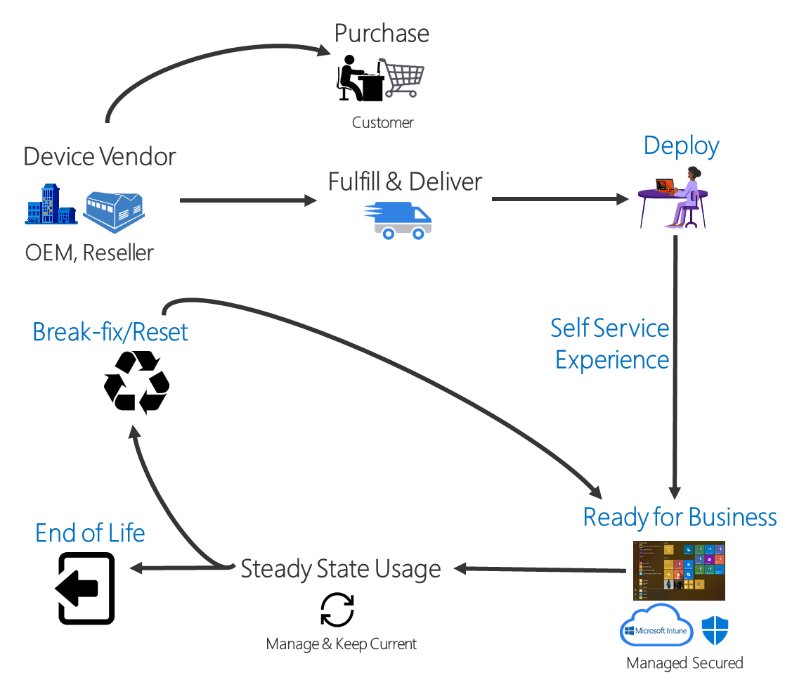
| Autopilot transforms the OEM Windows install instead of reimaging it | Windows Autopilot overview |
| New devices should be Microsoft Entra joined, not hybrid joined | Windows Autopilot requirements |
| WDS is deprecated after Windows Server 2025, including its PXE role | WDS boot.wim support article |
| Configuration Manager OSD remains fully supported for on-premises customers | MDT retirement notice |
| MDT had no release after build 8456 for Windows 10 version 1809 | MDT release notes |
Practical migration playbook for MDT users
The first five steps follow Microsoft's recommended next steps. The rest turn them into a working cutover.
- Inventory every MDT deployment share, task sequence, rule file and script, and note which site or team uses each one.
- Mark the components that depend on MDT, such as Gather, custom ZTI scripts, driver injection rules and the client wizard.
- If you use Configuration Manager, verify each existing task sequence and list the MDT steps inside it.
- For cloud-first sites, evaluate Autopilot enrollment options and confirm your licences include Microsoft Entra ID P1 or P2 and Intune.
- Pick one device model and one site as a pilot, and build the replacement workflow there first.
- Run the old and new workflows side by side until the pilot passes, then move the remaining models.
- Update internal documentation and runbooks to remove MDT.
- Archive the deployment share and remove the MDT server once no workflow uses it.
How to remove MDT from Configuration Manager task sequences
Microsoft's order matters: remove the MDT steps first, then remove the MDT integration. Reversing it is what leads to task sequences that cannot be edited.
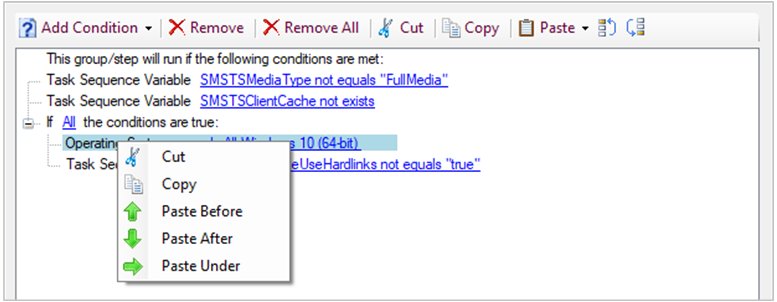
- In the Configuration Manager console, open Software Library > Operating Systems > Task Sequences.
- Right-click a task sequence that was built from an MDT template and select Copy, so you keep a fallback.
- Right-click the original and select Edit.
- Replace each step that came from the MDT templates, such as Gather, with native Configuration Manager steps and task sequence variables.
- Select Apply, then run the task sequence against a test collection.
- Repeat for every task sequence that references the Microsoft Deployment Toolkit Files package.
- When no task sequence uses MDT steps, remove the MDT integration from the console and uninstall MDT from the site server.
Deploy Windows 11 with a Configuration Manager OSD task sequence
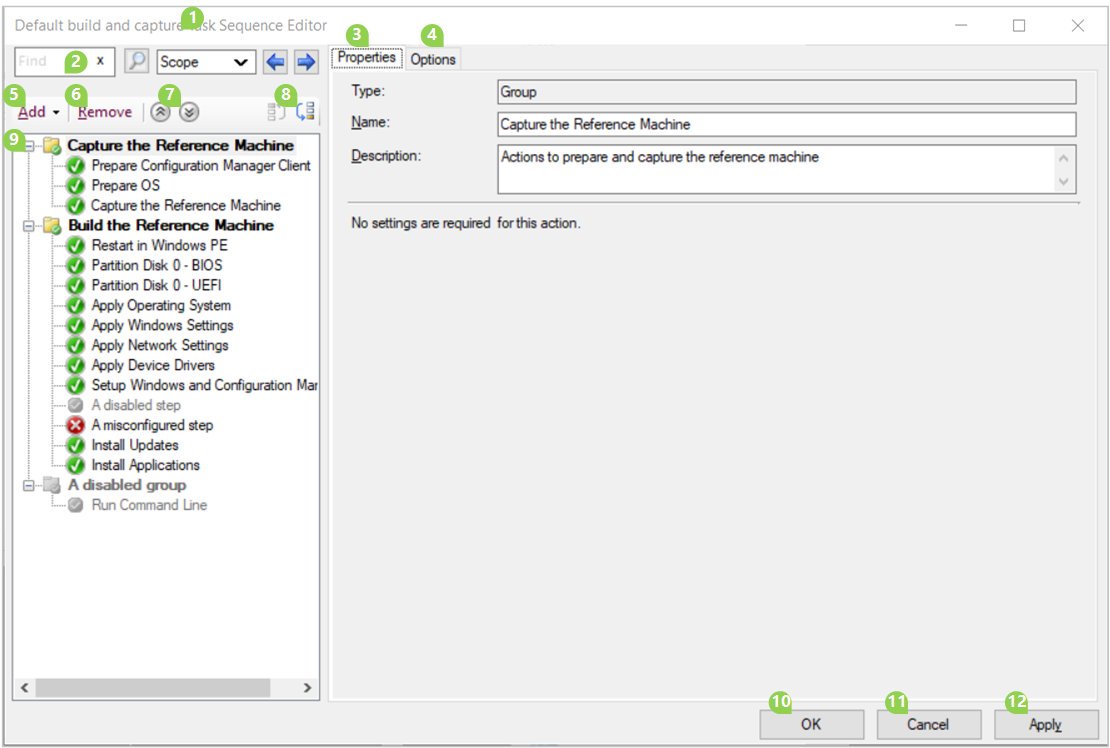
This is the native Configuration Manager flow that replaces an MDT-integrated task sequence. It works for refresh, replace, in-place upgrade and bare-metal scenarios.
- Identify the Windows drivers each model needs to start the boot image and install Windows, and import them into Drivers and Driver Packages.
- Choose the boot image that will start the destination computer.
- Add a default Windows image, or capture one with a build-and-capture task sequence.
- Distribute the boot image, operating system image and related content to your distribution points.
- Create a task sequence that installs the operating system image.
- Deploy the task sequence to a collection through PXE, Software Center, multicast, bootable media, stand-alone media or prestaged media.
- Monitor the deployment in the console.
To keep user files during a refresh or replace, add capture and restore user state steps that use a state migration point, a local path or hard links.
Windows Autopilot requirements
| Requirement | What Microsoft lists |
|---|---|
| Windows edition | Pro, Pro Education, Pro for Workstations, Enterprise, Education or Enterprise LTSC on a supported Windows 11 or Windows 10 version |
| Licensing | One of: Microsoft 365 Business Premium, F1/F3, A1/A3/A5, E3/E5, EMS E3/E5, Intune for Education, or Microsoft Entra ID P1/P2 with Intune |
| Network | Internet DNS resolution and access on ports 80, 443 and UDP 123, including ztd.dds.microsoft.com |
| Configuration | Microsoft Entra automatic enrollment enabled; first user allowed to join devices, except in self-deploying mode |
| Device registration | Devices added to Autopilot and assigned a deployment profile |
| Hardware | Nothing beyond the hardware requirements of Windows itself, such as the Windows 11 hardware requirements |
Self-deploying mode and pre-provisioning also need TPM attestation access to *.microsoftaik.azure.net. Microsoft recommends Microsoft Entra join for new devices rather than hybrid join.
How to register devices with Windows Autopilot
Manual registration through a CSV file suits pilots and small batches of up to 500 devices. For larger purchases, Microsoft recommends registration by the OEM or partner through Partner Center.
- Collect the hardware hash of each device into a CSV file with the header
Device Serial Number,Windows Product ID,Hardware Hash,Group Tag,Assigned User. - Sign in to the Microsoft Intune admin center.
- Select Devices, then Windows under By platform.
- Under Device onboarding, select Enrollment, then Devices under Windows Autopilot.
- Select Import, choose the CSV file and select Import again.
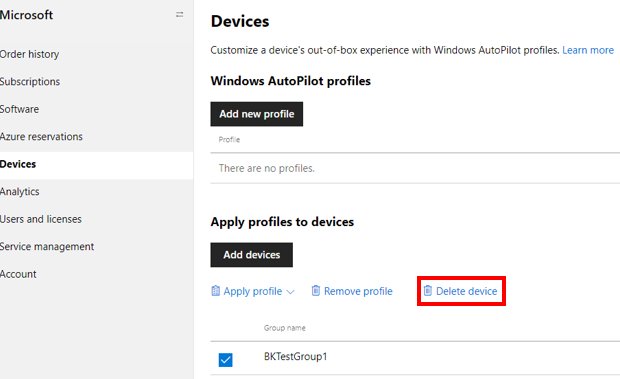
- When the import finishes, select Sync, then Refresh until the devices appear.
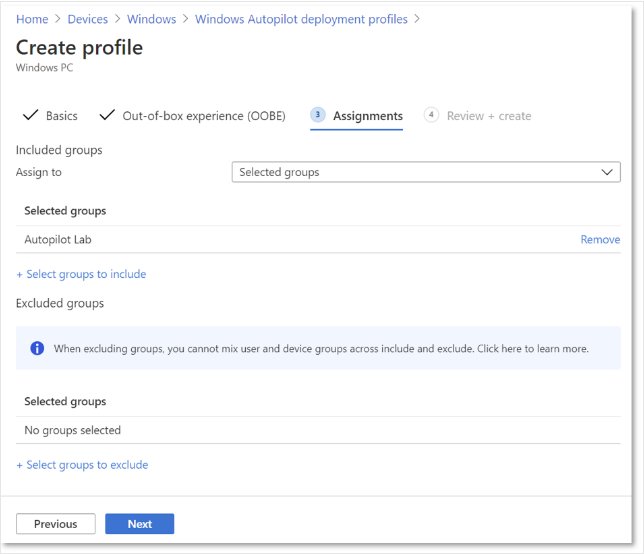
- Assign an Autopilot deployment profile to the devices through a device group.
Edit the CSV only in a plain-text editor such as Notepad and save it as ANSI. A file saved from Excel does not import.
Get-WindowsAutopilotInfo hardware hash command
Run this in an elevated Windows PowerShell window on a device that has finished Windows setup. Configuration Manager also collects hardware hashes automatically for its clients.
[Net.ServicePointManager]::SecurityProtocol = [Net.SecurityProtocolType]::Tls12
New-Item -Type Directory -Path "C:\HWID"
Set-Location -Path "C:\HWID"
$env:Path += ";C:\Program Files\WindowsPowerShell\Scripts"
Set-ExecutionPolicy -Scope Process -ExecutionPolicy RemoteSigned
Install-Script -Name Get-WindowsAutopilotInfo
Get-WindowsAutopilotInfo -OutputFile AutopilotHWID.csv
The commands enable TLS 1.2, create C:\HWID, install the Get-WindowsAutopilotInfo script from the PowerShell Gallery and write the serial number and hardware hash to a CSV file. Replace the last line with Get-WindowsAutopilotInfo -Online to upload the hash straight to Intune instead.
You should see: C:\HWID\AutopilotHWID.csv exists and contains the device serial number and hardware hash.
WDS deprecation and PXE boot for Windows 11
Many MDT setups paired a deployment share with Windows Deployment Services for PXE. That pairing is also changing.
| Scenario | Status |
|---|---|
| WDS role, services and PXE in the Windows Server release after Windows Server 2025 | Deprecated |
| Windows 11 deployed with boot.wim from installation media in WDS | Not supported, blocked |
| WDS hands-free deployment from the April 2026 release | Off by default (CVE-2026-0386 hardening) |
| WDS PXE boot with a custom boot image, such as a Configuration Manager boot image | Not affected by the boot.wim change |
| Configuration Manager PXE-enabled distribution points | Microsoft's recommended alternative to WDS |
Special cautions: Third‑party downloads and verification
Microsoft says MDT download packages might be removed from official channels. That pushes admins toward mirrors and file-sharing sites when they rebuild a server.
- Keep the MDT installer and Windows ADK files you already run, together with a record of where they came from.
- Download ADK, Windows PE add-on and Windows media only from Microsoft's own sites.
- Right-click any installer, select Properties > Digital Signatures and confirm the signer is Microsoft Corporation before you run it.
- Treat an MDT package from a third-party site as untrusted, even if the file name matches.
- Use the rebuild need as the trigger to move that site to Autopilot or Configuration Manager instead of reinstalling MDT.
Risks, mitigation and realistic timelines
| Risk | Mitigation | When to act |
|---|---|---|
| MDT steps corrupt Configuration Manager task sequences | Remove MDT steps, then the MDT integration | Now; support was removed after October 10, 2025 |
| A new Windows 11 release breaks an LTI share | Pilot Autopilot or Configuration Manager on one model | Before your next Windows feature update cycle |
| WDS-based PXE stops working on new servers | Move PXE to Configuration Manager distribution points | Before upgrading past Windows Server 2025 |
| Installers disappear from official channels | Archive verified copies and their signatures | Now |
| Licensing gap for Autopilot | Confirm Entra ID P1/P2 and Intune entitlements | During planning, before the pilot |
| Staff know only MDT | Train on Intune Autopilot profiles or Configuration Manager OSD | Alongside the pilot |
How to check if a device is registered in Windows Autopilot
- In the Microsoft Intune admin center, go to Devices > Windows > Enrollment > Devices under Windows Autopilot.
- Select Sync and wait for it to finish.
- Search for the device serial number in the list.
- Confirm a deployment profile is assigned to the device.
- Reset or start the device; during setup it should show your organization's sign-in page instead of the consumer setup screens.
On Windows 11, press Ctrl + Shift + D during setup to open the Autopilot diagnostics page and export logs.
Windows Autopilot device import errors
ZtdDeviceAssignedToAnotherTenant
The hardware hash matches a device already registered to a different tenant.
- Find the serial number of the failed row in the CSV file.
- Ask the other tenant or the reseller to deregister the device before you import it again.
ZtdDeviceAlreadyAssigned or ZtdDeviceDuplicated
The device is already in your tenant, or the CSV lists the same hash twice.
- Search the serial number in Windows Autopilot devices.
- If the device is registered, remove the duplicate row instead of importing it again.
InvalidZtdHardwareHash
A hash field is empty or invalid, often a missing manufacturer or serial number.
- Run
Get-CimInstance Win32_BaseBoard | Select-Object Manufacturer, SerialNumberon the device. - Recollect the hash with Get-WindowsAutopilotInfo and import the new file.
"A media driver your computer needs is missing" when PXE booting from WDS
boot.wim from installation media is not supported on WDS running on Windows Server 2025.
- Use a custom boot image, such as a Configuration Manager boot image.
- Move PXE to a Configuration Manager distribution point.
MDT retirement FAQ
Does MDT stop working immediately?
No. Existing MDT deployments continue to function as they are. Microsoft no longer provides updates, fixes or support, so any break caused by a new Windows release or ADK stays unfixed.
Is MDT still supported by Microsoft?
No. Microsoft retired MDT immediately in its January 2026 notice, and Configuration Manager no longer supports MDT integration. Windows Autopilot and Configuration Manager OSD are the supported replacements.
Is there an in-place upgrade from MDT to Autopilot or Configuration Manager?
No. Microsoft states there is no direct in-place upgrade path. Deployment workflows must be rebuilt as Autopilot profiles or as native Configuration Manager task sequences.
What replaces MDT for on-premises deployments?
Configuration Manager operating system deployment. It supports PXE, multicast, bootable, stand-alone and prestaged media, and Microsoft describes it as fully supported for customers with on-premises infrastructure.
Does Windows Autopilot reimage devices?
No. Autopilot keeps the OEM-preinstalled Windows and transforms it into a business-ready state by applying settings and policies, installing apps and, if needed, changing the edition from Pro to Enterprise.
What licences does Windows Autopilot need?
A subscription that includes Microsoft Entra ID P1 or P2 and an MDM service such as Intune, for example Microsoft 365 Business Premium, Microsoft 365 E3 or E5, or EMS E3 or E5.
Can MDT deploy Windows 11?
Not with support. The last MDT build, 8456, lists Windows 10 version 1809 and Windows Server 2019 as its newest supported platforms and does not support later Windows versions or ARM64.
What should I do with MDT task sequences in Configuration Manager?
Remove every MDT step from those task sequences first, then remove the MDT integration. Microsoft warns that doing it in another order can cause task sequence corruption and modification failures.
The final word for administrators
Start the move now: Autopilot for cloud-managed fleets, Configuration Manager OSD for sites that need imaging, PXE or offline media. MDT still runs, but it receives no fixes, its integration with Configuration Manager is unsupported, and every new Windows release widens the gap. A planned pilot costs less than an emergency rebuild after a deployment share breaks.