Classic Outlook opens only in Safe Mode when a COM add-in crashes the normal start, when a shortcut carries the /safe switch, or when the profile or data file behind it is damaged.
The eight fixes below run from the fastest add-in check to an Office repair, and cover the Teams Meeting Add-in crash Microsoft documented in March 2026.
The fastest fix when Outlook keeps starting in Safe Mode
A misbehaving COM add-in is the most common cause. Turning the add-ins off inside a Safe Mode session clears it in under two minutes.
- Hold Ctrl and start Outlook, then select Yes at the prompt asking to start in Safe Mode.
- Select File > Options > Add-ins.
- At the bottom of the pane, leave COM Add-ins selected in the Manage box and choose Go.
- Clear every check box in the COM Add-ins list, then select OK.
- Close Outlook, then start it normally from the Start menu.
If Outlook now opens without the Safe Mode prompt, one of those add-ins was the cause. Re-enable them one at a time to find it.
First: Make Sure Outlook Is Really Opening in Safe Mode
Safe Mode is a stripped-down session, not an error state. Microsoft defines exactly what the /safe switch removes, so the session is easy to identify.
| What you see | What it means | Where it comes from |
|---|---|---|
| A prompt asking whether to start in Safe Mode | Outlook closed badly last time, or Ctrl was held during launch | Office offers Safe Mode after a failed start |
| No Reading Pane | Confirmed Safe Mode session | /safe starts Outlook without the Reading Pane |
| Toolbar customisations missing | Confirmed Safe Mode session | /safe drops toolbar customisations |
| Add-in ribbon tabs gone | Confirmed Safe Mode session | /safe turns off both native and managed COM add-ins |
| Everything normal but slow | Not Safe Mode | Treat it as a performance problem, not a startup one |
Safe Mode lasts only for that session. Exit and restart Outlook and it returns to normal mode unless something blocks the normal start.
Which fix matches your symptom
| Your situation | Go to | Why |
|---|---|---|
| Outlook crashed, then offered Safe Mode | Fix 2, then Fix 7 | A COM add-in is failing at startup |
| Outlook opens in Safe Mode with no prompt at all | Fix 1 | The shortcut target carries the /safe switch |
| Crash started around 12 March 2026 | Fix 7 | A Teams Meeting Add-in build crashed older Outlook builds |
| The Folder Pane looks broken or empty | Fix 3 | A damaged Folder Pane configuration blocks a normal start |
| Outlook cannot open the set of folders | Fix 5 | The Outlook data file needs the Inbox Repair tool |
| Normal start fails on every profile | Fix 6 | Office program files are damaged |
| Something non-Office loads at boot and breaks it | Fix 8 | A clean startup isolates the conflict |
1. Check Whether a Shortcut Is Forcing Outlook to Open in Safe Mode
Office lets any switch be baked into a shortcut permanently. A shortcut whose target ends in /safe opens Safe Mode every time, with no crash and no prompt.
- Right-click the Outlook icon on the desktop, taskbar or Start menu and select Properties.
- Open the Shortcut tab and read the Target box.
- Delete any text after the closing quotation mark, including
/safe, so the target ends atoutlook.exe". - Select Apply, then OK.
- Start Outlook from that shortcut.
To rule the shortcut out entirely, right-click Start, select Run, type Outlook.exe and press Enter. That route ignores every shortcut on the machine.
2. Disable Problem Add-ins
Microsoft's own guidance for a classic Outlook that hangs or stops working starts here. The Teams Meeting Add-in, antivirus mail scanners, CRM connectors and PDF toolbars are the usual candidates.
- Press Win + R, type
outlook.exe /safeand select OK. - Select File > Options > Add-ins.
- Select COM Add-ins in the Manage box, then choose Go.
- Clear all the check boxes in the list to disable the add-ins, then select OK.
- Restart Outlook normally and confirm it opens.
- Return to the COM Add-ins dialog, tick one add-in, select OK and restart Outlook.
- Repeat until the Safe Mode prompt returns; the add-in ticked last is the faulty one.
Leave that add-in unticked and check its vendor for an update. Clearing a check box is reversible; Remove is not.
3. Reset Outlook’s Navigation Pane
The Folder Pane keeps its own configuration per profile. When that configuration is damaged, Outlook can fail the normal start and fall back to Safe Mode.
Outlook.exe /resetnavpaneRun it from Win + R. The switch clears and regenerates the Folder Pane for the current profile, then opens Outlook.
You should see: Outlook opens with the default Folder Pane, all mail folders listed, and no Safe Mode prompt.
Custom Folder Pane shortcuts and favourites are rebuilt from defaults. Mail, calendar and contacts are untouched.
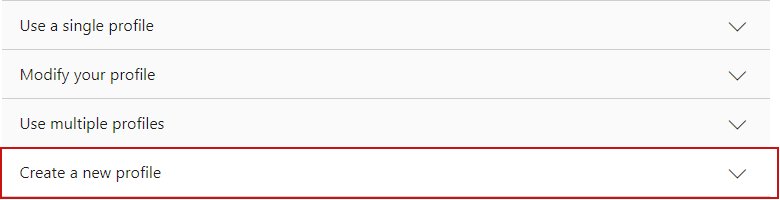
4. Create a New Outlook Profile
A profile holds the accounts, data files and settings that decide where mail is saved. A damaged profile is a common reason a normal start fails while Safe Mode succeeds.
- Hold Shift while starting Outlook to open the profile picker.
- If the picker does not appear, right-click Start, select Run, type
Outlook.exe /profilesand press Enter. - In the profile picker, select Options.
- Tick Prompt a profile to be used so both profiles stay reachable.
- Select New, type a name for the new profile and select OK.
- Add your email account when the add-account dialog appears.
- Start Outlook and choose the new profile at the prompt.
If the new profile opens normally, keep it and copy anything you need from the old one rather than deleting it straight away.
5. Repair Your Outlook Data File
The Inbox Repair tool (SCANPST.EXE) checks an Outlook data file for corruption. Use it when Outlook says it cannot open your data file or cannot open the set of folders.
Back up the data file first. Microsoft recommends it before every scan.
- Exit Outlook completely.
- Browse to
C:\Program Files (x86)\Microsoft Office\root\Office16for Outlook 2019 and Outlook 2016. - Open SCANPST.EXE.
- Select Browse and pick the Outlook Data File (.pst) you want to scan.
- Choose Start to begin the scan.
- If the scan finds errors, choose Repair.
- Start Outlook with the profile attached to the file you repaired.
On an Exchange account you can delete the offline Outlook Data File (.ost) instead; Outlook recreates it the next time it opens. The scan may need several passes, and a Recovered Personal Folders or Lost and Found folder afterwards is normal.
6. Repair Microsoft 365 or Office
Quick Repair only detects and replaces corrupted files, so it runs offline and finishes quickly. Online Repair reinstalls the whole product and needs an internet connection.
- Close Outlook and every other Office app.
- On Windows 11, right-click Start and select Installed apps. On Windows 10, right-click Start and select Apps and Features.
- Find your Microsoft 365 or Office product in the list.
- On Windows 11, select the ellipsis next to it and choose Modify. On Windows 10, select the product, then select Modify.
- Select Quick Repair and follow the on-screen instructions.
- Start Outlook. If the Safe Mode prompt returns, repeat the steps and select Online Repair instead.
Microsoft lists Online Repair as the workaround for the March 2026 crash when updating Office is not an option. The same routine fixes shared Office components, which is why a Word document that opens blank often clears at the same time.
7. Update Outlook, Windows, and Related Apps
Microsoft confirmed that from around 12 March 2026, classic Outlook could crash and then prompt to start in Safe Mode. The trigger was Teams Meeting Add-In build 1.26.02603 running against an older Outlook build — on Current Channel, Version 2402 (Build 17328.20142) or lower.
Microsoft marked the issue FIXED and shipped the correction in Microsoft Teams version 26058.712.4527.9297, deploying from 30 March 2026. Updating Outlook to the latest build resolves it immediately.
- Open Word, because Outlook itself is the app that crashes.
- Select File > Account > Update Options > Update Now.
- Let the update finish, then start Outlook normally.
- Press Win + R, type
ms-settings:windowsupdate, press Enter and install every pending Windows update. - Update Microsoft Teams and any other app that installs an Outlook add-in, then restart the PC.
- If you must stay on the older Office build, open Outlook in Safe Mode, go to File > Options > Add-ins > Go, untick Microsoft Teams Meeting Add-in for Microsoft Office and select OK.
The crash writes an Event 1000 entry naming OUTLOOK.EXE as the faulting application and MSVCP140.dll as the faulting module, with exception code 0xc0000005.
8. Start Outlook with Clean Startup Settings
A clean boot starts Windows with non-Microsoft services and startup apps switched off. It isolates a background program that is loading into Outlook before the mailbox opens.
- Sign in with an administrator account and open System Configuration.
- On the Services tab, tick Hide all Microsoft services, select Disable all, then select Apply.
- On the Startup tab, select Open Task Manager.
- Select each enabled startup item and choose Disable, then close Task Manager.
- Back in System Configuration, select OK and restart the PC.
- Start Outlook. If it opens normally, re-enable services in small batches to find the conflict.
Put the PC back afterwards: open System Configuration, select Normal Startup on the General tab, clear Hide all Microsoft services, select Enable all, re-enable the startup items in Task Manager, then select OK and restart.
Extra Fixes Worth Trying If Outlook Still Opens in Safe Mode
These are documented switches and tools rather than main fixes. Reach for them once the eight above are done.
| Extra fix | What it does | Use it when |
|---|---|---|
Outlook.exe /cleanviews |
Restores default views; all custom views you created are lost | A custom view fails to load at startup |
Outlook.exe /profiles |
Opens the Choose Profile dialog regardless of the profile setting | You need to test a second profile without holding Shift |
| Delete the .ost file | Outlook recreates the offline data file at the next start | The account is on Exchange and SCANPST cannot finish |
| Classic Outlook startup troubleshooter | Microsoft's automated startup diagnostic; needs Windows 10 or higher | Outlook will not start and you want Microsoft to run the checks |
| Online Repair of Office | Reinstalls the whole Office product over the internet | Quick Repair changed nothing |
| Other apps with their own safe mode | Browsers use the same idea — see Chrome's safe mode hotkey | You want to test whether an add-on is the cause elsewhere |
What Not to Do
Never select an add-in in the COM Add-ins dialog and choose Remove, and never turn off your security software to get Outlook started. Remove deletes the add-in registration rather than pausing it, so a working add-in cannot simply be ticked back on, and Microsoft's own guidance is to clear the check box instead. Turning off antivirus fixes nothing here, because the add-in still loads. Skip third-party PST repair utilities and PC cleaners as well: SCANPST is the supported tool, and deleting a .pst file destroys mail that only exists in that file.
How to Tell Which Fix Worked
Proof is a normal start with the Reading Pane back and your add-ins active.
- Start Outlook from the Start menu without holding Ctrl.
- Confirm no prompt asks whether to start in Safe Mode.
- Check that the Reading Pane is visible and your toolbar customisations are back.
- Select File > Options > Add-ins and confirm the add-ins you kept appear under Active Application Add-ins.
- Close Outlook and reopen it once more to confirm the normal start survives a restart.
- Re-enable any remaining add-in on its own, restarting after each one, and stop at the one that brings the prompt back.
Only one change should be in play per restart. Two changes at once and the result proves nothing.
Fix Outlook when Safe Mode itself misbehaves
Cannot open Outlook in safe mode at all
The Run box cannot resolve outlook.exe because the Office folder is not on the search path.
- Press Win + R and type the full quoted path instead, for example
"C:\Program Files\Microsoft Office\root\Office16\outlook.exe" /safe. - Type a space after the closing quotation mark, then the switch, exactly as shown.
- Press Enter.
- If the path is wrong, find the Outlook icon, hold Ctrl and double-click it, then select Yes at the Safe Mode prompt.
`outlook /safe` does not work or throws an error
Only one switch runs at a time, and a missing quotation mark breaks the command.
- Use one switch only —
/safeon its own, never combined with/resetnavpane. - Wrap the path in quotation marks and keep the switch outside them.
- Retype the command by hand; a pasted curly quotation mark will not parse.
- If it still fails, use the Ctrl and double-click method, which needs no command at all.
No window opens in Outlook Safe Mode
A previous OUTLOOK.EXE process is still running and blocking the new session.
- Press Ctrl + Shift + Esc to open Task Manager.
- Find Microsoft Outlook or
OUTLOOK.EXEin the list. - Select it and choose End task.
- Start Outlook again in Safe Mode and wait for the status bar to stop reporting background activity.
Outlook won't open unless in safe mode, even after disabling add-ins
The profile or the Outlook data file behind it is damaged, not the add-ins.
- Run
Outlook.exe /resetnavpanefrom Win + R. - If that fails, create a new profile with
Outlook.exe /profilesand add your account to it. - If the new profile also opens in Safe Mode, run SCANPST.EXE against the data file.
- If all three fail, run an Online Repair of Office.
When to Reinstall Office
Reinstall Office only after an Online Repair and a brand-new profile have both failed. Online Repair already reinstalls the entire product, so a manual uninstall and reinstall rarely replaces anything the repair left alone. A new profile rules out the other half of the problem, since profile and data-file damage survives any reinstall. When both have been tried and Outlook still refuses a normal start, a full reinstall is the next reasonable step — and signing in afterwards restores a cloud mailbox, while any local .pst must be backed up first.
Frequently Asked Questions
How do you open Outlook in safe mode?
Hold Ctrl, double-click the Outlook shortcut and select Yes at the prompt. The command route also works: right-click Start, select Run, type Outlook.exe /safe and press Enter. Both start Outlook with COM add-ins turned off.
Why is Outlook opening in safe mode?
Outlook offers Safe Mode after a failed or crashed start. The usual triggers are a COM add-in that fails to load, a damaged Folder Pane or profile, a corrupted data file, or a shortcut whose target already carries the /safe switch.
Why can I only open Outlook in safe mode?
Something blocks every normal start. Work through the add-in check, the shortcut target, the Folder Pane reset and a new profile in that order. If a new profile still opens in Safe Mode, the Office installation itself needs an Online Repair.
Is Microsoft Outlook safe to use in Safe Mode?
Yes. Safe Mode is a supported Microsoft diagnostic session, not a damaged state. Mail, calendar and contacts stay intact. Only the Reading Pane, toolbar customisations and COM add-ins are switched off for that session.
What do I do when outlook /safe does not work?
Retype the command with the full path in quotation marks and the switch outside them, for example "C:\Program Files\Microsoft Office\root\Office16\outlook.exe" /safe. Only one switch runs at a time. If it still fails, hold Ctrl while double-clicking the Outlook icon instead.
Outlook 2019 only opens in safe mode — is the fix different?
No. The same eight fixes apply, and SCANPST.EXE for Outlook 2019 and Outlook 2016 sits in C:\Program Files (x86)\Microsoft Office\root\Office16. Perpetual versions do not get the Current Channel updates, so repair and profile fixes matter more.
Why won't Outlook open except in safe mode after an update?
An add-in built for the previous build is the likely cause. Microsoft documented exactly that in March 2026, when Teams Meeting Add-In build 1.26.02603 crashed older classic Outlook builds. Updating Office to the latest build resolves it.
How do I stop Outlook wanting to open in Safe Mode every time?
Check the shortcut first. Right-click the Outlook icon, select Properties, open the Shortcut tab and delete any /safe text after the closing quotation mark in the Target box. A shortcut carrying that switch forces Safe Mode with no prompt.
Does Safe Mode delete email?
No. Safe Mode changes nothing in the mailbox or the data file. It only skips add-ins and customisations for one session. Running SCANPST.EXE can move unplaceable items into a Lost and Found folder, which is why a backup comes first.
What is missing when Outlook runs in Safe Mode?
The /safe switch starts Outlook without the Reading Pane and without toolbar customisations, and turns off both native and managed COM add-ins. Ribbon tabs added by Teams, your antivirus or a CRM will not appear until you start normally.
Can I keep using Outlook in Safe Mode permanently?
It works, but nothing that depends on an add-in does — no Teams meeting button, no archiving tools, no CRM tracking. Safe Mode is for diagnosis. Fix the cause instead, then check other Outlook features are back.
Does resetting the navigation pane lose anything?
Outlook.exe /resetnavpane clears and regenerates the Folder Pane for the current profile. Custom Folder Pane shortcuts and favourites return to defaults. Messages, folders, calendars and contacts are not touched by the switch.


How to open Outlook in safe mode in Windows 11 - Techdows
[…] mode but not normally, an add-in is the most likely cause. When it keeps reopening there, these fixes for Outlook stuck in safe mode go […]