To insert an emoji in a Microsoft Outlook email on Windows, place the cursor in the message or subject line and press Windows + . (period). Select an emoji from the Windows picker, and it will be added at the cursor position. This works in the new Outlook, classic Outlook, and Outlook on the web on Windows 11 and Windows 10.
| Outlook version | Fastest way to insert an emoji |
|---|---|
| New Outlook for Windows | Press Windows + . |
| Classic Outlook | Press Windows + . |
| Outlook on the web | Use Windows + . or the emoji button in the composer |
| Outlook for Mac | Press Control + Command + Spacebar |
| Outlook for Android or iPhone | Use the emoji button on the phone’s keyboard |
How Do I Add Emojis to My Outlook Emails?
The best method depends on the device and Outlook version you use. On a Windows PC, the system emoji picker is usually the quickest because it works in both the subject line and message body. Outlook on the web also provides its own emoji menu, while Mac and mobile devices use their operating system keyboards.
Inserting Emojis Using the Windows Emoji Panel (Desktop App)
The Windows emoji panel works in both the new Outlook and classic Outlook. It is also more convenient than searching through Outlook menus.
- Open Outlook and select New mail or New Email.
- Click where you want the emoji to appear.
- Press Windows + . on your keyboard.
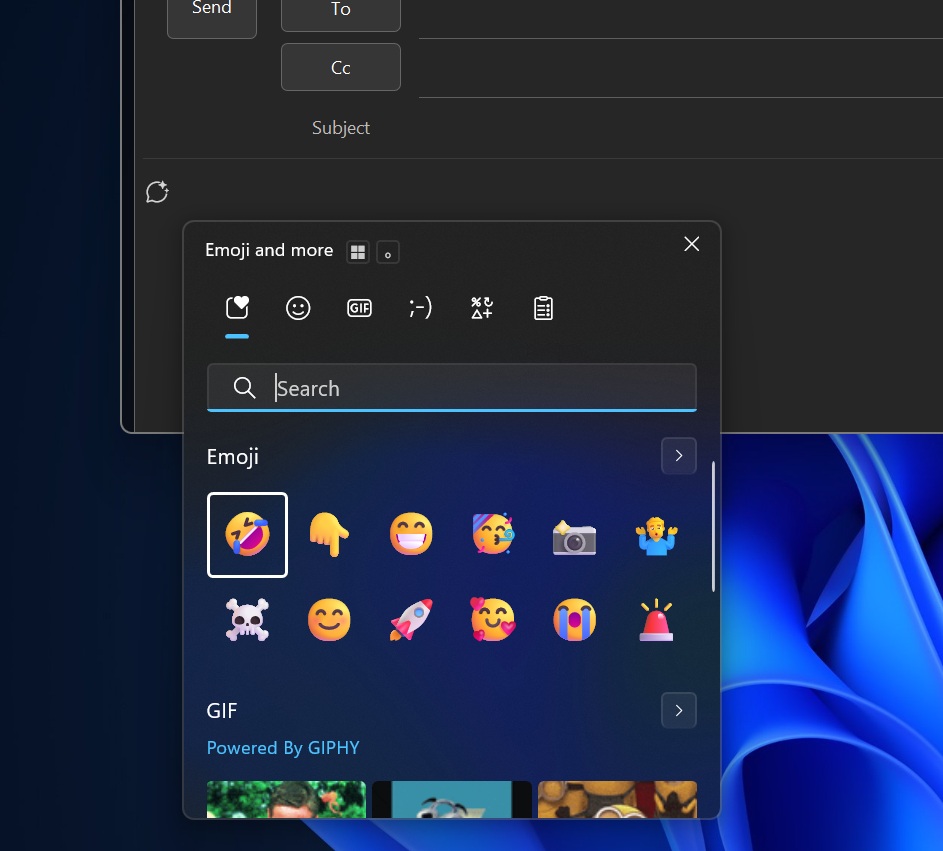
- Browse the categories or begin typing a word such as smile, thumbs up, or calendar.
- Select an emoji to insert it.
- Press Esc or click outside the panel when finished.
You can repeat the process to add more than one emoji. The picker also contains symbols, kaomoji, and, on supported Windows versions, GIFs and clipboard tools.
Microsoft officially documents the Windows + . shortcut for adding emojis to Outlook messages. The shortcut works wherever Windows accepts normal text input, so it can also be used in calendar invitations, contact fields, and other Outlook editors.
Using the Emoji Panel in Outlook on the Web
Outlook.com and Outlook on the web include an emoji and GIF menu in the email composer.
- Sign in to Outlook on the web and select New mail.
- Place the cursor where you want the emoji.
- Select the Insert emojis and GIFs button near the bottom of the composer.
- Browse or search for an emoji.
- Select it to add it to the message.
If the button is not visible, expand the formatting toolbar at the bottom of the message. The exact position can vary depending on the width of the composer and whether you are writing in a separate window.
On a Windows PC, you can also use Windows + . inside the browser. This is often faster than opening Outlook’s menu.
How to Insert Emojis in Outlook for Mac
Outlook for Mac uses the macOS Character Viewer:
- Open a new Outlook message.
- Click in the subject line or message body.
- Press Control + Command + Spacebar.
- Search for or browse the available emojis.
- Select an emoji to insert it.
You can also open the macOS menu bar and select Edit > Emoji & Symbols. The keyboard shortcut is usually quicker when you are already typing.
How to Insert Emojis in the Outlook Mobile App
Outlook for Android, iPhone, and iPad uses the emoji keyboard provided by the device rather than a separate Outlook emoji menu.
- Open the Outlook app and compose a new message.
- Tap in the subject line or message body.
- Tap the smiley face or globe button on the on-screen keyboard.
- Select an emoji.
- Switch back to the normal keyboard to continue typing.
If the emoji button is missing on an iPhone or iPad, open Settings > General > Keyboard > Keyboards > Add New Keyboard, and add the Emoji keyboard.
On Android, the location of the button depends on whether you use Gboard, Microsoft SwiftKey, Samsung Keyboard, or another keyboard app. It is normally shown as a smiley face beside the spacebar or inside the keyboard toolbar.
Copying and Pasting Emojis
You can copy an emoji from another message, document, or trusted emoji reference and paste it into Outlook using Ctrl + V on Windows or Command + V on Mac.
This method is useful when you already have the exact emoji you need. However, using the operating system picker is generally safer than copying from an unknown website because some pages copy extra formatting, links, or invisible characters along with the emoji.
Using the Character Map (Windows Desktop App)
Windows Character Map can insert symbols and some Unicode characters, but it is not the best tool for modern emojis. The Windows emoji picker offers a larger, searchable collection and is easier to use.
To use Character Map as a fallback:
- Search for Character Map from the Windows Start menu.
- Open the app.
- Select a font such as Segoe UI Emoji or Segoe UI Symbol.
- Select the character you need.
- Click Select, followed by Copy.
- Return to Outlook and paste it into the message.
Character Map may show some emoji-style characters in black and white, and it does not provide the same categories or search experience as the Windows emoji panel.
How to Add an Emoji to an Outlook Subject Line
You can place an emoji in the subject line using the same keyboard shortcut:
- Open a new email.
- Click inside the Subject field.
- Press Windows + . on Windows or Control + Command + Spacebar on Mac.
- Select the emoji.
Use subject-line emojis carefully. One relevant symbol can help identify a birthday invitation, reminder, announcement, or event, but several emojis may make the message resemble spam or become difficult to understand with a screen reader.
Why Are Emojis Not Showing Correctly in Outlook?
An emoji can look different after the email is sent because Windows, macOS, Android, iOS, and different email clients use their own visual designs for the same Unicode character.
If an emoji appears as an empty box, question mark, or black-and-white symbol, the recipient’s operating system, font, or email client may not support that newer character.
Try the following:
- Use a common emoji instead of one added recently to Unicode.
- Update Windows, macOS, the mobile operating system, and Outlook.
- Avoid changing the emoji to an unusual decorative font.
- Send a test email to another account when appearance is important.
- Make sure the meaning of the message remains clear without the emoji.
What to Do If Windows + Period Does Not Open the Emoji Panel
- Click inside the Outlook message body or subject line before using the shortcut.
- Press and hold the Windows key, then tap the period key.
- Try the shortcut in Notepad to determine whether the issue is limited to Outlook.
- Restart Outlook and Windows.
- Install pending Windows updates.
- Use Outlook on the web’s built-in emoji button as an alternative.
If the shortcut fails in every app, the problem is with the Windows emoji panel or keyboard configuration rather than Outlook.
An emoji is part of the text, but a screen reader may announce its official description. A long row of emojis can therefore become frustrating for recipients who rely on assistive technology.
FAQs
What is the keyboard shortcut for emojis in Outlook?
On Windows, press Windows + . while the cursor is in the subject line or message body. On Mac, press Control + Command + Spacebar.
Does the emoji shortcut work in the new Outlook?
Yes. The Windows emoji picker is an operating-system feature and works in the new Outlook, classic Outlook, and the web version when opened on Windows.
Can I put emojis in an Outlook email subject?
Yes. Click inside the subject field and open the Windows or Mac emoji picker. The recipient’s device may display the emoji in a slightly different style.
Can I insert an emoji in Outlook on my phone?
Yes. Use the emoji button on your iPhone, iPad, or Android keyboard while composing the Outlook message.
Can I use custom emojis in Outlook?
Outlook does not treat custom company or community graphics as standard emojis. You can insert them as small images, stickers, or GIFs, but recipients may see them as image content rather than text.
Why are Outlook emojis black and white?
The selected font, Outlook version, operating system, or recipient’s email client may render an emoji as a monochrome symbol. Try inserting it again using the system emoji picker without changing its font.
Why does an emoji appear as a box or question mark?
The receiving device may not support that Unicode emoji. Use a more common emoji or ask the recipient to update their operating system and email client.
Are Outlook reactions the same as emojis in an email?
No. An emoji is inserted into the subject or body as part of your message. An Outlook reaction is attached to an existing email and may only be fully visible to recipients using supported Microsoft accounts and Outlook versions.
Will Gmail and Apple Mail recipients see Outlook emojis?
Generally, yes. Standard emojis use Unicode and are supported by major email services. Their design may differ because each platform supplies its own artwork.