Open any Office app, go to File > Account, then select Update Options > Update Now to install the latest Microsoft Office release.
This guide covers Click-to-Run, Microsoft Store and Mac installs, update channels, managed work PCs, and the fixes when an update refuses to run.
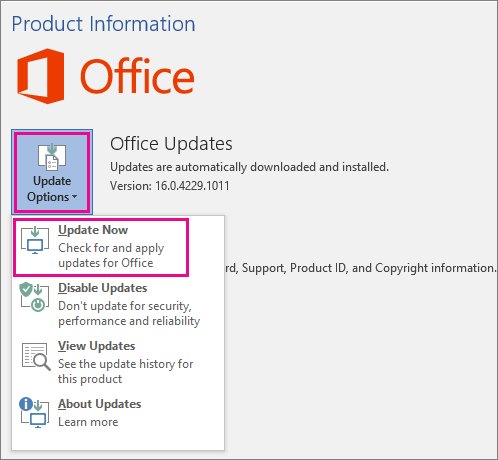
Method 1: Manually Update Microsoft 365 or Click-to-Run Office on Windows
This is the route for every Click-to-Run install, including Microsoft 365, Office 2024 and Office 2021.
- Open any Microsoft 365 app, such as Word, and create a new document.
- Go to File > Account. The entry is called Office Account if you opened Classic Outlook.
- Under Product Information, select Update Options.
- Select Update Now. Select Enable Updates first if Update Now is not on the menu.
- Close the You're up to date! or Updates were installed window once the check finishes.
The same Update Options button also offers Disable Updates and View Updates for releases already installed.
Which update route matches your Office installation?
The route depends on how Office reached the device, not on the year printed in the product name.
| Your installation | Use this | Why |
|---|---|---|
| Microsoft 365, Office 2024 or Office 2021 from microsoft.com | File > Account > Update Options > Update Now | Click-to-Run pulls its own builds from the Office CDN |
| Office apps installed from Microsoft Store | Microsoft Store, then Check for Updates | The Store owns the package and serves its updates |
| Office on a Mac downloaded from microsoft.com | Help > Check for Updates in any Office app | Microsoft AutoUpdate delivers the Mac releases |
| Office on a Mac from the Mac App Store | App Store, then Updates > Update All | App Store installs are not handled by Microsoft AutoUpdate |
| Volume licence or older Windows Installer (MSI) Office | Windows Update with Microsoft Update turned on | These builds have no Update Options button |
| Work or school PC where only About is shown | Contact the company help desk | Group Policy or Intune sets the channel and the build |
Before You Start: Know Which Office Version You Have
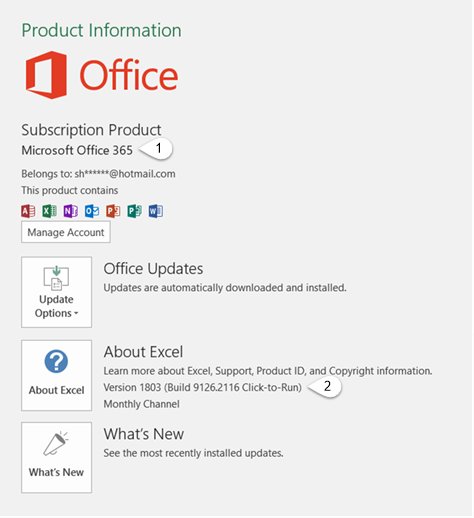
Note the product name, the version and the install type before you change anything. The same numbers prove the update worked later.
- Open Word or Excel and select Account. If a document is already open, select File, then Account or Help.
- Read the product name under Product Information, such as Microsoft 365 ProPlus or Office Home and Student.
- Read the line below it. It carries the version, the build number, and the install type, either Click-to-run or Windows Store.
- Select About Excel or About Word for the full version number and the 32-bit or 64-bit value.
- On a Mac, open Terminal and run
mdls -name kMDItemAppStoreReceiptType /Applications/Microsoft\ Word.app. - Read the result:
(null)means Microsoft AutoUpdate owns the update, andProductionmeans the app came from the Mac App Store.
Retail Office 2024 and volume licensed Office LTSC 2024 run on separate build lines, so their version numbers never match.
If Account is absent from the menu entirely, the copy is older than the versions covered here and updates through Microsoft Update.
Method 2: Update Office Through the Microsoft Store on Windows
Use this when Product Information reports the install type as Windows Store. The Update Options button does nothing for these copies.
- Open Microsoft Store from the Start menu.
- Select Check for Updates.
- Let the queued Office apps download and install without closing the Store.
- Press Win + R, type
ms-windows-store://downloadsandupdatesand select OK to open the Updates and downloads page directly next time.
Other Microsoft apps take the same route; Cortana in Windows 10 2004 can be updated manually without opening the Store at all.
Method 3: Update Office for Mac Manually
Microsoft AutoUpdate handles every copy downloaded from microsoft.com, subscription and one-time purchase alike.
- Open a Microsoft 365 app such as Word.
- On the top menu, select Help > Check for Updates.
- Select Automatically keep Microsoft apps up to date so future security fixes arrive on their own.
- Select Update to download and install everything available.
- To review first, select the arrow next to Update, check the apps, versions and installation dates, then select Update All.
- For apps bought in the Mac App Store, open it from the Dock or Finder, select Updates, then Update All.
If Check for Updates is missing, run the latest version of the Microsoft AutoUpdate tool and check again.
Method 4: Update Office Using Windows Update
Windows Update carries Office releases only after Microsoft Update is switched on.
This is the supported route for volume licence installs and earlier Windows Installer (MSI) versions of Office.
- Select Start > Settings > Windows Update.
- Select Advanced options.
- Turn Receive updates for other Microsoft products when you update Windows to On.
- Go back and select Check for Windows updates.
- Select Download & install if anything is offered.
- Restart the device when prompted so the files can be swapped in.
The same check also serves the operating system's own packages, such as the KB3200970 cumulative update for Windows 10.
Method 5: Force an Office Update from Command Prompt on Windows
Microsoft documents the Office Deployment Tool as the command-line way to change what a Click-to-Run device updates to.
The Run box shortcuts below reach the same update surfaces without walking through menus.
- Press Win + R, type
ms-settings:windowsupdateand select OK to land on the Windows Update page. - Press Win + R, type
ms-windows-store://downloadsandupdatesand select OK for Store-installed Office. - For a scripted or managed device, get the Office Deployment Tool (setup.exe) from the Microsoft Download Center.
- Save a configuration file that names the channel, for example
<Configuration><Updates Channel="Current" /></Configuration>. - Run
setup.exe /configure yourconfigfile.xmlfrom Command Prompt to write that update setting onto the device. - Leave the Office Automatic Updates 2.0 scheduled task enabled, because it applies the change and fetches the new build.
A Group Policy setting outranks the Office Deployment Tool, so a policy-managed device stays on the channel the policy names.
Updating Office 2024, Office 2021, and Other One-Time Purchase Editions
One-time purchase editions are Click-to-Run, so they update through the same Update Options button as a subscription.
- Open Word or Excel, go to File > Account, and note the version and build under Product Information.
- Compare that build with the update history Microsoft publishes for Office 2024 or Office 2021.
- Select Update Options > Update Now if the installed build is older than the newest published one.
- On a Mac, use Help > Check for Updates instead, because Microsoft AutoUpdate serves perpetual Office too.
- For a volume licensed Office LTSC build with no Update Options button, use Windows Update with Microsoft Update turned on.
Volume licensed Office LTSC 2024 has stayed on Version 2408 since launch, while retail Office 2024 moved through Version 2608 during 2026.
Updating Office on a Work or School Computer
A managed device takes its channel and its target build from policy, so Update Now can finish without changing anything.
- Open File > Account and look at the buttons under Product Information.
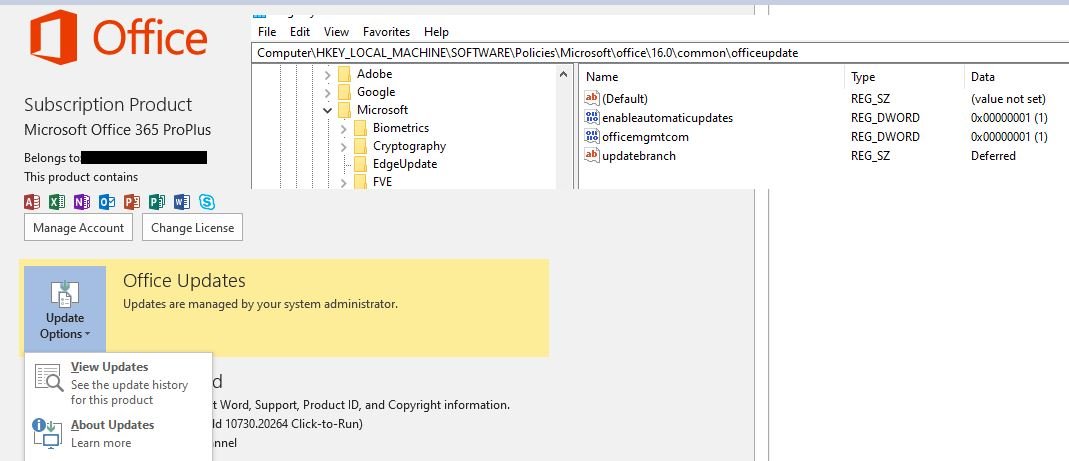
- Treat a missing Update Options button, with only About beside it, as a volume licence install or a policy-managed one.
- Read the channel name shown under the About heading and check it against what the organisation expects.
- Ask the help desk to move the device or push the build, because policy settings override anything set on the PC.
- Turn on Receive updates for other Microsoft products when you update Windows if the help desk confirms Office arrives through Windows Update.
A channel change assigned centrally can take up to 24 hours to reach an online device, and the app shows the new channel name only after a build from it installs.
How to Confirm Office Updated Successfully
The proof is the build number, not the message the updater showed as it closed.
- Reopen any Office app once the update has finished.
- Go to File > Account and read the Product Information section.
- Check that the version and build under the About heading differ from the numbers noted earlier.
- Compare that build against the newest entry in Microsoft's update history for your product and channel.
- On a Mac, select Help > Check for Updates and confirm that no apps remain in the update list.
A release carrying only security or non-security fixes raises the build number and leaves the version number unchanged, so compare builds.
Understand Office Update Channels
The channel decides how soon a device sees a release, and how long that release stays supported.
To see the channel on Windows, go to File > Account; the name sits under the About heading in Product Information.
| Channel | Release frequency | New features | Support for one version |
|---|---|---|---|
| Current Channel | At least once a month, no set schedule | As soon as they are ready | Until the next version ships, about a month |
| Monthly Enterprise Channel | Second Tuesday of the month | Once a month on that date | Three months |
| Semi-Annual Enterprise Channel | Second Tuesday of the month | January and July | Eight months |
| Current Channel (Preview) | No set schedule, a week or more ahead of Current Channel | Before Current Channel receives them | Until the next version ships |
| Beta Channel | No set schedule | Earliest access, and not supported | Test devices and IT staff only |
Current Channel is the default for Microsoft 365 Apps for enterprise and for business, and for the subscription Project and Visio apps. Microsoft 365 Family and Microsoft 365 Personal use Current Channel and the Microsoft 365 Insider channels.
Switch channels only when a specific fix waits on a faster one. Moving to a slower channel removes features that exist only in the newer build, and one device carries one channel for Office, Project and Visio together.
Common Problems and Fixes
**Update Options** is missing and only **About** is shown
The install is volume licensed, or Group Policy manages Office updates on this device.
- Select Start > Settings > Windows Update > Advanced options.
- Turn on Receive updates for other Microsoft products when you update Windows.
- Select Check for Windows updates, then Download & install.
- Contact the company help desk if the build still does not move.
Updates are disabled, so **Update Now** is not on the menu
Updating was switched off on this device, and the menu offers Enable Updates instead.
- Go to File > Account > Update Options.
- Select Enable Updates.
- Select Update Options > Update Now.
- Close the confirmation window when the check finishes.
Office says "You're up to date" but you expected a newer version
The device sits on a slower channel, or the release has not been advertised to it yet.
- Read the channel name under File > Account > Product Information, below the About heading.
- Compare the build with Microsoft's update history for that channel, not for Current Channel.
- Wait out the rollout, because a new release is advertised to devices over several days.
- Ask an administrator to move the device to Current Channel if the fix exists only there.
The update never starts or fails part-way
The PC is offline, or an Office app is still holding files open.
- Confirm the PC is connected to the internet.
- Close every Office app, including Classic Outlook.
- Run Update Options > Update Now again from File > Account.
- Repair Office if no Office app will open at all.
**Check for Updates** is missing on a Mac
Microsoft AutoUpdate is absent or too old to show the menu entry.
- Run the latest version of the Microsoft AutoUpdate tool.
- Open Word and select Help > Check for Updates again.
- Open the Mac App Store and use Updates > Update All if the apps came from there.
- Run
mdls -name kMDItemAppStoreReceiptType /Applications/Microsoft\ Word.appin Terminal to confirm which installer owns the apps.
Best Practices Before Manually Updating Office
An Office update closes the apps to replace their files, so unsaved work is the real risk here.
- Note the current version and build under File > Account so you can prove the change afterwards.
- Save and close every open document before selecting Update Now.
- Stay on mains power and a stable connection until the install reports it finished.
- Leave the update channel alone unless a named fix requires a different one.
- Restart when Windows Update asks, so queued Office files are replaced rather than deferred.
Updates are cumulative on every channel, so a single Update Now brings in every fix released since the installed build.
Frequently Asked Questions
How do I update Office manually?
Open any Office app, go to File > Account, select Update Options, then Update Now. Office checks its update channel for a newer build and installs it. Close the "You're up to date!" or "Updates were installed" window when the check finishes.
How do I start Office updates manually on a Mac?
Open Word, select Help > Check for Updates, then select Update. Microsoft AutoUpdate downloads and installs everything available. Apps bought in the Mac App Store update from the App Store Updates tab instead, using Update All.
What is the purpose of an Office update?
An Office update delivers security fixes, non-security fixes for known issues, and stability or performance improvements. Subscription channels also add new features. Updates are cumulative, so the newest build already contains every fix from earlier releases on that channel.
Why are Office updates important?
New security updates are not issued for versions that have fallen out of support, so an old build stops receiving fixes entirely. A Current Channel version is supported for about a month, and a Semi-Annual Enterprise Channel version for eight months.
How do I control when Office updates install?
Use Update Options under File > Account, which offers Enable Updates, Disable Updates, Update Now and View Updates. On a managed PC those choices are set by policy and the button is replaced by About alone.
What should be updated alongside Office?
Turn on Receive updates for other Microsoft products when you update Windows, so Windows Update also serves Office and other Microsoft software. OneDrive and Microsoft Teams run on their own update cadences, separate from the Office update channels.
Can I manually update Office on Windows 10?
Yes. The steps match Windows 11: File > Account > Update Options > Update Now inside any Office app. For the Windows Update route, select Start > Settings > Windows Update and choose Check for Windows updates.
Can I manually update Windows 11 at the same time?
Yes. Select Start > Settings > Windows Update, choose Check for Windows updates, then select Download & install. With Receive updates for other Microsoft products switched on, that same check also picks up Office updates.
How do I do updates when no Office app will open?
Repair Office first, because Update Options lives inside an Office app and an app that will not launch blocks the normal route. Once an app opens, go to File > Account > Update Options > Update Now.
What is the significance of the build number after an update?
The version number changes only when a release carries new features. A release with only security or non-security fixes raises the build number and leaves the version number the same, so compare build numbers when checking whether an update landed.


How to check for Microsoft Office updates - Techdows
[…] it is not offered, update Office manually from Microsoft's Office Updates […]
Microsoft Outlook Only Opening in Safe Mode? 8 Ways to Fix - Techdows
[…] lists Online Repair as the workaround for the March 2026 crash when updating Office is not an option. The same routine fixes shared Office components, which is why a Word document […]