Every Apple USB-C power adapter takes 100V to 240V AC at 50Hz to 60Hz, and its output volts and amps are agreed with the device over USB-C, so Apple rates the adapters by watts.
This guide covers where to read the volts and amps on an Apple adapter, the output specs Apple publishes for iPhone and iPad chargers, which wattage each device needs, and fixes for slow charging.
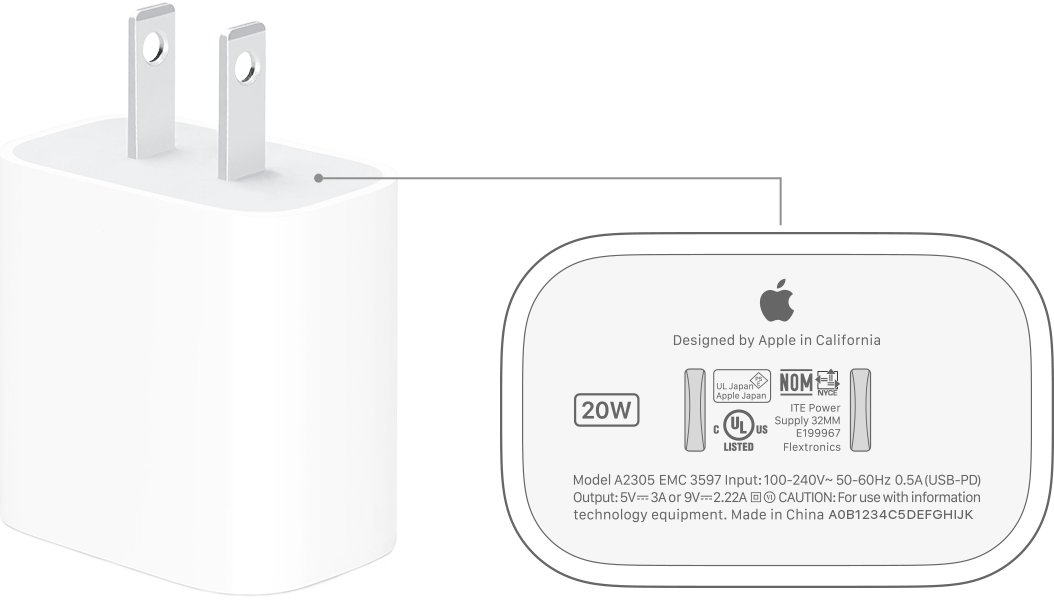
Find the volts and amps on an Apple USB-C power adapter
The printed certification label on the adapter is the only place that lists its exact output combinations. Apple names its adapters by wattage, such as 20W or 96W.
- Unplug the adapter from the wall and from the cable.
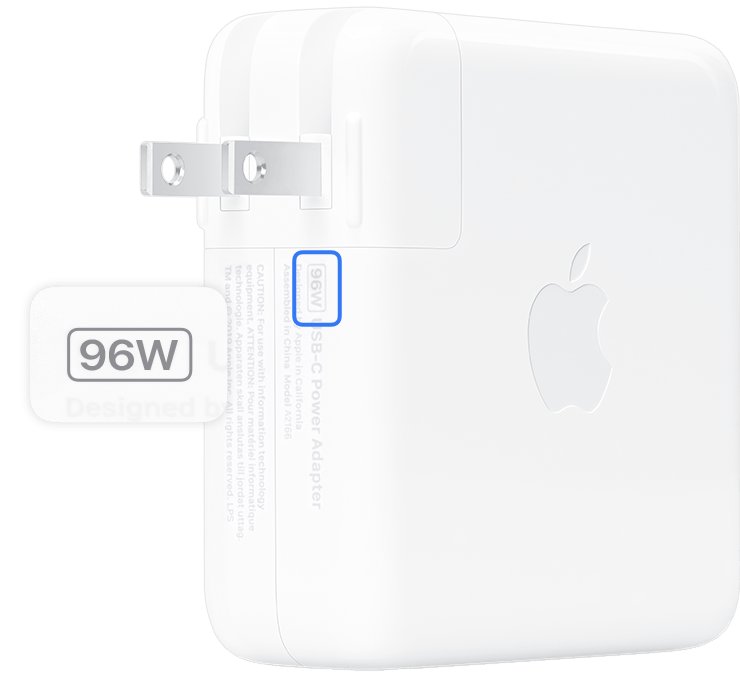
- Look at the top or bottom of the adapter for the wattage, such as 20W.
- Read the small certification text on the adapter body. Output lines show volts with a V and amps with an A.
- Multiply volts by amps for any output line to get its watts. For example, 9V at 3A is 27W.
- Compare the highest watts figure with the wattage your device needs.
Input on every Apple USB power adapter is rated for 100V AC to 240V AC at 50Hz to 60Hz, so the same adapter works on US and most international outlets with the right AC plug.
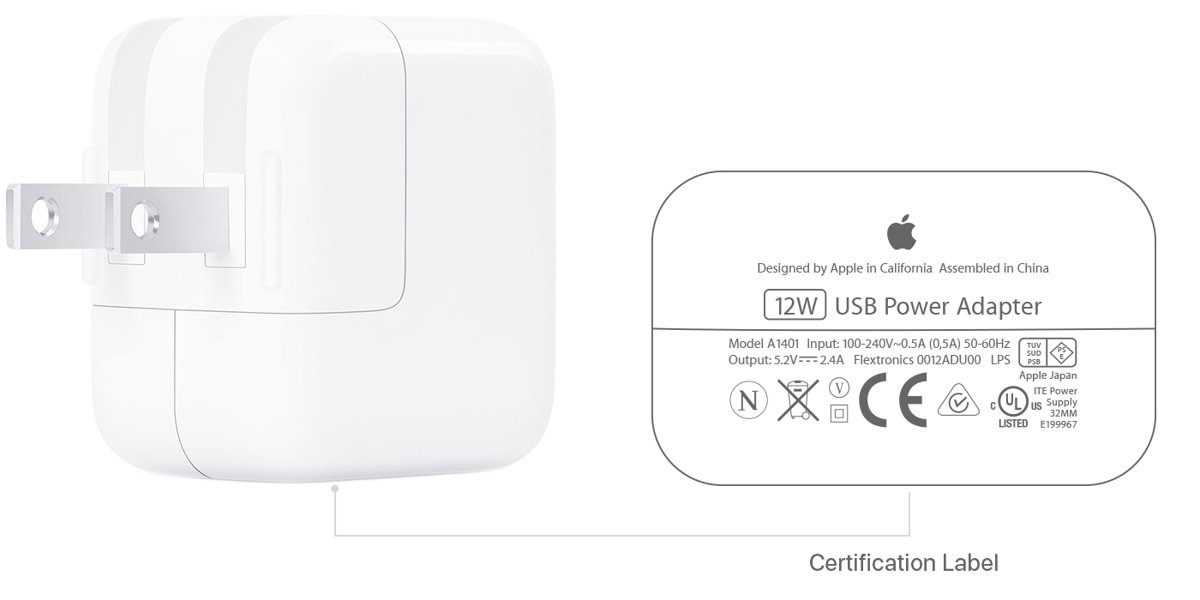
Apple power adapter voltage and output specs
Apple publishes recommended output volts and amps for chargers used with iPhone and iPad. These are the values a third-party adapter should match, and they show the ranges Apple's own adapters supply.
| Device | Output voltage and current | Power | Line voltage |
|---|---|---|---|
| iPhone 17, iPhone 17 Pro, iPhone 17 Pro Max, iPhone Air | 15-20V DC at 2A (3.0A DPS), 9-15V DC at 2.67A (3.0A DPS), 9V DC at 3A, or 5V DC at 3A | 40W continuous, 60W maximum | 100-240V AC, 50-60Hz |
| iPad with USB-C | 5 to 15V at 3A | 15W minimum | 100-240V AC, 50-60Hz |
| All Apple USB power adapters (input) | Not applicable | Not applicable | 100V AC to 240V AC, 50Hz to 60Hz |
AVS stands for Adjustable Voltage Supply. The Apple 40W Dynamic Power Adapter with 60W Max uses it to deliver up to 60W, and it is marked with a Dynamic Power symbol.
Apple USB-C power adapter wattage list
Apple sells USB-C adapters from 20W to 140W. The table lists each one with the devices Apple pairs it with.
| Adapter | Devices Apple lists it for |
|---|---|
| Apple 20W USB-C Power Adapter | iPad (8th to 10th generation), iPad Air (4th generation), iPad mini (6th generation), recent iPad Pro, MacBook Neo, iPhone fast charging |
| Apple 18W USB-C Power Adapter | iPad Pro 11-inch (1st and 2nd generation), iPad Pro 12.9-inch (3rd and 4th generation); fast charges iPhone 8 or later |
| Apple 30W USB-C Power Adapter | MacBook Air 2018-2021, 13-inch MacBook Air 2022 or later, MagSafe Charger for iPhone 16 and later |
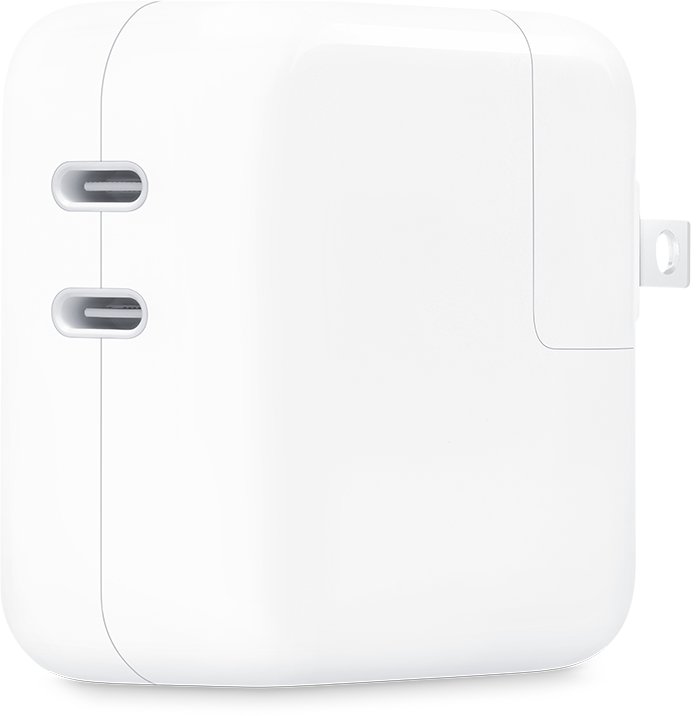
| Apple 35W Dual USB-C Port Power Adapter | MacBook Air 2022 or later; two devices at once |
| Apple 40W Dynamic Power Adapter with 60W Max | iPhone 17 models and iPhone 18 Pro fast charging, MacBook Air |
| Apple 61W USB-C Power Adapter | 13-inch MacBook Pro 2016 or later |
| Apple 67W and 70W USB-C Power Adapter | MacBook Air 2022 or later, 14-inch MacBook Pro 2021 or later |
| Apple 87W USB-C Power Adapter | 15-inch MacBook Pro 2016 or later |
| Apple 96W USB-C Power Adapter | 14-inch MacBook Pro 2021 or later, 16-inch MacBook Pro 2019 |
| Apple 140W USB-C Power Adapter | 16-inch MacBook Pro 2021 or later |
Check the charger wattage in System Information on Mac
A Mac laptop reports the wattage of the adapter connected to it, which is the quickest way to identify an unlabelled or worn adapter.
- Connect the adapter and cable to your Mac laptop.
- Press and hold the Option key, then choose Apple menu > System Information.
- Select Power in the sidebar.
- Scroll down on the right to AC Charger Information.
- Read the wattage listed for the connected charger.
Which Apple USB-C power adapter do I need?
| Your device | Adapter to use | Why |
|---|---|---|
| iPhone 15 or earlier | Apple 18W or 20W USB-C Power Adapter | 18W or greater with USB-PD fast charges these models |
| iPhone 17e or iPhone Air | 20W or higher | Charges to 50 percent in around 30 minutes |
| iPhone 17, 17 Pro, 17 Pro Max | 40W Dynamic Power Adapter with 60W Max | Fast charging needs at least 40W |
| iPhone 18 Pro, 18 Pro Max, iPhone Duo | 60W-capable AVS adapter, such as the 40W Dynamic Power Adapter with 60W Max | Needs a 60W-rated cable and adapter for fastest wired charging |
| iPad with USB-C | The 20W adapter in the box, or one with at least 15W | Meets the 5 to 15V, 3A recommendation |
| Mac laptop | Equal or greater wattage than the adapter that came with it | Lower wattage still charges, but more slowly |
| Two devices from one plug | 35W Dual USB-C Port Power Adapter | Splits power between both ports |
A higher-wattage Apple adapter is safe to use with a lower-power device. Apple lists Mac USB-C adapters as compatible chargers for iPhone and iPad.
How the 35W Dual USB-C Port Power Adapter splits power
| Devices connected | Power each device gets |
|---|---|
| One device on either port | Up to 35W |
| Mac laptop and iPhone or iPad | Up to 17.5W each |
| iPhone and iPad | Up to 17.5W each |
| Mac laptop or iPhone with Apple Watch or AirPods | Up to 27.5W for the Mac or iPhone, up to 7.5W for the Watch or AirPods |
If one device needs more power, unplug the other device and its cable.
Confirm your iPhone is fast charging
- Drain the iPhone below 20 percent.
- Connect it with a USB-C cable to an adapter that meets the wattage for your model.
- Note the battery percentage, then check again after 30 minutes.
- Compare the gain with Apple's figure for your model, such as 50 percent in around 30 minutes on iPhone Air with a 20W adapter.
- On a Mac, confirm the wattage under AC Charger Information in System Information.
Fast charging might not work when the iPhone is too cold or too hot.
Apple USB-C power adapter not charging: fixes
Mac laptop won't charge from the USB-C adapter
The outlet, cable or AC plug is at fault, or line noise has tripped the adapter.
- Unplug the adapter, wait 30 seconds, then plug it back in.
- Plug a lamp into the outlet to confirm the outlet works.
- Try another USB-C cable that supports charging, not a data-only cable.
- Try a different Apple AC plug or the Apple Power Adapter Extension Cable.
- Restart the Mac and check for software updates.
Device charges slowly on the 35W dual adapter
The adapter is sharing its 35W between two devices.
- Charge one device at a time.
- Unplug any cable that is not in use.
- Use the cable that came with the device.
Adapter gets warm or turns itself off
The adapter is in a poorly ventilated spot and shuts off to prevent overheating.
- Disconnect the cable from the device.
- Let the adapter cool before handling it.
- Plug it straight into the wall or set it on a table, away from bedding, couches or carpet.
Adapter sparks, pops or looks damaged
A spark at the blades on plug-in is usually normal; sparks elsewhere, popping or discoloration mean damage.
- Stop using the adapter.
- If a blade is stuck in the outlet, do not touch it and turn off that outlet at the breaker.
- Contact Apple or an Apple Authorized Service Provider.
Apple USB-C power adapter volts and amps FAQ
What voltage is an Apple power adapter?
Apple USB power adapters accept 100V to 240V AC at 50Hz to 60Hz. On the USB-C side, output voltage is negotiated with the device, for example 5V, 9V or up to 20V on the iPhone 17 specification Apple publishes.
What are the amps on an Apple USB-C charger?
Apple's recommended iPad charger output is 5 to 15V at 3A. For iPhone 17 models the specification lists 3A at 5V and 9V, and 2A to 2.67A on the higher-voltage AVS ranges. The exact figures for your adapter are printed on its label.
Can I use an Apple 20W USB-C power adapter with a MacBook?
Yes. Any USB-C power adapter can charge a Mac laptop, but one below the wattage of the original adapter charges more slowly. Apple pairs the 20W adapter with MacBook Neo.
Is the Apple 18W USB-C power adapter good enough for fast charging?
Yes for iPhone 8 through iPhone 16 models. Apple lists an 18W or greater USB-C adapter with USB-PD for fast charging those iPhones. iPhone 17 models need 40W for their fastest wired charging.
Does an Apple USB-C cable have a wattage rating?
Yes. Some USB-C cables carry more power than others, and some only transfer data. iPhone 18 Pro and iPhone Duo need a cable rated for 60 watts or more to fast charge.
Can I use a higher-watt Apple adapter with my iPhone?
Yes. Apple lists its Mac USB-C power adapters as compatible chargers for iPhone and iPad. The device draws only the power it supports.
Is the Apple 20W USB-C power adapter sold without a cable?
Yes. Apple adapters such as the 20W USB-C power adapter are sold separately from the charge cable, and recent iPhones ship with a USB-C cable but no adapter in the box.
Can I use an Apple USB-C power adapter abroad?
Yes. The input range of 100V to 240V AC at 50Hz to 60Hz covers most countries. On adapters with a removable AC plug, swap the plug for one that fits the local outlet.