When an iPhone 17 Pro Max gets stuck on setup during a transfer from your old iPhone, restart both phones, update the old iPhone to the latest iOS, and start the transfer again with the two phones plugged in, side by side, on the same Wi-Fi network.
If the wireless transfer still stalls, this guide shows how to switch to a USB-C cable, restore from an iCloud or computer backup instead, and recover a new iPhone that freezes on the Apple logo.
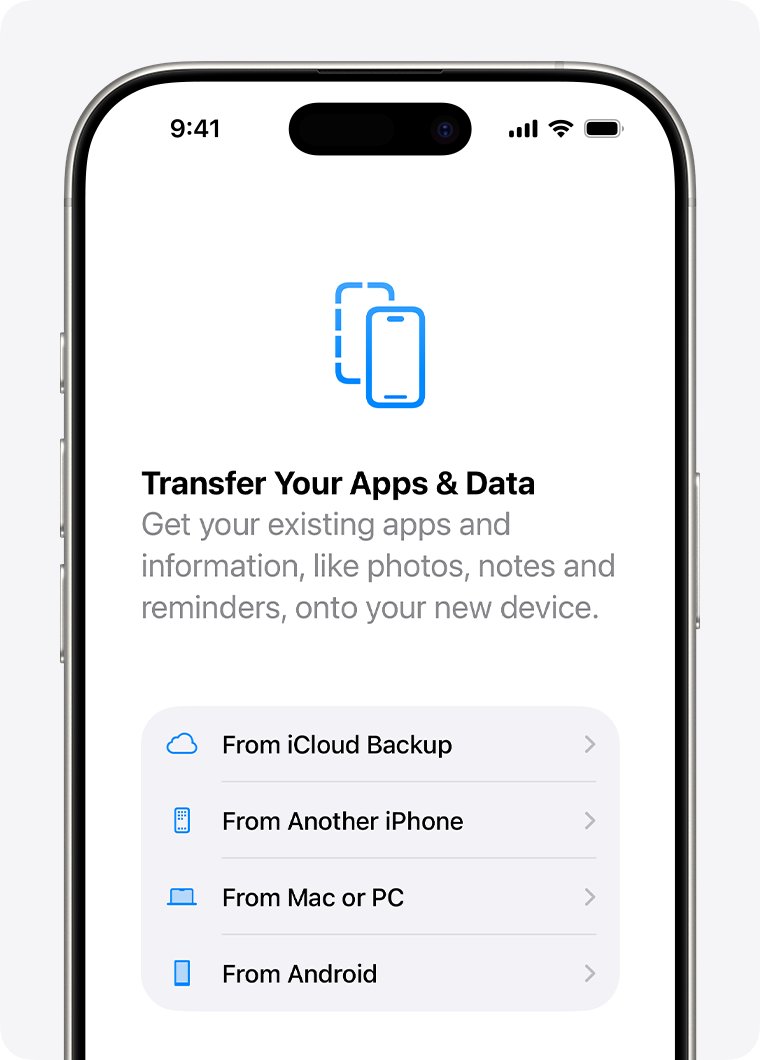
Fix an iPhone 17 Pro Max stuck on the Quick Start transfer screen
Quick Start ties up both phones until the transfer finishes. A direct transfer only ends when both screens report it complete, so a stall on either phone holds up the other.
- Give the transfer time if the progress bar is still moving. Apple notes transfer times vary with network conditions and the amount of data.
- If nothing has moved, force restart the iPhone 17 Pro Max: press and quickly release Volume Up, press and quickly release Volume Down, then press and hold the side button until the Apple logo appears.
- Restart the old iPhone the same way, or turn it off and on.
- Update the old iPhone to the latest version of iOS, as Apple recommends before any Quick Start transfer.
- Connect the old iPhone to Wi-Fi, turn on Bluetooth, unlock it and go to the Home Screen.
- Plug both phones into power and place the iPhone 17 Pro Max next to the old iPhone.
- Follow the Quick Start prompt on the old iPhone again, scan the animation, and enter the old iPhone's passcode on the new one.
- Leave both phones alone, near each other and on power, until both report that the transfer is complete.
If the Quick Start prompt disappears from the old iPhone, Apple's fix is to restart both devices and try again.
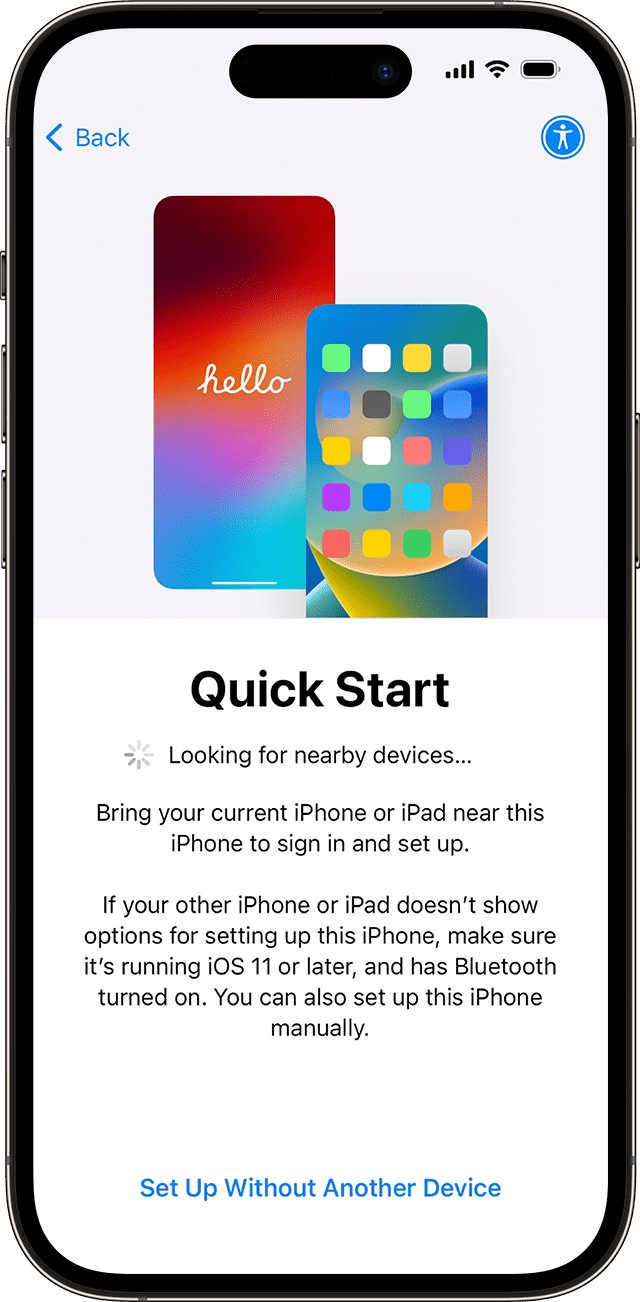
Best way to transfer data to iPhone 17 Pro Max when Quick Start fails
| Your situation | Use this method | What to know |
|---|---|---|
| Wireless direct transfer keeps stalling | Wired transfer with a USB-C cable | Both phones still need to stay connected until the transfer completes |
| You want to use the new iPhone quickly | Quick Start with Download from iCloud | Apps and data download in the background; the old phone needs iOS 17.2 or later |
| Old iPhone is lost, broken or wiped | Restore from iCloud Backup | Needs Wi-Fi; restore does not work over cellular |
| Not enough iCloud storage for a backup | Temporary iCloud storage via Prepare for New iPhone | Free when you buy a new iPhone; backup kept 21 days |
| Slow or unreliable Wi-Fi | Restore from a Mac or PC backup | Use Finder on a Mac or the Apple Devices app on Windows |
| New iPhone enrolled in Apple Business or Apple School Manager | iCloud or computer backup | Quick Start transfer is not available on these devices |
Back up the old iPhone before trying the transfer again
A fresh backup gives you a fallback that does not depend on the two phones talking to each other. If iCloud is full, a new iPhone purchase qualifies you for temporary iCloud storage.
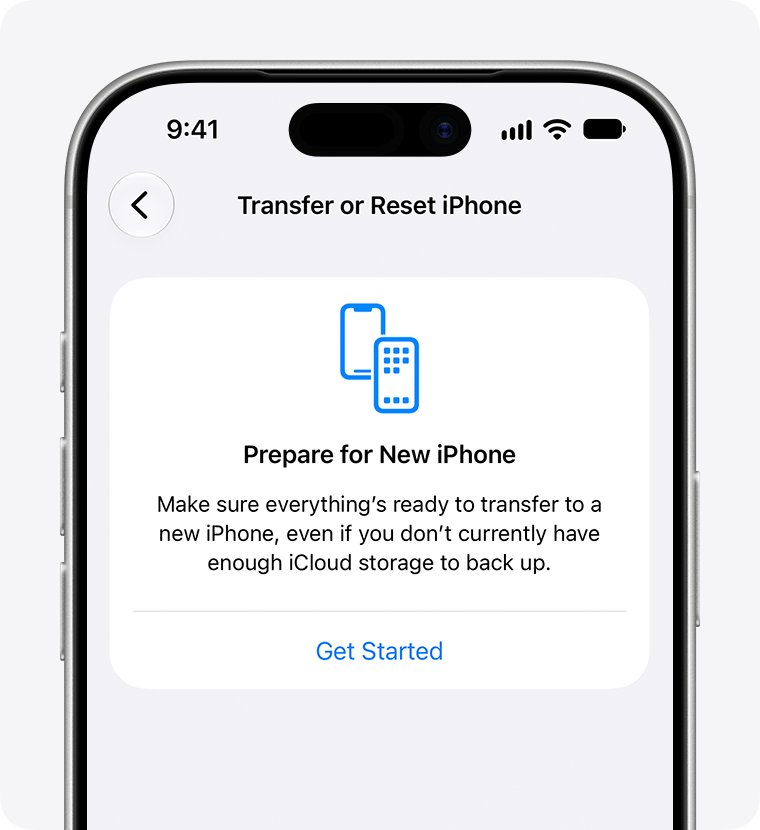
- On the old iPhone, open Settings > General > Transfer or Reset iPhone.
- Under Prepare for New iPhone, tap Get Started.
- If you see iCloud Backup is Turned Off, tap Turn On Backup to Transfer.
- If a message says you are eligible for free extra iCloud storage, tap Continue.
- Wait for the backup to finish while the phone stays on Wi-Fi.
- To back up without the temporary storage, open Settings > your name > iCloud > iCloud Backup and tap Back Up Now instead.
Restore a temporary backup within 21 days, and do not erase the old iPhone until the restore is finished. After the restore, the temporary backup stays available for 7 days.
Transfer from old iPhone to iPhone 17 Pro Max with a USB-C cable
A cable removes the Wi-Fi link from the equation. The iPhone 17 Pro Max has a USB-C port, so the cable depends on your old phone.
- If the old phone is an iPhone 15 or later, connect a USB-C Charge Cable between the charging ports of both phones.
- If the old phone is an iPhone 14 or earlier, connect a USB-C to Lightning Cable between the two charging ports.
- Turn on both phones and follow the onscreen instructions.
- Connect the iPhone 17 Pro Max to Wi-Fi or your cellular network, and activate cellular service if asked.
- Set up Face ID when prompted.
- Wait until the transfer completes on both phones before you unplug or use either one.
Use Download from iCloud instead of a direct iPhone-to-iPhone transfer
Downloading from iCloud lets you start using the iPhone 17 Pro Max right away, while apps and data arrive in the background. The old iPhone must run iOS 17.2 or later.
- On the old iPhone, open Settings > Wi-Fi and confirm it is connected.
- Open Settings > Bluetooth and turn Bluetooth on.
- Plug in both phones.
- Turn on the iPhone 17 Pro Max and follow the prompts until the Quick Start screen appears.
- Hold the old iPhone next to the new one and scan the animation with the old iPhone's camera.
- Enter the old iPhone's passcode on the new iPhone when asked.
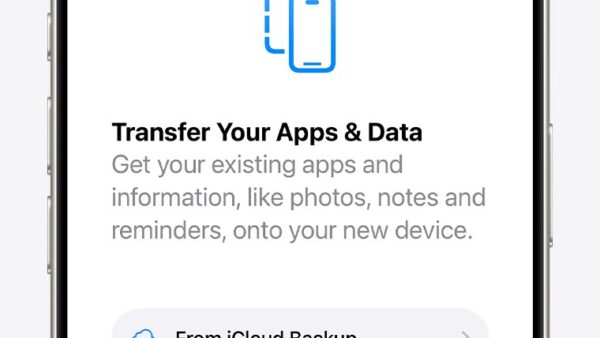
- On the Transfer Your Data screen, tap Download from iCloud.
Keep the new iPhone on Wi-Fi and power after setup so photos, music and apps stored in iCloud finish downloading.
Restore iPhone 17 Pro Max from an iCloud backup
If you already got past the transfer screen, erase the iPhone 17 Pro Max first: Settings > General > Transfer or Reset iPhone > Erase All Content and Settings. It restarts to the Hello screen.
- Turn on the iPhone 17 Pro Max and follow the setup steps until the Wi-Fi screen.
- Join a Wi-Fi network; an iCloud restore cannot run over cellular.
- Continue to the Apps & Data screen and tap Restore from iCloud Backup.
- Sign in with your Apple Account.
- Choose the most recent backup, checking its date and size. Tap Show All if the one you want is missing.
- Sign in to each Apple Account you used for purchases, or tap Skip this Step if you do not know a password.
- Keep the phone on Wi-Fi and power until the progress bar finishes, then complete setup.
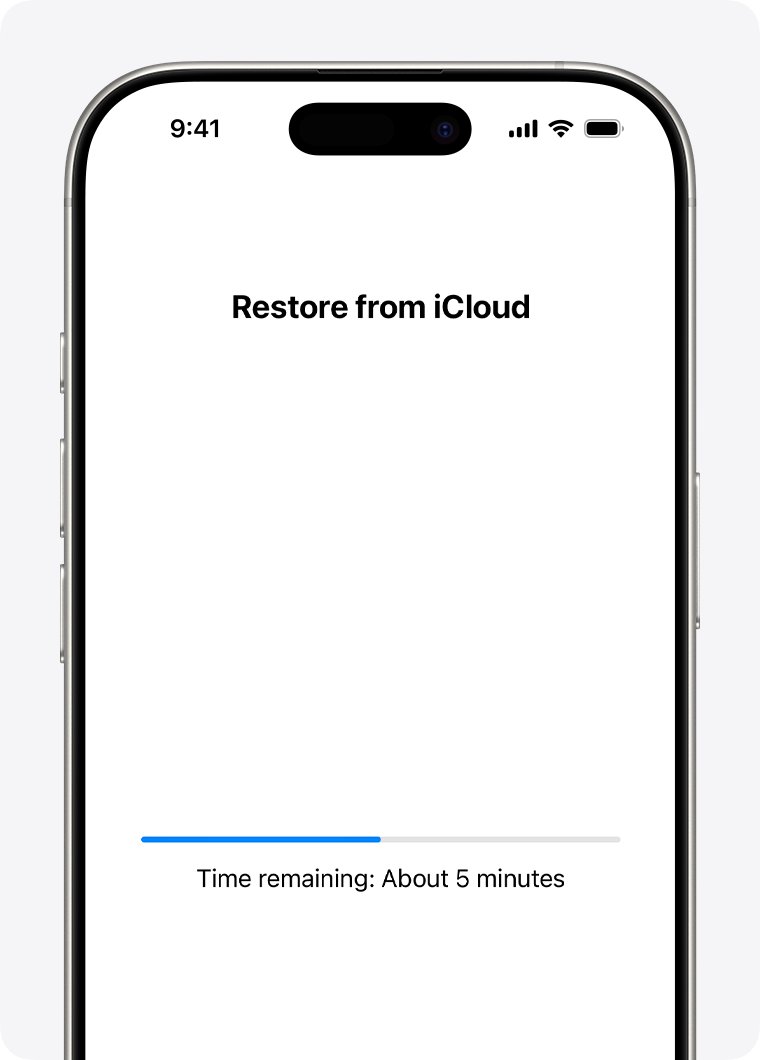
Restore iPhone 17 Pro Max from a Mac or Windows PC backup
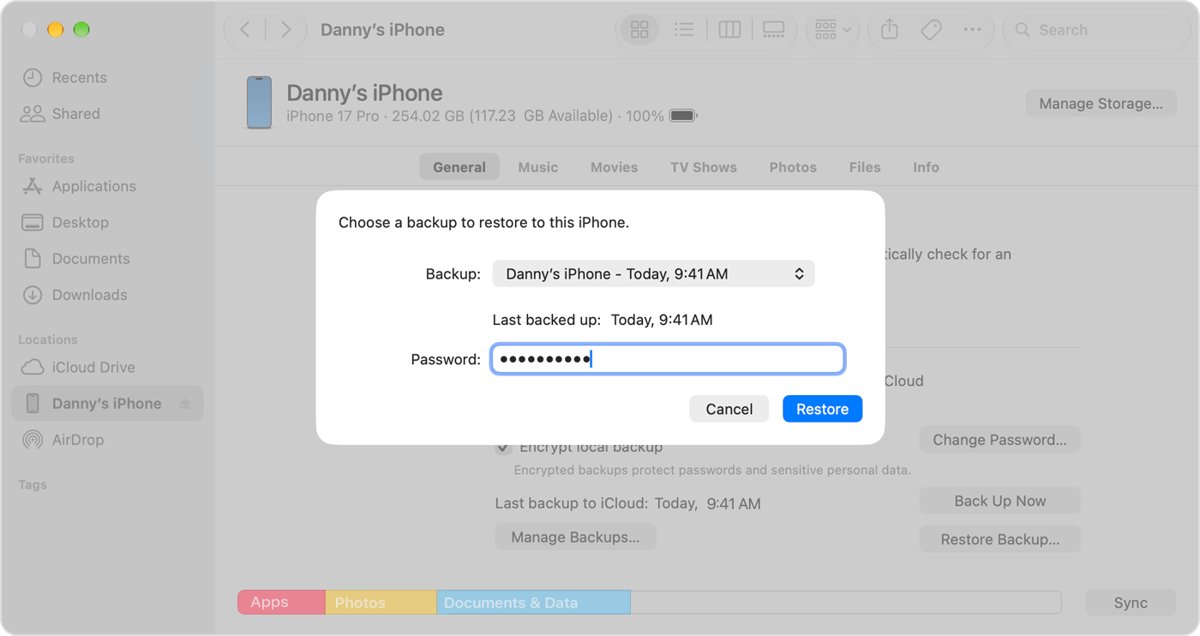
Back up the old iPhone first in Finder on a Mac or the Apple Devices app on Windows, then restore that backup to the new phone. Encrypt the backup if you want Health and Activity data to transfer.
- Turn on the iPhone 17 Pro Max and follow the steps until the Apps & Data screen.
- Tap Restore from Mac or PC.
- Connect the iPhone to the computer that holds the backup with a USB cable.
- Open Finder on a Mac or the Apple Devices app on a PC, select the iPhone, and trust the device if asked.
- Click Restore Backup and choose the correct backup by its date and size.
- Enter the backup password if the backup is encrypted, then click Restore.
- Keep the iPhone connected while it restarts and syncs, then finish setup on the phone.
Check the transfer to iPhone 17 Pro Max finished
- Confirm both phones have left the transfer screen and the old iPhone no longer shows a progress bar.
- On the iPhone 17 Pro Max, open Settings and check that your name and Apple Account appear at the top.
- Open Photos, Messages and Contacts and compare them with the old iPhone.
- Watch the Home Screen: app icons that are still dimmed are still downloading from iCloud.
- Leave the phone on Wi-Fi and power overnight if photos and apps are still arriving.
iPhone 17 Pro Max setup issues and fixes
iPhone 17 Pro Max stuck on setup asking for a software update
The backup needs a newer iOS version than the one the phone is running.
- For an iCloud restore, accept the update; the phone installs it, then restores the backup.
- For a computer restore, tap Don't Transfer Apps & Data, finish a basic setup and update iOS.
- Go to Settings > General > Transfer or Reset iPhone > Erase All Content and Settings.
- Set the phone up again from the Hello screen and restore the backup.
iPhone 17 Pro Max stuck on the Apple logo or loading screen
Setup or an update stopped partway and the phone cannot start normally.
- Force restart the phone with Volume Up, Volume Down, then hold the side button until the Apple logo appears.
- If the logo stays for several minutes with no progress bar, connect the phone to a Mac with Finder or a PC with the Apple Devices app.
- Press and release Volume Up, press and release Volume Down, then hold the side button until the Connect to computer screen appears.
- Choose Update first; choose Restore only if updating fails, because Restore erases the phone.
- If the download takes longer than 15 minutes and the phone leaves recovery mode, let the download finish and enter recovery mode again.
Quick Start prompt never appears or disappears from the old iPhone
Bluetooth is off, the old phone is locked, or the pairing dropped.
- Turn on Wi-Fi and Bluetooth on the old iPhone, unlock it and go to the Home Screen.
- Restart both phones.
- Place the new iPhone next to the old one again and wait for the prompt.
iCloud restore error or backup missing from Choose a Backup
The network dropped, or the backup is older or stored under another Apple Account.
- Plug the phone into power and connect to Wi-Fi.
- Try the restore on a different network.
- Tap Show All Backups and pick another backup if one is available.
- Confirm a backup exists by checking iCloud Backup on the old iPhone.
Repeated password prompts during setup
Apps and purchases were bought with more than one Apple Account.
- Enter the password for each Apple Account requested.
- Tap Skip this Step or Cancel for any account you cannot sign in to.
- Repeat until the prompts stop, then create a new backup once setup ends.
iPhone 17 Pro Max transfer and setup FAQ
Why is my iPhone 17 Pro Max stuck on setup?
Most setup stalls come from a direct transfer that lost its connection, an old iPhone that needs an iOS update, or a backup that needs a newer iOS. Restart both phones, update the old iPhone, and start the transfer again on power and Wi-Fi.
How long should a transfer from an old iPhone to iPhone 17 Pro Max take?
Apple gives no fixed time; it depends on network conditions and how much data you move. A direct transfer must finish on both phones before you can use them, while Download from iCloud lets you use the new phone right away.
Can I use my iPhone 17 Pro Max while data transfers?
Only with Download from iCloud or an iCloud backup restore, where apps and data download in the background. A direct iPhone-to-iPhone transfer occupies both phones until it completes.
What cable do I need to transfer data to iPhone 17 Pro Max?
Use a USB-C Charge Cable if the old phone is an iPhone 15 or later. Use a USB-C to Lightning Cable if the old phone is an iPhone 14 or earlier. Connect the two charging ports and follow the onscreen steps.
Can I set up iPhone 17 Pro Max without transferring anything?
Yes. On the transfer screen choose Don't Transfer Anything to set it up as new. You can still restore a backup later, but you must erase the phone first with Erase All Content and Settings.
What if my iPhone 17 Pro Max is stuck on the Apple logo after setup?
Force restart it first. If the Apple logo stays for several minutes with no progress bar, put the phone in recovery mode with a Mac or PC and choose Update, which reinstalls iOS without erasing data.
How do I start the iPhone 17 Pro Max transfer over?
Open Settings, tap General, tap Transfer or Reset iPhone, then Erase All Content and Settings. The phone restarts to the Hello screen, and you can run Quick Start or restore a backup again.
Which iPhone 17 Pro Max transfer fix to try first
Restart both phones, update the old iPhone and retry Quick Start on power; if it stalls again, switch to a USB-C cable or back up the old iPhone to iCloud and restore that backup on the iPhone 17 Pro Max. A backup restore does not depend on a live link between the two phones, so it finishes even when the direct transfer keeps dropping.


![How to open graphics settings Windows 11 [2026]](https://techdows.com/wp-content/uploads/2026/10/How-to-open-graphics-settings-Windows-11-2026-600x338.jpg)