To pair an Apple Watch, turn it on, hold it next to your unlocked iPhone, tap Continue, then point the iPhone camera at the animation on the watch face.
This guide covers first-time pairing, moving a watch to a new iPhone, pairing a used watch, and what to do when Apple Watch will not pair.
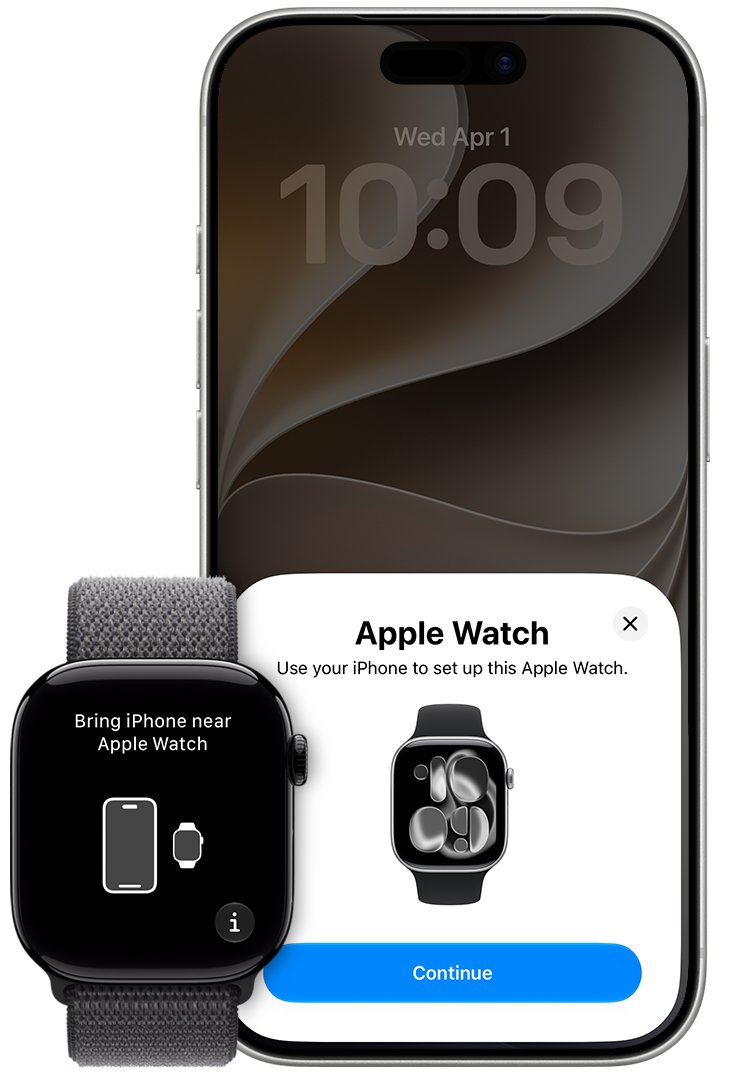
How to pair an Apple Watch to your iPhone
Apple Watch Series 12 and Apple Watch Ultra 4 need an iPhone 11 or later with iOS 27 or later. Apple Watch SE 3 needs an iPhone 11 or later with iOS 26 or later.
- Update your iPhone to the latest iOS, turn on Bluetooth, and connect it to Wi-Fi or cellular.
- Press and hold the side button on the watch until the Apple logo appears, then put the watch on your wrist.
- Hold the watch near your unlocked iPhone and wait for Use your iPhone to set up this Apple Watch, then tap Continue.
- Tap Set Up for Myself, or Set Up for a Family Member for someone in your family.
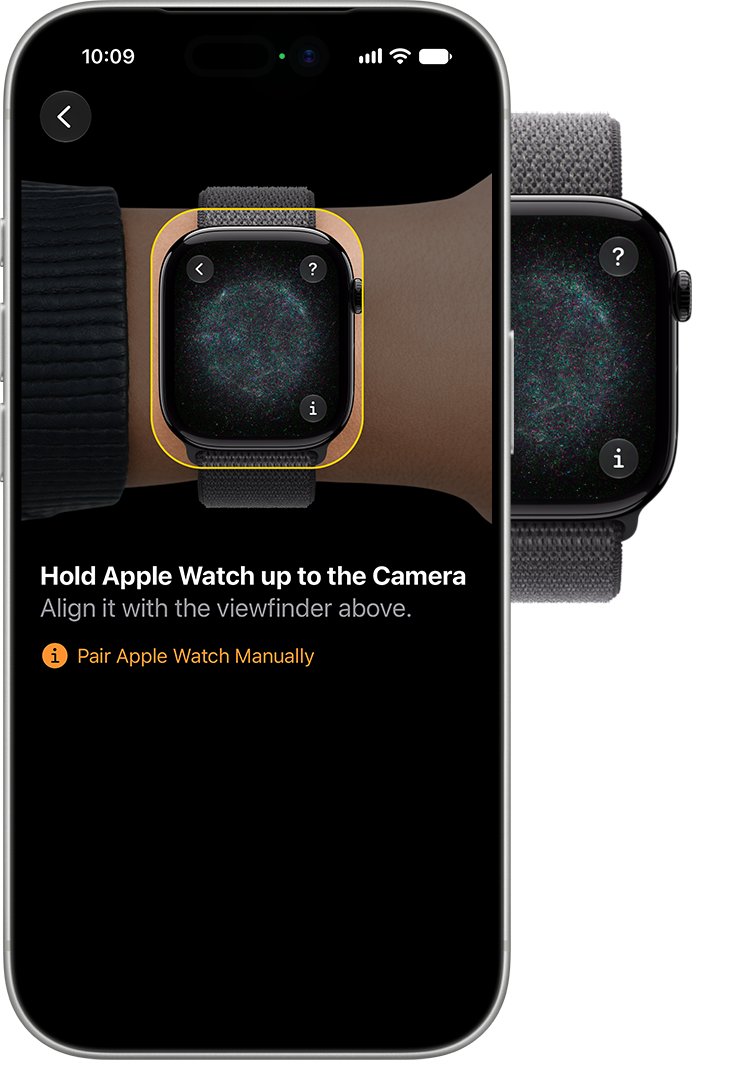
- Center the watch face in the iPhone viewfinder and wait for the message that the watch is paired.
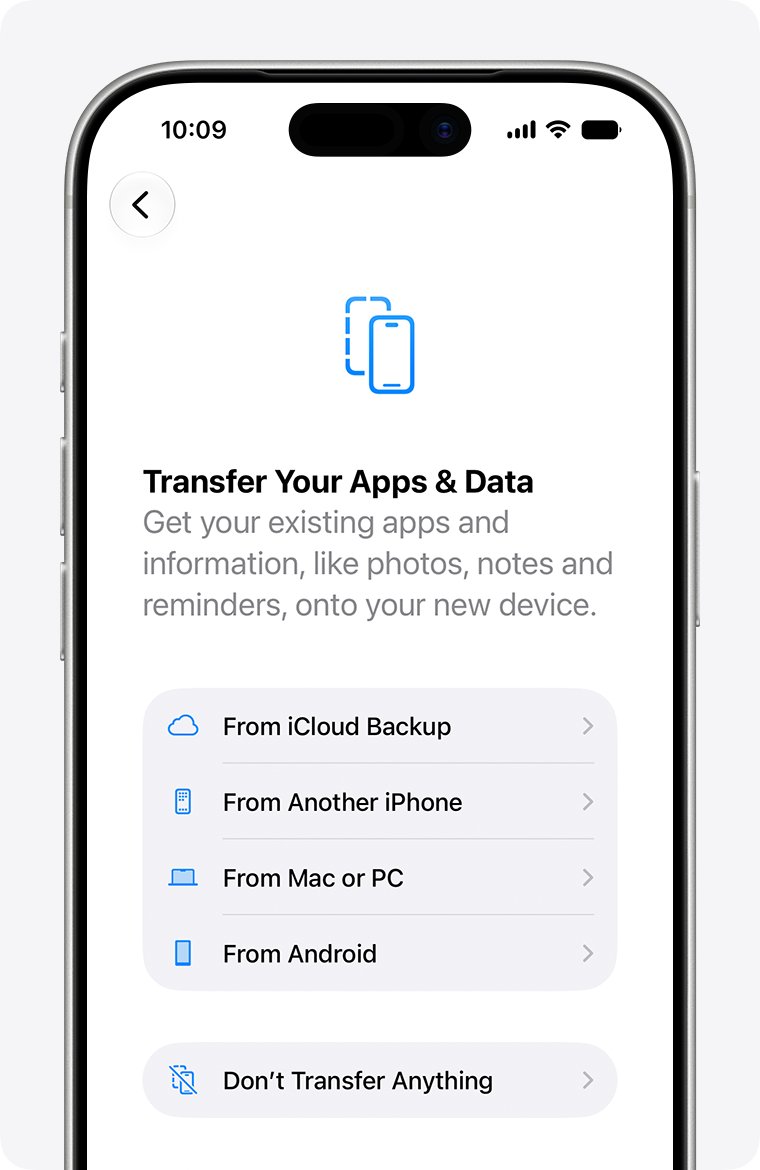
- Tap Set Up as New Apple Watch, or restore from a backup of a previous watch.
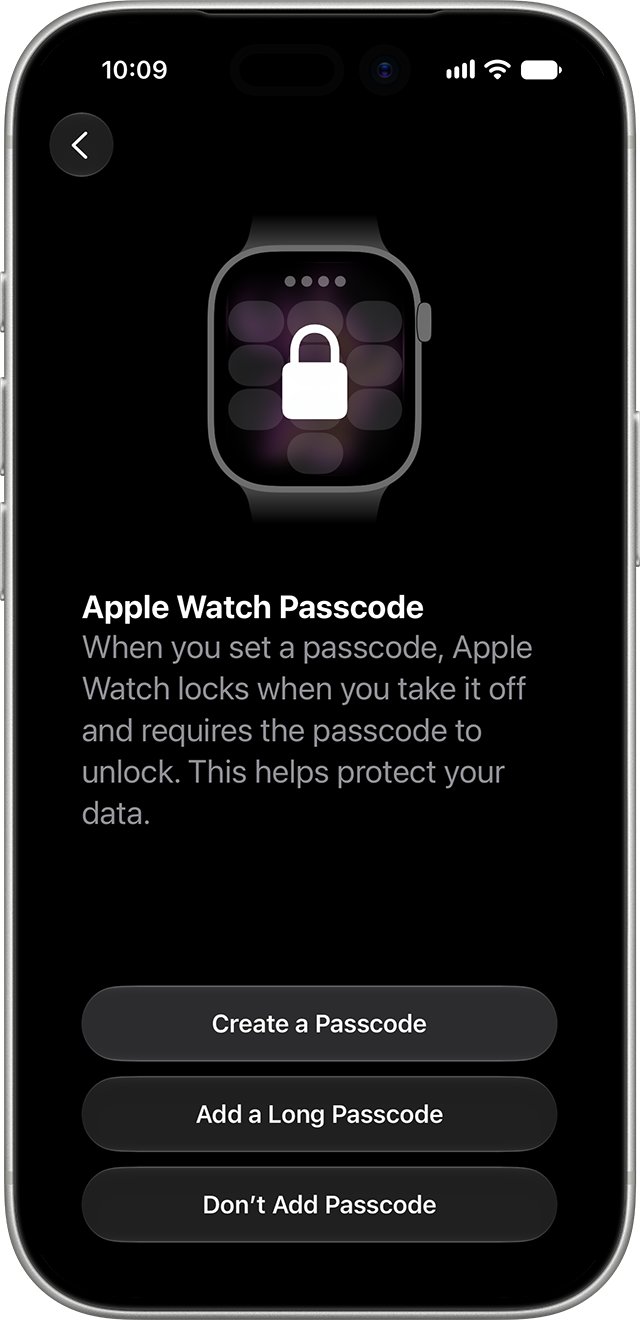
- Choose your wrist, tap Agree on the terms, sign in to your Apple Account, and create a passcode.
- Keep both devices close until the watch face appears and syncing finishes.
If the prompt never appears, open the Apple Watch app on your iPhone, tap All Watches, then tap Add Watch.
Which pairing method should you use?
| Your situation | Pairing route | What happens |
|---|---|---|
| First Apple Watch | Camera pairing, then Set Up as New Apple Watch | Fresh setup with your iPhone's settings |
| Camera cannot read the animation | Pair Apple Watch Manually | Follow the onscreen prompts instead of scanning |
| Replacing an older watch | Make This Your New Apple Watch (Express Setup) | Copies settings from your previous watch |
| Want to pick a backup | Customize Settings | Restore a chosen backup of a previous watch |
| New iPhone, same watch | Restore iPhone backup, then open the Apple Watch app | Watch moves to the new iPhone with its data |
| Watch for a child without an iPhone | Set Up for a Family Member | Watch runs from your iPhone's family setup |
How to pair Apple Watch to a new iPhone
You need your Apple Account password, your watch passcode, Wi-Fi on both iPhones, and at least 50 percent charge on the watch and the new iPhone.
- Update the old iPhone and the Apple Watch to the newest versions.
- On the old iPhone, open Settings, tap your name, tap iCloud, then Saved to iCloud, tap Health and check that Sync this iPhone is on.
- Back up the old iPhone to iCloud or your computer. This also backs up the watch.
- Set up the new iPhone and restore the most recent backup.
- When the iPhone asks to use your Apple Watch, keep the watch unlocked on your wrist and tap Continue.
- If it does not ask, open the Apple Watch app on the new iPhone and follow the onscreen steps.
- If the app shows Start Pairing, unpair the watch, then set it up again with the new iPhone.
A computer backup needs encryption to keep Health and Activity data.
Pairing a second-hand or previously owned Apple Watch
A used watch pairs only after the previous owner removes Activation Lock. If setup asks for someone else's Apple Account password, the lock is still on.
- Ask the seller to unpair the watch in their Apple Watch app and enter their Apple Account password to turn off Activation Lock.
- If the seller no longer has the watch, ask them to erase it with Apple Find My on iCloud.com and remove it from their account.
- If you see a passcode screen or the Home screen, erase the watch first.
- For a cellular model, ask the seller to remove and cancel the old Apple Watch cellular plan.
- Pair the watch with your iPhone using the camera steps above.
Why Apple Watch pairing fails in the first place
| What you see | Cause |
|---|---|
| Asked for a passcode on the watch | The watch is still paired with another iPhone |
| Activation Lock screen | The watch is linked to another Apple Account |
| Error message or setup stops | Out-of-date iOS or watchOS, or a stuck connection |
| Watch will not turn on | The battery needs charging |
| Pairing prompt does not appear | Bluetooth is off, the iPhone is locked, or the devices are too far apart |
Initial checks
- Confirm your iPhone model and iOS version meet the watch's requirement.
- Install the latest iOS update on your iPhone.
- Turn on Bluetooth and connect the iPhone to Wi-Fi or cellular.
- Charge the watch, and keep the watch and the iPhone close together.
- Have your Apple Account password ready.
Tips that make pairing go smoothly
| Tip | Why it helps |
|---|---|
| Keep the iPhone unlocked during setup | The setup prompt appears only on an unlocked iPhone |
| Update both devices overnight before a transfer | Updates can take from several minutes to an hour |
| Tap Update Now if the iPhone offers an update | Some watches need a newer iOS before setup continues |
| Set a passcode | Apple Pay needs one |
| Leave the devices together after the watch face appears | Syncing continues in the background |
Step-by-step troubleshooting
Can't pair Apple Watch or an error message appears
Software is out of date or the connection is stuck.
- Update the iPhone to the latest iOS.
- Turn the iPhone off and on again.
- Turn the Apple Watch off and on again.
- Start pairing again.
Can't pair Apple Watch to new iPhone
The watch is still paired with the old iPhone, so the app shows Start Pairing.
- Unpair the watch from the old iPhone if you still have it.
- Set the watch up again with the new iPhone and restore its backup.
Why won't my Apple Watch pair: it asks for a passcode
The watch is paired with another iPhone.
- Enter the passcode if you know it.
- If you forgot it, erase the watch and set it up again.
Activation Lock screen during pairing
The watch is linked to an Apple Account.
- Enter that account's email address and password.
- For a used watch, ask the previous owner to remove Activation Lock.
Still not working? Unpair and erase Apple Watch
Unpairing erases the watch, restores factory settings and removes Activation Lock, so you can pair it fresh.
- Keep the watch and iPhone close, then open the Apple Watch app.
- Go to the My Watch tab and tap All Watches.
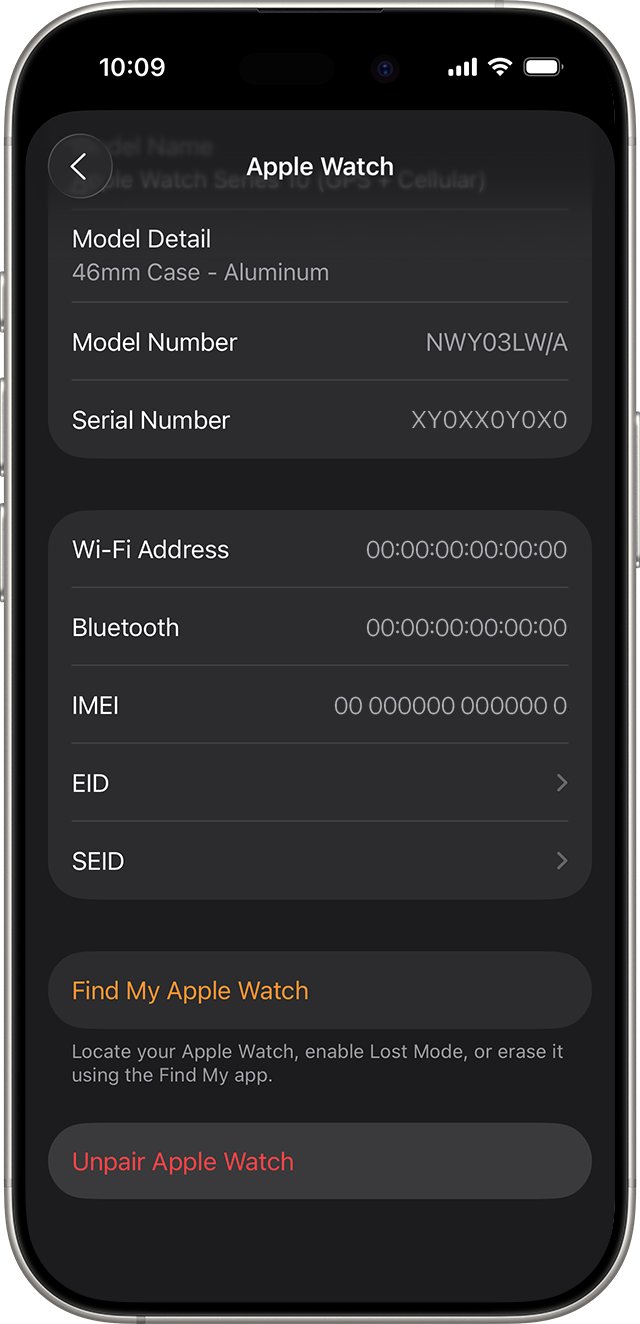
- Tap the info button next to the watch, then tap Unpair Apple Watch.
- Choose whether to keep or remove a cellular plan.
- Enter your Apple Account password and tap Unpair.
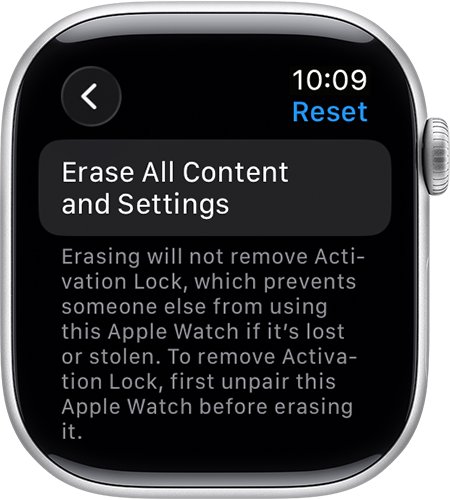
- Without the iPhone, open Settings on the watch, tap General > Reset > Erase All Content and Settings, then Erase All.
Erasing on the watch alone leaves Activation Lock on. If pairing still fails after a fresh start, contact Apple Support. A watch that also has charging trouble may need the Apple Watch charging fixes first.
How to tell Apple Watch is paired
- Check that the watch face shows on the watch.
- Open the Apple Watch app on your iPhone and tap All Watches.
- Confirm your watch is listed under your iPhone.
Apple Watch pairing frequently asked questions
How do I pair my Apple Watch to my iPhone?
Turn the watch on, hold it near your unlocked iPhone and tap Continue when the setup message appears. Point the iPhone camera at the watch animation, then follow the setup screens.
How do I pair Apple Watch to iPhone 17 or iPhone 16?
Use the same steps as any iPhone. Current watches need an iPhone 11 or later, so iPhone 16 and iPhone 17 models qualify once they run the required iOS version.
How do I pair Apple Watch to a new phone?
Back up the old iPhone, restore that backup to the new iPhone, then tap Continue when it asks to use your Apple Watch. Keep the watch unlocked on your wrist during the transfer.
Why won't my Apple Watch pair with my iPhone?
The usual causes are old iOS, the watch still being paired to another iPhone, or Activation Lock. Update the iPhone, restart both devices, and unpair or erase the watch if it asks for a passcode.
Can I pair Apple Watch with Android?
No. Apple's setup requires an iPhone, and the watch is paired and managed through the Apple Watch app on iPhone.
Can I pair Apple Watch with iPad?
No. Apple Watch setup needs an iPhone. An iPad cannot be used to pair or set up the watch.
How do I pair Apple Watch without the camera?
Tap Pair Apple Watch Manually on the iPhone when the animation cannot be scanned, then follow the prompts.
Quick summary
Update your iPhone, keep it unlocked next to the charged watch, and scan the pairing animation. Most pairing failures come from old software, a previous pairing or Activation Lock, and unpairing clears the last two.