Windows 11 and Windows 10 have no single hardware acceleration switch: turn off Hardware-accelerated GPU scheduling under Settings > System > Display > Graphics, then turn off the separate setting inside each browser or app that misbehaves.
This guide covers the Windows setting, Chrome, Edge, Firefox, Office, Teams and other apps, plus how to check the change, fix what goes wrong and switch it back on.
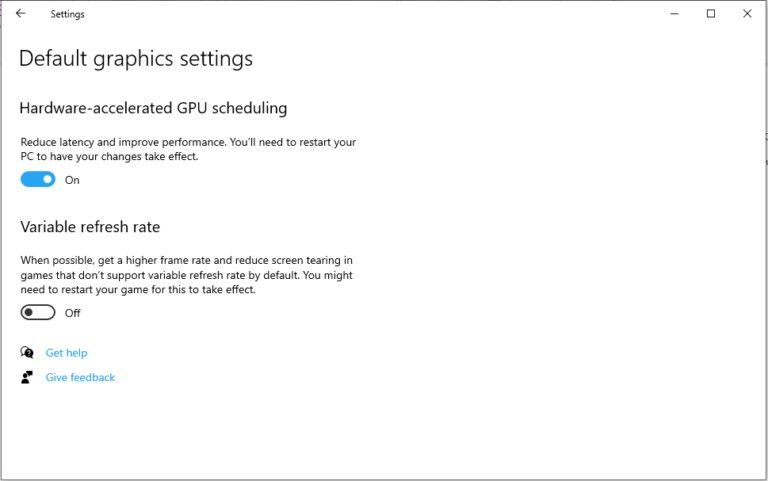
Turn Off Hardware-Accelerated GPU Scheduling in Windows 11
Hardware-accelerated GPU scheduling is the only hardware acceleration setting Windows itself exposes. Microsoft states the switch appears only when both your graphics card and its driver support the feature.
- Select Start, then select Settings.
- Select System, then select Display.
- Scroll down and select Graphics.
- Under Default settings, find Hardware-accelerated GPU scheduling.
- Turn the Hardware-accelerated GPU scheduling switch Off.
- Restart the PC so every app picks up the change.
If the switch is missing, your GPU or driver does not offer the feature, so there is nothing to turn off at the Windows level. Move on to the app that is actually causing trouble.
Important: There Is No Single Global Hardware Acceleration Switch
Every browser and many desktop apps decide for themselves whether to hand drawing and video work to the GPU. Turning off the Windows setting does not change them, and turning off Chrome's setting does not change Edge. Match the problem to a row.
| Where the problem shows up | Setting to turn off | Where it lives |
|---|---|---|
| Freezes or glitches across games and many apps | Hardware-accelerated GPU scheduling | Settings > System > Display > Graphics |
| Black screen, flicker or crashes in Chrome | Use hardware acceleration when available | Chrome: More > Settings > System |
| Same symptoms in Microsoft Edge | Use graphics acceleration when available | Edge: Settings and more > Settings > System and performance |
| Same symptoms in Firefox | Use hardware acceleration when available | Firefox: Settings > General > Performance |
| Slide transitions flash black in PowerPoint | Disable Slide Show hardware graphics acceleration | PowerPoint: File > Options > Advanced > Display |
| Teams window or shared content renders badly | Disable GPU hardware acceleration | Teams: Settings > General |
| One specific app or game on a laptop with two GPUs | Graphics preference for that app | Settings > System > Display > Graphics > Custom options for apps |
Change one setting at a time and test. If the problem stays, turn that setting back on before trying the next row.
What Hardware Acceleration Does in Windows
Hardware acceleration means an app sends work to the graphics processing unit (GPU) instead of doing it on the main processor. Microsoft lists graphics, effects, video and gaming as the work a GPU handles.
| Layer | What the acceleration does | Who controls it |
|---|---|---|
| Windows GPU scheduling | Hands most GPU scheduling to a dedicated scheduling processor on the graphics card, instead of Windows doing it. Needs a WDDM 2.7 or newer driver. | Windows Settings, one switch for the whole PC |
| Browsers | Draw pages, animations and video with the GPU. | Each browser's own settings page |
| Office and Teams | Draw the interface, animations and slide transitions with the GPU. | Each app's options |
| Per-app GPU choice | Picks which GPU an app runs on when a PC has an integrated and a discrete GPU. | Settings > System > Display > Graphics |
Microsoft introduced hardware-accelerated GPU scheduling with the Windows 10 May 2020 Update as an opt-in feature that was off by default. PC makers can ship new systems with it already turned on.
When You Should Disable Hardware Acceleration
Turn it off to troubleshoot a specific fault, not as a general speed tweak. The GPU exists to take this work off the processor.
| Symptom | Worth turning off? | Start with |
|---|---|---|
| Chrome crashes, freezes or will not start | Yes. Google lists it as a fix for hardware problems with Chrome. | Chrome's setting |
| Slide transitions show flashing black screens | Yes. Microsoft suggests it for exactly this. | PowerPoint's Slide Show option |
| Display glitches that began after a driver update | Roll back the driver first | Device Manager |
| Games stutter or freeze after turning on GPU scheduling | Yes, turn the scheduling switch back off | Windows Graphics settings |
| The PC feels slow in general | No. Check visual effects and power mode instead. | Performance Options |
| Video plays badly in PowerPoint | No. Microsoft says to keep acceleration on for playback. | PowerPoint's Disable hardware graphics acceleration checkbox, cleared |
Turn Off Hardware-Accelerated GPU Scheduling in Windows 10
Windows 10 has the same switch, on the page Microsoft calls Graphics settings. It needs the May 2020 Update (version 2004) or later plus a supporting driver.
- Select Start, then select Settings.
- Select System, then select Display.
- Scroll down and select Graphics settings.
- Turn Hardware-accelerated GPU scheduling Off.
- Restart the PC.
No switch on the page means the graphics driver does not expose the feature. Updating the driver can add it; the section on drivers below covers that.
Disable Hardware Acceleration in Google Chrome
Google's crash troubleshooting page lists this as the fix when there is a problem with how your computer's hardware works with Chrome.
- Open Chrome and select More (the three-dot menu) at the top right.
- Select Settings.
- At the bottom of the left menu, select System.
- Turn off Use hardware acceleration when available.
- Restart Chrome.
Chromium-based browsers use similar wording. Vivaldi, for example, keeps its toggle on its own settings page, covered in the Vivaldi hardware acceleration guide. If Chrome is merely heavy on memory rather than glitchy, Memory Saver is the setting to look at instead.
Disable Hardware Acceleration in Microsoft Edge
Edge calls the setting Use graphics acceleration when available. Microsoft's policy documentation uses the same name for the setting it controls.
- In Microsoft Edge, select Settings and more (the three-dot menu) at the top right.
- Select Settings.
- Select System and performance. You can also type
edge://settings/systemin the address bar. - Turn off Use graphics acceleration when available.
- Close and reopen Edge.
On a work or school PC, the HardwareAccelerationModeEnabled policy can set this for you. Microsoft documents that disabling the policy turns graphics acceleration off.
Disable Hardware Acceleration in Mozilla Firefox
Firefox keeps the option in the Performance group of its General settings, hidden until you stop using the recommended settings. The steps below follow the Firefox hardware acceleration walkthrough on techdows.
- Open Firefox and open Settings from the menu at the top right.
- Stay on the General panel and scroll down to Performance.
- Clear Use recommended performance settings.
- Clear Use hardware acceleration when available.
- Close and reopen Firefox.
Disable Hardware Graphics Acceleration in Microsoft Office
Microsoft's current help documents two PowerPoint checkboxes. Disable Slide Show hardware graphics acceleration targets slide transitions that show flashing black screens. Disable hardware graphics acceleration turns it off more broadly, and Microsoft advises keeping that one cleared for smooth video playback.
- Open PowerPoint and select the File tab.
- Select Options.
- Select Advanced in the left pane.
- Scroll to the Display section.
- Select Disable Slide Show hardware graphics acceleration to fix transitions only, or Disable hardware graphics acceleration where your version shows it.
- Select OK, then close and reopen PowerPoint.
If Word, Excel or Outlook shows no matching checkbox, Microsoft does not document one for that app. Control those apps through the Windows per-app Graphics settings below, or turn off Office animations: Microsoft notes that turning off Windows animations also turns off animations in Office apps.
Disable Hardware Acceleration in Microsoft Teams
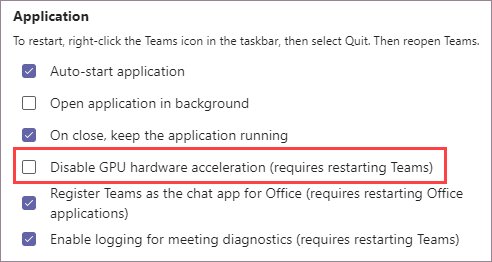
Microsoft documents a checkbox named Disable GPU hardware acceleration (requires restarting Teams) in Teams' General settings.
- In Teams, open Settings.
- Select General.
- Select Disable GPU hardware acceleration.
- Quit Teams completely and open it again.
With this box selected, PowerPoint Live in Teams shows the warning Content not shown in optimal fidelity and may show blurry slides, static GIFs or videos that will not play. That is expected, and it is the trade-off for the fix.
Disable Hardware Acceleration in Discord, Steam and VLC Media Player
Discord, Steam and VLC each keep their own hardware acceleration or hardware decoding option, and each vendor moves it between versions. None of them is controlled by the Windows switch.
- Open the app's settings or preferences window.
- Use the settings search box, if the app has one, and type
hardware accelerationorhardware decoding. - Turn the option off and fully quit the app, including any tray icon.
- Reopen the app and repeat whatever triggered the problem.
- If you find no such option, check the vendor's own help site for your version rather than a third-party tweak guide.
On a laptop with two GPUs, you can also move the app to the other GPU with the per-app setting in the next section. That changes which GPU it uses, not whether it uses one.
Change Per-App Graphics Settings in Windows 11/10
Windows lets you pick the GPU and some graphics features per app. This is the closest Windows gets to a per-app acceleration control.
- Select Start > Settings > System > Display > Graphics.
- Under Custom options for apps, select the app or game, then select Options.
- Under Graphics preference, choose Let Windows decide (Power saving), Power saving or High performance.
- To stop Windows changing how a windowed game is presented, turn off Optimizations for windowed games. Turn off Auto HDR first if it is on.
- Select Save, then restart the app or game.
The GPU choice only appears on PCs with more than one graphics processor.
Turn Off Windows Visual Effects That Use GPU Resources
Animations and transparency are Windows' own GPU work. Microsoft's performance tips suggest trimming them when the desktop feels sluggish.
- Select Start, type
Adjust the appearance and performance of Windowsand open it. - On the Visual Effects tab, select Adjust for best performance, then select OK.
- Open Settings > Personalization > Colors.
- Turn off Transparency effects to remove the acrylic blur behind windows and menus.
Microsoft notes that turning off Windows animations also turns off animations in Office apps, which helps if Office is the program that flickers.
Disable Browser Video Hardware Decoding with Advanced Flags
Use the documented settings toggle in Chrome or Edge, not the experimental flags pages, to turn off video hardware decoding and other GPU work. Google and Microsoft document the settings toggle as the fix for hardware problems. The flags pages are experimental, their names change between versions, and a flag left on can cause new faults long after you forget about it.
Use Graphics Driver Control Panels Carefully
Leave NVIDIA, AMD and Intel control panel settings at their defaults while you troubleshoot, and change the Windows or in-app setting instead. Driver control panels apply profiles that override what Windows and apps ask for, so a forgotten tweak there can look like a hardware acceleration fault. If you have changed settings in one, undo those changes before testing anything else, following the GPU maker's own documentation.
Update or Roll Back Your Graphics Driver
Many acceleration faults are driver faults. Microsoft recommends Windows Update first, then Device Manager, then the GPU maker's own site, and warns against driver downloads from any other website.
- To update: on Windows 11, open Settings > Windows Update > Advanced options > Optional updates, select any display driver listed, then select Download and install.
- Or right-click Start, select Device Manager, and expand Display adapters.
- Right-click your graphics adapter and select Update driver > Search automatically for updated driver software.
- To roll back after a bad update: right-click the adapter, select Properties, then open the Driver tab.
- Select Roll Back Driver, choose a reason, then select Yes.
- Restart the PC when prompted.
Microsoft notes that some drivers don't provide the roll-back option. If Windows Update finds nothing, get the driver from your PC maker or GPU maker.
Should You Disable the Display Adapter?
No. Do not disable your display adapter in Device Manager to stop hardware acceleration. It is not an acceleration switch. It takes the graphics hardware away from Windows entirely. Microsoft lists what the manufacturer's driver provides over the generic Microsoft Basic Display Adapter: faster performance, smoother video, higher resolutions, better battery life, multiple monitors and better stability. Use the Windows and in-app settings above instead.
How to check hardware acceleration is off
- Reopen the setting you changed after the restart and confirm the switch or checkbox still shows the new state.
- For Windows, open Settings > System > Display > Graphics and confirm Hardware-accelerated GPU scheduling is Off.
- In Teams, start PowerPoint Live: the Content not shown in optimal fidelity warning confirms GPU acceleration is off in Teams.
- Repeat the exact action that caused the fault, such as the video, slide transition or game, and note whether it still happens.
- If you changed drivers, right-click Start, select Run, type
dxdiag.exe, select OK, open the Display tab and check the adapter Name is your GPU, not Microsoft Basic Display Adapter.
How to Turn Hardware Acceleration Back On
- Windows: return to Settings > System > Display > Graphics and turn Hardware-accelerated GPU scheduling On, then restart.
- Chrome: turn Use hardware acceleration when available back on under Settings > System, then restart Chrome.
- Edge: turn Use graphics acceleration when available back on under Settings > System and performance.
- Firefox: select Use hardware acceleration when available again, or select Use recommended performance settings.
- PowerPoint: clear the checkbox you selected under File > Options > Advanced > Display.
- Teams: clear Disable GPU hardware acceleration under Settings > General, then restart Teams.
Troubleshooting Checklist After Turning Hardware Acceleration Off
The Hardware-accelerated GPU scheduling switch is missing
Microsoft shows the switch only when both the GPU and its driver support the feature (WDDM 2.7 or newer).
- Update the display driver through Windows Update > Advanced options > Optional updates.
- Restart and check Settings > System > Display > Graphics again.
- If it is still missing, your hardware does not offer it; turn off acceleration in the affected app instead.
Teams shows "Content not shown in optimal fidelity"
PowerPoint Live in Teams needs GPU hardware acceleration, and it is off.
- Open Teams Settings > General.
- Clear Disable GPU hardware acceleration if the original problem is fixed another way.
- Restart Teams.
Slide transitions still flash black in PowerPoint
The broad checkbox was changed, but the Slide Show option is still on.
- Open File > Options > Advanced.
- Under Display, select Disable Slide Show hardware graphics acceleration.
- Select OK and run the slide show again.
Video stutters in PowerPoint after turning acceleration off
Microsoft advises keeping hardware acceleration on for media playback.
- Clear Disable hardware graphics acceleration under File > Options > Advanced > Display.
- Update the display driver.
- Check the device has enough free disk space for the presentation's media.
Crashes or screen glitches continue in every app
The fault is in the graphics driver, not in any app's acceleration setting.
- Roll back the driver in Device Manager if the problem started after an update.
- Otherwise update it from Windows Update or the GPU maker.
- Run
dxdiag.exeand confirm the Display tab does not show Microsoft Basic Display Adapter.
Edge's graphics acceleration setting will not change
On managed PCs, the HardwareAccelerationModeEnabled policy sets it.
- Ask your IT administrator whether the policy is configured.
- Use the per-app Graphics preference in Windows Settings meanwhile.
Frequently Asked Questions
Is there one switch to turn off hardware acceleration in all of Windows?
No. Windows only offers Hardware-accelerated GPU scheduling under Settings > System > Display > Graphics. Browsers, Office, Teams and other apps each keep their own setting, so turn it off in the app that has the problem.
Should I turn off hardware acceleration?
Only to fix a specific problem, such as crashes, black screens or flickering in one app. Hardware acceleration lets the GPU handle graphics and video, so leaving it on is normally faster and uses less processor time. If the whole screen flickers rather than one app, Windows 11 screen flickering usually traces back to the display driver or an incompatible app.
Does turning off hardware-accelerated GPU scheduling affect games?
It changes how Windows schedules GPU work for every app, including games. Microsoft introduced it as an opt-in, off-by-default feature in Windows 10, so turning it off returns Windows to its original scheduling method.
Why can't I find Hardware-accelerated GPU scheduling in Settings?
Microsoft shows the switch only when your graphics card and driver both support it, which needs a WDDM 2.7 or newer driver. Update the display driver and check again; if it still is not there, the hardware does not offer it.
Does turning off hardware acceleration in Chrome also turn it off in Edge?
No. Chrome's Use hardware acceleration when available and Edge's Use graphics acceleration when available are separate settings. Change each browser on its own settings page and restart it.
Do I need to restart after turning off hardware acceleration?
Yes. Google says to restart Chrome, and Teams labels its checkbox as requiring a restart. Restart the PC after changing GPU scheduling in Windows, and close and reopen any app you change.
Where is the hardware graphics acceleration option in Office?
Microsoft documents it in PowerPoint under File > Options > Advanced > Display. Disable Slide Show hardware graphics acceleration fixes transitions that flash black, while Disable hardware graphics acceleration turns it off more broadly.
Is it safe to disable the display adapter in Device Manager?
It is not a good way to stop hardware acceleration. It removes the graphics hardware from Windows and loses what the manufacturer's driver provides. Use the Windows or in-app setting instead.




What Graphics Card Do I Have? How to Check GPU - Techdows
[…] the graphics feature status at the top to see whether hardware acceleration is […]
Firefox 55+ : How to disable Hardware Acceleration? - Techdows
[…] These Performance settings include hardware acceleration option also, which you need to disable to troubleshoot Firefox issues you’re having like the browser doesn’t open or shows black screen on startup, these can be fixed by turning off hardware acceleration. […]
How to enable hardware-accelerated GPU scheduling in Windows 11 - Techdows
[…] only changes how Windows schedules GPU work. To stop individual apps or browsers using the GPU, turn off hardware acceleration in apps […]