To restore WhatsApp chat history on your iPhone, confirm a backup exists under Settings > Chats > Chat Backup, then delete and reinstall WhatsApp, verify the same phone number and Apple ID, and tap Restore Chat History.
This guide covers restoring from iCloud or WhatsApp cloud storage, moving chats from an old iPhone or an Android phone, encrypted backups, exporting chats, and the fixes for each restore error.
How to restore WhatsApp chat history on iPhone from iCloud
There is no restore button in WhatsApp Settings. The restore prompt only appears during setup, so you reach it by reinstalling the app.
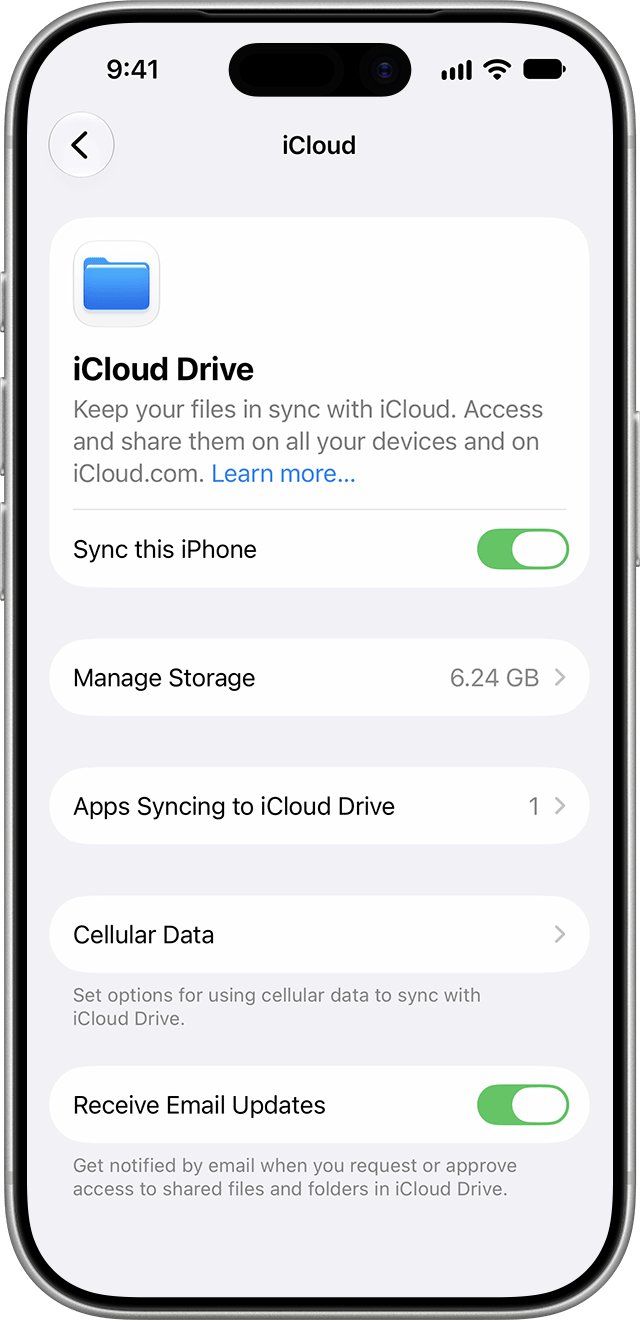
- Open iPhone Settings, tap your name, then tap iCloud > iCloud Drive.
- Turn on Sync this iPhone and make sure WhatsApp is on under Apps Syncing to iCloud Drive.
- Delete WhatsApp from the iPhone, then install it again from the App Store.
- Open WhatsApp and verify your phone number and Apple ID.
- Tap Restore Chat History.
- Enter the code sent by text or call if WhatsApp asks you to verify your identity.
- Keep WhatsApp open until your chats appear, then let the media finish restoring in the background.
Use the same phone number that made the backup. WhatsApp only restores a backup to the number that created it.
If your account uses WhatsApp cloud storage instead of iCloud, the same reinstall steps apply; only the iCloud Drive checks are skipped.
How to check if you have a WhatsApp backup on iPhone
Check this before you delete anything. If there is no backup, reinstalling WhatsApp gives you an empty chat list.
- Open WhatsApp and tap Settings (or your profile picture).
- Tap Chats > Chat Backup.
- Read the time and size of the last backup shown on the screen.
- Note whether the backup provider is iCloud or WhatsApp cloud storage.
- Check that the backup date is less than 120 days old.
Do not tap Back Up Now while trying to recover chats that are already missing. iCloud keeps one WhatsApp backup per account, and a new backup permanently replaces the one that holds your missing chats.
Backups older than 120 days may not restore, even if the account is still active.
Can I retrieve WhatsApp chat history without a backup?
Yes, but only if the chats still exist on another phone. WhatsApp does not keep your chat history on its servers, so it cannot send it back to you.
| Your situation | Use this | Why |
|---|---|---|
| You have a recent iCloud or WhatsApp cloud storage backup | Reinstall WhatsApp and tap Restore Chat History | Restores messages and media from the last successful backup |
| No backup, but the old iPhone still has the chats | Transfer Chats to iPhone from the old phone | Moves the full chat and media history phone to phone without a cloud backup |
| The chats are on an Android phone | Apple's Move to iOS app | Android backups cannot be restored on an iPhone |
| The backup is end-to-end encrypted | Restore with the original passkey, password or 64-digit key | WhatsApp cannot reset the key or unlock the backup for you |
| No backup and no old phone | None | Messages that were never backed up or transferred cannot be recovered |
| You only want a readable copy of one chat | Export chat | Saves a ZIP file, but it cannot be imported back into WhatsApp |
How to transfer WhatsApp chat history from an old iPhone to a new iPhone
Chat Transfer moves every chat, photo, video and document directly between two iPhones. Use it when you have no backup, or when the backup is older than the chats on the old phone.
- Update iOS and WhatsApp on both iPhones, connect both to Wi-Fi and plug both into power.
- On the old iPhone, open WhatsApp and tap your profile picture, then Chats > Transfer Chats to iPhone > Start.
- Tap Allow if WhatsApp asks for camera access.
- On the new iPhone, open WhatsApp, tap Agree & continue and verify the same phone number.
- Tap Continue on Transfer chat history to iPhone and accept the local network permission.
- Scan the QR code on the new iPhone with the old iPhone's WhatsApp camera.
- Keep both phones near each other, unlocked and in WhatsApp until you see Transfer completed, then tap Next.
The new iPhone must not be registered on WhatsApp before you start the transfer on the old one. Call history, peer-to-peer payment messages and media received in Channels do not transfer.
Keep WhatsApp on the old iPhone until the new one shows all your chats. If the transfer fails, the data is still on the old phone.
How to restore WhatsApp chat history from Android to iPhone
An Android backup cannot be restored on an iPhone, so the chats move with Apple's Move to iOS app as part of the Android to iPhone transfer during iPhone setup. The iPhone must be new or factory reset, and it needs iOS 15.5 or later; the Android phone needs Android 5 or later.
- Install the Move to iOS app on the Android phone and update WhatsApp on it.
- Connect both phones to power and to the same Wi-Fi network, or connect the Android phone to the iPhone's hotspot.
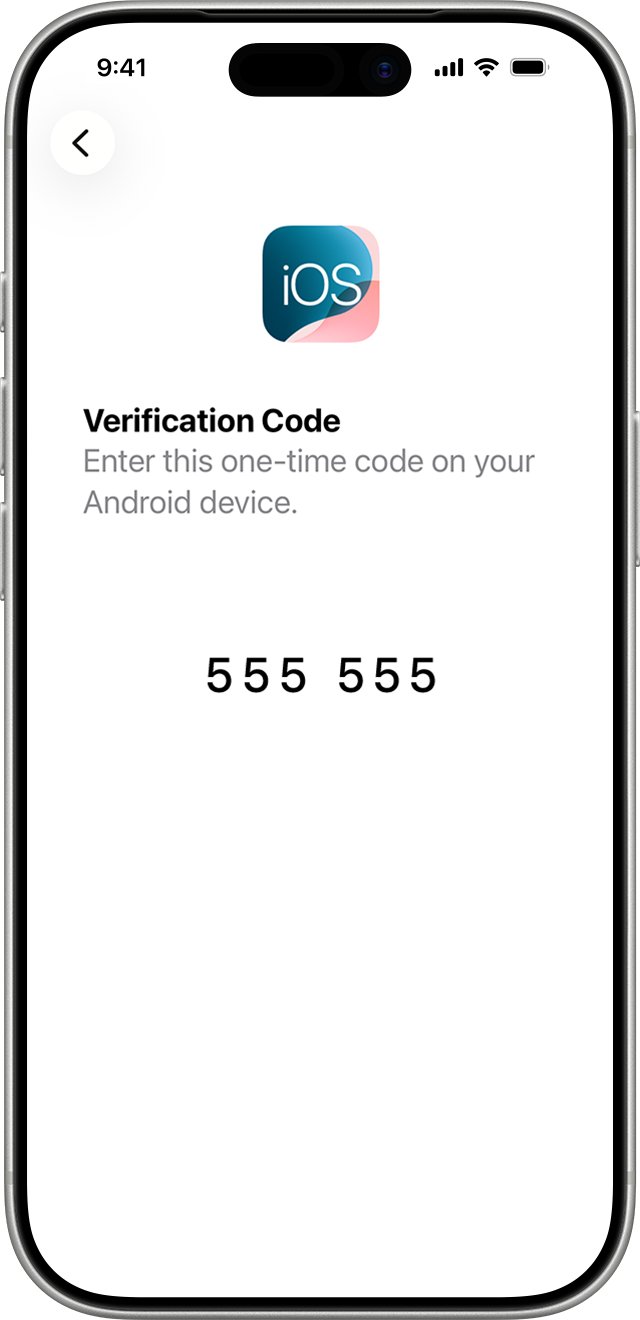
- Open Move to iOS on the Android phone and enter the code the iPhone shows.
- Select WhatsApp on the Transfer Data screen.
- Tap Start on the Android phone and wait while WhatsApp prepares the data, then tap Next to return to Move to iOS.
- Tap Continue and wait for Move to iOS to finish the transfer.
- Install WhatsApp on the iPhone, log in with the same phone number and tap Start when prompted.
If WhatsApp is already active on the iPhone, the old history cannot be merged in. You would need to erase the iPhone and start setup again.
Call history and your display name do not move, and the WhatsApp Business app does not support this transfer.
How to restore an end-to-end encrypted WhatsApp backup on iPhone
An encrypted backup restores only with the passkey, password or 64-digit encryption key that protected it. WhatsApp cannot send a copy, reset it or unlock the backup.
- Delete and reinstall WhatsApp, then verify your phone number and Apple ID.
- Tap Restore Chat History.
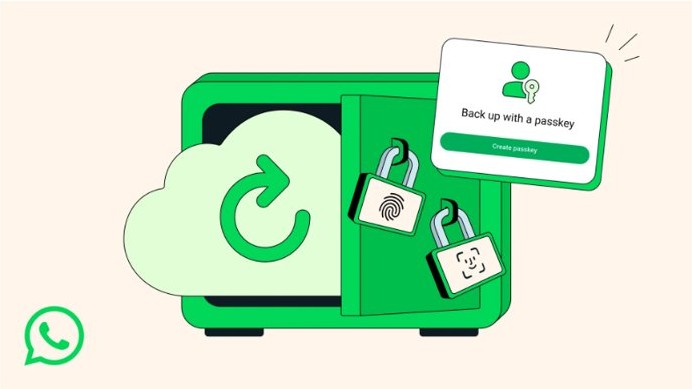
- Choose your passkey, or tap the option to enter your password or 64-digit encryption key instead.
- Verify with Face ID, Touch ID or your passcode if you use a passkey.
- Keep WhatsApp open until your chats appear.
Turning off end-to-end encryption or creating a new passkey does not unlock an existing encrypted backup. Passkeys need iOS 18 or later and a screen lock.
How long does WhatsApp take to restore chat history on iPhone?
Restoring runs in two stages, and the time depends on the size of the backup. If you see no error message, the restore is still in progress.
| Stage | What you see | What to do |
|---|---|---|
| Messages | A restore screen, then your chat list | Keep WhatsApp open; closing it can make the message restore start again |
| Photos, videos and other media | A progress percentage, with some media missing from chats | Use or close WhatsApp freely; progress is kept |
| Whole restore | Chats and media in place | Stay on Wi-Fi and plugged in until it finishes |
| After restoring | WhatsApp starts backing up again | New backups only start once restoring is complete |
Do not tap Skip media restore unless you are willing to lose that media. Skipped media cannot be restored later, and the next backup replaces the old one without it.
How to backup WhatsApp chat history on iPhone
A current backup is what makes the next restore possible. Set it to run automatically so the newest messages are always included.
- Open WhatsApp and tap Settings (or your profile picture).
- Tap Chats > Chat backup.
- Tap Cloud backup, choose WhatsApp or iCloud, and tap Turn on backups if backups are off.
- Tap Auto backup and choose Daily, Weekly or Monthly.
- Turn on Include videos in chats if you want videos restored later.
- Tap Back up now for an immediate backup.
WhatsApp cloud storage is still rolling out and may not appear for every account; free accounts get 2 GB. iCloud backups use your Apple iCloud storage.
To protect the backup, tap End-to-end encrypted backup > End-to-end encryption on the same screen and choose a passkey, password or 64-digit key.
How to save chat history in WhatsApp with Export chat
Export chat saves one conversation as a ZIP file you can keep in Files, Notes or a message. It is an archive for reading, not a backup.
- Open the individual or group chat you want to save.
- Tap the contact or group name at the top.
- Tap Export chat.
- Choose With all media, With selected media or Without media if the chat has media.
- Pick where to send it, such as Save to Files.
An exported chat cannot be imported back into WhatsApp, and view once messages are left out.
Does WhatsApp keep chat history?
No. WhatsApp does not store your chat history on its servers, and its support team cannot restore, transfer or delete chats for you. Your history lives on the phone and in the backup you choose.
| Where chats are kept | What it means for a restore |
|---|---|
| On the iPhone | Linked devices such as WhatsApp Web on a PC copy their history from the phone |
| iCloud backup | One backup per iCloud account; each new backup replaces the last |
| WhatsApp cloud storage | Always end-to-end encrypted; one backup per phone number |
| An old phone | Recoverable with Chat Transfer or Move to iOS before you erase it |
| Messages after the last backup | Cannot be restored from that backup |
| Deleted chats with no backup | Gone; WhatsApp has no copy to recover |
If you back up to WhatsApp cloud storage, WhatsApp chats and media are excluded from your iPhone's own device backup.
Couldn't restore chat history on WhatsApp iPhone: how to fix it
"Couldn't restore your chat history" on iPhone
iCloud Drive sync, a mismatched phone number or Apple ID, or low iPhone storage.
- Check you are using the same phone number and iCloud account that made the backup.
- Go to Settings > your name > iCloud > iCloud Drive, turn off Sync this iPhone, wait 5 to 10 minutes and turn it back on.
- Check that WhatsApp is on under Apps Syncing to iCloud Drive.
- Restart the iPhone, update WhatsApp and iOS, then reinstall WhatsApp and restore again.
- As a last resort, sign out of iCloud, restart the iPhone, sign back in and retry. This affects other apps too.
Restore Chat History does not appear when reinstalling WhatsApp
No backup exists for this number and iCloud account, or the backup is too old.
- Confirm you signed in with the Apple ID used when the backup was made.
- Verify the same phone number the backup was created with.
- If you still have the old phone, use Transfer Chats to iPhone instead.
"Free up space on your device to restore your media"
WhatsApp needs temporary space on the iPhone to download and unpack media.
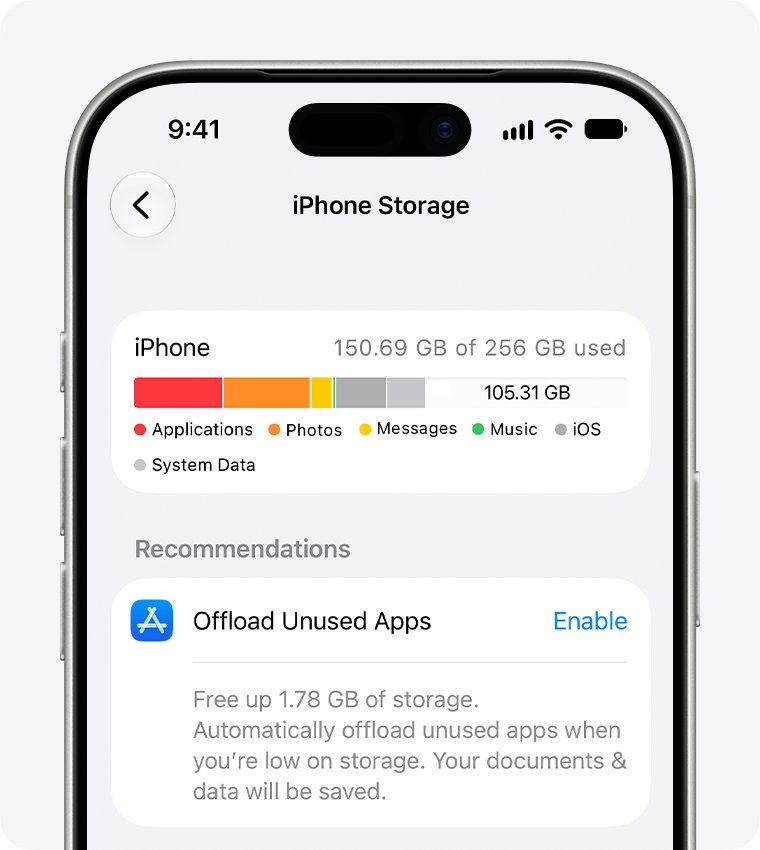
- Go to Settings > General > iPhone Storage.
- Remove apps, photos or videos you no longer need until the amount WhatsApp shows is free.
- Return to WhatsApp and let the media restore continue. Buying more iCloud storage does not help here.
Restored chats but some photos and videos are missing
The media restore is still running, videos were not included in the backup, or the backup was partial.
- Wait for the media restore percentage to finish on Wi-Fi with the iPhone plugged in.
- Check whether Include videos in chats was on; videos are only restored when it was.
- Turn it on now so future backups include videos.
Encrypted backup will not restore
The wrong password or 64-digit encryption key was entered.
- Enter the original password, key or passkey that protected the backup.
- Check for typos in the 64-digit key.
- If the key is lost, the backup cannot be opened; WhatsApp cannot reset it.
Chat transfer to the new iPhone is stuck or the QR code does not appear
Wi-Fi, local network permission or an already-activated WhatsApp on the new phone.
- Connect both iPhones to Wi-Fi and the internet, and accept the local network permission.
- Uninstall WhatsApp on the new iPhone if it was already activated, then start again from the old phone.
- Turn both phones off, wait 30 seconds, turn them on and retry the transfer.
If nothing works, the backup is most likely corrupted, often from an interrupted backup or force-closing WhatsApp. WhatsApp cannot repair it, but Chat Transfer from the old phone may still recover the chats.
WhatsApp chat history restore FAQ
How do I restore my WhatsApp chat history?
Confirm a backup exists under Settings > Chats > Chat Backup, delete and reinstall WhatsApp, verify the same phone number and Apple ID, and tap Restore Chat History. Keep WhatsApp open until your chats appear.
Can I retrieve WhatsApp chat history without a backup?
Only from another phone that still has the chats. Use Transfer Chats to iPhone from an old iPhone, or Move to iOS from an Android phone. WhatsApp does not store chat history on its servers, so chats that were never backed up or transferred cannot be retrieved.
How do I retrieve deleted WhatsApp chat history?
Restore the last backup made before the chats were deleted by reinstalling WhatsApp and tapping Restore Chat History. Do not create a new backup first, because it replaces the old one and the deleted chats with it.
Can I restore WhatsApp chat history from Android on an iPhone?
Not from a backup. Android backups cannot be restored on an iPhone. Move the chats with Apple's Move to iOS app during setup of a new or factory reset iPhone running iOS 15.5 or later, using the same phone number.
Does WhatsApp keep chat history?
No. WhatsApp does not store your chat history on its servers. Chats are kept on your phone and in your own iCloud or WhatsApp cloud storage backup, and WhatsApp support cannot restore them for you.
How do I backup WhatsApp chat history on iPhone?
Open WhatsApp Settings > Chats > Chat backup, choose iCloud or WhatsApp as the backup provider, turn on Auto backup, and tap Back up now. Turn on Include videos in chats if you want videos back after a restore.
How do I save chat history in WhatsApp?
Use a backup to keep chats you can restore, or Export chat to save one conversation as a ZIP file. An exported chat is a readable archive only; it cannot be imported back into WhatsApp.
Can I restore an older WhatsApp backup?
No. iCloud and WhatsApp cloud storage keep one backup per account or phone number, and each new backup replaces the previous one. Backups older than 120 days may also fail to restore.
Why are my newest WhatsApp messages missing after a restore?
A restore brings back the chats in the last backup only. Messages sent and received after that backup are not in it and cannot be restored from it.