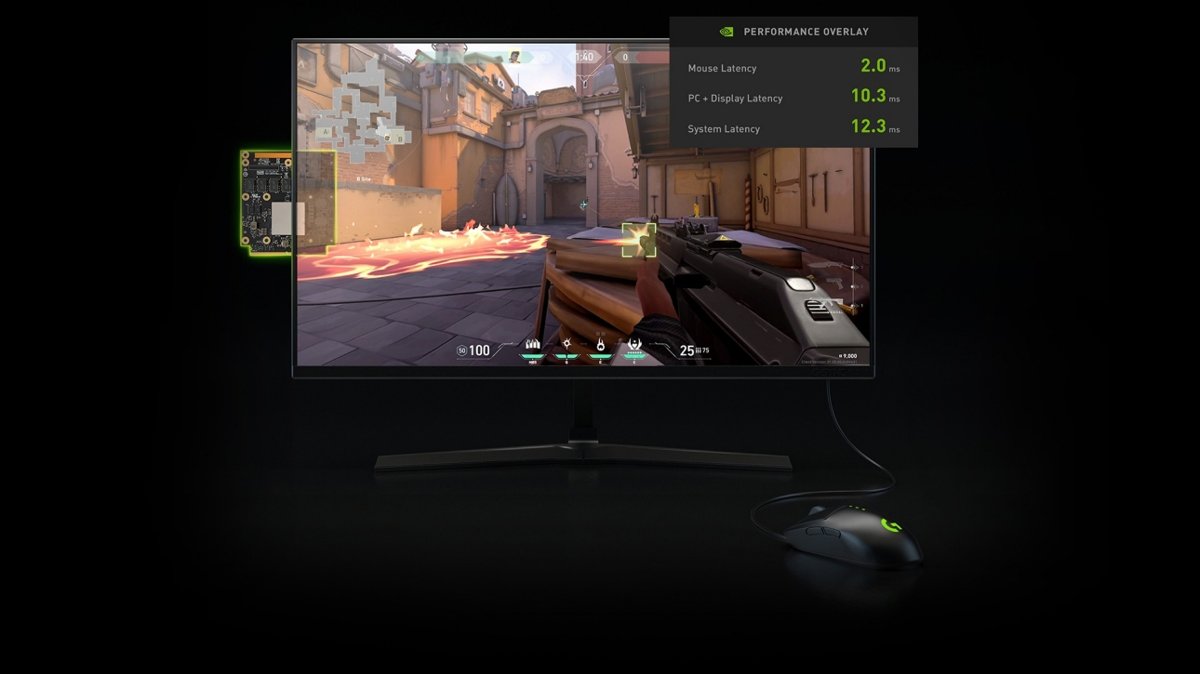
To perform a mouse latency test on a Windows computer, record the mouse and screen with a high-frame-rate camera and count the frames between the click and the on-screen change, or measure it directly with an NVIDIA G-SYNC monitor that has Reflex Analyzer.
This guide covers both tests, what online testers can and cannot measure, how to compare wired and wireless mice, and the settings that cut mouse latency in Windows 11 and Windows 10.
How to perform a mouse latency test in Windows 11/10
Windows has no built-in mouse latency test. The camera method works with any mouse and any monitor, and it measures the full delay from click to screen, which is what you feel in a game.
- Open a game or app where a click changes the screen at once, such as firing a weapon or opening a menu.
- Set your phone or camera to its slow-motion mode, such as 240 frames per second, and frame both the mouse button and the screen in one shot.
- Record yourself clicking the left button sharply about ten times, with a pause between clicks.
- Open the video in a player that steps frame by frame.
- For each click, find the frame where the button bottoms out and the frame where the screen first changes, and count the frames between them.
- Multiply the frame count by the frame time: at 240 fps, one frame is about 4.2 ms, so 12 frames is about 50 ms.
- Average the ten results. That number is the click-to-screen latency of the whole system.
A single click is never reliable, because the screen refreshes on its own schedule. Ten or more clicks average that out.
Mouse latency test online vs hardware test
| Test | What it measures | What you need | Use it when |
|---|---|---|---|
| Slow-motion camera | Full click-to-screen delay, in steps of one video frame | Phone or camera with a slow-motion mode | You want a real number with any mouse |
| NVIDIA Reflex Analyzer | Mouse Latency, PC + Display Latency and System Latency, per click | G-SYNC monitor with Reflex Analyzer and a Reflex-compatible mouse | You need precise, repeatable figures |
| Online mouse latency test page | How often the browser receives mouse events, not the delay to the screen | A web browser | You only want a rough check of the report rate |
Browser pages sit on top of the browser's own event handling and the display, so they cannot isolate the mouse. Treat them as a polling check, not a latency measurement.
Mouse click latency test with NVIDIA Reflex Analyzer
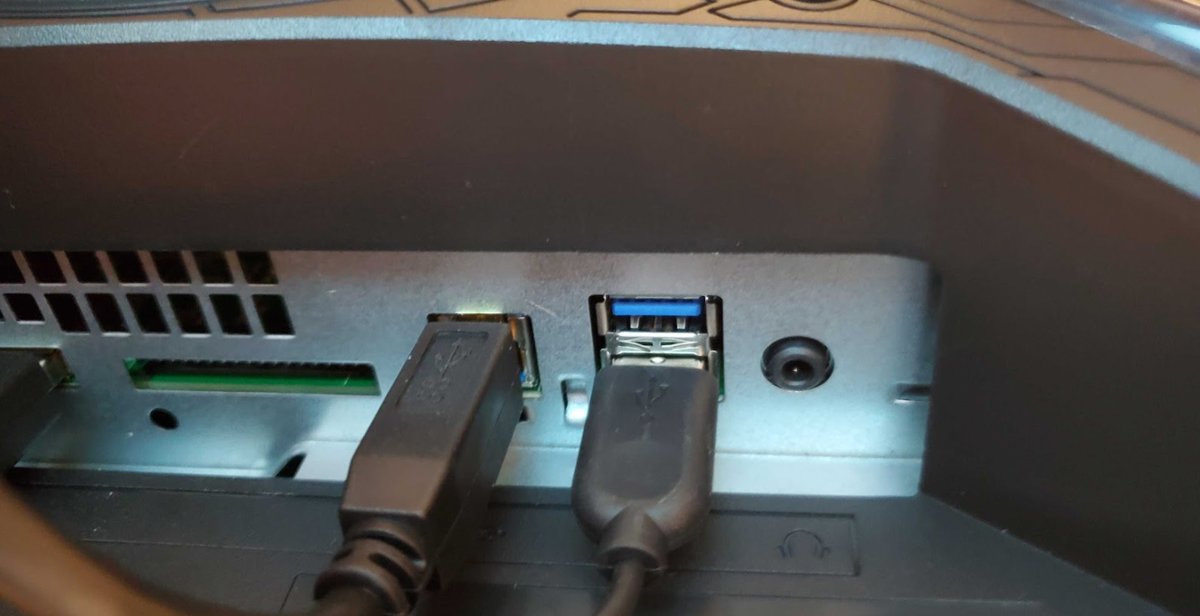
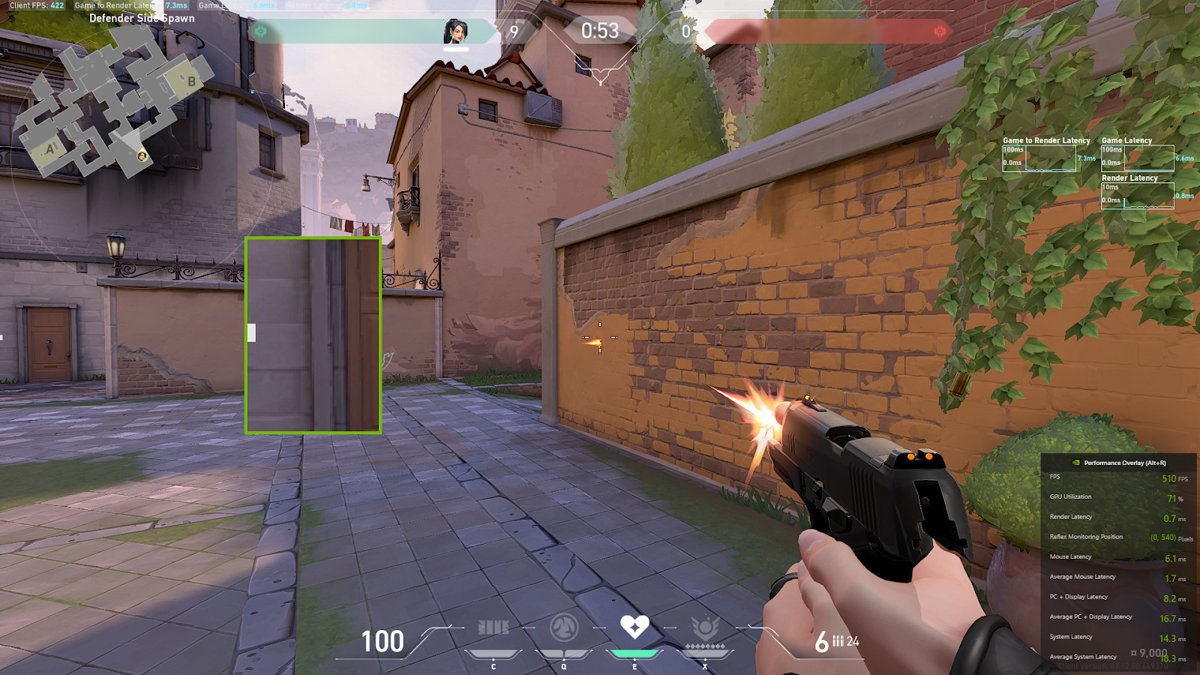
Reflex Analyzer is built into some NVIDIA G-SYNC monitors. The monitor sees the click arrive through its own USB port and watches a patch of the screen for the result, so it measures latency without a camera.
- Connect the monitor to your GeForce graphics card with a DisplayPort cable.
- Connect the monitor's USB cable to the PC.
- Plug a Reflex-compatible mouse into the monitor's Reflex USB port, which is usually a different colour from its other ports.
- In the monitor's on-screen menu, turn on PC + Display Latency.
- Move the monitoring rectangle over the spot where the click shows up, such as a muzzle flash.
- Open the NVIDIA app overlay in the game and turn on its performance statistics, which show PC and system latency with Reflex Analyzer.
- Click repeatedly and read Mouse Latency, PC + Display Latency and System Latency.
A mouse without Reflex validation still works, but NVIDIA then estimates the mouse's share from a database of average mice instead of measuring each click.
Wireless mouse latency test
To find out whether wireless adds delay on your setup, run the same test on each connection and keep everything else identical.
- Pick one test, the camera method or Reflex Analyzer, and use the same game scene for every run.
- Test the mouse wired, if it has a cable, and note the average of ten clicks.
- Test it on its USB receiver, with the receiver in an open spot close to the mouse.
- Test it on Bluetooth, if it supports Bluetooth.
- Compare the three averages. A gap of less than one video frame is within the error of a camera test.
What is mouse latency?
Mouse latency is the delay between a physical action, a click or a movement, and the result appearing on screen. What you notice is the total, and the mouse is only one part of it.
| Part of the chain | What happens there | NVIDIA's name for it |
|---|---|---|
| Mouse | The switch closes, the sensor reads, and the mouse sends a report over USB or wireless | Mouse Latency |
| PC | Windows receives the input, the game processes it and the graphics card renders the frame | Part of PC + Display Latency |
| Display | The monitor receives the frame and the pixels change | Part of PC + Display Latency |
| Everything together | From the click to the finished screen update | System Latency |
Reasons for mouse latency
| Cause | Why it adds delay | What to change |
|---|---|---|
| Low report (polling) rate | At 125 Hz the mouse reports every 8 ms; at 1,000 Hz, every 1 ms | Raise the report rate in the mouse maker's app |
| Bluetooth near busy Wi-Fi | Bluetooth uses only the 2.4 GHz band, which Wi-Fi also uses | Move Wi-Fi to 5 GHz or use the USB receiver |
| Receiver far away or blocked | Rear ports, docks and metal desk frames weaken the signal | Use a front port or a USB extension cable |
| Low frame rate in the game | Each frame takes longer, so your click waits longer to appear | Lower graphics settings or use the game's low-latency mode |
| Slow monitor | A low refresh rate waits longer before showing each new frame | Use the monitor's highest refresh rate in Windows display settings |
How to reduce mouse latency
- Use a cable, or the mouse's own USB receiver, instead of Bluetooth for gaming.
- Plug the receiver into a front port or a USB extension cable so it sits close to the mouse, away from metal objects.
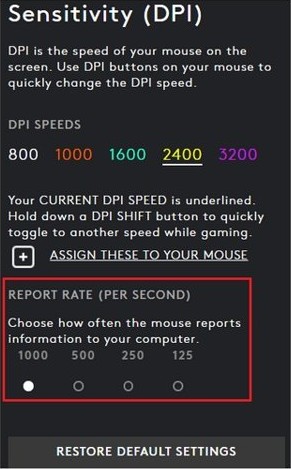
- Raise the report rate in the maker's app. In Logitech G HUB, open the Performance tab, select the Performance icon, choose REPORT RATE and click the level you want.
- Turn on Game Mode in Settings > Gaming > Game Mode.
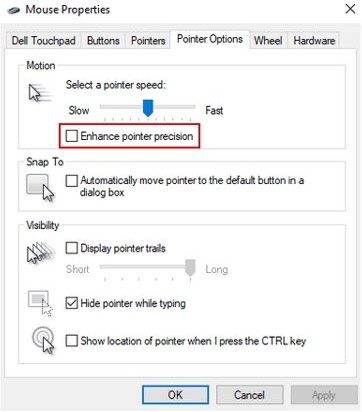
- If you changed the report rate on a Logitech mouse, turn off Enhance pointer precision in Settings > Bluetooth & devices > Mouse, because Logitech says it can make DPI inconsistent.
- Run the latency test again and compare the average with your first result.
Mouse speed is a separate setting from latency; if the pointer feels slow rather than late, change the mouse DPI instead.
How to customize mouse buttons, pointer, cursor on Windows 11
These settings change how fast the pointer moves and how it looks, not the delay itself, but a pointer that is easy to see makes test videos much easier to read.
- Open Settings > Bluetooth & devices > Mouse.
- Choose Left or Right under Primary mouse button.
- Drag the Mouse pointer speed slider to set how far the pointer travels.
- Turn Enhance pointer precision on or off to control pointer acceleration.
- Open Settings > Accessibility > Mouse pointer and touch and pick a Mouse pointer style and Size.
- For a full pointer scheme, open Additional mouse settings, select the Pointers tab and use Scheme or Customize.
On Windows 10, the same options sit in Settings > Devices > Mouse, where they are called Select your primary button and Cursor speed. Button remapping beyond left and right needs the mouse maker's app, and you can customize mouse buttons and the pointer further in Windows itself.
How to check mouse latency after a change
- Repeat the exact test you ran first: same game scene, same camera frame rate or same Reflex Analyzer rectangle.
- Record at least ten clicks again.
- Average the results and compare them with the first average.
- Keep the change if the new average is lower by more than one video frame, or by a steady margin in Reflex Analyzer.
- Undo the change if the numbers did not move, so you can isolate the next setting.
How to fix mouse latency
Bluetooth mouse lags or stutters
Nearby Wi-Fi on the 2.4 GHz band interferes with the Bluetooth signal.
- Move the PC or yourself further from the router and test again.
- Switch your Wi-Fi to 5 GHz if the router supports it.
- If you must stay on 2.4 GHz, set the router to channel 1, 6 or 11.
- Use the mouse's USB receiver instead of Bluetooth if it has one.
Wireless mouse latency test shows high numbers on the receiver
The receiver is too far from the mouse, behind the PC, or near metal.
- Move the receiver from a rear port or dock to a front port.
- Use a USB extension cable to put the receiver on the desk near the mouse.
- Remove large metal objects near the receiver.
- Update the mouse firmware with the maker's app, such as G HUB or Logi Options+.
Mouse latency is only high in games
The game's frame rate, not the mouse, is adding most of the delay, which a PC performance test can confirm.
- Turn on Game Mode in Settings > Gaming.
- Lower the game's graphics settings and test again.
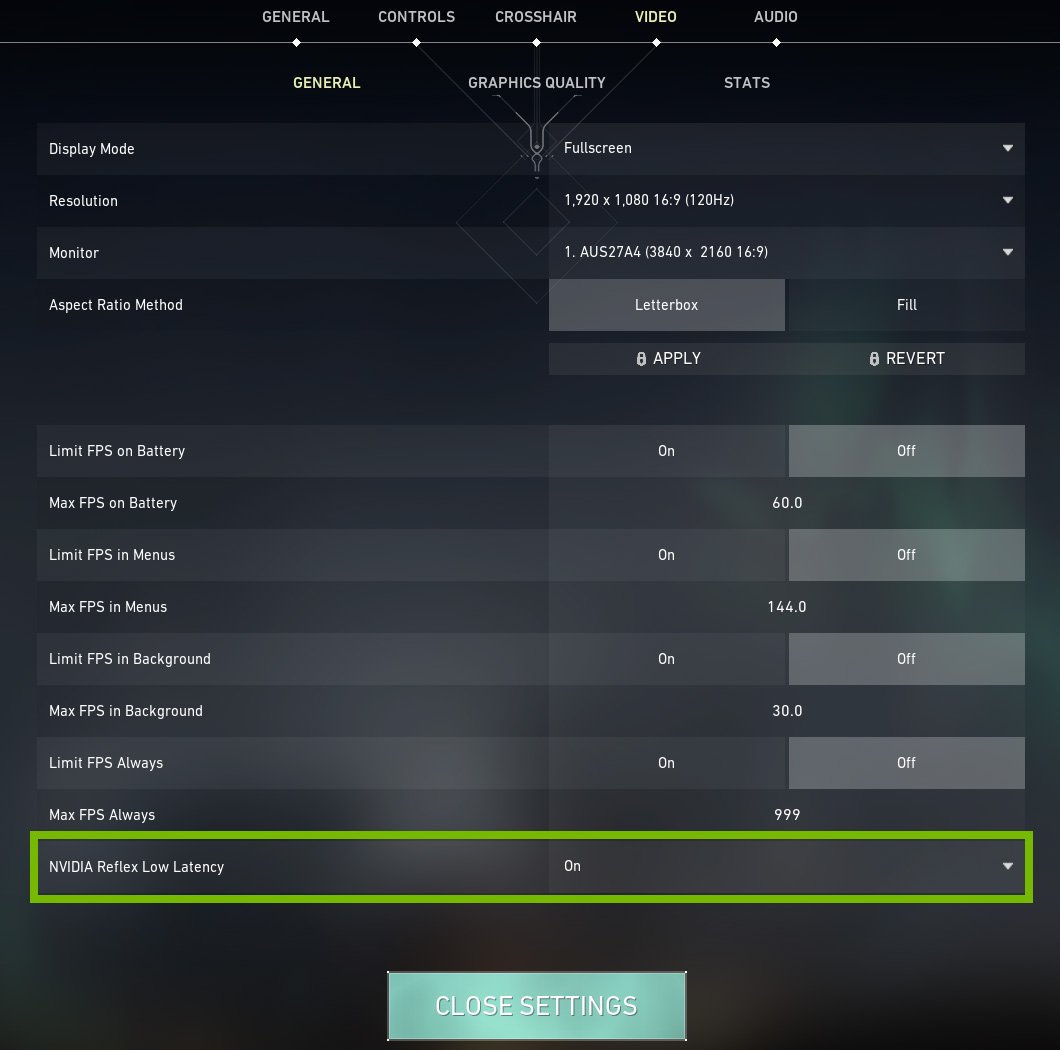
- Turn on the game's low-latency option, such as NVIDIA Reflex, if it offers one.
- If the mouse also misbehaves on the desktop, check the wireless mouse for battery and connection faults.
Mouse latency test FAQ
How do I test mouse latency?
Film the mouse and screen in slow motion, count the frames between each click and the screen change, and multiply by the frame time. With an NVIDIA G-SYNC monitor that has Reflex Analyzer, the monitor measures the delay for you on every click.
How do I check mouse latency without special hardware?
Use the slow-motion camera method. A phone that records at 240 frames per second gives a resolution of about 4.2 ms per frame, which is enough to compare two mice or two connection types when you average ten or more clicks.
What is a mouse latency test?
A mouse latency test measures how long it takes for a click or movement to show up on screen. A full test measures the whole chain from mouse to display; Reflex Analyzer can also split out the mouse's own share as Mouse Latency.
Is a mouse latency test online accurate?
No, not for true latency. An online test only sees mouse events after the browser receives them, so it reports roughly how often the mouse sends data. It cannot see the delay to the screen, which is what you feel in games.
How do I improve mouse latency?
Use a cable or the mouse's USB receiver instead of Bluetooth, keep the receiver close, raise the report rate in the maker's app, and turn on Game Mode. Then repeat your latency test to confirm each change actually lowered the number.
Does polling rate reduce mouse latency?
Yes, a higher polling rate shortens the wait between reports. At 125 Hz the mouse reports every 8 ms, while at 1,000 Hz it reports every 1 ms. The saving is small next to game and display delay, but it is real.
How do I reduce mouse latency on a wireless mouse?
Connect it through its own USB receiver rather than Bluetooth, put the receiver on a front port or extension cable near the mouse, and move Wi-Fi to 5 GHz. Logitech also advises updating the mouse firmware through G HUB or Logi Options+.