When an HP laptop keyboard stops working, restart the laptop and press Esc or F10 at startup: if the keys open HP's startup menu or BIOS, the keyboard works and a Windows driver or setting is to blame.
This guide covers that test, reinstalling and updating the keyboard driver, Windows Update, language and Filter keys settings, the keyboard troubleshooter, a full power-down, function keys, the backlight, HP PC Hardware Diagnostics and when to send the laptop for repair.
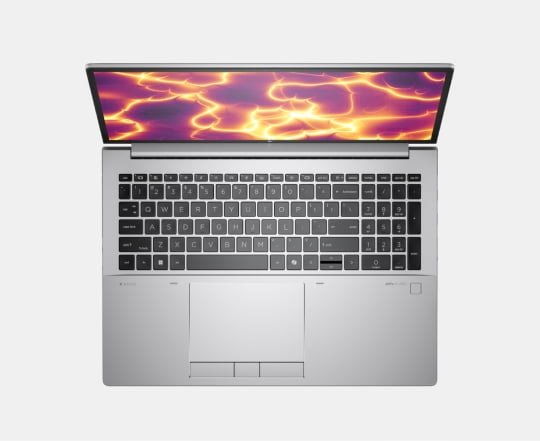
How to fix HP laptop keyboard not working?
Work through these in order. Each step either fixes the keyboard or tells you whether the fault is software or hardware.
- Unplug any USB keyboard, hub or dock, then restart the laptop from Start > Power > Restart.
- As the laptop starts, press Esc repeatedly. If the Startup Menu opens, the keyboard hardware works.
- In Windows, uninstall the keyboard in Device Manager and restart so Windows reinstalls the driver.
- Select Start > Settings > Windows Update > Check for Windows updates and install what is offered.
- Turn off Filter keys in Settings > Accessibility > Keyboard.
- Run HP PC Hardware Diagnostics. If it reports a failure ID, contact HP for repair.
To type while you work through these steps, press Windows logo key + Ctrl + O with an external keyboard, or turn on the on-screen keyboard with the mouse from Settings > Accessibility > Keyboard.
Why is the HP laptop keyboard not working?
A dead laptop keyboard is usually a driver, a Windows setting or physical damage. The pattern of what still works points to the cause.
| What you notice | Likely cause | Fix to try first |
|---|---|---|
| No keys work in Windows, but Esc and F10 work at startup | Corrupt or missing keyboard driver, or a Windows fault | Reinstall the keyboard driver |
| No keys work anywhere, including at startup | Hardware fault, loose cable or liquid damage | HP PC Hardware Diagnostics, then repair |
| Keys respond only when held down | Filter keys is on | Turn off Filter keys |
| Keys type the wrong characters or symbols | A different keyboard layout is selected | Check the language settings |
| F1-F12 change volume or brightness instead | Action keys mode in BIOS | Change the Action Keys Mode setting |
| Keyboard stopped after a Windows update | A new driver or update conflicts | Roll back the driver or uninstall the update |
| Some keys stick or do nothing | Dirt or debris under the keys | Clean the keyboard, or contact HP under warranty |
How to check if an HP laptop keyboard works in BIOS
BIOS runs before Windows loads, so Windows drivers play no part there. Keys that work in BIOS but not in Windows mean the hardware is fine.
- Shut the laptop down completely.
- Turn it on and immediately press Esc repeatedly, within 2-3 seconds, until the Startup Menu appears.
- Press F10 when prompted to open BIOS Setup, or press F10 directly after a restart if Esc did not respond.
- Use the arrow keys to move between the BIOS menus.
- If the keys respond, exit without saving and continue with the driver fixes below.
- If nothing responds at all, go straight to HP PC Hardware Diagnostics and the repair options.
If the keyboard cannot reach BIOS, Windows can restart into it instead: Settings > System > Recovery > Advanced startup > Restart now, then Troubleshoot > Advanced options > UEFI Firmware Settings.
Reinstall keyboard driver
Removing the keyboard device makes Windows load a fresh driver at the next start. Use the touchpad for these steps.
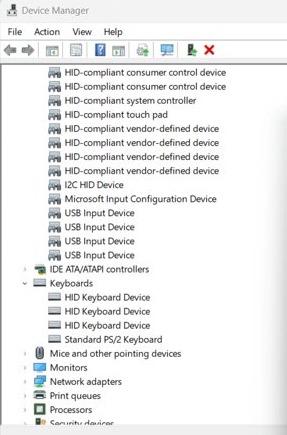
- In the search box on the taskbar, type device manager and select Device Manager.
- Expand Keyboards.
- Right-click the laptop keyboard entry and select Uninstall device.
- Confirm the prompt.
- Restart the laptop. Windows reinstalls the keyboard driver as it starts.
If the keyboard stopped after a recent driver update, open the keyboard's Properties instead and select Roll Back Driver on the Driver tab.
Update keyboard driver
Windows Update delivers most keyboard and chipset drivers. HP also publishes drivers and BIOS updates for each model.
- Open Device Manager and double-click the keyboard under Keyboards.
- Select the Driver tab, then Update Driver.
- Choose to search automatically for drivers and follow the prompts.
- Open HP Support Assistant and install any driver or BIOS updates it lists for your model.
- Restart the laptop and test the keyboard.
Get drivers only from Windows Update or HP's own site. HP Support Assistant can update drivers and firmware in one pass, including the BIOS.
Perform Windows Update
Windows updates often carry driver fixes along with security patches.
- Select Start > Settings > Windows Update.
- Select Check for Windows updates.
- Select Download & install for anything offered.
- Restart when Windows asks, then test the keyboard.
If the keyboard failed right after an update, go to Settings > Windows Update > Update history > Uninstall updates and remove the most recent one. Some updates cannot be uninstalled.
Check the language settings
When keys work but produce the wrong symbols, such as @ and " swapped, Windows is using a different keyboard layout from the one printed on your keys.
- Look at the input language icon in the system tray area of the taskbar.
- Select it and pick the layout that matches your keyboard.
- To cycle layouts from the keyboard, hold the Windows logo key and press Spacebar.
- To add a missing layout, open Settings > Time & language > Language & region.
- Select the ellipses next to your language, then Language options.
- Under Keyboards, select Add a keyboard and choose the correct layout.
If Windows logo key + Spacebar does nothing, only one layout is installed. Remove layouts you do not use from the same Keyboards list so they cannot be switched on by accident.
Disable Filter Keys
Filter keys tells Windows to ignore brief or repeated keystrokes. With it on, a keyboard can look dead when it is only waiting for longer presses.
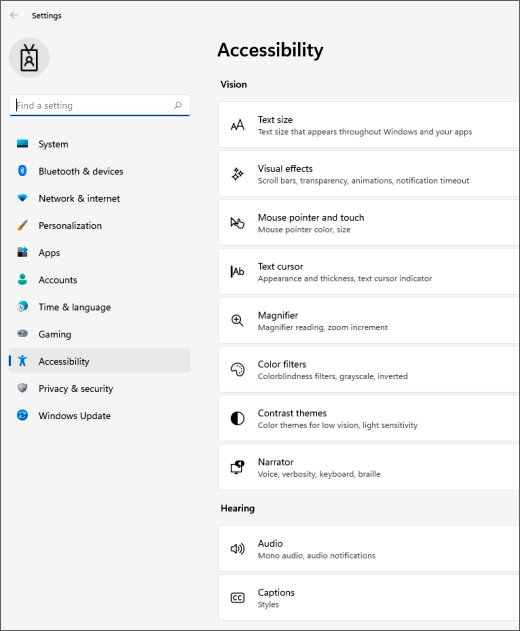
- Press Windows logo key + U, or select Start > Settings > Accessibility.
- Select Keyboard.
- Turn the Filter keys switch off.
- Check that Sticky keys is also off unless you use it.
- Type in any text box to test the keys.
Run keyboard troubleshooter
Microsoft has retired the legacy Keyboard troubleshooter on newer Windows 11 releases. Where it still exists depends on your Windows version.
| Windows version | Keyboard troubleshooter | Where to look |
|---|---|---|
| Windows 10 | Still available | Settings > Update & Security > Troubleshoot > Additional troubleshooters > Keyboard |
| Windows 11 version 22H2 and older | Still available | Settings > System > Troubleshoot > Other troubleshooters |
| Newer Windows 11 releases | Removed | Use the driver, Filter keys and update fixes in this guide instead |
To find your version, open Settings > System > About and read Version under Windows specifications.
Power drain laptop
A full power-down with everything unplugged rules out a USB device or dock that interferes with the keyboard, and starts the laptop from a clean state.
- Save your work and select Start > Power > Shut down.
- Unplug the AC adapter.
- Disconnect every USB device, hub and dock.
- Wait a few minutes with the laptop off.
- Reconnect only the AC adapter and turn the laptop on.
- Test the keyboard before you reconnect anything else.
If the laptop has a removable battery, remove it during the wait as well. Do not open the case to reach an internal battery; that is a job for HP service.
HP laptop function keys not working
On HP laptops, the top row works as action keys (volume, brightness) or as F1-F12 function keys depending on a BIOS setting. A reset BIOS can change that behaviour.
- Try holding fn while you press the function key.
- If that helps and you want the old behaviour back, restart and press F10 repeatedly to open BIOS Setup.
- Open System Configuration with the arrow keys.
- Change Action Keys Mode to the behaviour you want.
- Press F10 to save changes and exit.
Menu names vary between HP models, so check your model's manual if System Configuration does not list Action Keys Mode.
HP laptop keyboard backlight not working
The backlight is a separate feature from typing, so a dark keyboard can still work. Not every HP laptop has one: look for the backlight icon on the top row.
- Press the key with the backlit keyboard icon, usually F5 or F4.
- If nothing happens, hold fn and press the backlight key.
- Press it again to cycle brightness levels.
- If the light switches off after a few seconds, restart, press F10 for BIOS and open Advanced > Built-in Device Options > Backlit keyboard timeout.
- Update the BIOS and drivers with HP Support Assistant if the setting is missing.
Choosing Never for the timeout keeps the light on until you turn it off, at the cost of battery life.
Test the keyboard with HP PC Hardware Diagnostics
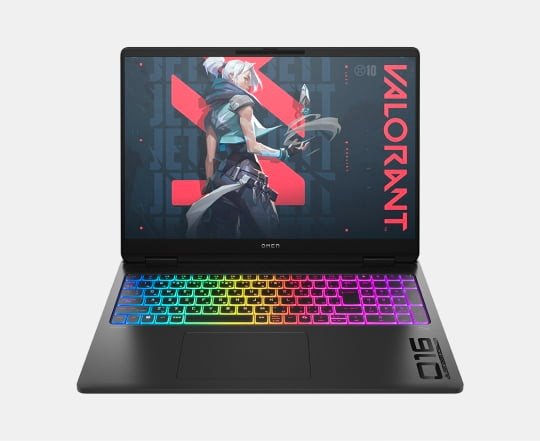
HP PC Hardware Diagnostics comes pre-installed on new HP computers in a Windows version, and a UEFI version runs outside Windows when the laptop will not boot.
- Search the Start menu for HP PC Hardware Diagnostics Windows and open it.
- If it is missing, download it from HP's HP PC Hardware Diagnostics support page.
- Run the hardware tests for your laptop's components.
- If a test fails, write down the 24-digit failure ID.
- Enter the failure ID with your product number on HP's diagnostics page to start a repair.
Take the laptop to the service center
If the keyboard fails in BIOS and in HP's diagnostics, the fault is hardware. HP recommends contacting support rather than prying keys off a laptop that is still under warranty.
| Your situation | What to do | Why |
|---|---|---|
| Under warranty | Contact HP Customer Support with your model and serial number | Keyboard replacement is a warranty repair, and HP advises contacting it rather than removing keys yourself |
| Diagnostics gave a failure ID | Enter it with your product number on HP's diagnostics page | The ID starts the repair process directly |
| Out of warranty | Use an HP authorized service provider | HP lists them on its support site |
| You need to type today | Connect a USB or Bluetooth keyboard | An external keyboard does not depend on the laptop's built-in keyboard |
An external keyboard is the quickest stop-gap. If a wireless one also misbehaves, you can fix the wireless keyboard by checking its pairing, receiver and batteries.
HP laptop keyboard not typing
Keyboard works at startup but not in Windows
A driver or Windows setting, since the hardware responds before Windows loads.
- Reinstall the keyboard driver from Device Manager and restart.
- Turn off Filter keys in Accessibility settings.
- Install Windows updates, or uninstall the most recent one if the fault began after it.
HP laptop keyboard not working after a Windows update
A new driver or update conflicts with the keyboard.
- Open Device Manager, double-click the keyboard and select Roll Back Driver on the Driver tab.
- If that is unavailable, go to Settings > Windows Update > Update history > Uninstall updates.
- Restart and test the keyboard.
Some keys stick or do not respond
Dirt or debris under the keys.
- Shut the laptop down and unplug it.
- Check that no dirt is blocking the keys and clean the keyboard gently.
- If the laptop is under warranty or a key will not come free, contact HP instead of forcing it.
External keyboard does not work either
A USB port, hub or the keyboard itself is faulty.
- Try a different USB port.
- Remove any USB hub and plug the keyboard straight into the laptop.
- Test the keyboard on another PC to rule it out.
HP laptop keyboard FAQ
Why did my HP laptop keyboard suddenly stop working?
The most common causes are a corrupt keyboard driver, Filter keys being switched on, or a recent Windows update. Test the keys at startup with Esc or F10; if they work there, the fault is in Windows, not the hardware.
How do I reset my HP laptop keyboard?
Uninstall the keyboard in Device Manager and restart, so Windows loads a fresh driver. If that fails, shut the laptop down, unplug the charger and all USB devices, wait a few minutes and start it again.
How do I type when my HP laptop keyboard is not working?
Use the on-screen keyboard from Settings > Accessibility > Keyboard with the touchpad, or plug in a USB or Bluetooth keyboard. With an external keyboard, Windows logo key + Ctrl + O also opens the on-screen keyboard.
Why are my HP laptop function keys not working?
HP laptops switch the top row between action keys and F1-F12 with the Action Keys Mode setting in BIOS. Hold fn while pressing the key, or change Action Keys Mode under System Configuration in BIOS Setup.
Why does my HP keyboard type the wrong characters?
Windows is using a different keyboard layout from the one printed on your keys. Select the input language icon on the taskbar, or hold the Windows logo key and press Spacebar, to switch to the correct layout.
Does Windows 11 still have a keyboard troubleshooter?
Only on Windows 11 version 22H2 and older, and on Windows 10. Microsoft removed the legacy Keyboard troubleshooter from newer Windows 11 releases, so use the driver and settings fixes instead.
How do I know if my HP laptop keyboard is broken?
If the keys do nothing at startup, cannot open BIOS with F10, and HP PC Hardware Diagnostics reports a failure ID, the keyboard hardware is faulty. Contact HP support or an authorized service provider for a repair.
Why is my HP keyboard backlight not turning on?
Your model may not have a backlit keyboard, or it needs the fn key with the backlight key, usually F5 or F4. If it turns off quickly, change Backlit keyboard timeout in BIOS on supported models.