The Xbox Game Bar record button greys out when the game window is not active, Game Bar is turned off, the graphics card lacks a supported video encoder, or a policy or the app itself blocks capture.
This guide covers each cause with its fix, the capture settings behind a greyed-out Record last option, Group Policy and registry checks, and Xbox console mic monitoring.
Fix Xbox Game Bar record button greyed out
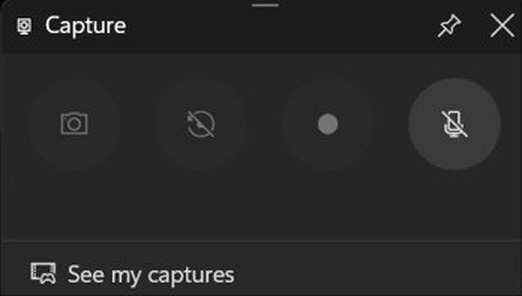
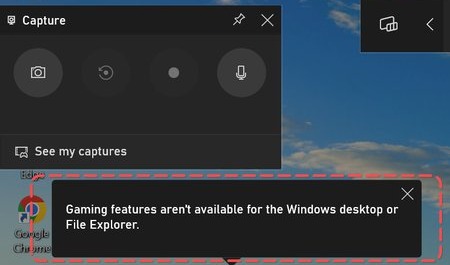
Game Bar records the app window that is active. If you open it from the desktop or while another window has focus, recording is unavailable.
- Open the game or app you want to record.
- Click once inside its window so it becomes the active window.
- Press Windows key + G to open Xbox Game Bar over that app.
- Select the record button in the Capture widget, or press Windows key + Alt + R to start recording.
- Press Windows key + Alt + R again to stop.
- If the button is still grey, work through the causes in the table below.
Why can't I record with Xbox Game Bar?
Windows reports a specific reason whenever app recording is unavailable. Microsoft's capture documentation lists these states, and each one greys out the record button.
| Reason Windows reports | What it means | Fix |
|---|---|---|
| The app window to be recorded is not active | Recording can start only when the app's window has focus | Click into the game window, then press Windows key + Alt + R |
| The user has disabled GameBar in Windows Settings | Xbox Game Bar is switched off | Turn on Enable Xbox Game Bar in Settings |
| The GPU does not support app recording | The graphics card or driver has no H.264 encoder Game Bar can use | Check encoder support and update the graphics driver |
| Recording is blocked for this app | The app or game turned off system capture itself | Use another recorder the app allows, or record a different app |
| Recording is disabled by the system | A policy such as Windows Game Recording and Broadcasting is set to off | Check Group Policy or the GameDVR registry value |
| A game stream is currently in progress | The PC is streaming, for example with Xbox remote play | End the stream, then record |
| The capture resource is currently unavailable | Another capture session holds the recorder | Close other recording or streaming apps and try again |
Turn on Xbox Game Bar in Windows settings
If Game Bar is off, its shortcuts do nothing and capture stays unavailable. Once you enable Xbox Game Bar in Windows 11, the record button can respond again.
- Press Windows key + I to open Settings.
- Type
xboxin the search box. - Select Enable Xbox Game Bar from the results.
- Turn the switch on.
- Return to your game and press Windows key + G.
Many Xbox features inside Game Bar also need the Xbox app for Windows installed and signed in.
How do I change the recording settings on my Xbox Game bar?
Capture options live in two places: Windows Settings and the Game Bar overlay. Both affect what the record button can do.
| Where | Path | What you set there |
|---|---|---|
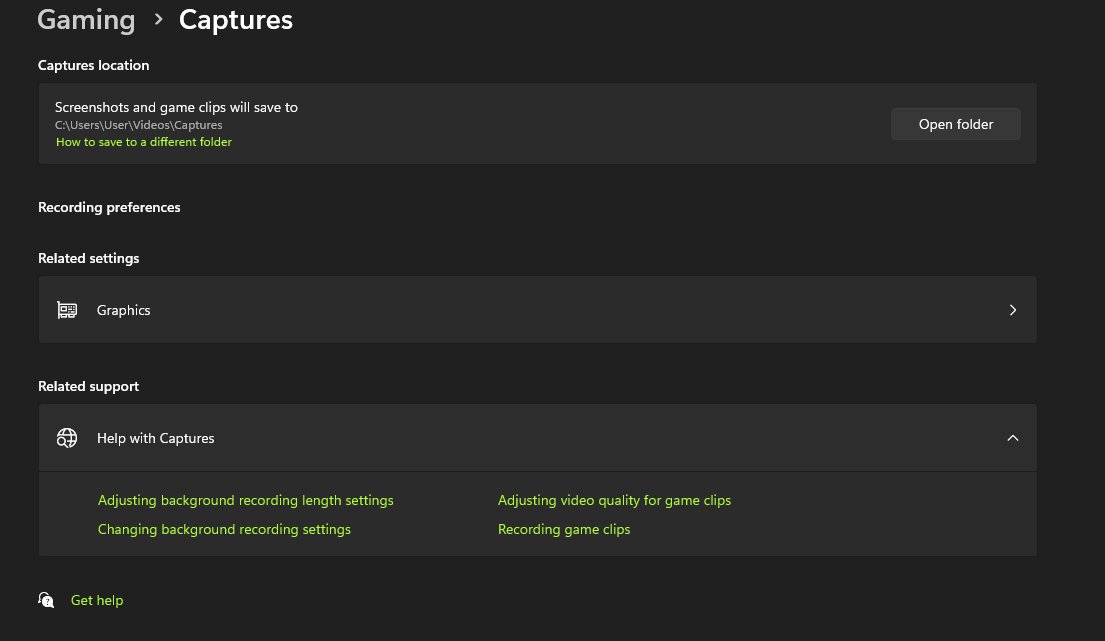
| Windows 11 Settings | Start > Settings > Gaming > Captures | Save location, background recording (Record what happened), max recording length, recorded audio, frame rate and video quality |
| Game Bar overlay | Windows key + G > Settings > Capturing | Record in the background, and audio to record (All, Game, enabled mic, apps, system) |
| Windows version check | Settings > System > About > Windows specifications > Version | Windows 10 22H2 or newer is required for some Game Bar features |
Set audio to All under Capturing if recordings come out silent.
Recording and Clipping grayed out in Game Bar
Clipping the last few seconds or minutes depends on background recording. If background recording is off, the Record last option cannot save anything.
- Select Start > Settings > Gaming > Captures.
- Turn on background recording (Record what happened).
- Check the max recording length so clips are not cut short.
- Open your game and press Windows key + G.
- Select Settings > Capturing and tick Record in the background.
- Close Game Bar, play for a while, and use Record last from the Capture widget.
If both recording and clipping stay grey after this, the cause is the graphics card, a policy or the app itself.
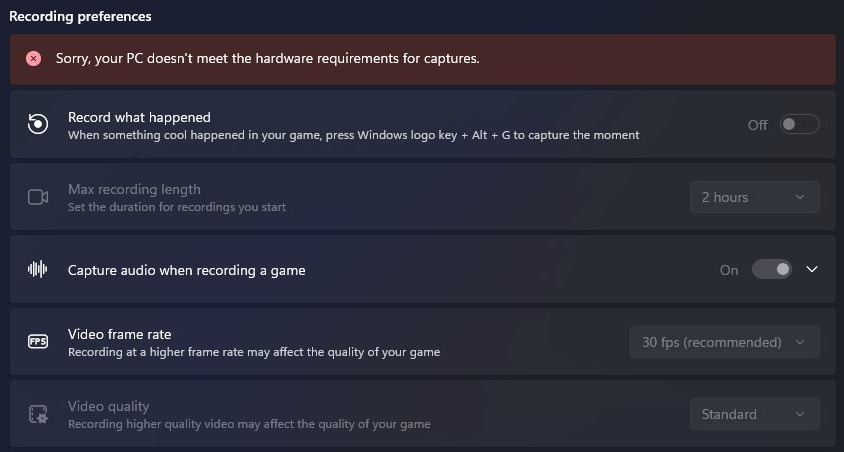
Xbox Game Bar recording graphics card requirements
Every Windows 10 and Windows 11 PC can take Game Bar screenshots. Recording clips needs a video card that supports one of three hardware encoders, which is why screenshots can work while the record button stays grey.
| Graphics | Encoder Game Bar needs | What to do if recording is grey |
|---|---|---|
| Intel integrated graphics | Intel Quick Sync H.264 or later | Install the latest Intel graphics driver from Windows Update or intel.com |
| NVIDIA GeForce | NVIDIA NVENC | Update the driver from Windows Update or nvidia.com |
| AMD Radeon | AMD VCE | Update the driver from Windows Update or amd.com |
| None of these, or Microsoft Basic Display Adapter | No supported encoder available | Install the real graphics driver; without an encoder, Game Bar can take screenshots only |
To update the driver, right-click Start, select Device Manager, expand Display adapters, right-click the card and choose Update driver.
Repair or reset Xbox Game Bar in Windows 11
A damaged Game Bar install can leave the overlay working but capture disabled. Repair keeps your settings; Reset clears the app's data.
- Select Start > Settings > Apps > Installed apps.
- Find Xbox Game Bar and select the More icon next to it.
- Select Advanced options.
- Select Repair and wait for the check mark.
- If recording is still unavailable, select Reset.
- Open Microsoft Store, check for updates for Xbox Game Bar and the Xbox app, then restart the PC.
Enable Windows Game Recording and Broadcasting in Group Policy
When this policy is disabled, Windows Game Recording is not allowed, so the record button stays grey. Work and school PCs often set it, so ask the IT admin before changing a managed device.
- Press Windows key + R, type
gpedit.mscand press Enter (Pro, Enterprise and Education editions). - Go to Computer Configuration > Administrative Templates > Windows Components > Windows Game Recording and Broadcasting.
- Double-click Enables or disables Windows Game Recording and Broadcasting.
- Select Not Configured or Enabled, then OK.
- Restart the PC and try recording again.
Check the GameDVR registry value for Game Bar recording
The same policy writes a registry value. Checking it from an elevated Command Prompt shows whether a policy is blocking recording, including on Windows Home.
reg query HKLM\SOFTWARE\Policies\Microsoft\Windows\GameDVR /v AllowGameDVRReads the AllowGameDVR policy value. 0 means Game Recording and Broadcasting is not allowed; 1, the default, means it is allowed.
You should see: An error saying the value or key cannot be found means no policy is set. A result of 0x0 means the policy blocks recording; set the policy back to Not Configured, or ask your IT admin on a managed PC.
How to record screen with Xbox Game Bar and find the clip
- Open the game or app and click inside its window.
- Press Windows key + Alt + R to start recording.
- Press Windows key + Alt + M if you want to turn the microphone on or off while recording.
- Press Windows key + Alt + R again to stop.
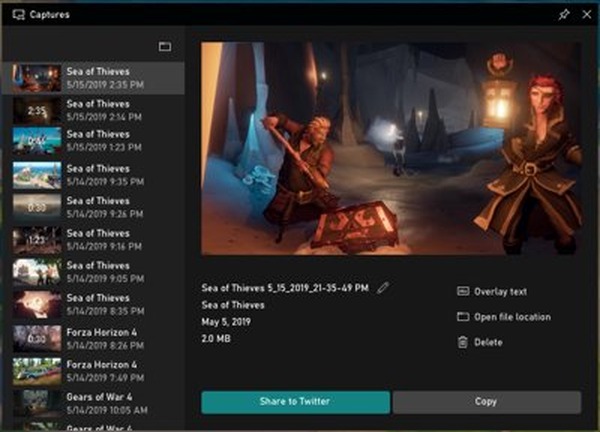
- Open File Explorer > Videos > Captures.
- Look for an MP4 file named after the game or app with the date and time of the recording.
A new MP4 in Captures proves recording works. For a screenshot instead, press Windows key + Alt + Print Screen, which saves a PNG to the same folder.
Xbox Game Bar recording not working
Xbox Game Bar not recording in full-screen games
Game Bar may not appear over some PC games running in full-screen mode.
- Stay in the game and press Windows key + Alt + R without opening the overlay.
- Stop with the same shortcut and check Videos > Captures for the clip.
- If nothing saves, switch the game to windowed or borderless mode in its own settings and try again.
Why does Xbox Game Bar stop recording?
Recording ends when it reaches the max recording length set in capture settings.
- Select Start > Settings > Gaming > Captures.
- Raise the max recording length.
- Start a new recording with Windows key + Alt + R.
Xbox Game Bar can't record on a Windows N edition
N editions ship without some media components that Game Bar needs.
- Check your edition in Settings > System > About.
- Install the Media Feature Pack that Microsoft lists for your Windows version.
- Restart and try recording again.
Xbox Game Bar won't record video during remote play
Game clips cannot be captured while streaming with remote play.
- End the remote play or streaming session.
- Run the game locally, then press Windows key + Alt + R.
Xbox Game Bar recording has no sound
The audio to record option is set to game only, or the microphone is off.
- Press Windows key + G and select Settings > Capturing.
- Select All under the audio to record options.
- Press Windows key + Alt + M during recording to turn the microphone on.
How to disable Xbox Game Bar recording
Turn off background recording if you only want to stop clipping, or turn off Game Bar to stop all capture.
- Select Start > Settings > Gaming > Captures.
- Turn off background recording (Record what happened) to stop constant recording in the background.
- To turn off Game Bar entirely, press Windows key + I, type
xboxand select Enable Xbox Game Bar. - Turn the switch off.
Game Bar is one part of the Xbox app and PC gaming tools built into Windows, so turning it off does not remove the Xbox app.
Mic Monitoring on Xbox greyed out, not working or showing
Mic monitoring sets how much of your own voice you hear in the headset. It is a headset audio setting on the Xbox console, not a Game Bar option, so it is changed with the headset's other audio controls.
- Connect the headset to the Xbox Wireless Controller, or pair the Xbox Wireless Headset with the console.
- Press the Xbox button and go to Profile & system > Settings > Devices & accessories.
- Select the controller or headset and open its audio settings.
- Adjust Mic monitoring; on the Xbox Wireless Headset the default is Medium, with Low and High options.
- If you hear distorted audio from your own mic, set Mic monitoring to Off.
- For the Xbox Wireless Headset, open the Xbox Accessories app, update the headset, or use Restore to default if the setting still misbehaves.
On the Xbox Stereo Headset, moving the mic monitoring slider fully left removes your mic input from what you hear.
Xbox Game Bar recording FAQ
Why can't I record with Xbox Game Bar?
The usual causes are an inactive game window, Game Bar turned off in Settings, a graphics card without a Quick Sync, NVENC or VCE encoder, an app that blocks capture, or a policy that disables Game Recording and Broadcasting.
Why won't my Xbox Game Bar record?
Click inside the game window first, because Game Bar records only the active app. If it still will not start, update the graphics driver, check the Windows Game Recording and Broadcasting policy, and repair Xbox Game Bar from Installed apps.
Why does Xbox Game Bar stop recording?
A recording stops when it reaches the max recording length in Settings > Gaming > Captures. Raise that limit for longer sessions. Recording also cannot run while the PC is streaming a game with remote play.
How to record in Xbox Game Bar?
Open the game, click inside its window and press Windows key + Alt + R. Press the same shortcut to stop. The clip saves as an MP4 in Videos > Captures, named after the game with the date and time.
How to record Xbox Game Bar on PC with sound?
Press Windows key + G, open Settings > Capturing and choose All for audio to record. That includes game, app and system sound. Press Windows key + Alt + M during a recording to switch the microphone on or off.
How to disable Xbox Game Bar recording?
Turn off background recording in Settings > Gaming > Captures to stop constant background capture. To stop all Game Bar recording, search Settings for xbox, select Enable Xbox Game Bar and switch it off.
Why isn't Xbox Game Bar recording in full screen?
Game Bar may not appear over some full-screen PC games. Use Windows key + Alt + R without opening the overlay, or switch the game to windowed or borderless mode in its settings before recording.
Does Xbox Game Bar work on every PC?
Screenshots work on every Windows 10 and Windows 11 PC. Video clips need a graphics card with Intel Quick Sync H.264 or later, NVIDIA NVENC or AMD VCE, and some features need Windows 10 22H2 or newer.