Don’t like Chrome’s memory saver feature? Here is how you can disable that.
Chrome introduces Memory Saver
Google has taken steps to address the issue of Chrome being a memory hog criticism by introducing memory and energy saver features. These features help Chrome use less memory and extend battery life when the battery is running low.
It’s important to note that the former feature is available to all devices, while the latter is only available on laptops.
Since the announcement, these features have never been accessible to the public or everyone. But, you can manually turn on memory and battery-saving modes.
The memory optimizing feature of Chrome is designed to free up memory from inactive tabs so that other tasks can benefit from it.

For example, if you’re using a photo editing application or a game that requires a lot of resources, Chrome can help you out by freeing up memory.
When you return to the tab, it will be reloaded and ready for you to use.
Data loss issue
Seems as if, Chrome’s Memory Saver is having a bit of a data loss problem.
Have you ever been working on something in a WordPress editor, only to have the tab freeze or unload automatically after you return? It’s a frustrating experience, and all the work you’ve done can be lost in an instant. This has been especially true for those of us who have suffered through this issue.
Adding sites as exceptions
If you’re looking for a quick and easy way to keep certain sites running, Chrome has you covered with the memory saver activated! You can add exceptions for sites you want to keep running in the memory saver setting under ‘Performance’.
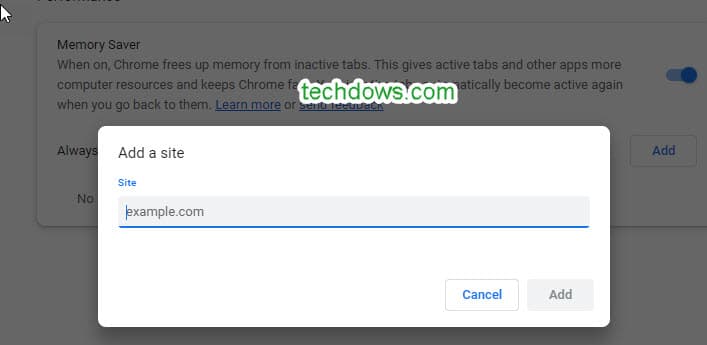
If you don’t want to go through the hassle of adding exceptions for each site, then you can just deactivate the memory saver feature in Chrome. That way, all your sites will stay running! Follow these easy steps for the same and you’ll be good to go!
Disable Memory saver in Google Chrome
- Launch Chrome,
- Click on the menu,
- Select Settings
- Visit Performance, and toggle Memory Saver to disable.
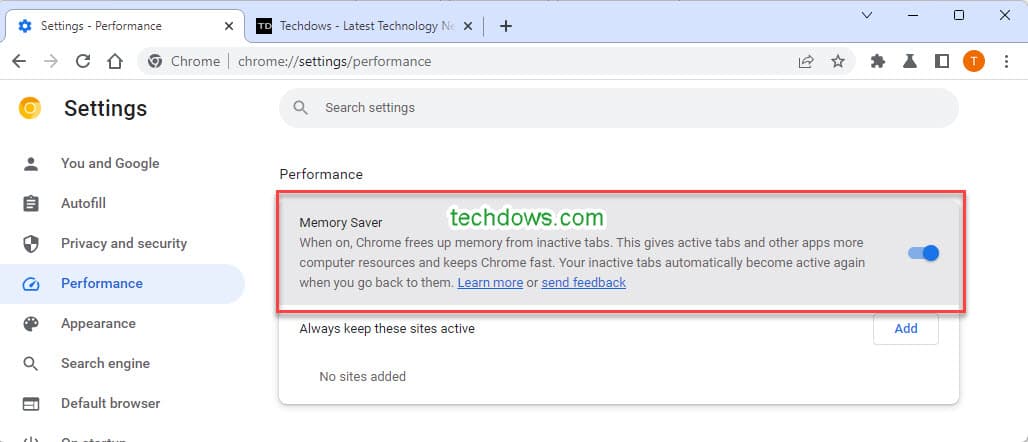
Have you found Chrome’s new feature helpful or not? Do you have reasons like we told above to turn it off? Let us know in the comments below.
Related articles:
Chrome 97 for Windows boosts Security and Memory
Chrome to Use PartitionAlloc instead of Segment Heap for Memory Savings
Chrome to allow shut down of Profiles to Save Memory




