To sync 2 Google Calendars, share one calendar with the other account from Settings and sharing, then open the email link in that second account to add it.
This guide covers one-way and two-way sharing, subscribing, one-time imports, phones and the repairs for a shared calendar that does not appear.
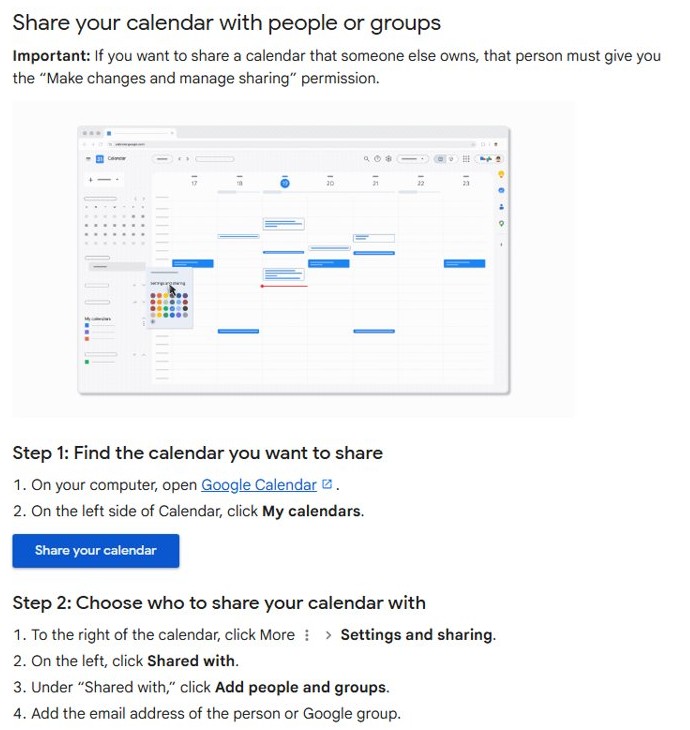
Step by step tutorial on how to sync 2 Google Calendars
Run these steps on a computer, signed in to the account that owns the calendar. They give the second account a view of the same events.
- Open Google Calendar at
calendar.google.comand sign in to the account that owns the calendar. - Find the calendar to sync under My calendars on the left.
- Point to the calendar, click More, then click Settings and sharing.
- Click Shared with on the left, then click Add people and groups.
- Enter the email address of the second Google account.
- Choose an access level such as See event details, then click Send.
- Sign in to the second account, open the invitation email and click the link to add the calendar.
The calendar now appears under Other calendars in the second account. Events stay on the original calendar, so a change made there shows in both accounts.
Can I sync 2 Google Calendars?
Yes, and Google's recommended route is sharing, because imported events do not stay in sync between 2 accounts. Match your situation to a row below.
| Your situation | Use this | What you get |
|---|---|---|
| View one account's events inside another account | Share the calendar with See event details | A one-way view with no editing from the second account |
| Add and edit events from both accounts | Share each calendar with the other account at a Make changes level | Two-way editing on both calendars |
| You are in the second account and nothing has been shared yet | Subscribe to calendar with the owner's email address | An access request the owner must approve |
| The calendar is already public | From URL under Add other calendars | A view of the published calendar with no approval step |
| Old events need to move to another account once | Export and import an .ics file |
A one-time copy that never updates |
| Only one event belongs on a second calendar | Copy the event from its Options menu | A copy of that single event |
How to 2-way sync Google Calendar
Two-way sync means each account shares its own calendar with the other. Both accounts can then view and edit both calendars.
Pick Make changes and see event details when both accounts are yours. Pick Make changes (see private events as free/busy) when the other account belongs to someone else, because it keeps your private event details hidden.
- In the first account, share the calendar with the second account's email address and choose a Make changes level.
- In the second account, click the link in the invitation email to add that calendar.
- Still in the second account, point to its own calendar under My calendars, click More, then click Settings and sharing.
- Under Shared with, click Add people and groups and enter the first account's email address.
- Choose the same access level, then click Send.
- Back in the first account, click the link in the new invitation email.
Each event still lives on one calendar. On an event's edit page, click the down arrow next to Calendar to choose which calendar holds it.
How to sync two Google Calendar accounts by subscribing
Use this route when you are working from the account that wants access. The Google Calendar app on Android, iPhone and iPad cannot subscribe to a new calendar, so use a computer browser.
- Open Google Calendar on a computer and sign in to the second account.
- Next to Other calendars on the left, click Add other calendars, then click Subscribe to calendar.
- In the Add calendar box, enter the first account's email address.
- If the calendar is not shared yet, sign in to the first account on a computer and open the access request email.
- Click the link in the email, select the user and choose an access level.
- Click Send to grant access.
A calendar that is already shared appears under Other calendars right after step 3. Once the owner approves a request, the calendar also appears in the phone app automatically.
If you work from a PC most of the day, you can put Google Calendar on your Windows 10 desktop so both calendars stay one click away.
How to sync multiple Google Calendars
Sharing works per calendar, so a second account only receives the calendars you share with it. Repeat the share for each one.
- Open Google Calendar and review the list under My calendars.
- Point to the first calendar, click More, then click Settings and sharing.
- Under Shared with, click Add people and groups, enter the email address and choose an access level.
- Click Send.
- Repeat steps 2 to 4 for every other calendar you want to sync.
- Click a calendar's name in the left list to show or hide its events in the main view.
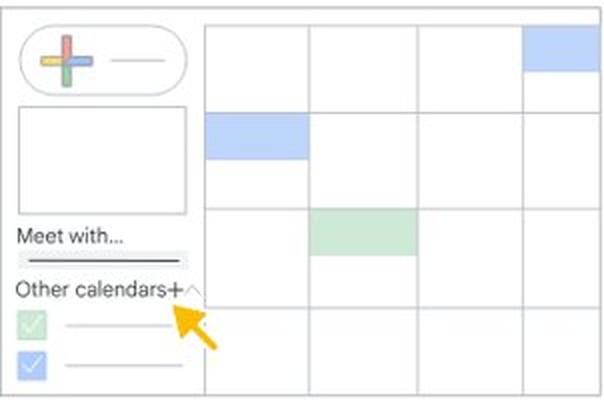
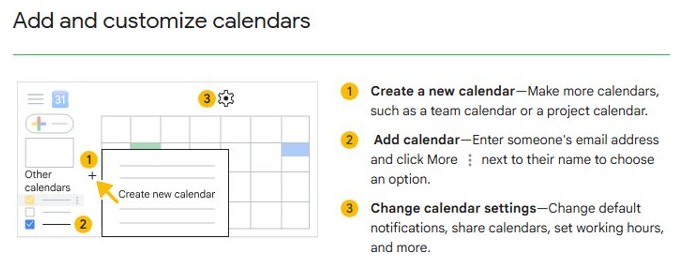
To add another calendar, click the plus icon next to Other calendars, then Create new calendar. A separate calendar per project also helps when you use Google Calendar as a planner.
Google warns that subscribing to more than 400 calendars can cause performance issues when you browse them.
How to sync calendar to Google Calendar from a URL
The From URL option only works with a public calendar. Public calendars can be found on searchable websites and in search results, so use sharing for anything personal.
- In the owner's account, click the Settings gear at the top right, then click Settings.
- On the left, under Settings for my calendars, click the calendar's name.
- Under Access permissions for events, check Make available to public, then click OK.
- Click Integrate calendar and copy the link under Public address in iCal format.
- In the other account, next to Other calendars, click Add other calendars, then click From URL.
- Paste the link and click Add calendar.
To hide event names on a public calendar, select See only free/busy (hide details). Unchecking Make available to public may take up to 4 hours to take effect.
The Secret address in iCal format on the same page gives other calendar apps a view-only copy. Only you should know that address, so click Reset to create a new one if it leaks.
How to synchronize two Google Calendars with an ICS file
This route copies events once, and Google states that imported events do not stay in sync. Use it to move old events, not to keep 2 calendars aligned.
- Sign in to the source account in Google Calendar on a computer.
- Under My calendars, point to the calendar, click More, then click Settings and sharing.
- Under Calendar settings, click Export calendar to download an
.icsfile. - Sign in to the target account, click the Settings gear, then click Settings.
- Click Import & export on the left.
- Click Select file from your computer and choose the
.icsfile. - Choose the calendar that receives the events, then click Import.
Exporting requires Make changes and manage sharing access to the calendar, and work or school administrators may restrict it. To export everything, click Export on the Import & export page, extract the .zip file and import each .ics file separately.
Guests and conference data are not imported, and neither step works in the phone app.
How to copy an event to another Google Calendar
Copy a single event when only that event belongs on the other calendar. Use Google Calendar on a computer for this.
- Open Google Calendar and select the event.
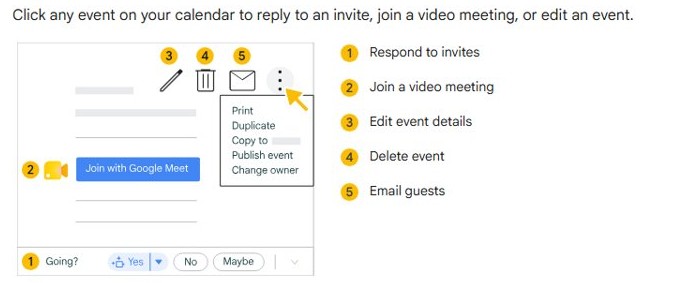
- Click Options at the top right of the event.
- Choose the calendar to copy the event to.
- Click Save.
To move an event instead, click Edit event, click the down arrow next to Calendar, choose a calendar you own and click Save. Events with more than 200 guests cannot be transferred to another owner or calendar.
How to sync Google Calendars on Android
Add the shared calendar on a computer first. The Android app then lists it, but its Sync switch and checkbox still control whether it appears.
- Install the Google Calendar app from Google Play and open it.
- Tap Menu and check the box to the left of the shared calendar's name.
- Tap Menu, then tap Settings.
- Select the shared calendar, tapping Show more if it is not listed.
- Turn on Sync at the top of that page.
- Tap Menu, then tap Refresh.
Your primary calendar appears as Events and has no Sync setting. Events may take some time to appear after you turn on sync.
How to sync Google Calendars on iPhone and iPad
Add the shared calendar on a computer first, then use the Google Calendar app to display it.
- Download the Google Calendar app from the App Store.
- Sign in with the Google Account that received the shared calendar.
- Tap the menu icon at the top left.
- Check the box to the left of the shared calendar's name.
- Tap Create at the bottom right and confirm the event shows the correct account at the top.
The app syncs past events only up to one year, so open calendar.google.com for older ones. On a computer, Google Calendar for PC and Mac gives you the same shared calendars.
How to sync Google Calendars with Apple Calendar on a Mac
Calendars under My calendars sync to Apple Calendar automatically, along with Birthdays. Shared calendars need one extra selection on Google's sync page.
- Open the Calendar app on your Mac.
- Choose Calendar > Add Account.
- Select Google, click Continue and follow the on-screen steps.
- In a browser, open
www.google.com/calendar/syncselectand sign in to the same Google account. - Check the shared calendars you want, then click Save at the bottom right.
- Refresh Apple Calendar.
How to tell if 2 Google Calendars are synced
A test event proves the shared calendar reaches the second account and shows what the access level exposes. For two-way sync, repeat the test from the other account.
- Sign in to the second account and look for the first account's calendar under Other calendars.
- Click the calendar's name if its events are hidden.
- In the first account, create a test event on the shared calendar.
- Reload Google Calendar in the second account and find the test event.
- Check the detail you see: See only free/busy (hide details) shows only a busy block, while See event details shows the event name.
- Delete the test event from the first account.
Google Calendar sharing permissions explained
The access level decides whether the sync is view-only or two-way. Change it any time under Shared with in Settings and sharing.
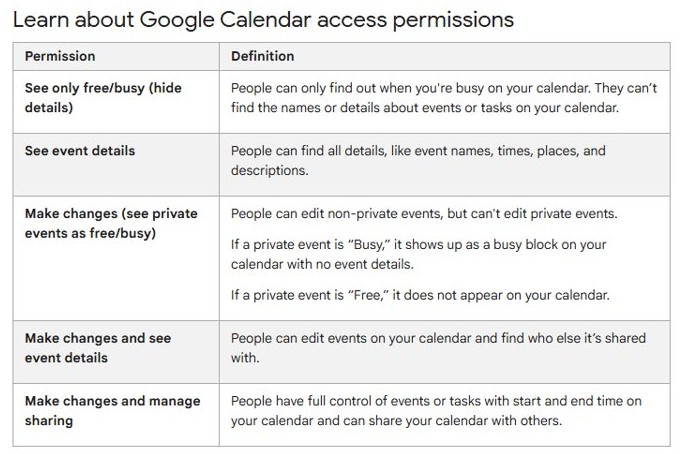
| Access level | What the other account can do | Good fit |
|---|---|---|
| See only free/busy (hide details) | See when you are busy, with event names and details hidden | Colleagues who only book time with you |
| See event details | See names, times, places and descriptions | A one-way view in your second account |
| Make changes (see private events as free/busy) | Edit non-private events; private events marked Busy show as busy blocks and those marked Free stay hidden | Two-way sync with another person |
| Make changes and see event details | Edit events and see who else the calendar is shared with | Two-way sync between your own accounts |
| Make changes and manage sharing | Control events and tasks that have a start and end time, and share the calendar with others | A co-owner of a family or team calendar |
Tips for syncing 2 Google Calendars
| Tip | Why it helps |
|---|---|
| Start with the lowest access level that does the job | A second account that only reads events cannot change them by accident |
| Set sensitive events to Private | People below Make changes and see event details do not get the details, although every event in a recurring series shares one setting |
| Give each calendar its own color | You can tell at a glance which account holds an event |
| Check the calendar name when you create an event | A new event lands on one calendar only, so the wrong choice puts it in the wrong account |
| Hide a calendar rather than removing it | Unchecking it clears the view and leaves the sync in place |
| Transfer secondary calendars before you delete an account | Deleting a Google Account deletes every calendar it owns, and the new owner has 60 days to accept a transfer |
How to stop syncing Google Calendars
Either side can end the sync. The owner removes the person, and the other account can unsubscribe.
- In the owner's account, point to the calendar under My calendars, click More, then click Settings and sharing.
- Under Shared with, click Remove next to the second account.
- In the second account, click the Settings gear, then click Settings.
- In the left column, select the shared calendar.
- Click Remove calendar, click Unsubscribe, then click Remove calendar again.
To clear a calendar for now without ending the sync, point to its name, click More and choose Hide from list. You cannot unsubscribe from a secondary calendar you own, so hide it, transfer it or delete it instead.
Google Calendars not syncing between 2 accounts
The Google Calendar invitation email never arrived
The second account must click the link in that email, and the message can land in spam or trash.
- Check the spam and trash folders in the second account.
- Search the mailbox for the owner's email address.
- Ask the owner to click Remove next to your account under Shared with, then add you again.
Shared Google Calendar not showing on Android
The calendar is hidden in the app, or sync is off for that calendar.
- Tap Menu and check the box to the left of the calendar's name.
- Tap Menu, then Settings, and select the calendar.
- Turn on Sync at the top of the page.
- Tap Menu, then Refresh.
Google Calendar still not syncing on Android
Account sync is off, or the device storage is full.
- Open Settings and tap Passwords, passkeys & accounts.
- Select your Google Account and tap Account sync.
- Make sure Calendar is on.
- Open Storage in Settings and remove unused apps or files if the device is full.
Shared Google Calendar not showing on iPhone or iPad
The calendar is unchecked, the app is out of date, or the account needs signing in again.
- Tap the menu icon at the top left and check the box to the left of the calendar's name.
- Update the Google Calendar app in the App Store.
- Tap your profile photo at the top right, then Manage accounts on this device.
- Tap Remove from this device, then Remove.
- Reopen the app and add your account again.
Cannot share a Google Calendar someone else owns
Sharing another person's calendar requires Make changes and manage sharing access.
- Ask the owner to change your access level to Make changes and manage sharing.
- Reload Google Calendar, then share the calendar from Settings and sharing.
Cannot share a work or school Google Calendar
Your administrator decides whether you can share the calendar.
- Open Settings and sharing for the calendar and check the sharing options available to you.
- Ask your administrator to allow sharing if the option you need is missing.
Frequently asked questions about syncing 2 Google Calendars
How do I sync 2 Google Calendars?
Share one calendar with the other account from Settings and sharing, then click the link in the invitation email from the second account. The calendar then appears under Other calendars, and changes on the original show in both accounts.
How long does it take for calendars to sync?
Google publishes no fixed sync interval. A shared calendar appears once the second account clicks the email link or the owner approves a request. On a phone, events may take some time to appear after you turn on sync.
Can I sync more than two calendars?
Yes. Sharing works per calendar, so repeat the share for each calendar and each account that needs it. Google only warns that subscribing to more than 400 calendars can cause performance issues when you browse them.
What happens if I delete an event on one calendar?
On a shared calendar, both accounts view the same event, so deleting it removes it from that calendar for everyone. Imported events are separate copies and do not stay in sync. Deleting a shared secondary calendar removes it for everyone.
Can I stop syncing calendars at any time?
Yes. The owner can click Remove next to the person under Shared with in Settings and sharing. The other account can unsubscribe by selecting the calendar in Settings and clicking Remove calendar, then Unsubscribe.
If I sync my calendar with someone else, can they see all my past events?
Google's access levels apply to the calendar and list no date limit, so plan on past events being visible. See only free/busy hides names and details, and events set to Private stay hidden from anyone below Make changes and see event details.
How do I 2-way sync Google Calendar?
Share each account's calendar with the other account at a Make changes level, then click the invitation link in each mailbox. Both accounts can then edit both calendars, although each event still lives on one calendar.
How do I sync a calendar to Google Calendar?
For another Google account, use Subscribe to calendar and enter the owner's email address. For a public calendar, use From URL under Add other calendars and paste its address. Both options need a computer browser, because the phone apps do not offer them.
How do I sync Google Calendars between devices?
Sign in to the same Google Account on each device. Google Calendar on Android, iPhone and iPad syncs your events automatically after sign-in. Then open the app menu and check the box beside each shared calendar you want to see.