The easiest way to transfer files from one PC to another is to copy them to an external drive or USB flash drive, then paste them onto the second PC.
This guide covers that route plus OneDrive, a shared network folder, Nearby sharing, Windows Backup and an Ethernet connection, and how to pick between them.
The fastest way to move files to another PC
A USB drive needs no account, no network and no setup on either PC.
- Plug the external drive into the old PC and open File Explorer.
- Select the files or folders to move. Hold Ctrl to select several.
- Right-click the selection and copy it to the drive.
- Select Eject for the drive before you unplug it.
- Plug the drive into the new PC, open it under This PC, select the files and copy them.
- Open the destination folder on the new PC and paste.
How to Choose the Best PC-to-PC Transfer Method
Match your situation to a row. Each method is covered step by step below.
| Your situation | Use this | Why |
|---|---|---|
| One-time move, PCs in the same room | External drive or USB flash drive | No internet, account or network setup needed |
| PCs in different places, or files you want on both | OneDrive or another cloud service | Files sync to every PC signed in to the same account |
| Two PCs on the same home network, many files | Shared network folder | Copy straight from one PC to the other in File Explorer |
| A few files between nearby Windows PCs | Nearby sharing | Built into the Share button, nothing to install |
| Setting up a brand-new Windows 11 PC | Windows Backup | Restores folders, settings and the app list during setup |
| Large transfer and unreliable Wi-Fi | Ethernet cable to the router, then a network share | A wired link avoids wireless drop-outs |
Checklist before you start
| Check | Why it matters |
|---|---|
| Collect files from Documents, Desktop, Downloads, Favorites, Music, Pictures and Videos | Personal files are spread across these folders, not just Documents |
| Check free space on the new PC and on any drive you use | A transfer stops when the destination runs out of room |
| Sign in to the same Microsoft account on both PCs for OneDrive or Windows Backup | Both methods tie your files to that account |
| Keep both PCs plugged into power | Long transfers can outlast a laptop battery |
| Note your app licence keys | Programs do not copy with files and must be reinstalled |
Paid security tools often need their licence moved by hand, as with transferring a Malwarebytes licence to a new computer.
Use an External Hard Drive or USB Flash Drive
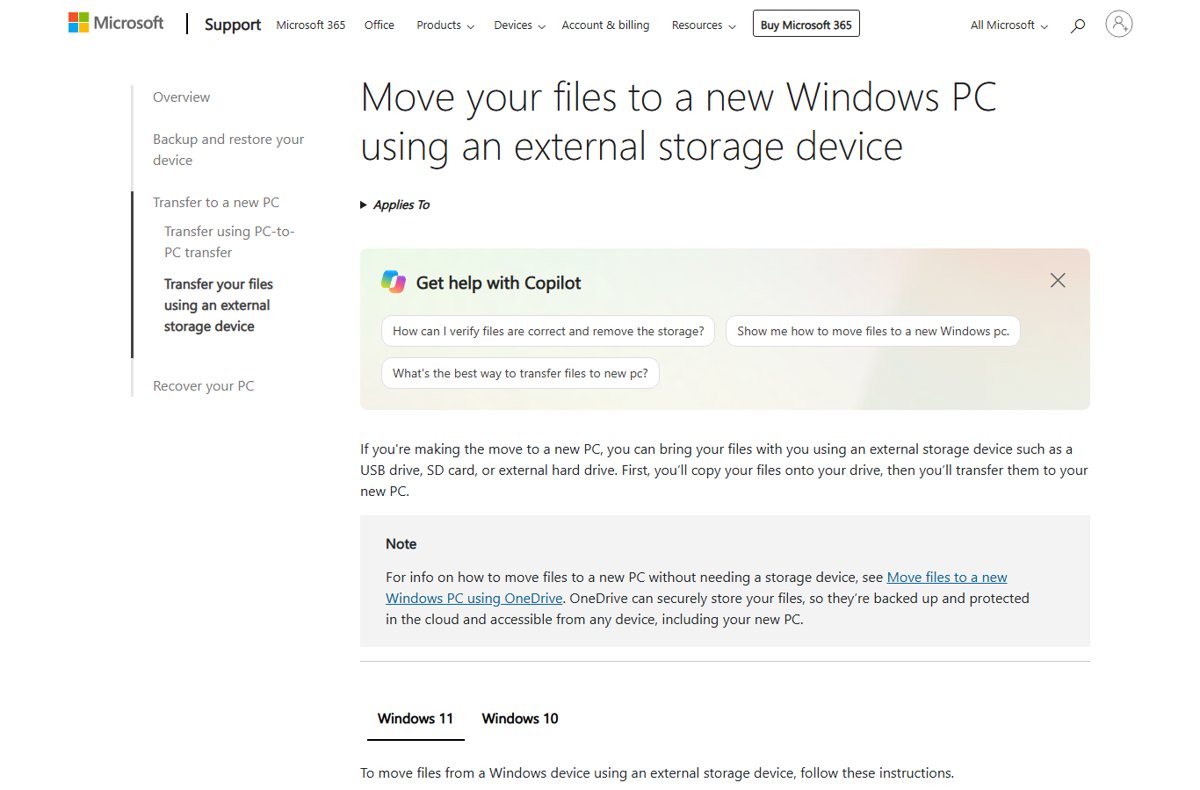
This method works best for a single move between PCs that sit side by side, or when either PC has no internet.
- Connect the external drive to the old PC.
- Open File Explorer and browse to the files you want.
- Hold Ctrl as you select more files or folders.
- Right-click the selection and send or copy it to the external drive.
- Browse the drive to confirm the files copied, then select Eject and unplug it.
- Connect the drive to the new PC, open This PC in File Explorer and open the drive.
- Select all the files, copy them, open the destination folder and paste.
Allow time for the copy; large folders of photos or video take longest.
Transfer Files with Cloud Storage Services
OneDrive is built into Windows. A Microsoft account includes 5 GB of free storage, and a Microsoft 365 subscription raises it to 1 TB.
- On the old PC, open File Explorer and open your OneDrive folder. If OneDrive is not set up, search for OneDrive on the taskbar and sign in.
- Move or copy the files you want to transfer into the OneDrive folder.
- Wait for the files to finish uploading.
- On the new PC, sign in to OneDrive with the same Microsoft account.
- Open File Explorer or select the OneDrive cloud icon on the taskbar to reach the files.
To back up whole folders automatically, open OneDrive settings, select the Sync and backup tab, then Manage backup.
To send files to someone else's PC instead of your own, a share link works without a shared account, as does Dropbox Transfer.
Share Files Over the Same Wi-Fi or Local Network
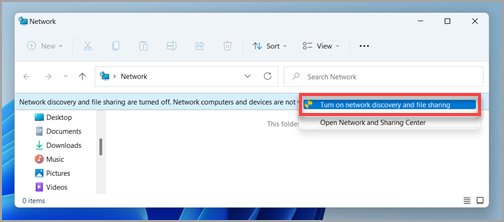
Local sharing suits two PCs on the same home network that will swap files more than once. Set the network profile to Private on both PCs first.
- On the PC with the files, select Start > Settings, search for manage advanced sharing settings and open it.
- Under Private networks, turn on Network discovery and File and printer sharing.
- Right-click the folder to share and select Show more options on Windows 11.
- Select Give access to > Specific people, choose the user account to share with, and confirm.
- On the other PC, type
\\computernamein the File Explorer address bar, using the first PC's name. - Sign in with an account from the first PC if asked, open the shared folder and copy the files.
On Windows 10, the sharing settings sit under Settings > Network & internet > Sharing options.
Use Windows Nearby Sharing
Nearby sharing sends files between Windows PCs over Wi-Fi or Bluetooth. Windows 10 needs version 1803 or later.
On the latest Windows 11, it uses Wi-Fi when both PCs are on the same private network, and Bluetooth otherwise.
- On Windows 11, select Start > Settings > System > Nearby sharing and choose who can share with you. On Windows 10, use Settings > System > Shared experiences.
- Turn it on in the same way on the receiving PC.
- On the sending PC, open File Explorer and select the file.
- Select Share on the toolbar, then select the receiving PC's name.
- On the receiving PC, select Save & open or Save in the notification.
To change where received files land, select Change under Save files I receive to, pick a folder and select Select folder.
Without Wi-Fi in common, a slower alternative is Bluetooth file transfer in Windows 11.
Transfer Files with a PC Migration Tool
Microsoft's built-in migration tool is Windows Backup. The older direct PC-to-PC transfer option in the app is no longer available, and Microsoft points to Windows Backup and restore instead.
It needs a personal Microsoft account, such as an outlook.com address, and OneDrive storage. Work and school accounts are not supported.
- On the old PC, sign in with your Microsoft account in Settings.
- Open Windows Backup from the Start menu.
- Under Folders, turn on the folders to back up.
- Choose which settings and preferences to include.
- Select Back up and wait for it to finish.
- On the new PC, sign in during setup with the same Microsoft account and choose to restore from the backup.
Windows Backup covers Desktop, Documents, Pictures, Videos and Music, plus installed apps, Wi-Fi passwords, wallpaper, themes and other settings.
Personalisation settings are skipped when OneDrive storage runs out.
Move Files Using an Ethernet Cable
Plugging both PCs into the same router or switch with Ethernet cables puts them on one wired network. The copy itself then runs through a shared folder.
- Connect each PC to the router or switch with an Ethernet cable.
- On each PC, open Settings > Network & internet > Ethernet and set Network profile type to Private network.
- On the PC with the files, turn on Network discovery and File and printer sharing under Private networks in the advanced sharing settings.
- Share the folder with Show more options > Give access to > Specific people.
- On the other PC, type
\\computernamein the File Explorer address bar and copy the files across.
Turn Wi-Fi off on both PCs during the copy if you want to be sure the transfer uses the cable.
How to check the transfer worked
- Open the destination folder on the new PC and compare the item count with the source folder.
- Right-click both folders, select Properties and compare the total size.
- Open a few files of each type, such as a photo, a document and a video.
- For OneDrive, check the files show a synced status rather than an upload in progress.
- Keep the old copy until you have worked from the new PC for a few days.
Fix PC-to-PC transfers that do not work
The other PC does not appear on the network
The network is set to Public, or network discovery is off.
- Set the network profile to Private network under Settings > Network & internet on both PCs.
- Turn on Network discovery and File and printer sharing under Private networks.
- Type
\\computernamedirectly in the File Explorer address bar instead of browsing Network.
Nearby sharing does not list the other PC
Nearby sharing is off on the receiving PC or limited to your own devices.
- Open Settings > System > Nearby sharing on the receiving PC and turn it on.
- Choose the option that lets the sending PC's account share with you.
- Turn on Bluetooth on both PCs, or connect both to the same private Wi-Fi network.
Files are missing on the new PC after a restore
Windows Backup restores only the folders that were turned on, and OneDrive files sync separately.
- On the old PC, open Windows Backup and confirm every folder you need is turned on under Folders.
- Run Back up again.
- On the new PC, sign in to OneDrive with the same account to bring back OneDrive files.
The transfer stops because the new PC is full
The destination does not have enough free space.
- Check free space under This PC in File Explorer.
- Copy the largest folders in separate batches.
- Leave rarely used files on the external drive or in OneDrive.
Frequently Asked Questions
How do I transfer files between computers?
Copy them to an external drive and paste them on the other PC, sync them through OneDrive, share a folder over your home network, or use Nearby sharing. The decision table above matches each method to a situation.
What is the fastest way to transfer a large number of files from one PC to another?
For a large one-off move, a wired connection avoids Wi-Fi limits: use an external drive, or plug both PCs into the router with Ethernet and copy from a shared folder. Cloud sync is limited by your internet upload speed.
How do I transfer files faster?
Use a cable rather than wireless: an external drive or an Ethernet connection to the router. Copy large folders in batches and keep both PCs plugged into power during the transfer.
Can I transfer programs from my old PC to my new PC?
Programs do not copy with files. Windows Backup saves your list of installed apps so you can restore them on a new Windows 11 PC, but desktop programs generally need reinstalling and reactivating with their licence keys.
Is cloud storage a good option for moving files between PCs?
Yes, when the PCs are in different places or you want the files on both. OneDrive includes 5 GB free with a Microsoft account and 1 TB with Microsoft 365.
Do both PCs need to be on the same Wi-Fi network to share files locally?
For a shared network folder, yes, both must be on the same network, and it should be set to Private. Nearby sharing can fall back to Bluetooth when the PCs are not on the same Wi-Fi network.
What should I do before transferring files to a new PC?
Gather files from Documents, Desktop, Downloads, Favorites, Music, Pictures and Videos, check free space on the new PC, sign in to the same Microsoft account on both, and note app licence keys.
How do I transfer files on a PC without the internet?
Use an external drive or USB flash drive, or connect both PCs to the same router and copy from a shared folder. Neither needs an internet connection.
Where should I transfer my files on the new PC?
Paste them into the matching folders, such as Documents, Pictures and Videos. Windows apps look there first, and Windows Backup and OneDrive back those folders up.
Bottom Line
Use an external drive for a one-time move, OneDrive when the PCs are apart, and Windows Backup when setting up a new Windows 11 PC. The drive needs no setup at all, OneDrive keeps files on both PCs, and Windows Backup also carries settings and the app list that a plain copy leaves behind.