To show the menu bar on all screens in macOS Ventura, turn on Displays have separate Spaces in Desktop & Dock settings, then log out and back in.
Each display then gets its own menu bar. This guide covers what else the setting changes, how to move the menu bar to another display, and the fixes for a second monitor that still shows no menu bar.
macOS show menu bar on all screens
You need at least one external display connected to see the effect. The change does not apply until you log out or restart.
- Choose Apple menu > System Settings.
- Click Desktop & Dock in the sidebar. You may need to scroll down.
- Scroll down to Mission Control on the right.
- Turn on Displays have separate Spaces.
- Choose Apple menu > Log Out, then log back in.
When you are back on the desktop, a menu bar appears along the top of every display. The one on the active display has an active appearance, and the others look inactive.
Mac show menu bar on all monitors: choose the right setting
There are several different things people mean by a menu bar on another screen. Find yours here.
| What you want | Do this | What happens |
|---|---|---|
| A menu bar on each display | Turn on Displays have separate Spaces | Every display shows one, and the active display's looks active |
| The menu bar on a different display only | Drag it in Displays > Arrange, with separate Spaces off | The other display becomes the main one |
| The same picture on every display | Mirror the displays | The whole desktop, including the menu bar, repeats |
| The menu bar never hiding | Set the hide option to Never | It stays visible, on the desktop and in full screen |
| A menu bar on an iPad used with Sidecar | Use the sidebar on the iPad | Tap to show or hide it there |
Displays have separate Spaces on Mac: what it changes
Apple added this option in OS X 10.9, and it controls far more than the menu bar. Weigh these effects before you turn it off.
| Behavior | Setting on | Setting off |
|---|---|---|
| Menu bar | One on each display | One, on the main display |
| Desktop spaces | Each display has its own, and switching on one leaves the others alone | Spaces are shared across displays |
| Full-screen windows | Use one display and leave the others unchanged | Can affect the other displays too |
| Split View on other displays | Available | Not available, because Apple requires this option |
| Dock | Can appear on any display when positioned at the bottom | On the main display |
| Windows crossing displays | Clip at the display edge, and cannot visibly span two screens | Can span displays |
The last row matters to anyone who stretches one large window across two monitors. That needs the setting off, so you give up the extra menu bars.
Where is Displays have separate Spaces in each macOS version?
Ventura moved this setting out of System Preferences and into the new System Settings app. If you later update to a newer macOS, the setting stays in the same location.
| macOS version | Path |
|---|---|
| macOS 27 Golden Gate | System Settings > Desktop & Dock > Mission Control |
| macOS Tahoe 26 | System Settings > Desktop & Dock > Mission Control |
| macOS Sequoia 15 | System Settings > Desktop & Dock > Mission Control |
| macOS Sonoma 14 | System Settings > Desktop & Dock > Mission Control |
| macOS Ventura 13 | System Settings > Desktop & Dock > Mission Control |
| macOS Monterey 12 and earlier | System Preferences > Mission Control |
From macOS Sequoia onward, Apple also notes that Stage Manager is dimmed until this option is turned on.
How to move the menu bar to another display on Mac
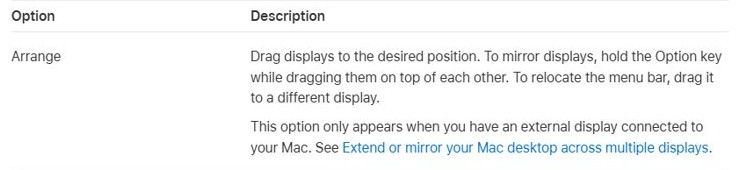
Use this when you want a single menu bar on your larger monitor. The display carrying the menu bar is your main display. The Arrange option appears only when an external display is connected.
- Choose Apple menu > System Settings, then click Displays in the sidebar.
- Click Arrange.
- Drag the menu bar shown on one display icon to the other display icon.
- Drag the display icons so that they match how your monitors sit on your desk.
You can also click the name of a display and use the Use as pop-up menu to make it your main display.
Extend or mirror your Mac desktop across multiple displays
An extended desktop gives each monitor different content and lets you choose which one shows the Finder and app menus. Mirroring repeats the entire desktop on each display, so the menu bar repeats with it. A laptop or iMac needs an external display connected to show these options, and a Mac mini or Mac Studio needs more than one display.
- Choose Apple menu > System Settings, then click Displays in the sidebar.
- Click the name of your display on the right.
- Click the Use as pop-up menu, then choose to mirror or extend.
- To mix both with three or more displays, set them all to extended first.
- Press and hold Option, then drag one display icon onto another to mirror that pair.
Stop the menu bar from hiding on a second display
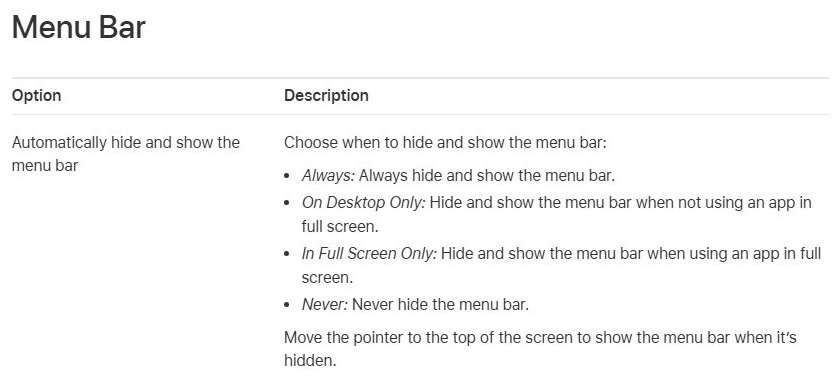
A hidden menu bar can look missing when it is only tucked away. Moving the pointer to the top of a screen brings a hidden menu bar back, which is a quick way to tell the two cases apart.
- Choose Apple menu > System Settings, then click Desktop & Dock.
- Go to the Menu Bar section.
- Click the menu next to Automatically hide and show the menu bar.
- Choose Never to keep it visible all the time.
- Choose In Full Screen Only if you want it hidden during full-screen use alone.
The other two options are Always and On Desktop Only. On a single display, the same setting lets you stop the menu bar from disappearing on other macOS versions too.
Show the menu bar in full screen on an external display
An app in full screen hides the menu bar, even on a display that normally shows one. That explains one display losing its menu bar while the other keeps it.
- Move the pointer to the top of that display to reveal the menu bar.
- To keep it visible in full screen, set Automatically hide and show the menu bar to Never.
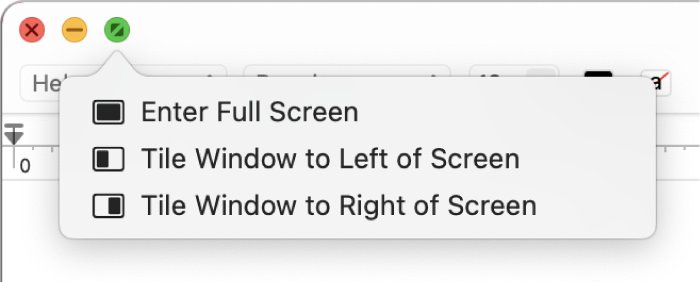
- To leave full screen, move the pointer to the green button in the window's top-left corner and choose Exit Full Screen.
- To work large without hiding it, maximize the window instead, which keeps the menu bar and Dock visible.
Mac menu bar on iPad with Sidecar
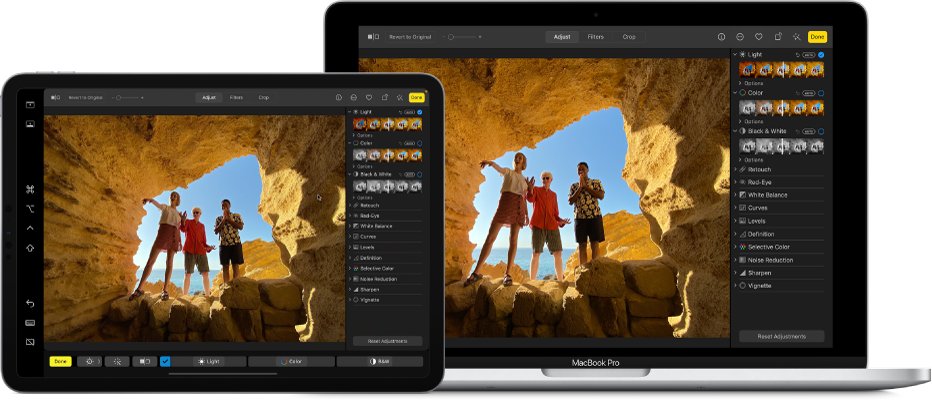
An iPad used as a second display has its own sidebar controls, so you can bring up the menu bar there without any Mac setting. Sidecar needs Wi-Fi and Bluetooth turned on, and the same Apple ID on both devices.
- Choose Apple menu > System Settings, then click Displays.
- Click the pop-up menu below the name of your Mac, then choose your iPad.
- On the iPad, find the sidebar along the edge of the screen.
- Tap the menu bar icon in the sidebar to show or hide the menu bar.
If the sidebar is missing, change Show Sidebar in Displays settings. You can place it on the left or the right.
How to tell which display has the active menu bar
With separate Spaces on, every display has a menu bar. The active one is typically on the display with the window you are using, and menu bars on the other displays have an inactive appearance.
- Look along the top of each display. All of them should now show the Apple menu and app menus.
- Click a window on your second display.
- Watch the menu bar on that display switch to the active appearance.
- Press Control-Up Arrow on that display. Mission Control shows only the windows and spaces for that display.
If only one display shows a menu bar, the setting has not taken effect yet. Log out and back in.
What is the menu bar on a Mac?
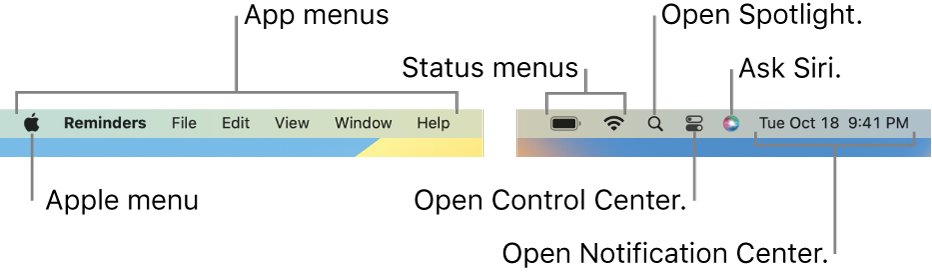
The menu bar runs along the top of the screen on your Mac. Knowing its parts helps you spot what is active on each display, because the app name in bold tells you which app the menus belong to.
| Part | Where | What it does |
|---|---|---|
| Apple menu | Top-left corner | System Settings, updates, lock screen and shut down |
| App menus | Next to the Apple menu | Commands for the current app, such as File, Edit and Window |
| Status menus | Toward the right end | Battery, Wi-Fi and similar quick controls |
| Spotlight and Siri | Right side, if shown | Search and voice commands |
| Control Center | Right side | AirDrop, AirPlay, Focus and display controls |
| Date and time | Right end | Opens Notification Center |
To rearrange status menus, hold Command while you drag an icon. Dragging one out of the menu bar while you hold Command removes it.
Why is my menu bar not showing on my second monitor?
Start with whichever symptom matches what is on your screen.
Setting is on but the second display has no menu bar
The option only takes effect after you log out and back in, or restart.
- Choose Apple menu > Log Out.
- Log back in and look at the second display.
- Restart the Mac if nothing has changed.
Menu bar missing on one display in full screen
Full-screen apps hide the menu bar until you move the pointer to the top.
- Move the pointer to the top of that display.
- Exit full screen from the green window button, or set the hide option to Never.
Menu bar is on the wrong display
A different display is set as the main one.
- Open System Settings > Displays and click Arrange.
- Drag the menu bar to the display you want.
Cannot see the menu bar on a TV
Apple offers an Overscan option for TVs where the menu bar cannot be seen.
- Open System Settings > Displays and click the TV's name.
- Select Overscan if your TV offers that option.
Second monitor is not showing anything
The Mac may not have detected the display.
- Check the display's power and video cable, including any adapter.
- Open System Settings > Displays.
- Press and hold Option until the Detect Displays button replaces Night Shift, then click it.
Windows stopped spanning two monitors
Separate Spaces clips each window to one display.
- Turn off Displays have separate Spaces if you need windows to span.
- Log out and back in to apply the change.
Mac menu bar on multiple displays FAQ
How do I show the menu bar on my Mac?
Move the pointer to the top of the screen if the menu bar is hidden. To keep it there, open System Settings > Desktop & Dock and set Automatically hide and show the menu bar to Never in macOS Ventura.
Why is my menu bar not showing?
An app may be in full screen, the auto-hide option may be on, or the display may not be your main one with separate Spaces turned off. Move the pointer to the top of the screen first, because that reveals a hidden bar.
How do I find the menu bar on a Mac?
Look along the very top of the screen, starting with the Apple menu in the top-left corner. App menus follow it, and status icons, Control Center and the date and time sit toward the right end.
What is the menu bar in a computer?
It is the strip of menus and icons used to choose commands, perform tasks and check status. On a Mac it runs along the top of the screen and changes with the active app, while the Apple menu stays the same.
How do I display the menu bar on two monitors?
Turn on Displays have separate Spaces in Desktop & Dock settings on macOS Ventura, under Mission Control, then log out and back in. Each monitor gets a menu bar, and the one on the display you are using appears active.
How do I keep the menu bar at the top of the screen?
Open System Settings > Desktop & Dock in macOS Ventura and set Automatically hide and show the menu bar to Never. The menu bar then stays along the top of the screen on the desktop and in full screen.