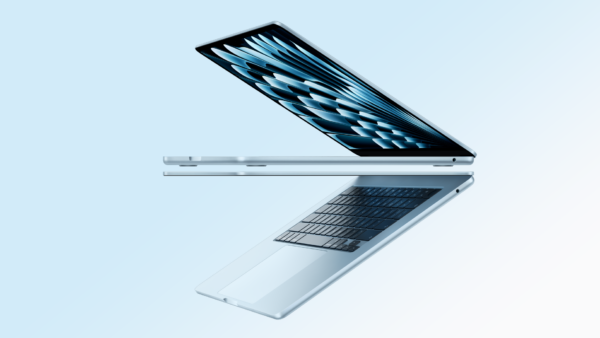
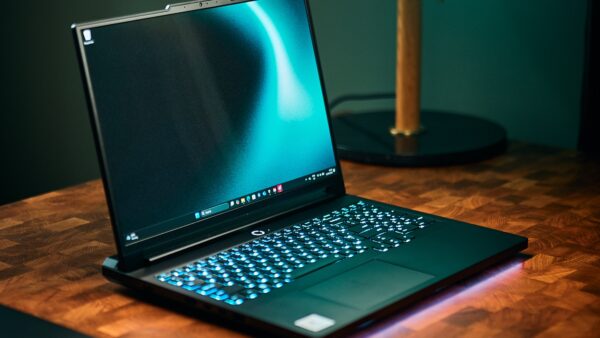
Can you download Apple Find My for Windows 11? We found that Apple does not provide a Find My app to download on Windows 11 or Windows 10. To use Find My on a PC, open Find Devices on iCloud.com, sign in with the Apple Account connected to your missing device, and select the device from the list. On a Mac, the complete Find My app comes preinstalled with macOS and does not require a separate download.
| Platform | How to access Find My | Separate download required? |
|---|---|---|
| Windows 11 | Use Find Devices on iCloud.com in a browser | No official Windows app |
| Windows 10 | Use Find Devices on iCloud.com in a browser | No official Windows app |
| Mac | Open the built-in Find My app | No |
| Android or Chromebook | Use Find Devices on iCloud.com | No official app |
Use only Apple’s website. Avoid third-party downloads claiming to provide “Find My for Windows,” “Find My iPhone EXE,” or an Apple Find My emulator. Apple does not distribute an official Find My installer through the Microsoft Store or as an EXE file.
Can You Download Find My for Windows 11 or Windows 10?
No. Apple has not released a native Find My app for Windows PCs. The iCloud for Windows app also does not add Find My to the computer.
Windows users can access Apple’s official Find Devices website through Chrome, Microsoft Edge, Firefox, or another current browser. It provides the main controls needed when an iPhone, iPad, Mac, Apple Watch, AirPods, or supported Beats product is missing.
You can create a desktop shortcut or install the website as an app-style window, but it remains the iCloud.com service. It does not become the complete Apple Find My application.
How to Use Find My on a Windows PC
Find My must have been enabled on the Apple device before it was lost. You cannot remotely turn on Find My after the device has gone missing.
Step 1: Open Apple Find Devices
- Open a current web browser on your Windows PC.
- Go to https://www.icloud.com/find.
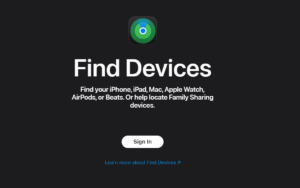
- Check that the address belongs to icloud.com before entering your account details.
Step 2: Sign In with Your Apple Account
- Enter the email address or phone number used for your Apple Account.
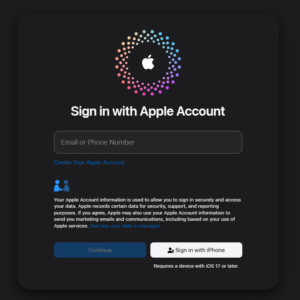
- Enter your Apple Account password.
- Complete identity verification when requested.
Use the same Apple Account that was signed in on the missing iPhone, iPad, Mac, Apple Watch, or AirPods.
If your trusted Apple device is missing and you cannot receive a verification code, select the Find Devices button shown on the iCloud sign-in page. Apple allows access to Find Devices without entering the code sent to the lost trusted device.
Step 3: Select the Missing Device
- Open the device list at the top or side of the Find Devices page.
- Select the missing Apple device.
- Wait for its location and available actions to load.
If Apple can locate the device, its approximate position appears on the map. When the device is unavailable, Find Devices can show it as offline and may display its last reported location.
Step 4: Choose an Available Action
The available controls depend on the selected device:
- Play Sound: Makes the device play a sound, even when its volume is muted, on supported products.
- Mark As Lost: Locks the device and lets you display contact information for the person who finds it.
- Erase This Device: Remotely deletes personal information when recovery appears unlikely.
- Remove This Device: Removes an eligible device from the Apple Account after it is no longer needed.
Use remote erase carefully. After the device has been erased, location tracking can become limited or unavailable depending on the device and its state. Do not remove a stolen device from your Apple Account merely because someone asks you to do so, since removal can also affect Activation Lock.
Install Find My as an App on Windows 11 or Windows 10
You cannot install Apple’s native Find My app on Windows, but Chrome and Edge can place the Find Devices website in a separate app-style window. This gives you a Start menu or taskbar shortcut without installing an unofficial program.
Install Find Devices Using Microsoft Edge
- Open Find Devices in Microsoft Edge.
- Click the three-dot menu in the upper-right corner.
- Select Apps.
- Select Install this site as an app.
- Name it Apple Find My or Find Devices.
- Click Install.
- Choose whether to pin it to Start, the taskbar, or the desktop.
The shortcut opens iCloud Find Devices in its own Edge-powered window. An internet connection is still required.
Create a Find My Shortcut Using Google Chrome
- Open iCloud Find Devices in Chrome.
- Click the three-dot menu.
- Open Cast, save and share or the available shortcut menu.
- Select Install page as app or Create shortcut.
- Enter a name for the shortcut.
- Confirm the installation.
Chrome menu names can vary by version. When an install option is unavailable, bookmark the Find Devices page or create a normal desktop shortcut to the website.
How to Download Find My on Mac
You do not need to download Find My on a supported Mac. Apple includes the app with macOS.
Open Find My on Mac
- Press Command + Spacebar to open Spotlight.
- Type Find My.
- Press Return.
You can also open Finder, select Applications, and double-click Find My.
The Mac app provides separate sections for:
- People: View people who share their location with you.
- Devices: Locate Apple devices connected to your account or Family Sharing group.
- Items: Locate AirTags and compatible Find My network accessories.
- Me: Manage your own location-sharing options.
Turn On Find My Mac
- Open the Apple menu and select System Settings.
- Select your name at the top of the sidebar.
- Select iCloud.
- Click See All beside apps using iCloud.
- Select Find My Mac.
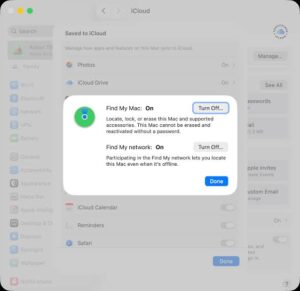
- Click Turn On.
- Allow location access when requested.
- Enable the Find My network when you want help locating the Mac while it is offline.
You should also open System Settings > Privacy & Security > Location Services and confirm that Location Services and Find My are enabled.
Find My on Windows vs Find My on Mac
| Feature | Windows through iCloud.com | Find My app on Mac |
|---|---|---|
| Locate your Apple devices | Yes | Yes |
| Play a sound on a device | Yes | Yes |
| Enable Lost Mode | Yes | Yes |
| Erase a device remotely | Yes | Yes |
| Locate AirTags and Find My items | Not through the standard Find Devices website | Yes |
| View friends and shared locations | Not through Find Devices | Yes |
| Create location notifications | No | Yes |
| Find nearby items with Precision Finding | No | No, Precision Finding requires a compatible iPhone |
| Native desktop application | No | Yes |
Can You Find an iPhone from a Windows PC?
Yes. Open iCloud Find Devices in a browser, sign in with the Apple Account used on the iPhone, and select the iPhone from the device list.
Depending on its connection and Find My settings, you can view its approximate location, play a sound, activate Lost Mode, or erase it remotely.
If the iPhone appears offline, check the last available location and enable Lost Mode. The action will take effect when the device reconnects, when supported.
Can You Find AirPods from a PC?
Find Devices on iCloud.com can locate supported AirPods associated with your Apple Account and can play a sound when the feature is available for that model.
The web experience does not include every nearby-finding feature available on an iPhone. Features such as directional Precision Finding require compatible AirPods, a supported iPhone, and the native Find My app.
If the AirPods are inside a closed charging case or have no available connection, the website may show their last known location rather than a live position.
Can You Find an AirTag from a Windows PC?
Apple does not provide full AirTag tracking through the Windows Find Devices website. AirTags appear under the Items section of the native Find My app on an iPhone, iPad, or Mac.
A Windows PC cannot provide Precision Finding, make a nearby AirTag use its ultra-wideband direction feature, or manage all AirTag settings. Use an Apple device signed in to the account associated with the AirTag.
If another person’s AirTag is travelling with you, Windows also cannot replace Apple’s unwanted-tracking detection features. Follow the alert and safety instructions shown by a compatible iPhone or Android device.
Can You Find Friends or Family from a PC?
The Windows-accessible Find Devices website focuses on Apple devices. It does not provide the complete People section found in the Find My app.
To view people who share their location with you, use Find My on an iPhone, iPad, or Mac. Family Sharing can also let family members help locate eligible devices when the required sharing settings were enabled beforehand.
FAQs
Is there an official Find My app for Windows 11?
No. Apple does not provide a native Find My app for Windows 11. Use Find Devices on iCloud.com through a current browser.
Can I download Find My for Windows 10?
No official Find My download exists for Windows 10. You can create a shortcut or install the iCloud Find Devices website as an app-style window through Edge or Chrome.
Is Find My available in the Microsoft Store?
Apple does not publish an official Find My application in the Microsoft Store. Check the publisher carefully before installing any app that uses a similar name or icon.
Does iCloud for Windows include Find My?
No. Installing iCloud for Windows does not add the native Find My application. Use the Find Devices website in your browser.
What is the official Find My website for PC?
The official browser service is available at https://www.icloud.com/find.
Can I use Find My iPhone on a PC?
Yes. Sign in to Find Devices on iCloud.com using the Apple Account connected to the iPhone, then select it from the device list.
Can I use Find My without my iPhone verification code?
Yes, for the dedicated Find Devices service. Select the Find Devices option shown on the iCloud sign-in page when you cannot access the trusted device that receives the code.
Can I track my iPhone when it is turned off?
Some supported iPhone models can remain findable through the Find My network for a period after being turned off, provided the required settings were enabled. Otherwise, Find Devices shows the most recent available location.
Can I locate an Android phone with Apple Find My?
No. Apple Find My tracks supported Apple devices and Find My network accessories. Use Google’s device-location service for an Android phone.
Can I use Find My on a Chromebook?
Yes, you can open Find Devices on iCloud.com through the Chromebook’s browser. There is no native ChromeOS Find My app.
Can I locate an AirTag from Windows?
Windows does not provide full AirTag tracking. Use the Items section in Find My on an iPhone, iPad, or Mac.
Can I download Find My again on a Mac?
Find My is included with macOS and normally cannot be downloaded as a separate app. Install available macOS updates or reinstall macOS if the built-in application is damaged or missing.
Why is my device missing from Find My?
You may have signed in with another Apple Account, Find My may not have been enabled, or the device may have been removed from the account. A device cannot be added remotely after it has gone missing.
Does Find My work without internet access?
The Find My network can help supported Apple devices report an approximate location while they are offline. The Windows PC still needs internet access to open iCloud.com and view the available location.
Is it safe to install a third-party Find My app?
Avoid programs that ask for your Apple Account password while claiming to provide Apple Find My for Windows. Use Apple’s official iCloud website instead.

![How to Get Help in Windows 11 [Fast]](https://techdows.com/wp-content/uploads/2026/07/How-to-Get-Help-in-Windows-11-600x338.jpg)