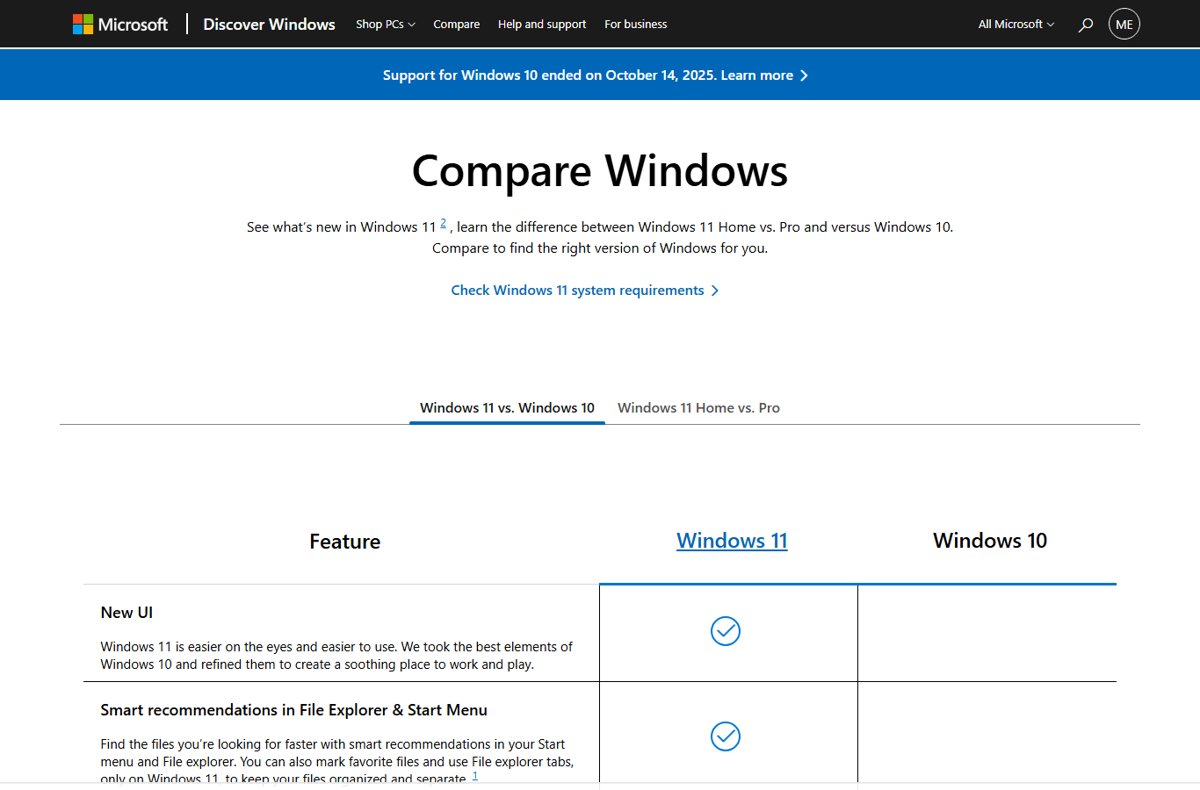
Windows 11 26H2 Home and Pro get the same update, the same build 26300 and the same end-of-updates date, and the differences are the Pro-only tools: BitLocker, Remote Desktop hosting, domain and Microsoft Entra join, Hyper-V, Windows Sandbox and control over when feature updates arrive.
This guide compares the two editions on 26H2, shows what the update changes differently on each, and walks through checking your edition and upgrading Home to Pro.
Home or Pro on 26H2: pick by what you need
Find the first row that describes you. If none fits, Home covers you, because the everyday Windows 11 features are the same in both editions.
| You need to | Edition | Why |
|---|---|---|
| Connect to this PC from another computer with Remote Desktop | Pro | Home can connect out to other PCs but cannot act as a Remote Desktop host |
| Encrypt drives with full BitLocker, including USB drives with BitLocker to Go | Pro | BitLocker enablement is licensed on Pro, Enterprise and Education; Home has device encryption only |
| Join a work domain or Microsoft Entra ID | Pro | Microsoft Entra join is available on every Windows 11 edition except Home |
| Run virtual machines with Hyper-V or open Windows Sandbox | Pro | The Hyper-V role cannot be installed on Home, and Sandbox is not supported on Home |
| Delay or schedule the 26H2 feature update with policy | Pro | Windows Update client policies work on Pro, Education and Enterprise, not Home |
| Use more than 128 GB of RAM | Pro | Home is limited to 128 GB; Pro supports up to 2 TB |
| Browse, game, use Office apps and store files | Home | The 26H2 update, the features and the support period are the same |
Windows 11 26H2 Home vs Pro feature comparison
Both editions run the same 26H2 build, so the gap is a fixed set of security, management and virtualization features rather than anything new in this release.
| Feature | Windows 11 Home | Windows 11 Pro |
|---|---|---|
| Windows 11 version 26H2, OS build 26300 | Yes | Yes |
| Device encryption (automatic encryption on supported hardware) | Yes | Yes |
| BitLocker Drive Encryption | No | Yes |
| BitLocker to Go for USB drives | No | Yes |
| Windows Security, firewall, Secure Boot, Windows Hello, Find my device | Yes | Yes |
| Parental controls and protection | Yes | Yes |
| Remote Desktop client (connect to other PCs) | Yes | Yes |
| Remote Desktop host (accept incoming connections) | No | Yes |
| Join a domain or Microsoft Entra ID | No | Yes |
| Client Hyper-V | No | Yes (needs a CPU with SLAT) |
| Windows Sandbox | No | Yes |
| Windows Update client policies (formerly Windows Update for Business) | No | Yes |
| Maximum RAM | 128 GB | 2 TB |
| S mode | Yes (Home only) | No |
Pro for Workstations raises the memory ceiling to 6 TB. Device encryption on Home uses BitLocker technology but only encrypts the operating system drive and fixed drives, not external or USB drives.
What the 26H2 update changes on Home and on Pro
26H2 arrives on both editions as a small enablement package for PCs on 24H2 or 25H2. A few changes land differently because Microsoft treats a managed Pro PC as a commercial device, and a Home PC never is one.
| 26H2 change | Home | Pro |
|---|---|---|
| Delivered as an enablement package with one restart | Yes | Yes |
| Windows settings backup, app-specific taskbar actions and some File Explorer enhancements switched on by default for commercial devices | Already on for consumer PCs; no change | Turns on if the PC is managed by IT, uses a volume licence key or commercial ID, or is domain-joined |
| Features disabled by default in 25H2 now enabled by default | Yes | Yes |
| Control when 26H2 installs through Group Policy or MDM | No | Yes, with Windows Update client policies |
| Known issue: domain trust lost on Credential Guard PCs with Machine Identity Isolation | Not affected, because Home cannot join a domain | Can affect domain-joined PCs |
| Known issue: some USB Audio Class 1.0 devices show Code 10 or no sound | Can affect | Can affect |
Both known 26H2 issues were listed as mitigated on 29 September 2026, and each has workarounds.
How long is Windows 11 26H2 supported?
Home and Pro share the same 24-month clock on 26H2. Only Enterprise and Education editions get the longer 36-month period.
| Edition | Available | End of updates | Support period |
|---|---|---|---|
| Windows 11 Home | 29 September 2026 | 10 October 2028 | 24 months |
| Windows 11 Pro, Pro Education, Pro for Workstations | 29 September 2026 | 10 October 2028 | 24 months |
| Windows 11 Enterprise, Education, IoT Enterprise, Enterprise multi-session | 29 September 2026 | 9 October 2029 | 36 months |
Installing 26H2 resets the support lifecycle, so Home and Pro PCs still on 24H2 gain the most: 24H2 Home and Pro reach end of updates on 13 October 2026.
Windows 11 26H2 system requirements
Home and Pro have identical hardware requirements. The practical difference shows up during setup and in the memory ceiling.
| Requirement | Home | Pro |
|---|---|---|
| Processor | 1 GHz or faster, 2 or more cores, compatible 64-bit CPU or SoC | Same |
| RAM | 4 GB minimum, 128 GB maximum | 4 GB minimum, 2 TB maximum |
| Storage | 64 GB or larger | Same |
| Firmware and TPM | UEFI, Secure Boot capable, TPM 2.0 | Same |
| Graphics and display | DirectX 12 with WDDM 2.0 driver; 720p display larger than 9 inches | Same |
| Internet and Microsoft account during setup | Required | Required for Pro for personal use |
| Extra hardware for edition features | None | Hyper-V needs a CPU with SLAT; BitLocker to Go needs a USB flash drive |
To get 26H2 through Windows Update, the PC must already run Windows 11 24H2 or 25H2.
Check whether your PC runs Home or Pro
- Select Start, then select Settings.
- Select System, then Activation.
- Read the edition shown at the top of the window, next to the Windows logo.
- Check Activation state to confirm Windows is activated.
- For the version, go to System > About and read Version under Windows specifications; 26H2 means the update is installed.
Get the 26H2 update on Home or Pro
The steps are the same on both editions. The rollout is phased over the next few months, so most PCs are not offered 26H2 on day one, and Microsoft may hold it back on PCs with a known compatibility issue.
- Open Settings and select Windows Update.
- Turn on Get the latest updates as soon as they're available.
- Select Check for updates.
- When your PC is eligible, select the option to download and install Windows 11, version 26H2.
- Restart when prompted; a single restart finishes the update.
On a work-managed Pro PC, the IT department's update policies decide when 26H2 appears.
Upgrade Windows 11 Home to Pro on 26H2
An activated copy of Windows 11 Home is required first. If you already own a Pro product key, select Change next to Change product key in the same window instead and enter the 25-character key.
- Select Start, then Settings > System > Activation.
- Confirm the edition reads Windows 11 Home and Activation state shows Windows is activated.
- Select Upgrade your edition of Windows to expand it.
- Next to Upgrade in the Microsoft app, select Open Store.
- Sign in to Microsoft Store with your Microsoft account and buy Windows 11 Pro.
- Install Windows 11 Pro when prompted, then restart the PC.
- Return to System > Activation and confirm the edition now reads Windows 11 Pro.
If Upgrade your edition of Windows does not appear, the PC may already run Pro or an edition upgrade may not be available for it.
Frequently Asked Questions
Is Windows 11 26H2 available for Pro?
Yes. Windows 11 Pro gets version 26H2 as an enablement package on PCs running 24H2 or 25H2, the same way Home does. Microsoft lists Pro, Pro Education and Pro for Workstations with an end-of-updates date of 10 October 2028.
Does Windows 11 Home get 26H2?
Yes. Home receives the same 26H2 enablement package and the same build 26300 as Pro. Support for 26H2 Home ends on 10 October 2028, the same date as Pro, giving both editions 24 months of updates.
How do I update Windows 11 Pro to 26H2?
Open Settings > Windows Update, turn on Get the latest updates as soon as they're available, and select Check for updates. When the PC is eligible, download and install version 26H2 and restart once. Managed Pro PCs follow the IT department's update policies.
Where do I download Windows 11 Pro 26H2?
Most PCs should take 26H2 through Windows Update, which is the smallest download. There is no separate Pro-only 26H2 update; the enablement package is the same for Home and Pro, and the edition comes from your licence.
Is there a 32-bit Windows 11 Pro 26H2?
No. Windows 11 requires a compatible 64-bit processor or SoC, so every edition of 26H2, Home and Pro alike, is 64-bit only. A download labelled 64-bit is simply the normal Windows 11 image.
Can I get a Windows 11 Pro 26H2 ISO?
Use only Microsoft's own download pages for a 26H2 ISO, never a third-party mirror. The edition installed is set by the product key or the digital licence already tied to the PC, not by a separate Pro download.
Is Windows 11 26H2 supported longer on Pro than on Home?
No. Home, Pro, Pro Education and Pro for Workstations all reach end of updates on 10 October 2028, 24 months after release. Only Enterprise, Education and IoT Enterprise get 36 months, until 9 October 2029.
Can I upgrade from Home to Pro after installing 26H2?
Yes. On an activated Home PC, go to Settings > System > Activation, expand Upgrade your edition of Windows and select Open Store to buy Pro, or enter a Pro product key with Change product key. The PC restarts to finish.
Does 26H2 add any new Pro-only features?
No new Pro-only features are listed for 26H2. The change that affects Pro most is that settings backup, app-specific taskbar actions and some File Explorer enhancements turn on by default for commercial, IT-managed devices.
Bottom Line
Stay on Home for 26H2 unless you need Remote Desktop hosting, BitLocker, domain or Entra join, Hyper-V, Windows Sandbox or policy control over updates; if you need any of those, upgrade to Pro. 26H2 does not widen the gap between the editions. Both get the same build, the same features and the same end-of-updates date, so the choice rests entirely on the long-standing Pro-only tools.



How to install Windows 11 26H2 with a local account - Techdows
[…] edition differences between 26H2 Home and Pro go beyond […]