Open the Google Play Store, search for WhatsApp Messenger, tap Install, then open the app and verify your phone number.
This guide covers the Play Store steps, the phone requirements, the official APK for phones without Google Play, Android tablets, restoring old chats and the Play Store errors that stop the download.
Step by step tutorial on how to download WhatsApp on Android
The app is free and is published by WhatsApp LLC. Check the developer name on the listing so you install the real app and not a copy.
- Open the Google Play Store app on your Android phone.
- Tap the search bar, type WhatsApp and select WhatsApp Messenger by WhatsApp LLC.
- Tap Install and wait for the download to finish.
- Tap Open, choose your language, then tap Agree and continue.
- Enter your phone number, then verify it with the code WhatsApp sends by SMS or call.
- Tap Continue to restore a chat backup if one is found, or tap Skip to start fresh.
- Enter your name, add an optional profile photo and tap Next.
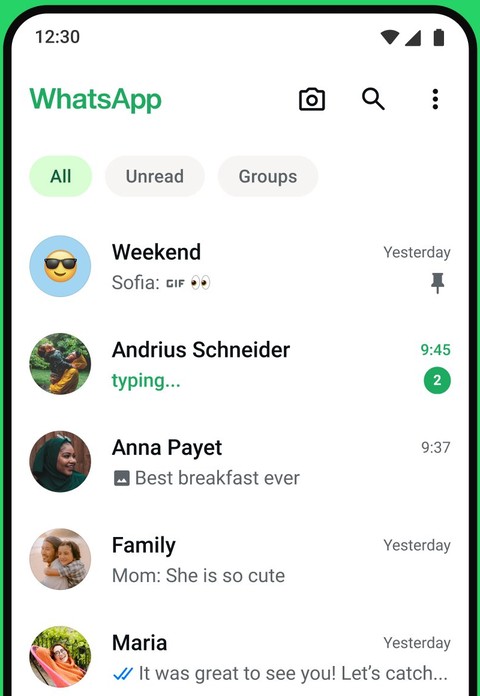
Your chat list opens once the name step is done. You can change the name and photo later under More options > Settings by tapping your profile name.
What Android version does WhatsApp need?
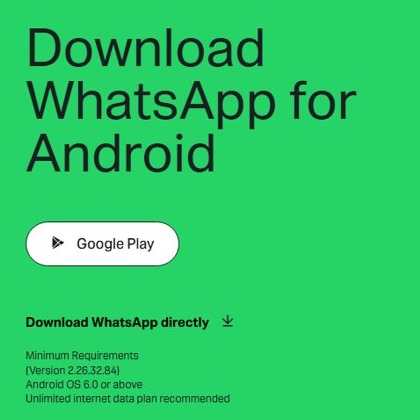
WhatsApp supports Android phones running Android 6.0 or newer. The phone must also be able to receive an SMS or a call, because that is how the number is verified.
| Requirement | What WhatsApp asks for | What happens if you miss it |
|---|---|---|
| Android version | Android 6.0 or newer | Google Play shows the app as incompatible with your device |
| Phone number | A number that can receive SMS or calls | You can't finish registration |
| Connection | Mobile data or Wi-Fi; WhatsApp recommends an unlimited data plan | Messages and calls wait until you are back online |
| Wi-Fi-only device | Not supported for setting up a new account | Register on a phone first, then link the device |
| Free storage | At least 1 GB free is recommended for installs and updates | Play Store reports insufficient space |
| Rooted phone or custom ROM | Not supported; a stock ROM without root is recommended | Other apps may be able to read your messages |
WhatsApp drops older Android versions on a regular schedule and warns you inside the app several times before support ends.
How to download WhatsApp on Android phone without Google Play
Some Android phones ship without Google Play, and the app is blocked in a few regions. WhatsApp's own site offers the same app as an APK file for those cases. Get it only from whatsapp.com, never from a mirror site.
- Open your phone's browser and go to whatsapp.com/android.
- Tap Download WhatsApp directly to save the WhatsApp.apk file.
- Open the downloaded file from the browser's download notification.
- If Android blocks it, tap Settings and turn on Allow from this source for your browser.
- Go back and tap Install, then open WhatsApp and register your number.
If your phone has its own app store, check there first. WhatsApp names the device's app store and whatsapp.com/download as the two routes for phones without Google Play.
How to install WhatsApp on Android phone from a computer
Google Play can push WhatsApp to any Android phone signed in to the same Google Account. This helps when you are already at a computer or are setting up a family member's phone that uses your account.
- Go to play.google.com in a browser on your computer and sign in to the Google Account used on the phone.
- Search for WhatsApp Messenger and select it.
- Click Install.
- Pick your phone from the device dropdown, then click Install again.
- Open WhatsApp on the phone once it appears in the app list and register your number.
Where to download WhatsApp on Samsung and other Android devices
Google Play comes pre-installed on Android devices that support it, including most Samsung Galaxy phones. The route only changes for tablets, watches and phones without Google services.
| Device | Where to get WhatsApp | How the account works |
|---|---|---|
| Android phone with Google Play (Samsung, Pixel and others) | Google Play Store, WhatsApp Messenger | Primary device, registered with your number |
| Android phone without Google Play | The phone's own app store or whatsapp.com/download | Primary device, registered with your number |
| Android tablet | Google Play Store | Link it to your phone, or register a new account on it |
| Wear OS 3.0 or later watch | Google Play Store | Linked to your Android phone with an eight-character code |
| Windows PC or Mac | The desktop app or web.whatsapp.com | Linked to your phone |
On a computer, the WhatsApp desktop app for Windows links to the account on your Android phone with a QR code.
How to restore WhatsApp chat backup on Android
Old chats come back only during setup, so decide before you tap Skip. The backup must belong to the same phone number you are registering.
- On the old install, open Settings > Chats > Chat Backup and check the time and size of the last backup.
- Install WhatsApp on the new or factory reset phone and verify the same phone number.
- Tap Restore when WhatsApp finds the backup.
- Keep WhatsApp open until your chats appear; photos and videos keep restoring in the background.
- Leave the phone on Wi-Fi and plugged in until the media restore completes.
A backup older than 120 days may not restore. If you tap Skip and a new backup runs, the old one is replaced and can't be recovered.
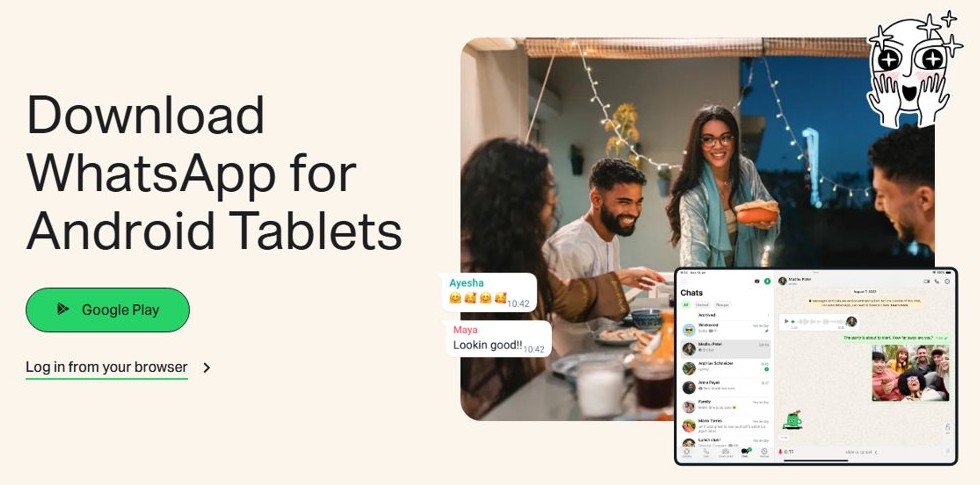
Can I download WhatsApp on my tablet?
Yes. WhatsApp for Android tablets is on Google Play, and it can either mirror your phone's account or run its own account.
- Install WhatsApp Messenger from Google Play on the tablet and open it.
- To use your phone's account, open WhatsApp on the phone and tap the menu > Linked devices > Link a device.
- Scan the QR code shown on the tablet with your phone.
- To use the tablet on its own instead, tap the menu on the tablet > Register new account, pick your country, enter a number and tap Next.
A linked tablet syncs up to two years of recent chat history. A linked device logs out if you don't use WhatsApp on the phone for 14 days.
Tips for downloading WhatsApp on Android
| Tip | Why it matters |
|---|---|
| Check the developer is WhatsApp LLC | Copycat apps and unofficial WhatsApp versions can get your account banned |
| Use Wi-Fi for the first download and any restore | Restoring media over mobile data can be slow and costly |
| Free up at least 1 GB before installing | Low storage is the most common reason the install fails |
| Back up chats before reinstalling or switching phones | Restore only works from an existing backup for the same number |
| Pick your language on the welcome screen | WhatsApp follows the phone language, and Android has up to 60 to choose from |
| Keep Google Play auto-updates on | Older versions lose features and eventually stop connecting |
You can also update WhatsApp manually from its Play Store listing if auto-update is off.
How to uninstall WhatsApp on Android
Uninstalling removes the app and its data from the phone. Back up your chats first if you want them later.
- Open WhatsApp and run a backup from Settings > Chats > Chat Backup.
- Open your phone's Settings app.
- Tap Apps > WhatsApp.
- Tap Uninstall, then tap Uninstall again to confirm.
WhatsApp not downloading from Play Store on Android
"There's insufficient space on the device"
The phone doesn't have enough free storage for the download and install.
- Open Settings > Apps > Google Play Store > Storage and cache and tap Clear cache.
- Tap Clear storage > Delete.
- Restart the phone and try the install again.
- If it still fails, delete apps and files you no longer use until at least 1 GB is free.
"This app is incompatible with your Android device"
The phone runs a version older than Android 6.0 or is not a supported device.
- Check the Android version in the phone's settings.
- Install any system update the phone offers, then search Google Play again.
- If the phone can't reach Android 6.0, use WhatsApp on a newer phone.
"This item isn't available in your country"
WhatsApp is not offered in your Google Play region.
- Go to whatsapp.com/android in the phone's browser.
- Tap Download WhatsApp directly and open the APK file.
- Tap Settings > Allow from this source when prompted, then install.
Can't find WhatsApp in the Google Play Store
The app is incompatible, blocked in your country or hidden by parental controls.
- Check the Android version meets the 6.0 minimum.
- Ask whoever manages the account whether parental controls block the app.
- Use the official APK from whatsapp.com/android if the region is the problem.
Play Store error 413, 481, 491, 492, 505, 907, 910, 921, 927, 941 or DF-DLA-15
The Google Account on the phone has a sync or sign-in fault.
- Open Settings, go to your Google Account, select it and tap Remove account > Remove account.
- Restart the phone.
- Add the Google Account back from Settings and sign in.
- Clear the Google Play Store cache and storage, then download WhatsApp again.
Play Store error 403, 495, 504, 911, 920, 923, RPC error or "invalid package file"
The download is failing on the Play side or storage is low.
- Free up storage and clear the Play Store cache as in the first fix.
- If the error returns, download the APK from whatsapp.com/android and install it.
Play Store error 490
The download is blocked on mobile data.
- Connect to Wi-Fi and retry.
- If you must use mobile data, open Settings > Apps > Google Play Store > Mobile data usage and turn on Background data.
- Clear the Play Store cache and try again.
Google Play Store app is missing from the phone
The app is hidden, or the phone doesn't support Google Play.
- Look in the full app list; a hidden Google Play Store app needs to be re-enabled.
- Restart the phone and look again.
- If it is still missing, contact your carrier or phone maker, or use the phone's own app store or whatsapp.com/download.
Download WhatsApp on Android FAQ
How do I download WhatsApp on my Android phone?
Open the Google Play Store, search for WhatsApp Messenger, check that the developer is WhatsApp LLC and tap Install. Then open the app, agree to the terms, verify your phone number and enter your name.
How do I download WhatsApp on a Samsung phone?
Use the Google Play Store, which comes pre-installed on Samsung Galaxy phones that support Google services. Search for WhatsApp Messenger, tap Install and open it to verify your number. The steps match any other Android phone.
Can I download WhatsApp on my tablet?
Yes. Install WhatsApp from Google Play on an Android tablet, then link it to your phone with a QR code from Linked devices, or tap Register new account to run a separate account on the tablet.
Is WhatsApp free to download and use on Android?
Yes. WhatsApp charges nothing for the app, messages or voice and video calls, and it stopped subscription fees in 2016. Your mobile provider may still charge for the data the app uses.
How do I get WhatsApp on Android without the Play Store?
Go to whatsapp.com/android in the phone's browser and tap Download WhatsApp directly. Open the APK, allow installs from that source when Android asks, and tap Install. Avoid APK copies hosted on other sites.
Can I use WhatsApp on multiple devices?
Yes. You can link up to four devices, such as a tablet, computer or watch, to one phone account. The phone stays the primary device, and linked devices log out if the phone goes 14 days without use.
What do I do if the WhatsApp installation fails?
Clear the Google Play Store cache and storage, free at least 1 GB of space and restart the phone. For error codes such as 495 or 920, install the official APK from whatsapp.com/android instead.
Can I install WhatsApp on an Android phone without a SIM card?
WhatsApp needs a phone number that can receive an SMS or call to verify, and it doesn't support new accounts on Wi-Fi-only devices. Register on a phone with a working number, then link other devices.
Does WhatsApp work on a rooted Android phone?
WhatsApp doesn't support rooted phones or custom ROMs. Rooting breaks its security model, so other apps may be able to read your messages. Use a stock ROM without root for a supported setup.
How do I change the WhatsApp language on Android?
WhatsApp follows your phone's language, so changing the phone language changes the app. On Android you can also pick a language on the welcome screen, or tap the menu > Settings > App Language where your region supports it.
Once the app is set up, chats, groups, calls and status work the same way on every phone, so your contacts on iPhone can reach you too.