To set up iCloud email on a Kindle Fire again, generate a new app-specific password at account.apple.com, then add your iCloud address to the tablet's email app with that password instead of your Apple Account password.
This guide covers why the old setup stopped working, the exact iCloud IMAP and SMTP settings, adding the account in Microsoft Outlook from the Amazon Appstore, reading mail at iCloud.com, and fixes for mail that will not send or arrive.
How to set up iCloud email on Kindle Fire
A Fire tablet is not an Apple device, so it cannot sign in to iCloud Mail with your normal Apple Account password. It needs an app-specific password, which requires two-factor authentication on your Apple Account.
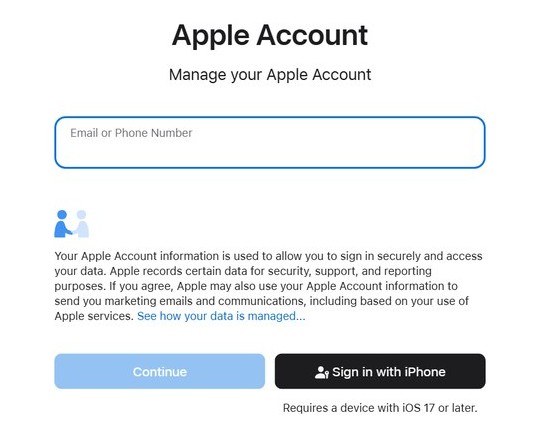
- On any device with a browser, sign in to account.apple.com with your Apple Account.
- In the Sign-In and Security section, select App-Specific Passwords.
- Select Generate an app-specific password, name it something like Kindle Fire mail, and follow the steps on screen.
- Write the generated password down exactly as shown.
- On the Kindle Fire, open your email app and add a new account with your full iCloud address, such as [email protected].
- When the app asks for a password, enter the app-specific password, not your Apple Account password.
- If the app asks for server details, use imap.mail.me.com on port 993 for incoming mail and smtp.mail.me.com on port 587 for outgoing mail, both with SSL.
- Finish the setup and wait for your Inbox to download.
If you had iCloud email on the tablet before, delete the old account from the email app first. An old account that still holds a revoked password keeps failing and can hide the new one.
Why iCloud email stopped working on Kindle Fire
Most people who need to set iCloud email up again on a Fire tablet hit one of these causes. Match yours, then follow the fix.
| What changed | What happens on the Kindle Fire | Fix |
|---|---|---|
| You changed or reset your Apple Account password | Apple revokes every app-specific password automatically, so the tablet is signed out of iCloud Mail | Generate a new app-specific password and enter it in the email app |
| You revoked the password at account.apple.com | The app using that password is signed out until you generate a new one | Generate a new app-specific password |
| You factory reset the tablet | The reset removes downloaded content, including your email app and accounts | Reinstall the email app from the Amazon Appstore and add the account again |
| Your iCloud storage is full | New messages stop arriving at your iCloud address | Free up iCloud storage or upgrade your plan |
| Two-factor authentication is off | You cannot create an app-specific password at all | Turn on two-factor authentication for your Apple Account first |
How to generate an iCloud app-specific password for Kindle Fire
Apple calls these app-specific passwords. Each one works only in the app you enter it into, so the Fire tablet never stores your real Apple Account password.
- Open a web browser and go to account.apple.com.
- Sign in with your Apple Account and approve the two-factor authentication code on your trusted device.
- In Sign-In and Security, select App-Specific Passwords.
- Select Generate an app-specific password.
- Type a label you will recognize later, such as Fire tablet email, and continue.
- Copy or write down the password that appears, then enter or paste it into the password field of the email app on the Fire tablet.
You can have up to 25 active app-specific passwords. Make a new one for each app instead of reusing the same password in several apps, so you can revoke one without breaking the others.
iCloud email settings for Kindle Fire (IMAP and SMTP)
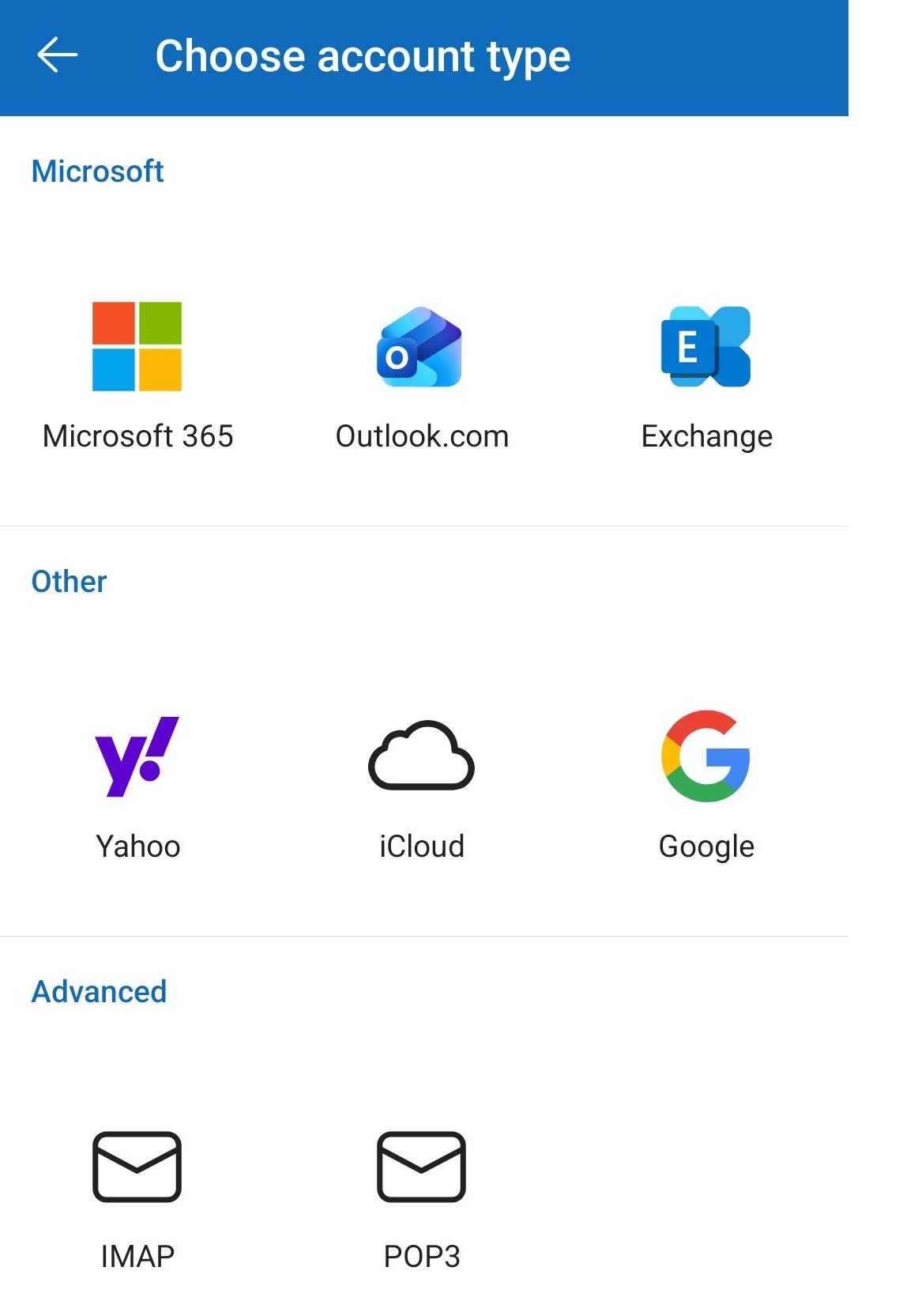
iCloud Mail uses IMAP and SMTP. It does not support POP, so choose IMAP whenever an email app offers you a choice of account type.
| Setting | Incoming mail (IMAP) | Outgoing mail (SMTP) |
|---|---|---|
| Server name | imap.mail.me.com | smtp.mail.me.com |
| Port | 993 | 587 |
| Security | SSL required (try TLS if SSL gives an error) | SSL required (try TLS or STARTTLS if SSL gives an error) |
| Username | The name part of your address, such as johnappleseed; try the full address if that fails | Your full iCloud address, such as [email protected] |
| Password | An app-specific password | The same app-specific password |
| Authentication | Yes | SMTP authentication required |
The username difference catches many people: Apple's incoming server usually wants only the part before the @ sign, while the outgoing server wants the full address.
How to set up iCloud email in Outlook on a Kindle Fire
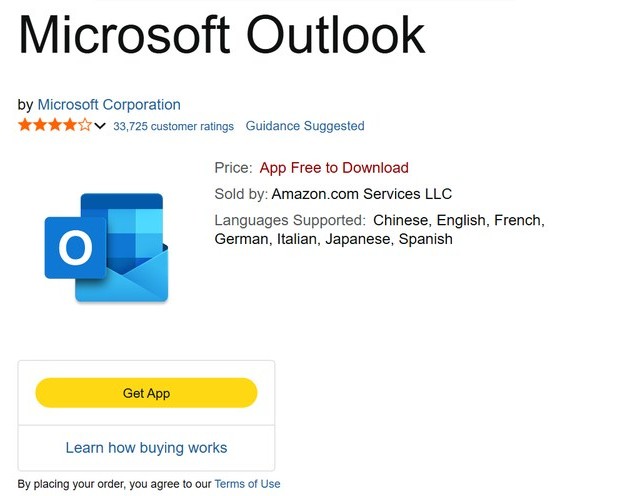
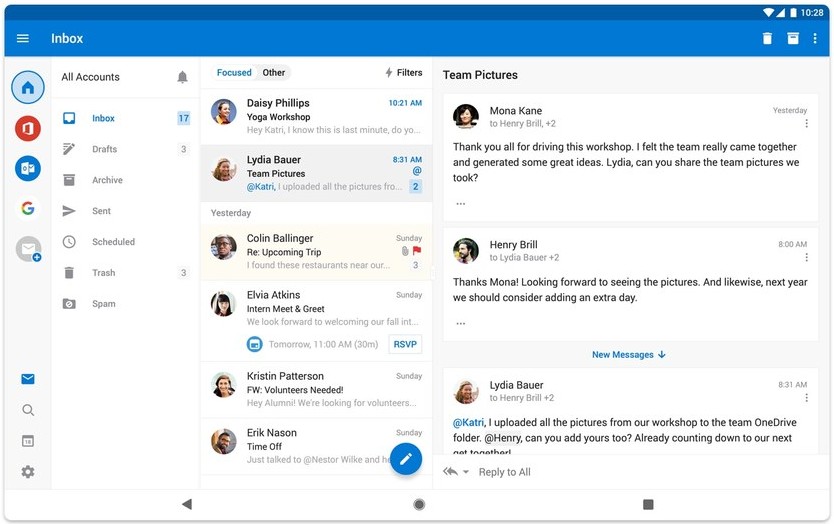
Microsoft Outlook is listed in the Amazon Appstore, and Microsoft documents adding an iCloud address to Outlook for Android with an app-specific password. It is a reliable choice if your tablet's own email app keeps rejecting the account.
- Open the Amazon Appstore on the Fire tablet and search for Microsoft Outlook.
- Select the app, then select Get to download it.
- When the download finishes, select Open.
- Tap Add Account, enter your iCloud email address and follow the prompts.
- When Outlook asks for a password, enter the app-specific password you generated.
- If Outlook already has another account, tap the Menu icon, then Settings, Account, Add Account and Add an email account instead.
Apps you have downloaded stay listed under My Apps in the Amazon Appstore, so you can download Outlook again after a reset without searching for it.
How to add iCloud email to Kindle Fire with manual IMAP settings
Use manual setup when automatic sign-in fails or the app cannot find iCloud's servers on its own. These steps use Outlook's IMAP route; other email apps ask for the same values from the settings table.
- In Outlook, go to Settings > Add Account > Add Email Account.
- Enter your iCloud email address and tap Continue.
- When asked to select an email provider, choose IMAP.
- Turn on Advanced settings.
- Enter the app-specific password, then imap.mail.me.com, port 993 with SSL for incoming mail.
- Enter smtp.mail.me.com, port 587 with SSL, your full iCloud address as the username and the same app-specific password for outgoing mail.
- Tap the checkmark icon to finish.
An IMAP account in Outlook syncs email only. iCloud contacts and calendars do not come across with this method.
Check iCloud email on Kindle Fire in the Silk browser or an app
| Your situation | Use this | Why |
|---|---|---|
| You read and send mail every day | An email app with an app-specific password | New mail arrives without opening a browser |
| You only need one message right now | iCloud.com/mail in the Silk browser | No password to generate, just sign in with two-factor authentication |
| The tablet's email app keeps rejecting the account | Microsoft Outlook from the Amazon Appstore | Microsoft documents iCloud setup with an app-specific password |
| Automatic setup cannot find the server | Manual IMAP settings | You enter imap.mail.me.com and smtp.mail.me.com yourself |
Silk is not on Apple's list of supported browsers for iCloud.com, which names Safari, Chrome, Firefox, Opera and Edge on Mac and PC. The web route can work for reading a message, but an email app is the dependable setup on a Fire tablet.
How to tell if iCloud email is syncing on Kindle Fire
- Open the email app on the Fire tablet and pull down on the Inbox to refresh it.
- Check that recent messages match what you see in iCloud Mail on your iPhone, Mac or at iCloud.com.
- Send a short test message from the tablet to your own iCloud address.
- Confirm the test arrives in the tablet's Inbox and appears in the Sent folder on your other Apple devices.
- Move or delete the test message on the tablet, then check that the change shows on another device.
Because iCloud Mail is stored in the cloud, folder moves, deletions and read status made on the tablet should appear on every other device signed in to the same address.
How to revoke an iCloud app-specific password
Revoke the old password if you no longer use the tablet, sold it, or simply want to clear passwords from past setups.
- Sign in to account.apple.com.
- In Sign-In and Security, select App-Specific Passwords.
- Select the Remove button next to the password you want to delete, or select Revoke All.
- Generate a new app-specific password for any app you still want to use.
The app that used a revoked password is signed out of iCloud Mail until you enter a new one. Before you hand the tablet on, you can also factory reset the Kindle Fire to remove the account completely.
iCloud email not updating on Kindle Fire
Can't get email on my Kindle: password rejected
The app is using your Apple Account password, or an app-specific password that was revoked when you changed your Apple Account password.
- Delete the iCloud account from the email app.
- Generate a fresh app-specific password at account.apple.com.
- Add the account again and paste the new password.
iCloud email not getting emails on the tablet
Your iCloud storage is full, so iCloud stops accepting new mail for your address.
- Check your iCloud storage on an Apple device or at iCloud.com.
- Delete large files, old backups or mail you no longer need, or upgrade your iCloud+ plan.
- Refresh the Inbox on the tablet once storage is available.
Messages from one sender never arrive
The sender may be on your iCloud Mail blocked list, which applies to every device.
- Open iCloud Mail at iCloud.com on a computer.
- Unblock the email address in iCloud Mail.
- Ask the sender to send the message again.
Email receives but will not send from the Kindle Fire
The outgoing server settings use the short username or the wrong port.
- Open the account's outgoing (SMTP) settings in the email app.
- Set the server to smtp.mail.me.com and the port to 587.
- Use your full iCloud address as the username and turn SMTP authentication on.
- Enter the same app-specific password you used for incoming mail.
SSL or certificate error during setup
Some email apps label the secure connection type differently.
- Change the incoming security option from SSL to TLS.
- Change the outgoing security option to TLS or STARTTLS.
- Save the settings and try the connection again.
iCloud email on Kindle Fire FAQ
How do I set up Apple iCloud email on a Kindle Fire?
Generate an app-specific password at account.apple.com, then add your full iCloud address to the Fire tablet's email app with that password. If the app asks for servers, use imap.mail.me.com on port 993 and smtp.mail.me.com on port 587, both with SSL.
How do I set up email on this Kindle?
Open the email app on the Fire tablet, or install one such as Microsoft Outlook from the Amazon Appstore, and add your account. For an iCloud address, use an app-specific password from account.apple.com instead of your Apple Account password, because iCloud Mail requires one for apps not made by Apple.
How do I get email back on my Kindle after it stopped working?
Remove the old iCloud account from the email app, generate a new app-specific password at account.apple.com and add the account again. Apple revokes all app-specific passwords whenever you change or reset your Apple Account password, which is the most common reason the old setup stops working.
How do I restore email on Kindle Fire after a factory reset?
A factory reset removes downloaded apps and their accounts, but your iCloud messages stay in iCloud. Reinstall your email app from My Apps in the Amazon Appstore, then add the iCloud account with a new app-specific password and the messages download again.
How do I reinstall email on Kindle Fire?
Open the Amazon Appstore, select My Apps and choose the email app you used before, then select it to download it again. If you used Microsoft Outlook, search for it in the Appstore, select Get, then Open, and add your iCloud account.
Why can't I get emails on Kindle?
On a Kindle Fire, iCloud email usually fails because the app holds an old or revoked app-specific password, the SMTP username is not your full address, or your iCloud storage is full. Generate a new app-specific password, check the server settings and confirm you have free iCloud storage.
Why can't I access my iCloud email on another device?
Email apps not made by Apple need an app-specific password, and Apple only issues those to accounts protected with two-factor authentication. If two-factor authentication is off, or you typed your Apple Account password into the app, the sign-in fails.
Why am I not receiving iCloud emails?
The most common reason is a full iCloud storage plan. Mail stored in iCloud counts toward your storage, and when it runs out you cannot receive new email at your iCloud address until you free up space or upgrade.
How do I reset my iCloud email password for the Kindle Fire?
You do not reset anything on the tablet. Revoke the old app-specific password at account.apple.com if you like, generate a new one, and enter it in the email app. Changing your main Apple Account password also revokes every app-specific password, so each app then needs a new one.