To check your Java version in CMD on Windows 11, open Command Prompt, type java -version and press Enter; the first line of the output shows the version number.
This guide covers the Command Prompt and Terminal commands, how to read the version string, how to find which Java copy runs, the About Java and Installed apps routes, updating, and fixes when the command fails.
How to check Java version in CMD Windows 11
The java -version command works on every Java release, from Java 7 and Java 8 to current JDK builds.
- Select Start, type
cmd, and select Command Prompt in the results. - Type
java -versionand press Enter. - Read the first line of the output, for example
java version "1.7.0_55"for Java 7 Update 55 or a number such as21.0.1for JDK 21. - If Command Prompt replies that
javais not recognized, Java is missing or its folder is not on the PATH; the fix is in the troubleshooting section below.
Oracle's own example output for Java 7 Update 55 has three lines: java version "1.7.0_55", then Java(TM) SE Runtime Environment (build 1.7.0_55-b13), then a Java HotSpot(TM) virtual machine line. Only the first line carries the version you usually need.
Check the Java version using Terminal
Windows Terminal opens with PowerShell as its default profile, and java -version gives the same answer there as in Command Prompt.
One command differs: in PowerShell, where is an alias for the Where-Object cmdlet, so type where.exe java to list Java's location.
- Select Start, type
Terminal, and open Terminal. - Type
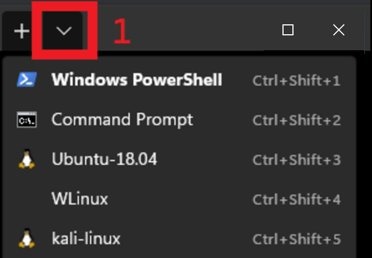
java -versionin the PowerShell tab and press Enter. - To use Command Prompt instead, select the ˅ arrow next to the + button and choose Command Prompt.
- Type
where.exe javain PowerShell, orwhere javain Command Prompt, to see the path of eachjava.exethat Windows finds. - Close the tab with the X on it when you have the version number.
Terminal is also the quickest place to check the PowerShell version in the same session, since it opens in PowerShell anyway.
Java version check command: java -version vs java –version
The JDK 21 manual for the java launcher lists four version options. They differ in where the text goes and whether Java keeps running.
| Command | What it does | When to use it |
|---|---|---|
java -version |
Prints the product version to the error stream and exits | Everyday check; works on Java 7, Java 8 and current releases |
java --version |
Prints the product version to the output stream and exits | When a script or > redirect needs to capture the text |
java -showversion |
Prints the version to the error stream, then continues | Logging the version before an application starts |
java --show-version |
Prints the version to the output stream, then continues | Same as above when the log reads the output stream |
java -Xinternalversion |
Prints more detailed JVM version information than -version, then exits |
Support tickets that ask for the exact JVM build |
Because java -version writes to the error stream, java -version > java.txt leaves the file empty. Use java --version > java.txt on a current JDK to save the text.
How to check which Java version is installed when you have several
Command Prompt runs the first java.exe it finds in the current folder and then in the folders listed in the PATH variable. That copy is the one java -version reports.
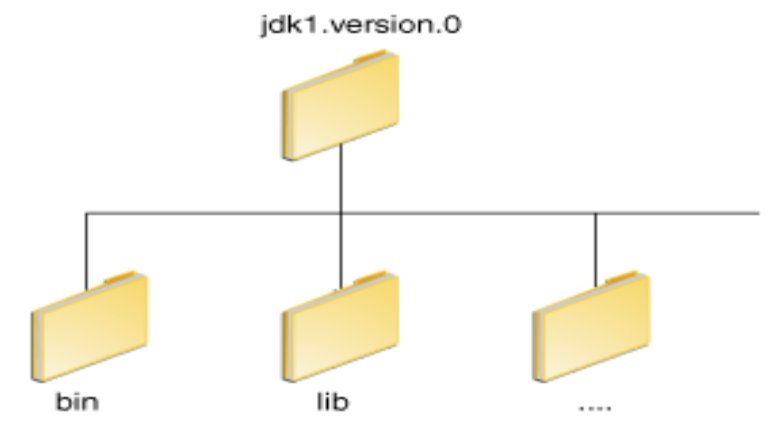
The JDK installer copies java.exe, javaw.exe, javac.exe and jshell.exe into C:\Program Files\Common Files\Oracle\Java\javapath, and installs each JDK in C:\Program Files\Java\jdk-<version> by default.
- Open Command Prompt.
- Type
where javaand press Enter to list everyjava.exeon the PATH, in search order. - Treat the first path in the list as the Java that runs when you type
java. - To test a specific copy, run it by full path, for example
"C:\Program Files\Java\jdk-21\bin\java" -version. - Repeat the full-path command for each folder
where javalisted to see every version side by side.
Add /t to see the size and date of each match: where /t java.
How to check JDK version with javac -version
java -version reports the runtime, while javac -version reports the compiler that ships only with the Java JDK. Oracle notes that the JRE and JDK are separate and can coexist, so the two numbers can differ.
javac -versionPrints the version of the Java compiler found first on the PATH. javac --version gives the same result on current JDKs.
You should see: A line such as javac 21.0.1 means a JDK is installed and on the PATH; 'javac' is not recognized means only a runtime is reachable from Command Prompt.
Use ‘About Java’ to find the Java version
Java 7 Update 40 and later Java 8 runtimes from java.com add a Java folder to the Start menu with an About Java entry. It shows the version without opening a command window.
- Select Start and type
About Java. - Select About Java in the results; you can also open the Java folder in the full app list and select About Java there.
- Read the version and update number shown in the dialog.
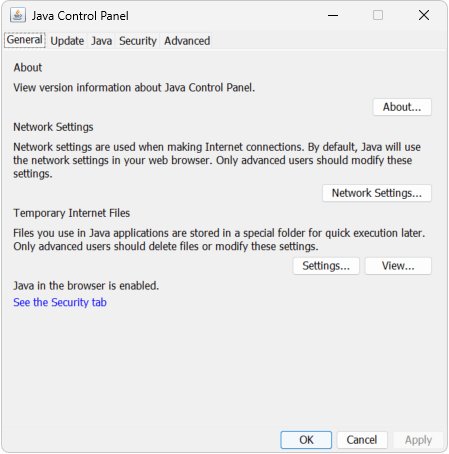
- For the same dialog from settings, select Configure Java in the Java folder to open the Java Control Panel.
- On the General tab, select About to see the version.
JDK installs add a Java Development Kit entry for reference documentation instead, so use java -version for a JDK.
How to check Java version installed on Windows 11 in Installed apps
Every Java installed through an installer appears in the app list with its version in the name, such as Java 8 Update 111. Older releases can show as Java(TM), Java Runtime Environment, Java SE, J2SE or Java 2.
- Select Start > Settings > Apps > Installed apps.
- Type
Javain the search box at the top of the list. - Read each Java entry's name to see the version and update number.
- For the classic view, search the taskbar for Control Panel, open it, and select Programs > Programs and Features.
This list shows every installed copy, while java -version shows only the one Command Prompt finds first.
How to read java -version output on Windows 11
Java uses two numbering styles. Java 8 and earlier start with 1., while JDK 10 and later use $FEATURE.$INTERIM.$UPDATE.$PATCH with trailing zeros dropped.
| Version string | What it means |
|---|---|
1.7.0_55 |
Java 7 Update 55 (Oracle's own example) |
1.8.0_ followed by a number |
Java 8, with the update number after the underscore |
21 |
The first feature release of JDK 21 |
21.0.1 |
JDK 21, interim 0, update release 1 (the October update) |
21.0.2 |
JDK 21, update release 2 (the January update) |
Runtime Environment (build ...) line |
The build of the runtime that matches the version on the first line |
The feature number goes up every six months, and update releases arrive one month after a feature release and every three months after that.
Tips for checking Java version in CMD Windows 11
| Tip | Why it helps |
|---|---|
| Open a new Command Prompt after changing PATH | An open window keeps the PATH it started with |
Run where java before you trust the result |
It shows which java.exe answered when several are installed |
Check javac -version as well as java -version |
The compiler and runtime can come from different installs |
Use java --version when you redirect output |
-version writes to the error stream, so a plain > captures nothing |
| Compare the result with the Installed apps list | Old copies that are not on the PATH still sit on the PC |
| Remove versions nothing needs | Oracle calls keeping old Java versions a serious security risk |
Update Java to a newer version
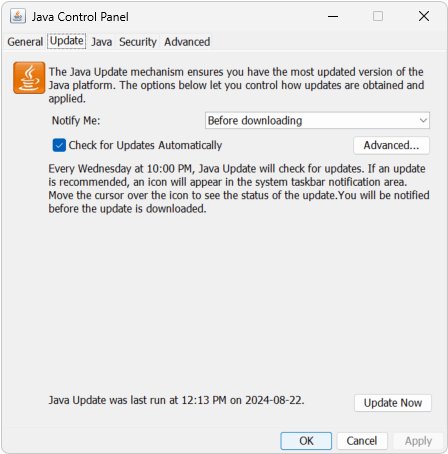
The Java 8 runtime from java.com updates itself from the Update tab of the Java Control Panel. For a JDK, install the newer release from Oracle's Java SE Downloads page; administrator rights are required.
The steps below update the Java 8 runtime from the Control Panel; run java -version again afterwards.
- Select Start, open the Java folder, and select Configure Java.
- Select the Update tab in the Java Control Panel.
- Select Update Now at the bottom of the tab; the PC must be online.
- Select Update in the Update Available dialog and Finish when the install completes.
- Close and reopen the Java Control Panel, then run
java -versionin a new Command Prompt to see the new number.
Keep Check for Updates Automatically selected on the Update tab. Oracle recommends changing how often you are notified rather than turning updates off.
How to uninstall old Java versions on Windows 11
Oracle recommends removing older Java versions, because the latest release is compatible with older ones and old copies stay a security risk. Keep an older one only if an application states it needs that exact version.
- Select Start > Settings > Apps > Installed apps.
- Type
Javain the search box. - Select the More (…) button next to the old Java entry.
- Select Uninstall and confirm.
- Run
java -versionin a new Command Prompt to see which version now answers.
Java is not recognized as an internal or external command in CMD
'java' is not recognized as an internal or external command, operable program or batch file
No Java is installed, or the folder that holds java.exe is not on the PATH.
- Check Settings > Apps > Installed apps for a Java or JDK entry, and install one if none is listed.
- Search for System (Control Panel), open it, and select Advanced system settings.
- Select Environment Variables, select Path under System variables, and select Edit.
- Add the JDK's
binfolder, for exampleC:\Program Files\Java\jdk-21\bin, and select OK in each window. - Open a new Command Prompt and run
java -versionagain.
java -version shows 1.8.0 after installing a newer JDK
Installing JRE 8 after JDK 21 puts the Oracle javapath folder ahead of JDK 21 on the PATH, a known JRE 8 installer bug.
- Run
where javato confirm thejavapathcopy is listed first. - Uninstall JDK 21 from Installed apps.
- Reinstall JDK 21, which Oracle gives as the fix.
- Open a new Command Prompt and run
java -version.
javac is not recognized but java -version works
Only a runtime is reachable, or the JDK's bin folder is not on the PATH.
- Run
where javacto see whether any compiler is on the PATH. - Install a JDK if Installed apps lists only a Java runtime.
- Add the JDK
binfolder to Path as in the first fix, then open a new Command Prompt.
About Java is missing from the Start menu
The entry comes with Java 7 Update 40 and later Java 8 runtimes; JDK installs add a Java Development Kit entry instead.
- Open Command Prompt.
- Run
java -versionto read the version of the JDK.
If a Java app reports that Windows cannot find javaw.exe, the cause is the same missing path, and the javaw.exe error fix walks through it.
Check Java version in CMD frequently asked questions
How do I check the Java version in Command Prompt?
Open Command Prompt, type java -version and press Enter. The first line shows the version, such as 1.8.0_ plus an update number for Java 8, or 21.0.1 for JDK 21. If the command is not recognized, Java is missing or not on the PATH.
How do I check which Java version is installed on Windows 11?
Run where java in Command Prompt to list every java.exe on the PATH, then run each one by full path with -version. Settings > Apps > Installed apps also lists every Java with its version in the entry name.
How do I check the Java version in Terminal on Windows?
Open Windows Terminal, which starts in PowerShell, and type java -version. The output matches Command Prompt. To find java.exe from PowerShell, type where.exe java, because plain where is an alias for the Where-Object cmdlet there.
How do I check the Java version on a Mac?
Open Terminal and type java -version to see the default JDK. For the java.com runtime, Oracle gives the full path /Library/Internet\ Plug-Ins/JavaAppletPlugin.plugin/Contents/Home/bin/java -version, because the runtime and JDK can report different versions.
How do I check the Java version in Linux?
Open a terminal and type java -version. If the output shows an old version or java: Command not found, the PATH is not set correctly. Type which java to see the first java executable the shell finds.
What is the difference between java -version and java –version?
Both print the product version and exit. java -version writes to the error stream, while java --version writes to the output stream, so use --version when a script or redirect needs to capture the text.
Can I have multiple Java versions installed?
Yes. The JRE and JDK can coexist, and several JDKs can sit side by side in C:\Program Files\Java. The one that runs from Command Prompt is the first on the PATH, which where java shows.
Why should I check my Java version?
Applications can require a specific Java release, and old versions miss security fixes. Checking tells you whether you are running the release an app needs and whether an update or uninstall of an old copy is due.
Is it safe to update Java frequently?
Yes. Oracle recommends the latest version because it carries vulnerability fixes and performance improvements, and it is compatible with older versions. Oracle also advises leaving automatic update checks on rather than disabling them.
How do I know my Java version without the command line?
Open Start, find the Java folder, and select About Java, or open Configure Java and select About on the General tab. Settings > Apps > Installed apps also shows the version in each Java entry's name.