"Epic Games Launcher Setup Wizard ended prematurely" means Windows Installer hit an error and stopped, and the usual fix is to restart, remove any older launcher install, and run the installer again from an administrator Command Prompt.
This guide covers each cause behind the message, how to log the install to see the real error, repair and reinstall routes, and the launcher's CPU, storage and connection problems on Windows 11 and Windows 10.
Fix Epic Games Launcher Setup Wizard ended prematurely on Windows 11/10 PC
Epic Games says the fix for a blocked older install also clears the "Setup Wizard Ended Prematurely" message. Work through these steps in order.
- Select Start > Power > Restart to clear any install that is still running in the background.
- Open Start > Settings > Apps > Installed apps and look for Epic Games Launcher in the list.
- If it is listed, select the More icon next to it and choose Uninstall, then follow the prompts.
- Download the latest Epic Games Launcher installer again from the Epic Games Store website and leave it in your Downloads folder.
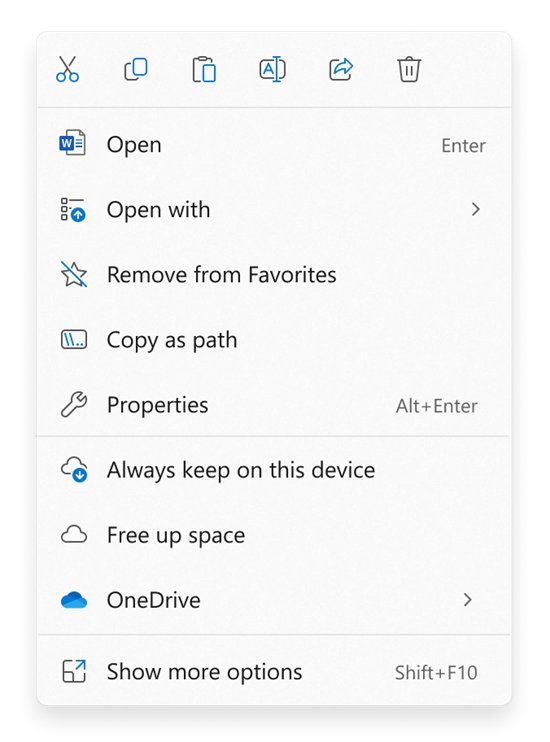
- Hold Shift, right-click the installer file and select Copy as path.
- Search for cmd, right-click Command Prompt and select Run as administrator.
- Type
msiexec /i, paste the path, and press Enter to run the setup with administrator rights.
Uninstalling the launcher removes the games installed through it, so note their folders first if you plan to keep the files.
Epic Games Launcher setup wizard error codes and causes
The setup wizard message is generic. The real reason sits in a Windows Installer error number, which shows in an install log or a follow-up dialog.
| Code or message | What Windows Installer means | What to do |
|---|---|---|
| 1603 | A fatal error occurred during installation | Run the installer with msiexec /i as administrator and check folder permissions |
| 1618 | Another installation is already in progress | Let the other install finish, or restart the PC, then run setup again |
| 1638 | Another version of this product is already installed | Uninstall the old Epic Games Launcher from Installed apps first |
| 1619 | The installation package couldn't be opened | Download the installer again and run it from where it was saved |
| 1601 | The Windows Installer service couldn't be accessed | Restart the PC and run DISM and SFC to repair Windows files |
| 1625 | The installation is forbidden by system policy | Ask the administrator of a work or school PC to allow it |
| "The older version of Epic Games Launcher cannot be removed" | A leftover install blocks the new one | Repair or uninstall it from Installed apps, then reinstall |
| "Invalid Drive" | The drive letter used by a past install has changed | Change the drive letter back in Disk Management |
Install the Epic Games Launcher with msiexec as administrator
Epic Games recommends this route when the normal double-click install fails. Msiexec is the Windows Installer program, and /i starts a normal installation.
Do not move the installer after you copy its path, or the command points at a file that is no longer there.
msiexec /i "C:\Users\YourName\Downloads\EpicInstaller.msi"Runs the Epic Games Launcher installer package with the administrator rights of the elevated Command Prompt. Replace the quoted path with the one you copied using Copy as path.
You should see: The Epic Games Launcher setup window opens, finishes without the ended prematurely message, and the launcher starts or appears in the Start menu.
How to create an Epic Games Launcher install log with msiexec
When the wizard keeps ending early, a verbose log shows the step that failed. Microsoft documents /L*V as logging with all information, including verbose output.
msiexec /i "C:\Users\YourName\Downloads\EpicInstaller.msi" /L*V "C:\Users\YourName\Desktop\epic-install.log"Installs the package and writes every installer action to epic-install.log on your desktop. Open the log in Notepad and search for the word error to find the Windows Installer code.
You should see: The log file appears on the desktop. A code such as 1603 or 1638 near the end points to the matching row in the error table above.
How to repair the Epic Games Launcher
If the launcher is partly installed, a repair can replace broken files without removing your games. The Epic installer offers it when it finds an existing copy.
- Visit the Epic Games Store website and select the blue download button in the top-right corner.
- Run the downloaded installer.
- Select Repair when the installer offers it.
- If there is no Repair button, let the installer finish: an older version is being updated instead.
- As an alternative, open Settings > Apps > Installed apps, select More next to Epic Games Launcher, then Advanced options > Repair if Windows shows it.
- In Control Panel, go to Programs > Programs and Features, right-click Epic Games Launcher and choose Repair or Change if those are offered.
How to reinstall the Epic Games Launcher after a failed setup
Epic's clean reinstall route runs System File Checker first, so damaged Windows files do not stop the next install. This process removes all installed games.
- Right-click the Epic Games icon in the system tray at the bottom right and select Exit.
- Search for cmd, right-click Command Prompt and select Run as administrator.
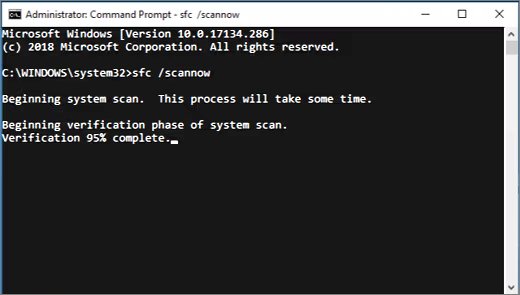
- Run
DISM.exe /Online /Cleanup-image /Restorehealthand wait for it to finish. - Run
sfc /scannowand keep the window open until verification reaches 100%. - Restart the PC.
- Open Start, type Add or remove programs, select Epic Games Launcher and choose Uninstall.
- Download the latest installer from the Epic Games Store and run it again.
If sfc reports corrupt files it could not fix, open the log that the System File Checker tool writes to see which files failed.
Install the Epic Games Store app from the Microsoft Store
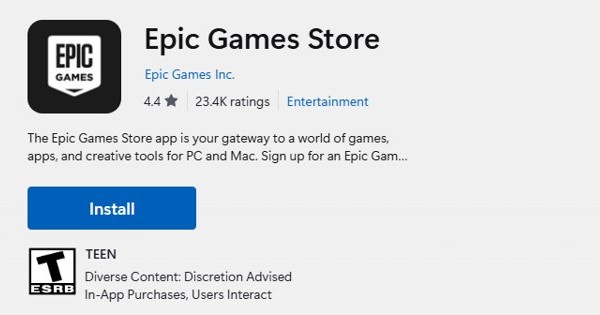
Epic Games also publishes the launcher in the Microsoft Store. The Store handles the install itself, which avoids a broken setup wizard on the desktop installer.
- Select Start, search for Microsoft Store and open it.
- Search the Store for Epic Games Store.
- Select the Epic Games Store listing and choose Install.
- Open the app from the Start menu when the install finishes and sign in.
If the Store install stalls or never starts, fix Microsoft Store game downloads first, or run the desktop installer again if you prefer that version.
Epic Games Launcher system requirements
A PC below these specs can fail during setup or refuse to open the launcher. Windows 7, Windows 8 and 32-bit Windows need Epic's separate legacy installer.
| Component | Minimum for the Epic Games Launcher |
|---|---|
| Operating system | Windows 10 (64-bit), Windows 11, or macOS 13.5 or later |
| Processor | Intel Core i3 or AMD FX |
| Memory | 4 GB |
| Graphics | DirectX 9.0c compatible GPU: NVIDIA GeForce 7800 (512 MB), AMD Radeon HD 4600 (512 MB) or Intel HD 4000 |
| Storage | 3 GB free for the launcher, plus space for each game |
How to restart the Epic Games Launcher
Closing the window leaves the launcher running in the system tray. A full restart clears a stuck update or a hung background process.
- Right-click the Epic Games icon in the system tray at the bottom right of the taskbar.
- Select Exit.
- If it will not close, right-click Start and select Task Manager.
- On the Processes tab, right-click Epic Games Launcher and select End task.
- Open the Epic Games Launcher again from the Start menu.
Epic Games Launcher update not working
A launcher that keeps updating or never finishes often needs the manual update in Settings. Windows may show a User Account Control prompt during it.
- Open the Epic Games Launcher.
- Select the settings icon in the top-right corner, next to your profile.
- Select Settings.
- If RESTART AND UPDATE appears, select it.
- Select Yes on the User Account Control prompt so the update can install.
- If the update still fails, run the installer again and choose Repair.
How to tell if the Epic Games Launcher installed correctly
- Open Settings > Apps > Installed apps and confirm Epic Games Launcher appears in the list.
- Open the launcher from the Start menu and sign in to your Epic Games account.
- Select the settings icon next to your profile and open Settings: no RESTART AND UPDATE button means it is current.
- Open Library and check that your owned games are listed.
Why won't Epic Games Launcher work after installing?
Match the message or behaviour to a group below. Each fix comes from Epic Games or Microsoft support.
"The older version of Epic Games Launcher cannot be removed"
A damaged earlier install blocks Windows Installer from replacing it.
- Restart the PC from Start > Power > Restart.
- Open Settings > Apps > Installed apps, select More next to Epic Games Launcher and choose Advanced options > Repair or Reset if shown.
- Choose Uninstall from the same More menu if repair is not available.
- Run the new installer again.
"Invalid Drive" during setup
The drive letter recorded by a past install has changed, or a registry value points to the wrong drive.
- Select Start, type Disk Management and press Enter.
- Right-click the drive whose letter changed and select Change drive letter and paths.
- Select Change, pick the original letter (usually C:) and select OK.
- Run the installer again.
- If it still fails, open Settings > Windows Update > Advanced options > Recovery and select Restart now, then choose Troubleshoot and the automatic repair option.
Setup fails because of folder permissions
Your account cannot write to the chosen install folder.
- Open the folder you picked for the install in File Explorer.
- Right-click it and select Properties, then the Security tab.
- Select your user name under Group or user names.
- Check that Read and Write are ticked under Allow, or choose a folder where they are.
Install fails or the folder seems corrupted
The drive holding the install folder has file system errors.
- Open File Explorer and right-click the drive that holds the install folder.
- Select Properties > Tools.
- Under Error checking, select Check and let Windows scan the drive.
- Run the installer again after the scan.
Launcher says the operating system requirements are not met
The launcher is not detecting Windows 10 or Windows 11 correctly.
- Exit the launcher from the system tray icon.
- Go to the install folder and open Epic Games\Launcher\Engine\Binaries\Win64.
- Right-click EpicGamesLauncher.exe and select Properties > Compatibility.
- Tick Run this program in compatibility mode for, choose the newest Windows version shown, then select Apply and OK.
- Open the launcher again.
Antivirus blocks or quarantines the launcher
Some antivirus programs falsely flag the Epic Games Launcher; Epic names 360 Total Security as one.
- Open your antivirus program and check its quarantine or blocked items list for Epic Games files.
- Add the Epic Games Launcher as an exception in the antivirus settings, keeping protection on.
- Run the installer you downloaded from the Epic Games Store again.
Game install stuck on Installing or Verifying
Games decompress during install and need more free space than their listed size.
- Open Settings > System > Storage and check free space on the target drive.
- Free up space or choose a drive with more room.
- Restart the install in the launcher.
Error 0xc000007b when the launcher or a game starts
A required Windows component or runtime file is missing or damaged.
- Install pending updates from Settings > Windows Update > Check for updates.
- Update the graphics driver from NVIDIA, AMD or Intel.
- Reinstall the Microsoft runtime packages that fix the 0xc000007b error.
Epic Games Launcher high CPU usage on PC
The launcher keeps running in the tray after you close its window, and it starts with Windows by default on many PCs. Both can keep CPU use high while you play other games.
Epic Games Launcher uses CPU while you are not using it
The launcher is still running in the background after its window was closed.
- Right-click Start and select Task Manager.
- Sort the Processes tab by the CPU column.
- Right-click Epic Games Launcher and select End task when it is not needed.
- Close it from the system tray icon with Exit in future, instead of the window's close button.
Launcher starts with Windows and slows sign-in
The launcher is registered as a startup app.
- Open Start > Settings > Apps > Startup.
- Set the toggle next to Epic Games Launcher to Off.
- Or open Task Manager, select the Startup apps tab, select the launcher and choose Disable.
- Check the Startup impact column: High means more than 1 second of CPU or 3 MB of disk at startup.
High CPU or GPU use inside the launcher window
An outdated launcher build or graphics driver.
- Update the launcher from its Settings page with RESTART AND UPDATE.
- Install the latest graphics driver from NVIDIA, AMD or Intel.
- Install pending Windows updates, then restart the PC.
Other background apps can load the processor too, so check the CPU and memory columns on the Task Manager Processes tab before blaming the launcher.
How to move Epic Games to another drive or location?
Windows cannot move a desktop launcher or its games between drives from Settings. The move happens inside the Epic Games Launcher or through a fresh install on the new drive.
Epic Games documents its own method in the help article "How to move an installed game from the Epic Games Launcher to another directory on your computer" on epicgames.com.
| What you want to move | Route | Trade-off |
|---|---|---|
| One installed game | Follow Epic's move article, which reuses the existing game files in the new folder | Saves a full re-download |
| One game, simplest route | Uninstall it from the launcher Library, then install it again and pick a folder on the other drive | Downloads the whole game again |
| The launcher itself | Uninstall the Epic Games Launcher from Installed apps and run the installer again, choosing a folder on the new drive | Removes installed games, so move or reinstall them after |
| New games only | Pick the other drive each time you install a game | Older games stay where they are |
Check free space on the target drive under Settings > System > Storage first, because games need extra room while they decompress.
Fix Epic Games connection error, issues and problems on Windows PC
Rule out an Epic outage first, then work through your own network. Microsoft's guidance is to allow a blocked app through the firewall rather than turning the firewall off.
Launcher cannot connect or sign-in fails for everyone
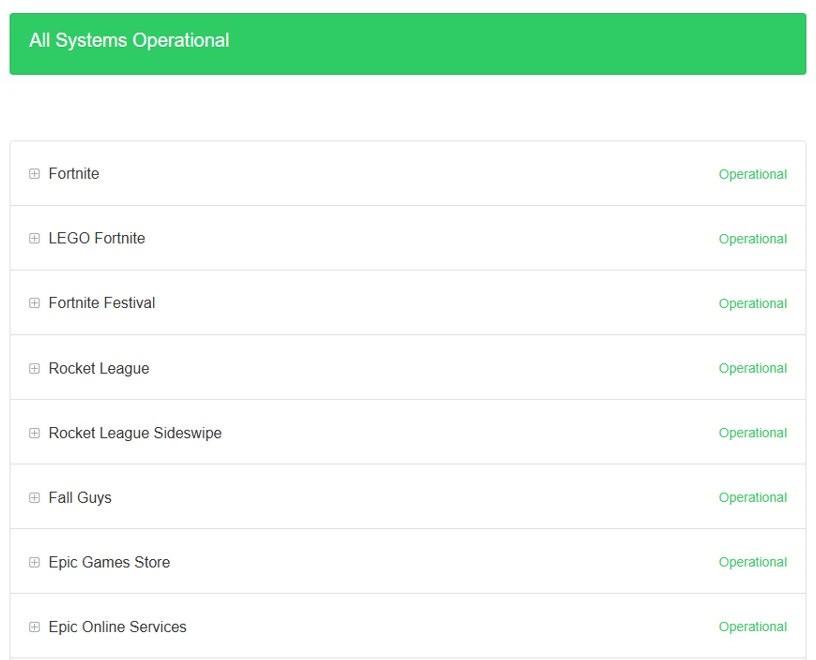
Epic Games services are down or under maintenance.
- Open status.epicgames.com in a browser.
- Check the Epic Games Store and Epic Online Services rows.
- If either shows an incident or scheduled maintenance, wait for it to finish and try again.
Launcher shows a connection error but status is operational
A stale DNS cache or a damaged TCP/IP setting on the PC.
- Search for command prompt, then select Run as administrator > Yes.
- Run
netsh winsock resetand press Enter. - Run
netsh int ip reset, thenipconfig /releaseandipconfig /renew. - Run
ipconfig /flushdnsto flush the DNS cache. - Restart the PC and open the launcher.
Only the Epic Games Launcher is blocked from the internet
A firewall rule is blocking the launcher.
- Open Windows Security and select Firewall & network protection.
- Select Allow an app through firewall and make sure the Epic Games Launcher is allowed.
- If firewall settings were changed by other software, select Restore firewalls to default.
- Check that Blocks all incoming connections is not ticked for your current network profile.
Every app on the PC has a slow or dropping connection
The router, modem or network adapter needs a reset.
- Unplug the router and modem, wait at least 30 seconds and plug the modem back in first.
- Plug the router back in and wait for the status lights to settle.
- If that fails on Windows 11, open Settings > Network & internet > Advanced network settings > Network reset and select Reset now.
- On Windows 10, the path is Settings > Network & internet > Status > Network reset.
- Reinstall any VPN software afterwards, because network reset removes it.
Epic Games Launcher setup wizard FAQ
How do I fix installation failed on Epic Games Launcher?
Restart the PC, uninstall any older Epic Games Launcher from Installed apps, and run the new installer with msiexec /i from an administrator Command Prompt. If it still fails, check folder permissions, free disk space and run DISM and SFC before trying again.
How to fix the Epic Games Launcher?
Run the Epic installer again and choose Repair. If there is no Repair button, uninstall the launcher, run System File Checker, restart and install the latest version. A repair keeps your games, while a full reinstall removes them.
How to restart the Epic Games Launcher?
Right-click the Epic Games icon in the system tray and select Exit, then open the launcher from the Start menu. If it will not close, end the Epic Games Launcher process on the Processes tab in Task Manager first.
Why is Epic Games Launcher not working?
The most common causes are an outdated launcher, a damaged install, a firewall or antivirus block, or an Epic service outage. Check status.epicgames.com, update from the launcher Settings page, then repair or reinstall if it still fails.
Why won't Epic Games Launcher work on Windows 7?
The standard installer supports only 64-bit Windows 10 and Windows 11. Windows 7, Windows 8 and 32-bit Windows need the legacy version of the Epic Games Launcher that Epic Games offers separately.
Where is the Epic Games Launcher?
The launcher program is EpicGamesLauncher.exe inside the Epic Games\Launcher\Engine\Binaries\Win64 folder of the install location. You can also open it from the Start menu or from its icon in the system tray when it is running.
Where is settings in Epic Games Launcher?
Select the settings icon in the top-right corner of the launcher, next to your profile, then select Settings. The same page shows RESTART AND UPDATE when a launcher update is waiting.
Why does Epic Games Launcher keep updating?
An update that fails to install starts again on the next launch. Select RESTART AND UPDATE in Settings and accept the User Account Control prompt; if the loop continues, run the installer again and choose Repair.
How to fix Epic Games Launcher error 0xc000007b?
Install pending Windows updates, update the graphics driver from NVIDIA, AMD or Intel, and repair the Microsoft runtime components the launcher needs. Running DISM and sfc /scannow also repairs damaged Windows files behind this error.