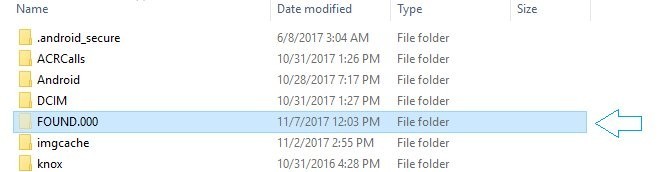
FOUND.000 is a hidden folder at the root of a drive where Check Disk (chkdsk) saves pieces of damaged files as .CHK files, named FILE0000.CHK, FILE0001.CHK and so on.
This guide shows how to make the folder visible, work out what each .CHK file really is, rename it back to a usable file, delete the folder safely, and fix the chkdsk errors that often come with it.
Found 000 folder recovery in Windows 11
A .CHK file has lost its original name and extension, but its contents are still on the disk. Recovery means changing the file extension back to the right one.
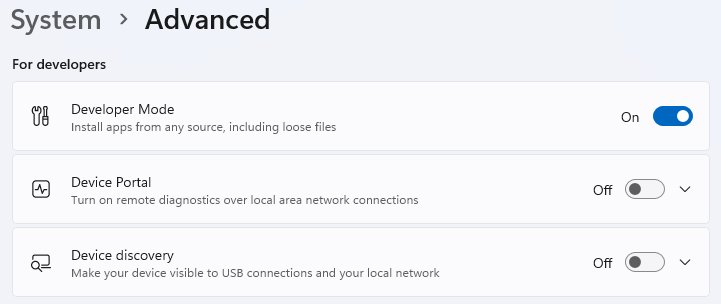
- Right-click Start, select Settings, then go to System > Advanced.
- Under File Explorer, turn Show hidden and system files to On.
- Open File Explorer, open the drive that chkdsk checked, and open the FOUND.000 folder at its root.
- Copy the whole folder to a different drive before you change anything inside it.
- In the copy, open each .CHK file in Notepad and read the first few characters: %PDF means a PDF, PNG means a PNG image, and PK means a ZIP archive or an Office file.
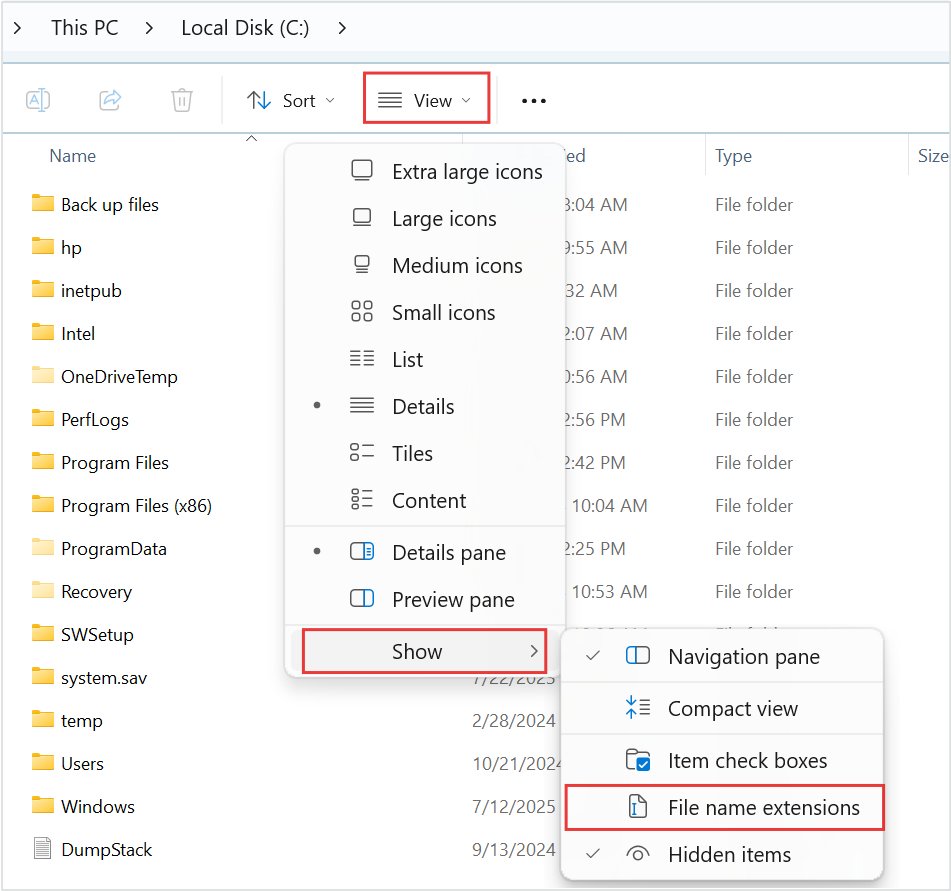
- Turn on View > Show > File name extensions, then rename the file with the matching extension, for example FILE0000.CHK to FILE0000.pdf.
If the file opens and looks complete, save it to a normal folder. If it opens damaged or not at all, the fragment is incomplete and a backup is the only full copy.
What is a .CHK file extension?
A .CHK file is a chain of disk clusters that chkdsk found during a repair but could not link back to any file name. Microsoft's chkdsk documentation describes the prompt that creates them.
| Item | What it means |
|---|---|
| Prompt you saw | "10 lost allocation units found in 3 chains. Convert lost chains to files?" during chkdsk /f |
| If you pressed Y | Windows saves each lost chain as a file named in the format File<nnnn>.chk |
| If you pressed N | Windows fixes the disk but does not keep the contents of the lost allocation units |
| File contents | Raw data from part or all of an original file, with no name, folder or extension |
| Why Microsoft keeps them | So you can check the files after chkdsk finishes and see whether they contain data you need |
| Is a .CHK file a program? | No. It is not a format any app saves on purpose, so no app is registered to open it |
Other programs also use a .chk extension for their own files, such as database checkpoint files. Those live inside the program's folder, not in FOUND.000, so leave them alone.
What is FOUND.000 folder in Windows 10 and Windows 11?
| Question | Answer |
|---|---|
| Where is it? | At the root of the drive that was checked, for example D:\FOUND.000 |
| Why can't you see it? | Windows hides it by default, so it appears only after you turn on Show hidden and system files |
| What creates it? | Check Disk, after it converts lost chains to files during a repair |
| What is inside? | Files named FILE0000.CHK, FILE0001.CHK and up, one per recovered chain |
| What is FOUND.001? | A second folder from a later chkdsk repair on the same drive, so earlier fragments are not overwritten |
| Does it differ between Windows 10 and 11? | No. Both use the same chkdsk, and the folder behaves the same way |
Seeing FOUND.000 on a USB stick or external drive usually means it was unplugged or lost power while writing, and Windows repaired it afterwards.
How to show the FOUND.000 folder in File Explorer
Windows 11 groups the hidden-files switch with its developer settings. You can also view hidden files and folders from the File Explorer menu if you prefer.
- Right-click the Start button and select Settings.
- Select System, then Advanced.
- Expand File Explorer and set Show hidden and system files to On.
- Open File Explorer and select the drive, for example USB Drive (E:).
- Look for FOUND.000 in the list. Its icon is faded because it is a hidden folder.
To list it without changing any setting, open Command Prompt and run dir /a E:\. The /a switch with no attribute shows every file and folder, including hidden and system ones.
How to recover .CHK files?
Microsoft documents PowerShell's Format-Hex cmdlet as a way to find the type of a corrupted file or a file with no extension. It shows the first bytes, which identify most formats.
- Copy FOUND.000 to another drive, then open the copy in File Explorer.
- Open Windows PowerShell from Start and move to the copy, for example
cd D:\Recovered\FOUND.000. - In PowerShell 7, run
Format-Hex -Path .\FILE0000.CHK -Count 48to show only the first 48 bytes. - In Windows PowerShell 5.1, run
Format-Hex -Path .\FILE0000.CHK, read the first row, then press Ctrl + C to stop the listing. - Match the first bytes or the Ascii column to the signature table below.
- In File Explorer, select View > Show > File name extensions so the .CHK ending is visible.
- Right-click the file, select Rename, and replace .CHK with the matching extension.
- Confirm the change when Windows warns about changing the extension, then open the file.
A file with an unknown signature can still be a photo, video or document. Try the extension you expect, and keep the original .CHK copy until the file opens correctly.
How to identify the file type of a .CHK file
Each format below starts with a fixed set of bytes. Format-Hex shows them in the Bytes column, and Notepad shows the readable part as text.
| First bytes (hex) | Shows as text | Rename .CHK to | Where the signature is defined |
|---|---|---|---|
| 25 50 44 46 2D | %PDF- | Microsoft Learn Format-Hex example | |
| 89 50 4E 47 0D 0A 1A 0A | .PNG…. | .png | W3C PNG specification |
| 50 4B 03 04 | PK.. | .zip, or .docx / .xlsx / .pptx if it holds Office parts | ZIP local file header signature 0x04034B50; Open XML files are ZIP archives |
A PK file can be opened as a ZIP first. If it contains folders such as word, xl or ppt, rename it to .docx, .xlsx or .pptx respectively.
Rename .CHK files in bulk with the ren command
When every fragment in the folder turns out to be the same type, one command renames them all. Run it only in the copied folder.
ren *.chk *.pngRun this in Command Prompt inside the copied FOUND.000 folder. The first wildcard selects every .chk file, and the second keeps each name while changing the extension to .png. Swap .png for the type you identified.
You should see: File Explorer lists FILE0000.png, FILE0001.png and so on, and the images open in the Photos app.
If Command Prompt reports Duplicate file name or file not found, a file with the new name already exists in the folder. Rename or move that file and run the command again.
How to tell if a recovered .CHK file is usable
- Open the renamed file in its normal app, such as Photos, a PDF reader or Word.
- Check that the whole file loads. A photo with a grey lower half or a PDF with missing pages is only a partial fragment.
- Compare the file size with what you expected. Very small fragments rarely hold a complete document.
- Save every file that opens correctly into a normal folder on a healthy drive.
- Keep the remaining .CHK copies until you are sure nothing else in them is needed.
How to delete FOUND.000 folder in Windows 11
Windows does not need the folder. Delete it after you have saved everything you want from it, the same way you delete files and folders in Windows 11.
- Turn on Show hidden and system files under Settings > System > Advanced > File Explorer.
- Open the drive in File Explorer and select the FOUND.000 folder.
- Press Delete, or press Shift + Delete to remove it without using the Recycle Bin.
- Delete FOUND.001 and any higher numbers the same way if they exist.
- Turn Show hidden and system files back to Off if you prefer the default view.
Scan drive for errors notification keeps appearing in Windows 11
Windows asks for a scan when the volume's dirty bit is set. Microsoft lists three causes: outstanding changes, a shutdown before changes were written, or corruption it detected.
The scan prompt returns after every restart
The dirty bit stays set because the file system still has errors that were never repaired.
- Open Command Prompt as administrator.
- Run
fsutil dirty query C:. The result reads Volume C: is dirty or Volume C: is not dirty. - Run
chkdsk C: /scanto scan the volume online without taking it offline. - If errors are found, run
chkdsk C: /fand press Y to schedule the check for the next restart. - Restart the PC, let chkdsk finish, then run
fsutil dirty query C:again.
The prompt appears every time you plug in a USB or external drive
The drive was removed or lost power before Windows finished writing to it.
- Connect the drive and note its letter in File Explorer, for example E:.
- Run
chkdsk E: /fin an administrator Command Prompt. Close any files open on that drive first so chkdsk can lock it. - Eject the drive from File Explorer before you unplug it next time.
chkdsk finds new errors every time it runs
Repeated corruption usually points to bad sectors or a failing connection rather than a one-off shutdown.
- Press Win + R, type
eventvwr.mscand select OK. - Expand Windows Logs, right-click Application and select Filter Current Log.
- Pick Chkdsk and Wininit under Event sources, select OK, and read the latest results.
- Back up the drive, then run the disk maker's own diagnostic tool.
When the drive keeps failing scans, run chkdsk with the /r switch to look for bad sectors as well.
The disk does not have enough space to replace bad clusters
This line appears while chkdsk /r is locating bad sectors and moving readable data off them. It names the file that sits on the damaged area.
chkdsk /r repeats the message for many files
The drive has unreadable sectors, and chkdsk cannot relocate the data in them.
- Press Ctrl + C to stop the scan if the drive holds files you have not backed up.
- Copy your most important files to another drive first, starting with the ones you cannot replace.
- Free space on the volume by moving large files off it, then run
chkdsk E: /ragain. - Run the drive maker's diagnostic tool to check the drive's health.
- Replace the drive if the diagnostic reports failure, and restore your files from the backup.
The message names a file you do not need
Only that file's data sits on the bad sectors.
- Let chkdsk finish the scan.
- Delete or replace the named file, such as a game file that the launcher can download again.
- Run
chkdsk E: /scanafterwards to see whether any errors remain.
Microsoft notes that interrupting chkdsk should not leave the volume more corrupt than before, and running it again repairs remaining damage.
Unable to determine volume version and state, CHKDSK aborted
chkdsk stops with this message when it cannot read the volume's file system information, so it has nothing to repair against.
chkdsk aborts on a USB or external drive
The connection dropped, or the drive's file system can no longer be read.
- Unplug the drive and connect it straight to a USB port on the PC, not through a hub.
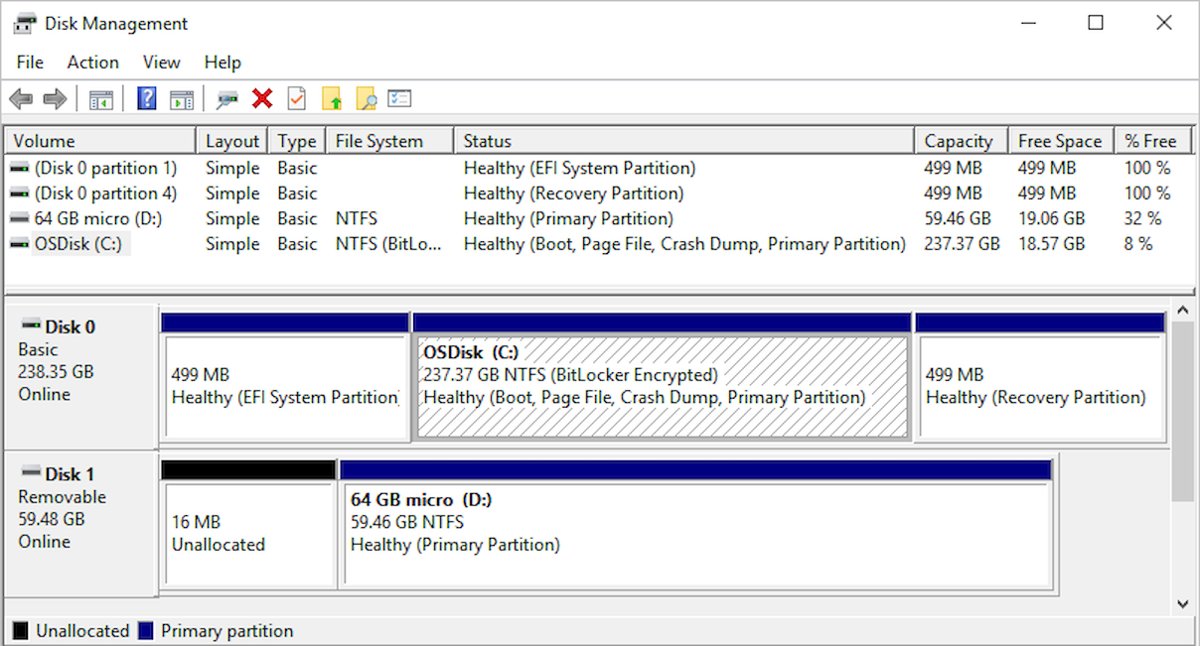
- Right-click Start and select Disk Management.
- Find the drive and check that its volume shows a file system such as NTFS or exFAT.
- Run
chkdsk E: /fagain in an administrator Command Prompt. - If Disk Management shows no file system, copy what you can with recovery software from the drive maker, or restore from a backup, before you format it.
chkdsk aborts on the C: drive
Windows has the system volume open, so chkdsk cannot lock it while you are signed in.
- Run
chkdsk C: /fin an administrator Command Prompt. - Press Y when asked to check the volume the next time the system restarts.
- Restart the PC and let the check run before Windows loads.
Formatting a volume in Disk Management destroys its data, so do it only after you have copied off everything you need.
FOUND.000 folder FAQ
What is FOUND.001 folder?
FOUND.001 is a second folder of .CHK fragments from a later Check Disk repair on the same drive. It works exactly like FOUND.000, and you can recover or delete its files the same way.
Can I delete FOUND.000 folder?
Yes. Windows does not use the folder, so deleting it is safe. Check the .CHK files first, because once the folder is gone those fragments of your old files are gone too.
How do I delete FOUND.000 folder in Windows 10?
Show hidden and protected system files in File Explorer's folder options, open the drive, select FOUND.000 and press Delete. Check the .CHK files inside first, because deleting the folder removes them for good.
What is a .000 file?
In FOUND.000, .000 is not a file type. It is a counter added to the folder name, so the first chkdsk repair makes FOUND.000 and a later one makes FOUND.001.
How do I open a CHK file?
Find its real type first. Open the file in Notepad or run Format-Hex in PowerShell, compare the first bytes with a known signature such as %PDF, PNG or PK, then rename it with that extension and open it normally.
Is it OK to delete .CHK files?
Yes, once you have checked them. A .CHK file in FOUND.000 is a leftover fragment that Windows never reads again, so removing it frees space without affecting Windows or your apps.
Where is the FOUND.000 folder located?
It sits at the top level of the drive that was repaired, such as C:\FOUND.000 or E:\FOUND.000. Turn on Show hidden and system files to see it in File Explorer.
Why did chkdsk create FOUND.000 on my USB drive?
The drive was most likely removed or lost power while Windows was writing to it. The next check found clusters that no longer belonged to any file and saved them as .CHK files.