To network two computers running Windows 11 or Windows 10, connect both to the same router, set the network to Private, turn on Network discovery and File and printer sharing, then share a folder with Give access to.
This guide covers that LAN route, a direct Ethernet cable between two PCs, USB options, Nearby sharing, a ping test and the errors that stop two PCs from seeing each other.
How to network two computers together over LAN
A LAN is the network your router already creates. Both PCs can join it by Wi-Fi or Ethernet, and the router hands each one an IP address automatically.
Repeat steps 2 to 4 on both computers, then share a folder from the PC that holds the files.
- Connect both computers to the same router, by Wi-Fi or by an Ethernet cable plugged into the router.
- Open Settings > Network & internet, select Wi-Fi and your network, or select Ethernet.
- Under Network profile type, select Private network. Windows hides the PC from other devices on a public network.
- Search the Start menu for Manage advanced sharing settings, open it, and under Private networks turn on Network discovery and File and printer sharing.
- On the PC with the files, right-click the folder in File Explorer, select Show more options > Give access to > Specific people, pick a user or Everyone, then select Share.
- On the other PC, open File Explorer, select Network in the left pane and open the first computer to see the shared folder.
On Windows 10, the sharing switches live under Settings > Network & internet > Sharing options, and folders are shared from the Share tab in File Explorer. You can also set read or change permissions when you share files and folders over a network.
Best way to connect two computers to transfer files
All three wired routes end with the same Windows file sharing. The difference is what links the two machines.
| Your situation | Use this | Why |
|---|---|---|
| Both PCs reach the same router | LAN through the router | No extra hardware, IP addresses are assigned automatically |
| No router, both PCs have Ethernet ports | Direct Ethernet cable | One cable links the two adapters; set a manual IP on each |
| One PC has no Ethernet port | USB-to-Ethernet adapter, then a direct cable or the router | Windows includes class drivers for USB network adapters |
| You want a dedicated USB link | USB data transfer (bridge) cable | Works through the cable maker's own software, not Windows file sharing |
| A few files, no cables at all | Nearby sharing | Sends over Bluetooth or Wi-Fi between Windows PCs |
How to network two computers together using a crossover Ethernet cable
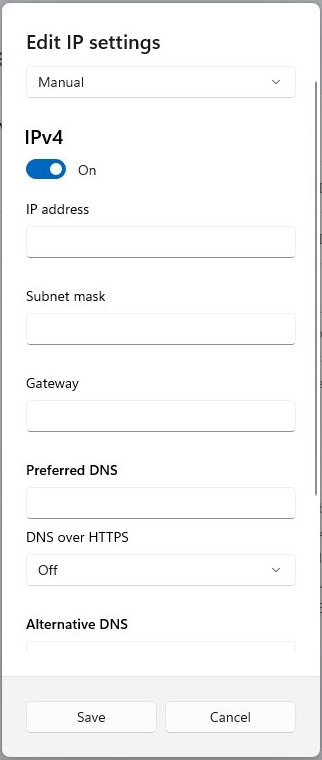
A direct cable skips the router, so nothing hands out IP addresses. Give each PC a manual address on the same private range, such as 192.168.1.10 and 192.168.1.11.
- Plug one end of the Ethernet cable into each computer's Ethernet port.
- On the first PC, open Settings > Network & internet > Ethernet and select the Ethernet connection.
- Next to IP assignment, select Edit, choose Manual and turn on IPv4.
- Type
192.168.1.10in IP address and255.255.255.0in Subnet mask, leave Gateway empty, then select Save. - Under Network profile type on the same page, select Private network.
- Repeat steps 2 to 5 on the second PC with the IP address
192.168.1.11. - Turn on Network discovery and File and printer sharing on both PCs, then open
\\192.168.1.10in File Explorer on the second PC.
Set IP assignment back to Automatic (DHCP) before you plug the PC into a router again, or it keeps the manual address.
Crossover cable vs straight-through Ethernet cable
A crossover cable swaps the send and receive pairs, which two like devices need when neither adapter can swap them itself. Auto-MDIX is the adapter feature that detects the cable type and corrects it.
| Situation | Cable that works | What to check |
|---|---|---|
| Either PC's adapter supports Auto-MDIX | Straight-through or crossover | The adapter's spec sheet or the PC maker's support page |
| Neither adapter supports Auto-MDIX | Crossover only | Cable label or packaging says crossover |
| PC to router or switch | Straight-through | A standard patch cable |
| Link light stays off on both ports | Try the other cable type | Cable fault or a disabled adapter |
Where to set a static IP address in Windows 11 and Windows 10
Addresses in 192.168.0.0/16, 10.0.0.0/8 and 172.16.0.0/12 are reserved for private networks, so they never clash with internet addresses. Use the same subnet mask on both PCs.
| Windows version | Path to the manual IP fields | Values for a two-PC link |
|---|---|---|
| Windows 11 | Settings > Network & internet > Ethernet > IP assignment > Edit > Manual > IPv4 | PC 1: 192.168.1.10, PC 2: 192.168.1.11, mask 255.255.255.0 |
| Windows 10 | Settings > Network & internet > Ethernet > select the connection > IP assignment > Edit > Manual > IPv4 | Same values; DNS over HTTPS options are not available |
| Back on a router | Same page > IP assignment > Edit > Automatic (DHCP) | Router assigns the address again |
How to network two computers together with a USB
A USB cable alone does not create a Windows network. You need either a USB network adapter, which Windows treats like any Ethernet port, or a USB data transfer cable that comes with its own software.
Windows includes class drivers for USB network devices, including USB NCM and RNDIS adapters, so many USB-to-Ethernet adapters work without a separate driver. If the adapter never shows up in Settings, it usually has a missing USB Ethernet driver.
- Plug a USB-to-Ethernet adapter into the PC that has no Ethernet port.
- Open Settings > Network & internet and confirm a new Ethernet entry appears for the adapter.
- Connect the adapter to the router for the LAN route, or straight to the other PC's Ethernet port for a direct link.
- For a direct link, set the manual IPv4 addresses on both PCs as in the crossover cable steps above.
- Share a folder with Give access to and open it from the other PC under Network.
- For a USB data transfer cable instead, install the cable maker's transfer software on both PCs and follow its pairing steps.
How to access a shared folder on another computer in Windows 11
Typing the address beats waiting for the Network view to list the PC. Run hostname in Command Prompt on the sharing PC to get its name, or find its IP address on the Ethernet or Wi-Fi settings page.
- Open File Explorer with Windows logo key + E.
- Type
\\PCNAMEor\\192.168.1.10in the address bar and press Enter. - Sign in with a user name and password from the sharing PC if Windows asks.
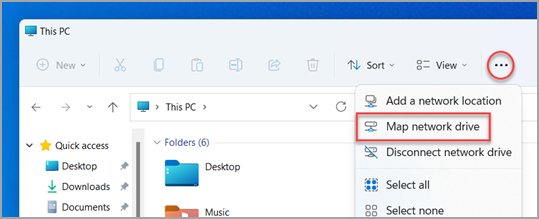
- To keep the folder in File Explorer, select This PC, then More > Map network drive.
- Pick a Drive letter, enter
\\PCNAME\FolderNamein Folder, tick Reconnect at sign-in and select Finish.
You can also map a network drive from Command Prompt with net use Z: \\PCNAME\FolderName.
How to test the connection between two computers with ping
Ping proves the two PCs can reach each other before you chase sharing settings. Run it from Command Prompt on either PC, using the other PC's address.
ping /4 192.168.1.11Sends ICMP echo requests over IPv4 to the other computer and shows each reply with its round-trip time. Run ipconfig /all first if you need to read either PC's IPv4 address.
You should see: Four lines that start with Reply from 192.168.1.11. Request timed out means the packets got no answer: check the cable, the IP addresses and the network profile.
Share files between two PCs with Nearby sharing
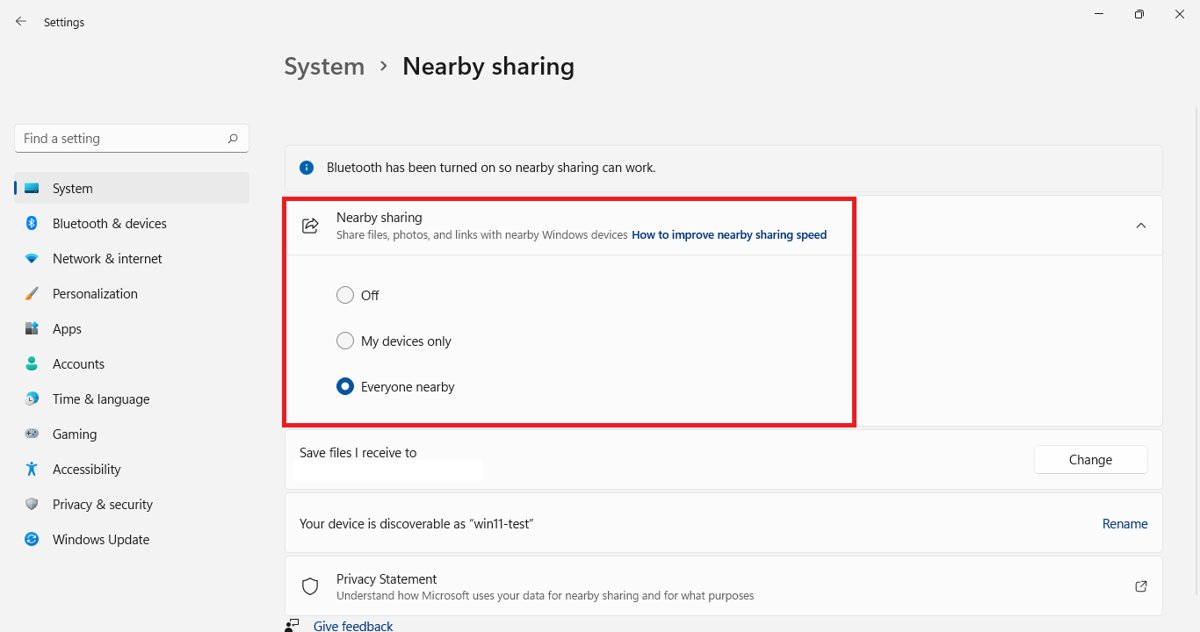
Nearby sharing sends files between Windows PCs over Bluetooth or Wi-Fi with no folder setup. The receiving PC needs Windows 10 version 1803 or later.
- On both PCs, open Settings > System > Nearby sharing.
- Under Nearby sharing, choose who can send to this PC on both computers; Everyone nearby reaches any nearby Windows PC.
- On the sending PC, select the file in File Explorer and select Share in the toolbar.
- Select the name of the other PC.
- On the receiving PC, select Save & open or Save when the notification appears.
Everyone nearby makes the PC's Bluetooth MAC address and name visible to devices around you, so switch back after the transfer.
How to stop sharing a folder in Windows 11
- Open File Explorer, type
\\localhostin the address bar and press Enter to list the folders this PC shares. - Right-click the shared folder and select Show more options.
- Select Give access to > Remove access.
- Open Manage advanced sharing settings and turn off Network discovery and File and printer sharing if you no longer need the link.
- If you used a direct cable, set IP assignment back to Automatic (DHCP).
Two computers on the same network can't see each other
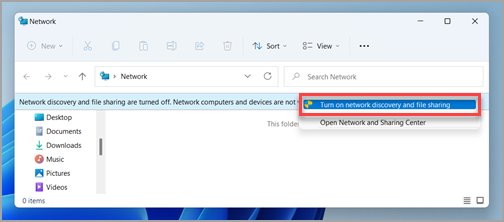
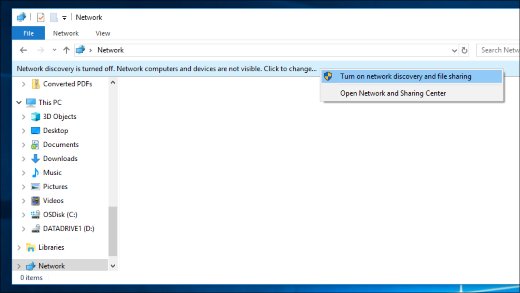
"Network discovery is turned off" in File Explorer
Discovery is off for the current network profile.
- Select the Network discovery is turned off banner in the Network view.
- Select Turn on network discovery and file sharing.
- If the banner returns, set the network to Private network under Network profile type and turn on network discovery again.
The other PC never appears under Network
The discovery services are stopped, or the PCs are on different networks.
- Check that both PCs connect through the same router, not a guest Wi-Fi network.
- Press Windows logo key + R, type
services.mscand select OK. - Open Function Discovery Provider Host, Function Discovery Resource Publication, SSDP Discovery and UPnP Device Host, set Startup type to Automatic and select Start.
- Type
\\plus the other PC's IP address in File Explorer; this works even when the Network view stays empty.
"You do not have permission to access" the shared folder
The account you signed in with has no permission on that share.
- On the sharing PC, right-click the folder and select Properties.
- On the Sharing tab, select Advanced Sharing > Permissions.
- Add the user account you sign in with from the other PC and allow Read or Change.
- Select OK twice and open the folder again.
Ping says Request timed out over a direct cable
The PCs are on different subnets, or the cable or link is down.
- Run
ipconfig /allon both PCs and confirm the IPv4 addresses share the first three numbers and the same subnet mask. - Check the link lights on both Ethernet ports, then try a crossover cable if a straight-through cable shows no link.
- Confirm both PCs show Private network under Network profile type.
- Update Windows on both PCs to pick up current network adapter drivers.
Networking two Windows computers FAQ
Can I connect two computers with an Ethernet cable?
Yes. Plug one cable into both Ethernet ports, give each PC a manual IPv4 address on the same subnet, such as 192.168.1.10 and 192.168.1.11 with mask 255.255.255.0, and set both networks to Private.
Do I need a crossover cable to connect two computers?
Only when neither network adapter supports Auto-MDIX. Adapters with Auto-MDIX detect the cable type and accept a standard straight-through cable, so check the adapter's specifications before buying a crossover cable.
Can you connect two computers with a USB cable?
Not with a plain USB cable through Windows networking. Use a USB-to-Ethernet adapter, which Windows treats as a network port, or a USB data transfer cable that ships with its own transfer software.
How do I transfer files between two computers on the same network?
Turn on Network discovery and File and printer sharing on both PCs, share the folder with Give access to, then open \\PCNAME or the PC's IP address in File Explorer on the other computer.
Why can't I see the other computer on my network?
The network is usually set to Public, network discovery is off, or the discovery services are stopped. Set the profile to Private, turn on discovery, and start Function Discovery Resource Publication and SSDP Discovery.
Is HomeGroup still available in Windows 11 and Windows 10?
No. Microsoft removed HomeGroup in Windows 10 version 1803, and Windows 11 never had it. Share folders with Give access to and Specific people instead; folders shared earlier through HomeGroup stay shared.
Can a Windows 11 PC network with a Windows 10 PC?
Yes. File sharing over a LAN or a direct cable works the same between both versions. Nearby sharing also works if the Windows 10 PC runs version 1803 or later.
Wired connections allow lightning fast transfers
Use the LAN through your router whenever both PCs can reach it, and keep a direct Ethernet cable for moving large folders between two machines with no router nearby. The router route needs no manual IP addresses and keeps both PCs online, while a cable between the two adapters gives a dedicated wired link that no other device shares.