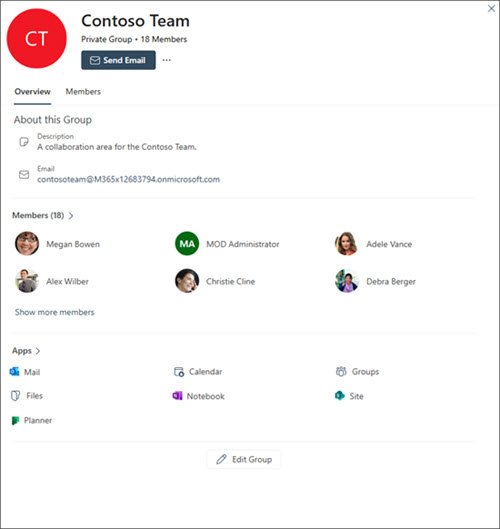
To create a group shared calendar in Outlook, create a Microsoft 365 group from Groups > New Group, because every group gets its own shared calendar that all members can view and edit.
This guide covers group calendars in Outlook on the web, new Outlook and classic Outlook, the alternatives (sharing a calendar, a separate calendar, a shared mailbox, Outlook.com), permissions, and fixes for calendars that do not show or sync.
Method 1: Create a Microsoft 365 group shared calendar in Outlook on the web
This route needs a work or school account with a qualifying Microsoft 365 subscription. Creating the group creates the shared calendar, a shared inbox and a group email address in one step.
- Sign in to Outlook on the web and select the Groups icon in the app bar on the left.
- On the ribbon, select New Group, then select New Group again from the dropdown.
- Enter the Name, group Email address and Description.
- Under Privacy settings, pick Private (only members see content, owners approve joins) or Public (anyone in the organization can view and join), then select Create.
- When prompted, type names or email addresses and select Add, or select Not now to add members later.
- Select the Calendar icon, then select your new group under Groups in the folder list.
- Select a time slot, enter a title, location and end time, add the group to the attendees if members should get an invitation, and select Save.
If the Groups icon is missing from the app bar, your organization has not turned on Groups. Ask your Microsoft 365 admin to enable it, or use a shared mailbox calendar instead.
Choose the right type of shared calendar in Outlook
Outlook has five ways to give a team one calendar. They differ in who owns the calendar, who can edit it and whether an admin has to set anything up.
| Option | Best for | Who can edit | Admin needed? |
|---|---|---|---|
| Microsoft 365 group calendar | A team or project that also wants a shared inbox and files | Every group member | No, unless Groups is turned off for your organization |
| Share your existing Outlook calendar | Letting colleagues see or manage your own schedule | Only people you give Can edit or Delegate | No |
| Separate calendar folder you share | A team rota, leave tracker or event list kept apart from your own diary | People you give Can edit | No |
| Shared mailbox calendar | A department calendar that must outlive any one employee | Users the admin grants access to the mailbox | Yes, an admin creates the mailbox |
| Outlook.com shared calendar | Families and friends with personal Microsoft accounts | People you give Can edit | No |
| Published ICS calendar link | Members who use Gmail with Google Calendar, or iCloud Calendar on Mac and iOS | Nobody, the link is read-only | No |
Gmail users and other people without a Microsoft account can accept a sharing invitation only with a Microsoft 365 or Outlook.com account. To reach them anyway, publish the calendar from Outlook on the web: in Calendar view select Settings > Shared calendars, choose the calendar and detail level under Publish a calendar, and select Publish. Send the ICS link so they can subscribe in their own calendar app. Their service decides how often it syncs, and Gmail can take 24 to 48 hours.
Method 2: Create a group calendar in new Outlook for Windows
New Outlook for Windows creates the same Microsoft 365 group as Outlook on the web, so the calendar appears in both.
- Open new Outlook and select the Groups icon in the app bar, or select Go to Groups in the mailbox folder list.
- On the ribbon, select New Group, then choose New Group from the dropdown.
- Enter a Name and Description, then select Create.
- Add members when prompted, or select Not now.
- Select the Calendar icon, then select your group under Groups in the folder list.
- Pick Day, Week, Work week or Month to choose the view.
- Select a time slot, choose your group from the dropdown in the top bar, enter the event details and select Save. Select Invite members to send the event to everyone in the group.
To change an event, double-click it, make the edit and select Send. To cancel it, double-click the event, select Cancel and choose a cancellation option.
Method 3: Create or use a group calendar in classic Outlook for Windows
Classic Outlook for Windows can create a group too, and it asks a few more questions than the other apps. The group name cannot be changed later, so choose it carefully.
- Open classic Outlook and select Home > New Group, or select the Groups icon in the app bar.
- Type a Group name. If the suggested email address shows Not available, the name is already taken.
- Add an optional Description, pick a Classification if your organization uses them, and choose Private or Public under Privacy (Private is the default).
- Tick Send all group conversations and events to members' inboxes if members should get events in their own inbox.
- Select Create, then add members with Add or select Not now.
- Select the Calendar icon and choose your group from the folder list.
- Select New Meeting on the ribbon. The group fills the Required line automatically; enter a subject, location and times, then select Send.
To add an item without notifying everyone, remove the group from the attendees before you select Send. Scheduling Assistant in the meeting window shows members' availability before you pick a time.
Method 4: Share your existing Outlook calendar with a group
Share your own calendar when the team needs to see or manage your schedule rather than a separate team calendar. In new Outlook and Outlook on the web, you add one person at a time.
- Select Calendar, then select Share calendar on the Home tab and pick the calendar if you have several.
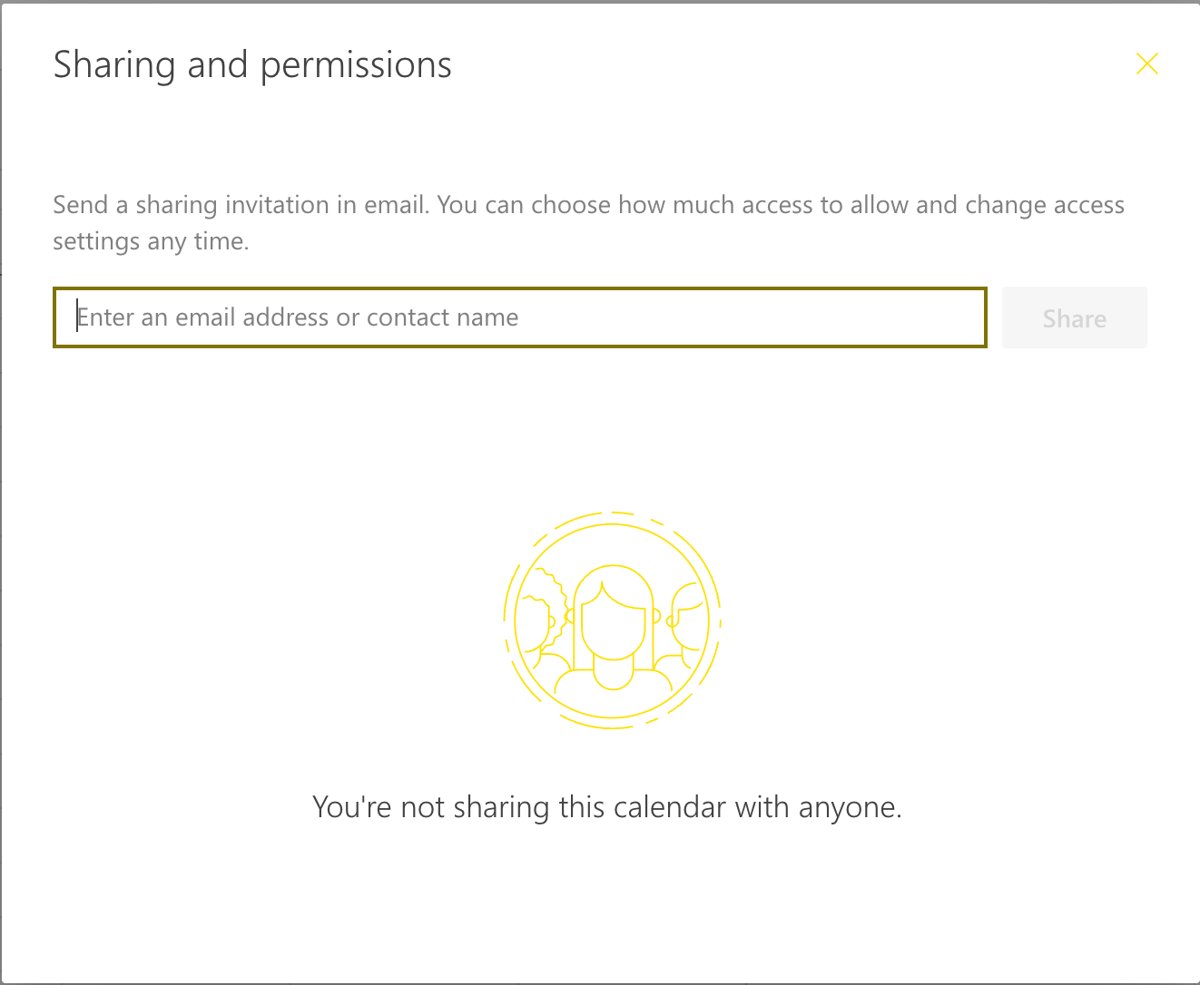
- On the Sharing and permissions page, enter a colleague's name or email address.
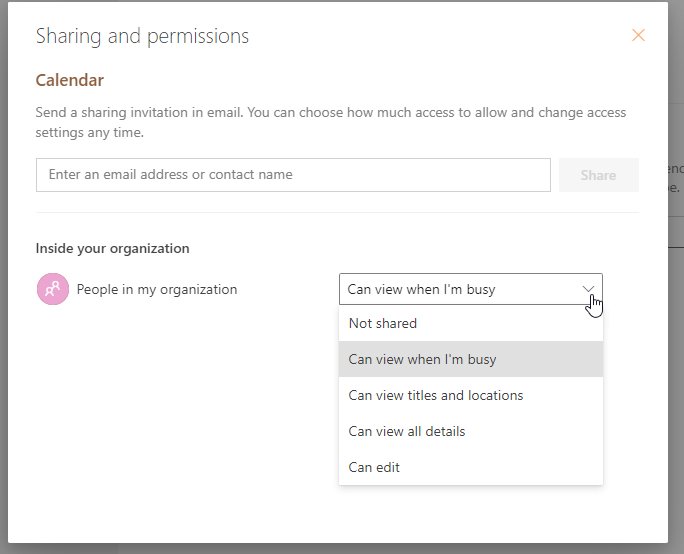
- Open the dropdown next to the name and choose a level such as Can view all details or Can edit.
- Select Share. The person receives an email and selects Accept to add your calendar to their list.
- Repeat for each member of the team.
In classic Outlook, open Calendar, select Home > Share Calendar, pick the calendar, then select Add in Calendar Properties, choose the people, set their detail level and select OK.
Sharing directly to a Microsoft 365 group address is not supported; classic Outlook returns "This calendar can't be shared" for a group address. Share with individual people or a security group, or use Methods 1 to 3 for a true group calendar.
Method 5: Create a separate shared calendar folder
A separate calendar keeps team items out of your personal diary, and unlike your primary calendar it can be shared with edit rights without exposing your own appointments.
- In new Outlook, open the calendar and go to the Home tab.
- Select Add calendar below the calendar grid, then choose Create blank calendar.
- Enter a name, pick where it goes under Add to, and select Save.
- Select Share calendar on the Home tab and choose the new calendar from the list.
- Add each team member, set Can edit for people who should add events, and select Share.
In classic Outlook, open Calendar, select the Folder tab, select New Calendar, type a Name, choose Calendar under Select where to place the folder and select OK. Then share it with Home > Share Calendar.
Delegate access applies only to your primary calendar, so give Can edit on a secondary calendar instead.
Method 6: Use a shared mailbox calendar
A shared mailbox has its own calendar, contacts and folders, and it belongs to the organization rather than a person. Your Microsoft 365 admin creates the mailbox and grants access; after that, it can take a few minutes to appear.
- Ask your admin to create the shared mailbox and add you as a member.
- Close and restart Outlook. In both new and classic Outlook, the mailbox and its calendar then appear automatically.
- If the mailbox does not appear in new Outlook, select Mail, right-click your account name in the folder pane and select Add shared folder or mailbox, then type the mailbox address.
- In Outlook on the web, right-click Folders in the left pane, select Add shared folder or mailbox and type the mailbox name.
- Restart Outlook, switch to the calendar view and select the shared mailbox calendar in your Calendars list.
In classic Outlook, add the mailbox manually from File > Account Settings > Account Settings > Email > Change > More Settings > Advanced > Add if it does not appear. You can also add and use a shared mailbox on its own for team email.
Method 7: Create a shared calendar in Outlook.com for personal use
Outlook.com works with personal Microsoft accounts such as @outlook.com, @hotmail.com, @live.com and @msn.com. It offers two sharing levels: Can view all details and Can edit.
- Sign in to Outlook.com and select Calendar in the side panel.
- Create a calendar for the family or group under My calendars, or use your main Calendar.
- At the top of the page, select Share calendar and pick the calendar.
- Enter each person's name or email address and choose Can edit so they can add events.
- Select Share. Each person gets an invitation and selects Accept to add the calendar.
One family calendar with Can edit for every adult keeps the whole household on the same schedule, because each person's changes show for everyone.
Gmail and other non-Microsoft users can accept only with an Outlook.com or Microsoft 365 account. If you still need a free account for a family member, create an Outlook email account first.
Outlook shared calendar permission levels explained
| Permission level | What the person can do | Available to outside people? |
|---|---|---|
| Can view when I'm busy | See free and busy time only | Yes |
| Can view titles and locations | See event titles and locations, no changes | Yes |
| Can view all details | See every event detail, no changes | Yes |
| Can edit | View, add and change events | No, organization only |
| Delegate | Edit, plus receive and respond to meeting requests for you (primary calendar only) | No, organization only |
| Custom | An intermediate level an admin set with PowerShell | Set by the admin |
Items you mark private show only their time to most people. Classic Outlook folder permissions still use the older names Editor and Reviewer for the same ideas.
How to add members or change permissions later
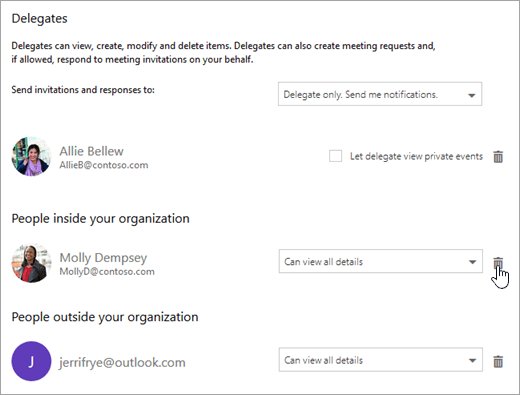
For a group calendar, membership is the permission: adding someone to the group gives them the calendar automatically. For a shared calendar, change the level on the calendar itself.
| Task | New Outlook and Outlook on the web | Classic Outlook |
|---|---|---|
| Add group members | Groups > select the member count under the group name > Add members | Open the group > Group Settings > Add Members > select people > Save |
| Make a member an owner | Member count > arrow next to Member > Owner | Group Settings > Edit Group > Make owner > Save |
| Remove a group member | Member count > Remove from group > Yes | Group Settings > Edit Group > Remove > Save |
| Change a shared calendar's level | Right-click the calendar > Sharing and permissions > choose a new level | Folder > Calendar Properties > Permissions tab |
| Stop sharing with someone | Sharing and permissions > select the Remove icon next to the person | Permissions tab > select the user under Currently sharing with > Remove > OK |
Group membership cannot be edited through the Address Book. Removed calendar access is picked up within a few hours, and an outside recipient's copy stops syncing rather than disappearing.
Best practices for a group shared calendar
| Practice | Why it matters |
|---|---|
| Keep the group Private unless everyone should join freely | Private groups make owners approve each new member |
| Give the group at least two owners | Only owners can add, remove and promote members |
| Use a separate calendar or group calendar instead of editing rights on your own diary | Can edit on your primary calendar exposes every personal appointment to changes |
| Leave the group off the attendee list for reference-only items | Adding the group as an attendee sends an invitation to every member |
| Assign one delegate per calendar | Microsoft does not design calendar sharing around several delegates managing one calendar |
| Plan for outside guests | People outside your organization can only get view levels, never Can edit or Delegate |
| Accept invitations in a current Outlook app | Older versions do not switch the calendar to instant sync |
How shared calendar invitations and notifications work
| Situation | What happens |
|---|---|
| You share a calendar | The person gets an email and selects Accept; the calendar then appears in their calendar list |
| You add a group event with the group as attendee | Every member gets a meeting invitation, and Tracking shows each response |
| A member follows the group in their inbox | Group emails and meeting invitations land in their own inbox and stay in the group folder |
| A member stops following | New Outlook and the web offer stop following in inbox; classic Outlook uses No Emails or Events under Follow in Inbox |
| Sharing inside one Microsoft 365 tenant or between Outlook.com users | Changes sync instantly |
| Sharing between two Microsoft 365 organizations | Changes sync about every three hours |
| Sharing by ICS link to Gmail or similar | Updates depend on the recipient's service; Gmail can take 24 to 48 hours |
Change following in new Outlook or Outlook on the web from Groups: select the blank space on the group card and use the dropdown. In classic Outlook, open the group and select Group Settings.
Outlook shared calendar features to organize teams and manage availability
The main benefits of using an online calendar in Outlook over a spreadsheet rota are one live copy for everyone and built-in tools to schedule work around each person's availability. These calendar app features work with a Microsoft 365 or Exchange work account.
| Feature | What it does for a group | Where to find it |
|---|---|---|
| Group calendar | Organizes teams around one calendar that every member can view and edit; membership controls access | Calendar > Groups in the folder list |
| Scheduling Assistant with AutoPick | Shows attendees' and rooms' availability side by side and picks a time that works | Scheduling Assistant on the ribbon of a new meeting |
| Room Finder | Lists the conference rooms your administrator has set up so you can book one with the meeting | The Room Finder button at the end of the Location field |
| Scheduling Poll | Sends several time options for attendees to vote on, can limit them to working hours, and can schedule the meeting once all required attendees agree | A new email or meeting in Outlook for Windows |
| Microsoft Bookings | Built-in appointment booking: a booking calendar for a business or department that schedules staff with internal and external attendees | Add the Bookings app in Microsoft Teams and select New booking calendar |
Scheduling Poll reads attendees' calendars through your Microsoft 365 business account, so anyone whose calendar is not tied to a Microsoft 365 account shows as unknown.
How to check the group shared calendar works
- Open Calendar and confirm the group appears under Groups in the folder list (or the shared calendar under People's calendars or Other calendars).
- Create a test event on the group calendar and select Save.
- Ask a member to open the same calendar on their PC or phone and confirm the event is there.
- Have a member with edit rights move the test event, then check that the change appears for you.
- Delete the test event once both sides match.
If a member can see your shared calendar on their phone, it is already on the newer sharing model with instant sync.
Troubleshooting: common shared calendar problems and fixes
Why can't I see a shared calendar in Outlook?
The invitation was never accepted, or the calendar is hidden in the list.
- Find the sharing email and select Accept.
- In new Outlook, select Show all in the calendar list and look under People's calendars.
- For a group calendar, check that you are a member under Groups and that the group is ticked.
- For a shared mailbox, close and restart Outlook to let it load.
Shared calendar not syncing
The share was accepted in an older Outlook version, so it still uses the old link-based model.
- Ask the owner to share the calendar again; existing shares do not need removing first.
- Accept the new invitation in a current version of Outlook.
- Or delete the shared calendar from your list and open it again in a current Outlook app.
- In classic Outlook, update to version 2112 or later (Current or Monthly Enterprise Channel) or 2202 or later (Semi-Annual).
Can't open a shared calendar in Outlook desktop
A known classic Outlook issue stops the checkbox next to the calendar from being selected.
- Open the calendar in new Outlook or Outlook on the web as a workaround.
- In classic Outlook, take a screenshot of your calendar list so you can re-add calendars.
- Close Outlook and run
Outlook.exe /resetnavpane. - Start Outlook and re-add the calendar with Add Calendar > Open Shared Calendar.
Shared calendars keep disappearing
The owner removed or changed your permission, or the share was replaced.
- Ask the owner whether your access was removed; removal reaches you within a few hours.
- If the owner shared with the organization's default level, your access drops to that level.
- Ask the owner to share again and accept the new invitation.
"This calendar can't be shared" or Share Calendar is greyed out
The address is a Microsoft 365 group or outside user, or your admin blocked sharing.
- Check the email address for typos.
- Share with individual members instead of the group address.
- Give outside people a view level only.
- If Share Calendar is greyed out, ask your admin whether calendar sharing is blocked.
Which Outlook shared calendar method should you use?
Use a Microsoft 365 group calendar for any team with work or school accounts, a shared mailbox calendar for a department that needs a permanent owner, and a shared Outlook.com calendar for family plans. A group calendar gives every member edit access through membership alone, so adding or removing a person updates the calendar automatically, with no per-person sharing to maintain.
Outlook group shared calendar FAQ
What is a shared calendar in Outlook?
A shared calendar is a calendar folder that its owner lets other people view or edit. The owner picks a level such as Can view all details or Can edit, and the other person adds the calendar after accepting an email invitation.
How do I create a shared calendar in Outlook?
Create a Microsoft 365 group from Groups > New Group in Outlook, and the group gets its own shared calendar. With a personal account, create a blank calendar and select Share calendar to give each person Can edit access.
How do I add a shared calendar in Outlook?
Select Accept in the sharing email, and the calendar is added to your list. In classic Outlook, you can also select Home > Add Calendar > Open Shared Calendar and enter the person's name, which opens their default calendar if you have permission.
Where is the shared calendar in Outlook?
Group calendars appear under Groups in the Calendar folder list. Calendars shared by people appear under People's calendars in new Outlook, after you select Show all, or under Other calendars in classic Outlook.
Where is the shared calendar in Office 365?
In Outlook on the web for Microsoft 365, select the Calendar icon and look under Groups for group calendars or in your calendar list for calendars people have shared with you. Shared mailbox calendars appear after the mailbox is added.
How do I share calendar access in Outlook 365?
Open Calendar, select Share calendar on the Home tab, enter the person's name, choose a permission level and select Share. Can edit and Delegate are available only for people inside your organization; outside people get view levels.
Can I share a calendar in Outlook with a group email address?
No. Calendar sharing to a Microsoft 365 group is not supported, and classic Outlook shows "This calendar can't be shared". Share with each person or a security group, or create a Microsoft 365 group, which has its own calendar.
Does a shared calendar need a mailbox?
Every Outlook calendar lives in a mailbox. A shared calendar lives in its owner's mailbox, a group calendar in the group's mailbox, and a department calendar in a shared mailbox that an admin creates.
Why is my shared calendar not syncing?
The share was usually accepted in an older Outlook version that still uses the old model. Ask the owner to share again and accept it in a current Outlook app; calendars in different Microsoft 365 organizations also sync only about every three hours.
Can people outside my organization edit a shared Outlook calendar?
No. People outside your organization can receive only the view levels: free/busy, titles and locations, or all details. Can edit and Delegate are limited to people in your Microsoft 365 organization.