To create a SharePoint event list, add the Events web part to a page on your site: if the site has no events list yet, the web part creates an empty one for you.
This guide covers that route, building an event list from a template or a blank list, adding and editing events, calendar views, Outlook calendars and fixes for events that do not show.
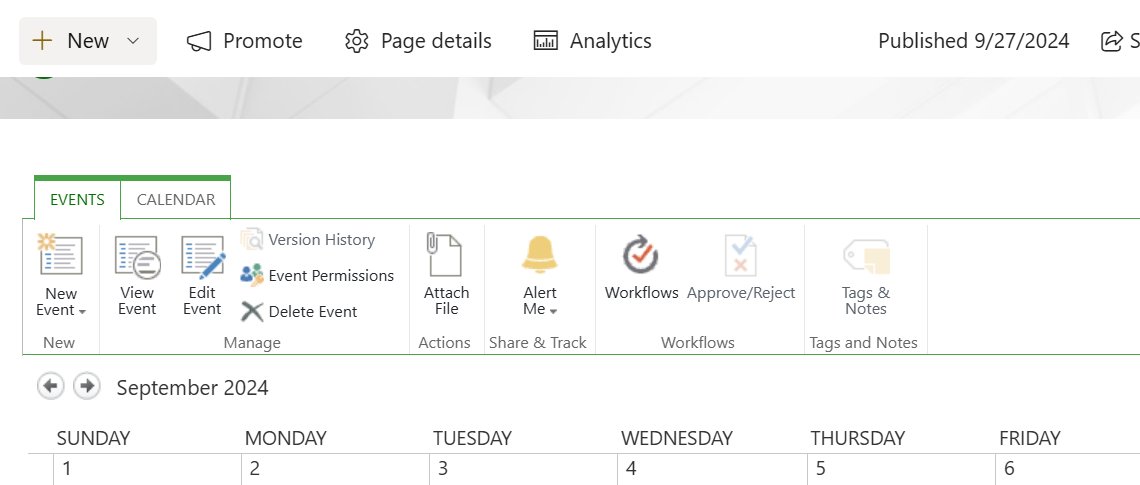
How to create events list in SharePoint
This works on modern SharePoint in Microsoft 365. You need permission to edit the page.
- Open the SharePoint page that should show events and select Edit at the top right.
- Open the toolbox on the right and choose See all web parts.
- Select Events, or drag it onto the page.
- Select the edit-properties icon at the top left of the web part.
- Under the source options, choose Events list on this site. If the site has no events list, the web part creates an empty one.
- Republish the page, then select Add event on the published page to enter the first event.
What a SharePoint event list is (and when to use it)
SharePoint calls an event list any list that stores items with dates, shown as a list or a calendar. Three different things carry that name, and they suit different jobs.
| What SharePoint calls an event list | What it holds | Use it when |
|---|---|---|
| Events list created by the Events web part | Name, title image, date and time, location, link, category, description, people | You want upcoming events on a site page with Add event and See all |
| Event itinerary list template | Session Name, Session code, Speaker(s), Session type, Description, Start and end date and time, Duration, Capacity, Location, Notes | You plan a conference or a multi-session event |
| Any list with a Date and time column shown in Calendar view | Whatever columns you add | You track deadlines, shifts or bookings in your own format |
| Event site template (Schedule list) | A preset form for adding sessions to the event calendar | The event needs its own site with pages for speakers and FAQ |
SharePoint permissions needed to create an event list
Prerequisites before you start depend on the route you take.
| Task | What you need |
|---|---|
| Add the Events web part to a page | Permission to edit the page; if Edit is missing or greyed out, you may not have it |
| Create a list on a site | Access to + New > List on that site |
| Apply the Event site template | Site creation permissions |
| Edit pages on an Event template site | Site owner or site member role |
| Show a Microsoft 365 group calendar | A team site and an existing Microsoft 365 group calendar |
Create a SharePoint event list (best-practice paths)
| Your situation | Use this | Why |
|---|---|---|
| You want events on the home page fast | Events web part | It creates the events list and the display in one step |
| You run a multi-session conference | Event itinerary list template | Speaker, session and capacity columns are ready |
| You need custom fields | Blank list plus a calendar view | You choose every column |
| The event needs a full site | Event SharePoint site template | Pages for event info, schedule, speakers and FAQ come prebuilt |
| You use SharePoint Server 2016 or 2019 | Calendar app from Site contents | Modern templates and some web parts are not available there |
| You need recurring meetings | Group calendar web part | The Events web part does not support recurring events |
Create an event list in SharePoint in Microsoft 365
Use this route to start from the Event itinerary template in SharePoint or in the Microsoft Lists app.
- In SharePoint, select + New > List on the site. In the Lists app, select + New list.
- Select the Event itinerary template, then select Use template.
- Enter a name, and optionally a description, color and icon.
- Choose the destination site. Lists saved to My lists live in your personal storage and are hard to move to a site later.
- Select Create.
The first list made from a template can keep the template's name. After that, each new list needs a unique name.
Add columns for event information
A blank list needs at least one Date and time column before it can show as a calendar.
- Select + New > List, then choose Blank list.
- Select + Add column to the right of the last column name.
- Choose Date and time as the column type and select Next.
- Enter a name such as Start in the Name field and save the column.
- Repeat for an end date, a location (single line of text) and any other fields the event needs.
- Set a Date and time column to show date only or date and time, depending on whether events have set hours.
Add events to your list (step-by-step)
Use the list form for one event at a time, or the grid for several.
- Open the list and select + Add new item on the command bar.
- Fill in the columns. Fields marked with an asterisk are required.
- Set the start and end date and time, then save the item.
- To add several events quickly, select Edit in grid view and type each event as a row.
- Select Exit grid view when you finish.
Add an event to the list
On a page with the Events web part, the Add event button writes straight to the events list. It only appears when the page is saved or published, not in edit mode.
- Open the published page and select Add event on the web part.
- Enter a name and, optionally, a title image.
- Set the date and time, then enter a location. Add a map if the location is recognized.
- Add an online meeting link or display name. The link section stays hidden if left empty.
- Choose or type a category and write a description.
- Add speakers or guests. Only people in your organization can be added.
- Select Save.
Create a calendar view
Any list or library with a date column can be shown as a calendar.
- Open the list and select + Add view at the upper right of the command bar.
- Enter a View name.
- Under Show as, select Calendar.
- Under Start date and End date, choose your date columns. Use the same column for both if events have a single date.
- Under More options, pick the column that labels each event. The default is Title.
- Select Create.
- To open the list in this view every time, select the view name, then Set current view as default.
Select a day that has an event to see its details in the panel on the right.
Filter the event calendar
The Events web part filters what a page shows without changing the list itself.
| Setting | Options | Effect |
|---|---|---|
| Category | One category from the list | Shows only events tagged with it |
| Date range | All upcoming events (default), This week, Next two weeks, This month, This quarter | Limits how far ahead the page looks |
| Source | Events list on this site, This site, This site collection, All sites, Select sites | Pulls events from one list or many sites |
| Audience targeting | Up to 50 groups per event | Shows each event only to the groups you choose |
Edit events and fix common calendar issues
Edit an event from the events list, not from the page in edit mode.
- Select See all on the Events web part, or go to Settings > Site contents and open the events list.
- Open the event you want to change.
- Select Edit at the top right.
- Change the date, time, location or description.
- Select Save.
If a recurring meeting shows only once, that is expected: the Events web part does not support recurring events. Create a separate event for each occurrence, or show a Microsoft 365 group calendar instead.
Edit the event list and its fields
Change the list's structure from the list itself, and the page display from the web part properties.
| What to change | Where |
|---|---|
| Add a field | + Add column in the list |
| Change how events look on the page | Web part properties > Layout: Filmstrip or Compact |
| Pick which events list a page uses | Web part properties, when the site has several events lists |
| Change the default view | Select the view name > Set current view as default |
| Customize the event list experience for groups | Audience targeting on each event, then republish the page |
| Edit the session form on an Event site | The Schedule list form, where you can add your own fields |
Show the event list on a SharePoint page
The Events web part displays an existing events list, or creates one if the site has none.
- Select Edit at the top right of the page.
- Open the toolbox and choose See all web parts.
- Add Events to the page.
- Open the web part properties and choose the source and, if prompted, the events list.
- Set Category, Date range and Layout.
- Republish the page.
Use the Event SharePoint site template instead
The template adds Home, Event Info, Schedule, Speakers and FAQ pages, plus a Schedule list for sessions. You need site creation permissions to apply it.
- Add the Event site template to a new or existing SharePoint site.
- Review the prebuilt pages, web parts and images.
- Select Edit at the top right of each page and replace the sample content.
- Use Save as draft while working and Republish when done.
- Go to Settings > Site Permissions, add members and save.
Applying the template to an existing site does not merge your current content. The old home page is kept as a duplicate page in Site contents.
Integrate with Outlook and calendars (optional)
Modern SharePoint shows Outlook group events through the Group calendar web part. It works only on team sites and is not available in SharePoint Server 2019.
- Edit the team site page and open the toolbox.
- Choose See all web parts and add Group calendar.
- Open the web part properties and pick a Microsoft 365 group.
- Use the slider to show up to 10 events.
- Republish the page. Events up to 6 months ahead appear; if none exist, a Create a meeting link opens the group calendar in Outlook on the web.
On SharePoint Server 2016, 2013 and 2010 calendars, select Calendar Overlay on the Calendar tab to add your own Exchange calendar or another SharePoint calendar from the same site collection.
SharePoint Server: a different creation path
On-premises SharePoint uses the classic Calendar app rather than modern templates.
| Version | Path | Then |
|---|---|---|
| SharePoint Server 2019 | Settings > Site contents > + New > List | Enter a name, select Create, add Date and time columns |
| SharePoint Server 2016 | Settings > Add an app, search for calendar | Select the app, enter a Name, select OK |
| Either version | Open the new app from Site contents | Add entries with the app's own new command |
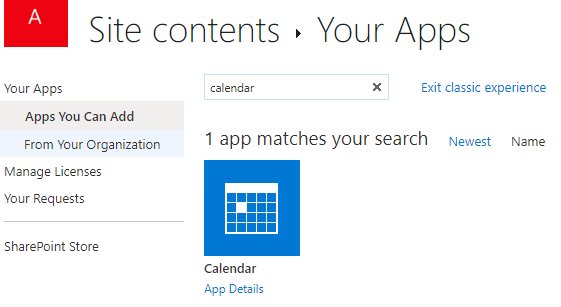
Find the SharePoint events list in Site contents
- Go to Settings > Site contents.
- Confirm the events list appears under its name.
- Open it and check that your event shows with the right date and time.
- Open the page with the Events web part and confirm the event appears within the selected date range.
Troubleshooting: when the Events template or edits don't behave
Add event button is missing
The page is still in edit mode.
- Republish or save the page.
- Reload it and select Add event.
Can't add an event on SharePoint
You lack permission to edit the page or list.
- Check whether Edit is missing or greyed out.
- Ask a site owner to add you as a site member.
Recurring events look wrong after edits
The Events web part does not support recurring events.
- Create a separate event for each occurrence.
- Or add the Group calendar web part on a team site.
Events from other sites don't show
When a web part pulls from several sites, some events may not appear.
- Set the source to Events list on this site to confirm the event exists.
- Narrow Select sites to the sites you need (up to 30).
Common problems and their fixes
Calendar view missing from Show as
The list has no Date and time column.
- Select + Add column > Date and time.
- Add the view again with + Add view.
Multi-day events show on one day
Start date and End date use the same column.
- Add a separate end date column.
- Edit the view and set it as End date.
Event times are missing in the calendar
The column is set to show date only.
- Edit the column settings.
- Switch it to include date and time.
Audience changes don't show
Audience targeting changes need the page republished.
- Edit the page.
- Select Republish.
Common mistakes to avoid
| Mistake | Result | Do this instead |
|---|---|---|
| Saving the list to My lists | It stays in personal storage and is hard to move | Pick the team site as the destination |
| Adding events while the page is in edit mode | No Add event button | Publish first |
| Using one date column for multi-day events | Each event shows on a single day | Use separate start and end columns |
| Expecting recurring events in the Events web part | Only one occurrence shows | Use a group calendar |
| Applying the Event template to a live site | The old home page becomes a duplicate page | Apply it to a new site |
SharePoint event list FAQ
How do you create an events list in SharePoint?
Add the Events web part to a page and choose Events list on this site. If the site has no events list, the web part creates an empty one. You can also select + New > List and use the Event itinerary template or a blank list.
How do you add an event list to a SharePoint site?
Edit the page, open the toolbox, choose See all web parts and add Events. Set the source, category, date range and layout in the web part properties, then republish the page so visitors can see and add events.
How do you add an event in SharePoint?
Open the published page and select Add event on the Events web part. Enter a name, date and time, location, category and description, add people if needed, and select Save. The event is stored in the site's events list.
How do you add an event on SharePoint from the list itself?
Open the list and select + Add new item on the command bar. Fill in the required fields, set the start and end date, and save. For several events, use Edit in grid view and type one event per row.
Can a SharePoint event list show as a calendar?
Yes. Any list with a Date and time column can use a calendar view. Select + Add view, choose Calendar under Show as, pick the start and end date columns and select Create.
Does the SharePoint Events web part support recurring events?
No. The Events web part does not support recurring events. Create a separate event for each occurrence, or add the Group calendar web part on a team site to show a Microsoft 365 group calendar.
How do you edit an event in a SharePoint events list?
Select See all on the Events web part, or open the list from Site contents. Open the event, select Edit at the top right, make your changes and select Save.
Can you create a SharePoint events list in SharePoint Server?
Yes, through the classic path. In SharePoint Server 2016 select Settings > Add an app and search for calendar. In SharePoint Server 2019 use Site contents > + New > List and add date columns.
Best way to add an events list to a SharePoint site
The bottom line for most sites: add the Events web part and let it create the events list, then add a calendar view only if you need one. It gives you the list, the page display and the Add event button in one step; switch to the Event itinerary template for multi-session events or a group calendar for recurring meetings.