Skype was retired on May 5, 2025, so you can no longer create or modify Skype groups; your group conversations now live as group chats in Microsoft Teams Free, and that is where you create, rename and manage them.
This guide shows how to move your Skype groups to Teams Free, build a group chat on desktop and mobile, add or remove people, and check which Skype history survived the move.
Move from Skype groups to Teams Free
Microsoft moved Skype users to Teams Free, now also labelled Microsoft Teams for personal use. You sign in with the same Microsoft account you used for Skype, so there is no new account to create.
- Download Microsoft Teams from the official Microsoft Teams website, or install it from your phone's app store.
- Open Teams and sign in with your existing Skype credentials.
- Select Chat to see your conversations, including group chats that moved over from Skype.
- Open a group chat and select the top of the chat to rename it, change its picture or manage its members.
- Select New Chat whenever you want to start a brand new group.
If you no longer need the old app on your PC, you can uninstall Skype in Windows 11 once Teams is set up.
What happened to Skype groups?
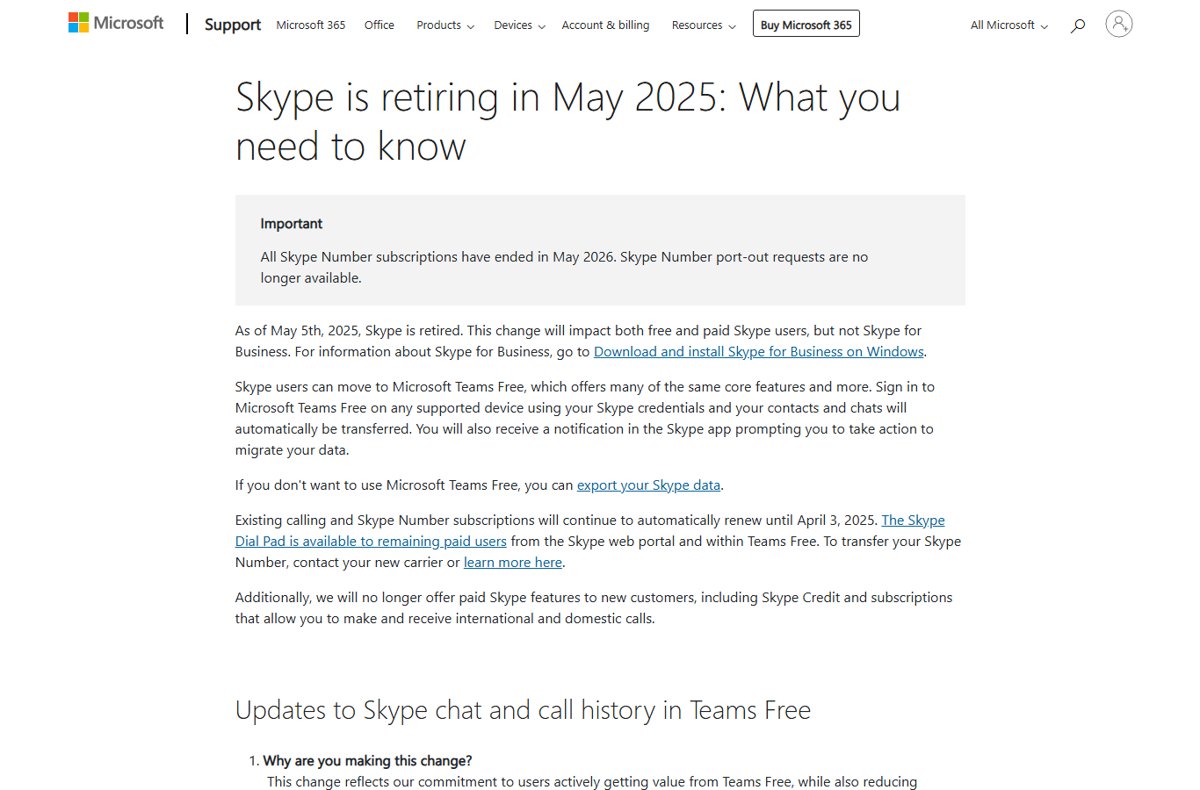
Skype groups did not get a final update or a read-only mode in Skype itself. Microsoft shut the consumer service down and pointed every user to Teams Free, where chats and contacts transfer when you sign in.
| Date | What changed |
|---|---|
| May 5, 2025 | Skype retired for free and paid users. Skype for Business was not affected. |
| May 5, 2025 | SMS, call forwarding, voicemail, Skype Credit gifting and caller ID setup stopped. |
| December 1, 2025 | Cut-off for using Teams Free if you wanted to keep your Skype chat and call history there. |
| April 1, 2026 | Deletion of older, inactive Skype data began. |
| June 15, 2026 | Last day to request a Skype history export; data of users who never moved was deleted after this date. |
Old Skype chat and meeting invite links still work in one sense: Microsoft redirects them to the same conversation in Teams, where you can carry on.
Quick comparison: Skype groups vs Teams Free group chats
| What you want to do | Where to do it now | How |
|---|---|---|
| Start a new group from scratch | Teams Free, desktop or mobile | Select New Chat and add several people in To: |
| Turn a two-person chat into a group | Teams Free | Open the one-to-one chat and choose Create a group chat |
| Add someone to an existing group | Teams Free | View and add participants on desktop, People > Add on mobile |
| Remove someone from a group | Teams Free desktop | View and add participants > Remove |
| Rename the group or change its picture | Teams Free | Select the top of the chat, then Name group chat |
| Edit a group inside the Skype app | Not possible | Skype is retired; the app no longer connects to the service |
Create a new group chat in Teams Free on desktop
This works in the Teams desktop app on Windows and Mac. Naming the group is optional, but a name makes it easier to find in your chat list.
- Open Microsoft Teams and select Chat.
- Select New Chat.
- In the To: field, type the name, email address or phone number of the first person and select them from the suggestions.
- Repeat for every other person you want in the group.
- Select Name group chat and type a name for the group.
- Type your first message and select Send to create the group.
Group names cannot contain links, profanity or restricted terms; Microsoft blocks those to protect people from scams and phishing. Once the group exists, you can chat in Microsoft Teams with mentions, reactions and files as usual.
Turn a one-to-one chat into a group chat
Teams Free does not add people to a two-person chat directly. It creates a separate group chat with the extra people, and your original one-to-one chat stays as it was. This is how you create a group from an existing one-to-one chat.
- Open the one-to-one chat you want to build on.
- On desktop, select the top of the chat; on mobile, tap Info.
- Select Create a group chat (on mobile, tap Add, then More > Create a group chat).
- Enter the names, email addresses or phone numbers of the people to add.
- Select Create to open the new group chat.
Create a group chat on mobile
The Teams mobile app on Android and iPhone builds a group in three taps. You can name it afterwards from the chat header.
- Open Microsoft Teams and tap Chat at the bottom of the screen.
- Tap New Chat near the bottom of the screen.
- In the search field, enter the name, phone number or email of each person, or pick them from Suggestions, then tap Next.
- Type a message and tap Send to finish creating the group.
- Tap the chat header, then Name group chat to give the group a name.
Add people to an existing group
You can add people to a Teams group chat at any time. Someone who is not on Teams yet receives an invitation to join Teams first.
- Open the group chat.
- On desktop, select View and add participants at the top of the chat; on mobile, tap the chat header and then People.
- Choose to add people (on mobile, tap Add).
- Enter each person's name, email address or phone number, or select them from Suggested.
- Confirm to add them; on mobile, tap Create or send the invitation.
New contacts must accept the invitation before they can see the group, which is covered in the troubleshooting section below.
Remove a participant
Removal works in group chats of three or more people. A message in the chat tells everyone that the person was removed.
- Open the group chat in the Teams desktop app.
- Select View and add participants at the top of the chat.
- Point to the name of the person you want to remove.
- Select Remove and confirm.
According to Microsoft's Teams help, a removed person can still see past messages but cannot send new ones or see future content. On a work or school account, an admin setting decides whether members can remove each other.
To leave a group yourself, select More options next to the group in the chat list, then Leave. You can only rejoin if someone invites you again.
Rename or manage a group chat
Every group setting sits behind the chat header. Select the top of the chat on desktop, or tap the chat header on mobile.
| Option | What it does | Where |
|---|---|---|
| Name group chat | Renames the group | Desktop and mobile |
| Edit group picture / Upload picture | Changes or removes the group image | Desktop and mobile |
| View and add participants | Shows, adds or removes members | Desktop |
| People > See All | Shows the full member list | Mobile |
| Mute | Turns notifications for the group off or on | Desktop and mobile |
| Allow join via link | Lets people join from a shared link | Mobile, under More |
| Share join link / Show QR code | Invites people with a link or QR code | Mobile, under More |
| Favorite | Keeps the group at the top of your list | Desktop and mobile |
| Leave / Delete | Leaves the group or deletes it from your list | More options in the chat list |
Check what migrated from Skype
Your old Skype groups only appear in Teams Free if your account met Microsoft's activity rules. Check this before you rebuild anything by hand.
- Sign in to Teams Free with the Microsoft account you used for Skype.
- Select Chat and scroll the chat list for your old group names.
- Open a migrated group and scroll up to confirm earlier Skype messages are there.
- Use Search at the top of Teams to look for a group name or a message you remember.
- If a group is missing, recreate it with New Chat and add the same people.
What happened to old Skype group history?
Microsoft kept Skype chat and call history in Teams Free only for people who were active on Skype between December 2024 and February 2025 and then used Teams Free before December 1, 2025.
| Skype data | What happened |
|---|---|
| Chats and contacts of qualifying users | Transferred to Teams Free at sign-in, in under a minute |
| History of users who never moved | Deleted after June 15, 2026 |
| Chats with Teams work or school accounts | Not migrated |
| Skype to Skype for Business chats | Not migrated |
| Chats with yourself | Not migrated |
| Private conversations | Not migrated |
| Copilot and bot conversations | Not supported in Teams Free; no history |
The Skype export portal accepted requests until June 15, 2026. That date has passed, so a group history that is not in Teams Free now cannot be recovered through Microsoft's export tool.
Protect shared files after changing membership
Files shared in a Teams Free chat use Anyone with this link permissions. Removing someone from the group, or leaving it yourself, does not take away access to files already shared. Check shared files before removing someone.
- Sign in at onedrive.com with the same Microsoft account.
- Select Shared in the navigation to list files you have shared.
- Select one file you shared in the group chat.
- Select Details, then Manage access.
- Select Stop sharing, or remove the sharing link from the Links tab.
- Share the file again in the group chat if the remaining members still need it.
When a new participant cannot see the group
The person you added cannot see the group invitation
Invitations from someone they have not chatted with before wait in Chat requests until they act.
- Ask them to open Teams and go to Chat requests.
- Have them select the group and choose Preview messages if they want to check it first.
- Ask them to select OK to join the group.
The person is not on Teams Free yet
People without Teams receive an invitation to join Teams before they can enter the group.
- Confirm you entered the correct email address or phone number.
- Ask them to install Teams and sign in with their Microsoft account.
- Check that the group now appears in their Chat requests, then have them select OK.
The invitation disappeared after they declined it
Selecting Delete chat removes the group from their requests and can block the person who invited them.
- Ask whether they blocked you when they deleted the request.
- If they did, have them unblock you from their Teams contacts.
- Add them to the group again from View and add participants.
Someone who left cannot get back into the group
A person who leaves a group chat can rejoin only when invited again.
- Open the group chat.
- Add them again from View and add participants on desktop or People > Add on mobile.
- Ask them to accept the new request.
Skype versus Skype for Business
The consumer Skype retirement did not touch Skype for Business, but that product has its own separate history. Do not confuse the two when you look for group features.
| Product | Status | Where groups live now |
|---|---|---|
| Skype (consumer, free and paid) | Retired May 5, 2025 | Group chats in Microsoft Teams Free |
| Skype for Business Online | Retired July 31, 2021 | Microsoft Teams for work or school |
| Skype for Business (separate product) | Not affected by the 2025 Skype retirement | Managed by your organization's IT team |
Skype groups and Teams Free FAQ
Can I still create or edit a group in Skype?
No. Skype retired on May 5, 2025, and Microsoft no longer runs the service. Create, rename and manage group chats in Microsoft Teams Free instead, signing in with the same Microsoft account you used for Skype.
What is replacing Skype?
Microsoft Teams Free, also called Microsoft Teams for personal use, replaced Skype. It includes Skype's core features, such as one-to-one and group calls, messaging and file sharing, plus meetings, calendars and communities.
What did Skype change to?
Skype did not get a new name; Microsoft retired it and moved users to Teams Free. Signing in to Teams Free with Skype credentials transferred chats and contacts for users who met Microsoft's activity rules.
Can I create a new Skype account?
No. Skype is no longer available, so there is nothing to sign up for. Sign in to Microsoft Teams Free with a Microsoft account instead; existing Skype users do not need to create a new account.
How do I set up Skype now?
You cannot set up Skype any more. Download Microsoft Teams from the official Microsoft Teams website, sign in with your Microsoft or Skype credentials, and start chats or group chats from the Chat tab.
How do I update Skype?
There are no Skype updates because Skype retired in May 2025. Keep Microsoft Teams updated instead, since Teams Free is the supported replacement for Skype calls, messaging and group chats.
Do my Skype group chats automatically appear in Teams Free?
Only if you were active on Skype between December 2024 and February 2025 and used Teams Free before December 1, 2025. Other users' Skype history was deleted after June 15, 2026.
Can I add people to an old one-to-one chat in Teams?
Not to the same chat. Choosing Create a group chat from a one-to-one conversation starts a new group with the extra people, and your original one-to-one chat remains unchanged.
Does removing someone delete their old group messages?
No. Microsoft's Teams help says a removed person can still see past messages but cannot send new ones or see future content. Files already shared with the group stay accessible until you stop sharing them in OneDrive.
Do old Skype group invite links still work?
Microsoft redirects Skype chat and meeting invite links to the same conversation in Teams, where you can continue chatting. Create a new join link from the group's More menu in Teams if you need to invite someone fresh.
Skype retirement and Teams Free group chat sources
- Skype is retiring in May 2025: What you need to know — Retirement date, migration to Teams Free and what history was kept or deleted
- Create a new chat in Microsoft Teams for personal use — Group chat creation, naming and settings on desktop and mobile
- Joining a chat in Microsoft Teams for personal use — How invitations from new contacts work
- Leave or remove someone from a group chat in Microsoft Teams — Removing and leaving group members
- Manage sharing and permissions in OneDrive — Stopping file sharing after a membership change
The bottom line on Skype groups
Manage every former Skype group in Microsoft Teams Free: sign in with your Skype account, check which groups migrated, and recreate any missing group with New Chat. Skype retired on May 5, 2025 and the history export window closed on June 15, 2026, so Teams Free is the only Microsoft app where these groups can still be created, renamed or changed.