To open browser settings in Windows 11, click the browser's menu button at the top right and choose Settings, or type the browser's settings address, such as edge://settings or chrome://settings, in the address bar.
This guide gives the exact route for Microsoft Edge, Google Chrome, Mozilla Firefox and Opera, plus keyboard shortcuts and fixes for settings that will not open or change.
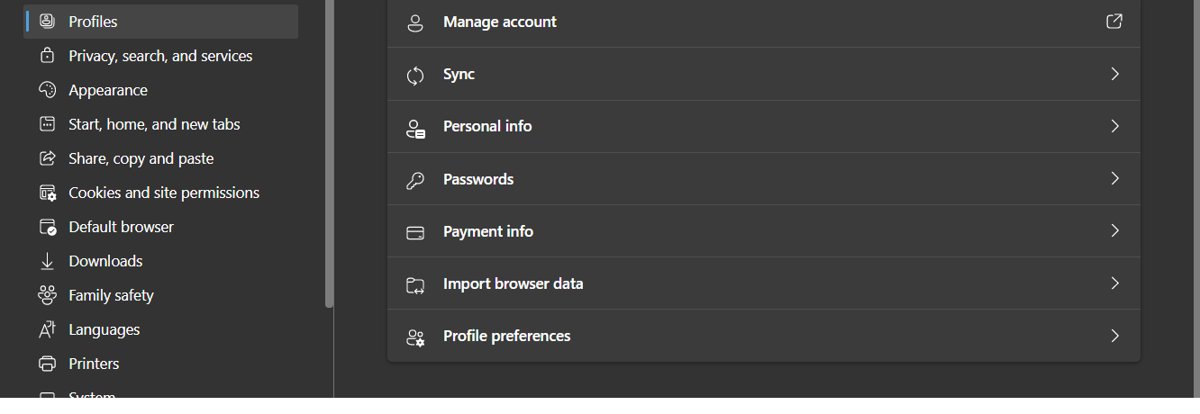
Open browser settings in Windows 11 from the address bar
Typing the settings address works the same way in every Chromium-based browser and in Firefox, and it skips the menu entirely.
- Open your browser.
- Click the address bar, or press Ctrl + L to select it.
- Type the settings address for your browser from the table below.
- Press Enter to open the settings page in the current tab.
Accessing settings from the address bar (all browsers)
| Browser | Settings address | Menu route | Keyboard route |
|---|---|---|---|
| Microsoft Edge | edge://settings |
Settings and more (three dots) > Settings | Alt + F, then choose Settings |
| Google Chrome | chrome://settings |
More (three dots) > Settings | Alt + F or Alt + E, then choose Settings |
| Mozilla Firefox | about:preferences |
Menu button (three lines) > Settings | No direct shortcut on Windows |
| Opera | opera://settings |
Easy setup panel > full browser settings | Alt + P opens Settings directly |
Edge also accepts direct addresses for individual pages, such as edge://settings/system for system settings and edge://settings/reset for the reset page.
What are browser settings?
| Settings area | What it controls | Typical reason to open it |
|---|---|---|
| Startup and home page | Which pages open when the browser starts | Stop an unwanted start page |
| Search engine | The engine used for address bar searches | Switch back to your preferred engine |
| Privacy and security | Cookies, site permissions, browsing data | Clear data or block a site's camera access |
| Appearance | Theme, toolbar buttons, font size | Show the Home button or turn on dark mode |
| Downloads | Where files are saved and whether to ask each time | Change the download folder |
| System and performance | Background running, hardware acceleration, sleeping tabs | Reduce CPU or memory use |
| Reset | Restores settings to their defaults | Fix a browser that behaves oddly |
Browser settings are separate from Windows settings. Changing the default browser itself happens in Windows Settings > Apps > Default apps, not inside the browser.
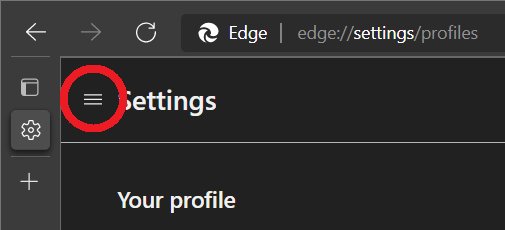
How to open Microsoft Edge settings in Windows 11
- Open Microsoft Edge from the taskbar or Start menu.
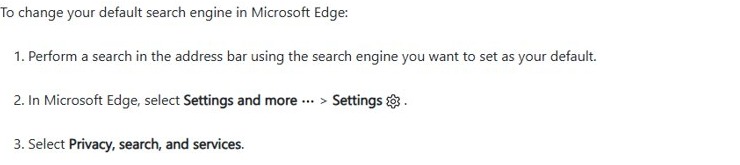
- Select Settings and more (the three dots) at the top right, or press Alt + F.
- Select Settings near the bottom of the menu.
- Use the left pane to choose a category, such as Privacy, search, and services or System and performance.
How to open Google Chrome settings in Windows 11
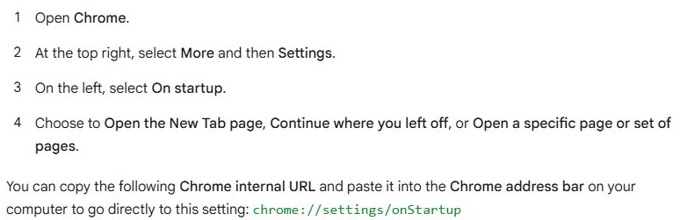
- Open Google Chrome.
- Click the More icon (three dots) at the top right, or press Alt + F.
- Choose Settings.
- Pick a section in the left sidebar, such as On startup, Appearance or Privacy and security.
How to open Mozilla Firefox settings in Windows 11
- Open Mozilla Firefox.
- Click the menu button (three horizontal lines) at the top right.
- Choose Settings.
- Select a panel on the left, such as General, Home, Search or Privacy & Security.
Firefox opens settings in a tab, so you can bookmark about:preferences for one-click access.
How to open Opera browser settings in Windows 11
- Open Opera.
- Press Alt + P to go straight to Settings.
- Alternatively, type
opera://settingsin the address bar and press Enter. - Scroll or use the search box at the top of the page to find the option you want.
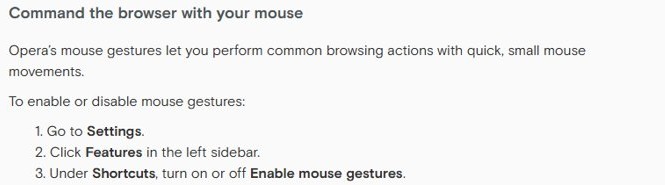
Opera also lets you change its own keyboard shortcuts under Settings > Shortcuts > Configure shortcuts.
Tips for managing browser settings efficiently
| Tip | Where to do it | Why it helps |
|---|---|---|
| Use the settings search bar | The search box at the top of the settings page | Finds an option faster than browsing categories |
| Review privacy and security settings regularly | Privacy and security (Chrome), Privacy, search, and services (Edge) | Catches site permissions you no longer want |
| Set your preferred search engine | Search engine section of settings | Address bar searches go where you expect |
| Customize your home page and startup behavior | On startup (Chrome) or the start page section (Edge) | Stops unwanted pages opening at launch |
| Organize your downloads folder | Downloads section of settings | Keeps files in one predictable place |
| Enable sync across devices | Sign in with your browser account in settings | Bookmarks and passwords follow you to other PCs |
| Review and remove unused extensions | edge://extensions or the extensions page in your browser |
Fewer extensions means fewer slowdowns and conflicts |
| Adjust appearance for comfort | Appearance section | Larger fonts or dark mode reduce eye strain |
| Reset settings if your browser misbehaves | edge://settings/reset in Edge, or the reset option in your browser |
Returns settings to defaults without deleting bookmarks |
| Clear browsing data periodically | Privacy and security section | Fixes stale pages and frees disk space |
If Edge settings keep reverting, the privacy and security settings in Edge are the usual place to check first.
Reset Microsoft Edge settings to default
- Type
edge://settings/resetin the Edge address bar and press Enter. - Select Restore settings to their default values.
- Confirm the reset.
The reset keeps bookmarks, history and saved passwords. It resets pinned tabs, the startup page, the search engine and turns off extensions.
Browser settings not opening in Windows 11
The Settings menu item does nothing or the page stays blank
An extension or a hung browser process is blocking the settings page.
- Type the settings address directly, such as
edge://settingsorchrome://settings. - In Edge, open
edge://extensionsand turn off all extensions. - Close every browser window and reopen the browser.
- Turn extensions back on one at a time to find the one causing the problem.
Settings show "Managed by your organization"
A work, school or device policy controls those options.
- Open
edge://policyorchrome://policyto see which policies apply. - Ask your IT administrator to change the setting if the device is managed.
Changed settings revert after restart
Sync, a policy or an extension rewrites the value.
- Check the policy page for a matching setting.
- Remove extensions you do not recognize.
- Reset the browser settings to default, then apply your changes again.
Browser settings in Windows 11 FAQ
How do I open browser settings in Windows 11?
Click the browser's menu button at the top right and choose Settings. You can also type the settings address in the address bar: edge://settings for Edge, chrome://settings for Chrome, about:preferences for Firefox, or opera://settings for Opera.
Where are Microsoft Edge settings in Windows 11?
Select Settings and more, the three-dot button at the top right of Edge, then select Settings. Typing edge://settings in the address bar opens the same page, and Alt + F opens the menu from the keyboard.
What is the shortcut for Chrome settings on Windows?
Chrome on Windows has no single shortcut for Settings. Press Alt + F or Alt + E to open the Chrome menu, then choose Settings, or type chrome://settings in the address bar.
What is the shortcut for Opera settings?
Press Alt + P in Opera on Windows to open Settings directly. On a Mac, the shortcut is Command + comma.
Are browser settings the same as Windows settings?
No. Browser settings control the browser itself, such as startup pages and privacy. Windows settings control the system, including which browser opens links by default, under Settings > Apps > Default apps.
Does resetting Edge settings delete my bookmarks?
No. Restoring Edge settings to their default values keeps bookmarks, history and saved passwords. It resets the startup page, pinned tabs and search engine, and turns off extensions.
Final thoughts on opening browser settings in Windows 11
Bookmark or memorise your browser's settings address, because it opens the exact page faster than the menu and still works when the menu misbehaves. The address bar route is identical across Edge, Chrome and Opera, and Edge accepts deep links to individual settings pages.