To select multiple photos in iCloud, go to icloud.com/photos and hold Ctrl while you click each photo on a Windows PC, Shift-click on a Mac, or tap Select and then tap each photo on a phone or tablet.
These steps cover iCloud.com, the Photos app on iPhone and Mac, and File Explorer on Windows, plus what you can do with the selection once you have it.

Select multiple photos in iCloud on any device
Find the place you are working in, then use the matching action. With iCloud Photos on and the same Apple Account signed in, every route works on the same library.
| Where you are | How to select several photos | Good for |
|---|---|---|
| iCloud.com on a Windows PC | Hold Ctrl and click each photo | Downloading a few items to a computer |
| iCloud.com on a Mac or other computer | Shift-click the photos | Working in a browser with no Photos app |
| iCloud.com on a phone or tablet | Tap Select, then tap each photo | Using a device that is not yours |
| Photos app on iPhone or iPad | Tap Select, then tap or slide your finger across photos | Clearing out a lot of photos quickly |
| Photos app on Mac | Command-click, Shift-click or Command-A | Selecting a whole library or a long run of photos |
| File Explorer on Windows | Hold Ctrl and click each item in iCloud Photos | Working with files in a Windows folder |
How to select multiple photos on PC in iCloud.com
This route needs nothing installed. Any current browser on a Windows laptop or desktop can do it.
- Go to icloud.com/photos and sign in to your Apple Account if the page asks.
- Select Library in the sidebar to see every photo, or select an album to narrow the view.
- Click the first photo or video you want.
- Hold the Ctrl key and click each additional photo or video.
- Release Ctrl when you have them all, then use a toolbar button to act on the selection.
Apple's iCloud User Guide also lists Shift-click as the way to pick several items on a computer, so try it if a Ctrl-click does not add to your selection.
How to select multiple photos in iCloud on a Mac browser
Use this in Safari or another browser when you want the web version of your library instead of the Photos app.
- Go to icloud.com/photos and sign in to your Apple Account if the page asks.
- Select Library or an album in the sidebar.
- Click the first photo or video.
- Hold Shift and click the other photos or videos you want.
- Use the toolbar to download, favorite or organize the selected items.
How to select multiple photos on iCloud.com on iPhone or iPad
The website looks different on a small screen, and selection is a separate mode you turn on first. This is useful on a borrowed device or one without your library synced.
- Open a browser and go to icloud.com/photos, then sign in to your Apple Account if asked.
- Tap Library or an album in the sidebar.
- Tap Select.
- Tap each photo or video you want.
- Tap the More button at the bottom right to see what you can do with the selection.
How do you select multiple photos on iPhone in the Photos app
When iCloud Photos is on, the Photos app shows the same library you see on iCloud.com, so this is the fastest choice on your own iPhone. Sliding your finger beats tapping when the photos sit next to each other.
- Open the Photos app.
- Tap Select.
- Tap each photo you want, or slide your finger across a run of photos to select them together.
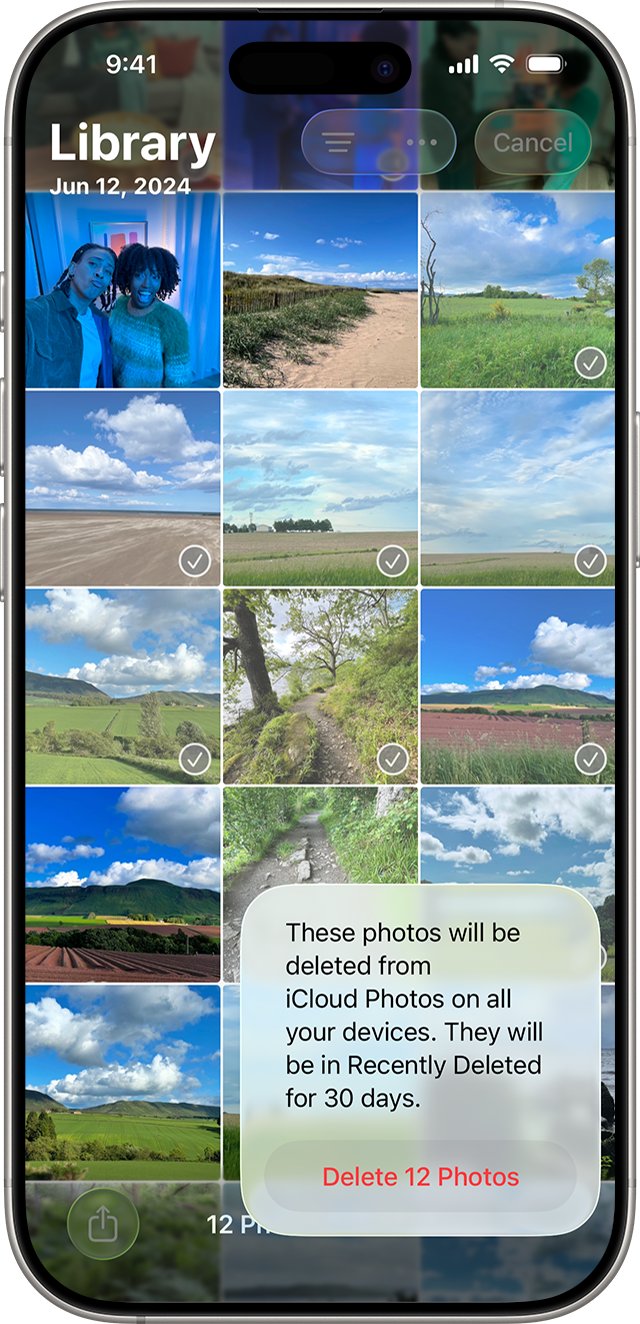
- Tap the Trash button to delete them, or tap the Share button to send or export them.
Changes sync. Delete a photo here with iCloud Photos on, and it is also deleted on your other devices signed in to the same Apple Account.
How to select multiple photos in Photos on Mac
The Photos app on a Mac has the most selection controls. It also gives you the select-all shortcut that the iCloud.com guide does not document.
| What you want to select | Shortcut or gesture |
|---|---|
| All photos | Command-A |
| Every photo between the current selection and another photo | Hold Shift and click the other photo |
| Photos that are not next to each other | Select the first photo, then hold Command and click the others |
| Several photos grouped together | Click outside the photos and drag a selection rectangle around them |
| Remove specific photos from a selection | Hold Command and click the photos to deselect |
| Clear the whole selection | Shift-Command-A, or click outside a photo |
The same keyboard habits carry across Finder, so you can select multiple files on a Mac with little new to learn.
How to select multiple pictures in files on Windows from iCloud Photos
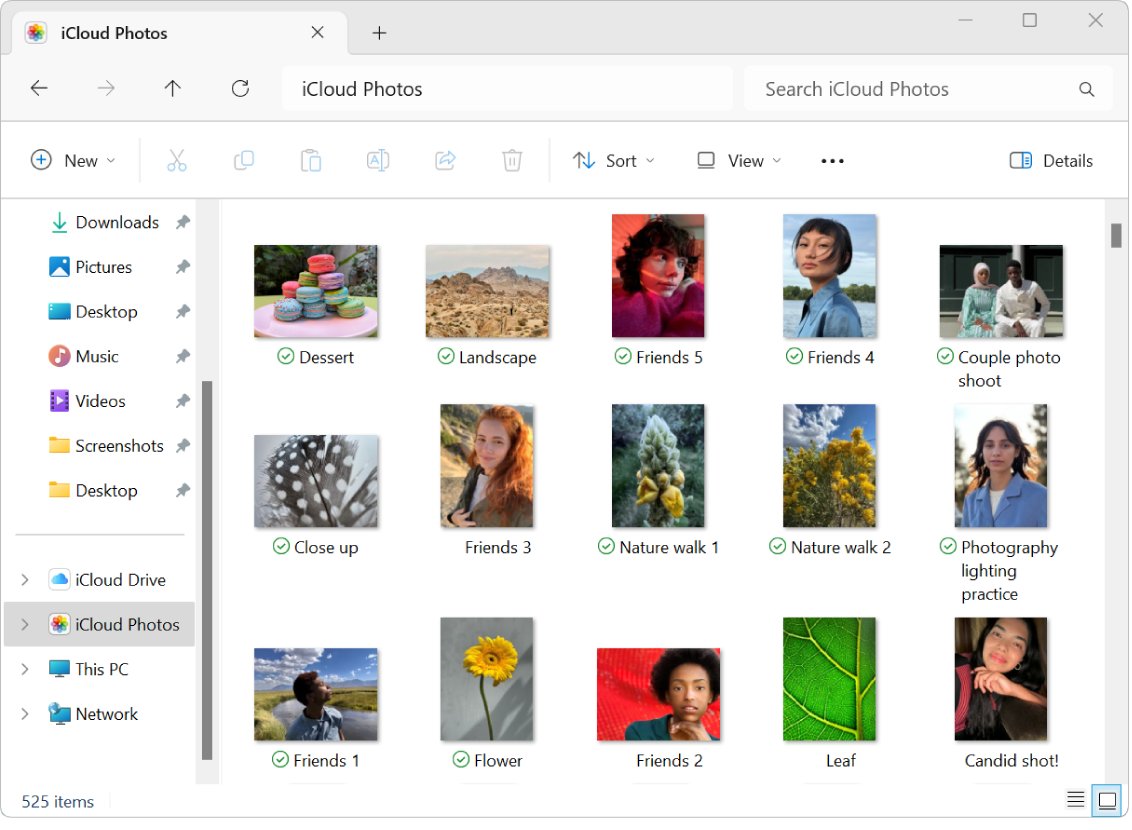
Once iCloud for Windows is set up with Photos turned on, your library is available as iCloud Photos in File Explorer.
- Open File Explorer.
- Click iCloud Photos.
- Click the first photo or video you want.
- Hold the Ctrl key and click the others.
- Double-click an item when you want to download it and view it.
You can use the usual File Explorer methods for selecting multiple files in Windows in this location as well.
How to select all photos in iCloud at once
Apple's iCloud User Guide does not list a select-all command for iCloud.com, and Apple describes iCloud.com downloads as a way to get a few photos or videos. For a whole library, use the device route below.
| Your goal | Device | What to do |
|---|---|---|
| Select an entire library | Mac | Open Photos, select Library, select All Photos, then press Command-A |
| Copy a full library to a drive | Mac | Select the photos, then choose File > Export |
| Keep full-size copies on the phone first | iPhone or iPad | Go to Settings, tap your name, then iCloud > Photos > iPhone Storage > Download and Keep Originals |
| Copy originals to external storage | iPhone or iPad | In Photos, tap Select, tap the items, tap Share, then Export Unmodified Original |
If the goal is a second copy rather than a cleanup, back up your iCloud Photos as well.
How to download multiple photos from iCloud.com
Downloads use the most compatible format for the device you are using. On a computer, you can choose another format from More Download Options.
- Go to icloud.com/photos and sign in.
- Select the photos or videos you want to download.
- On a computer, click the Download button in the upper-right corner.
- On a phone or tablet, tap the More button at the bottom right, tap Download, then tap Download again.
- On iPhone or iPad, open iCloud Drive, then the Downloads folder, to find the .zip file.
How to delete multiple photos from iCloud.com
A delete here reaches every device with iCloud Photos turned on, so check the selection first. Items in a shared album or shared library are removed for all members too.
- Go to icloud.com/photos and sign in.
- Select the photos or videos you want to remove.
- Open the toolbar actions and select Delete.
- Go to the Recently Deleted album if you want to remove them for good right away.
- Select the items there, then select Delete.
How to recover multiple deleted photos from iCloud
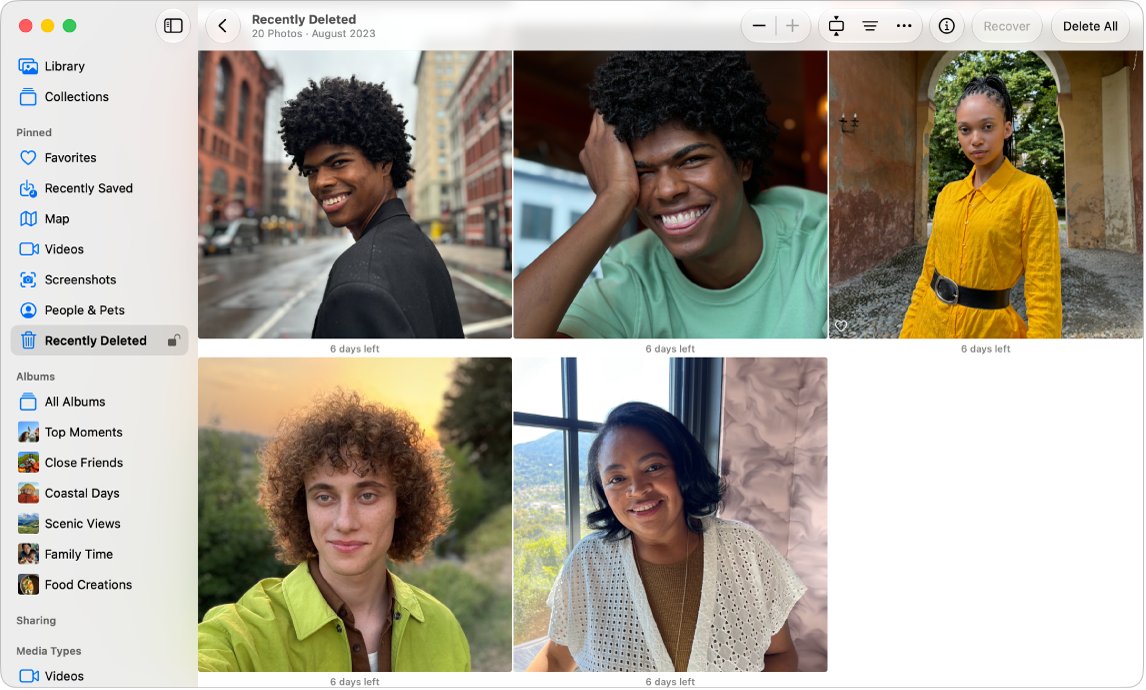
You have 30 days to change your mind. After that, the items are permanently deleted.
- Go to icloud.com/photos and sign in.
- Select the Recently Deleted album in the sidebar.
- Select the photos or videos you want back.
- Select Recover.
What you can do with multiple selected photos on iCloud.com
Selection is only the first half of the job. These are the actions Apple documents for several items at once.
| Action | How | What happens |
|---|---|---|
| Add to an album | Choose Add to Album, pick an album, then select Add. On a computer you can also drag them to the album in the sidebar | Items stay in your library and appear in the album |
| Remove from an album | Open the album, select items, then select Remove | Items leave that album only and stay in your library |
| Add to Favorites | On a phone or tablet, tap Select, tap the items, then Favorite. On a computer, Shift-click, then use the Favorites button | Items appear in Favorites on devices with iCloud Photos on |
| Hide | In Library, select items, then Hide | Items move to the Hidden album |
| Download | Use the Download button on a computer, or More > Download on a phone | Copies save to the device you are using |
| Delete | Use the toolbar actions, then Delete | Items move to Recently Deleted for 30 days |
Can't select multiple photos in iCloud? How to fix it
Match what you see to one of these iCloud Photos blocks, each with a documented cause.
Photos does not appear on iCloud.com
Your account has web-only access, which leaves out some apps, or you signed in to a different Apple Account.
- Sign out of iCloud.com and sign back in with the Apple Account that holds your library.
- If the app still does not show, fix the missing Photos option on iCloud.com.
The photos you want are not in the iCloud library
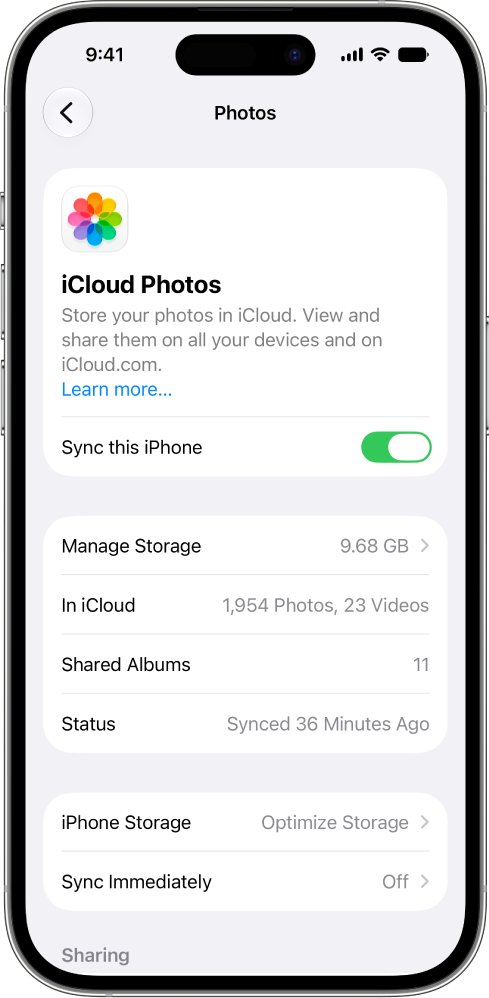
iCloud Photos is off on the device that took them, or the upload has not finished. Upload time depends on your internet speed.
- Turn on iCloud Photos on the device that holds the photos, using the same Apple Account.
- Leave the device connected to the internet. If items stay missing, fix photos not syncing with iCloud.
The Trash button is gray on iPhone after you select photos
The photos were added by connecting the iPhone to a computer, so the Photos app cannot delete them directly.
- Connect the iPhone to the computer that synced the photos.
- Stop syncing those photos from the computer, then delete them on the iPhone.
You cannot organize shared library photos on iCloud.com
iCloud.com organizes personal library items only.
- Open the Photos app on a device with iOS 16.1, iPadOS 16, macOS 13 or later.
- Select the shared library items there and add them to an album.
You cannot delete some photos in a shared album
A subscriber can delete only what they added. The album's creator can delete anything in it.
- Select only the items you added yourself and delete those.
- Ask the album's creator to remove the rest.
iCloud Photos multiple selection FAQ
How do you select multiple photos on iPhone?
Open the Photos app and tap Select. Then tap each photo, or slide your finger across a row to select several together. A selected group can be shared or deleted in one go, and iCloud Photos syncs that change to your other devices.
How do I select multiple photos on Windows?
Hold the Ctrl key and click each photo. This works on iCloud.com in a browser and in the iCloud Photos folder in File Explorer, which appears after you set up iCloud for Windows with Photos turned on.
How do I select multiple photos on a laptop?
On a Windows laptop, hold Ctrl and click each photo at icloud.com/photos. On a MacBook, Shift-click on iCloud.com, or open the Photos app and hold Command as you click each photo you want.
How do I select multiple pictures in files?
Open File Explorer on your Windows PC, click iCloud Photos, then hold Ctrl and click each picture. For files saved in iCloud Drive on iPhone, open the Files app, tap the More button, then tap Select and choose them.
How do I select multiple photos in Photos?
On iPhone or iPad, tap Select, then tap or slide across photos. On a Mac, hold Command and click separate photos, hold Shift and click to select a run, or press Command-A to select all photos.
How do I select several photos at once without clicking each one?
Slide your finger across them in the iPhone Photos app. In Photos on a Mac, click outside the photos and drag a rectangle around them, or hold Shift and click a far photo to select the whole run between them.
How do I select multiple photos on a computer in iCloud?
Go to icloud.com/photos and sign in to your Apple Account. Hold Ctrl and click photos on a Windows PC, or Shift-click on other computers. Then use the toolbar buttons to download, delete, hide or add the selected items to an album.
How do I select multiple images on iCloud.com on a phone?
Open icloud.com/photos in the phone's browser, sign in, and tap Select. Tap each image, then tap the More button at the bottom right. From there, you can download the images or choose another action for the group.