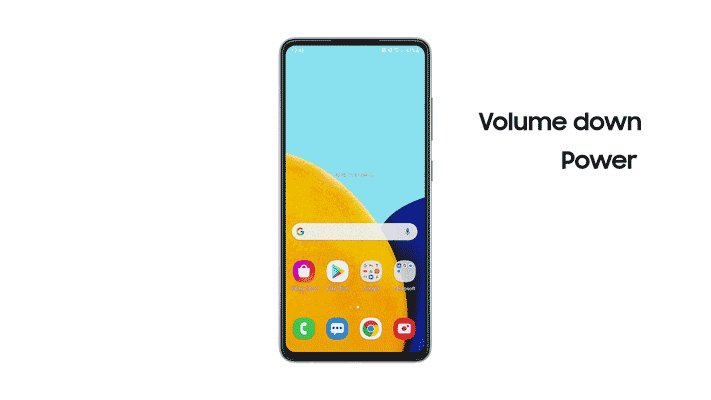
To screenshot on Android, open the screen you want and press the Power and Volume down buttons at the same time.
The steps below cover Samsung phones, tablets, scrolling captures, voice commands, screenshots without buttons, where the images are saved and what to do when a screenshot fails.
Step by step tutorial: How to screenshot on Android
This is the combination Google lists first for Android phones. Press both buttons together rather than one after the other.
- Open the screen you want to capture.
- Press the Power and Volume down buttons at the same time.
- If nothing happens, press and hold Power for a few seconds, then tap Screenshot.
- Look for the preview at the bottom left. On some phones, Screenshot capture appears at the top of the screen instead.
- Tap the preview to open the image, or leave it and the screenshot stays saved on your phone.
If neither button method works, the combination is specific to your phone, and its manufacturer's support site is the right place to look.
Android screenshot shortcut by phone and tablet
Find your device in the first column, then use the shortcut beside it. Each row names the buttons or command to use.
| Your device | Do this | Why |
|---|---|---|
| Most Android phones | Press Power + Volume down | Google's standard Android combination |
| Motorola or another brand where that fails | Hold Power, then tap Screenshot | Google's fallback for phones with a different combination |
| Google Pixel phone or Pixel Tablet | Press Power + Volume down | The same combination works on both |
| Samsung with a side key | Press and release Side + Volume down | A long hold can open the power menu on some models |
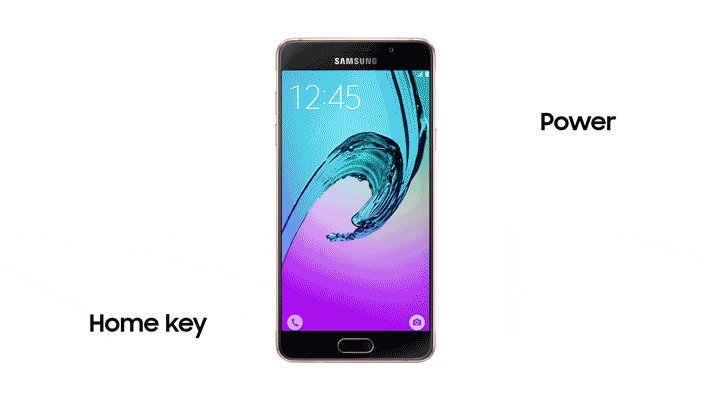
| Older Samsung with a physical home key | Press and hold Power + Home | These models use a different combination |
| Samsung Galaxy tablet | Use the same buttons as a Samsung phone | Samsung says Galaxy tablets share the phone combinations |
| Long page or chat | Screenshot, then tap Capture more or Scroll capture | Saves more than one screen in one image |
| Broken button or hands full | Say Hey Google, take a screenshot | Needs no buttons at all |
How to take a screenshot on a Samsung
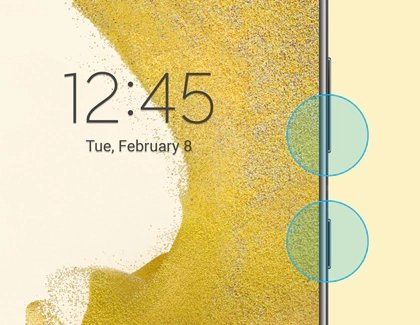
Samsung Galaxy phones use the same two buttons, pressed briefly. The same steps cover the Samsung Galaxy S25 and other recent phones with a side key.
- Open the screen you want to capture.
- Press the Side (or Power) button and the Volume down button at the same time.
- Release both after a brief moment. The screen flashes to show the capture worked.
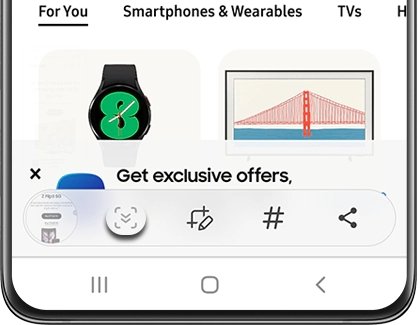
- Tap the Draw pencil in the toolbar at the bottom if you want to mark up or crop the image.
- Open Gallery > Albums > Screenshots to find it later.
On a Samsung with a physical home key, press and hold Power and Home together until the screen flashes. Models with a Bixby button use Power and Volume down, and a brief tap works if a hold does not.
How to screenshot on Android Samsung without the buttons
Samsung adds its own capture methods on top of the standard buttons. Availability differs by model, carrier and software version.
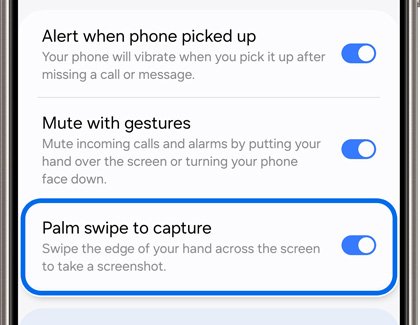
Palm swipe to capture
This reads a swipe of the edge of your hand across the display.
- Open Settings and tap Advanced features.
- Tap Motions and gestures if your model shows it.
- Turn on the Palm swipe to capture switch.
- Swipe the edge of your hand across the screen to capture it.
S Pen Screen write
Only models with an S Pen have this option.
- Remove the S Pen and go to the screen you want.
- Tap the Air command icon, then tap Screen write.
- Write or draw on the screenshot if you want to.
- Tap the Save icon to store it in Gallery.
Tasks Edge panel
This adds an on-screen Take screenshot shortcut to the Edge panel.
- Swipe left on the Edge panel handle at the right side of the screen.
- Tap the Settings icon at the bottom, then select the Tasks panel.
- Tap Edit under the panel and add Take screenshot.
- Go to the screen you want, open the Tasks panel and tap Take screenshot.
How to take a scrolling screenshot
A scrolling screenshot saves a whole page or chat as one long image. Google's steps need Android 12 or later and work on most screens that scroll.
- Open the screen you want to capture.
- Press the Power and Volume down buttons at the same time.
- Tap Capture more at the bottom of the screen.
- Drag the crop guidelines to select the content you want.
On a Samsung phone or tablet, take a standard screenshot and tap the Scroll capture icon, which shows two arrows pointing down.
How to use Google Assistant to take a screenshot
Voice capture helps when a button is broken or your hands are busy. Google lists this command for Pixel phones and tablets, and Samsung lists it for Galaxy devices.
- Open the screen you want to capture.
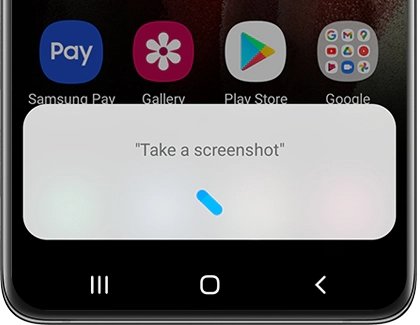
- Say Hey Google, take a screenshot.
- Check for the preview on the screen.
- On a Samsung device, you can also say Hey Bixby, take a screenshot.
How to screenshot on an Android tablet
Pixel and Samsung Galaxy tablets use the same Power and Volume down combination as phones. Find both buttons on the tablet's edge before you start.
- Open the screen you want to capture.
- Find the Power and Volume buttons on the edge of the tablet.
- Press Power and Volume down at the same time.
- Find the image in Photos on a Pixel Tablet, or in Gallery on a Samsung Galaxy tablet.
How to screenshot on Android phone without buttons
Pixel phones have an on-screen route that depends on your navigation style. Other brands can use the Accessibility Menu, which Google lists as a way to take screenshots.
Pixel with gesture navigation
- Swipe up from the bottom of the screen and hold.
- Choose the open app you want to capture.
- Tap Screenshot.
Pixel with 3-button navigation
- Tap Overview.
- Choose the open app you want to capture.
- Tap Screenshot.
Accessibility Menu on Android
Some of these steps need Android 12 or later.
- Open Settings and tap Accessibility > Accessibility Menu.
- Turn on the Accessibility Menu shortcut toggle and tap Got it.
- Swipe up with two fingers, or three with TalkBack, or tap the accessibility button.
- Choose the screenshot option in the menu.
Where are my screenshots saved on my Android device
Android saves each screenshot automatically. The app that shows it depends on your device and Android version.
| Device | App | Path |
|---|---|---|
| Most current Android phones and Pixel devices | Photos | Collections > On this device > Screenshots |
| Older Android versions without Photos | Gallery | Album view > Screenshots folder |
| Samsung Galaxy phones and tablets | Gallery | Albums > Screenshots |
| Samsung Galaxy, by file | My Files | Images |
How to edit and share a screenshot on Android
- Tap the preview right after the capture, or open Photos > Collections > On this device > Screenshots.
- Open the screenshot you want.
- Tap Edit to crop or mark it up, then save your changes.
- Tap Share and choose an app or contact.
On Samsung, open the image in Gallery, tap the Share icon at the bottom and pick a sharing method.
How to tell if an Android screenshot saved
- Watch the screen as you press the buttons. Pixel phones show a preview at the bottom left, and Samsung screens flash.
- Look for Screenshot capture at the top of the screen on phones that show it there.
- Open the Screenshots album in Photos or Gallery.
- Check that the newest image shows the screen you meant to capture.
Why is screenshot not working on Android
"Can't take screenshot due to security measure"
Banking and other sensitive apps can tell Android not to allow captures, to protect what is on the screen. Some of these apps save a blank image instead of showing a message.
- Leave that app and open a different screen, such as your home screen.
- Take a screenshot there to confirm the buttons work.
- If that succeeds, the block comes from the app, so treat it as a security feature and use the app's own export or share option if it has one.
The power menu opens instead of a screenshot
On Samsung phones, a long hold on the two buttons can open the power menu.
- Close the power menu.
- Press and release Side and Volume down together in a brief tap.
- Check for the screen flash.
Power and Volume down do nothing
Your phone may use a different combination, or a button may not be registering.
- Press and hold Power for a few seconds, then tap Screenshot if it appears.
- Say Hey Google, take a screenshot to test a method that needs no buttons.
- Check your phone manufacturer's support site for the combination your model uses.
- On Samsung, as a last step, open Settings > General management > Reset > Reset all settings, then tap Reset settings. This resets your settings, so note any you want to set again.
Capture more does not appear
Scrolling screenshots need Android 12 or later, and they work only on most screens that scroll.
- Open a long page in another app that scrolls.
- Press Power and Volume down and look for Capture more at the bottom.
- If it appears there, the first screen did not support it, so take several standard screenshots instead.
- If it never appears, check whether your phone runs Android 12 or later in Settings.
Tips for taking screenshots on Android
| Tip | Why it helps |
|---|---|
| Press the two buttons at exactly the same moment | Pressing them one at a time can change the volume or lock the screen instead |
| Tap the preview straight away for quick edits | It opens the screenshot you just took, so you skip searching through Photos |
| Use a scrolling capture for long pages | One long image is easier to share than a run of separate screenshots |
| Crop before you share | Status bar details, names and messages can sit at the edges of a capture |
| Translate foreign text on a Pixel | Open the screenshot in Google Photos and tap Lens > Translate for supported languages |
| Turn on Samsung's palm swipe before a button fails | You keep a working capture method if a button stops responding |
Android screenshot FAQ
How to take screenshot in Android?
Open the screen you want and press Power and Volume down at the same time. If that does nothing, hold Power for a few seconds and tap Screenshot. A preview then appears at the bottom left of the screen.
Can I take a screenshot on my Android without using the physical buttons?
Yes. Say Hey Google, take a screenshot, or use the Accessibility Menu. Pixel phones also offer a Screenshot button in the app overview, and Samsung devices add palm swipe and the Tasks Edge panel.
Where are my screenshots saved on my Android device?
On most phones, open Photos, then Collections, On this device and Screenshots. On a Samsung device, open Gallery, then Albums and Screenshots. Older Android versions without Photos keep them in the Gallery app's Screenshots folder.
Why doesn't my screenshot work on Android?
An app may be blocking captures for security, as banking apps do. Your phone may also use a different button combination, or a button may be failing. Test on your home screen to tell these apart.
How can I share my Android screenshot after taking it?
Find the screenshot and tap Share, then choose an app or contact. In Photos, go to Collections, On this device and Screenshots. On Samsung, open it in Gallery and tap the Share icon at the bottom of the screen.
How to screenshot on Android Samsung S23 or S25?
Press the Side button and Volume down together, then release them after a brief moment. The screen flashes to confirm the capture. Samsung documents the same button method for its Galaxy phones and tablets, and the image lands in Gallery under Screenshots.
How to screenshot on Android Motorola?
Start with Power and Volume down pressed together, which is Android's standard combination. If nothing happens, hold Power for a few seconds and tap Screenshot. If neither works, check Motorola's support site for the steps for your model.
How do you take a long screenshot on Android?
Take a normal screenshot, then tap Capture more at the bottom of the screen and adjust the crop guidelines. This needs Android 12 or later. On Samsung devices, tap the Scroll capture icon after the screenshot instead.
How to screenshot on Android laptop?
The Power and Volume down steps from Google apply to Android phones and tablets, so they may not match a laptop. If your laptop runs Windows, you can take a screenshot on Windows with its own keyboard shortcuts.