To back up your photos and videos to iCloud, open Settings, tap your name, tap iCloud, tap Photos and turn on Sync this device.
This guide covers iPhone, iPad, Mac and Windows setup, the storage choice that matters, how to confirm the upload finished, and how to keep a second copy on a PC or external drive.
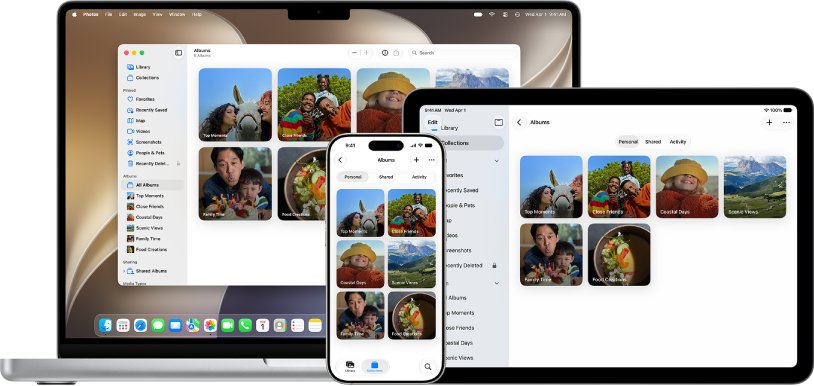
Turn on iCloud Photos on iPhone and iPad
Sign in with the same Apple Account on every device you want in sync. The upload starts as soon as the switch is on.
- Open the Settings app.
- Tap your name at the top, then tap iCloud.
- Tap Photos.
- Turn on Sync this device.
- Stay on Wi-Fi and keep the device charged while the first upload runs.
Photos and videos go to iCloud in their original formats at full resolution, including HEIF, JPEG, RAW, PNG, HEVC and MP4, plus Live Photos, slo-mo, time-lapse and 4K video. How long the first upload takes depends on your library size and internet speed.
What iCloud Photos backup actually does (and what it doesn't)
iCloud Photos is a sync service, not an archive. It keeps one library identical on every device, which protects you from a lost phone but not from a mistaken delete.
| Question | What iCloud Photos does |
|---|---|
| Stores originals? | Yes. Full-resolution originals stay in iCloud even when the device keeps smaller versions. |
| Syncs edits? | Yes. An edit on iPhone shows on your Mac, and you can revert to the original at any time. |
| Syncs deletions? | Yes. Delete a photo on one device and it is deleted everywhere iCloud Photos is on. |
| Recover a deleted photo? | Only from Recently Deleted, for 30 days. After that it is gone for good. |
| Included in iCloud Backup? | No. With iCloud Photos on, photos are not duplicated in your iCloud Backup. |
| Uses storage? | Yes. The library counts against your iCloud storage and your device storage. |
Because deletions sync, Apple itself advises keeping separate backup copies of your library. The sections on PCs and external drives below show how.
Before you start: requirements and checklist
| Check | Why it matters | Where to look |
|---|---|---|
| Same Apple Account on every device | Devices signed in to different accounts see different libraries | Settings > your name on iPhone; System Settings > your name on Mac |
| Enough iCloud storage for the library | When iCloud is full, new photos and videos stop uploading | Settings > your name > iCloud |
| Wi-Fi and power | A large first upload can take hours or days | Keep the device plugged in on Wi-Fi |
| iCloud for Windows (PC only) | Windows has no built-in iCloud Photos sync | Install iCloud for Windows, then sign in |
Every account starts with 5 GB of free storage, which most photo libraries outgrow quickly. iCloud+ plans come in 50 GB, 200 GB, 2 TB, 6 TB and 12 TB sizes.
Turn on iCloud Photos on Mac (macOS Ventura, Sonoma, and older)
The setting sits in System Settings on current macOS and in System Preferences on older releases. The label under iCloud changed after macOS Sonoma.
- Open the Apple menu and choose System Settings (System Preferences on older macOS).
- Click your name, then click iCloud.
- Under Saved to iCloud, click Photos. In macOS Sonoma or earlier, look under Apps Using iCloud instead.
- Turn on Sync this Mac.
- Open the Photos app and leave the Mac awake until the upload finishes.
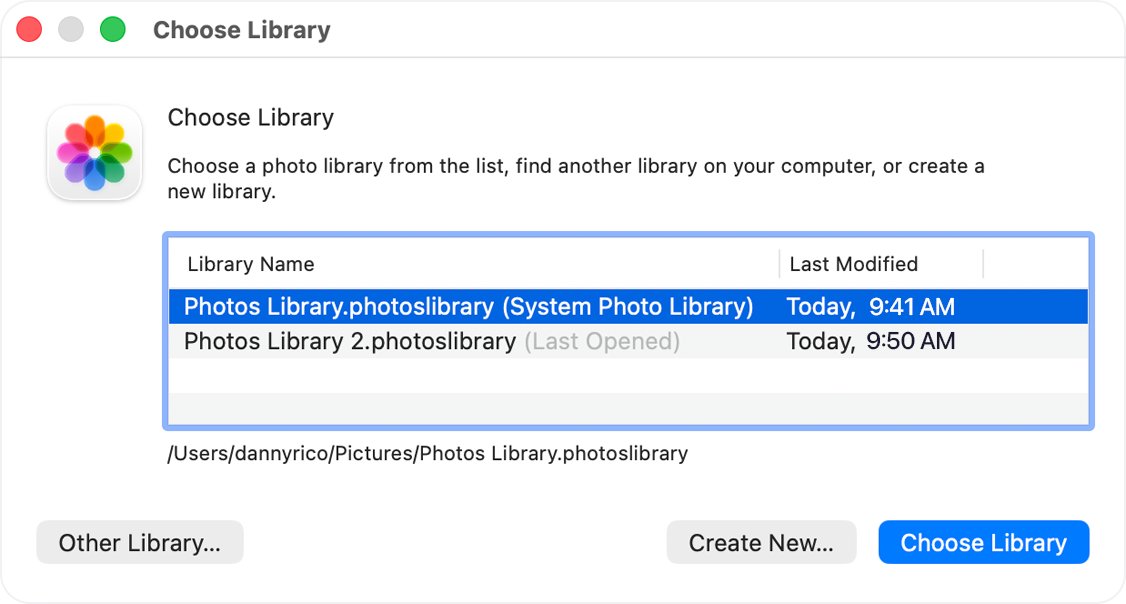
If your Photos library lives on an external drive, open that library and set it as the System Photo Library first. Only the System Photo Library syncs with iCloud Photos.
Turn on iCloud Photos on a Windows PC
iCloud for Windows puts your iCloud library in File Explorer, so a PC can both view and upload photos.
- Open iCloud for Windows and sign in with your Apple Account.
- Click the arrow button to the right of iCloud Photos.
- Turn on iCloud Photos.
- Optionally select Download High-Efficiency format photos and videos or Download HDR videos (iCloud for Windows 14.2 or later).
- Turn on Shared Albums if you want those on the PC as well.
- Click Done.
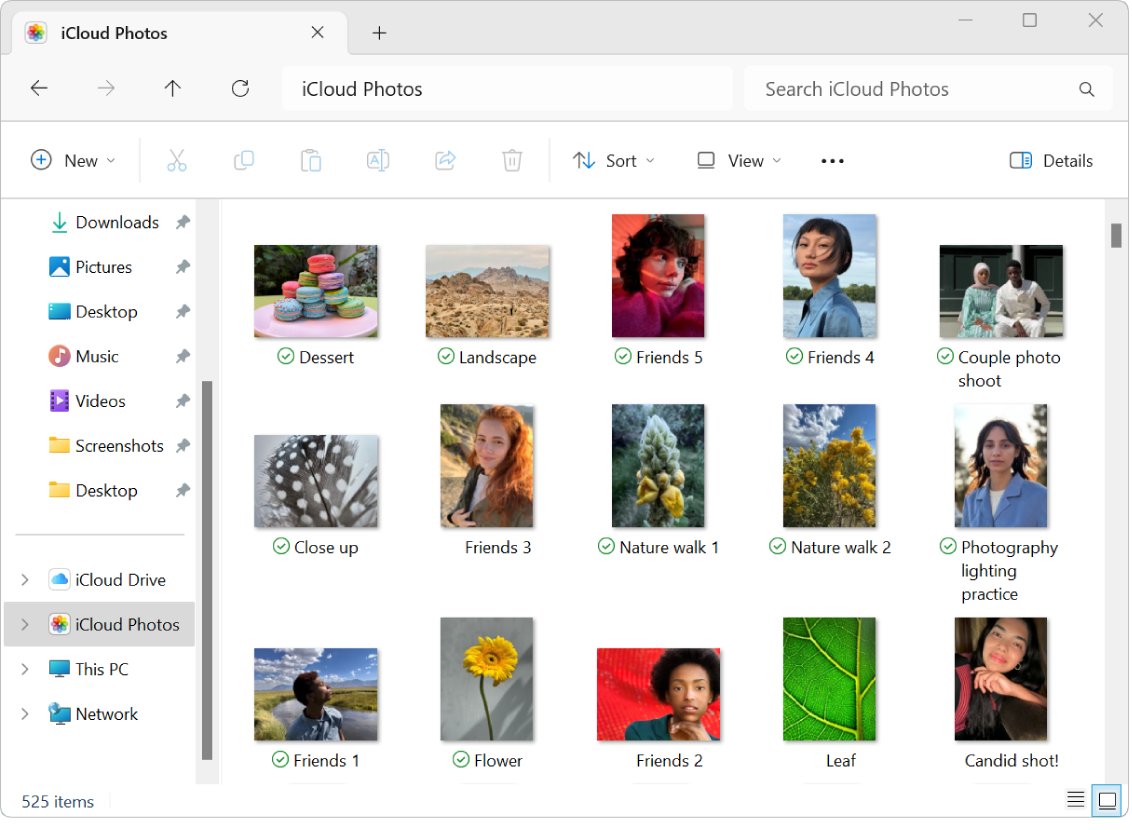
Photos appear in C:\Users\[user name]\Pictures\iCloud Photos\Photos and in the iCloud Photos entry in the File Explorer navigation pane.
Choose your storage behavior: Optimize iPhone Storage vs Download Originals
Both options upload full-resolution originals to iCloud. They differ only in what stays on the device.
| Your situation | Choose | What happens |
|---|---|---|
| iPhone or iPad is short on space | Optimize iPhone Storage | The device keeps space-saving versions and downloads originals over Wi-Fi or cellular when you open them |
| You want to copy originals to a drive from the device | Download and Keep Originals | Every original stays on the device, so exports are full quality |
| Mac is your main archive | Download Originals to this Mac | The Mac holds a full local copy that Time Machine can back up |
| Mac has a small internal drive | The space-saving storage setting on the iCloud tab | The Mac keeps smaller versions and frees space starting with the photos you open least |
On iPhone or iPad, go to Settings > your name > iCloud > Photos, tap iPhone Storage, and pick an option. In iOS 26 or earlier, the options appear directly on the Photos screen. On a Mac, open Photos, choose Photos > Settings, click the iCloud tab and choose a storage setting.
Verify backup progress and resolve "not backed up yet" issues
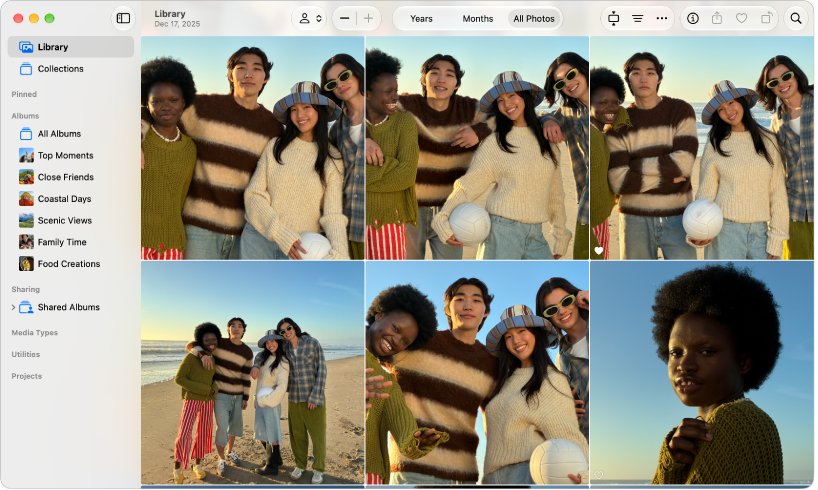
The Photos app shows the upload status and a count of items still waiting. The library is backed up when that status reports nothing left to upload.
- In iOS 26 or later, open Photos, tap Collections, then tap the profile button to see the sync status.
- In iOS 18, open Photos and tap the profile button.
- In iOS 17 or earlier, open Photos, tap Library, select All Photos and scroll to the bottom.
- On a Mac, open Photos, select Library in the sidebar, click All Photos and scroll to the bottom.
- Go to icloud.com/photos, sign in, and confirm your newest photos appear there.
- If items are waiting, tap Sync Immediately > For Today under Settings > your name > iCloud > Photos (iOS, iPadOS and visionOS 27 or later).
Sync Immediately can use cellular data if Photos is allowed to, so check your data plan first. Seeing the photo on iCloud.com is the strongest proof the upload reached Apple's servers.
Manage iCloud storage to avoid silent upload failures
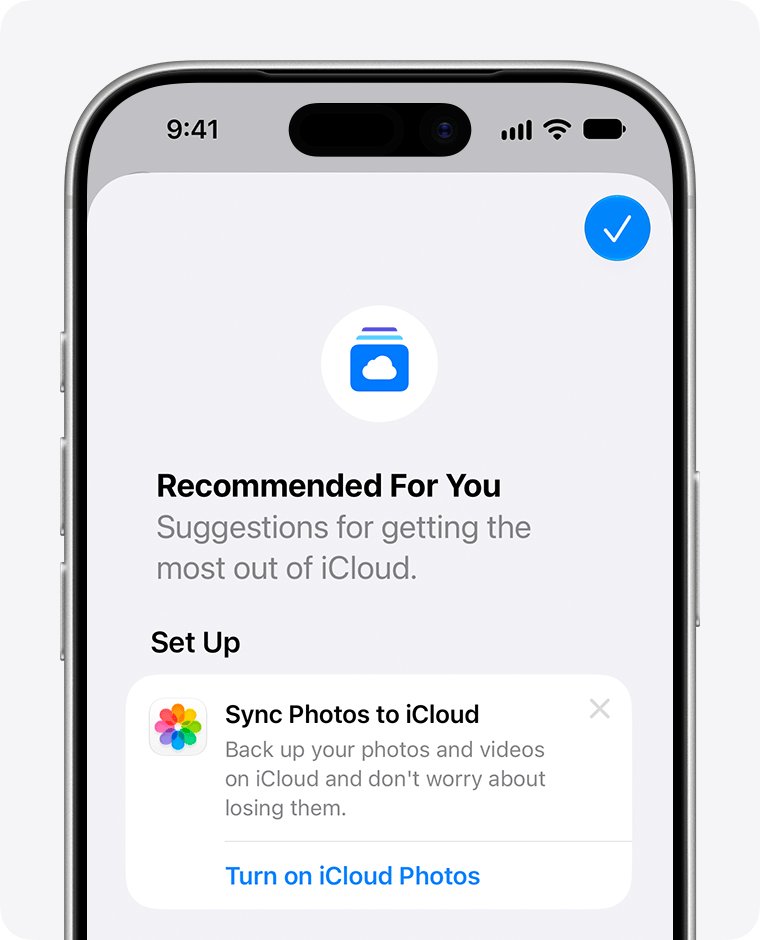
When iCloud storage runs out, new photos and videos stop uploading, device backups stop, and iCloud Mail stops sending and receiving. Nothing deletes your photos, but new ones are no longer protected.
| Task | iPhone or iPad | Mac |
|---|---|---|
| See how much storage you use | Settings > your name > iCloud | System Settings > your name > iCloud |
| Get cleanup suggestions | Settings > your name > iCloud > Recommended for You (iOS 17 or later) | iCloud > Manage to review what uses space |
| Delete old device backups | iCloud > Storage or Manage Account Storage > Backups | iCloud > Manage > Backups |
| Upgrade to iCloud+ | Settings > your name > iCloud > upgrade option | System Settings > your name > iCloud |
Photos you delete to save space go to Recently Deleted first and still count until that album is emptied or 30 days pass. iCloud Drive files, Messages attachments and old backups share the same quota, so trimming those frees room for photos too.
Alternatives and complements (when you need extra certainty)
A second copy outside iCloud, on a drive or in a service such as Google Photos, is what protects you from a synced deletion or a locked account. Pick the route that matches the hardware you have.
| You have | Second copy method | Notes |
|---|---|---|
| A Windows PC | Copy files out of the iCloud Photos folder to another folder or drive | Files left in the synced folder are deleted when you delete them on iPhone |
| A Mac | File > Export from Photos, or a Time Machine backup of a library set to Download Originals to this Mac | Exports are independent files |
| Only an iPhone or iPad | Export originals to an external drive from the Photos app | Requires Download and Keep Originals first |
| Any browser | Download selected photos from icloud.com/photos | Best for a handful of photos, not a whole library |
Back up iCloud Photos to a PC
Downloaded iCloud photos on a PC are still synced, so a real backup means copying them somewhere iCloud does not manage.
- Open File Explorer and click iCloud Photos in the navigation pane. If it is missing, open Pictures, then double-click iCloud Photos.
- Right-click the Photos folder and choose Always keep on this device to download every original.
- Wait until the status icons show every file as downloaded.
- Select the photos, press Ctrl + C, open a folder outside iCloud Photos or on another drive, and press Ctrl + V.
Apple notes that a pinned photo is still deleted from the PC when you delete it on another device, which is why the copy step matters. Edits made on the PC, in the Microsoft Photos app or any other editor, do not sync back to your Apple devices.
Back up iCloud Photos to an external hard drive
You can export straight from an iPhone or iPad to a connected drive, or export from a Mac.
- Connect the external drive to your iPhone, iPad or Mac.
- On iPhone or iPad, go to Settings > your name > iCloud > Photos, tap iPhone Storage and choose Download and Keep Originals.
- Open the Photos app, tap Select and choose the photos and videos to copy.
- Tap the Share button, then tap Export Unmodified Original.
- Under Locations, tap the external drive, then tap Save.
- On a Mac, select the items in Photos, choose File > Export, and save to the drive.
To move a whole Mac library onto a drive, format it as APFS or Mac OS Extended (Journaled). Apple advises against a Time Machine drive, an SD card, a USB flash drive or a network location for the library itself.
Download photos and videos from iCloud.com
- Go to icloud.com/photos and sign in with your Apple Account.
- Select the photos or videos you want.
- On a computer, click the download button. To pick a format, click the more button, then More Download Options.
- On a phone or tablet, tap the more button, tap Download, then tap Download again.
Downloads arrive in the most compatible format for the device you use. On an iPhone or iPad, a multi-photo download lands as a .zip file in the iCloud Drive Downloads folder.
How to get photos back from iCloud Recently Deleted
Deleted photos stay in Recently Deleted for 30 days on every device that uses iCloud Photos.
- Go to icloud.com/photos and sign in.
- Select Recently Deleted in the sidebar.
- Select the photos or videos you want back.
- Select Recover.
Recovered items return to your library on all devices. After 30 days, deleted items cannot be recovered from iCloud.
Common problems and fixes
Photos are not backing up to iCloud
iCloud storage is full, the upload is paused, or Sync this device is off.
- Open Settings > your name > iCloud and check the storage bar.
- Free space or upgrade to iCloud+ if the bar is full.
- Confirm Sync this device is on under iCloud > Photos.
- Open the sync status in Photos and check whether the upload is paused for the day.
Upload never finishes or shows items still waiting
A large library or slow connection; videos take longest.
- Keep the device on Wi-Fi and connected to power.
- Leave the Photos app open on a Mac and keep the Mac awake.
- Turn on Sync Immediately > For Today on iOS, iPadOS or visionOS 27 or later.
Photos appear on one device but are missing on another
The devices use different Apple Accounts, or iCloud Photos is off on one of them.
- Check the name at the top of Settings on each device.
- Turn on Sync this device or Sync this Mac on the device missing photos.
- On a Mac with several libraries, make sure the open library is the System Photo Library.
iCloud Photos does not appear in File Explorer on a PC
iCloud Photos is not turned on in iCloud for Windows.
- Open iCloud for Windows and turn on iCloud Photos.
- In File Explorer, open Pictures, then double-click iCloud Photos.
Mac Photos opens an empty library
The library is on an external drive that was not connected when Photos opened.
- Quit Photos and connect the drive.
- Hold Option while opening Photos.
- Select the library on the drive and click Choose Library.
FAQ: iCloud Photos backup
Does iCloud back up photos?
Yes, through iCloud Photos, which stores every photo and video at full resolution in iCloud. It syncs rather than archives, so a photo deleted on one device is deleted everywhere after 30 days in Recently Deleted.
Do your photos automatically back up to iCloud?
Only when iCloud Photos is on. Turn on Sync this device under Settings, your name, iCloud, Photos, and new photos then upload automatically whenever the device has a connection and iCloud storage is available.
How do I back up iCloud photos to a PC?
Install iCloud for Windows, turn on iCloud Photos, then right-click the Photos folder and choose Always keep on this device. Copy the downloaded files to a folder outside iCloud Photos so deletions on your iPhone do not remove them.
How do I back up iCloud photos to an external hard drive?
Set your iPhone to Download and Keep Originals, connect the drive, select photos in the Photos app, tap Share, then Export Unmodified Original and save to the drive. On a Mac, use File, then Export in Photos.
How do I get photos back from iCloud?
Deleted photos stay in Recently Deleted for 30 days. Open Recently Deleted in the Photos app or on icloud.com/photos, select the items and choose Recover. Photos deleted more than 30 days ago cannot be restored from iCloud.
How do I get photos from an iCloud backup?
When iCloud Photos is on, photos are not stored in your iCloud Backup, so restoring a backup will not bring them back. Your library comes from iCloud Photos instead: sign in with the same Apple Account and turn on Sync this device.
Is iCloud Photos the same as iCloud Backup?
No. iCloud Photos syncs your photo library across devices, while iCloud Backup saves device settings and app data for restoring a phone. With iCloud Photos on, photos are kept out of iCloud Backup to avoid storing them twice.
How much iCloud storage do I need for photos?
Enough to hold your entire library. Every account gets 5 GB free, and iCloud+ offers 50 GB, 200 GB, 2 TB, 6 TB and 12 TB plans. Check your library size in Settings under your name and iCloud before choosing.
Can I pause the iCloud Photos upload?
Yes, for one day. Open the sync status in the Photos app, from Collections and the profile button in iOS 26 or later, and tap Pause. Pause may not be available depending on your library status.
Bottom line: is iCloud Photos enough of a backup?
Turn on iCloud Photos on every device for automatic off-device storage, and add a periodic export to a PC or external drive as your true backup. iCloud Photos protects against a lost or broken device, but it syncs deletions everywhere, so only a copy outside iCloud survives a mistaken delete after 30 days.