Photos usually stop syncing with iCloud because syncing is paused for Low Power Mode, Low Data Mode, a low battery or full iCloud storage, so plug the device in, join Wi-Fi and check the status message at the bottom of your Photos library.
This guide covers iPhone, iPad, Mac and Windows PCs, explains each pause message, and shows what to do when iCloud Photos still will not sync.
How to fix photos not syncing to iCloud on iPhone
Work through these steps in order. Most stalled uploads resume once the device has power, Wi-Fi and time.
- Connect the iPhone to power and to Wi-Fi, and leave it to sync overnight.
- Open Settings, tap your name and check that it shows the same Apple Account you use on your other devices.
- Tap iCloud, then Photos, and make sure Sync this iPhone is on.
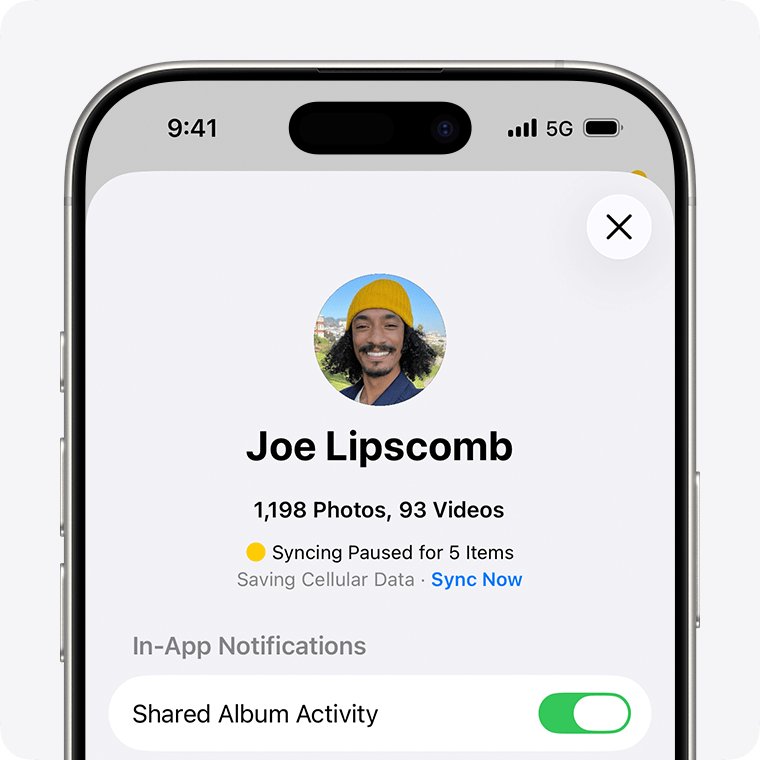
- Open Photos, tap Collections, then tap the profile button in the upper corner.
- Read the status under your name and photo count, and tap Sync Now if it appears.
- If the status says iCloud storage is full, free up space or upgrade your plan.
Do not turn iCloud or iCloud Photos off to force a sync. Apple warns that this restarts syncing from the beginning.
Why are my photos not syncing to iCloud?
The library status message names the reason syncing paused. Match the message you see to the fix.
| Status message | Why syncing paused | What to do |
|---|---|---|
| Low Data Mode or Low Power Mode | Syncing pauses to reduce data use or save battery | Turn off Low Power Mode or Low Data Mode in Settings |
| Optimizing Battery Power, Optimizing System Performance or Poor Network Connection | Syncing pauses to protect power, performance or a weak connection | Tap Sync Now, or wait for syncing to resume |
| Low Battery | Battery is below 20 percent | Charge the device |
| [Device] Needs to Cool Down | Syncing pauses to prevent overheating | Tap Sync Now if offered, or wait a few minutes |
| iCloud storage is full | Your iCloud plan has no space left | Delete files from iCloud or upgrade your storage plan |
| Move Photos to Personal Library to Continue Syncing | The Shared Library owner is out of iCloud storage | Move the items back to your Personal Library, or wait until the owner frees or buys storage |
Where to check iCloud Photos sync status on iPhone and Mac
| Device | Where the sync status shows |
|---|---|
| iPhone or iPad with iOS 18 or later | Photos > Collections, tap the profile button, read the status under your name and photo count |
| iPhone or iPad with iOS 17 or earlier | Photos > Library > All Photos, scroll to the bottom |
| Mac | In Photos, select Library in the sidebar, click All Photos in the toolbar and scroll to the bottom |
| Windows PC | Click the iCloud icon in the Windows notification area; select Show hidden icons if it is not visible |
Turn on iCloud Photos on iPhone, iPad and Mac
If iCloud Photos was never on for a device, nothing from that device syncs. Sign in with the same Apple Account on every device first.
- On iPhone or iPad, open Settings and tap your name.
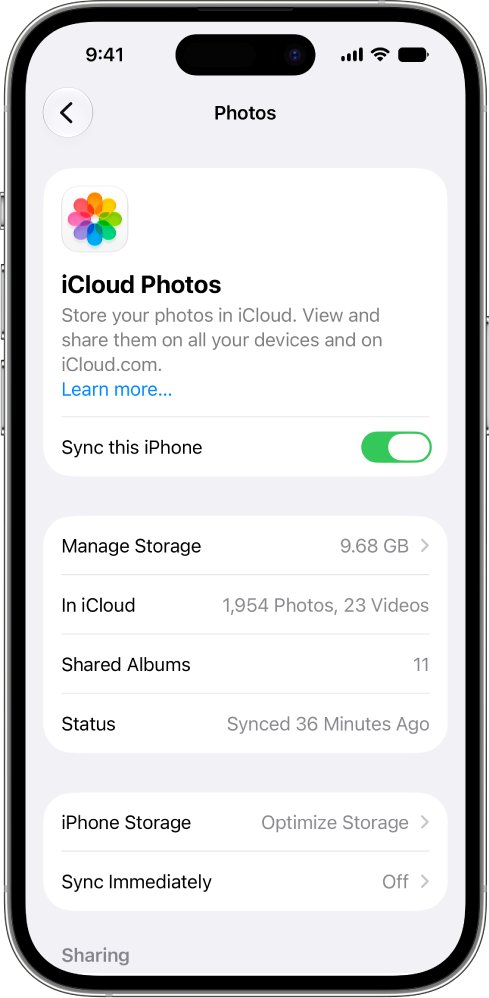
- Tap iCloud, then Photos, and turn on Sync this iPhone or Sync this iPad.
- On a Mac, choose Apple menu > System Settings and click your name.
- Click iCloud, then click Photos under Saved to iCloud. On macOS Sonoma or earlier, look under Apps Using iCloud.
- Turn on Sync this Mac.
- Leave each device on power and Wi-Fi until the first upload finishes.
Speed up iCloud Photos sync with Sync Immediately
In iOS, iPadOS and visionOS 27 or later, Sync Immediately pushes library uploads ahead for the day. If Photos may use cellular data, this can raise data use.
- Open Settings and tap your name.
- Tap iCloud, then Photos under Saved to iCloud.
- Tap Sync Immediately.
- Choose For Today.
Mac photos not syncing with iCloud
On a Mac, check the Photos app's iCloud setting and the library status together.
- Update the Mac to the latest version of macOS.
- Open Photos, choose Photos > Settings and click the iCloud tab.
- Make sure iCloud Photos is turned on, and pick Download Originals to this Mac if you want full-size files stored locally.
- Select Library in the sidebar, click All Photos and scroll to the bottom.
- Follow the onscreen directions for the status message you see there.
- Keep the Mac awake and online until the count stops changing.
iCloud photos not syncing to PC on Windows 11
A Windows PC needs Windows 10 or later, your Apple Account and the iCloud for Windows app. Photos only download after iCloud Photos is switched on inside the app.
- Open iCloud for Windows and sign in with the same Apple Account as your iPhone.
- Click the arrow button to the right of iCloud Photos.
- Turn on iCloud Photos. Turn on Shared Albums too if you need albums others share with you.
- Click Done.
- Open File Explorer and select iCloud Photos in the navigation pane. If it is missing, open Pictures and double-click iCloud Photos.
- Double-click a photo or video to download the full version.
Files are stored in C:\Users\[user name]\Pictures\iCloud Photos\Photos. In iCloud for Windows 11.1 and later, optimized versions download automatically and the full file downloads when you open it.
Upload photos from a Windows PC to iCloud Photos
- Open File Explorer.
- Open the folder that holds the photos you want to add.
- Select the photos. Hold Ctrl to pick several.
- Drag them onto iCloud Photos in the navigation pane.
- Or right-click a photo, choose Share and select iCloud Photos under Share using.
Edits made to a photo on the PC, for example in the Microsoft Photos app, do not appear on your Apple devices. Rename the edited file and upload it as a new photo instead.
How to check photos uploaded to iCloud
- On any computer, go to
icloud.com/photosand sign in with your Apple Account. - Look for the newest photos from the device that was not syncing.
- On iPhone, reopen the library status and confirm it no longer shows a pause or upload count.
- On a PC, click the iCloud icon in the notification area to see upload and download progress.
iCloud Photos still not syncing
Some photos never upload
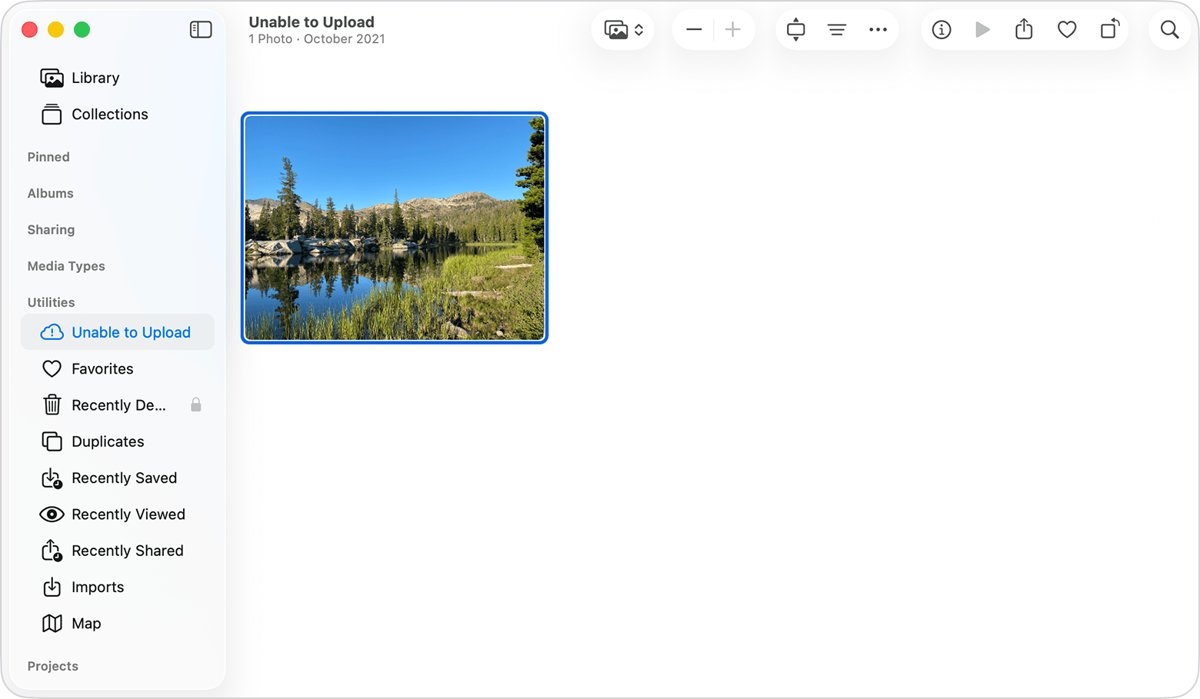
Items that fail are placed in an album named Unable to Upload, often because of an unsupported or damaged file.
- Open Photos and look for the Unable to Upload album.
- Edit each item in that album to see if it uploads.
- Otherwise, export the items, then import or upload them again.
- Check the files are supported types such as HEIF, JPEG, RAW, PNG, GIF, TIFF, HEVC or MP4.
Photos are not syncing to iCloud at all
iCloud itself may be unreachable, or the device runs an old software version.
- Update to the latest iOS, iPadOS or macOS.
- Check whether Mail, Contacts or Messages sync over iCloud.
- If they fail too, test your Wi-Fi and check Apple's System Status page.
- Leave the device on power and Wi-Fi overnight.
Photos disappeared from my library after syncing
Photos moved to an iCloud Shared Photo Library no longer appear in your Personal Library view.
- Open Photos and switch the library view to show both libraries.
- Move the items back to your Personal Library if they belong there.
iCloud for Windows photos not syncing or not loading
iCloud Photos is off in the app, the app is out of date, or Windows lacks the image codecs.
- Open iCloud for Windows and confirm iCloud Photos is on.
- Update iCloud for Windows from the Microsoft Store.
- If you see "We detected that you are using an older version of Windows", update to Windows 10 build 18363 or later.
- Install the HEVC decoder and HEIF plugin from the Microsoft Store.
Duplicate photos appear on the PC
Older iCloud for Windows 7.x shows both a video and a still image for each Live Photo, and edited photos can download as extra copies.
- Update to the latest iCloud for Windows.
- Delete only the extra copies you created locally, since deleting synced files also removes them from iCloud Photos in version 14 or later.
Should you turn iCloud Photos off and on again?
No. Leave iCloud and iCloud Photos turned on while you fix the problem. Apple says turning either one off restarts syncing, which can make a large library take much longer to finish, and deleted items sync across every device anyway.
iCloud Photos not syncing FAQ
Why are my photos not syncing to iCloud?
Syncing usually pauses because of Low Power Mode, Low Data Mode, a battery under 20 percent, a hot device, a weak connection or full iCloud storage. The status message at the bottom of your Photos library names the exact reason.
Why are iPhone photos not syncing to iCloud?
Check that Sync this iPhone is on in Settings > your name > iCloud > Photos, that you use the same Apple Account everywhere, and that the iPhone is charging on Wi-Fi. Then read the status in Photos and tap Sync Now if offered.
Why are my iCloud photos not syncing to my PC?
iCloud Photos must be turned on inside iCloud for Windows, and you must sign in with the same Apple Account. Update the app from the Microsoft Store, then open iCloud Photos in File Explorer and double-click a photo to download it.
Why is my iCloud not syncing photos when storage is full?
When your iCloud storage is full, new photos and videos cannot upload. Delete files you no longer need from iCloud or upgrade your storage plan, and syncing resumes on its own.
How long does iCloud Photos take to sync?
It depends on your internet speed and how many photos you have. A large library can take a day or more, so Apple suggests leaving the device on power and Wi-Fi overnight.
Does turning off iCloud Photos fix syncing?
No. Turning off iCloud or iCloud Photos restarts syncing from the start. Fix the paused status, storage or connection instead and leave the feature on.
Why do I see an Unable to Upload album?
Photos places items that could not upload in the Unable to Upload album. Edit each item to retry, or export and reimport it, and confirm the file type is supported.
Why are edited photos on my PC not showing on my iPhone?
Edits made on a Windows PC do not sync back to iCloud Photos. Save the edited photo under a new file name and upload it again to see it on your Apple devices.