Phone Link download is free from the Microsoft Store for Windows 11 and Windows 10. Install it on the PC, pair your Android phone or iPhone, and your texts, calls, notifications and photos show up on the desktop.
Most PCs already have it. The phone side is the free Link to Windows app, which comes built into select Samsung and HONOR phones.
Below you will find the official links, pairing steps for both phone types, what to use on a Mac, and fixes for a phone that will not connect.
Check your PC and phone against the Phone Link requirements
Open Settings, then System, then About on the PC to read your Windows version before you start.
| Field | Detail |
|---|---|
| Software | Phone Link (package Microsoft.YourPhone) |
| Developer | Microsoft Corporation |
| Latest version | 1.26072.255.0 on Windows 11; 1.25072.81.0 on Windows 10 |
| License / Price | Free |
| Download size | 311.3 MB Store bundle (x64 and ARM64 combined) |
| Installed size | 412.4 MB |
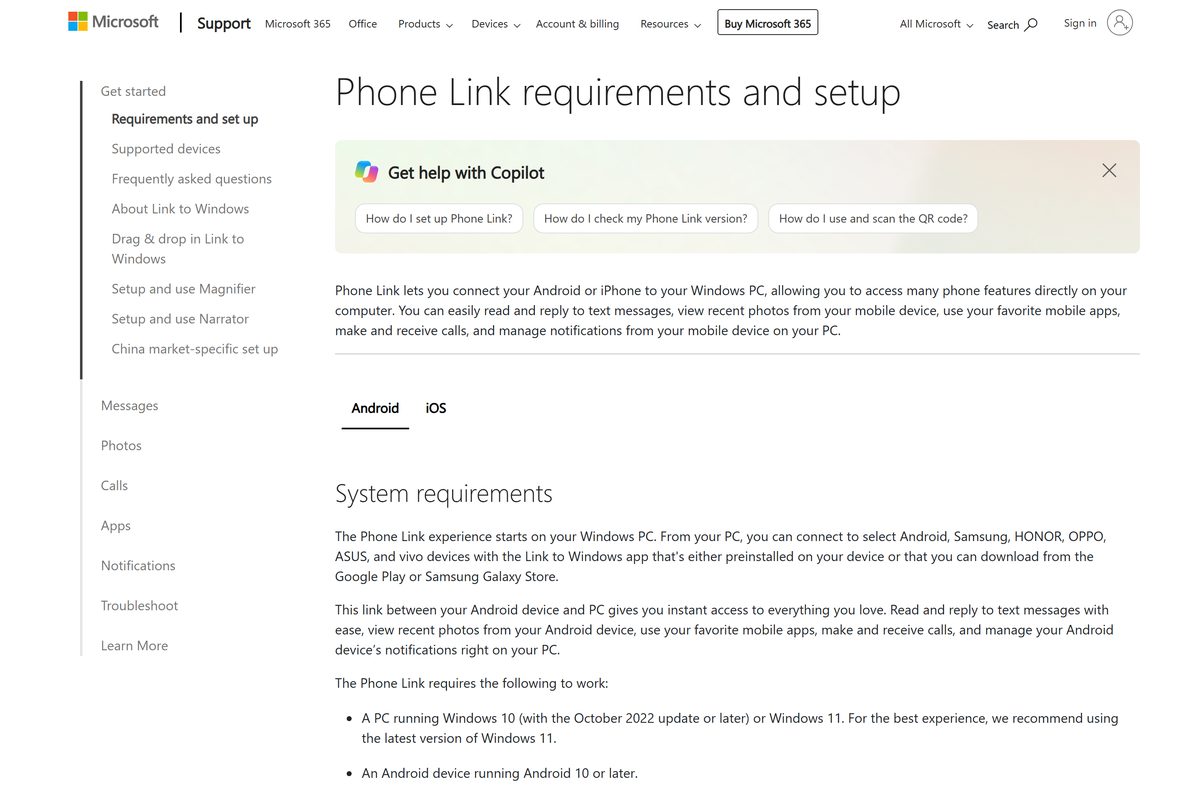
| Windows | Windows 11, or Windows 10 with the October 2022 update or later |
| Android phone | Android 10 or later with Link to Windows |
| iPhone | iOS 16 or later, plus a PC with Bluetooth Low Energy |
| Architecture | x64 and ARM64; the Windows 10 package adds x86 |
| Official download source | Microsoft Store |
| Offline installer | No |
| Last verified | 2026-09-24 |
Android pairing also needs the phone and the PC on the same Wi-Fi network.
Which Phone Link download do you need?
Match your computer and your phone to one row. The PC always gets Phone Link, and the phone gets Link to Windows.
| Your setup | What to install | Size |
|---|---|---|
| Windows 11 PC, any phone | Phone Link on the Microsoft Store | 311.3 MB bundle |
| Windows 10 PC, any phone | Phone Link on the Microsoft Store | 431.5 MB bundle |
| Android phone | Link to Windows on Google Play | Built into select Samsung and HONOR phones |
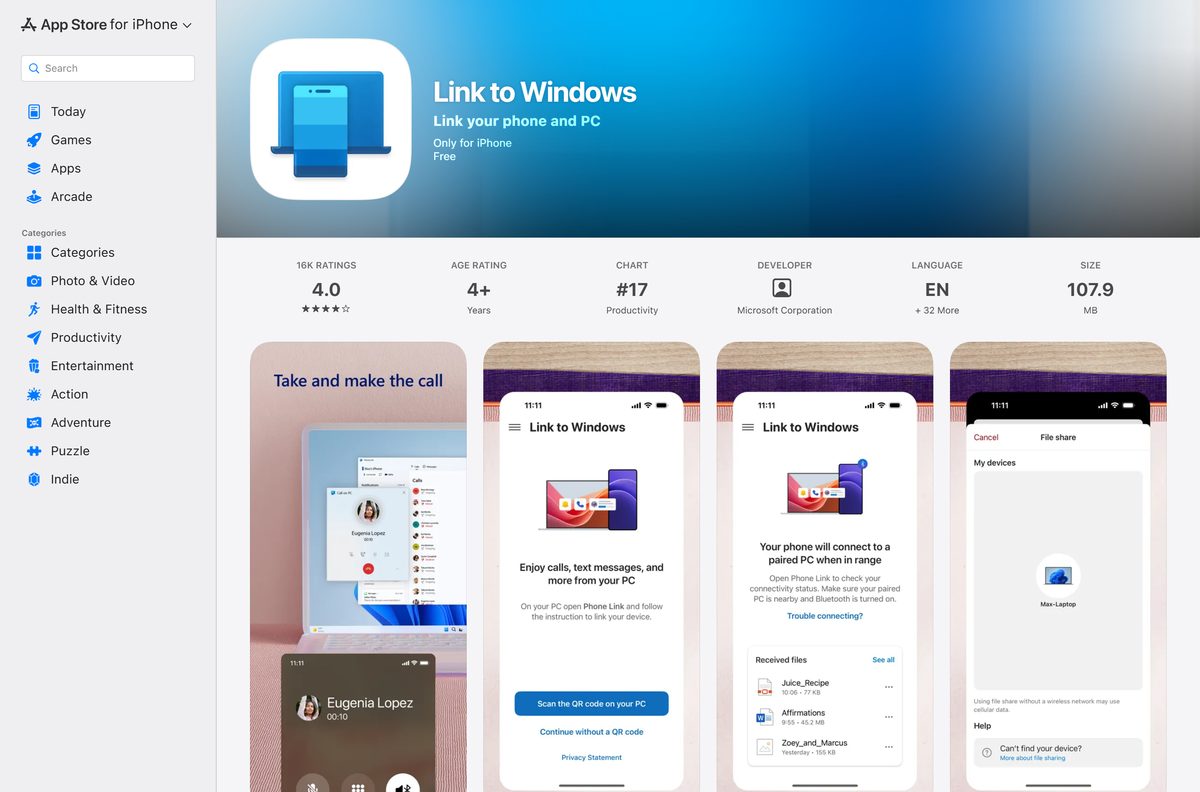
| iPhone | Link to Windows on the App Store | 107.9 MB |
| Mac with an iPhone | Apple’s iPhone Mirroring guide | Built into macOS |
Download Phone Link from the official Microsoft, Google and Apple stores
Microsoft Corporation publishes every one of these listings. Any site offering a Phone Link .exe is not Microsoft.
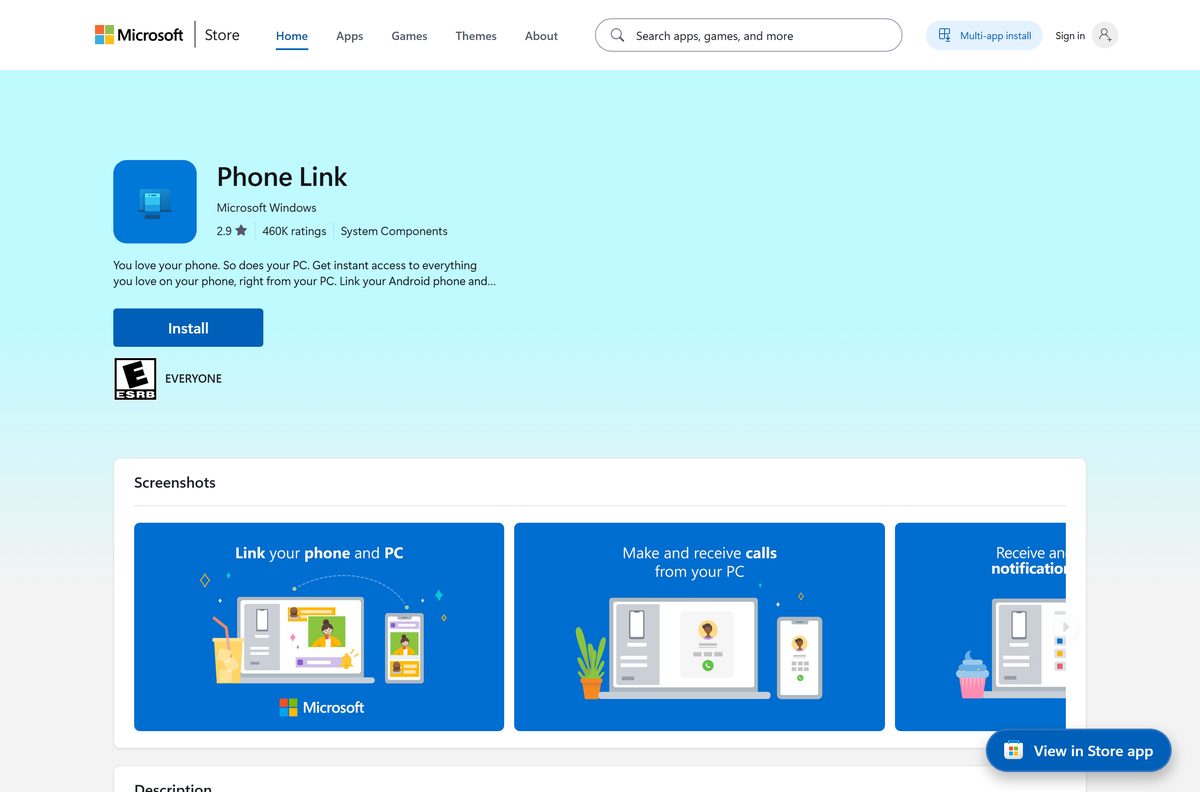
- Phone Link on the Microsoft Store — 311.3 MB · Windows 11 and Windows 10, free
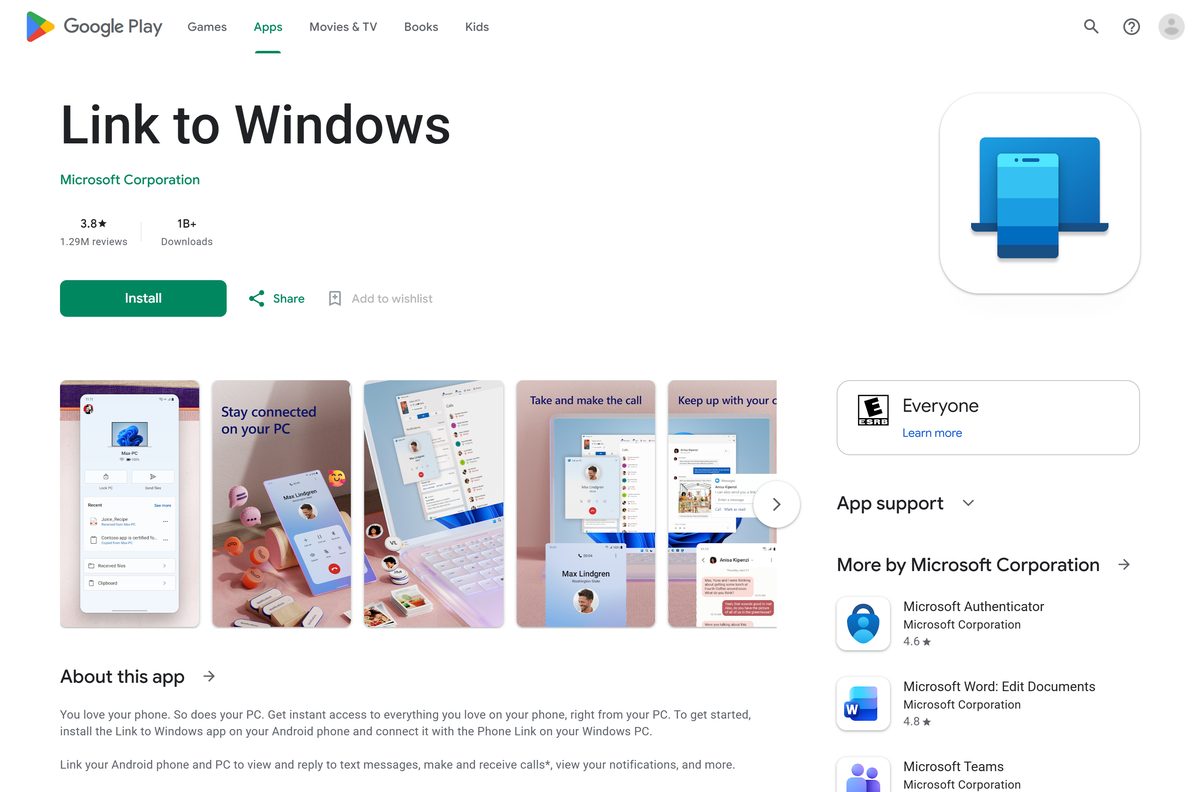
- Link to Windows on Google Play — Android 10 or later, 1B+ downloads
- Link to Windows on the App Store — 107.9 MB · iPhone, iOS 16.6 or later on the listing
- Microsoft’s Phone Link requirements and setup page — official pairing guide for both phone types
How to pair your phone with Phone Link on Windows 11 and 10
Sign in with the same Microsoft account on the PC and the phone. Pick the group that matches your phone.
Pair an Android phone
- On the PC, type Phone Link in the taskbar search and open it.
- Select Android, then sign in with your Microsoft account.
- Install Link to Windows on the phone from Google Play, or open it if it came built in.
- Sign in to Link to Windows with the same Microsoft account.
- Select Pair with QR code on the PC and scan the code with the phone’s camera.
- Allow the permissions the phone asks for, then select Done.
Pair an iPhone
- Turn on Bluetooth on the PC and on the iPhone.
- Open Phone Link from the Start menu and select iPhone.
- Scan the QR code on the PC screen with the iPhone camera.
- Follow the prompts to pair over Bluetooth and open Link to Windows.
- Allow notification and contact access on the iPhone so messages and calls reach the PC.
Install Phone Link from the Microsoft Store or with winget
Phone Link comes preinstalled on most PCs. Reinstall it this way if it is missing or will not open.
- Open the Phone Link listing in your browser.
- Select Get in Store app and let the browser hand off to the Microsoft Store.
- Select Get or Install and wait for the package to finish.
- To use a terminal instead, open Windows Terminal and run winget install –id 9NMPJ99VJBWV –source msstore .
- Accept the Store agreement prompt that winget shows.
- Open Phone Link from the Start menu once the install completes.
Can you use Phone Link on a Mac?
Microsoft builds Phone Link for Windows 10 and Windows 11 only. On a Mac, the route depends on your phone.
| Your setup | What to use | Requirement |
|---|---|---|
| Mac with an iPhone | iPhone Mirroring from Apple | macOS Sequoia 15 or later, Apple silicon or T2 chip, iOS 18 or later |
| Mac with an Android phone | Phone Link on a Windows PC instead | No Microsoft app for macOS |
| Windows PC next to your Mac | Phone Link on the Microsoft Store | Windows 10 or Windows 11 |
iPhone Mirroring also needs both devices on the same Apple Account with two-factor authentication.
Is Phone Link free?
The Microsoft Store lists Phone Link as Free at $0.00.
Install Phone Link free from the Microsoft Store and Link to Windows free from Google Play or the App Store. Microsoft charges nothing on either side. A download site asking for money or a license key for Phone Link is not selling a Microsoft product.
Check which Phone Link features your phone supports
Messages, calls and notifications work on any supported phone. The app features need specific hardware.
| Feature | What it needs |
|---|---|
| Messages, calls and notifications | Android 10 or later, or iOS 16 or later |
| Photos | Android phone with Link to Windows |
| Apps, Phone screen, drag and drop | Compatible Samsung, HONOR or Microsoft Duo phone |
| Multiple apps at once | Android 11 phone and a PC with at least 8GB of RAM |
| iPhone connection | Bluetooth Low Energy on the PC and Bluetooth on at both ends |
Running Samsung DeX at the same time conflicts with Phone Link, so keep only one of them open.
Should you run Phone Link on Windows 11 or Windows 10?
The Microsoft Store picks the package from your Windows build. You do not choose a file.
Run Phone Link on Windows 11 build 22631 or later to receive 1.26072.255.0, the newest package. Windows 10 PCs on build 19041 or later stay on 1.25072.81.0, which still pairs Android phones and iPhones but does not receive the newest builds.
How to check your Phone Link version and update it
An Update Required page means one side is too old. Update whichever device shows the message.
- Open Phone Link on the PC and select Settings.
- Select About to read the installed version.
- Select Check for updates, then Update if one is offered.
- On the phone, open Link to Windows, then Settings, then Check for updates.
- Confirm Phone Link is 1.23112.85.0 or later and Link to Windows is 1.24021.164.0 or later.
Fix Phone Link not connecting on Windows 11 or 10
Match the symptom and work through its fixes in order.
The phone and the PC will not connect
Battery saving or a background-app block stops the link.
- Sign in with the same Microsoft account on both devices.
- Turn Battery saver off on the PC and on the phone.
- On Android, open the battery settings for Link to Windows and set it to Don’t optimize.
- On the PC, open Settings, then Privacy, then Background apps, and allow Phone Link.
Both devices are on the same Wi-Fi but still fail
The router isolates wireless clients from each other.
- Open your router’s admin page.
- Go to Wireless, then Advanced Wireless Setting.
- Turn off AP Isolation and save.
Phone Link cannot find a phone that paired before
The stored link between the two devices is stale.
- On the phone, open Link to Windows and tap your account under Linked Account.
- Select Account Settings, then Sign out and unlink account, and confirm Unlink.
- On the PC, open Phone Link, then Settings, Devices, Add new device, and pair again.
Photos or messages stop syncing after an Android update
The update reset the app’s permissions.
- Open Settings, App Info, See all apps, Link to Windows, Permissions.
- Allow Storage, Contacts, SMS and Phone.
- Search Settings for Notification access, toggle Link to Windows off and on, then select Allow.
How to remove a phone from Phone Link
Unlinking stops syncing and frees the PC for a different phone.
- On the phone, open Link to Windows.
- Tap your Microsoft account name under Linked Account.
- Select Account Settings, then Sign out and unlink account.
- Confirm with Unlink.
- To pair a new phone, open Phone Link on the PC and select Settings, Devices, Add new device.
Choose a Phone Link alternative for your devices
Phone Link covers most Windows and phone pairings. These routes fit the cases it does not.
| Your goal | Use this | Guide |
|---|---|---|
| Full desktop layout from a Galaxy phone | Samsung DeX | Samsung DeX download guide |
| iMessage threads on a Windows PC | Phone Link with an iPhone | iMessage download guide |
| Control an iPhone from a Mac | iPhone Mirroring | Apple’s iPhone Mirroring guide |
Frequently asked questions
Is the Phone Link download free?
Yes. The Microsoft Store lists Phone Link at $0.00, and Link to Windows is free on Google Play and the App Store. Calls, messages, notifications and photo syncing between your phone and your PC cost nothing.
Where is the official Phone Link download?
The official source is the Phone Link listing on the Microsoft Store at apps.microsoft.com, product ID 9NMPJ99VJBWV. The phone side comes from Google Play for Android and the App Store for iPhone, both published by Microsoft Corporation.
Is Phone Link already installed on Windows 11?
On most Windows 11 and Windows 10 PCs, yes. Type Phone Link in the taskbar search to check. If nothing appears, install it from the Microsoft Store listing or run the winget command with the msstore source.
Can I download Phone Link on a Mac?
No. Microsoft builds Phone Link for Windows 10 and Windows 11 only. On a Mac with an iPhone, use Apple’s iPhone Mirroring, which needs macOS Sequoia 15 or later and iOS 18 or later on the phone.
Does Phone Link work with an iPhone?
Yes. Pairing an iPhone needs iOS 16 or later, a PC with Bluetooth Low Energy, and Windows 10 with the May 2019 Update or later, or Windows 11. Bluetooth must stay on at both ends.
What Android version does Phone Link need?
Android 10 or later, with the Link to Windows app installed or built in. The multiple apps feature needs Android 11 on the phone and a Windows PC with at least 8GB of RAM.
Is there a Phone Link offline installer?
No. Phone Link ships with Windows and updates through the Microsoft Store only. The Store bundle for the newest build is 311.3 MB across x64 and ARM64, and it takes 412.4 MB once installed.
Why can’t I see my phone’s apps in Phone Link?
Apps, Phone screen and drag and drop need a compatible Samsung, HONOR or Microsoft Duo phone. Other Android phones still get messages, calls, notifications and photos on the PC, but not app mirroring.
How do I update Phone Link?
Open Phone Link, then Settings, then About, and select Check for updates. Update Link to Windows on the phone from its own Settings screen. An Update Required page clears once Phone Link reaches 1.23112.85.0 or later.
Does Phone Link run on ARM64 PCs?
Yes. The Windows 11 package ships for x64 and ARM64, so ARM64 laptops run it natively. The Windows 10 package also carries an x86 build for older 32-bit systems.

Set up Windows 11/10 Phone Link to sync texts, calls & photos - Techdows
[…] most Windows 10 and Windows 11 PCs. If it is missing, Windows Settings can install it, or you can download Phone Link for Windows from the Microsoft […]