WhatsApp Web keeps logging out on an iPad Pro because web.whatsapp.com is built for computer browsers, not iPadOS, so the lasting fix is to install the official WhatsApp for iPad app and link it to your phone.
This guide explains why the session drops, what iPadOS 18.4.1 did and did not change, how to keep WhatsApp Web signed in when you need it, and how to log in or out again.
How to stop WhatsApp Web logging out on iPad Pro
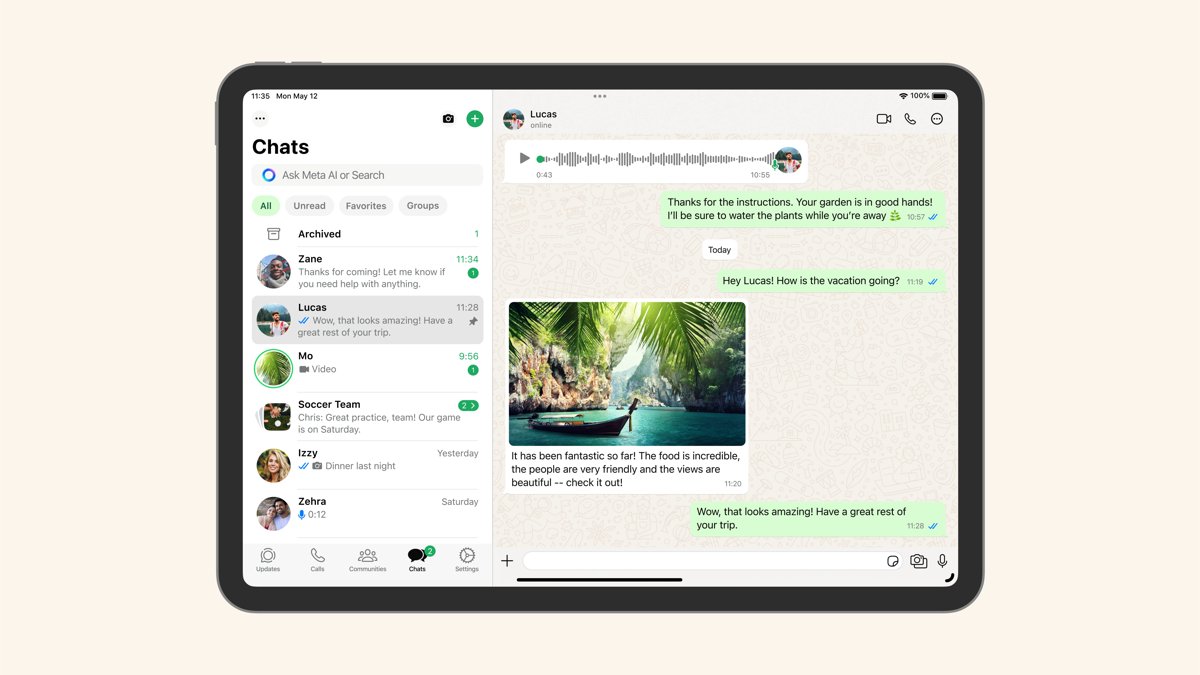
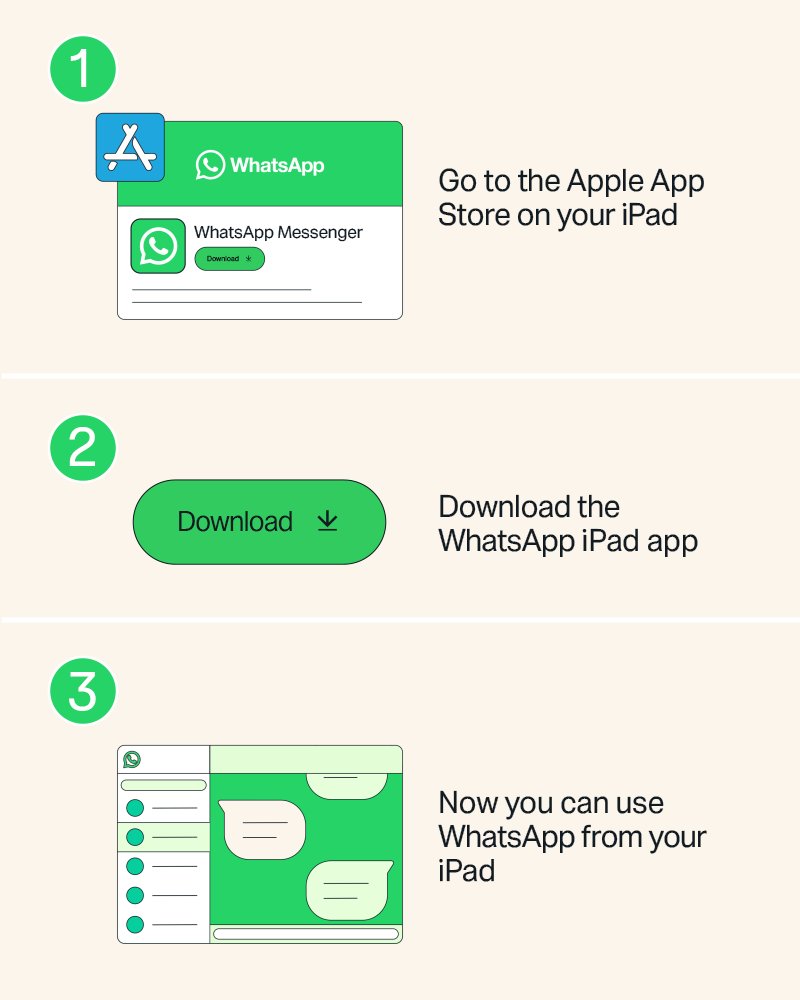
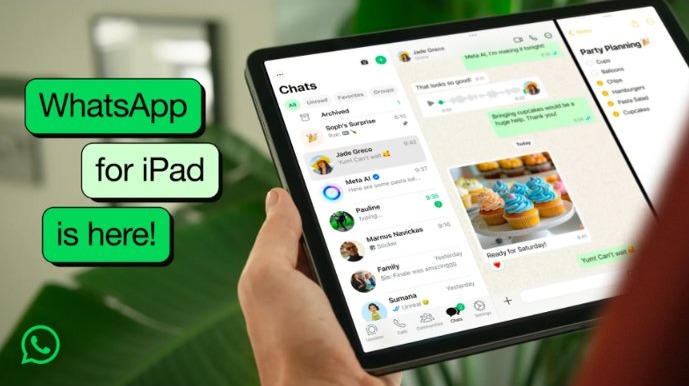
The WhatsApp for iPad app is a supported linked device, so it keeps its own connection instead of relying on a Safari tab and its website data.
It needs iPadOS 15.1 or later, which every iPad Pro that runs iPadOS 18.4.1 already has.
- Open the App Store on your iPad Pro, search for WhatsApp Messenger and tap Get.
- Open WhatsApp on the iPad. A QR code appears on the screen.
- On your iPhone, open WhatsApp and tap Settings or your profile picture, then tap Linked devices > Link device > OK.
- On an Android phone, tap the three-dot menu, then Linked devices > Link a device.
- Unlock with Face ID, Touch ID or your phone PIN when asked.
- Point the phone at the QR code on the iPad until the chats start to load.
Once linked, the iPad app syncs up to a year of your most recent chat history. Your full history stays on your phone. The same app and steps work on every iPad, so you can set up WhatsApp on iPad mini or iPad Air the same way.
WhatsApp iPad app or web.whatsapp.com in Safari: which stays logged in?
| Your situation | Use this | Why |
|---|---|---|
| You use WhatsApp on the iPad Pro every day | WhatsApp for iPad app | It is a supported linked device and does not depend on Safari cookies or open tabs |
| You want calls, screen sharing or Stage Manager and Split View | WhatsApp for iPad app | The app supports calls with up to 32 people, screen sharing and iPad multitasking |
| You cannot install apps on the iPad, for example a managed work iPad | web.whatsapp.com in Safari | It needs no install, but Safari settings and website data decide how long the session lasts |
| You only need a chat for a few minutes on a shared iPad | web.whatsapp.com in Safari, then log out | Logging out afterwards removes your account from the shared device |
Why does WhatsApp Web keep logging out automatically?
WhatsApp lists Windows, Linux and macOS as the supported platforms for WhatsApp Web. Safari 15 or later is supported on a Mac, but Safari on iPad is not on the list, so session problems there get no official fix.
| Cause | What happens | Fix |
|---|---|---|
| Your phone has not opened WhatsApp for 14 days | Linked devices disconnect from your account | Open WhatsApp on the primary phone at least every 14 days |
| The linked device was inactive for 30 days | WhatsApp disconnects it automatically | Link the iPad again from Linked devices |
| Safari website data was cleared | The data WhatsApp Web uses to remember your login is gone | Link again and avoid Remove All Website Data |
| Block All Cookies is on in Safari | Sites cannot keep you signed in, even with correct details | Turn Block All Cookies off |
| Someone logged the session out from the phone | The iPad shows the QR code again | Check Linked devices on the phone and link again |
| An unofficial WhatsApp app or website was linked | WhatsApp can ban the account temporarily or permanently | Use only web.whatsapp.com or the official apps |
Did the iPadOS 18.4.1 update cause WhatsApp Web to log out?
Treat the timing as a coincidence and fix the session itself: neither Apple nor WhatsApp lists a WhatsApp Web change in iPadOS 18.4.1. Apple released iOS 18.4.1 and iPadOS 18.4.1 on April 16, 2025, and its security notes list two fixes only, one in CoreAudio and one in RPAC. Nothing in them touches Safari cookies or website data, and WhatsApp's help pages name no iPadOS version that logs WhatsApp Web out.
The update did restart the iPad, which reloads every Safari tab. If WhatsApp Web was already close to its 14-day or 30-day limit, the restart is often when the logout first shows.
How to keep WhatsApp Web logged in on Safari for iPad
If you have to stay on web.whatsapp.com, Safari must be allowed to keep the site's cookies and website data between visits.
- Open Settings on the iPad, tap Apps, then tap Safari.
- Tap Advanced.
- Turn off Block All Cookies if it is on.
- Leave Website Data alone. Remove All Website Data clears the data sites use to save your login.
- Avoid Clear History and Website Data while you want WhatsApp Web to stay signed in.
- Open web.whatsapp.com in Safari and link it again from your phone.
Keep the same Safari tab for WhatsApp Web rather than opening a new one each time. A content blocker turned on under Settings > Apps > Safari > Extensions can also interfere with the site, so turn it off for a test if logouts continue.
WhatsApp linked devices logged out after 14 days: how to prevent it
Every linked device, including WhatsApp Web and the iPad app, depends on your primary phone. WhatsApp requires you to open WhatsApp on that phone every 14 days to keep linked devices connected.
- Open WhatsApp on your primary phone at least once every 14 days.
- Keep the phone connected to Wi-Fi or mobile data when you open it, so the app can reach WhatsApp.
- Use the iPad session at least once every 30 days, because WhatsApp disconnects linked devices after 30 days of inactivity.
- Update WhatsApp on the phone from the App Store or Google Play, since updates contain fixes for linked devices.
How to log in to WhatsApp Web on iPad again
- Open Safari on the iPad Pro and go to web.whatsapp.com.
- On your iPhone, open WhatsApp, tap Settings or your profile picture, then tap Linked devices > Link device.
- Verify with Face ID, Touch ID or your phone PIN. WhatsApp Web may also ask you to create or use a passkey.
- Scan the QR code shown in Safari with your phone.
- If WhatsApp asks about an unrecognized device, tap Link device only if you started the link yourself; otherwise tap Don't link.
- Wait a few minutes for recent messages to appear in the browser.
Not every chat syncs to a linked device, and WhatsApp Web syncs less history than the desktop app. If chats are missing after you log in, you can fix WhatsApp Web partial sync by moving to the iPad app.
Update iPadOS and WhatsApp to fix linked device problems
WhatsApp asks users to keep the app updated on linked devices because releases fix linked-device bugs. A newer iPadOS also brings a newer Safari.
- Open Settings > General > About and note the iPadOS Version.
- Back up the iPad with iCloud or a computer.
- Plug the iPad into power and connect to Wi-Fi.
- Go to Settings > General > Software Update and tap Download and Install if an update is listed.
- Update WhatsApp from the App Store on the iPad, and from the App Store or Google Play on the phone.
How to see if WhatsApp Web is still linked on your phone
- Open WhatsApp on your phone.
- On iPhone, tap Settings, then Linked devices. On Android, tap the three-dot menu, then Linked devices.
- Look for the iPad's browser session or the WhatsApp for iPad app in the list.
- If the iPad is missing, it has been logged out; link it again from the same screen.
- If you see a device you do not recognize, tap it, then tap Log out.
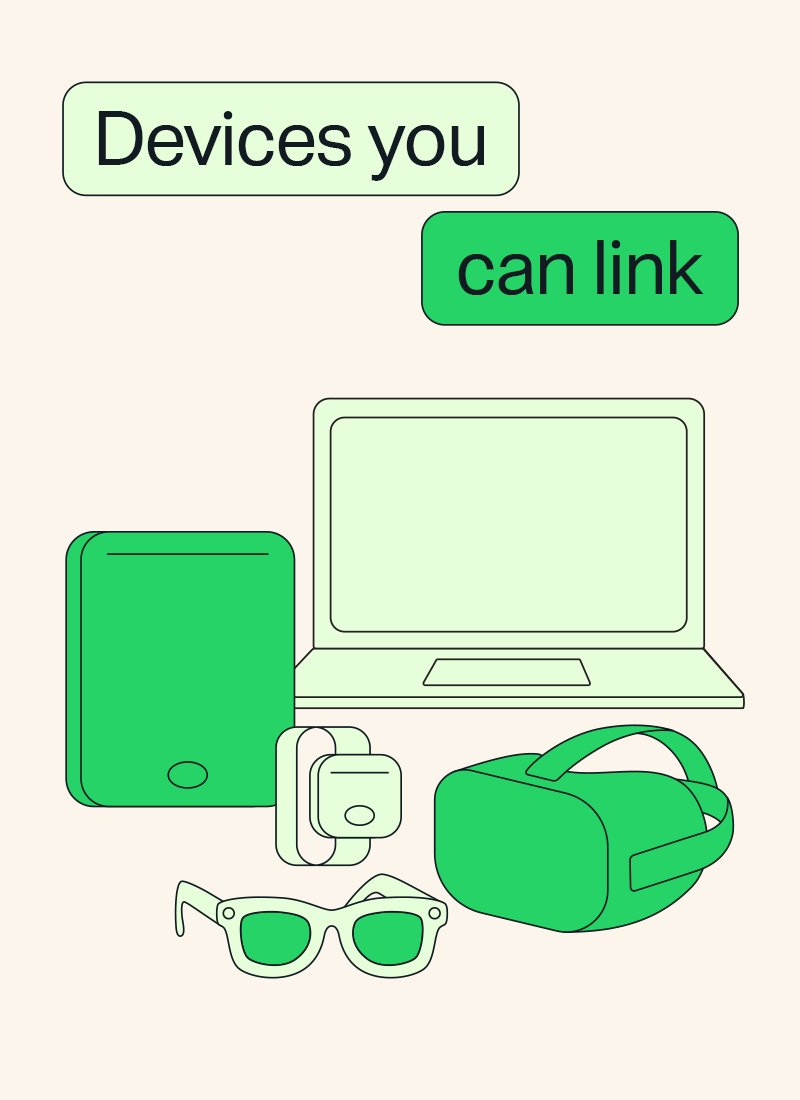
WhatsApp allows up to four linked devices at a time, so remove old browsers and computers you no longer use.
How to log out of WhatsApp Web
- Open WhatsApp on your primary phone and go to Linked devices.
- Tap the WhatsApp Web session you want to remove.
- Tap Log out.
- To log out from the iPad app itself, open Settings in WhatsApp for iPad, tap Log out, then tap Log out again to confirm.
Logging out from the phone works even when the iPad is not with you, which is the safer option after using a shared or borrowed iPad.
WhatsApp Web not staying logged in on iPad: more fixes
WhatsApp Web logs out after clearing Safari data
Clearing history and website data removes the login data the site stores in Safari.
- Open web.whatsapp.com and link the iPad again from Linked devices on your phone.
- Next time, delete only the sites you need under Safari History > Select Websites instead of clearing everything.
WhatsApp Web always logged out after a few weeks
The phone was not opened for 14 days, or the iPad session sat unused for 30 days.
- Open WhatsApp on the primary phone and confirm it is online.
- Link the iPad again and use the session at least once a month.
- Switch to the WhatsApp for iPad app if you only use WhatsApp on the iPad occasionally.
WhatsApp Web not logging in or stuck on Computer not connected
A weak connection, old cached data or a network that blocks WhatsApp, the same causes that stop WhatsApp Web loading at all.
- Look for the yellow Computer not connected message, which means no active internet connection.
- Refresh the web.whatsapp.com page.
- Clear Safari cookies and cache under Settings > Apps > Safari > Advanced > Website Data, then link again.
- Turn the iPad off, wait 30 seconds and turn it back on.
- Try another Wi-Fi network or a personal hotspot, since office and campus Wi-Fi can block WhatsApp.
Why did my WhatsApp suddenly log out on every linked device?
An unofficial WhatsApp app or website was linked, or WhatsApp was logged out on the primary phone.
- Open WhatsApp on the phone and check that the account is still registered there.
- Remove any unofficial WhatsApp app and unlink unknown sessions from Linked devices.
- Link the iPad again with the official WhatsApp for iPad app or web.whatsapp.com.
WhatsApp Web logging out on iPad FAQ
Why does WhatsApp Web keep logging out automatically?
WhatsApp Web logs out when your phone has not opened WhatsApp for 14 days, when the session is unused for 30 days, or when the browser's cookies and website data are cleared or blocked. On an iPad, Safari is also not a supported WhatsApp Web platform.
Why does my WhatsApp keep logging out on iPad?
On an iPad the usual cause is running WhatsApp Web in Safari, which loses its session when website data is removed. Install the WhatsApp for iPad app instead, link it to your phone, and open WhatsApp on the phone at least every 14 days.
Does WhatsApp log you out after a while?
Yes. WhatsApp automatically disconnects linked devices after 30 days of inactivity, and linked devices also disconnect if you do not open WhatsApp on your primary phone within 14 days. Your account and chats on the phone are not affected.
Why did my WhatsApp suddenly log out?
A sudden logout usually means the session was removed from Linked devices on the phone, browser data was cleared, or an unofficial WhatsApp app was linked. WhatsApp can ban accounts linked to unofficial apps or websites, so use only the official apps.
Why does WhatsApp Desktop keep logging out?
WhatsApp Desktop follows the same linked-device rules as WhatsApp Web: open WhatsApp on your primary phone every 14 days and use the computer at least every 30 days. Keeping WhatsApp Desktop updated also helps, because updates fix linked-device bugs.
How do I log out of WhatsApp Web?
Open WhatsApp on your phone, go to Linked devices, tap the WhatsApp Web session and tap Log out. On the linked device itself, open WhatsApp Settings and choose Log out. Logging out from the phone works even when the other device is not with you.
Is WhatsApp Web supported on iPad?
WhatsApp lists Windows, Linux and macOS as the supported platforms for WhatsApp Web, so Safari on iPad is not officially covered. WhatsApp offers a dedicated WhatsApp app for iPad on the App Store for iPadOS 15.1 or later.
How many devices can stay logged in to WhatsApp at once?
WhatsApp lets you link up to four devices at a time to one account, alongside your primary phone. WhatsApp Web, WhatsApp Desktop, the iPad app and a companion phone each count as one linked device, so remove sessions you no longer use.