There is no official iMessage app for Windows, and Apple does not offer a Messages website that you can open from a PC. The easiest option is Microsoft Phone Link, which connects your iPhone to Windows over Bluetooth and lets you send and receive individual messages.
To get full iMessage access on a Windows PC, including your conversation history, group chats, photos, reactions, and other Apple Messages features, you still need a Mac. You can remotely control the Mac from Windows or use a third-party Mac relay such as BlueBubbles.
| Method | Requires a Mac? | What you get |
|---|---|---|
| Microsoft Phone Link | No | Basic individual messaging through a nearby iPhone |
| Remote access to a Mac | Yes | The complete Apple Messages app through remote control |
| BlueBubbles | Yes | A third-party iMessage client powered by a Mac server |
| iCloud for Windows or iCloud.com | No | No iMessage or Apple Messages access |
How to Get iMessage on Windows
Step 1: Use Phone Link with iPhone
Phone Link is the simplest way to send and receive messages from an iPhone on a Windows PC without owning a Mac. Despite what some older guides claim, Microsoft currently supports iPhone pairing on both Windows 10 and Windows 11.
You need:
- A PC running Windows 10 with the May 2019 Update or later, or Windows 11
- A PC with Bluetooth Low Energy support
- An iPhone running iOS 16 or later
- The latest version of Microsoft Phone Link
- The iPhone kept close enough to maintain its Bluetooth connection
You do not normally need to install the Link to Windows app on the iPhone. Microsoft says it is optional, although using the latest version may improve the pairing experience.
Connect your iPhone to Phone Link
- Open the Phone Link app from the Windows Start menu.
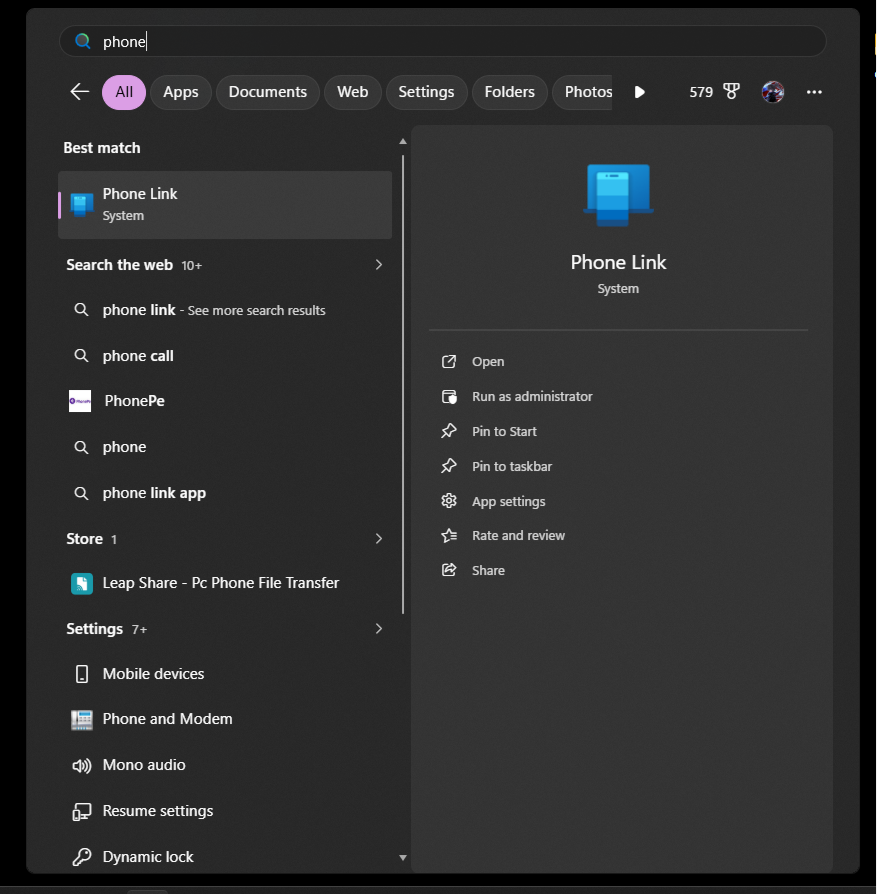
- Select iPhone when asked which phone you want to connect.
- Turn on Bluetooth on both the PC and iPhone.
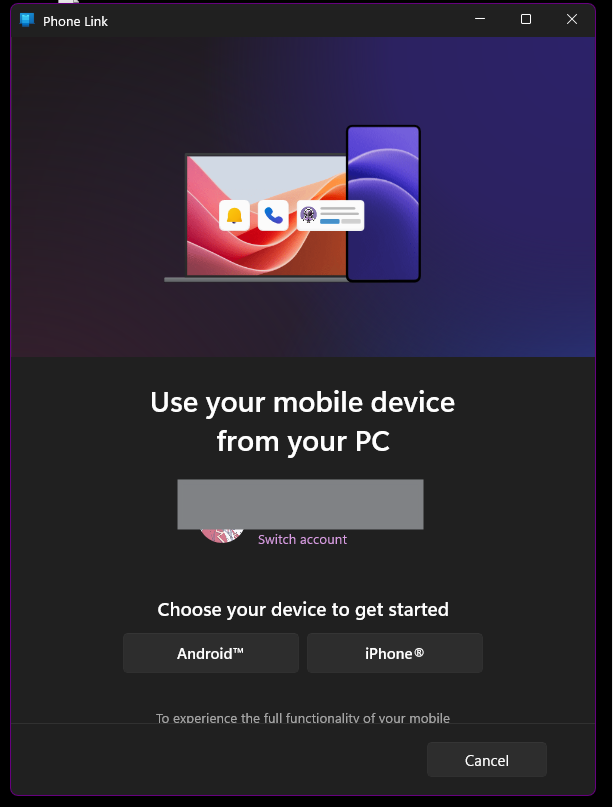
- Scan the QR code displayed in Phone Link using the iPhone Camera app.
- Approve the Bluetooth pairing request on both devices.
- Confirm that the pairing codes shown on the iPhone and PC match.
- Follow the remaining instructions in Phone Link.
If the iPhone option is greyed out, your computer may not support Bluetooth Low Energy, Bluetooth may be disabled, or the required driver may be missing.
Allow Phone Link to access your messages
After pairing, open the following location on your iPhone:
Settings > Bluetooth > your Windows PC
Tap the information button beside the PC and enable the available options for:
- Show Notifications
- Share System Notifications
- Sync Contacts
Microsoft uses these Bluetooth permissions to display messages, contact names, notifications, and recent call information inside Phone Link.
Return to Phone Link on the PC, open Settings > Features, and make sure messaging is enabled. You can then select the Messages tab to start a conversation or respond to a recently received message.
Does Phone Link actually give you iMessage on Windows?
Not in the same way that an iPhone, iPad, or Mac does. Phone Link does not sign your Windows PC directly into Apple’s iMessage service. It uses the paired iPhone to relay messages over Bluetooth.
Your iPhone may still deliver an outgoing message through iMessage when you contact another Apple user, but Phone Link presents it as a basic conversation. It does not reproduce the complete Apple Messages interface or many of its features.
| Phone Link messaging feature | Available with iPhone? |
|---|---|
| Send a message to one person | Yes |
| Receive messages while connected | Yes |
| View your complete iPhone message history | No |
| Keep Phone Link history after Bluetooth disconnects | No |
| Create or reply to group conversations | No |
| Send or receive photos and GIFs | No |
| Send Memojis | No |
| Delete iPhone messages from the PC | No |
| Use reactions, edits, effects, or unsend | No |
| See whether every message is an iMessage or SMS | Limited |
Phone Link displays only messages sent or received while the iPhone is connected to the PC through Bluetooth. Microsoft says that disconnecting Bluetooth removes this message history from Phone Link.
Group messages may appear as notifications, but you must use the iPhone to reply. Images, GIFs, and Memojis are also unavailable through the iPhone version of Phone Link.
Step 2: Use a Mac with Chrome Remote Desktop
If you already own a Mac, remote access gives you the actual Apple Messages app rather than Phone Link’s limited Bluetooth relay. The Messages app continues running on the Mac, while the Windows PC displays and controls the Mac remotely.
This gives you access to conversation history, group chats, images, reactions, attachments, and the other features available on that Mac.
Set up remote access to Messages
- Sign in to the Messages app on the Mac with your Apple Account.
- Confirm that iMessage is working normally on the Mac.
- Install and configure a trusted remote-access tool such as Chrome Remote Desktop on the Mac.
- Set a strong access PIN.
- Keep the Mac powered on, connected to the internet, and signed in.
- Open Chrome Remote Desktop from the Windows PC.
- Connect to the Mac and open the Messages app remotely.
This method does not install Apple Messages on Windows. You are viewing and controlling the Mac’s desktop from the PC.
Remote access is best when you already own a Mac that can remain at home or in the office. It is less convenient when the Mac frequently sleeps, loses its connection, or travels with you.
Step 3: Understand Why iCloud Does Not Bring iMessage to Windows
Installing iCloud for Windows does not add Apple Messages or iMessage to your PC. Apple uses iCloud for Windows to provide access to services such as iCloud Drive, Photos, passwords, mail, calendars, and contacts.
Messages is also absent from the list of apps available through iCloud.com. Signing in through a browser will not display your iPhone conversations.
Messages in iCloud synchronizes conversations between supported Apple devices signed in to the same Apple Account, including the iPhone, iPad, and Mac. It does not create a Windows or browser-based Messages client.
Do not download an “iMessage for Windows” installer that claims it only needs your Apple Account. Apple does not distribute an official iMessage EXE, Microsoft Store app, Chrome extension, or browser client.
Step 4: Use BlueBubbles for a More Complete Windows Client
BlueBubbles is a third-party project that can display Apple Messages in a Windows client or web interface. However, it still requires a Mac because the Mac acts as the iMessage server.
The basic setup involves:
- Installing the BlueBubbles server on a Mac.
- Granting the permissions required to read and send Messages data.
- Configuring a secure connection between the server and your devices.
- Installing the BlueBubbles client on Windows or opening its web client.
- Keeping the Mac running and connected.
BlueBubbles can offer a more app-like experience than remotely controlling the Mac. Its server uses macOS automation and the Mac’s Messages database to send messages, create conversations, and retrieve incoming messages.
However, BlueBubbles is not developed or supported by Apple. It requires considerable access to the Mac, and some advanced features involve additional system changes. Read the project’s current documentation and understand the permissions before installing it.
Avoid guides suggesting that you run an unofficial macOS virtual machine solely to obtain iMessage. These installations can be unreliable, difficult to secure, and may cause Apple Account sign-in problems. Even BlueBubbles recommends real Mac hardware over an unsupported virtual machine.T
Frequently Asked Questions
Can you download iMessage on a PC?
No. Apple does not offer an official iMessage or Apple Messages download for Windows. Phone Link can relay limited messages through an iPhone, but it is not the Apple Messages app.
Does iMessage work on Windows?
There is no native iMessage client for Windows. You can use Phone Link for limited individual messaging, or access the complete Messages app through a Mac.
Is Microsoft Phone Link really iMessage?
No. Phone Link pairs with an iPhone over Bluetooth and relays messages handled by the phone. It does not directly sign the PC into Apple’s iMessage service or sync the complete Messages database.
Can Phone Link send a blue-bubble iMessage?
The paired iPhone handles the delivery of the message. When the recipient and your iPhone are using iMessage, the phone may deliver it through Apple’s service. Phone Link itself does not reproduce the complete blue-bubble interface or clearly expose every iMessage feature.
Can I see my old iPhone messages in Phone Link?
No. Phone Link shows messages sent and received while the iPhone is actively connected through Bluetooth. Disconnecting Bluetooth removes that Phone Link history.
Can I send photos through Phone Link from an iPhone?
No. Microsoft says the iPhone version of Phone Link does not currently support sending or receiving images, GIFs, and Memojis.
Can I reply to an iMessage group chat from Windows?
Not through Phone Link. A group-message notification may appear on the PC, but you must use the iPhone to reply.
Does Phone Link for iPhone work on Windows 10?
Yes. Microsoft currently lists Windows 10 with the May 2019 Update or later and Windows 11 as supported. The PC must also support Bluetooth Low Energy, and the iPhone must run iOS 16 or later.
How can I get iMessage on Windows 10 without a Mac?
Phone Link is the only straightforward option, but its messaging features are limited. There is no method that provides the complete Apple Messages experience on Windows 10 without a Mac.
Can I use iMessage in a web browser?
Apple does not offer an iMessage web client. Messages is not included among the apps available through iCloud.com.
Does iCloud for Windows include Apple Messages?
No. iCloud for Windows can sync supported content such as photos, files, passwords, mail, calendars, and contacts, but it does not provide access to iMessage conversations.
Can I use an iPad instead of a Mac as an iMessage server?
No. Remote-desktop and relay methods rely on macOS because the Mac can run the Messages app and server software. An iPad cannot replace the Mac in this setup.
Do BlueBubbles and similar apps work without a Mac?
No. BlueBubbles requires a Mac to run its server and communicate with Apple Messages. The Windows app is a client connected to that Mac.
Is BlueBubbles safe?
BlueBubbles is a third-party project rather than an Apple product. Its server requires access to sensitive Messages data on the Mac. Review its source, documentation, permissions, network configuration, and security implications before using it.
Can I install macOS in a virtual machine to use iMessage?
Some unofficial projects document macOS virtual machines, but they can be unreliable and may fail to activate iMessage. Real Mac hardware is the safer and more dependable option.
Why does the iPhone option appear greyed out in Phone Link?
Bluetooth may be turned off, the Bluetooth driver may not support the required features, or the PC may not have Bluetooth Low Energy. Update the Bluetooth driver and confirm that the adapter supports BLE.
Why are my messages missing from Phone Link?
Check the iPhone’s Bluetooth settings for the paired PC and enable notification sharing and contact synchronization. Remember that Phone Link does not import old conversations and displays only messages handled while the Bluetooth connection is active.

![Java JRE latest version: Download & Install [32-bit, 64-bit]](https://techdows.com/wp-content/uploads/2026/10/Java-JRE-latest-version-Download-Install-32-bit-64-bit-1-600x338.jpg)




How to Report a Problem to Apple Support - Techdows
[…] in any browser, so no Apple device is needed. Windows users running Apple services should also read how to get Apple's iMessage on Windows before reporting a sync […]
How to Sign-In Apple ID on AppStore - Techdows
[…] Windows has no App Store app; Apple's own media apps carry the sign-in, as does the iMessage on Windows route […]
How to Enable iMessage on iPhone: A Step-by-Step Guide - Techdows
[…] To reach your conversations from a Windows PC, see how to get Apple's iMessage on Windows. […]