To fix DNS_PROBE_FINISHED_NO_INTERNET in Google Chrome, restart your modem and router, then run ipconfig /flushdns and switch the PC to Google Public DNS (8.8.8.8 and 8.8.4.4).
If the error stays, reset Winsock and the TCP/IP stack, turn off Chrome's secure DNS, reset Chrome, and update or reinstall the network adapter driver on Windows 11 or Windows 10.
How to fix DNS_PROBE_FINISHED_NO_INTERNET on Windows 11 and 10
These five steps clear the most common causes in a few minutes. Reload the page in Chrome after each one, and stop as soon as it loads.
- Select the Network icon on the taskbar and check that your Wi-Fi or Ethernet network shows Connected.
- Unplug the router and the modem, wait at least 30 seconds, plug the modem back in, then the router.
- Select Search on the taskbar, type command prompt, then select Run as administrator > Yes.
- Type
ipconfig /flushdnsand press Enter. - Change the adapter's DNS servers to 8.8.8.8 and 8.8.4.4, as shown in the Google DNS section below.
- Close Chrome with More > Exit, reopen it and reload the page.
What does DNS_PROBE_FINISHED_NO_INTERNET mean in Chrome?
Chrome shows DNS_PROBE_FINISHED_NO_INTERNET when it can't turn a web address into a server IP address and its follow-up check finds no working internet connection. The fault sits between the PC and the DNS server, not on the website.
| Where the problem sits | Typical cause | Fix in this article |
|---|---|---|
| Modem, router or ISP | The router lost its link to the provider, or the provider has an outage | Check your internet connection, reboot your Windows PC |
| Windows network settings | Stale DNS cache, an expired IP lease, a broken Winsock catalog or a manual proxy | Flush DNS cache and renew IP lease, reset TCP/IP stack and WinSock |
| DNS server | The ISP's DNS server is slow or not answering | Switch to Google DNS |
| Chrome | Its own host cache, a secure DNS provider that fails, or changed settings | Clear Chrome's internal DNS cache, reset Chrome to factory defaults |
| Security software | A firewall or web filter blocking Chrome's traffic | Disable third-party antivirus programs (the safe version) |
| Network adapter | An outdated or damaged driver, often after an update | Update network adapter driver |
Check your internet connection
Start with the connection itself. If no site loads in any app, Chrome is only reporting the problem.
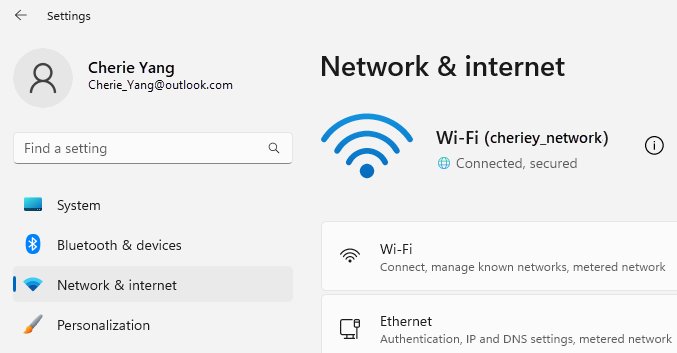
- Select the Network, Sound or Battery icons on the right side of the taskbar and make sure Wi-Fi is on.
- Check that your network name shows Connected. If not, select a network you recognize and connect.
- Go to Settings > Network & internet > Airplane mode and make sure it is off.
- Try the same network on a phone or another laptop. If that device can't load sites either, the router or provider is at fault.
- On public Wi-Fi in a hotel or airport, open any site to bring up the network's sign-in page and accept its terms.
- On Ethernet, check that the cable sits firmly in the PC and in a router LAN port, not the port used for the modem.
Run the built-in network troubleshooters
On Windows 11, the Network and Internet troubleshooter in the Get Help app runs diagnostics and repairs most common faults on its own.
- Open the Get Help app from the Start menu.
- In the search bar, type connect to network and internet.
- Select Run network diagnostics.
- If asked to allow diagnostics, select Yes.
- Complete the steps it offers, then reload the page in Chrome.
The same troubleshooter is listed in Windows Security under Firewall & network protection as Network and Internet troubleshooter.
Disable third-party antivirus programs
Google lists firewall and antivirus software among the causes of Chrome connection errors. Switching protection off leaves the PC exposed, so the safe version of this fix is to find what the security software blocked and allow Chrome.
- Open Windows Security and select Firewall & network protection.
- Select Allow an app through firewall and check that Google Chrome is allowed on your network type.
- If you use third-party security software, open its firewall or web protection log and look for blocked Chrome connections.
- Update the security suite from its own app, then follow its vendor's steps to allow Chrome if it is still blocked.
- If two real-time antivirus products are installed, keep one and uninstall the other with its vendor's instructions.
- Restart the PC and reload the page.
If someone or something changed Windows Firewall rules, Restore firewalls to default on the same page puts them back to factory settings.
Refresh the DNS Client service
The DNS Client service (Dnscache) caches DNS lookups for every app on the PC, Chrome included. Its default startup type is Automatic, and services that depend on it don't start if it is disabled.
- Press Win + R, type
services.mscand press Enter. - Find DNS Client in the list and check that Status shows Running.
- Double-click it and check that Startup type is Automatic.
- Select OK and close Services.
- Open Command Prompt as administrator and run
ipconfig /flushdnsto empty the service's cache. - Reload the page in Chrome.
If Startup type is not Automatic and can't be changed, a policy or another app set it. Restart the PC and check again before going further.
Reboot your Windows PC
A restart reloads the network stack and the adapter driver, and it finishes any update that is waiting to install.
- Save your work and close open apps.
- Select Start > Power > Restart.
- After you sign in, wait for the network icon to show you are connected.
- Open Chrome and reload the page.
If a restart helps only for a while, go to Start > Settings > Windows Update > Check for updates and install what is offered.
Switch to Google DNS
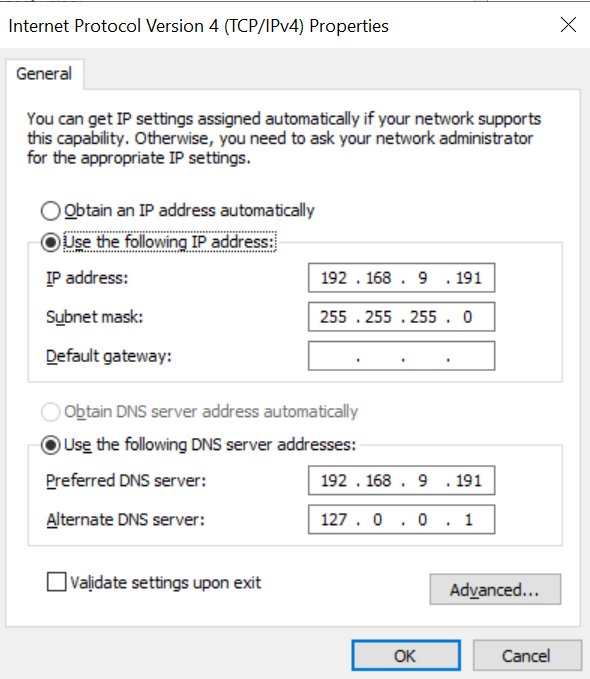
Your PC normally uses the DNS servers your provider hands out through DHCP. If they stop answering, Chrome can't find any site. Google Public DNS is free and uses 8.8.8.8 and 8.8.4.4 for IPv4.
- Press Win + R, type
ncpa.cpland press Enter to open Network Connections. - Right-click your Wi-Fi or Ethernet connection and select Properties.
- On the Networking tab, select Internet Protocol Version 4 (TCP/IPv4) and select Properties.
- Write down any addresses already in the DNS boxes so you can return to them.
- Select Use the following DNS server addresses.
- Enter 8.8.8.8 as Preferred DNS server and 8.8.4.4 as Alternate DNS server.
- Select OK, then Close, and reload the page in Chrome.
For IPv6, the Google addresses are 2001:4860:4860::8888 and 2001:4860:4860::8844. You can also change DNS settings on Windows from the Settings app instead of Control Panel.
Flush DNS cache and renew IP lease
These commands clear stale and failed lookups from the Windows DNS cache and ask the router for a fresh IP address. ipconfig /release drops the connection for a few seconds.
- Select Search on the taskbar, type command prompt, then select Run as administrator > Yes.
- Type
ipconfig /flushdnsand press Enter. - Type
ipconfig /releaseand press Enter. - Type
ipconfig /renewand press Enter. - Wait for Windows IP Configuration to list your adapter with an IPv4 address, then reload the page.
/flushdns discards negative cache entries, which are the failed lookups that keep a site unreachable after the network is back. A Windows DNS cache flush also helps when one site keeps resolving to an old address.
Clear Chrome’s internal DNS cache
Chrome runs its own host resolver and keeps a cache of up to 1,000 host names, separate from the Windows DNS Client cache. Flushing Windows alone can leave a failed lookup sitting in Chrome.
- Select More (three dots) at the top right of Chrome, then select Exit so every Chrome window closes.
- Run
ipconfig /flushdnsin an administrator Command Prompt so both caches start empty. - Reopen Chrome and reload the page.
- If the error stays, open the page in an Incognito window to rule out cached site data.
Closing the window with the X can leave Chrome running in the background. Using Exit, or a full restart of Google Chrome, ends the process.
Clear the Chrome browser cache
Corrupt cookies and cached files can keep a page failing even after DNS works again.
- Open Chrome, select More at the top right, then select Delete browsing data.
- Choose a Time range, such as All time.
- Select Cookies and other site data and Cached images and files.
- Select Delete data.
- Reload the page.
You can also type Delete browsing data in the address bar and select the action chip that appears. Deleting cookies signs you out of most sites.
Reset Chrome to factory defaults
A reset undoes settings an app or extension changed without asking. It keeps your bookmarks and saved passwords.
- Open Chrome and select More > Settings.
- Select Reset settings on the left.
- Select Restore settings to their original defaults.
- Select Reset settings to confirm.
- Reload the page.
The reset returns the search engine, homepage, startup tabs, pinned tabs, site permissions, cookies and site data to default, and turns off extensions and themes. Fonts and accessibility settings are kept.
Reset TCP/IP stack and WinSock
Microsoft's network commands reset the Winsock catalog and the TCP/IP stack when a VPN, proxy tool or old security suite damaged them.
- Open Command Prompt with Run as administrator > Yes.
- Type
netsh winsock resetand press Enter. - Type
netsh int ip resetand press Enter. - Type
ipconfig /release, thenipconfig /renew, pressing Enter after each. - Type
ipconfig /flushdnsand press Enter. - Restart the PC so the reset takes effect, then open Chrome.
Run the commands in this order. VPN clients that install their own network components may need to be repaired or reinstalled afterwards.
Update network adapter driver
Windows Update delivers most network adapter drivers. If the error began after an update, rolling back or reinstalling the driver helps more than a new download.
- Right-click Start and select Device Manager.
- Expand Network adapters.
- Right-click your Wi-Fi or Ethernet adapter and select Update driver.
- Select Search automatically for updated driver software and let Windows install what it finds.
- If nothing changes and the problem started after an update, open the adapter's Properties > Driver tab and select Roll Back Driver.
- To reinstall, right-click the adapter, select Uninstall device, tick Attempt to remove the driver for this device, select Uninstall, then restart.
Before uninstalling, save the latest driver from the PC maker's own website on another device and a USB drive, in case Windows can't reinstall one by itself.
How to turn off secure DNS in Chrome
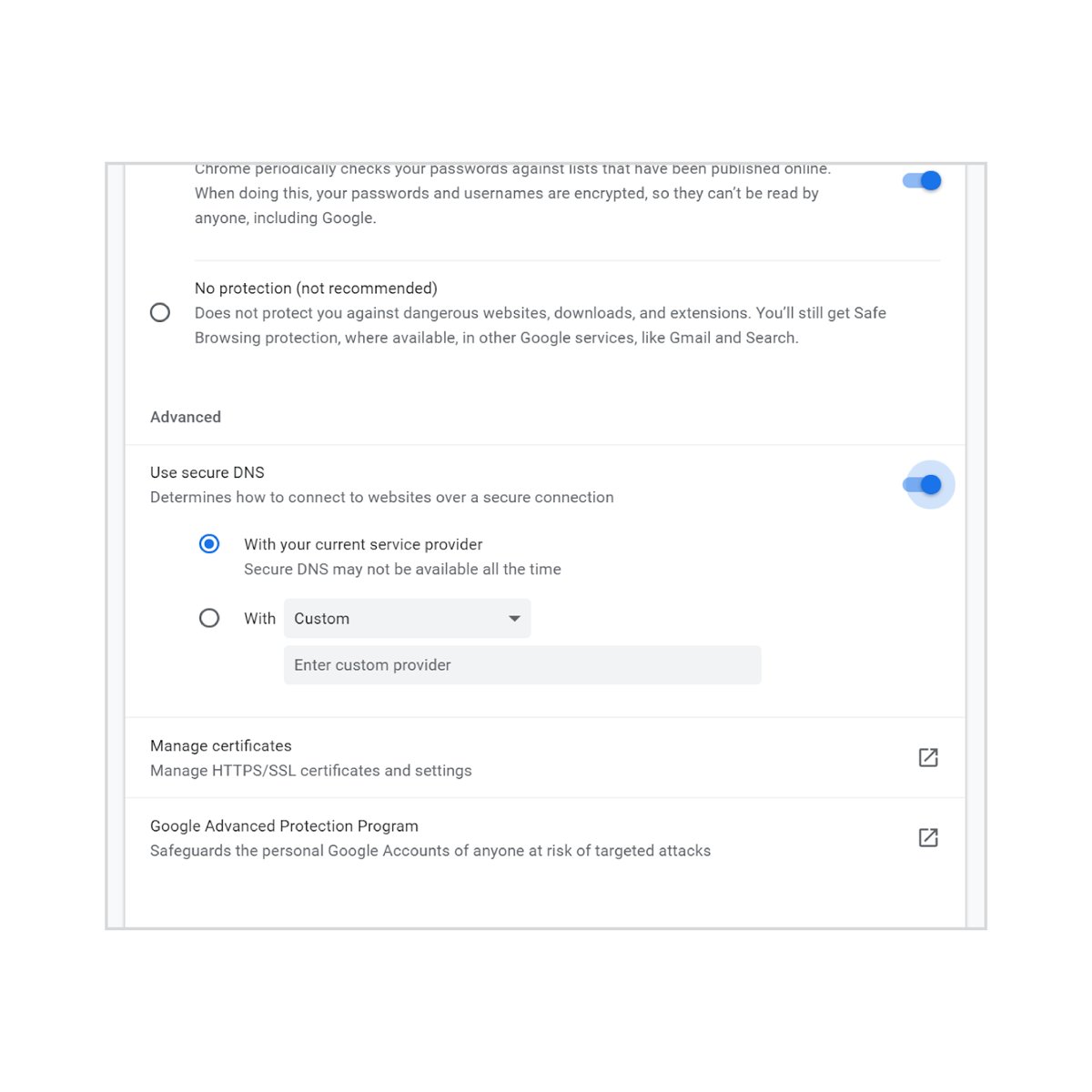
Chrome's secure DNS is on in automatic mode by default and falls back to a normal lookup when encrypted lookups fail. With a custom provider selected, there is no fallback, so a provider that stops responding breaks every site.
- Open Chrome and select More > Settings.
- Select Privacy and security on the left, then Security.
- Under Advanced, find Use secure DNS.
- Switch the provider back to your current service provider, or turn Use secure DNS off.
- Reload the page.
On a managed work PC or with parental controls on, the secure DNS setting is not available, and the network administrator controls DNS.
How to turn off proxy settings in Windows 11
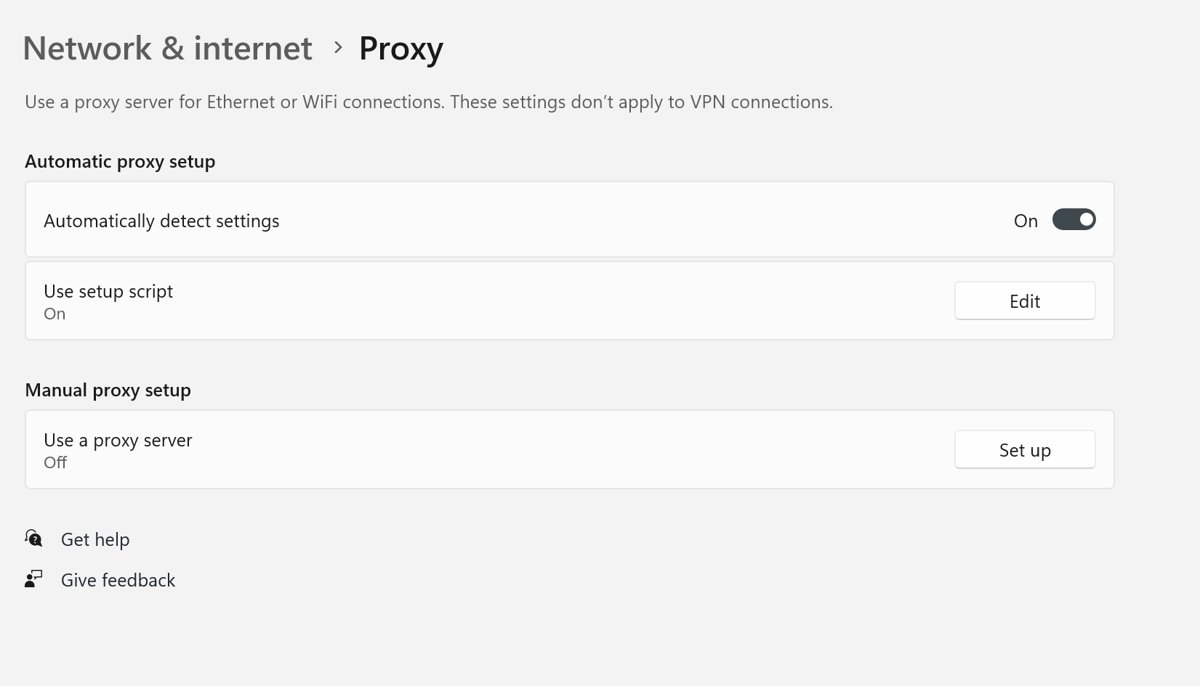
Chrome uses the Windows proxy settings. A manual proxy left behind by a VPN or an old tool sends every request to a server that no longer answers.
- Select Start > Settings > Network & internet > Proxy.
- Under Manual proxy setup, turn off any proxy you don't use.
- If your workplace set the proxy, leave it on and contact the IT team.
- Reload the page in Chrome.
How to do a network reset in Windows 11
Network reset removes and reinstalls every network adapter and returns its settings to defaults. Use it last, because it also removes VPN adapters and virtual switches.
- Select Start > Settings > Network & internet.
- On Windows 11, select Advanced network settings > Network reset. On Windows 10, select Status > Network reset.
- Select Reset now, then Yes.
- Wait for the PC to restart, then reconnect to your Wi-Fi network with its password.
- Reinstall or set up any VPN client again, then open Chrome.
Network reset can set known networks to the Public network profile. Change it back to Private network in the network's properties if you share files at home.
How to ping your DNS server in Command Prompt
These checks show whether the router, the DNS server or Chrome is at fault.
- Open Command Prompt as administrator.
- Type
ipconfigand press Enter. Note the Default Gateway address, such as 192.168.1.1. - Type
pingfollowed by that address, for exampleping 192.168.1.1. Replies mean the PC reaches the router. - Type
ipconfig /all | findstr /c:"DNS Servers"and press Enter to see which DNS server the PC uses. - Type
pingfollowed by that DNS server address. If the gateway replies but the DNS server does not, switch to Google DNS. - If your IPv4 address starts with 169.254, the PC got no address from the router, so check that DHCP is on in the router.
If every ping works and Chrome still shows the error, the cause is inside Chrome: clear its cache, check secure DNS, or reset Chrome.
DNS_PROBE_FINISHED_NO_INTERNET still showing in Chrome
The error appears on every device on the network
The modem, router or internet provider is down, not the PC.
- Restart the modem and router, waiting at least 30 seconds before plugging the modem back in.
- Wait a few minutes for the status lights to settle.
- Contact your provider or check its outage page from mobile data.
Only Chrome fails while other browsers and apps work
Chrome's own settings, secure DNS provider, an extension or cached data is at fault.
- Open the page in an Incognito window.
- If it loads, turn off all extensions and turn them back on one at a time.
- Check Use secure DNS under Privacy and security > Security.
- Reset Chrome settings, and reinstall Chrome if the reset does not help.
Wi-Fi shows No Internet but other devices are online
The PC's IP address, DNS settings or adapter driver is wrong.
- Go to Settings > Network & internet > Wi-Fi > Manage known networks, select the network and select Forget.
- Reconnect with the Wi-Fi password.
- Run
ipconfig /release,ipconfig /renewandipconfig /flushdnsas administrator. - In Device Manager, open the Wi-Fi adapter's Power Management tab and clear Allow the computer to turn off this device to save power.
The error started after installing a VPN or security suite
The software changed the proxy, DNS servers or Winsock catalog.
- Disconnect the VPN and reload the page.
- Turn off any manual proxy in Settings > Network & internet > Proxy.
- Run
netsh winsock resetandnetsh int ip resetas administrator and restart. - Update the VPN or security suite, or contact its vendor's support.
DNS_PROBE_FINISHED_NO_INTERNET FAQ
What causes DNS_PROBE_FINISHED_NO_INTERNET?
The error appears when Chrome can't look up a site's address and finds no working internet connection. Common causes are a router or provider outage, a stale DNS cache, an unresponsive DNS server, a leftover proxy, security software blocking Chrome, or a faulty network adapter driver.
Is DNS_PROBE_FINISHED_NO_INTERNET a problem with the website?
No. The error means Chrome could not reach a DNS server at all, so the request never got to the website. If other sites load and only one fails, you would normally see a different error, such as ERR_NAME_NOT_RESOLVED.
Does flushing DNS fix DNS_PROBE_FINISHED_NO_INTERNET?
Often, yes. Running ipconfig /flushdns in an administrator Command Prompt removes failed lookups from the Windows DNS cache. Close Chrome with More, then Exit, afterwards so its own host cache empties too, and reload the page.
Is Google DNS safe to use?
Google Public DNS is a free public resolver run by Google at 8.8.8.8 and 8.8.4.4 for IPv4. Write down your current DNS addresses before you change them, so you can switch back to your provider's servers if you prefer.
Can antivirus software cause DNS_PROBE_FINISHED_NO_INTERNET?
Yes. Google lists firewall and antivirus software as a cause of Chrome connection errors. Check the product's firewall or web protection log for blocked Chrome connections and allow Chrome there, rather than turning the protection off.
Will resetting Chrome delete my bookmarks or passwords?
No. Resetting Chrome settings keeps saved bookmarks and passwords. It returns the search engine, homepage, startup tabs, site permissions, cookies and site data to defaults and turns off extensions and themes.
Does network reset delete my Wi-Fi passwords?
Network reset removes and reinstalls all network adapters and returns their settings to defaults, so you may need to reconnect to Wi-Fi with its password. VPN clients and virtual switches may need to be set up again.
Why does DNS_PROBE_FINISHED_NO_INTERNET happen only on one Wi-Fi network?
That network's router or its DNS server is the likely cause. Restart the router, forget and rejoin the network in Windows, and switch the PC to Google DNS. On public Wi-Fi, open a site to bring up the sign-in page first.
Fix DNS_PROBE_FINISHED_NO_INTERNET error: Success
Restart the router, flush DNS and switch to Google DNS first, then reset Winsock and TCP/IP if Chrome still fails. Most cases of this error come from the router, a stale DNS cache or the provider's DNS servers, and those three steps fix them without touching Chrome. Reset Chrome, check secure DNS and update the adapter driver only when the ping checks show the network itself works.