The quickest direct route is to point your browser's download location at the external hard drive, then download the files from iCloud Drive on iCloud.com so they land on the drive without touching your internal disk.
This guide also covers copying iCloud Drive to an external drive on a Mac, a Windows PC and an iPhone, how to avoid removing files from iCloud by dragging them, and what to do when downloads stall or the drive fills up.
Download iCloud Drive files straight to an external drive from iCloud.com
iCloud.com saves downloads to the location set in your web browser. Change that location to the external drive first, and the files go there directly.
- Connect the external hard drive to your computer and confirm it appears in Finder or File Explorer.
- In Chrome, click More (three dots) > Settings > Downloads, click Change and select a folder on the external drive.
- In Safari on a Mac, choose Safari > Settings, click General and pick the external drive folder from the File download location menu.
- Go to icloud.com/iclouddrive and sign in to your Apple Account.
- Select the files you want, then select the Download button in the iCloud Drive toolbar.
- Open the external drive folder and check that the files are there before you delete anything.
Changes you make to a downloaded copy stay on the drive. They do not sync back to iCloud Drive unless you upload the file again.
Which iCloud Drive to external hard drive method should you use?
| Your situation | Use this | Why |
|---|---|---|
| A few files on any computer | iCloud.com with the browser download folder on the drive | Nothing to install, files go straight to the drive |
| Whole iCloud Drive on a Mac | Finder: download, then drag to the external disk | Dragging to a different disk copies, so iCloud keeps the originals |
| Whole iCloud Drive on Windows | iCloud for Windows: pin, then Copy and Paste to the drive | Pinning downloads everything first; Copy avoids a move |
| iPhone or iPad with a USB-C drive | Files app: Copy from iCloud Drive, paste on the drive | No computer needed |
| A full export of everything in iCloud | Apple's Data & Privacy page | Packages iCloud data for download, but takes time to prepare |
What you need before copying iCloud Drive to an external drive
| Requirement | Detail |
|---|---|
| Same Apple Account | Sign in with the Apple Account that holds the files on every device you use |
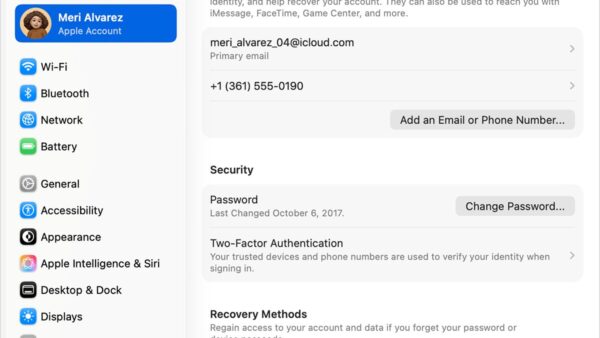
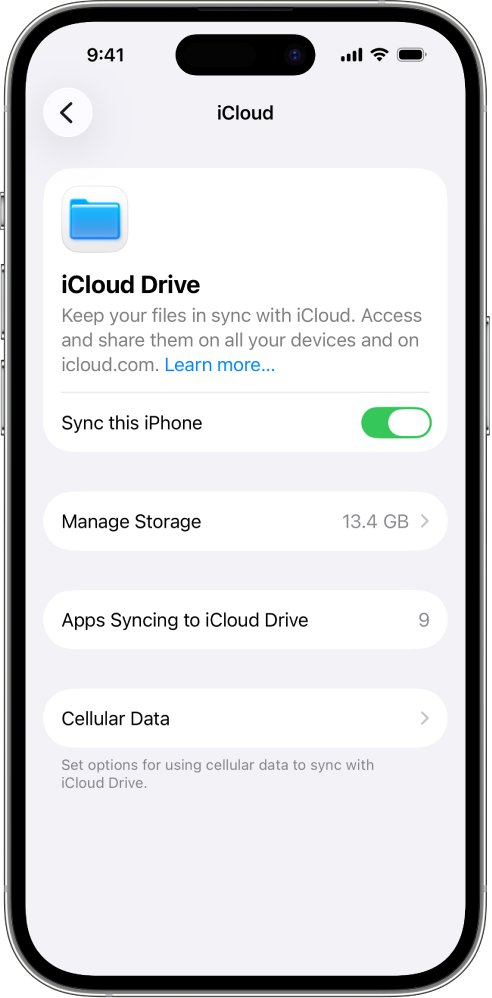
| iCloud Drive turned on | iPhone: Settings > [your name] > iCloud > Drive, turn on Sync this iPhone. Mac: System Settings > [your name] > iCloud > Drive, turn on Sync this Mac |
| iCloud for Windows | Download it from the Microsoft Store; the latest version needs Windows 11 or later |
| Free space on the external drive | At least the size of the files you copy; check your iCloud storage usage to estimate it |
| iPhone drive format | On a USB-C iPhone, the Files app can erase a drive as APFS, ExFAT or MS-DOS (FAT); ExFAT also works on Windows and Mac |
| A cable adapter if needed | Some iPhones need an adapter to connect a USB drive or SD card |
Copy iCloud Drive to an external hard drive on a Mac
With Optimize Mac Storage on, some files exist only in iCloud. Download them first so the copy contains real files, not placeholders.
- Click the Finder icon in the Dock, then click iCloud Drive in the sidebar.
- Select the files or folders, Control-click them and choose Download Now.
- Wait until the download indicator disappears from each item.
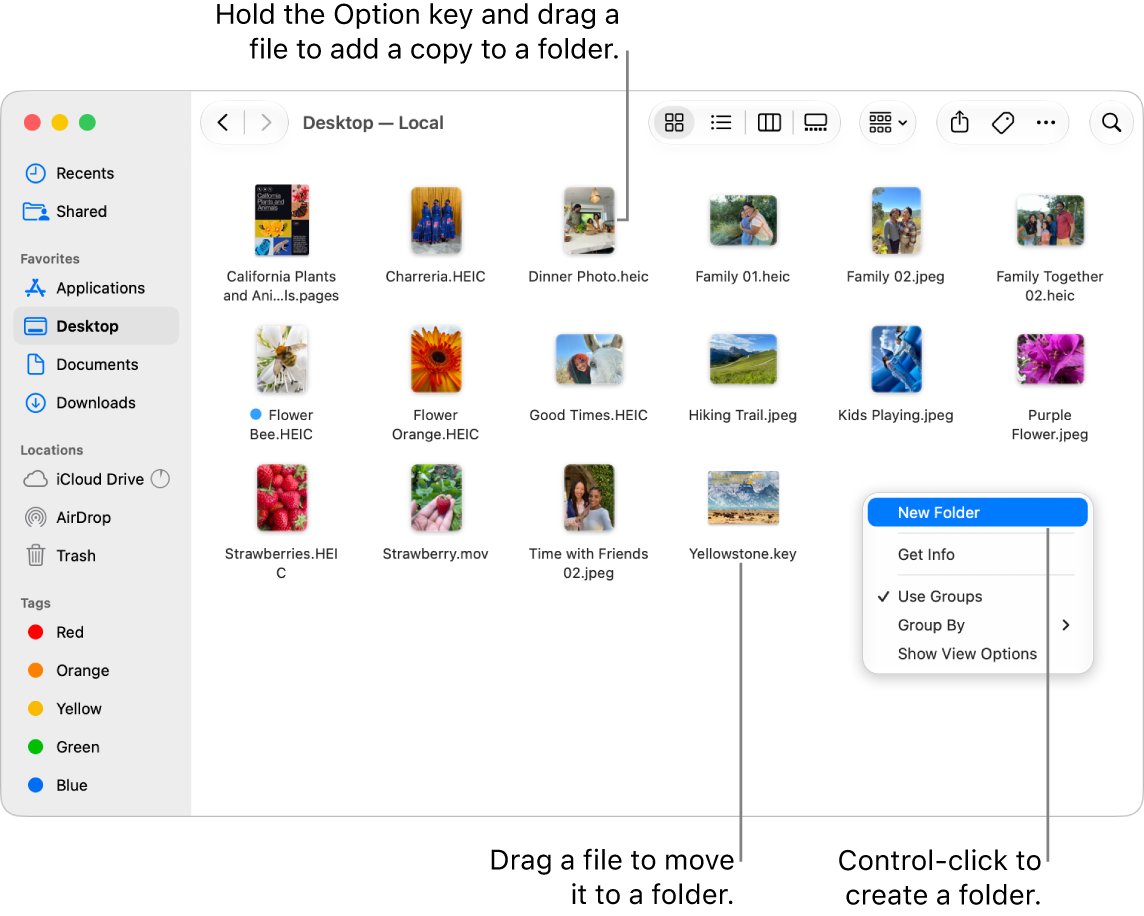
- Drag the items onto the external disk in the Finder sidebar; dragging to a different disk copies them.
- Open the external disk and confirm the files open.
- Eject the disk before you unplug it.
Do not hold Command while dragging. Apple notes that Command-drag moves files to a different disk instead of copying them.
Copy iCloud Drive files to an external drive on Windows
Apple warns that dragging items out of iCloud Drive to another folder moves them and removes them from iCloud Drive on all your devices. Use Copy instead.
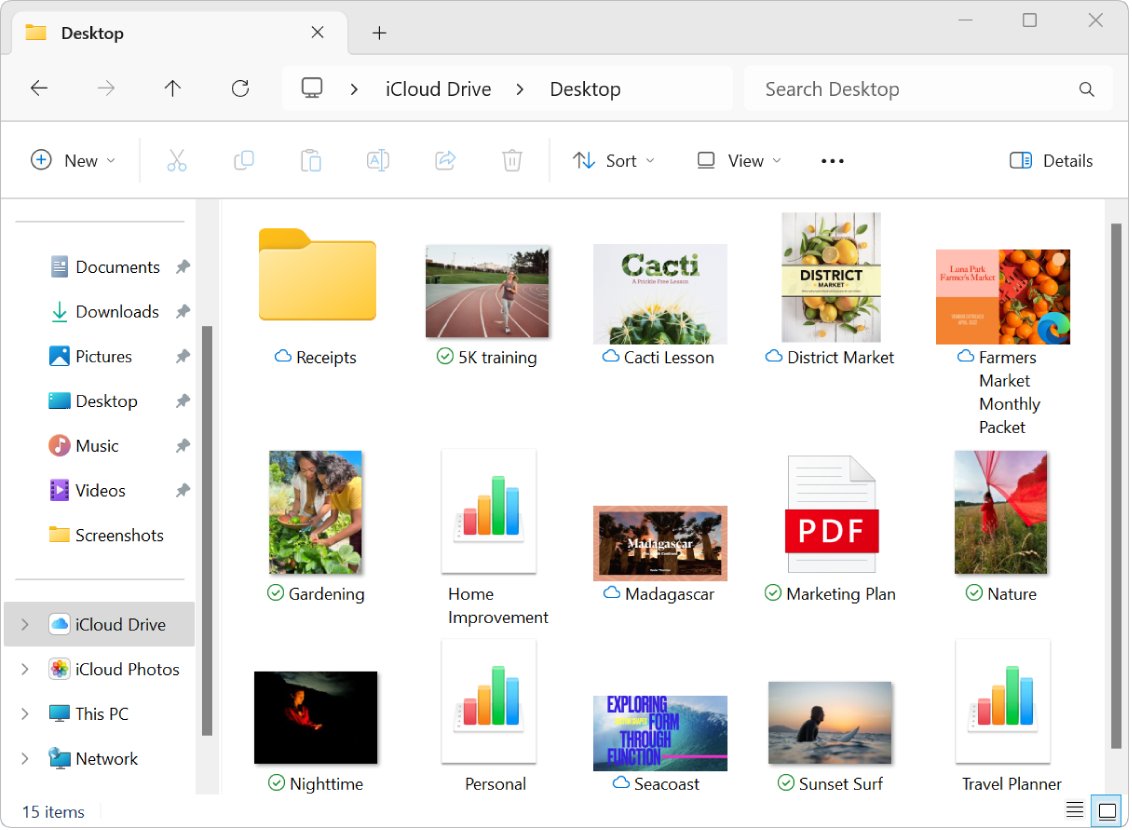
- Open File Explorer and click iCloud Drive in the Navigation pane.
- Right-click the files or folder and choose Always keep on this device to download them.
- Wait until the status icon shows each item as downloaded.
- Select the items and select Copy in the toolbar.
- Open the external drive, then select Paste in the toolbar.
- Check the files on the drive, then select Eject before unplugging it.
If you have not set up the app yet, get iCloud for Windows from the Microsoft Store and turn on iCloud Drive in it.
Save iCloud Drive files to a USB drive from an iPhone
- Connect the USB drive or SD card to your iPhone, using an adapter if needed.
- Open the Files app and tap Browse.
- Open iCloud Drive and find the file or folder.
- Touch and hold it, then tap Copy.
- Tap Browse, tap the drive's name below Locations and paste the item there.
- To copy several items at once, tap Select from the view options, choose the items and use the options at the bottom of the screen.
Request a full copy of your iCloud data from Apple
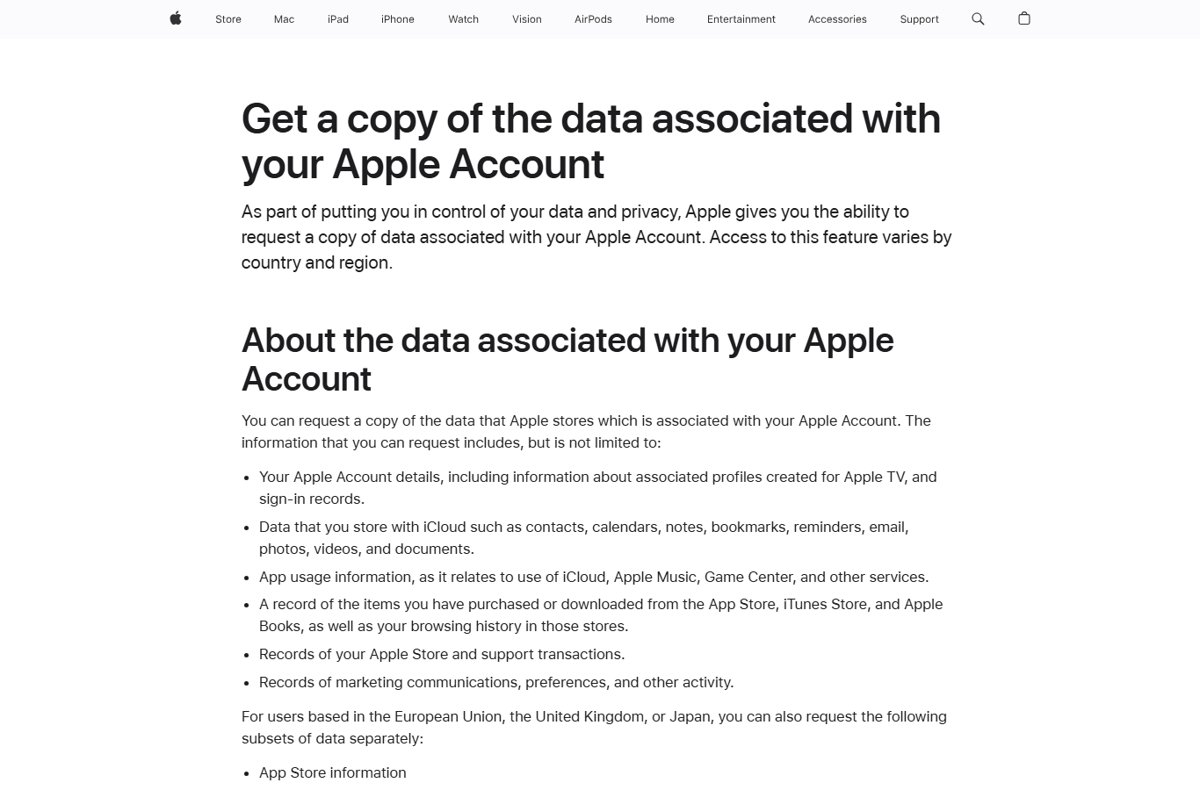
This route suits a one-off archive of everything, including documents stored in iCloud. Data stored with end-to-end encryption that Apple cannot decrypt is not included.
- Sign in to your Apple Account on Apple's Data & Privacy page at privacy.apple.com.
- Select Request a copy of your data.
- Select the data you want to download, then select Continue.
- Wait for Apple to verify the request and notify you that the data is ready.
- Download the files from the Data & Privacy page to the external drive within 14 days.
If you do not see the option to choose data, the feature is not available in your country or region.
Check that the iCloud Drive copy on the external drive is complete
- Open the same folder in iCloud Drive and on the external drive side by side.
- Compare the item count and total size of both folders using Get Info on a Mac or Properties on Windows.
- Open a few large files from the drive, such as videos or Pages documents.
- Sign in to iCloud.com and confirm the originals are still in iCloud Drive.
If files are missing from iCloud.com, open Recently Deleted in iCloud Drive. Deleted files can be recovered there for 30 days.
iCloud Drive to external hard drive download problems
Files disappeared from iCloud Drive after copying
The files were dragged to another folder on the same computer, which moves them out of iCloud Drive.
- Drag the items back into iCloud Drive to restore them.
- If they were deleted, open Recently Deleted on iCloud.com or the Files app and recover them within 30 days.
- Use Copy and Paste next time, or drag only to a different disk on a Mac.
Copied files are tiny or will not open on the external drive
The files were stored only in iCloud and had not downloaded before the copy.
- On a Mac, Control-click the items in iCloud Drive and choose Download Now.
- On Windows, right-click and choose Always keep on this device.
- Copy the files to the drive again once each item shows as downloaded.
iCloud.com downloads go to the Downloads folder instead of the drive
The browser still uses its default download location.
- In Chrome, go to Settings > Downloads and click Change.
- Or turn on Ask where to save each file before downloading and pick the drive each time.
- In Safari, set File download location under Settings > General.
Why is iCloud full?
iCloud Drive shares your storage with iCloud Photos, device backups and iCloud Mail.
- Check what uses your storage under Settings > [your name] > iCloud on iPhone.
- Copy older iCloud Drive files to the external drive and verify the copy.
- Delete the originals from iCloud Drive only after checking the copy, or upgrade to an iCloud+ plan.
iCloud Drive external hard drive FAQ
How do I get to my iCloud account to download files?
Go to icloud.com/iclouddrive in a web browser and sign in with your Apple Account email address or phone number and password. On iPhone, open the Files app and tap iCloud Drive; on a Mac, click iCloud Drive in the Finder sidebar.
Can I download iCloud Drive directly to an external hard drive?
Yes. Set your browser's download location to a folder on the external drive, then download files from iCloud Drive on iCloud.com. The files are saved to the browser's download location, so they go straight to the drive.
Does copying iCloud Drive to an external drive delete the files from iCloud?
Copying does not. Moving does: Apple says dragging items out of iCloud Drive to another folder on the same computer removes them from iCloud Drive on all your devices. Use Copy and Paste, or on a Mac drag to a different disk.
How does iCloud work with iCloud Drive files?
iCloud stores your files in the cloud and keeps them up to date on every device signed in to the same Apple Account. Changes on one device, such as renaming or deleting a file, appear on all of them.
Why is iCloud full?
iCloud Drive shares your storage with iCloud Photos, iPhone and iPad backups, and iCloud Mail. Every iCloud setup includes 5 GB free, which fills quickly. Moving files to an external drive or upgrading to iCloud+ frees space.
How do I use iCloud Drive on iPhone?
Go to Settings, tap your name, tap iCloud, then tap Drive and turn on Sync this iPhone. Your iCloud Drive files then appear in the Files app under iCloud Drive.
Do you need iCloud on your iPhone to copy files to a USB drive?
No, but the files must be on the iPhone or in iCloud Drive to reach them. The Files app copies items from any location, including iCloud Drive, to a connected USB drive or SD card.
Can I download iCloud directly from Apple for Windows?
Apple distributes iCloud for Windows through the Microsoft Store. The latest version needs Windows 11 or later. After installing it, turn on iCloud Drive to see your files in File Explorer.
Bottom line: fastest iCloud Drive to external drive download
For a handful of files, use iCloud.com with the browser's download folder on the external drive; for the whole iCloud Drive, download everything in Finder or iCloud for Windows first, then copy it to the drive. Both routes keep the originals in iCloud. The one mistake to avoid is dragging files out of iCloud Drive to a folder on the same computer, which removes them from iCloud on every device.
Contacts do not live in iCloud Drive, so export your iCloud contacts separately if you want them on the drive too.