To back up an iPhone to an external drive, make a full backup with Finder on a Mac or the Apple Devices app on a PC, then copy the backup folder to the drive.
This guide covers the Mac and Windows routes, a junction that saves new Windows backups straight to the drive, photo-only and flash-drive copies, restoring, and fixes when the iPhone or the backup does not show up.
Step by step tutorial: How to backup iPhone to external drive
Finder and the Apple Devices app have no setting for the backup location, so the backup is made on the computer first and then copied to the external drive.
These steps work on a Mac and a Windows PC; only the app name and the folder path change.
- Connect your iPhone to the computer with a USB cable, and plug in the external drive.
- Open Finder on a Mac, or the Apple Devices app on a PC (use iTunes on macOS Mojave or earlier, or on a PC without Apple Devices).
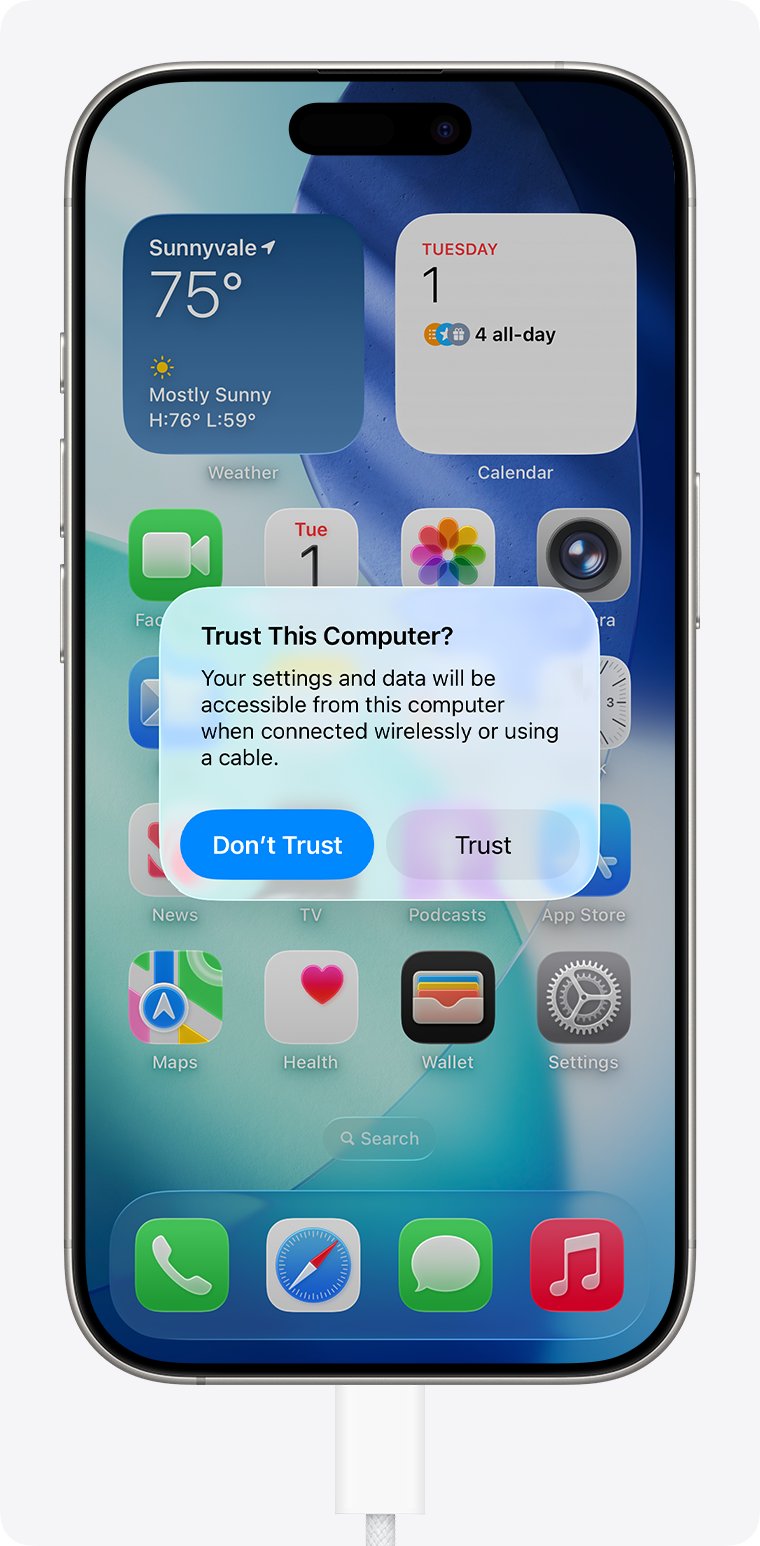
- Select your iPhone in the sidebar, then tap Trust on the iPhone and enter your passcode if asked.
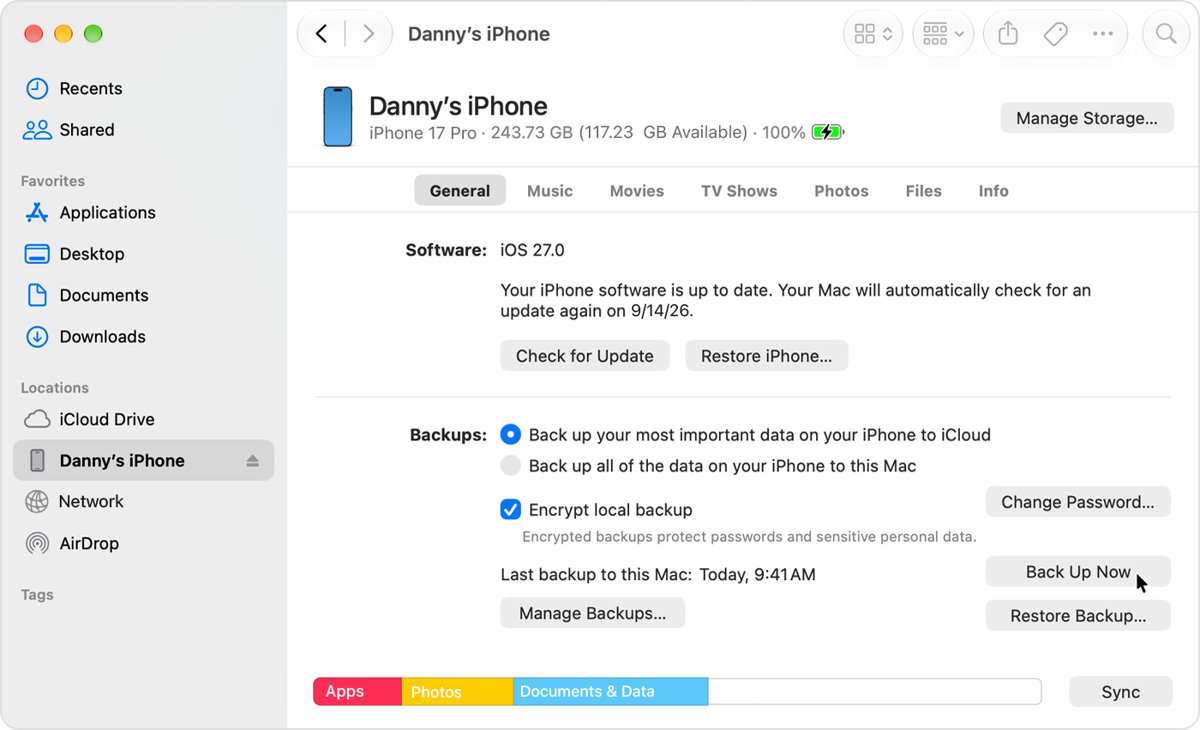
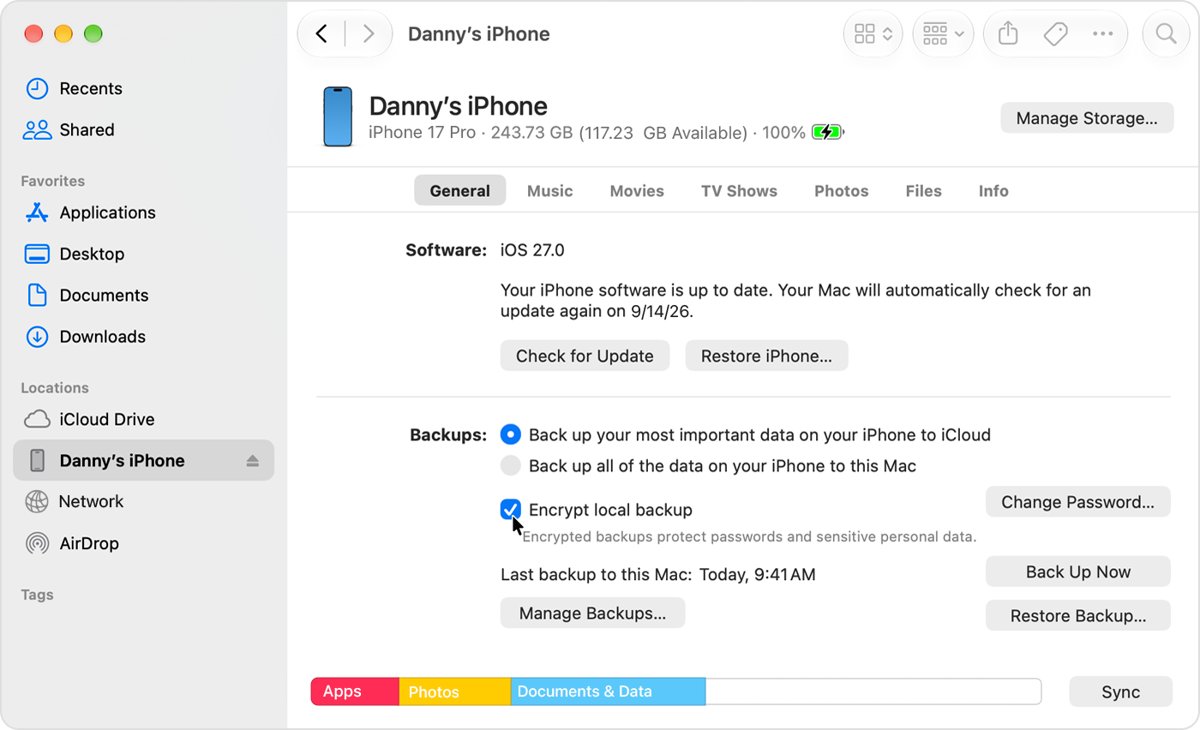
- On the General tab, select Encrypt local backup if you want Health and Activity data saved, and set a password.
- Click Back Up Now and wait until the date and time of the last backup appear.
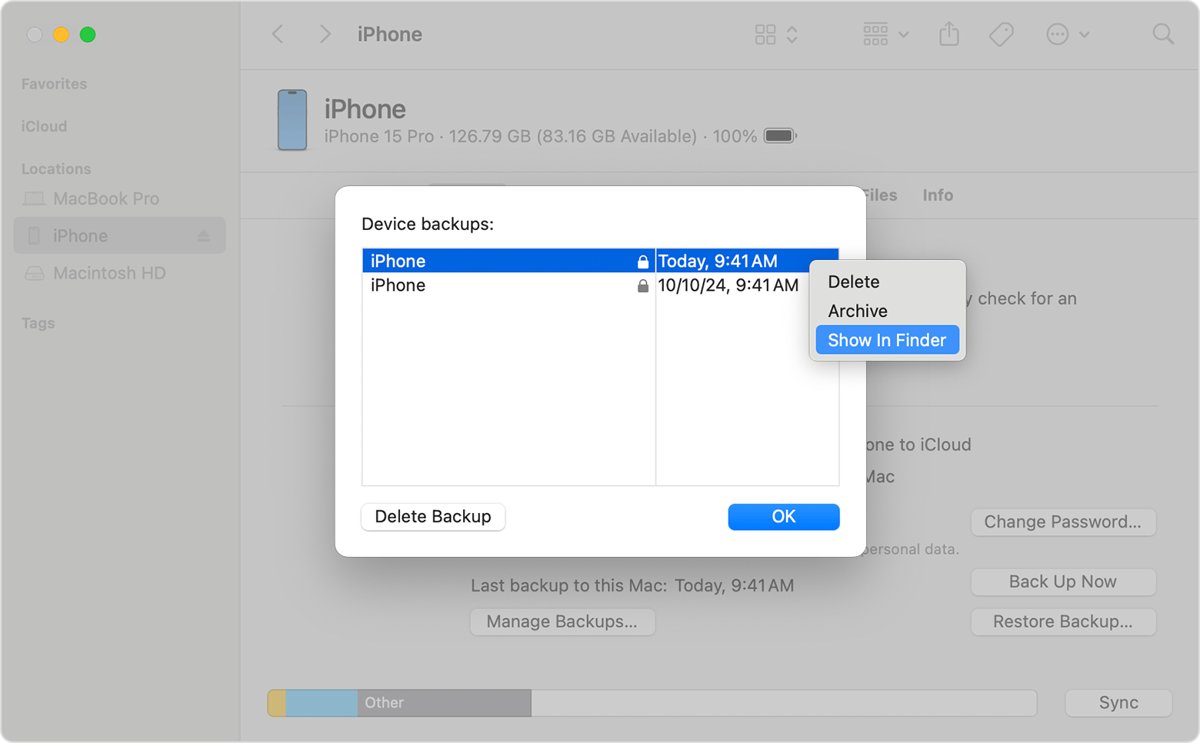
- Click Manage Backups, right-click the new backup, and choose Show in Finder (Mac) or Show in Explorer (PC).
- Copy the whole Backup folder that opens onto the external drive, then eject the drive before unplugging it.
The copy on the drive is a complete computer backup. Health, Activity and Keychain data are only included when the backup is encrypted.
External backup for iPhone: Finder, Apple Devices, Photos or Files
| Your situation | Use this | Why |
|---|---|---|
| Full iPhone backup on a Mac | Finder backup, then copy the Backup folder | Finder is Apple's backup tool on macOS Catalina 10.15 or later |
| Full iPhone backup on a Windows PC | Apple Devices backup, then copy the Backup folder | Apple Devices replaces iTunes for device backups on Windows |
| Every new Windows backup should land on the drive | Directory junction with mklink | The app keeps writing to its usual path, and Windows sends the files to the drive |
| Only photos and videos | Image Capture on Mac, Photos app on Windows | Both let you choose the external drive as the import destination |
| No computer available | Files app with a USB drive | Copies files, but it is not a full device backup |
| A copy away from home | iCloud backup alongside the drive | iCloud backups are always encrypted and work anywhere with Wi-Fi |
Backup iPhone to external hard drive on Mac
Finder saves iPhone backups inside your user Library, on the Mac's internal disk. Copying that folder to an external hard drive or SSD gives you a second, portable copy.
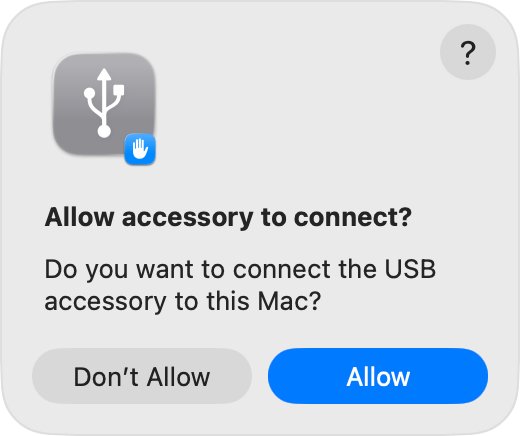
- Connect the iPhone and click Allow if the Mac asks to let the accessory connect.
- Open Finder, select the iPhone in the sidebar, and click Trust if asked.
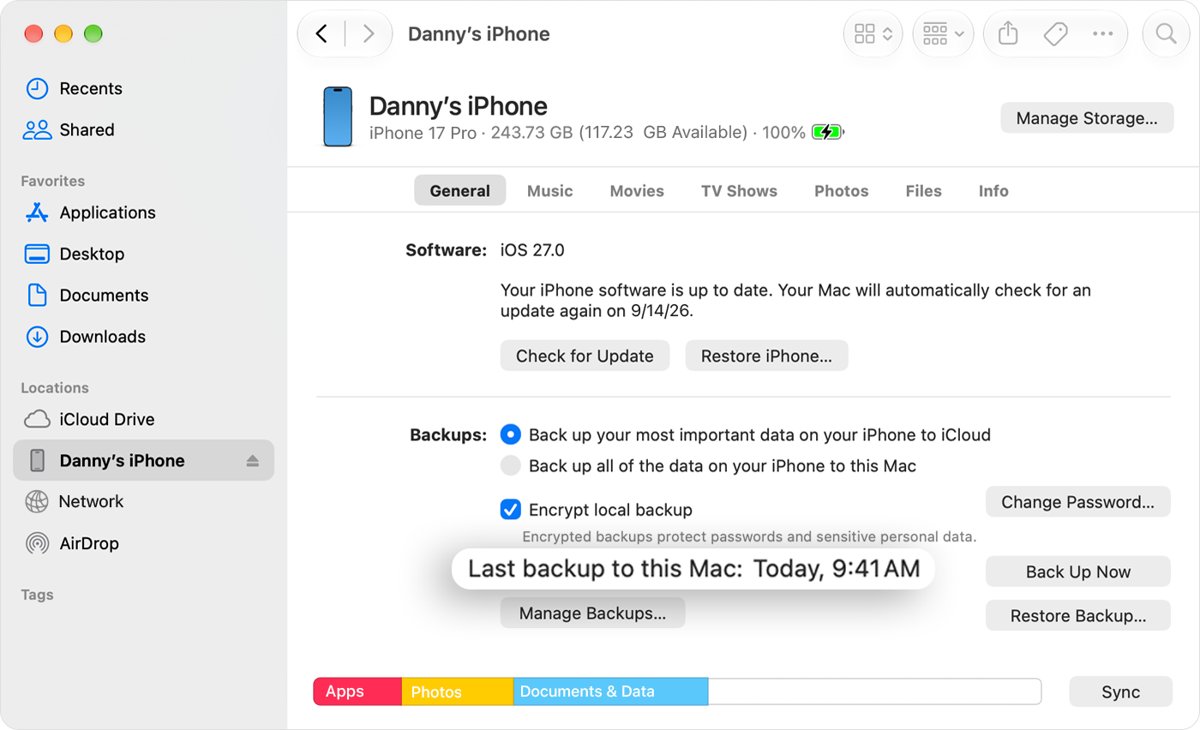
- Click Back Up Now on the General tab and wait for the last backup time to update.
- In the Finder menu bar, choose Go > Go to Folder.
- Type
~/Library/Application Support/MobileSync/Backup/and press Return. - Drag the backup folder onto the external drive in the Finder sidebar. Dragging to a different disk copies the folder and leaves the original in place.
- Click the Eject button next to the drive before you unplug it.
Holding Command while you drag moves the folder instead of copying it, which removes it from the Mac.
Backup iPhone to external drive on Windows
On Windows 10 and 11, you back up the iPhone to your PC with the Apple Devices app first, then copy the result in File Explorer.
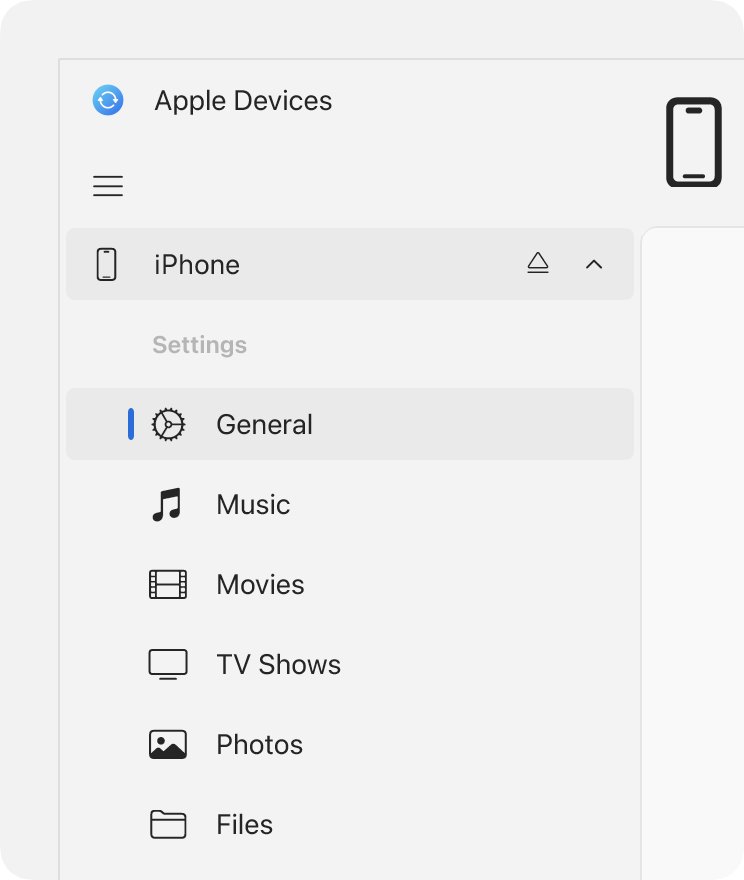
- Open the Apple Devices app and connect your iPhone with the cable.
- Follow the passcode or Trust This Computer prompt on the iPhone.
- Click General, then click Back Up Now.
- Press Windows key + R, type
%USERPROFILE%\Apple\MobileSync\Backup, and press Enter. - If that folder does not open, type
%AppData%\Apple Computer\MobileSync\Backupinstead. - Select the backup folder, click Copy on the File Explorer toolbar, open the external drive, and click Paste.
- Eject the drive from File Explorer before unplugging it.
Backup iPhone directly to external drive on Windows with mklink
A directory junction makes the Backup folder point at the external drive, so every new Apple Devices backup is written there. The same trick is used to move the Apple Devices backup folder to a second internal drive.
Close the Apple Devices app first, create a folder such as E:\iPhoneBackup on the external drive, move the contents of the existing Backup folder into it, and delete the empty Backup folder. Then run this in Command Prompt, changing E: to your drive letter.
mklink /J "%USERPROFILE%\Apple\MobileSync\Backup" "E:\iPhoneBackup"/J creates a directory junction. The first path is the Backup folder the Apple Devices app writes to; the second is the real folder on the external drive. Use the %AppData%\Apple Computer\MobileSync\Backup path instead if that is where your backups were. The link path must not already exist.
You should see: Command Prompt reports that the junction was created, and opening the Backup folder in File Explorer shows the contents of E:\iPhoneBackup.
Keep the drive plugged in, with the same drive letter, whenever you back up, because the Backup folder now points at it.
How to backup iPhone photos to external drive
Photos and videos can go straight to the drive without a full backup. If iCloud Photos is on, download the originals to the iPhone first, or only thumbnails are available to import.
- Mac: open Image Capture, connect the iPhone, and unlock or trust it if asked.
- Mac: select the iPhone under Devices, open the Import To pop-up menu, choose Other, and pick a folder on the external drive.
- Mac: click Download All, or select items and click Download.
- Windows: connect and unlock the iPhone, then tap Trust or Allow on it.
- Windows: open the Photos app from Start, select Import, and choose your iPhone.
- Windows: pick the items to import, choose a folder on the external drive as the save location, and start the import.
Image Capture saves a Live Photo as two files, a still image and a video. For other routes, you can also transfer photos from iPhone to a computer and copy them across afterwards.
How to backup iPhone to external flash drive without a computer
The Files app copies files to a USB flash drive, SSD or SD card plugged into the iPhone. Some iPhones need a cable adapter for this. It copies files you choose, not the whole device, so it cannot replace a Finder or Apple Devices backup.
- Connect the flash drive to the iPhone, using an adapter if the plug does not fit.
- Open the Files app and tap Browse; the drive appears under Locations.
- Open On My iPhone or iCloud Drive and find the files to copy.
- Touch and hold the file or folder you want, then tap Copy.
- Open the drive under Locations, touch and hold an empty area, and tap Paste.
- Disconnect the drive when the copy finishes.
On iPhone models with a USB-C port, touch and hold the drive under Locations and tap Erase to format it as APFS, ExFAT or MS-DOS (FAT).
Where are iPhone backups stored on Mac and PC
| Computer | Backup folder | How to open it |
|---|---|---|
| Mac (Finder) | ~/Library/Application Support/MobileSync/Backup/ | Finder > Go > Go to Folder, paste the path, press Return |
| Windows (Apple Devices or Store iTunes) | %USERPROFILE%\Apple\MobileSync\Backup | Windows key + R, type the path, press Enter |
| Windows (older iTunes) | %AppData%\Apple Computer\MobileSync\Backup | Windows key + R, type the path, press Enter |
| Any computer | The selected backup | General > Manage Backups > right-click > Show in Finder or Show in Explorer |
How to tell if the iPhone backup is on the external drive
- In Finder or Apple Devices, check that the General tab shows today's date and time as the last backup.
- Click Manage Backups and look for a lock next to the backup if you turned on encryption.
- Open the external drive and confirm the backup folder is there with the same modified date.
- Compare the folder size on the drive with the original (Get Info on a Mac, Properties on Windows).
- For a junction, open the Backup folder on C: and check it shows the same contents as the folder on the drive.
How to restore iPhone from a backup on an external drive
Finder and Apple Devices read backups from the folder paths above, so a copy that lives only on the external drive has to go back there before you restore. A junction backup needs no copying, as long as the drive is connected.
- Copy the backup folder from the external drive back into the Backup folder on the computer.
- Connect the iPhone and open Finder or Apple Devices.
- Select the iPhone, then click Restore Backup on the General tab.
- Choose the backup by its date and size from the pop-up menu.
- Enter the backup password if the backup is encrypted, then click Restore.
- Keep the iPhone connected until it restarts and finishes syncing.
Tips: How to backup iPhone to external drive
| Tip | Why it matters |
|---|---|
| Archive the backup in Manage Backups before copying it | Archived backups are not replaced by later backups |
| Turn on Encrypt local backup | Encrypted backups keep saved passwords, Wi-Fi settings, website history, Health data and call history |
| Store the backup password somewhere safe | There is no way to recover an encrypted backup without it |
| Use a cable that supports data and charging | A charge-only cable stops the computer from seeing the iPhone |
| Download iCloud Photos originals before importing photos | Otherwise the computer cannot import full-resolution files |
| Keep an iCloud backup as well | It is always encrypted and is not lost with the drive |
| Eject the drive before unplugging it | Unplugging mid-write can leave the copied backup incomplete |
Files already in iCloud Drive can also be downloaded straight to an external drive from a computer.
iPhone backup to external hard drive not working
The iPhone does not appear in Finder or the Apple Devices app
The Trust prompt was declined, the cable is charge-only, or the software is out of date.
- Unlock the iPhone and tap Trust when the Trust This Computer alert appears.
- On a Mac, choose View > Show Sidebar in Finder if the sidebar is hidden.
- Try another USB cable that supports data and charging, and another USB port.
- Update macOS or Windows, and update iOS on the iPhone.
- If you tapped Don't Trust, go to Settings > General > Transfer or Reset iPhone > Reset > Reset Location & Privacy to see the alert again.
Restore Backup does not list the copy from the external drive
The app only reads its own Backup folder, not the external drive.
- Close Finder's device window or the Apple Devices app.
- Copy the backup folder from the drive into the Backup folder path for your computer.
- Reopen the app, select the iPhone, and click Restore Backup again.
Health, Activity or saved passwords are missing after a restore
The backup was not encrypted, and unencrypted backups leave that data out.
- Connect the iPhone and open the General tab.
- Select Encrypt local backup and create a password.
- Let the new encrypted backup finish, then copy it to the external drive again.
Forgot the encrypted backup password
Apple cannot recover the password, so older encrypted backups stay locked.
- On the iPhone, go to Settings > General > Transfer or Reset iPhone > Reset > Reset All Settings.
- Reconnect the iPhone and make a new encrypted backup with a new password.
- Copy the new backup to the external drive; the old encrypted copies cannot be used.
iPhone backup to external drive FAQ
How do I backup my iPhone to an external hard drive?
Back up the iPhone with Finder on a Mac or the Apple Devices app on a PC, then copy the Backup folder to the external hard drive. Neither app lets you choose the drive as the backup location directly.
Can I backup my iPhone to an external SSD?
Yes. An external SSD works the same way as a hard drive: make the backup on the computer, then copy the Backup folder to the SSD. On Windows, a directory junction can make new backups go to the SSD automatically.
How do I backup my iPhone to an external flash drive?
Plug the flash drive into the iPhone, with an adapter if needed, and copy files to it in the Files app. That copies chosen files only. For a full backup, copy a Finder or Apple Devices backup folder to the flash drive from a computer.
How do I backup my iPhone to an external drive on a PC?
Use the Apple Devices app to click Back Up Now, then copy the folder from %USERPROFILE%\Apple\MobileSync\Backup to the drive in File Explorer. To save every backup there automatically, link the Backup folder to the drive with mklink /J.
How do I backup iPhone photos to an external drive?
On a Mac, use Image Capture and set Import To to a folder on the drive. On Windows, use Import in the Photos app and choose the drive as the save location. Download iCloud Photos originals to the iPhone first.
Can I backup my iPhone without a computer?
Yes, with iCloud backup over Wi-Fi, which is always encrypted. Without a computer, an external drive can only receive files copied through the Files app, not a full device backup.
What is the advantage of backing up to an external drive over iCloud?
A drive backup is not limited by your iCloud storage plan and does not need an internet connection to restore. iCloud backups are always encrypted and are not lost if the drive fails, so keeping both is the safest setup.
Can I backup multiple iPhones to the same external drive?
Yes. Manage Backups lists each device's backup by name and date, and copying the whole Backup folder copies every device's backup at once. Check that the drive has room for all of them.
How often should I backup my iPhone?
Back up before every iOS update, before you replace or repair the iPhone, and whenever you add data you cannot replace. Copy the newest backup to the drive each time, or use a junction on Windows so it lands there automatically.
How do I perform an iPhone backup?
Connect the iPhone to a computer, open Finder or Apple Devices, select the iPhone, and click Back Up Now on the General tab. For a backup without a cable, turn on iCloud Backup on the iPhone.