To export your iCloud contacts, go to icloud.com/contacts on a computer, select all contacts, then choose Export vCard; the browser downloads one .vcf file that holds every contact.
This guide covers the browser, Mac and Windows routes, importing the file into Gmail or another Mac, syncing instead of exporting, and restoring contacts if something goes wrong.
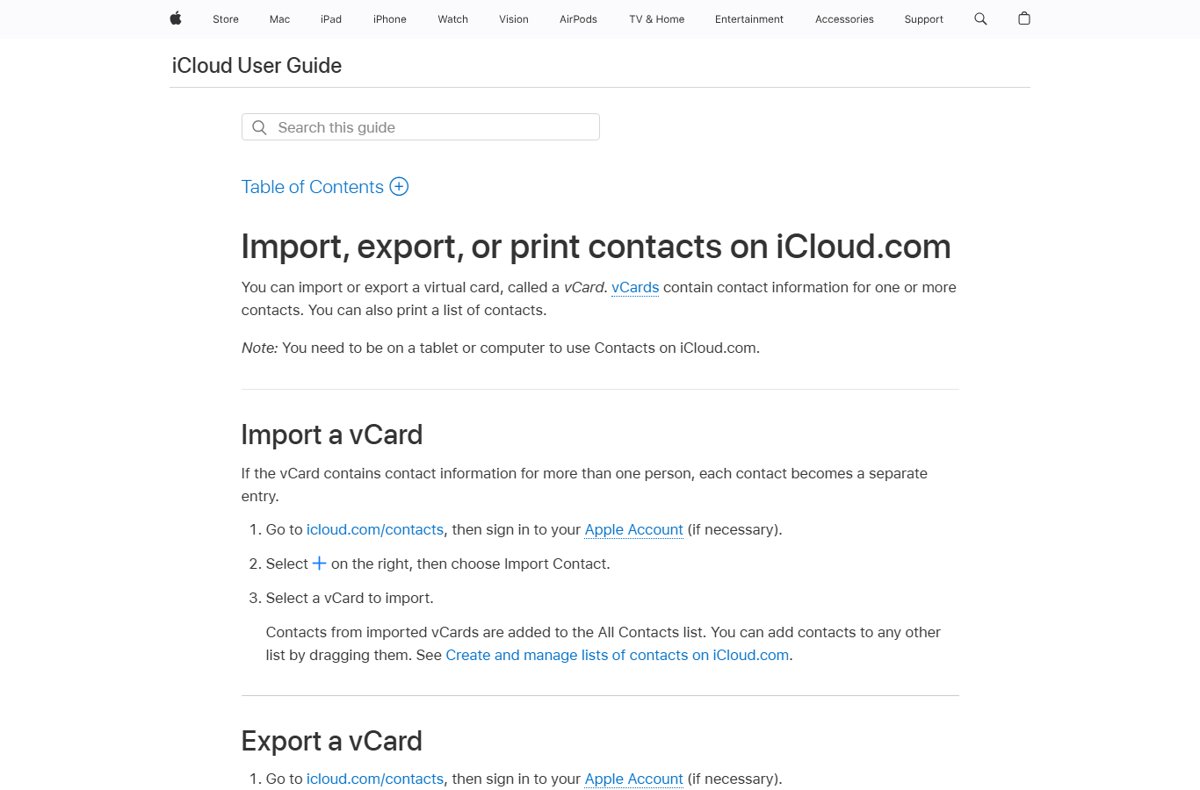
Steps to Export iCloud Contacts Using a Web Browser
This works in any desktop browser on a Mac or Windows PC, and on a tablet. iCloud.com Contacts does not open on a phone.
- Go to icloud.com/contacts and sign in to your Apple Account.
- To export everything, select the Actions button at the top of the contact list, then choose Select All Contacts.
- To export only some contacts, hold Ctrl on Windows or Command on a Mac and click each one.
- Select the Share button on the right, then choose Export vCard.
- Save the .vcf file your browser downloads.
When several contacts are selected, iCloud puts all of them into a single vCard file rather than one file per person.
Understanding iCloud Contacts
iCloud Contacts keeps one copy of your address book on Apple's servers and syncs it to every device signed in to the same Apple Account with Contacts turned on. An export is a snapshot of that list at one moment.
| File type | Extension | Made by | Opens in |
|---|---|---|---|
| vCard | .vcf | iCloud.com or Contacts on Mac (Export vCard) | iCloud, Contacts on Mac, Google Contacts and most address books |
| Contacts Archive | .abbu | Contacts on Mac (Contacts Archive) | Contacts on Mac only; importing it replaces the current contacts |
| CSV, Excel, TSV | .csv, .xlsx, .tsv | Contacts dragged into Numbers on a Mac | Spreadsheets, Google Contacts (CSV) |
Pre-requisites for Exporting iCloud Contacts
| You need | Why |
|---|---|
| Your Apple Account email or phone number and password | To sign in at icloud.com or on the Mac |
| A computer or tablet | Contacts on iCloud.com is not available on a phone browser |
| Contacts turned on in iCloud on your iPhone | Otherwise the iPhone's contacts never reach iCloud to be exported |
| The same Apple Account on every device | Contacts saved under another account will be missing from the export |
| A Mac with the Contacts app (Mac route only) | Needed for the Contacts Archive and the Numbers CSV route |
To confirm the iPhone is syncing, go to Settings, tap your name, tap iCloud, tap See All and check that Contacts is on.
Steps to Export iCloud Contacts Using Mac
The Contacts app on a Mac offers two exports: a vCard for selected contacts, and a full archive for a complete backup.
- Open the Contacts app and, in the sidebar under iCloud, click All Contacts.
- Select the contacts you want in the vCard.
- Choose File, then Export, then Export vCard, choose a location and click Save.
- For a full backup instead, choose File, then Export, then Contacts Archive, and click Save.
- For a spreadsheet, open a Numbers sheet, drag the selected contacts into it, then choose File, then Export To, and pick CSV or Excel.
To leave photos or notes out of the vCard, choose Contacts, then Settings, click vCard, and clear Export photos in vCard or Export notes in vCard. A Numbers export ignores those choices and includes everything.
Steps to Export iCloud Contacts Using Windows PC
On Windows the quickest export is still the browser method above. If you want your iCloud contacts to stay in sync with classic Outlook instead, use the iCloud for Windows app.
- Make sure you have an @icloud.com email address set up for your Apple Account.
- Open iCloud for Windows and sign in with the Apple Account you use on your iPhone.
- Click the arrow to the right of Calendars and Contacts.
- Turn on Automatically sync your iCloud calendars and contacts to Microsoft Outlook.
- Click Done, then follow the onscreen steps to set up Outlook.
- Open classic Outlook and check the iCloud contacts folder.
This sync works with the classic version of Outlook, not the new Outlook for Windows.
Importing Contacts from vCard
| Destination | Steps |
|---|---|
| Google Contacts (Gmail, Android) | Go to Google Contacts, click Import, then Select file, choose the .vcf file and click Import |
| Another Mac | Double-click the .vcf file, or open Contacts and choose File, then Import, then click Add |
| Back into iCloud | At icloud.com/contacts, select the Add button on the right, choose Import Contact, then pick the .vcf file |
| A Contacts Archive (.abbu) | In Contacts on Mac choose File, then Import, select the file and click Open; it replaces the current contacts |
A vCard with many people becomes a separate entry for each person. Contacts on Mac flags duplicates during import so you can review them.
Automatic Contact Migration Using iCloud
Between Apple devices you rarely need an export. Signing in with the same Apple Account and turning on Contacts moves the whole address book for you.
| Device | Turn on iCloud Contacts |
|---|---|
| iPhone or iPad | Settings > your name > iCloud > See All (or Show All) > Contacts |
| Mac, macOS 15 or later | Apple menu > System Settings > your name > iCloud > See All next to Saved to iCloud > Contacts |
| Mac, macOS 13.3 to 14 | System Settings > your name > iCloud > Show All under Apps Using iCloud > Contacts |
| Windows PC | iCloud for Windows > Calendars and Contacts (syncs to classic Outlook) |
| Any computer | Open icloud.com/contacts in a browser |
Changing the iPhone's default contacts account to iCloud does not move contacts already stored in Google or Yahoo. Export those as a vCard and import them into iCloud.
Additional Backup Options
iCloud keeps its own archived versions of your contacts, so you can roll back after a bad import or a mass deletion.
- Go to icloud.com/contacts and sign in.
- Select the App Launcher button in the toolbar, then select Data Recovery.
- Select Restore Contacts; versions are listed by the date and time they were archived.
- Select Restore next to the version you want.
- Wait for the restore to finish before you edit any contact, since changes made during it are not saved.
Your current contacts are archived first, so you can undo the restore. A contact deleted recently can take up to 24 hours to appear in an archive, which is why a dated .vcf export kept on your own drive is still worth having.
How to check the export is complete
- Note the contact count shown at the top of the list on icloud.com/contacts or in Contacts on Mac.
- Import the .vcf file into a test destination, such as Google Contacts.
- Compare the imported count with the iCloud count.
- Open a few contacts and check that phone numbers, emails and addresses came across.
- If photos or notes are missing from a Mac export, check the vCard settings in Contacts, Settings, vCard.
Managing and Organizing Contacts
| Task | Where | How |
|---|---|---|
| Group contacts into lists | icloud.com/contacts | Drag contacts from All Contacts into a list |
| Export one list only | icloud.com/contacts | Open the list, select its contacts, then Share > Export vCard |
| Print a contact list | icloud.com/contacts | Select All Contacts, then Share > Print Contacts |
| Keep private details out of shared cards | Contacts on Mac | Contacts > Settings > vCard > Enable private me card |
| Check which account holds a contact | Contacts on iPhone | Tap Lists and choose All iCloud or another account |
Fix iCloud contacts that will not export or sync
Some contacts are missing from the export
They are stored in another account, such as Google, or on a device signed in to a different Apple Account.
- On the iPhone, open Contacts, tap Lists and select All iCloud.
- Check each other account under Lists for the missing names.
- Confirm every device uses the same Apple Account with Contacts turned on in iCloud.
iCloud contacts do not appear in Outlook on Windows
The sync was set up in the wrong Outlook, or the iCloud add-in is turned off.
- Make sure you use classic Outlook and an up-to-date version of Windows.
- Sign out of iCloud for Windows and sign back in.
- Close Outlook, turn Calendars and Contacts off and on again in iCloud for Windows, then reopen Outlook.
Changes do not sync between devices
A service outage, an out-of-date OS, or the wrong date and time.
- Check Apple's System Status page for iCloud Contacts.
- Update iOS, iPadOS or macOS.
- Make sure the date and time are correct for your location, then pull down on the contact list to refresh.
Frequently asked questions
Can I export all my iCloud contacts at once?
Yes. At icloud.com/contacts, select the Actions button, choose Select All Contacts, then select Share and Export vCard. iCloud saves every selected contact into one .vcf file.
What format are exported iCloud contacts in?
iCloud.com exports vCard files with the .vcf extension. Contacts on Mac can also make a .abbu Contacts Archive, and dragging contacts into Numbers lets you save CSV or Excel files.
Can I export iCloud contacts to CSV or Excel?
Not directly from iCloud.com, which only exports vCard. On a Mac, select the contacts in the Contacts app, drag them into a Numbers spreadsheet, then choose File, Export To and pick CSV or Excel.
Can I export iCloud contacts from my iPhone?
Contacts on iCloud.com needs a computer or tablet, so a phone browser cannot do the export. Turn on Contacts in the iPhone's iCloud settings, then export from icloud.com on a computer or iPad.
Does exporting delete my iCloud contacts?
No. Export vCard copies the selected contacts into a file and leaves them in iCloud. Importing a Contacts Archive on a Mac is different: it replaces the current contacts.
How do I move iCloud contacts to Gmail?
Export a vCard from icloud.com/contacts, then go to Google Contacts on a computer, click Import, then Select file, choose the .vcf file and click Import.
How do I get iCloud contacts on a Windows PC?
Either export a vCard from icloud.com in any browser, or install iCloud for Windows and turn on Calendars and Contacts to sync them with classic Outlook.
How do I restore deleted iCloud contacts?
At icloud.com/contacts, open the App Launcher, select Data Recovery, then Restore Contacts and pick an archived version. Your current contacts are archived first so the restore can be undone.