iCloud Drive refreshes itself whenever a device is online, so to refresh it you make sure Sync this [device] is on, every device uses the same Apple Account, and the device is updated.
This guide covers refreshing iCloud Drive on a Mac, iPhone, iPad, Windows PC and iCloud.com, reading the sync status icons in File Explorer, refreshing iCloud Photos, and fixing files that do not update.
How to refresh iCloud Drive
Apple states that files stored in iCloud Drive stay up to date across all your devices. A device that is signed out, or has iCloud Drive turned off, stops receiving those updates, which is the usual reason a folder looks stale.
- Confirm every device is signed in to the same Apple Account.
- Open the iCloud Drive settings on the stale device and make sure Sync this [device] is turned on.
- Update the device to the latest iOS, iPadOS or macOS, or to the latest iCloud for Windows on a PC.
- Connect the device to the internet and leave it online; changes saved in iCloud appear the next time it goes online.
- Sign in at iCloud.com and open Drive to confirm the file has reached iCloud.
How to refresh iCloud Drive on Mac
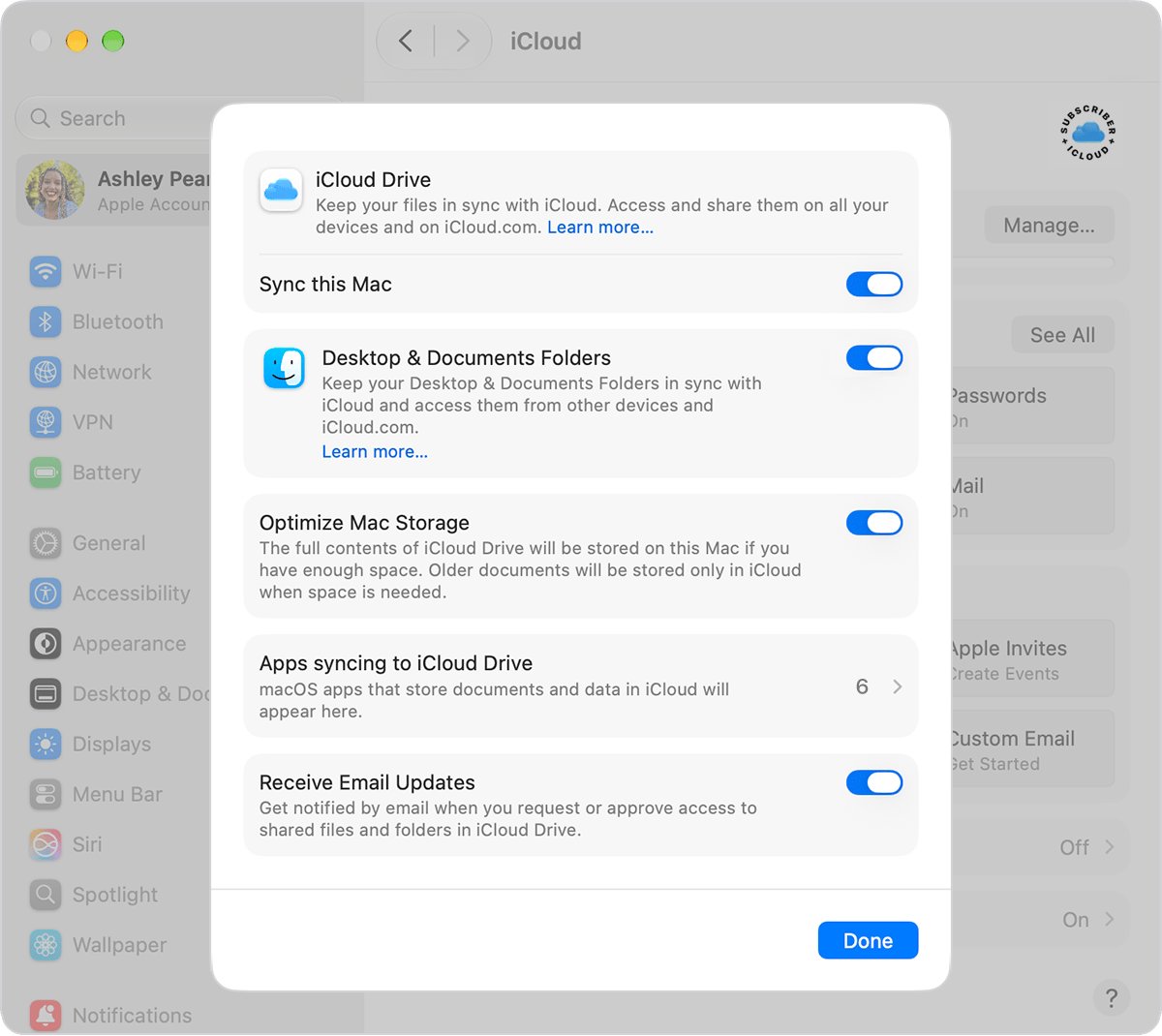
On macOS 13.3 or later the switch is called Sync this Mac. On macOS 13 to 13.2 the same setting sits behind a Turn On button.
- Choose Apple menu > System Settings.
- Click your name at the top of the sidebar.
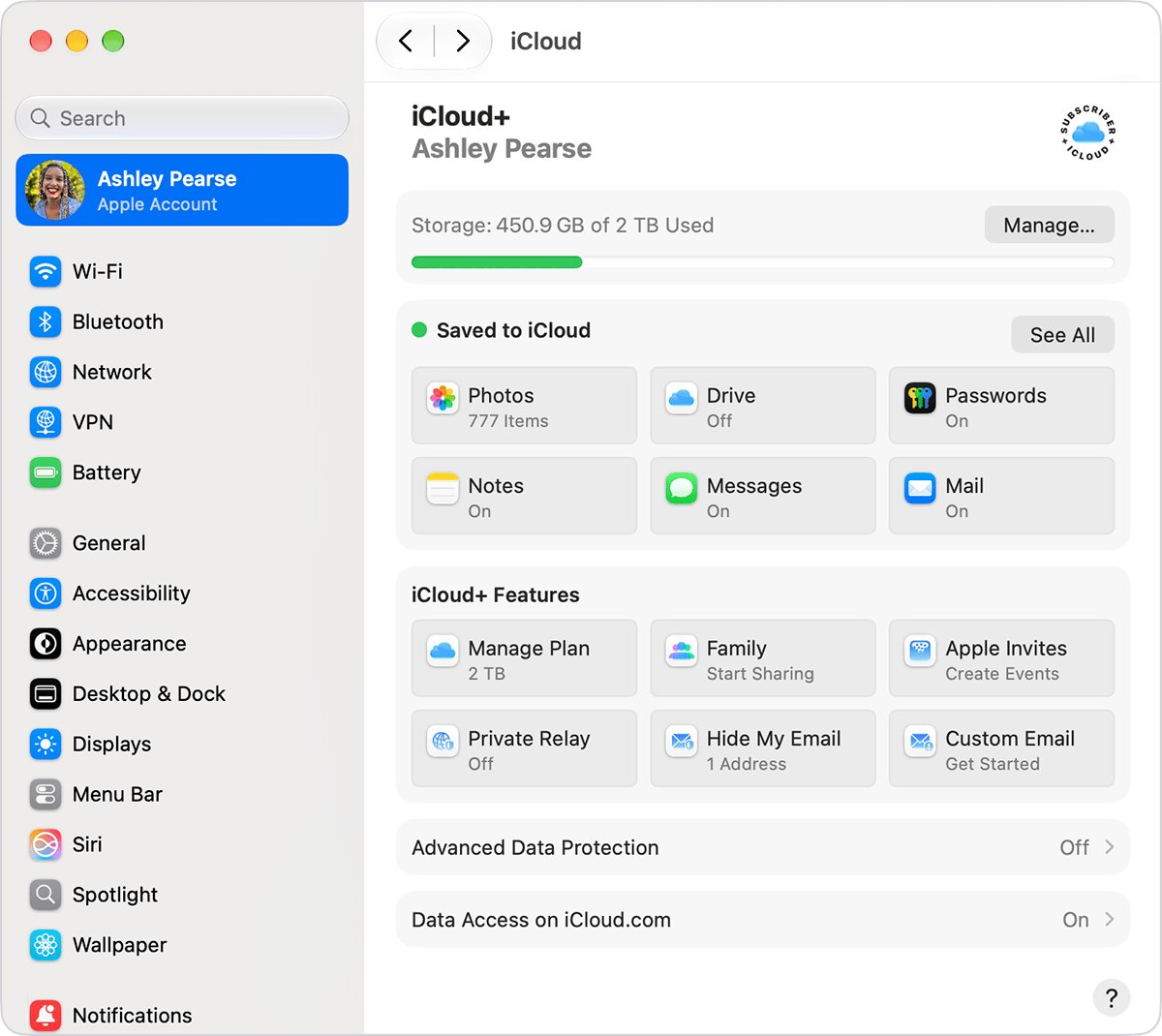
- Click iCloud, then click Drive (or iCloud Drive).
- Turn on Sync this Mac. On macOS 13 to 13.2, click Turn On, then Options.
- Turn on Desktop & Documents Folders if those folders should match your other devices.
- Open Finder and click iCloud Drive in the sidebar to see the current files.
How to refresh iCloud Drive on iPhone or iPad
- Open Settings and tap your name.
- Tap iCloud, then tap Drive (or iCloud Drive).
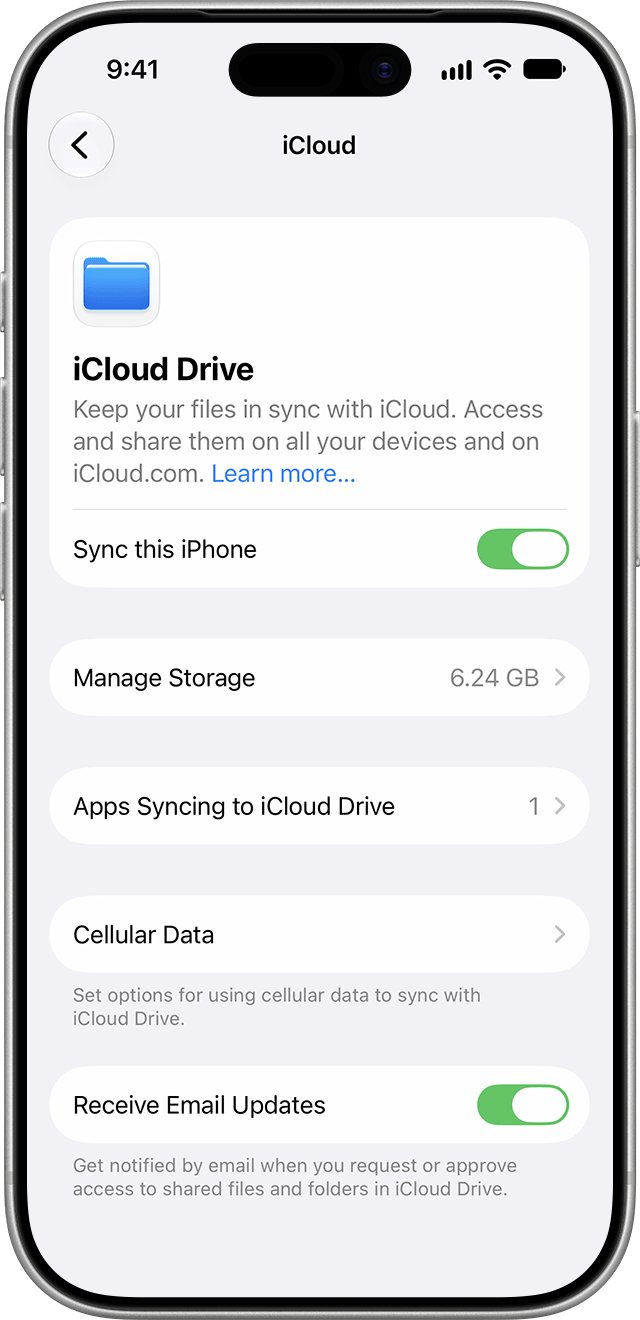
- Turn on Sync this iPhone or Sync this iPad.
- Open the Files app and go to the iCloud Drive section to see the files.
How to refresh iCloud Drive on Windows
iCloud Drive on a PC needs Windows 11 or later and iCloud for Windows from the Microsoft Store. If it is missing, download iCloud for Windows first. Apple's iCloud for Windows also needs iCloud set up on an iPhone, iPad or Mac.
- Open iCloud for Windows and sign in with your Apple Account.
- Click the arrow button to the right of iCloud Drive.
- Turn on iCloud Drive and click Done.
- Open File Explorer and click iCloud Drive in the Navigation pane.
- Right-click a file or folder that must always be current offline and select Always keep on this device.

How to refresh iCloud Drive on iCloud.com
iCloud.com shows what is stored in iCloud right now, so it is the quickest way to tell whether a file failed to upload or failed to download.
- Sign in at iCloud.com with your Apple Account.
- Click Drive (or iCloud Drive).
- Reload the browser tab to load the latest list of files.
- If the file is listed here but missing on a device, the problem is on that device; if it is missing here, the device that created it has not uploaded it yet.
How to refresh iCloud Photos on iPhone and Mac
Upload time depends on the size of the library and the speed of your internet connection. A paused upload is the common reason new photos do not appear elsewhere.
| Device | Turn on iCloud Photos | Resume or speed up uploads |
|---|---|---|
| iPhone or iPad | Settings > your name > iCloud > Photos > Sync this device | In Photos, open the profile button (under Collections on iOS 26) and check for Pause; on version 27 or later, turn on Sync Immediately and choose For Today |
| Mac | System Settings > your name > iCloud > Photos > Sync this Mac | In Photos, select Library, click All Photos, scroll down and check the pause control |
Allowing Sync Immediately over cellular can increase data usage.
iCloud Drive sync status icons in File Explorer
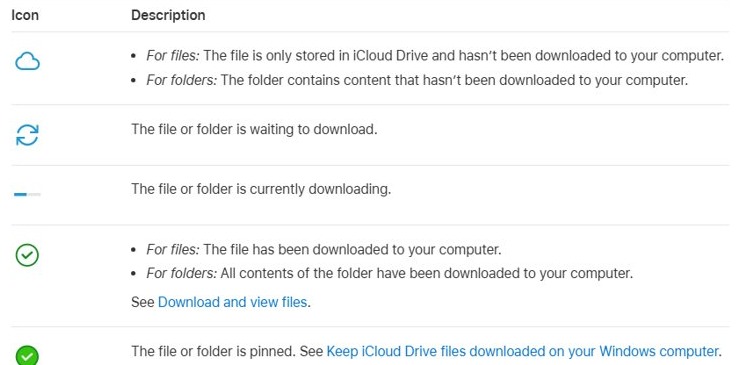
On a Windows PC, the icon beside each file shows whether the refresh has finished. These icons are not supported in iCloud for Windows version 7.
- Open File Explorer and select iCloud Drive in the Navigation pane.
- A cloud icon means the file is stored only in iCloud and has not been downloaded.
- Blue circular arrows mean the file is waiting to download, and a progress bar means it is downloading now.
- A green checkmark in a white circle means the file is downloaded to the PC.
- A white checkmark in a green circle means the file is pinned with Always keep on this device.
- A blue shared icon marks an item you shared; an orange one marks an item shared with you.
What is iCloud Drive and what does it do
| Question | Answer |
|---|---|
| What it does | Stores files and folders in iCloud and keeps them up to date across all your devices |
| What it needs | The same Apple Account on every device and the latest iOS, iPadOS or macOS |
| Where it is on iPhone and iPad | The iCloud Drive section of the Files app |
| Where it is on Mac | iCloud Drive in the Finder sidebar |
| Where it is on Windows | iCloud Drive in the File Explorer Navigation pane, through iCloud for Windows |
| Where it is on the web | Drive at iCloud.com |
| Shared files | Shared content stays up to date for everyone it is shared with |
iCloud Drive not updating on Mac, iPhone or PC
Files saved on one device never appear on another
The devices use different Apple Accounts, or iCloud Drive is off on one of them.
- Check the account name at the top of Settings or System Settings on each device.
- Sign in to the same Apple Account everywhere.
- Turn on Sync this [device] under iCloud > Drive.
- Confirm the file appears in Drive at iCloud.com.
iCloud Drive files on a PC show a cloud icon and will not open offline
The files are stored only in iCloud and have not been downloaded.
- Open File Explorer and select iCloud Drive.
- Right-click the file or folder.
- Select Always keep on this device.
- Wait for the green circle with a white checkmark.
Desktop and Documents on a Mac do not match other devices
Desktop & Documents Folders is not turned on for iCloud Drive.
- Open System Settings and click your name.
- Click iCloud > Drive.
- Turn on Desktop & Documents Folders.
iCloud Photos is not refreshing with new pictures
Uploads are paused or still running on a large library.
- Open Photos and check for a paused upload as shown in the iCloud Photos section above.
- Resume the upload.
- Keep the device online until the upload finishes.
Refresh iCloud Drive FAQ
How do I get iCloud to refresh automatically?
iCloud refreshes automatically on any device that is online, signed in to the same Apple Account and has iCloud Drive turned on. Changes saved in iCloud appear on your other devices the next time each one goes online.
How do I refresh iCloud Drive on my PC?
Open iCloud for Windows, click the arrow beside iCloud Drive and make sure it is on, then open iCloud Drive in File Explorer. Right-click a file and choose Always keep on this device to keep its latest copy downloaded.
Where is my iCloud Drive?
On iPhone and iPad it is in the Files app, on a Mac it is in the Finder sidebar, on Windows it is in the File Explorer Navigation pane, and on the web it is Drive at iCloud.com.
How do I access iCloud Drive?
Turn on Sync this device under Settings or System Settings > your name > iCloud > Drive, then open Files on iPhone, Finder on Mac or File Explorer on Windows. From any browser, sign in at iCloud.com and click Drive.
What is iCloud Drive on iPhone?
iCloud Drive on iPhone is Apple's file storage that keeps documents and folders the same across your Apple devices and PC. You browse it in the iCloud Drive section of the Files app once Sync this iPhone is turned on.
How do I refresh iCloud Photos on Windows?
iCloud Photos on Windows is set up inside iCloud for Windows, and new photos arrive once uploads from your iPhone or Mac finish. Check that uploads are not paused in Photos on the device that took the pictures.
Why does iCloud Drive stop updating on one device?
A device that is signed out of iCloud, or has iCloud Drive turned off, stops receiving updates. Turn Sync this device back on and keep the device online, and the current files return.