Most laptop HDMI ports only send video out, so to view an HDMI device on a Windows 11 laptop, connect it through a USB HDMI capture device and open the Camera app.
This guide covers capture devices, VLC, viewing another PC wirelessly, sending the laptop's own screen to an HDMI monitor or TV, and the fixes when nothing shows.
How to view HDMI on laptop Windows 11
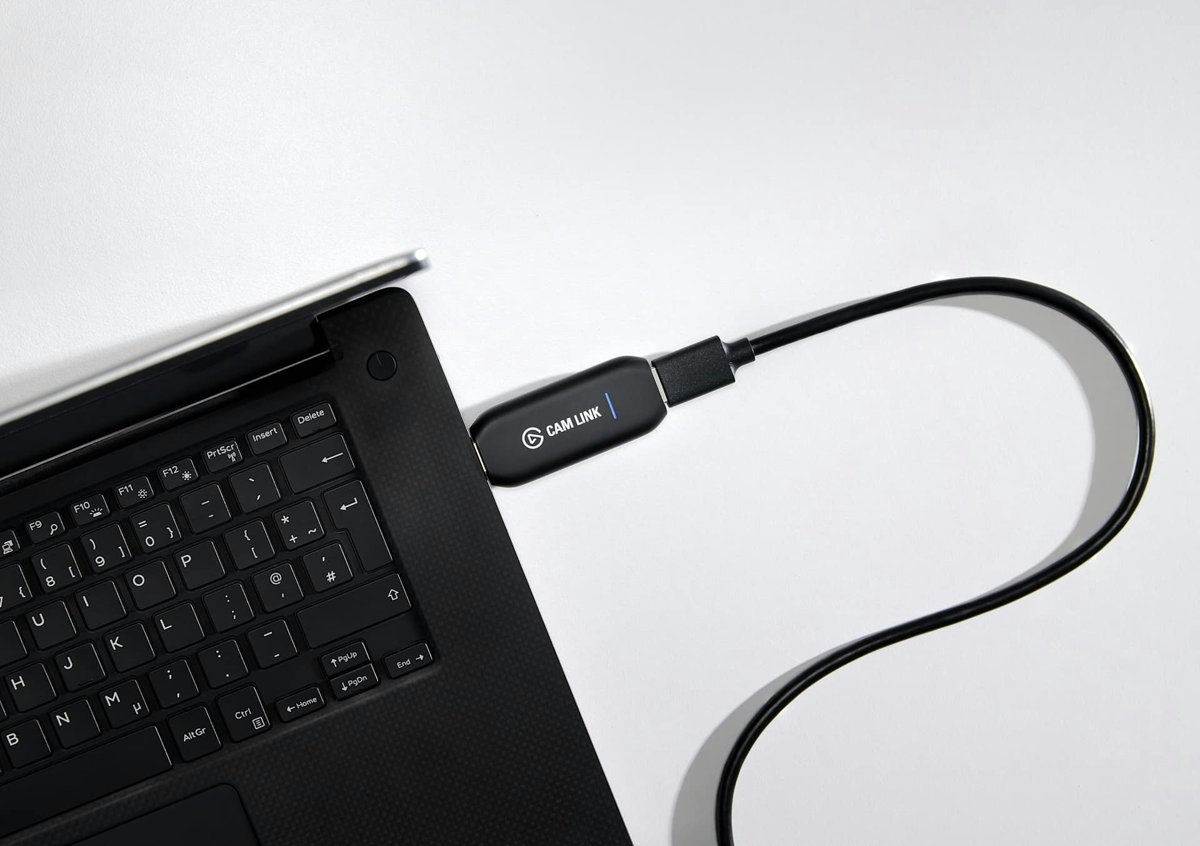
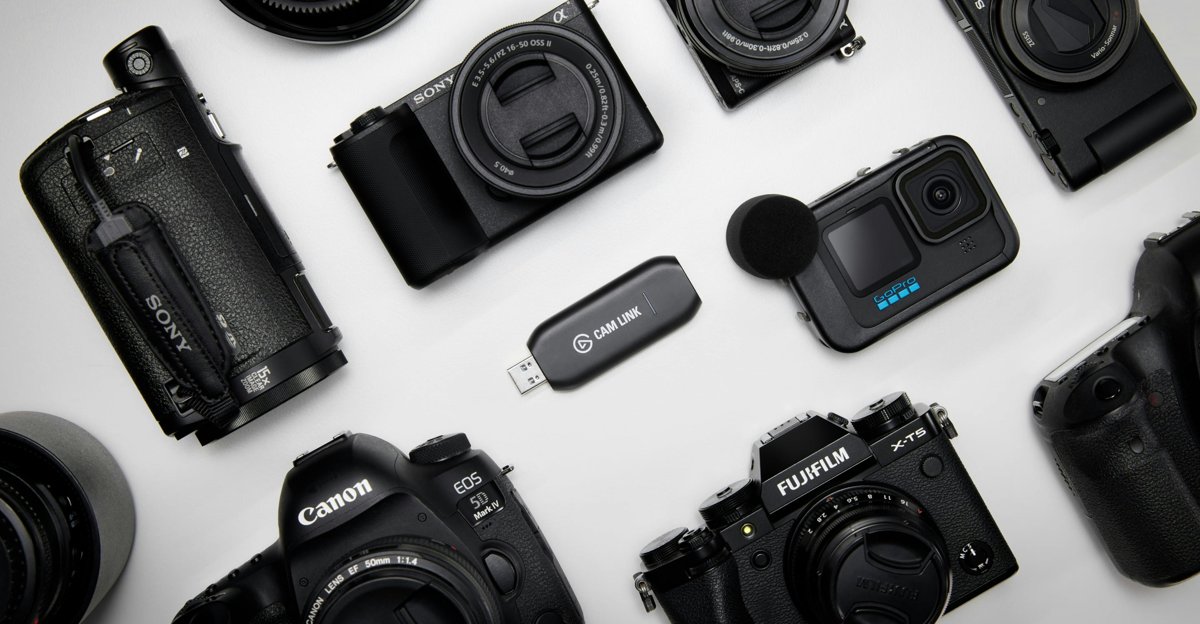
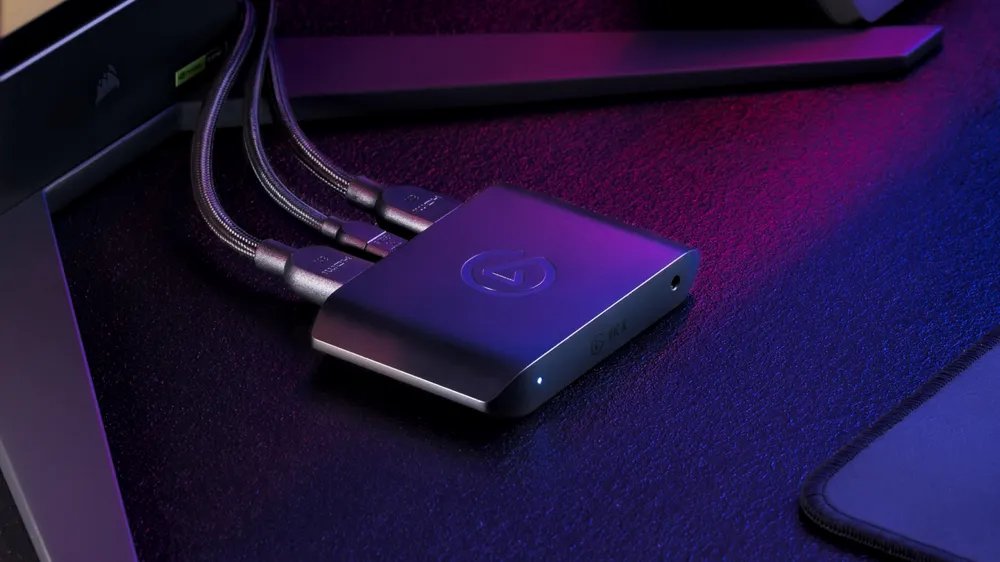
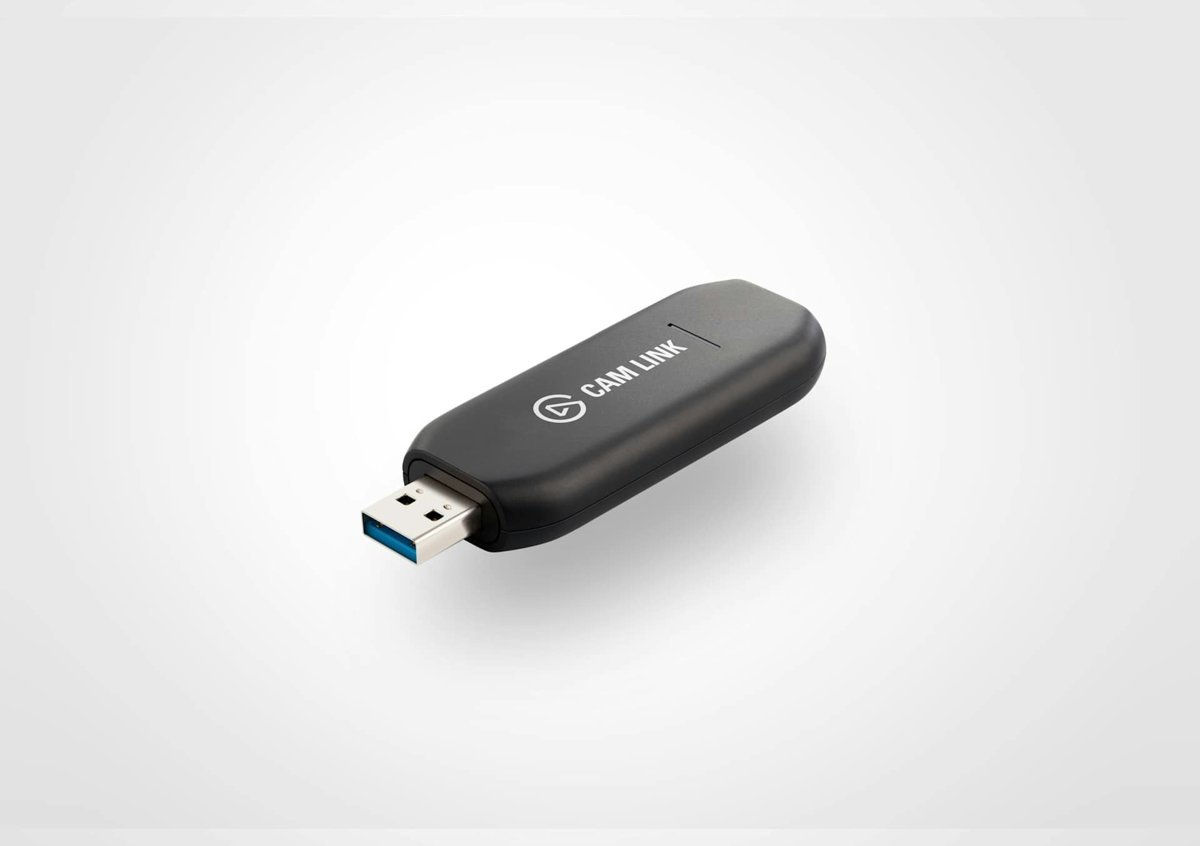
A USB HDMI capture device takes the HDMI signal from a console, camera, DVR or other PC and hands it to Windows 11 as a webcam feed. Elgato describes its Cam Link 4K this way: HDMI in from the device, USB 3.0 out to the computer.
- Connect an HDMI cable from the source device's HDMI output to the capture device.
- Plug the capture device into a USB 3.0 port on the laptop.
- Turn on the source device.
- Select Start, type Camera and open the Camera app.
- Select Change camera at the top right until the HDMI picture appears.
- Maximize the window to watch the HDMI source full screen.
The Camera app also records the feed: switch to Video mode and select Take video to start and stop.
Can I use my laptop as a monitor?
Yes, but the route depends on what you want to see. Lenovo notes that many laptops include HDMI for output rather than input, and the connector shape does not tell you which.
| What you want to view | Use this | Why |
|---|---|---|
| A game console, camera, DVR or Raspberry Pi with HDMI out | USB HDMI capture device and the Camera app | The capture device turns the HDMI signal into a webcam feed the laptop can show |
| Another Windows PC or an Android device | Projecting to this PC with the Wireless Display app | Both devices connect over Wi-Fi with Miracast, with no HDMI cable needed |
| The laptop's own screen on a TV or monitor | An HDMI cable from the laptop to the display, then Windows logo key + P | This is what a laptop HDMI port is built for |
| A full desktop with a laptop as an extra screen | A laptop screen as an external monitor setup | Software routes extend the desktop without HDMI input |
How to view HDMI source on laptop with VLC
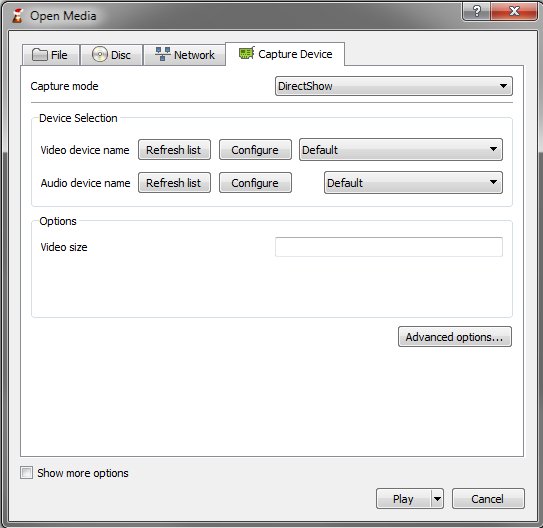
VLC media player can open a capture device directly. Use it when you want playback controls the Camera app lacks, or when Camera does not list the device.
- Connect the HDMI source to the capture device and the capture device to the laptop.
- Open VLC media player.
- Select Open Capture Device.
- Set Capture Mode to the DirectShow option.
- Choose the capture device under Video device name and Audio device name.
- Select Play.
If VLC shows a black window, close the Camera app or any other program that is using the capture device, then try again.
How to view PC on laptop with Projecting to this PC
To show another Windows PC on the laptop, skip the cable and use Microsoft's Wireless Display feature. The receiving laptop needs Wi-Fi turned on and the source needs Miracast.
- On the laptop, open Start > Settings > System > Projecting to this PC.
- Select Optional features, then View features.
- Search for wireless display, tick Wireless Display, select Next and then Install.
- Return to Projecting to this PC and set your projection preferences.
- Search the taskbar for wireless display and open the Wireless Display app.
- On the other PC, press Windows logo key + K and select the laptop's name.
Windows 11 versions earlier than 22H2 use the Connect app instead of Wireless Display. Lenovo warns that network display methods compress video, so expect more lag than a cable.
How to connect laptop to HDMI monitor or TV in Windows 11
This is the output direction, and it uses the laptop's own HDMI port. Windows 11 picks the display up as soon as the cable carries a signal.
- Connect an HDMI cable from the laptop's HDMI port to the monitor or TV.
- Turn on the display and set its input to the HDMI port you used.
- Open Start > Settings > System > Display.
- Select Multiple displays > Detect if the second display is not shown.
- Select Identify to see which number belongs to each screen.
- Drag the displays to match their real positions and select Apply.
If the port itself seems dead, work through the HDMI port not working fixes for Windows 11.
How do I switch between display modes?
Press Windows logo key + P and pick one of four modes. The choice applies until you change it again.
| Mode | What it shows | Use it when |
|---|---|---|
| PC screen only | Content on the laptop screen only | You are about to unplug the HDMI display |
| Duplicate | The same picture on the laptop and the HDMI display | You are presenting or sharing a video on a TV |
| Extend | One desktop spread across both screens | You want different windows on each screen |
| Second screen only | Content on the HDMI display only | You want the laptop screen dark while you use a bigger monitor |
How to see HDMI connection on laptop
Windows 11 shows each connection in its own Settings page, so you can tell whether the laptop sees the device.
- For a capture device, open Start > Settings > Bluetooth & devices > Cameras.
- Look for the capture device under Connected cameras and select it to see a live preview.
- For an HDMI monitor or TV, open Start > Settings > System > Display.
- Check that two numbered displays appear, then select Identify to match the numbers to the screens.
Microsoft notes that DirectShow-only and proprietary cameras do not appear under Connected cameras, so a capture device missing there may still work in VLC.
Can laptop HDMI port be used as input?
Usually not. Treat a laptop HDMI port as an output unless your model's specifications say it accepts HDMI input. Lenovo states that many laptops include HDMI for video output rather than input, and that input support depends on the laptop's hardware and firmware rather than the shape of the connector. Without input support, a cable alone cannot turn the laptop into a display for a console or another device.
Why isn't my laptop recognizing the HDMI device?
Find the symptom that matches what you see and work through its fix in order.
Plugging a console into the laptop's HDMI port shows nothing
The port is an output, so it cannot receive the console's signal.
- Unplug the cable from the laptop's HDMI port.
- Connect the console to a USB HDMI capture device instead.
- Open the Camera app and select Change camera until the picture appears.
The capture device does not appear in the Camera app
The device may be disabled, on a slow port or in use by another app.
- Open Settings > Bluetooth & devices > Cameras and check the Disabled cameras section.
- Select Enable next to the capture device if it is listed there.
- Move the capture device to a USB 3.0 port.
- Close VLC, OBS or any other app that may be holding the device, then reopen Camera.
The HDMI monitor or TV shows no signal
Windows may be in the wrong display mode, or the cable or port may be at fault.
- Press Windows logo key + P and select Extend or Duplicate.
- Disconnect any dock, dongle or adapter and connect the cable directly.
- Reseat or replace the HDMI cable.
- Open Settings > System > Display and select Multiple displays > Detect.
- Press Windows logo key + Ctrl + Shift + B to reset the graphics driver.
An HDMI display that used to work stopped working
A recent graphics driver change is a common cause.
- Open Device Manager and expand Display adapters.
- Right-click the adapter, select Properties and open the Driver tab.
- Select Roll Back Driver if it is available.
- If it is not, uninstall the adapter, restart, and let Windows reinstall it.
Why is the display quality poor?
The refresh rate or resolution does not suit the display, or a wireless method is compressing the picture.
- Open Settings > System > Display > Advanced display.
- Pick a rate in Choose a refresh rate, avoiding entries marked with an asterisk.
- Use a cable or a capture device instead of a wireless display for sharper video.
There is no sound over HDMI
Windows is playing audio through a different output device.
- Open Start > Settings > System > Sound.
- Under Output, select the HDMI display or TV.
- If the monitor has no speakers, select the laptop speakers instead.
When Windows will not list a second screen at all, the second monitor not detected fixes go further.
Tips for viewing HDMI on laptop Windows 11
| Tip | How to do it | Why it helps |
|---|---|---|
| Use a USB 3.0 port for capture | Plug the capture device into a USB 3.0 port, not a USB 2.0 one | Elgato lists USB 3.0 as the connection for Cam Link 4K |
| Send a clean signal | Turn off on-screen overlays on the camera or source device | Elgato's capture device expects a clean HDMI output |
| Pick the right input on a TV | Match the TV's input to the HDMI port you plugged into | A TV on the wrong input shows no signal even when Windows is fine |
| What if I have multiple HDMI ports? | Try the other port, then use Identify to see which screen is which | Microsoft suggests another video output port when one fails |
| Route the sound | Choose the output under Settings > System > Sound | HDMI audio may need to be set as the default device |
| Open Display settings fast | Press Windows logo key + R, type ms-settings:display and press Enter |
It skips the Settings menus |
Frequently asked questions about viewing HDMI on laptop
How do I view HDMI input on my laptop?
Connect the HDMI source to a USB HDMI capture device, plug that into the laptop, and open the Camera app. Most laptop HDMI ports only send video out, so plugging the source straight into the laptop shows nothing.
How do I view HDMI on an HP laptop?
The steps are the same as on any Windows 11 laptop. Check your model's specifications for HDMI input; if it lists HDMI as output only, use a USB HDMI capture device and the Camera app to view the source.
How do I view HDMI on laptop Windows 10?
Use the same capture-device route and the Camera app. To send the laptop's screen out instead, press Windows logo key + P, and if the port seems off, enable the HDMI port on Windows 10 first.
How do I view a DVR on my laptop through HDMI?
Connect the DVR's HDMI output to a USB HDMI capture device, plug the capture device into the laptop and open the Camera app or VLC. The laptop shows the DVR's video feed like a webcam picture.
Can I view a Raspberry Pi on my laptop using HDMI?
Yes, through a USB HDMI capture device rather than the laptop's HDMI port. Connect the Pi's HDMI output to the capture device, plug it into the laptop and open the Camera app to see the Pi's screen.
How do I view my PC on my laptop?
Install the Wireless Display optional feature on the laptop, open the Wireless Display app, then press Windows logo key + K on the PC and select the laptop. Both need Miracast and Wi-Fi turned on.
How do I detect HDMI on my laptop?
Open Settings, System, Display and select Multiple displays and then Detect. For a capture device, open Settings, Bluetooth & devices, Cameras, and look for it under Connected cameras.
Why does my laptop not show anything when I plug in HDMI?
If a console or other source is plugged into the laptop, the port is probably output only, so use a capture device. If the laptop is feeding a monitor, press Windows logo key + P, pick Extend and check the cable.