To remove white space in Excel, type =TRIM(A2) in an empty column, fill it down, then paste the results back as values; TRIM strips leading and trailing spaces and cuts runs of spaces between words to one.
This guide covers six ways to do it, from TRIM and Find and Replace to SUBSTITUTE, blank-row cleanup, Power Query and a VBA macro, plus the nonbreaking spaces that TRIM leaves behind.
1. Using the TRIM function to remove extra spaces within data
TRIM removes every space from a text string except single spaces between words. Microsoft recommends it for text received from another application with irregular spacing, such as a CSV export or a copied web table. Trailing spaces are also a common reason a VLOOKUP formula returns #N/A on values that look identical.
The steps assume your messy text is in column A, starting in A2. Change the cell references to match your sheet.
- Insert an empty helper column next to the column you want to clean. Right-click the column letter to the right of your data and select Insert.
- Click the first cell of the helper column, type
=TRIM(A2)and press Enter. - Drag the fill handle at the bottom-right corner of that cell down to copy the formula to every row of data.
- Select the helper column, press Ctrl + C, then go to Home > Paste > Values so the cells hold text instead of formulas.
- Delete the original column A. Right-click its column letter and select Delete.
- Spot-check a few cells: the text should start at the cell edge, with one space between words.
If the source is an Excel table, typing the formula in the first row of a new table column creates a calculated column that fills itself down. You still paste values before deleting the source column, or the formulas break.
Which method removes white space in Excel best?
| Your situation | Use this method | Why |
|---|---|---|
| Leading, trailing or double spaces in one column | 1. TRIM | Keeps single spaces between words and works in every Excel version |
| You want every space gone, or one character removed across the whole sheet | 2. Find and Replace | No helper column; Replace All changes cells in place |
| TRIM leaves spaces behind, or you need to strip a specific character | 3. SUBSTITUTE | Swaps nonbreaking spaces (character 160) or any character for something else |
| Empty rows or blank cells break up the list | 4. Clear empty cells and rows | Go To Special > Blanks selects every gap at once |
| The same import arrives every week, or the data comes from another file | 5. Power Query | Trim and Clean steps are saved and rerun on refresh |
| You clean many sheets the same way in Excel for Windows or Mac | 6. VBA macro | One run cleans the whole selection; Excel for the web cannot run it |
2. Using Find and Replace to clear specific spaces or characters
Find and Replace edits the cells directly, so it suits jobs where every instance of a character must go. Replacing a single space with nothing also removes the spaces between words, which is right for codes, phone numbers and IDs but wrong for names.
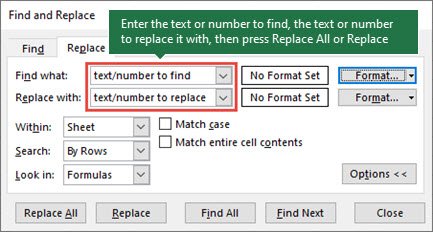
- Select the cells or column to clean. With one cell selected, Excel searches the whole sheet.
- Press Ctrl + H, or go to Home > Find & Select > Replace.
- In Find what, press the Spacebar once to enter a single space. To collapse double spaces instead, enter two spaces here.
- Leave Replace with empty to delete the space, or type one space if you are collapsing double spaces.
- Select Options >> and set Within to Sheet or Workbook, depending on how far the change should reach.
- Select Replace All. When collapsing double spaces, repeat Replace All until Excel finds nothing left to replace.
Find and Replace also removes other unwanted characters, such as a label and colon at the start of every cell. Wildcards work here too: a question mark matches any single character and an asterisk matches any run of characters.
3. Using SUBSTITUTE function to remove specific characters or multiple spaces
SUBSTITUTE replaces every occurrence of one text string with another. Its syntax is SUBSTITUTE(text, old_text, new_text, [instance_num]), and leaving out instance_num changes every occurrence in the cell.
This is the fix for spaces that TRIM cannot see. Web pages use the nonbreaking space, character 160, and TRIM was built only for the ordinary space, character 32.
| What you want to remove | Formula (text in A2) | Result |
|---|---|---|
| Every space, including between words | =SUBSTITUTE(A2," ","") |
"AB 12 34" becomes "AB1234" |
| Nonbreaking spaces from copied web text | =TRIM(SUBSTITUTE(A2,CHAR(160)," ")) |
Character 160 turns into a normal space, then TRIM tidies it |
| Spaces, nonbreaking spaces and line breaks | =TRIM(CLEAN(SUBSTITUTE(A2,CHAR(160)," "))) |
CLEAN removes nonprinting characters 0 to 31, including line feeds |
| A specific character, such as a hyphen | =SUBSTITUTE(A2,"-","") |
"555-0100" becomes "5550100" |
| Only the first occurrence of a character | =SUBSTITUTE(A2," ","",1) |
Removes the first space and leaves the rest |
Use the formula in a helper column, fill it down, and paste the results as values, exactly as in the TRIM steps above.
4. Clearing empty cells and rows to remove gaps
Gaps between records count as white space too, and they stop sorting, filtering and tables from treating the list as one block. Go To Special selects every blank cell in a range so you can delete the rows in one action.
- Select a column that is empty only on the rows you want to remove, such as an ID or name column. Selecting a whole range also catches rows that have one missing value.
- Go to Home > Find & Select > Go To, or press Ctrl + G.
- Select Special, choose Blanks and select OK. Excel highlights every empty cell in the selection.
- On the Home tab, select Delete > Delete Sheet Rows.
- Scroll through the list to confirm only empty rows were removed. Press Ctrl + Z straight away if a row with data disappeared.
Cells that look empty but still carry formatting or nonprinting characters slow a workbook down. Review > Check Performance lists them, and Optimize sheet or Optimize all clears them. Skip that command on sheets used for pixel art, because Excel removes those formatted cells too.
5. Using Power Query to remove white spaces and clean data sets
Power Query records each cleaning step, so the next import is cleaned with a single refresh. Its Trim command removes leading and trailing whitespace; unlike the worksheet TRIM function, it does not shrink double spaces between words.
- Click any cell in your data and select Data > Get & Transform Data > From Table/Range.
- In the Power Query Editor, select the columns to clean. Hold Ctrl to pick several.
- Select Transform > Format > Trim. To keep the original column, use Add Column > Format > Trim instead.
- Select Transform > Format > Clean to strip nonprinting characters such as line breaks.
- To drop empty records, select Home > Remove Rows > Remove Blank Rows.
- Select Home > Close & Load. Excel loads the cleaned data to a new worksheet and leaves the original untouched.
When new data arrives, paste it into the source table and refresh the query from Data > Queries & Connections. Every recorded step runs again.
6. Automating the cleaning process with VBA (macros)
A macro applies the same cleanup to any selection with one click. The code below uses Excel's worksheet TRIM through WorksheetFunction.Trim, because the VBA Trim function removes only leading and trailing spaces. It also converts nonbreaking spaces first.
- Turn on the Developer tab: go to File > Options > Customize Ribbon, tick Developer under Main Tabs and select OK.
- Save a copy of the workbook, because the macro overwrites cell values.
- Select Developer > Record Macro, name it
RemoveExtraSpaces, select OK, then select Stop Recording straight away. - Select Developer > Macros, pick
RemoveExtraSpacesand select Edit to open the Visual Basic Editor. - Replace everything between
Sub RemoveExtraSpaces()andEnd Subwith the body of the code in the next section, then close the editor. - Select the cells to clean, go to Developer > Macros, pick
RemoveExtraSpacesand select Run. - Save the file as an Excel Macro-Enabled Workbook (.xlsm) if you want to keep the macro.
Excel for the web cannot create, run or edit VBA macros. Open the file in the desktop app to use this method.
VBA code to remove extra spaces from selected Excel cells
Sub RemoveExtraSpaces()
    Dim cell As Range
    For Each cell In Selection
        If Not cell.HasFormula And VarType(cell.Value) = vbString Then
            cell.Value = Application.WorksheetFunction.Trim( _
                Replace(cell.Value, Chr(160), " "))
        End If
    Next cell
End Sub
The loop visits each selected cell, skips formulas and numbers, swaps character 160 for a normal space, then applies the worksheet TRIM rule: no leading or trailing spaces and single spaces between words.
You should see: Text in the selection now starts at the cell edge, and double spaces between words are gone.
How to check Excel cells no longer have extra spaces
Spaces are invisible, so count characters instead of trusting your eyes. LEN counts every character, and spaces count.
- In an empty column next to the cleaned data, type
=LEN(A2)-LEN(TRIM(A2))and fill it down. - Look for any result above 0. Those cells still hold leading, trailing or doubled spaces.
- For a cell that looks clean but still misbehaves in a lookup, type
=CODE(A2)to see the code of its first character. A result of 160 means a nonbreaking space, which method 3 fixes. - Sort or filter the cleaned column. Values that used to appear twice, once with a trailing space, now group together.
- Delete the check column when every row returns 0.
Additional tips for effective white space removal in Excel
| Tip | Why it matters |
|---|---|
| Back up the original data in a separate workbook first | TRIM, Replace All and macros overwrite text; a copy lets you compare and recover |
| Run Find and Replace jobs before formula jobs | Microsoft's own cleaning order: whole-sheet edits first, then column-by-column formulas |
| Always paste formula results as values before deleting the source column | Otherwise the helper formulas lose their reference and show errors |
| Remove duplicates after trimming, not before | "Smith" and "Smith " only match once the trailing space is gone |
| Pair TRIM with CLEAN for imported text files | CLEAN removes tabs and line breaks (characters 0 to 31) that TRIM ignores |
| Use Power Query or a recorded macro for data you clean every week | The steps are stored and rerun, so nothing is skipped by hand |
Once the spaces are gone, you can remove duplicate values from the column and catch entries that only differed by a trailing space.
How to minimize white space in Excel printouts
Sometimes the white space a reader wants gone is on the printed page, not inside cells. Page margins are the blank border between your data and the paper edge, and Scale to Fit shrinks the sheet so fewer pages print half empty.
- Select the Page Layout tab.
- Select Margins and choose Narrow, or select Custom Margins and enter smaller Top, Bottom, Left and Right values.
- In the Scale to Fit group, set Width to 1 page so all columns print on one sheet of paper.
- Select the cells you actually need, then use Print Area in the Page Setup group to leave out empty columns and rows.
- Press Ctrl + P and check the preview before you print. To undo scaling later, go to File > Print > Settings > No Scaling.
Excel for the web does not support setting page margins, so change them in the desktop app.
Excel TRIM not removing spaces: fixes
TRIM runs but the space at the start or end stays
The character is a nonbreaking space (code 160), usually from copied web content, and TRIM only removes the ordinary space (code 32).
- Type
=CODE(LEFT(A2,1))or=CODE(RIGHT(A2,1))to confirm the code is 160. - Replace the TRIM formula with
=TRIM(SUBSTITUTE(A2,CHAR(160)," ")). - Fill down and paste the results as values.
Cells still break onto two lines or show odd gaps after trimming
Line feeds and tabs are nonprinting characters, not spaces.
- Wrap the formula in CLEAN:
=TRIM(CLEAN(A2)). - In Power Query, add Transform > Format > Clean after the Trim step.
The cleaned column shows errors after the original column is deleted
The helper column still held formulas that pointed at the deleted cells.
- Press Ctrl + Z to bring the original column back.
- Copy the helper column and use Home > Paste > Values.
- Delete the original column again.
The macro does nothing or the Macros button is missing
Macros are disabled by default, the file is not macro-enabled, or the workbook is open in Excel for the web.
- Open the workbook in the Excel desktop app.
- If a security warning says macros are disabled, use its option to turn them on, but only for a file you trust.
- Save the file as an Excel Macro-Enabled Workbook (.xlsm) and run the macro again.
Remove white space in Excel FAQ
How do I remove white space in an Excel column?
Type =TRIM(A2) in an empty column next to it, fill the formula down, then copy the results and paste them back with Home > Paste > Values. Delete the original column last. TRIM removes leading and trailing spaces and leaves one space between words.
How do I eliminate all white space in Excel, even between words?
Use =SUBSTITUTE(A2," ",""), or press Ctrl + H, enter one space in Find what, leave Replace with empty and select Replace All. Both remove every space, so use them on codes and numbers rather than names.
How do I minimize white space in Excel when printing?
On the Page Layout tab, set Margins to Narrow and set Scale to Fit width to 1 page. Setting a print area that excludes empty columns also removes blank pages from the printout.
Why does TRIM not remove all spaces in Excel?
TRIM only removes the standard space character, code 32. Text copied from web pages often contains nonbreaking spaces, code 160, which TRIM ignores. Convert them first with =TRIM(SUBSTITUTE(A2,CHAR(160)," ")).
Does TRIM remove the spaces between words?
No. TRIM keeps a single space between words and only removes extra spaces, plus every leading and trailing space. To remove the spaces between words as well, use SUBSTITUTE or Find and Replace.
What is the difference between TRIM in VBA and TRIM in Excel?
The VBA Trim function removes only leading and trailing spaces. The worksheet TRIM function, called in VBA as WorksheetFunction.Trim, also reduces runs of spaces between words to one. Neither removes nonbreaking spaces.
How do I remove trailing spaces in Excel without a formula?
Use Power Query: load the data with Data > From Table/Range, select the column, choose Transform > Format > Trim, then Close & Load. Power Query Trim removes leading and trailing whitespace only.
Can I remove spaces in Excel for the web?
Yes, with TRIM, SUBSTITUTE and Find and Replace. The VBA method does not work there, because Excel for the web cannot create, run or edit macros; open the file in the desktop app for that.
Bottom line: best way to remove white space in Excel
Start with =TRIM(A2) and paste the results as values; switch to SUBSTITUTE with CHAR(160) when TRIM leaves spaces behind. That pair handles almost every spacing problem in a single column. Move to Power Query or a macro only when the same data needs cleaning again and again.






![SharePoint event list [add, create, and edit event list]](https://techdows.com/wp-content/uploads/2026/10/SharePoint-event-list-add-create-and-edit-event-list-1-600x338.jpg)