To change the bank account Apple Cash transfers to, open Wallet, tap your Apple Cash card, tap the More button, tap Card Details, then tap Bank Account and edit the routing or account number.
This guide also covers the iPad route, deleting the old account to add a new one, the debit card used for Instant Transfer, transfer fees and timing, and what to do when a transfer does not arrive.
Change the bank account for Apple Cash on iPhone
- Open the Wallet app and tap your Apple Cash card.
- Tap the More button, then tap Card Details.
- Scroll down and tap Bank Account, then select the account.
- Tap the routing number or account number and enter the new details.
- Confirm the change and tap Next.
The change syncs to your other devices signed in with the same Apple Account.
Change bank for Apple Cash: edit or replace
| Your situation | Do this | Where |
|---|---|---|
| Same bank, new account or routing number | Edit the numbers | Card Details > Bank Account > tap the number |
| Switching to a different bank | Delete the old account, then add the new one | Card Details > Bank Account > Delete Bank Account Information |
| Using an iPad | Same steps from Settings | Settings > Wallet & Apple Pay > Apple Cash card |
| Want money in minutes, not days | Use Instant Transfer to an eligible debit card | More > Transfer to Bank > Instant Transfer |
Change the Apple Cash bank account on iPad
- Open Settings and tap Wallet & Apple Pay.
- Tap your Apple Cash card.
- Scroll down and tap Bank Account, then select the account.
- Tap the routing number or account number and type the new details.
- Confirm and tap Next.
Remove the old bank account and add a new one
- In Wallet, tap your Apple Cash card, tap More, then tap Card Details.
- Scroll down and tap Bank Account, then select the account.
- Tap Delete Bank Account Information.
- Tap Delete again to confirm.
- Start a transfer with More > Transfer to Bank and enter the new bank's routing and account numbers when asked.
Apple Cash transfers only go to U.S. bank accounts, so the new account must be with a U.S. bank.
How to change the Apple Cash transfer card for Instant Transfer
Instant Transfer sends money to an eligible U.S. debit card instead of a bank account. Apple does not list a separate edit screen for this card; you add one from the transfer screen.
- In Wallet, tap your Apple Cash card and tap More.
- Tap Transfer to Bank, enter an amount and tap Continue.
- Choose Instant Transfer.
- Tap Add Card if no eligible debit card is set up, and follow the prompts.
- Double-click the side button and confirm with Face ID, Touch ID or your passcode.
Transfer Apple Cash to bank account
- Open Wallet and tap your Apple Cash card.
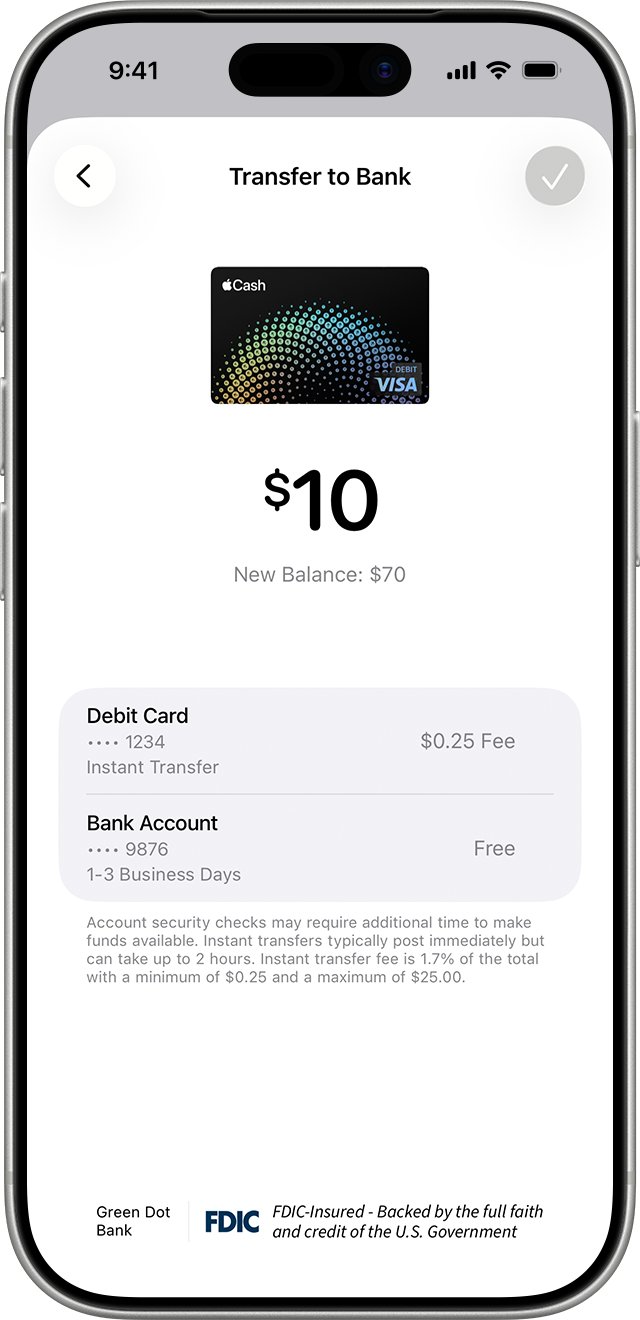
- Tap More, then tap Transfer to Bank.
- Enter the amount and tap Continue.
- Choose 1-3 Business Days for a free transfer, or Instant Transfer for a fee.
- Tap Done, then double-click the side button and confirm with Face ID, Touch ID or your passcode.
Apple Cash transfer to bank fee and time
| Bank transfer | Instant Transfer | |
|---|---|---|
| Goes to | U.S. bank account | Eligible U.S. debit card |
| Fee | None | 1.7% of the amount, $0.25 minimum, $25 maximum |
| Arrives | Most within 1-3 business days | Usually immediately, up to 30 minutes |
| Minimum | $1, unless your balance is under $1 | $1, unless your balance is under $1 |
| Maximum | $10,000 per transfer, $20,000 per 7 days | $10,000 per transfer, $20,000 per 7 days |
Confirm the new bank account is saved in Apple Cash
- Open Wallet, tap your Apple Cash card, tap More and tap Card Details.
- Scroll to Bank Account and check that the new account is listed.
- Send a small transfer, such as $1, with 1-3 Business Days and confirm it reaches the new bank.
Apple Cash not transferring to bank
Bank transfer has not arrived after 3 business days
The transfer is delayed or was returned by the bank.
- Check the transaction in your Apple Cash card in Wallet.
- Contact an Apple Cash Specialist at Green Dot Bank from your Apple Cash card.
Instant Transfer has not arrived after 2 hours
The card issuer has not posted the funds.
- Confirm the debit card is eligible for Instant Transfer.
- Contact an Apple Cash Specialist at Green Dot Bank.
Apple Cash issue with bank transfer: an error appears
Outdated software, wrong numbers, an ineligible account or a limit.
- Update iOS or iPadOS in Settings > General > Software Update.
- Check the routing and account numbers in Card Details > Bank Account.
- Make sure the transfer is within $10,000, and $20,000 for the last 7 days.
- Verify your identity if Wallet asks you to.
Apple Cash bank account FAQ
How do I change the bank for Apple Cash?
Open Wallet, tap your Apple Cash card, tap More, then Card Details. Tap Bank Account, select it, and edit the routing or account number, or delete the account and add a different bank on your next transfer.
How do I change the Apple Cash transfer card?
Start a transfer with More > Transfer to Bank, enter an amount, choose Instant Transfer, and tap Add Card if no eligible debit card is set up. Instant Transfer only works with eligible U.S. debit cards.
Can I transfer Apple Cash to my bank?
Yes. In Wallet, tap your Apple Cash card, tap More, then Transfer to Bank. Bank transfers to a U.S. bank account are free and most arrive within 1-3 business days.
Can you transfer Apple Cash to a bank instantly?
Yes, with Instant Transfer to an eligible U.S. debit card. Money usually arrives immediately, within 30 minutes at most, and the fee is 1.7% of the amount, at least $0.25 and at most $25.
Is there a fee to transfer Apple Cash to a bank account?
No. A standard 1-3 business day transfer to a bank account is free. Only Instant Transfer to a debit card has a fee of 1.7%, with a $0.25 minimum and $25 maximum.
How long does an Apple Cash transfer to bank take?
Most bank transfers complete within 1-3 business days. If more than 3 business days pass without the money arriving, contact an Apple Cash Specialist at Green Dot Bank.
Does changing the bank account on my iPhone change it on my iPad?
Yes. Bank account changes sync to other devices signed in with the same Apple Account, so you only need to make the change once.