When audio inputs and outputs are missing from Device Manager, select View > Show hidden devices, then Action > Scan for hardware changes, and enable the sound device under Sound, video and game controllers.
If that does not bring speakers and microphones back, this guide covers reinstalling, updating and rolling back the audio driver, the generic Windows driver, the "No speakers or headphones are plugged in" error and a stuck Windows Audio service on Windows 11 and Windows 10.
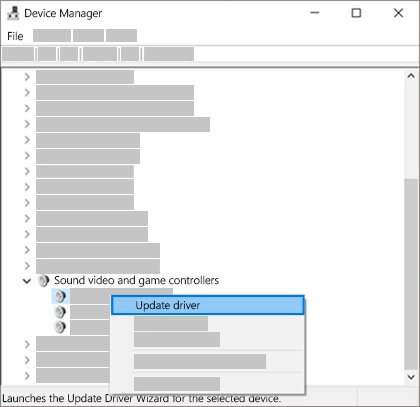
Audio inputs and outputs missing from Device Manager
Windows may not detect audio devices when the audio driver is missing, outdated, disabled or not loading. Start by revealing hidden devices and asking Windows to detect the hardware again.
- Select Start, type Device Manager, and select it from the results.
- Select View > Show hidden devices.
- Expand Sound, video and game controllers.
- If your audio device shows, right-click it and select Enable device if that option appears.
- If no audio device shows, select Action > Scan for hardware changes.
- Expand Audio inputs and outputs again and look for your speakers and microphone.
If you need extra rights for driver changes, open Device Manager as admin first.
Why is no audio output device installed in Device Manager?
| Cause | Typical sign | Fix in this guide |
|---|---|---|
| Audio device disabled | Device listed with a down arrow, no sound options in Settings | Enable device |
| Driver missing or not loading | "No audio output device is installed" | Reinstall or install the latest driver |
| Driver changed by a Windows update | Sound stopped right after an update | Roll back the driver or use a restore point |
| Corrupted driver | Sound settings greyed out | Uninstall with Attempt to remove the driver for this device |
| Audio services stopped | Devices listed but nothing plays | Restart the Windows Audio services |
Microsoft lists three signs of this fault: the "No audio output device is installed" message, greyed-out sound settings, and speakers or headphones missing under Output in Sound settings.
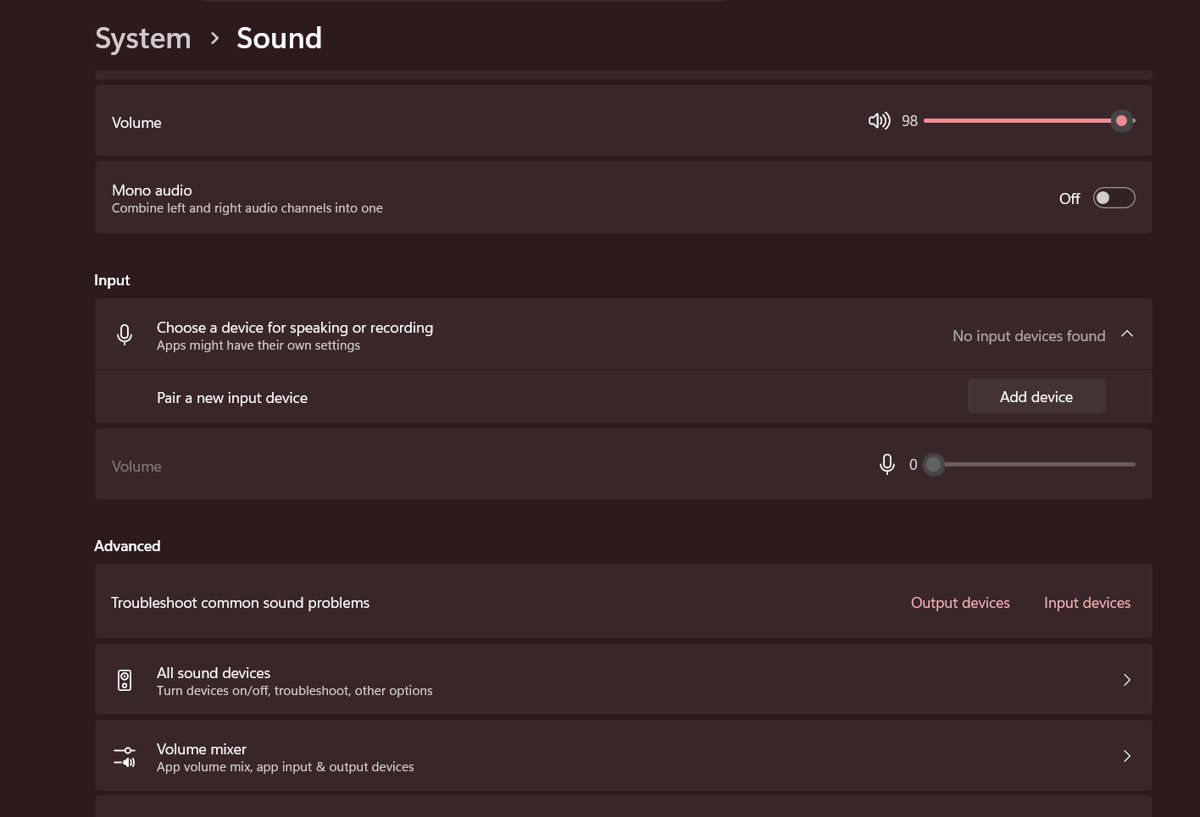
Reinstall the audio driver in Device Manager
Uninstalling the sound device forces Windows to detect it again and reinstall its driver at the next restart. Save your work first.
- Type device manager in the taskbar search box and select it.
- Expand Sound, video and game controllers.
- Right-click your sound card or audio device and select Uninstall device.
- Check Attempt to remove the driver for this device.
- Select Uninstall.
- Select Start > Power > Restart.
The restart prompts Windows to reinstall the audio driver automatically.
Audio inputs and outputs driver missing: install the latest driver
- In Device Manager, expand Sound, video and game controllers.
- Right-click the sound card and select Update driver.
- Select Search automatically for drivers and follow the prompts.
- If Windows finds nothing, open your PC or sound card maker's support website.
- Download the latest audio driver for your Windows version.
- Install it and restart the PC.
On Realtek-based PCs, you can also reinstall Realtek HD Audio Manager with the driver package from your PC maker.
Use the generic High Definition Audio Device driver
Windows ships its own audio driver. Switching to it often brings the device back when the maker's driver will not load. It also fixes systems with an IDT High Definition Audio CODEC.
- In Device Manager, expand Sound, video and game controllers.
- Right-click the sound card, or IDT High Definition Audio CODEC if it is listed, and select Update driver.
- Select Browse my computer for drivers.
- Select Let me pick from a list of available drivers on my computer.
- Select High Definition Audio Device, then Next.
- Follow the prompts and restart the PC.
Roll back the audio driver after a Windows update
- In Device Manager, expand Sound, video and game controllers.
- Right-click the sound card and select Properties.
- Open the Driver tab and select Roll Back Driver.
- Follow the instructions and select Yes.
- Restart the PC.
If Roll Back Driver is greyed out or does not help, restore the PC from a system restore point created before the update.
Windows 11 audio troubleshooter for missing audio devices
- Select Start > Settings > System.
- Select Troubleshoot > Other troubleshooters.
- Find Audio and select Run.
- Apply any fix the troubleshooter offers.
- Select Start > Power > Restart and reopen Device Manager.
On Windows 11, Microsoft also runs an automated audio troubleshooter through the Get Help app.
No speakers or headphones are plugged in on Windows 11
This error means Windows sees no usable output. The device may be disabled in Sound settings, plugged into the wrong jack, or missing its driver.
- Check the cables. Some PCs use a green jack for output and a pink jack for the microphone.
- Try a different USB port for USB speakers or headsets.
- Select Start > Settings > System > Sound, then More sound settings.
- On the Playback tab, select the device and select Properties.
- Next to Device usage, select Use this device (enable).
- If no device is listed at all, reinstall the audio driver as shown above.
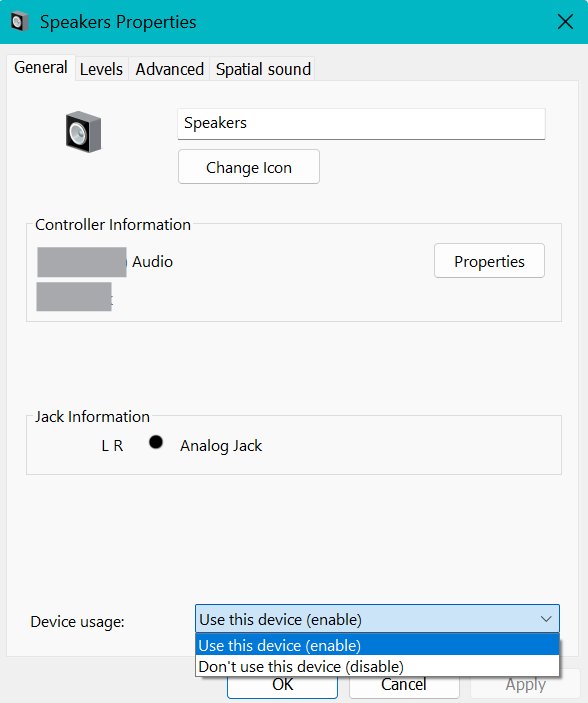
Windows Audio service stuck on Stopping
Speakers and microphones can vanish from Sound settings when the audio services hang. Restart all three services together.
- Type services in the taskbar search box and select it.
- Right-click Windows Audio and select Restart, then Yes.
- Do the same for Windows Audio Endpoint Builder.
- Do the same for Remote Procedure Call (RPC).
- If a service stays on Stopping, select Start > Power > Restart to restart Windows.
Confirm speakers and microphone are back in Windows 11 Sound settings
- Open Device Manager and expand Audio inputs and outputs. Your speakers and microphone should be listed without a warning icon.
- Select Start > Settings > System > Sound.
- Under Output, select your speakers or headphones. This also makes them the default.
- Play a video or song to test the sound.
- Speak into the microphone and watch the input level under Input.
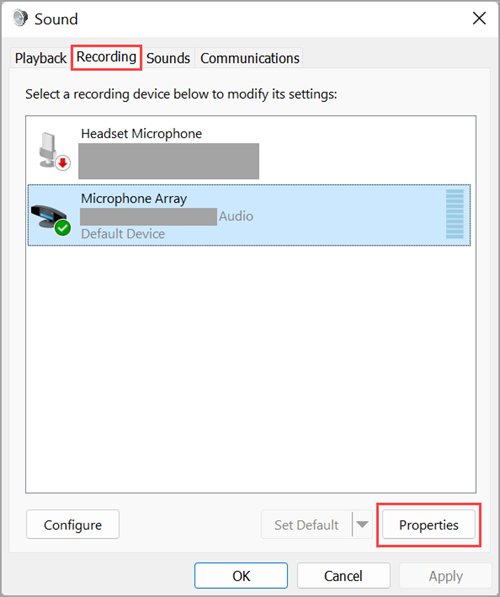
Audio input and output not working in Windows 11
Audio output not working but the device is listed
The wrong output is selected, the device is muted, or an enhancement breaks playback.
- Select the Speakers icon on the taskbar and pick the right device with the arrow next to the volume slider.
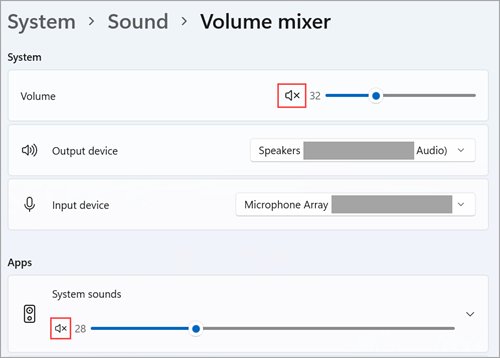
- Check that no volume control in the mixer shows an "x".
- Open Settings > System > Sound, select the device, and set Audio enhancements to Off.
- If you use an external monitor without speakers, make sure it is not the default output.
Audio input not working
Microphone access is turned off in Privacy & security.
- Select Start > Settings > Privacy & security.
- Under App permissions, select Microphone.
- Turn on Microphone access and Let apps access your microphone.
- Turn on the toggle for the app you use.
Audio output stopped working after an update
The update replaced or broke the audio driver.
- Select Start > Settings > Windows Update > Check for updates and install any pending updates.
- Restart to finish them.
- If sound is still gone, roll back the audio driver.
Sound works but sounds wrong or cuts out
The default format does not suit the device.
- Open Control Panel > Hardware and Sound > Sound.
- On the Playback tab, right-click the default device and select Properties.
- On the Advanced tab, change Default Format, select OK and test.
Audio inputs and outputs missing FAQ
Why is no audio output device installed in Device Manager?
Windows shows no audio output device when the audio driver is missing, outdated, disabled or not loading. It often follows a Windows update or driver change. Scan for hardware changes, then reinstall or update the audio driver.
How do I fix audio output and input in Windows 11?
Pick the right device from the Speakers icon, run the audio troubleshooter in Settings > System > Troubleshoot > Other troubleshooters, then update or reinstall the audio driver in Device Manager. For a microphone, check Privacy & security > Microphone.
Why did my audio output stop working?
Audio output usually stops after a driver change, a Windows update, a disabled device or a wrong default output. Check the selected output first, then roll back or reinstall the audio driver in Device Manager.
Why isn't my audio input working?
Most often Windows blocks microphone access. Open Settings > Privacy & security > Microphone and turn on Microphone access, Let apps access your microphone and the toggle for your app. Then check that the mic is enabled under Recording in More sound settings.
How do I remove audio inputs and outputs from Device Manager?
Right-click the device in Device Manager and select Uninstall device. If the hardware is still connected, Windows detects it again after a restart or a Scan for hardware changes, so unplug external devices first.
Why are there no ports in my Device Manager?
Device Manager hides some devices and categories. Select View > Show hidden devices, then Action > Scan for hardware changes.
Why do I have no audio output after plugging in a monitor?
If a monitor without built-in speakers is selected as the default output, you hear nothing. Open Settings > System > Sound and select your speakers or headphones under Output.