When Microsoft Exchange on your iPhone keeps asking for a password, re-enter the current password under Settings > Apps > Mail > Mail Accounts, and if the prompt returns, delete the account and add it back with Sign In so it uses modern authentication.
This guide covers both fixes, why the prompt loops, the Stolen Device Protection delay that blocks setup, the Outlook app alternative, and fixes for Exchange accounts that stop syncing.
How to stop Microsoft Exchange on iPhone asking for a password
Try the first three steps before you delete anything. Deleting the account removes the mail already downloaded to the iPhone, but an Exchange mailbox keeps its email on the server, so it comes back after you add the account again.
- Sign in to your email in a browser with the same address and password to make sure the password is correct.
- When the iPhone shows the password prompt, tap Edit Settings and enter the current password.
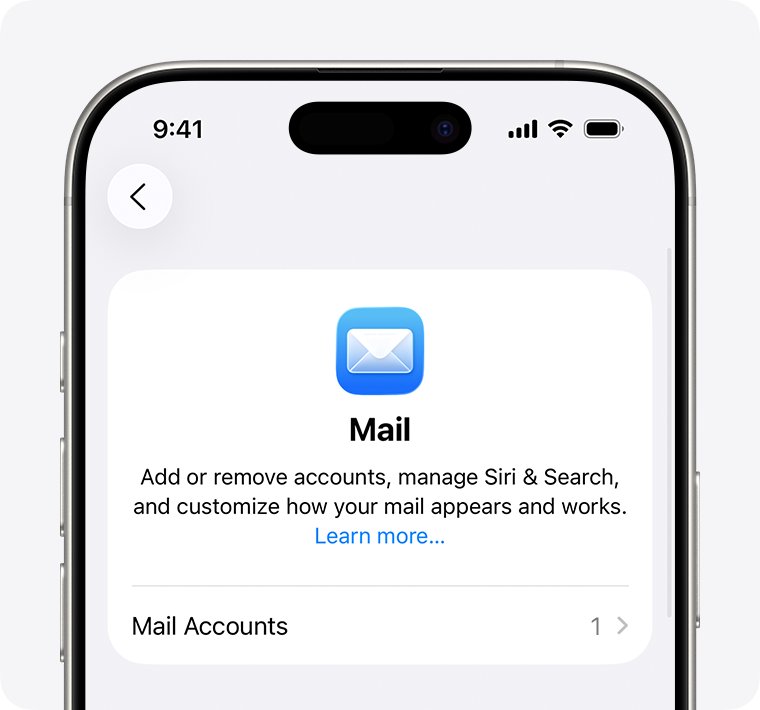
- If no prompt appears, go to Settings > Apps > Mail > Mail Accounts, tap the Exchange account and enter the password there.
- If the prompt keeps coming back, tap the Exchange account in Mail Accounts and tap Delete Account at the bottom of the page.
- Tap Add Account > Microsoft Exchange, enter your email address and tap Next.
- Tap Sign In, not Configure Manually, and finish the sign-in page your organization shows.
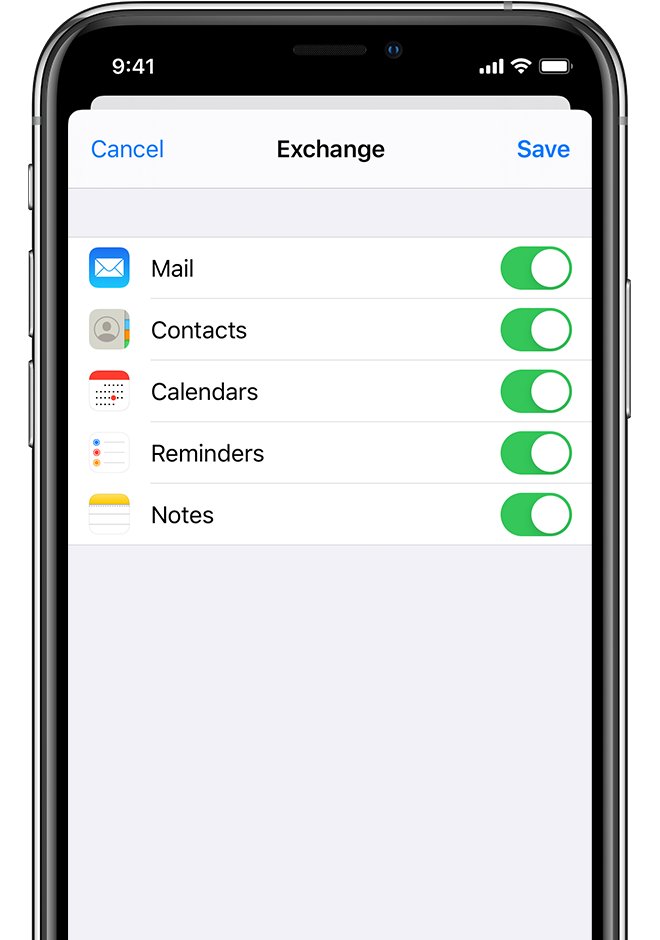
- Turn on the content you want to sync, such as Mail, Contacts and Calendars, then tap Save.
Microsoft says every up-to-date iPhone can use modern authentication with Exchange Online and that the fix for an account stuck on the old method is to remove it and add it back.
Why does my iPhone keep asking for my Exchange password?
The iPhone asks again whenever Exchange rejects the saved sign-in. Match what changed on your side to a row below.
| Cause | What happens | Fix |
|---|---|---|
| Password changed or expired | The iPhone still sends the old password, so every sync fails | Re-enter the new password in Mail Accounts |
| Account added with Configure Manually | Apple says this uses Basic authentication, which Exchange Online has turned off in every tenant | Delete the account and add it back with Sign In |
| Old app password | Microsoft says the Basic authentication change also stops app passwords working with apps that lack two-step verification | Remove the account and sign in again with your normal password and verification |
| Company device profile | A profile pushed by Basic Mobility and Security or Intune can still use the old method, and the iPhone asks for your password when the admin upgrades it | Enter your password when the profile updates, or ask your admin to update the policy |
| Microsoft 365 disconnected Apple Mail | Microsoft documents a known issue where Microsoft 365 accounts disconnect from Apple Mail | Re-enter your credentials, then delete and re-add the account if that fails |
If the prompt names your Apple Account rather than your work email, it is a different problem: fix the Apple Account password prompt instead.
How to set up Exchange on iPhone
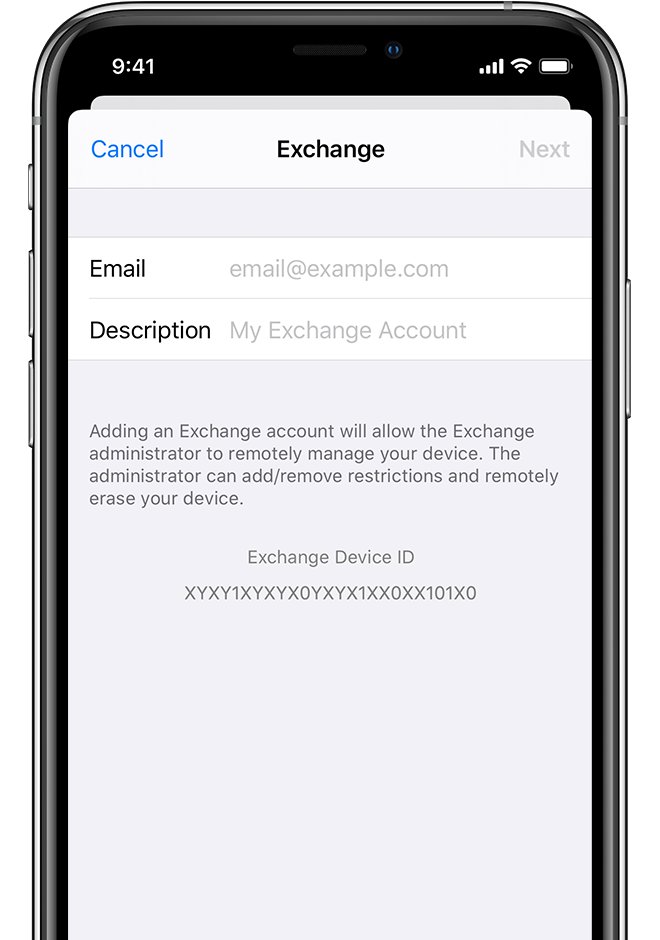
These steps add a Microsoft Exchange or Microsoft 365 work or school account to the built-in Mail app. The same account also feeds Contacts, Calendar, Reminders and Notes.
- Open Settings, tap Apps, then tap Mail.
- Tap Mail Accounts, then tap Add Account.
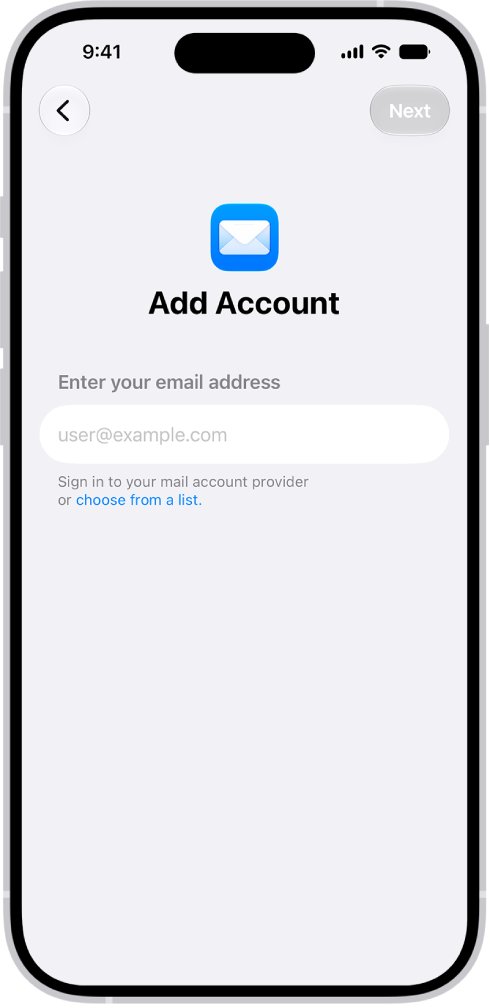
- Tap Microsoft Exchange, enter your email address and an optional description, then tap Next.
- Tap Sign In to let the iPhone discover your account settings automatically.
- Enter your password and tap Next or Sign in, then complete any verification your organization asks for.
- Tap Accept if Mail asks for permissions, and tap Allow if you are asked to allow access.
- Choose the apps to sync and tap Save.
Use Configure Manually only when your Exchange Server administrator gives you server details to enter. That route uses Basic authentication, and Exchange Online no longer accepts it.
Microsoft Exchange security delay on iPhone
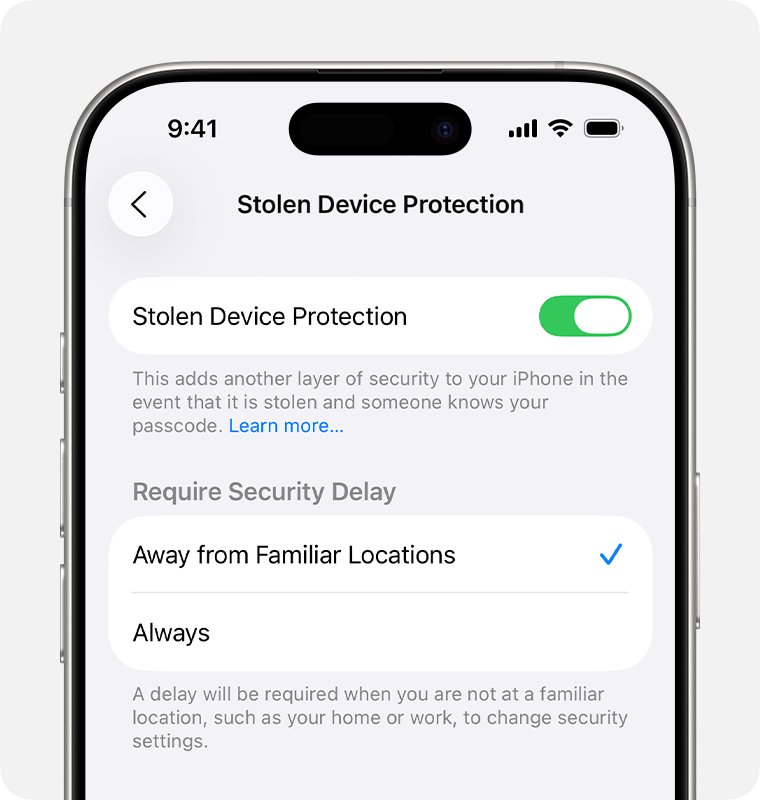
Apple says you must turn off Stolen Device Protection before you configure an Exchange account when the iPhone is not in a familiar location, such as home or work. Away from those places, turning it off starts a one-hour security delay.
If you are at home or at work, you can add the account without this step.
- Go to Settings > Face ID & Passcode (or Touch ID & Passcode).
- Enter your device passcode.
- Tap Stolen Device Protection and turn it off, then wait out the security delay if one starts.
- Add the Exchange account with Add Account > Microsoft Exchange > Sign In.
- Return to Stolen Device Protection and turn it back on once the account is set up.
Exchange settings on iPhone: sign in or configure manually
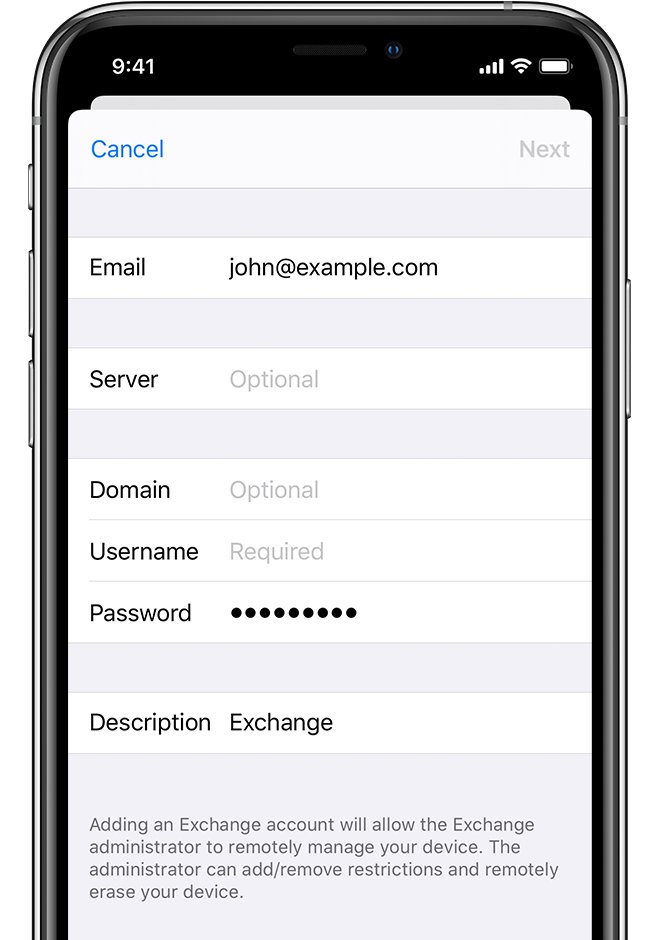
The choice you make after entering your email address decides how the iPhone authenticates, which is the most common reason the password prompt loops.
| Option | How it signs in | Use it when |
|---|---|---|
| Sign In | Discovers the server automatically and uses modern authentication if the account supports it | Microsoft 365, Exchange Online and most work or school accounts |
| Configure Manually | Uses Basic authentication with a server name, domain and username you type | Your Exchange Server administrator gives you server details for an on-premises server |
To review the settings already in use, tap the account in Mail Accounts, tap the account name, then tap Advanced Settings for options such as SSL and S/MIME.
Microsoft Exchange vs Outlook on iPhone
Microsoft recommends Outlook for iOS for Exchange Online because it supports modern authentication natively and works with company app protection. Switch to it if the Mail app keeps asking for a password after you re-add the account.
- Install Outlook from the App Store.
- If your company manages your phone, install Intune Company Portal and Microsoft Authenticator from the App Store and enroll in Company Portal first.
- Open Outlook and tap Add Account, or enter your work email address.
- Enter your password and tap Sign In, then approve the request in Authenticator or by text or call if asked.
- Tap Register if Outlook asks to register the device with your organization.
- Set up a PIN if your organization's data protection message asks for one.
Outlook may ask for approval through Microsoft Authenticator for iPhone, so install it before you sign in to a work account.
How to restore Exchange on iPhone after deleting it
Deleting an Exchange account removes its mail, contacts and calendars from the iPhone only. Apple notes that an iCloud or iTunes backup saves mail settings but not the email itself, so restoring a backup is not the way back.
- Sign in to your email in a browser and confirm your mail, contacts and calendar are still there.
- On the iPhone, go to Settings > Apps > Mail > Mail Accounts > Add Account.
- Tap Microsoft Exchange, enter your email address and tap Next.
- Tap Sign In and enter your password.
- Turn on Mail, Contacts, Calendars, Reminders and Notes as needed, then tap Save.
- Open Mail and wait for the mailbox to download.
How to check Exchange account settings on iPhone
Once the prompt stops, check that the account is set to sync what you need and fetches mail on a schedule you expect.
- Go to Settings > Apps > Mail > Mail Accounts and tap the Exchange account.
- Make sure the apps you use, such as Mail and Calendars, are turned on.
- Tap Mail Days to Sync and choose how much mail to keep on the phone.
- Go back to Mail Accounts, tap Fetch New Data and check the Exchange account is set to Push or a fetch schedule.
- Open Mail, pull down on the Exchange inbox and check that new messages arrive without a password prompt.
Microsoft Exchange not working on iPhone
Work through the symptom that matches what you see. For work or school accounts, your Microsoft 365 or Exchange administrator can see sign-in blocks that the iPhone does not explain.
iPhone keeps asking for Exchange password after a password change
The account still holds the old password, or it was set up with Basic authentication.
- Sign in to your email in a browser with the new password to prove it works.
- Tap Edit Settings on the prompt, or open the account in Mail Accounts, and enter the new password.
- If the prompt returns, delete the account and add it back with Sign In.
iPhone not connecting to Exchange server
The device is offline, the service has an outage, or the server details are wrong.
- Check that the iPhone is connected to Wi-Fi or mobile data.
- Check with your email provider or administrator for a service outage.
- Ask your administrator for the correct server details if you use Configure Manually with an on-premises server.
- Delete and re-add the account with Sign In if you use Microsoft 365.
Exchange account not syncing on iPhone
Fetch settings or a large mailbox slow the sync, or the server times out the session.
- Go to Settings > Apps > Mail > Mail Accounts > Fetch New Data and choose Automatically or a schedule.
- Tap the Exchange account, tap Mail Days to Sync and choose a shorter period, such as 1 Month.
- Lower the calendar sync timeframe for the account if calendars reload or lag.
- Ask your administrator about HTTP 500 or Status error 110 timeouts, which Apple says are fixed on the server and firewall side.
Exchange email not working on iPhone but works on the computer
The problem is in the iPhone's copy of the account, not the mailbox.
- Restart the iPhone and open Mail again.
- Delete the Exchange account from Mail Accounts and add it back with Sign In.
- Set up the account in Outlook for iOS if the Mail app still fails.
iPhone account error with Exchange on a company phone
Your organization's device policy, app protection or email profile controls how the account signs in.
- Enter your password if the iPhone asks while your company updates its email profile.
- Open Intune Company Portal and complete any enrollment or compliance step it shows.
- Contact your administrator if the account is blocked, because only the admin can change the policy.
Microsoft Exchange on iPhone FAQ
What is Microsoft Exchange on iPhone?
Microsoft Exchange on iPhone is the account type that syncs a work, school or Microsoft 365 mailbox with the built-in apps. Through Exchange ActiveSync it keeps Mail, Contacts, Calendars, Reminders and Notes in step with the server.
How do I add Microsoft Exchange to my iPhone?
Go to Settings > Apps > Mail > Mail Accounts > Add Account and tap Microsoft Exchange. Enter your email address, tap Next, tap Sign In, enter your password and choose what to sync. Tap Save to finish.
How do I get Microsoft Exchange on iPhone?
Microsoft Exchange is built into iOS, so there is nothing to install for the Mail app. Add the account in Settings under Mail Accounts. If you prefer a separate app, install Outlook from the App Store and add the same account there.
How do I log in to Exchange on iPhone?
Tap Sign In after you enter your email address in the Microsoft Exchange setup screen. The iPhone finds your server automatically and opens your organization's sign-in page if the account uses modern authentication. Enter your password and complete any verification.
How do I set up Exchange on iPhone manually?
Tap Configure Manually instead of Sign In, enter your password and fill in the server details your Exchange Server administrator gives you. Manual setup uses Basic authentication, so it does not work with Exchange Online and suits only on-premises servers that still accept it.
How do I restore Exchange on my iPhone?
Add the account again under Settings > Apps > Mail > Mail Accounts > Add Account > Microsoft Exchange. An Exchange mailbox keeps its email on the server, so mail, contacts and calendars download again once you sign in and turn on syncing.
Why is my Microsoft Exchange not working?
The most common reasons are a changed password, an account set up with Basic authentication, a company policy change or a service outage. Re-enter your password first, then delete and re-add the account with Sign In, and contact your administrator if it stays blocked.
Is Microsoft Exchange the same as Outlook on iPhone?
No. Microsoft Exchange is the mail server and account type, while Outlook for iOS is Microsoft's own email app. You can connect an Exchange mailbox to the iPhone Mail app or to Outlook, and Microsoft recommends Outlook for Exchange Online.
What is the Microsoft Exchange security delay on iPhone?
It is the Stolen Device Protection wait you hit when you turn the feature off away from a familiar location such as home or work. Apple says to turn Stolen Device Protection off before configuring Exchange there, then turn it back on after setup.